How to copy an Excel file into Google sheets

Migrating data from Excel to Google Sheets is a straightforward process that saves time and eliminates manual data entry. Whether you're consolidating files or transitioning to cloud-based collaboration, Google Sheets' import feature makes it easy to transfer your Excel data in just a few clicks.
Quick summary
In this tutorial, you'll learn how to import an Excel file directly into Google Sheets using the built-in import functionality. By following these step-by-step instructions, you'll be able to upload your Excel data and have it automatically formatted in your Google Sheets document.
Why this matters
Copying Excel files into Google Sheets enables real-time collaboration, automatic cloud backup, and access from any device. This workflow is essential for teams that need to share data seamlessly and work together on spreadsheets without version control issues.
Step-by-step guide
- 1
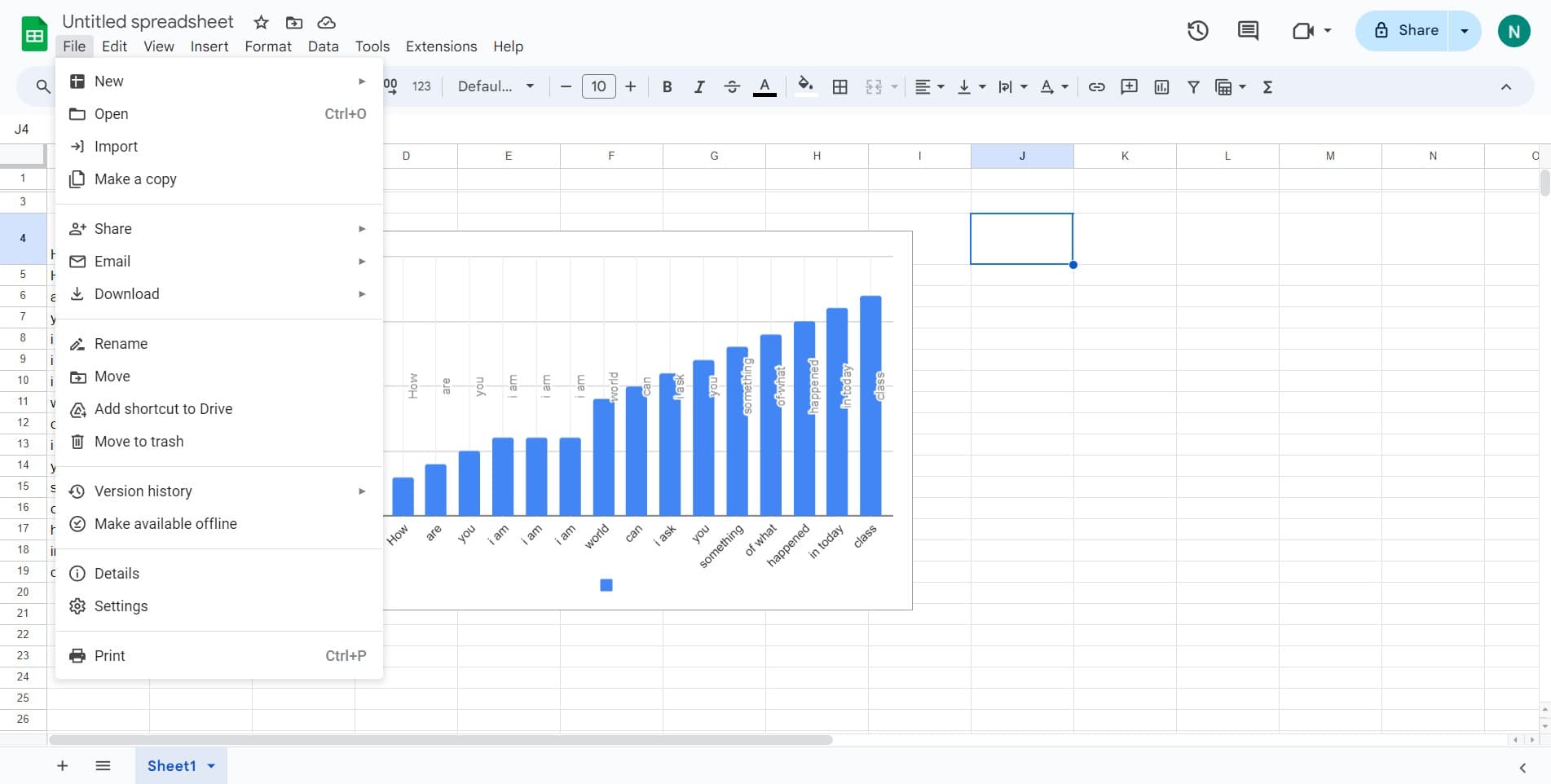
Open the File menu
Start by clicking on the 'File' menu at the top left of your Google Sheets window. This opens a dropdown menu with various options for managing your spreadsheet.
- 2
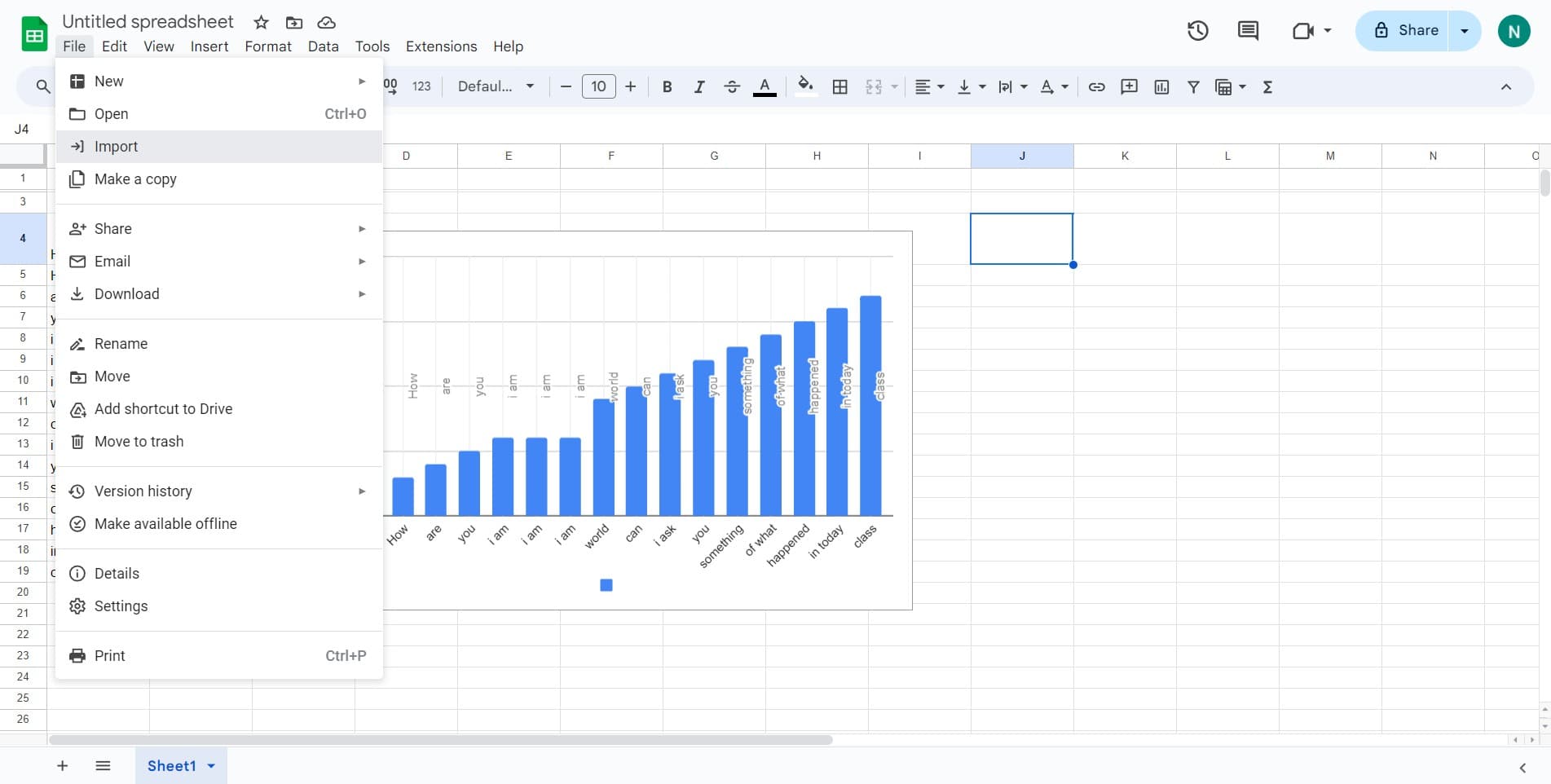
Select Import option
From the dropdown menu, click on 'Import' to access the import dialog. This option allows you to bring external files into your current Google Sheet.
- 3
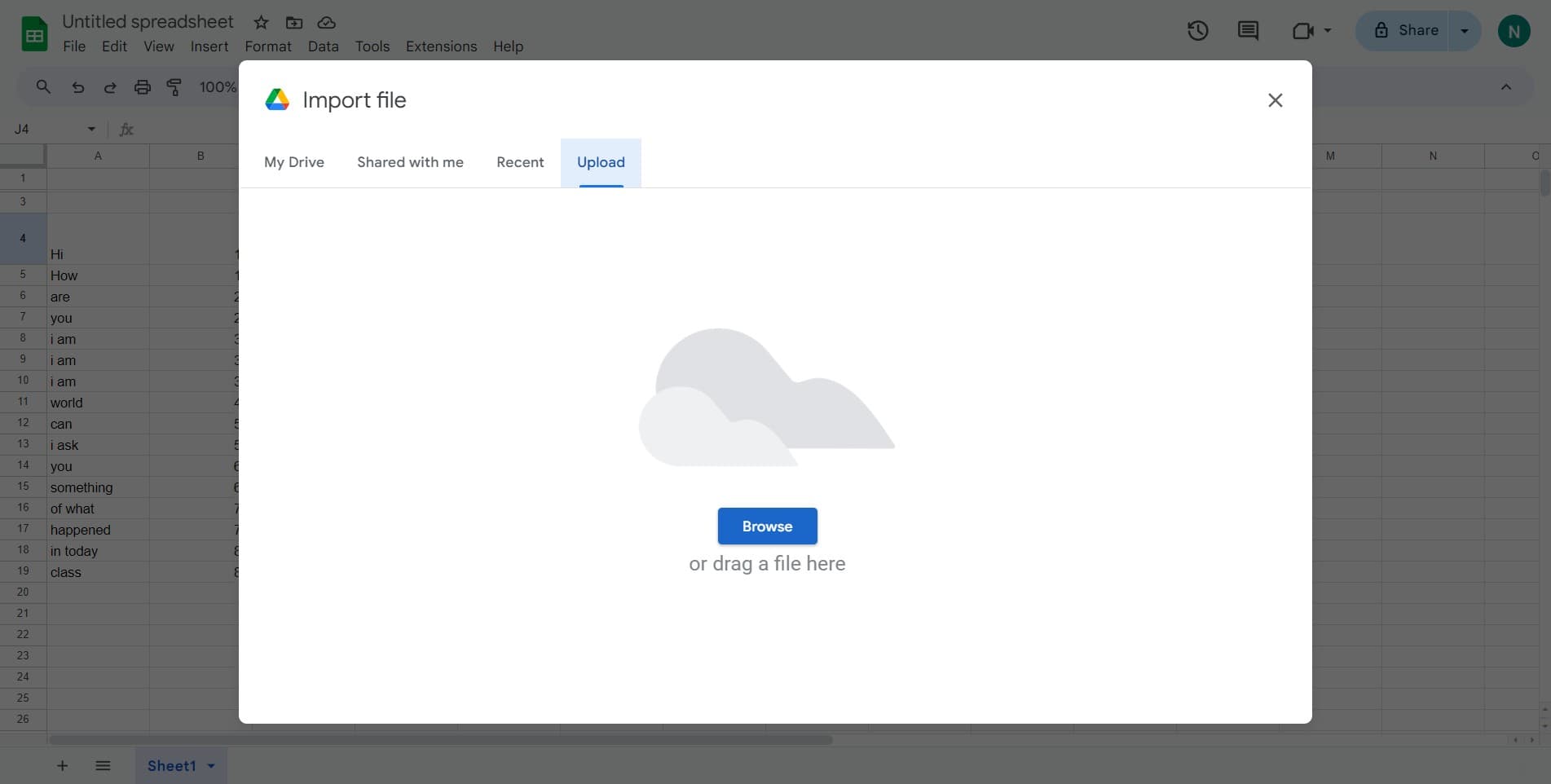
Upload your Excel file
Click on the upload area to select your Excel file from your computer. Navigate to the location where your Excel file is stored and select it to proceed.
- 4
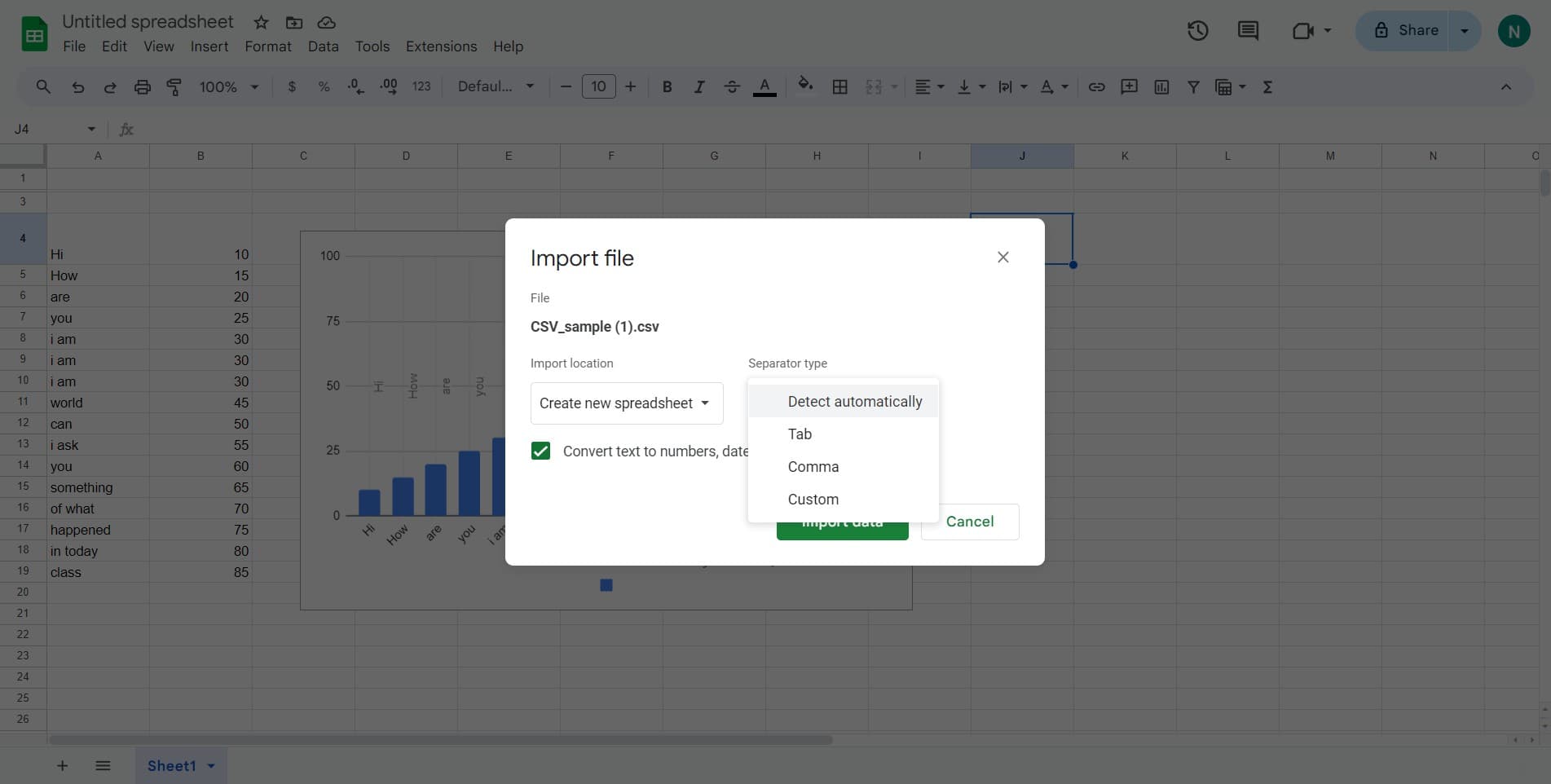
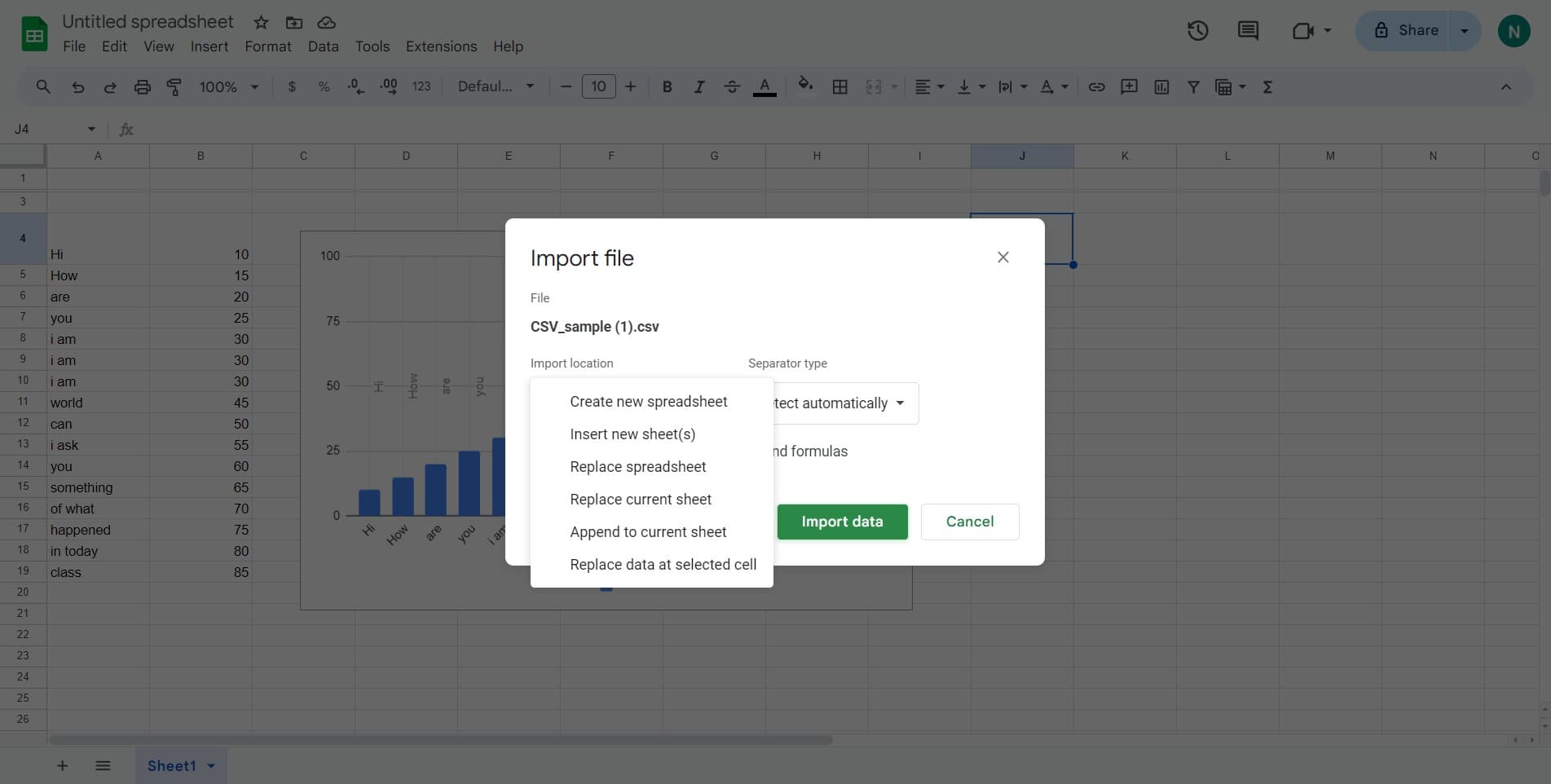
Enable automatic detection
Click on 'Detect automatically' to let Google Sheets analyze your Excel file's formatting and structure. This ensures that headers, data types, and formatting are recognized correctly during import.
- 5
Complete the import
Click on 'Import data' to finalize the import process and transfer your Excel data into Google Sheets. Your file will be processed and the data will appear in your spreadsheet.
- 6
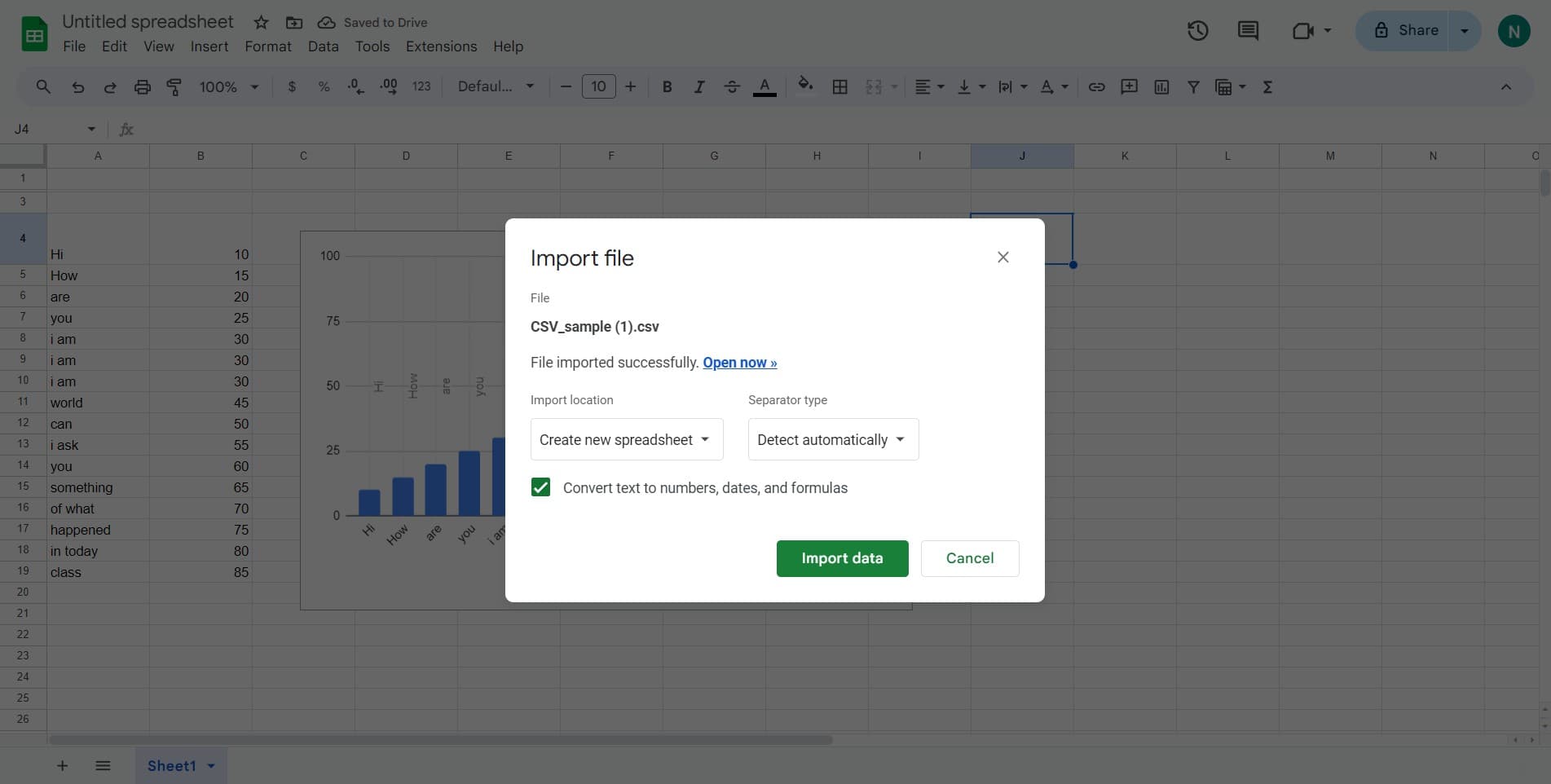
Access your imported sheet
Click on 'Open now »' to immediately view your newly imported spreadsheet. Your Excel data is now available in Google Sheets and ready for editing and collaboration.
Frequently asked questions
Common questions about how to copy an excel file into google sheets.
Google Sheets attempts to preserve basic formatting like bold text, colors, and merged cells. However, some advanced Excel features such as macros, complex formulas, or specific conditional formatting may need adjustment after import. Using the 'Detect automatically' option helps maintain as much formatting as possible.
Google Sheets imports all sheets from your Excel file simultaneously during the import process. Each sheet from your Excel file will appear as a separate tab in your new Google Sheet, maintaining the same structure and organization.
Google Sheets supports .xlsx, .xls, .csv, .tsv, .ods, and other common spreadsheet formats. Excel files in the standard .xlsx format import most reliably with minimal formatting issues.
No, importing your Excel file into Google Sheets creates a copy and does not modify or delete the original file on your computer. Your Excel file remains unchanged, and you now have a separate version in Google Sheets.
The import process usually completes within seconds to a minute, depending on the file size and complexity. Larger files with thousands of rows may take slightly longer, but Google Sheets will notify you once the import is complete.