How to do a sum in Google Sheets

Google Sheets makes it easy to perform calculations on your data without manual math. Learning how to create a SUM formula is one of the most fundamental skills you can master in the platform, enabling you to quickly total rows or columns of numbers.
Quick summary
In this tutorial, you'll learn how to write and execute a SUM formula in Google Sheets to calculate the total of a range of cells. You'll discover how to structure the formula correctly and confirm your calculation is working as expected.
Why this matters
SUM formulas are essential for any spreadsheet work, whether you're tracking expenses, analyzing sales data, or managing budgets. Mastering this basic function saves time and reduces errors compared to manual addition, making it a critical skill for data analysis and financial tracking.
Step-by-step guide
- 1
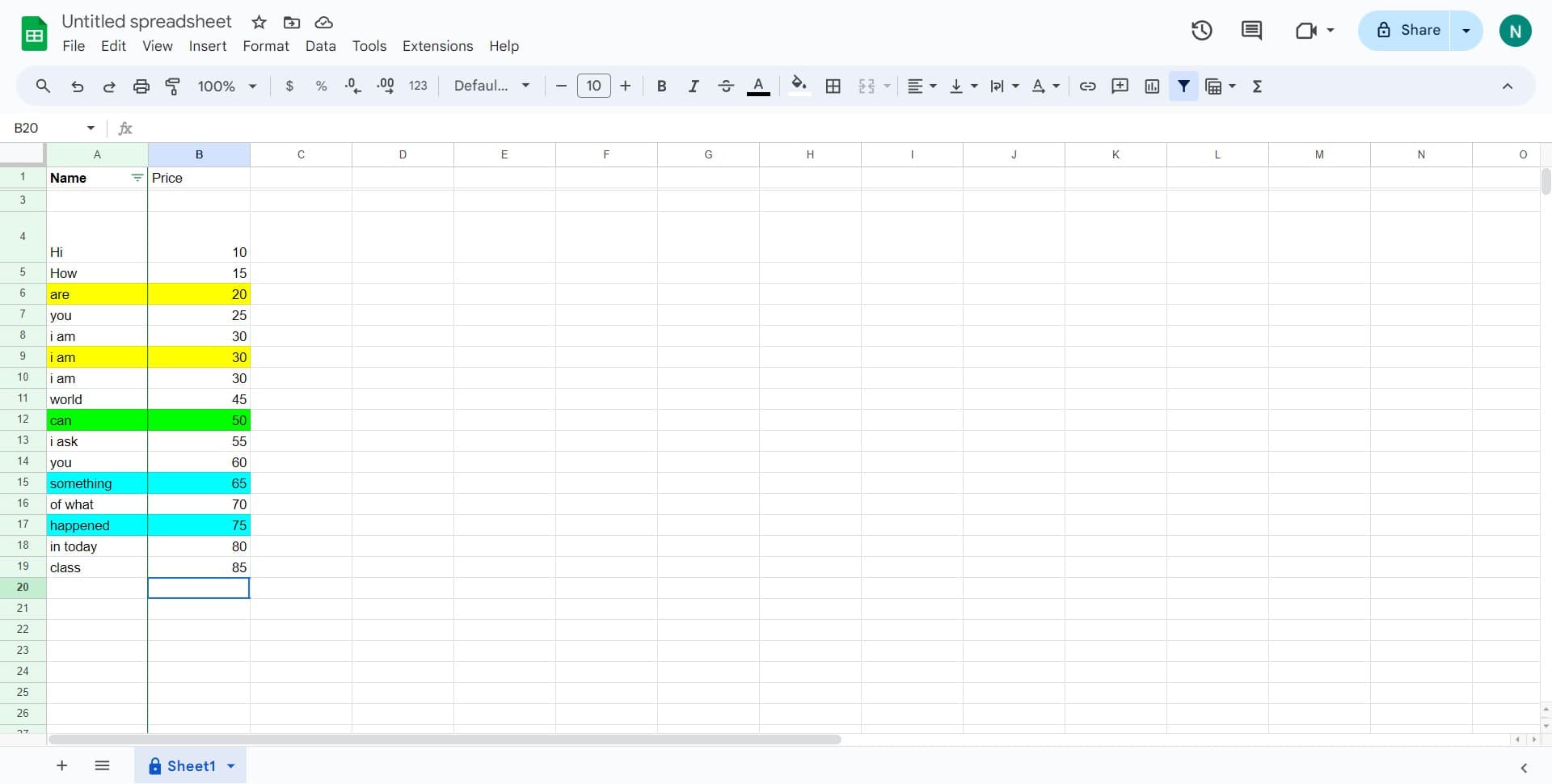
Click on the target cell
Select the cell where you want the sum result to appear. This is typically a cell below or to the right of the data you want to total.
- 2
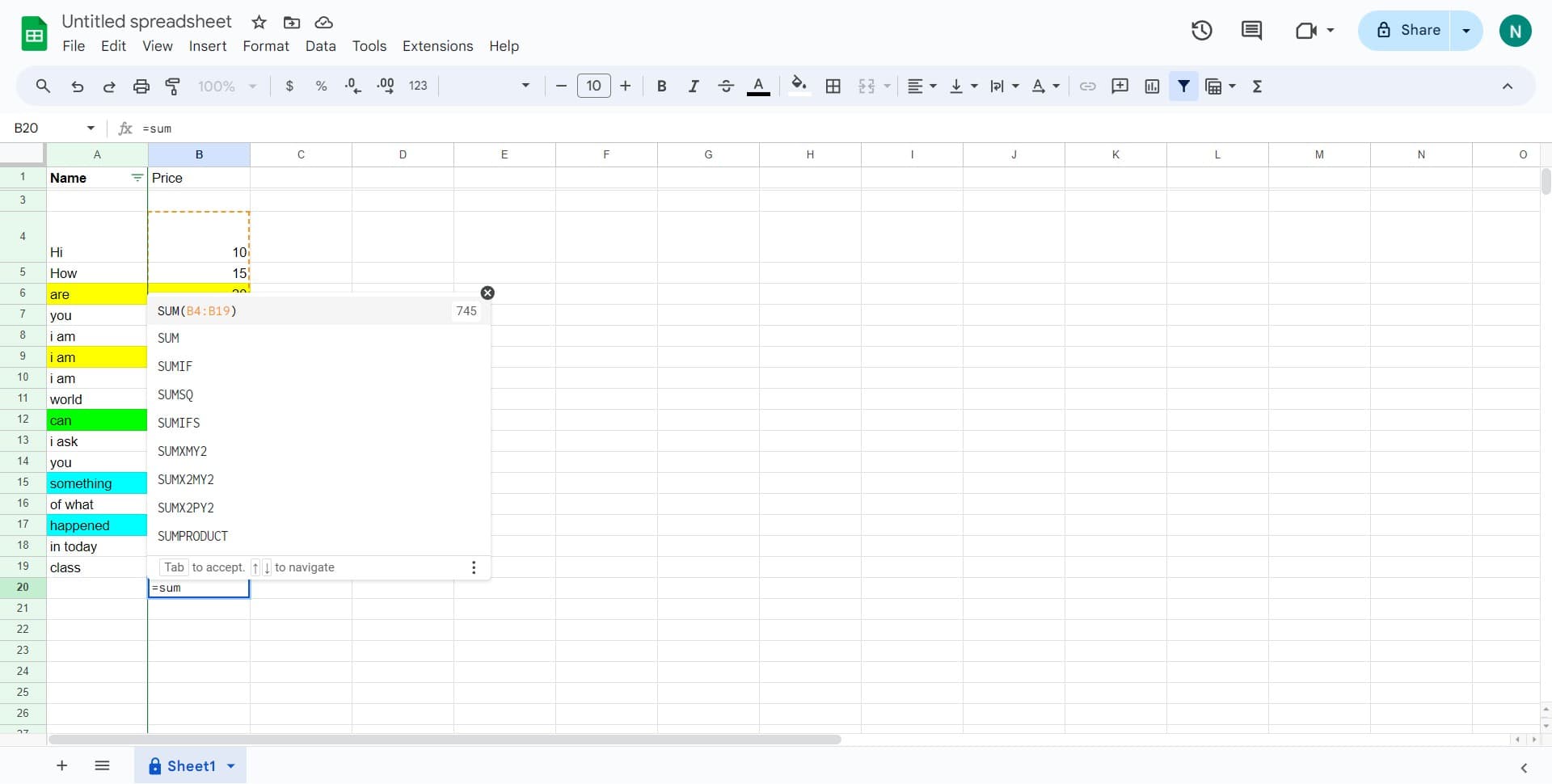
Close the formula with parenthesis
Type the closing parenthesis to complete your SUM formula syntax. This ensures Google Sheets recognizes the formula as complete and ready to calculate.
- 3
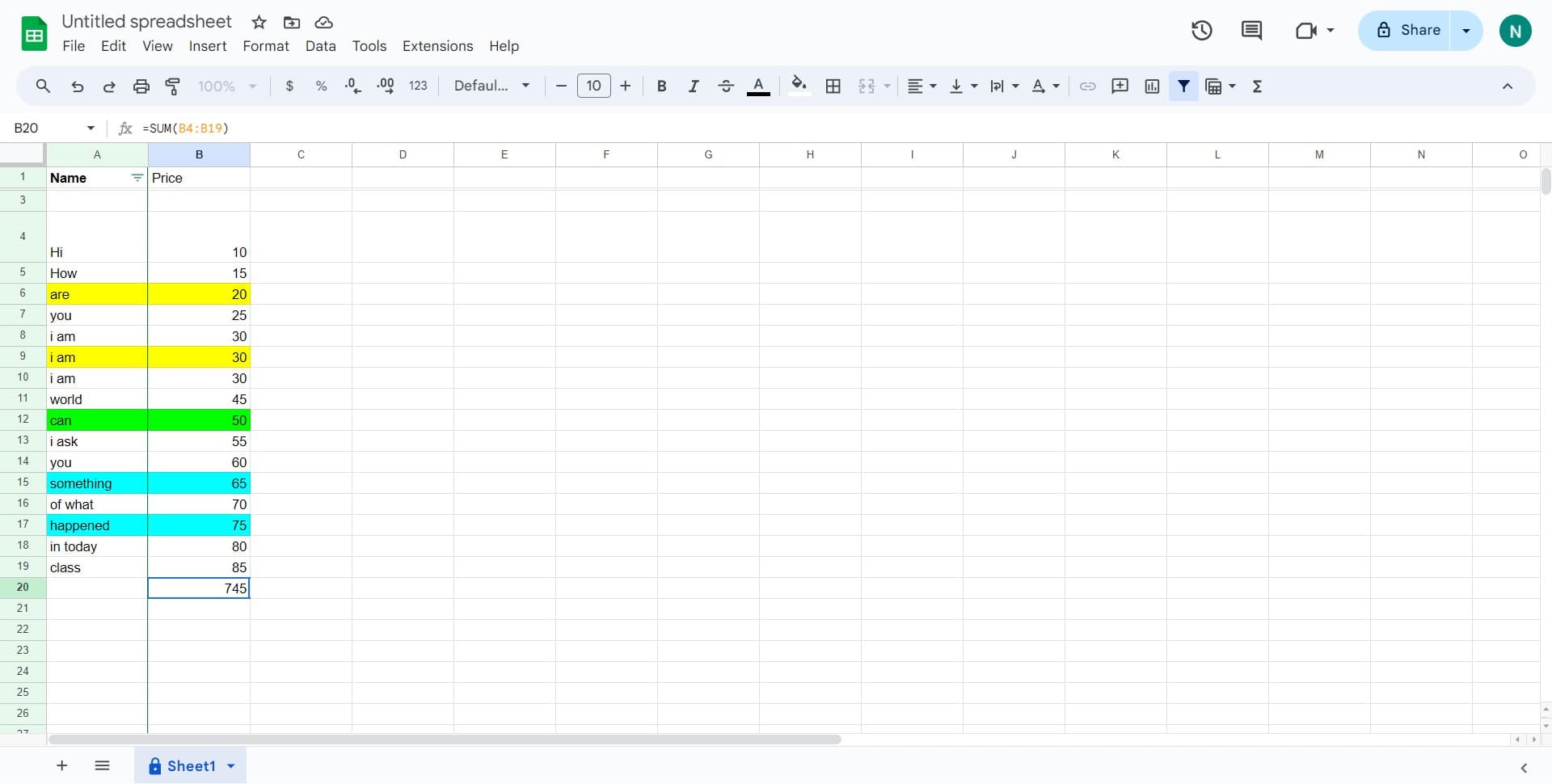
Upload or confirm your spreadsheet
Save your work by uploading or confirming the spreadsheet changes. Your SUM formula will now calculate and display the total of your selected range.
Frequently asked questions
Common questions about how to do a sum in google sheets.
The basic syntax is =SUM(range), where 'range' is the cells you want to add together. For example, =SUM(A1:A10) will add all values from cells A1 through A10. You can also sum non-consecutive cells by separating them with commas, like =SUM(A1:A5,C1:C5).
SUM will ignore any cells containing text and only add the numeric values. If a range contains both numbers and text, the formula will skip the text cells and calculate the sum of numbers only, which is helpful when your data is mixed.
You can sum an entire column by using the syntax =SUM(A:A) where A is the column letter. This will add all numeric values in that column. Be careful when using this method if your column header is a number, as it will be included in the calculation.
Common errors include #REF! if you reference deleted cells, #VALUE! if the range contains incompatible data types, or #NAME? if the formula syntax is incorrect. Double-check that your cell references are valid and that you've included the opening and closing parentheses.
Yes, SUM will work with cells that contain formulas or calculated values. Google Sheets will evaluate the formulas first and then add the results together, making it useful for summing the output of other calculations in your spreadsheet.