How to do sum function in Google Sheets

The SUM function is one of the most essential formulas in Google Sheets, allowing you to quickly add up numbers across cells, rows, or columns. Whether you're calculating totals for budgets, sales data, or any numerical dataset, mastering the SUM function will streamline your spreadsheet work.
Quick summary
In this tutorial, you'll learn how to use the SUM function in Google Sheets to add multiple values together. You'll discover how to select ranges, enter the formula correctly, and apply it to your data for instant calculations.
Why this matters
The SUM function saves time and reduces manual calculation errors when working with large datasets. By automating addition tasks, you can focus on analyzing your data rather than spending time on repetitive arithmetic.
Step-by-step guide
- 1
Open your Google Sheets document
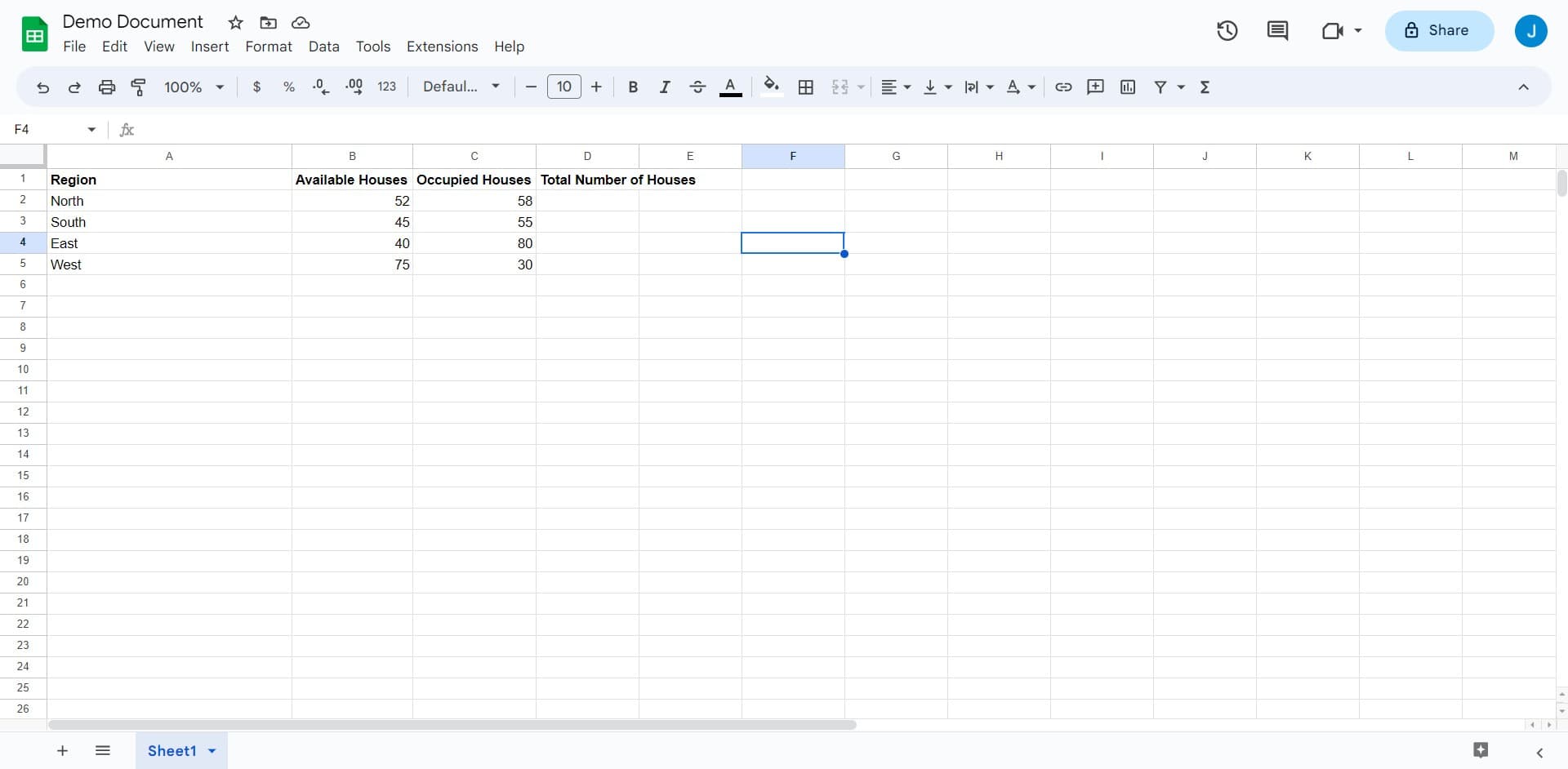
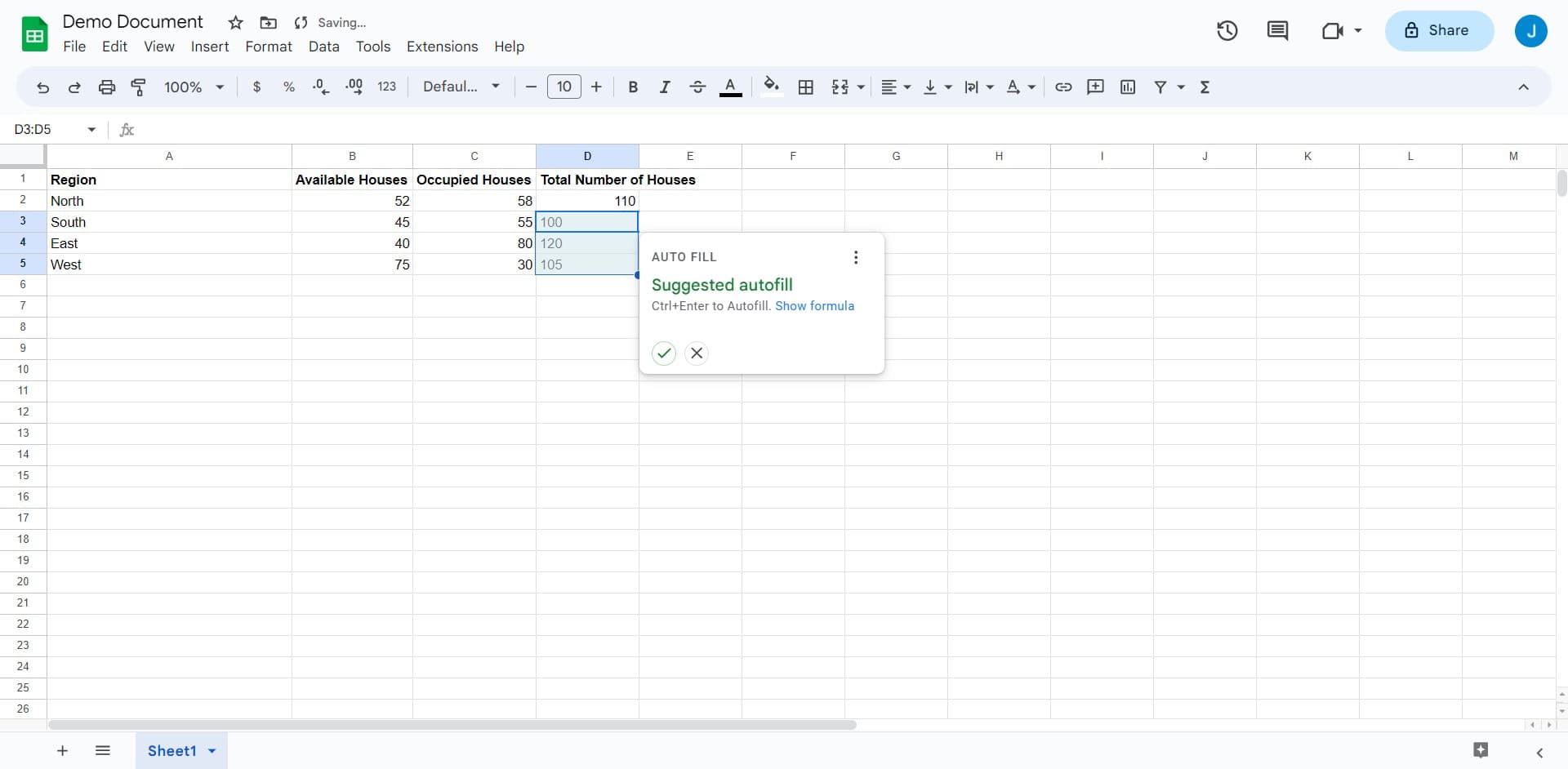
Navigate to Google Sheets and open the Demo Document containing your data. This is where you'll practice using the SUM function with sample or real data.
- 2
Select the target cell for your formula
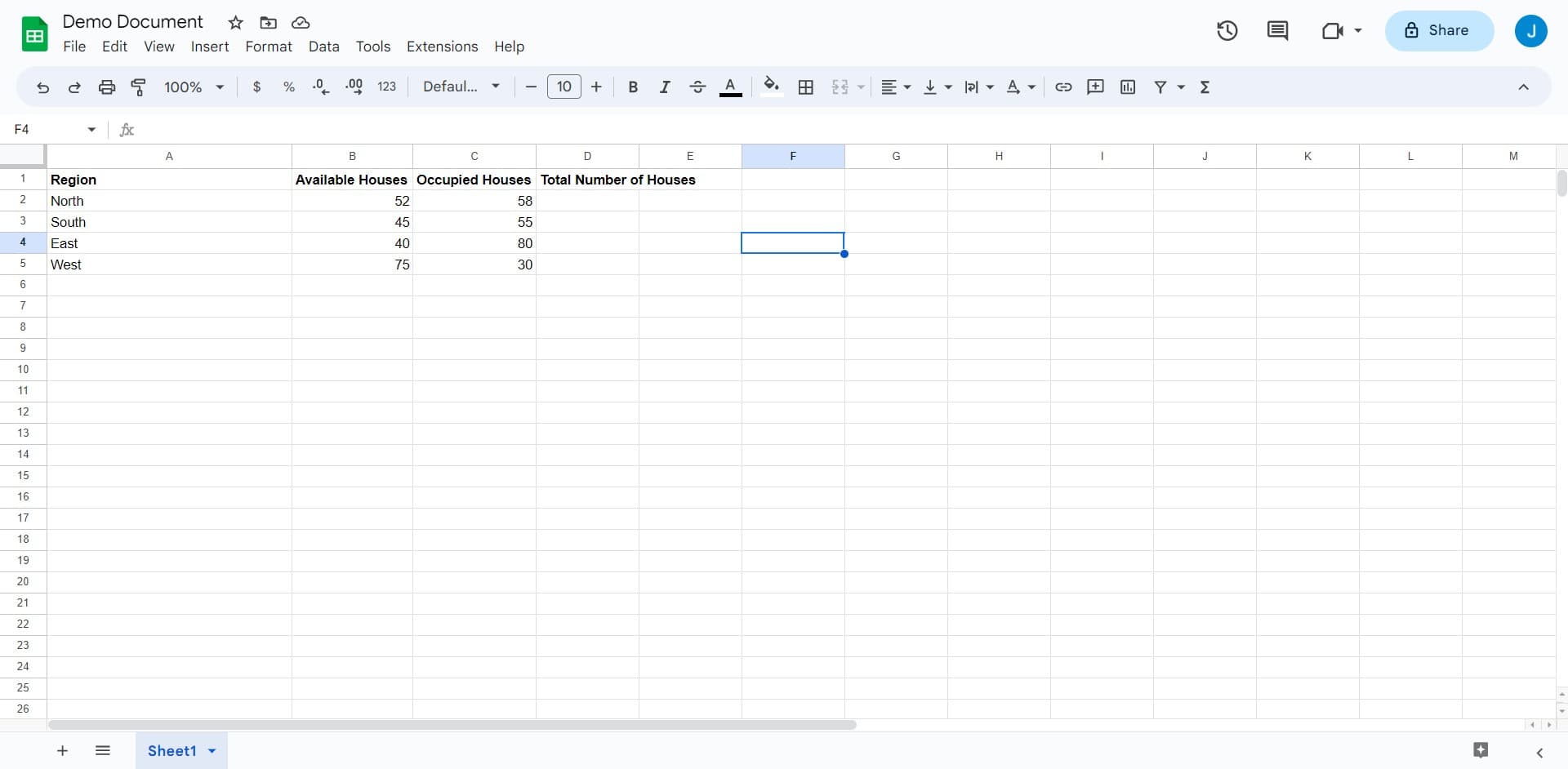
Click on the empty cell where you want your sum to appear. This cell will display the total result of your SUM formula.
- 3
Upload your data if needed
If you're working with external data, use the Upload option to import your spreadsheet into Google Sheets. This ensures all your numbers are available in the document for calculation.
- 4
Enter the SUM formula
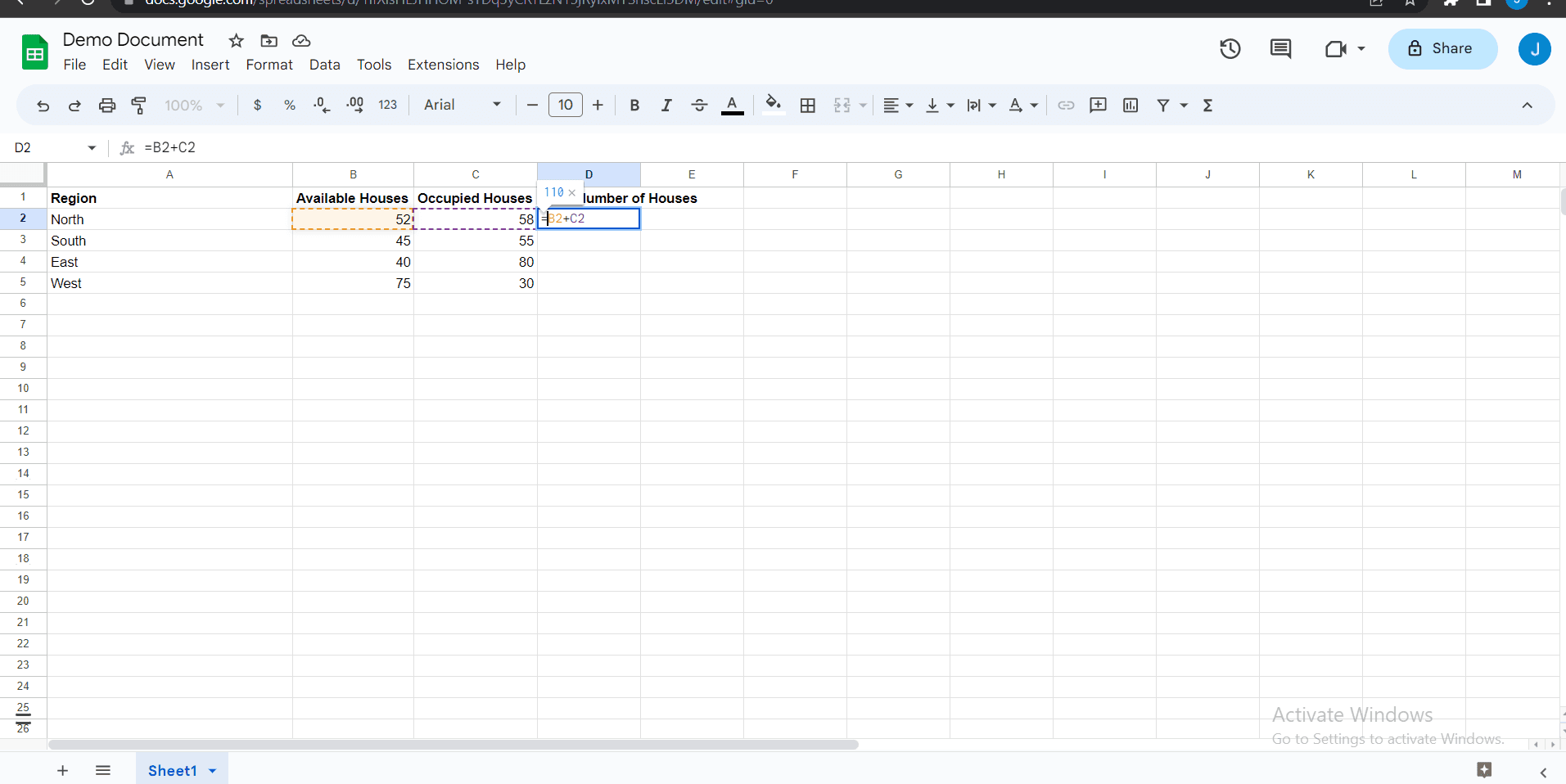
Type the SUM formula into your selected cell, specifying the range of cells you want to add. For example, type =SUM(A1:A10) to add values from cells A1 through A10.
- 5
Press Enter to execute the formula
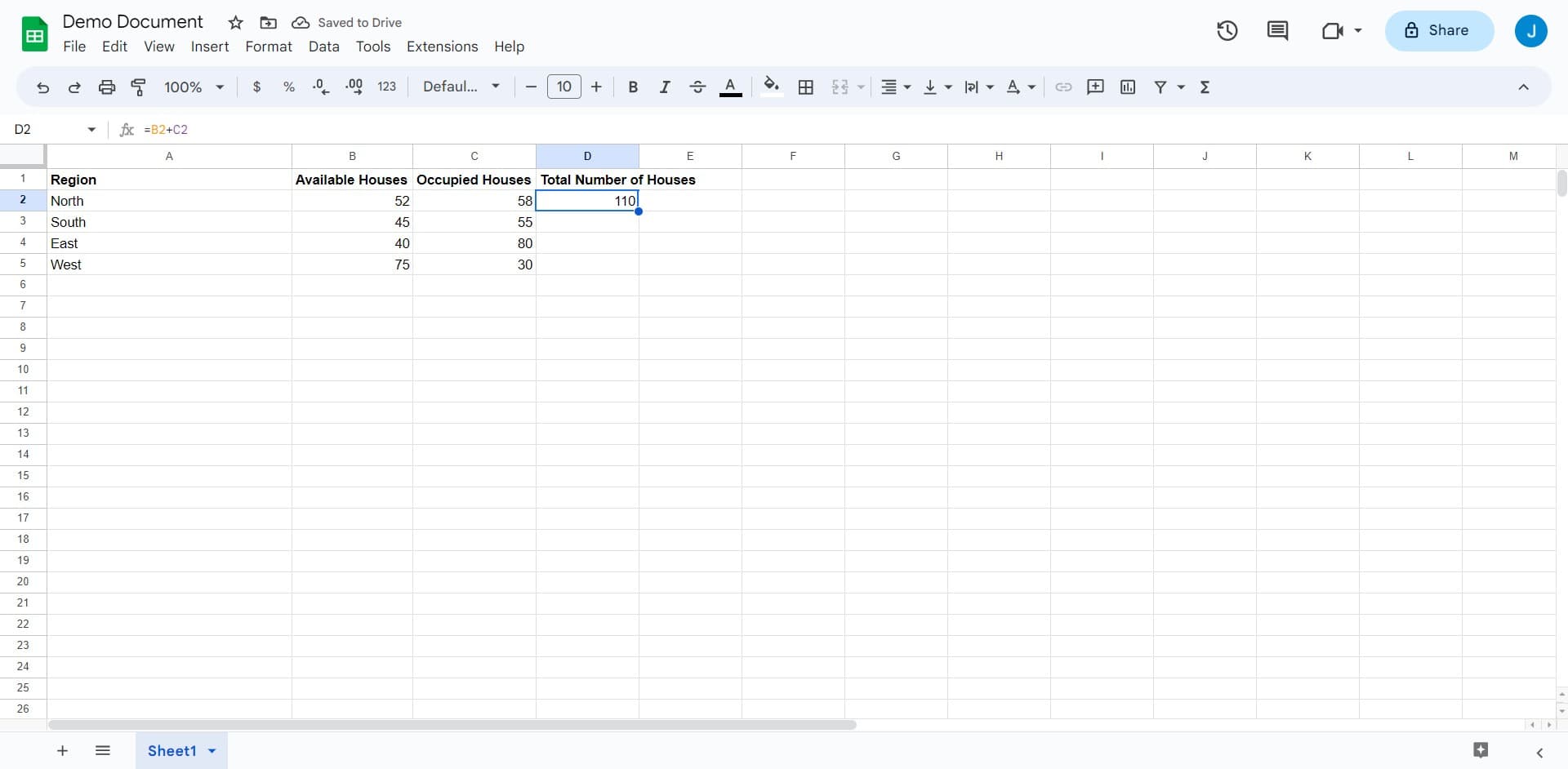
Once you've entered your SUM formula, press Enter to execute it. Google Sheets will instantly calculate the total and display the result in your selected cell.
Frequently asked questions
Common questions about how to do sum function in google sheets.
The basic syntax is =SUM(range), where range is the cells you want to add together. For example, =SUM(A1:A10) adds all values from A1 to A10. You can also sum non-consecutive cells using commas, like =SUM(A1:A5, C1:C5).
Yes, you can sum multiple ranges by separating them with commas. For example, =SUM(A1:A5, C1:C5, E1:E5) will add all values from three different ranges. This is useful when your data isn't in a single continuous block.
The SUM function automatically ignores text values and only adds numbers. If a cell contains text, it won't be included in the calculation, so you can safely include mixed content ranges without causing errors.
To sum an entire column, use =SUM(A:A) to add all values in column A. You can replace the letter with any column you want. Be cautious with this approach if your column contains headers, as it may include non-numeric data.
Yes, the SUM function correctly handles negative numbers in calculations. Both positive and negative values will be included in the total, allowing you to work with any real-world numerical data.