How to give someone edit access to your Google Sheet

Collaborating on Google Sheets often requires sharing edit access with team members, clients, or collaborators. This tutorial walks you through the process of granting editor permissions to someone on your spreadsheet.
Quick summary
In this tutorial, you'll learn how to share a Google Sheet with edit access by opening the Share dialog, selecting the Editor role, and sending an invitation to your collaborator.
Why this matters
Granting edit access enables seamless collaboration, allowing multiple people to work on the same spreadsheet simultaneously without creating duplicate versions. This workflow is essential for team projects, financial planning, data analysis, and any scenario where real-time updates matter.
Step-by-step guide
- 1
Click the Share button
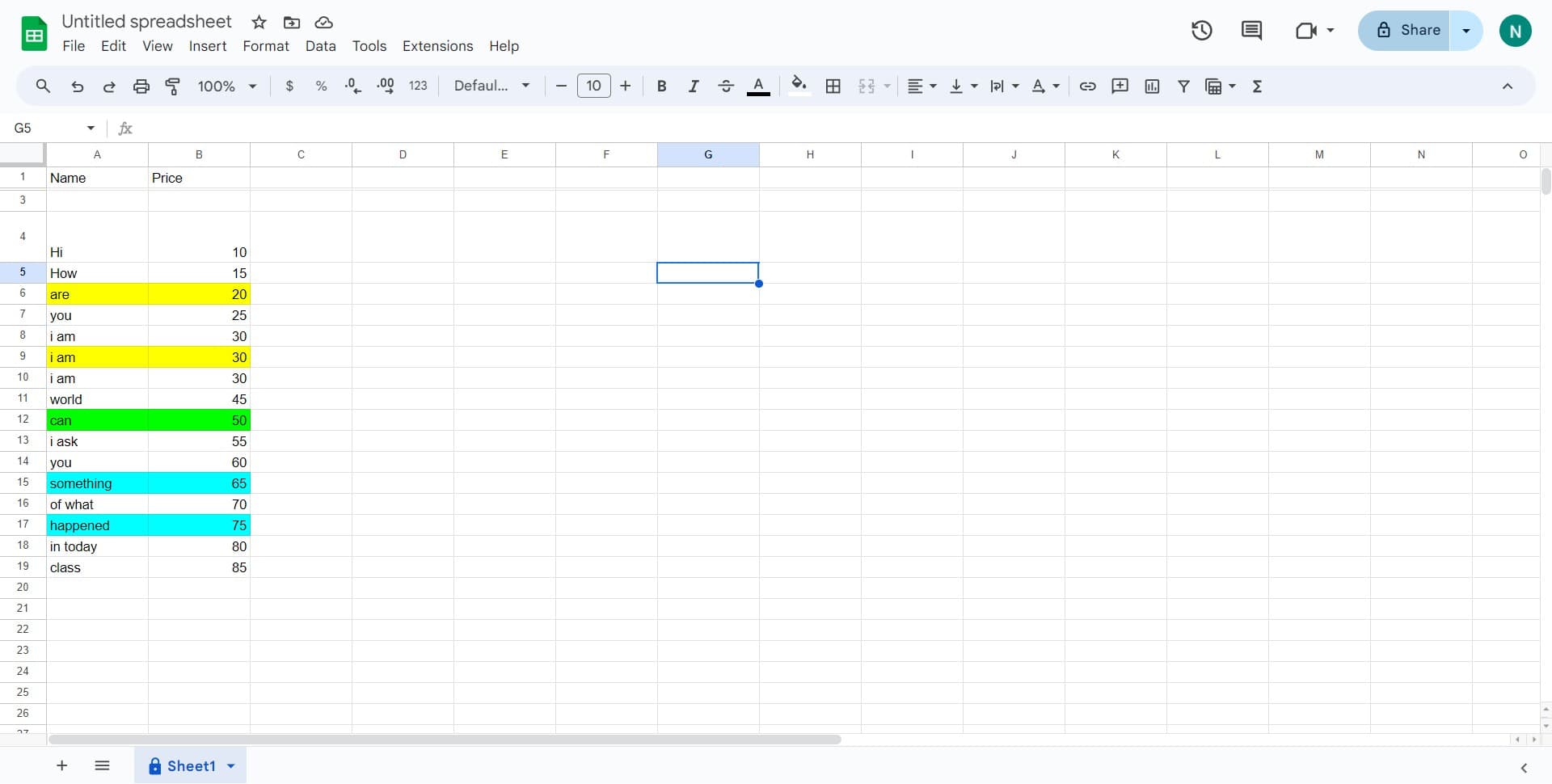
Open your Google Sheet and locate the blue "Share" button in the top-right corner of the interface. Click it to open the sharing dialog.
- 2
Add collaborator email
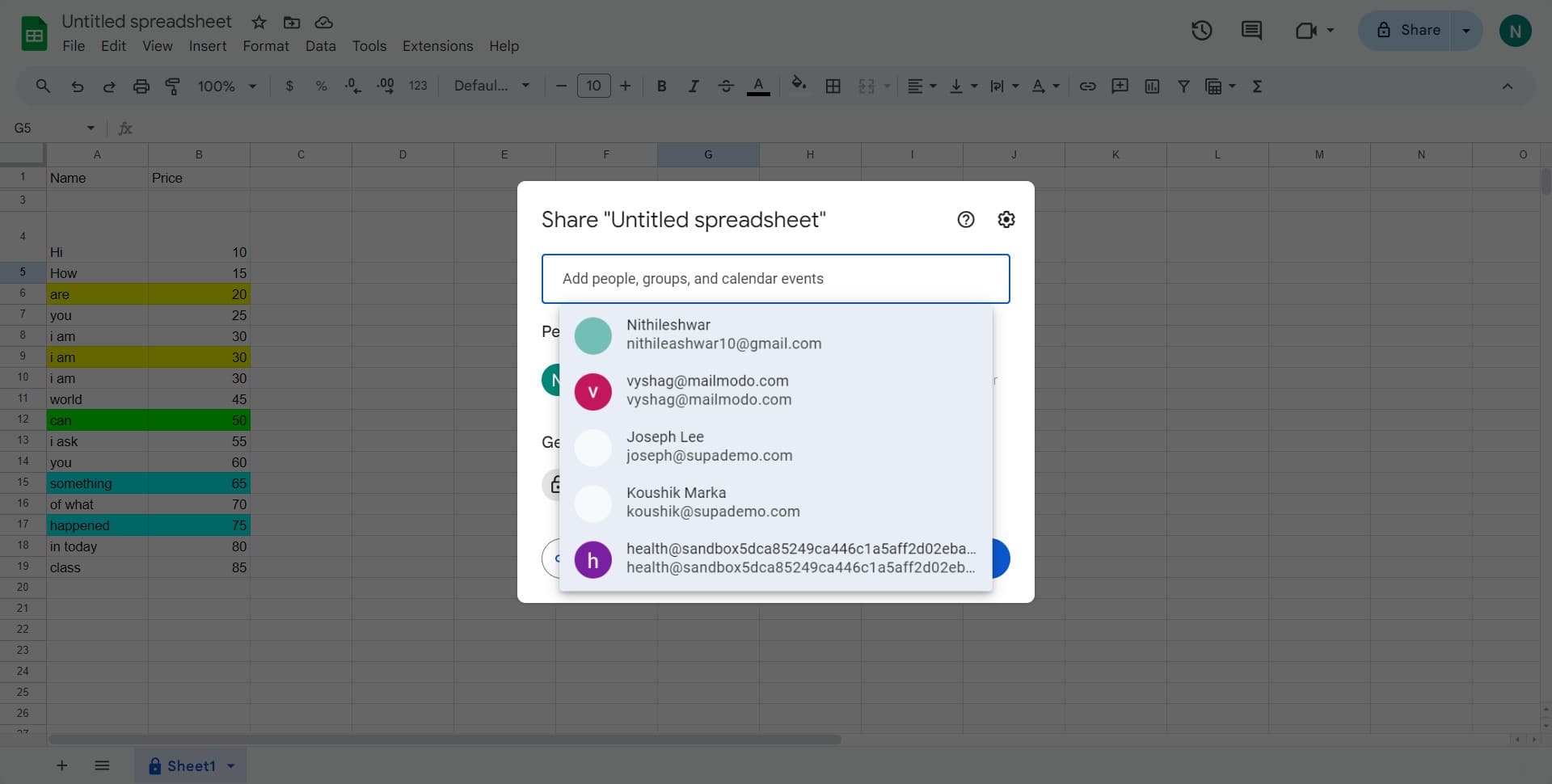
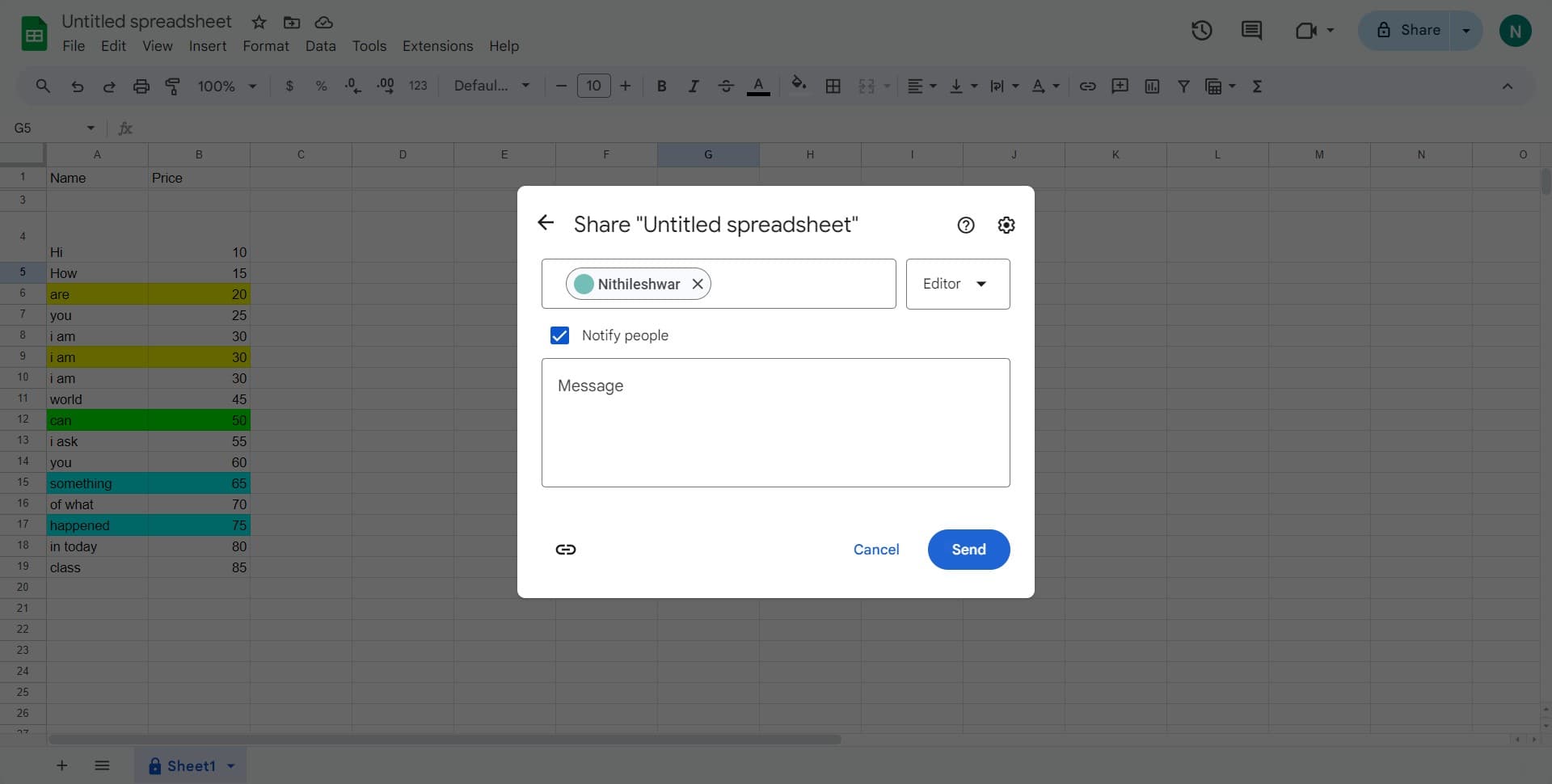
In the sharing dialog, enter the email address of the person you want to give edit access to. Type their full email address in the text field.
- 3
Select Editor role
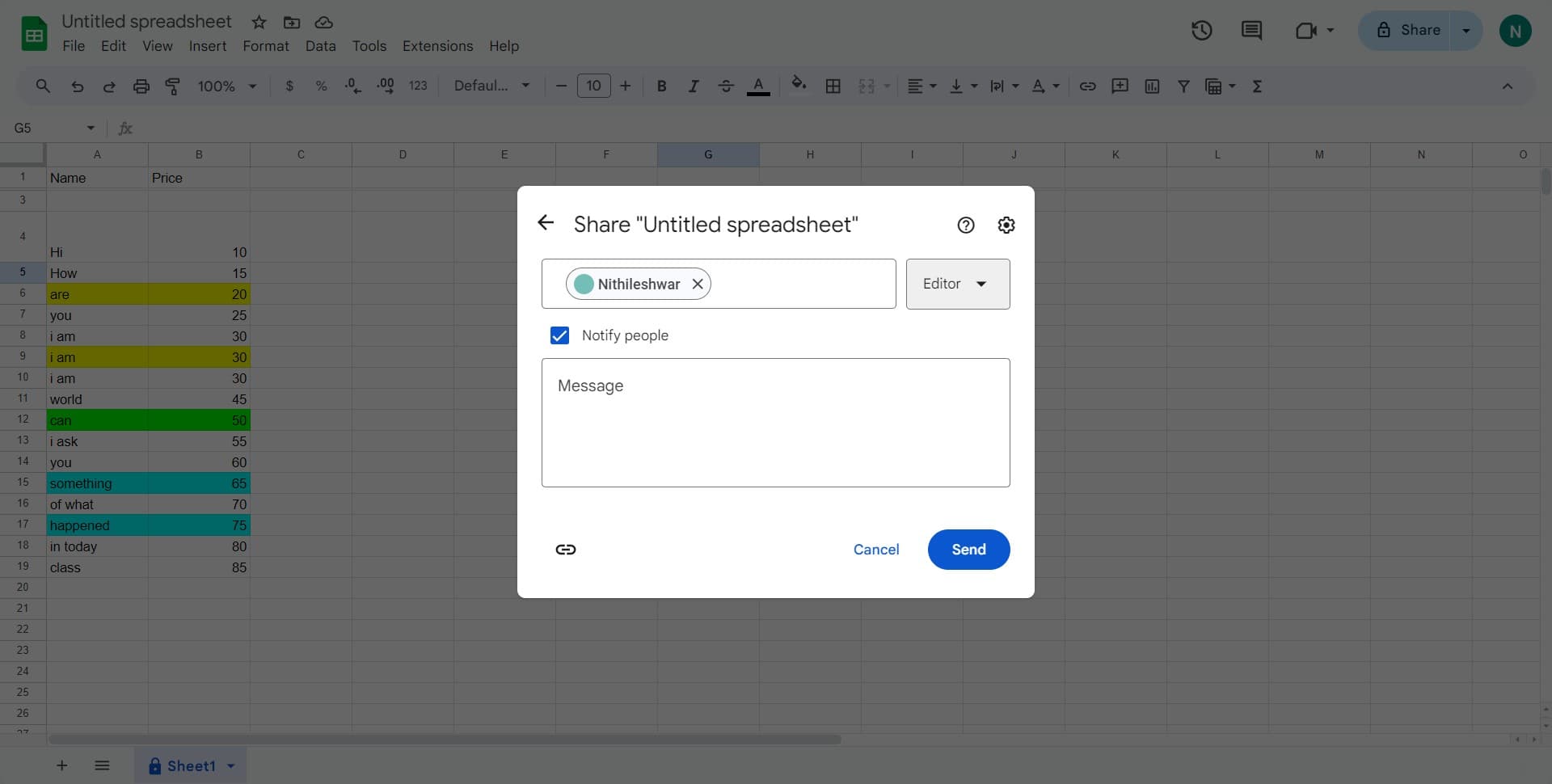
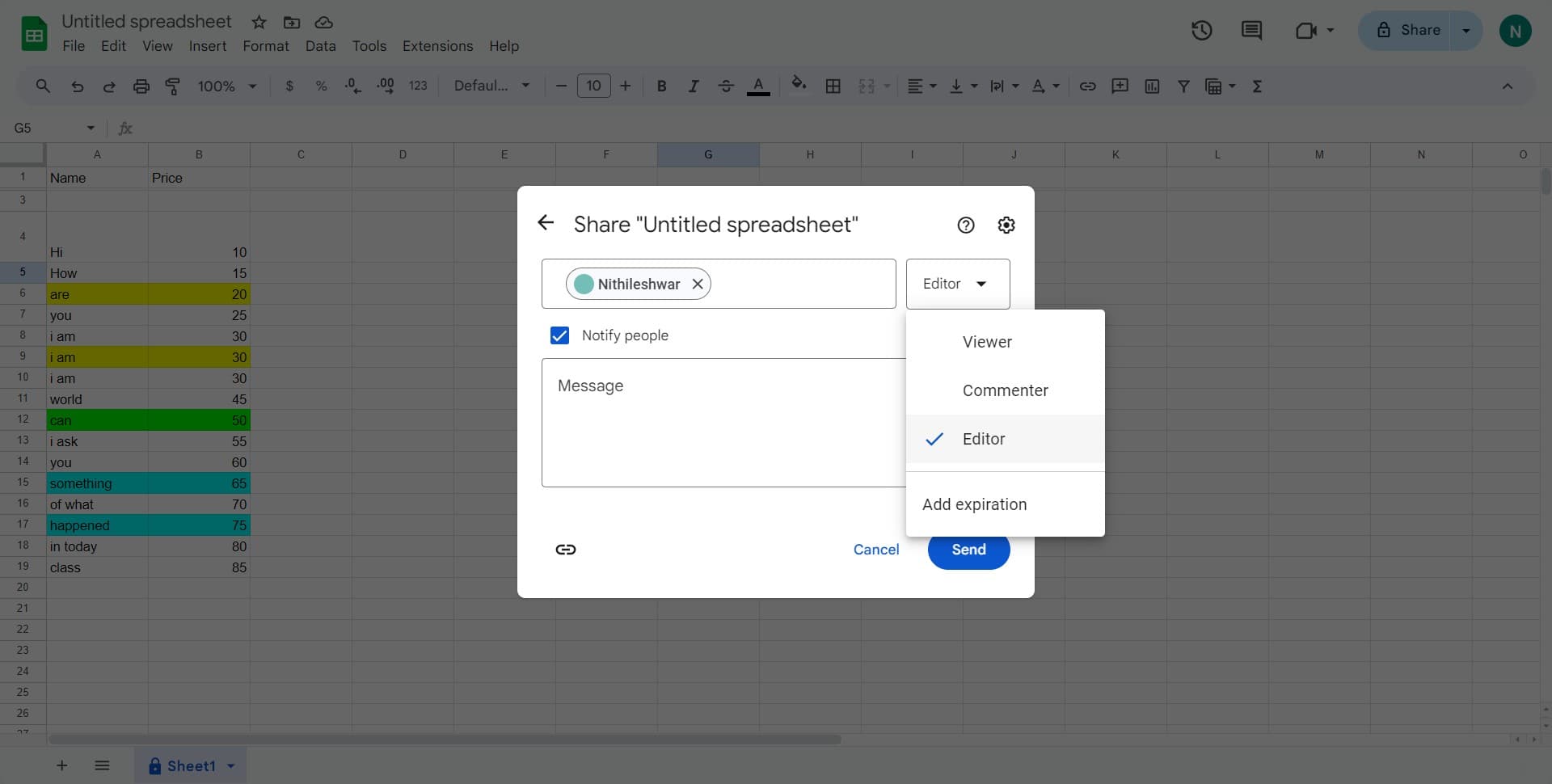
Click on the dropdown menu (currently set to a default role) and select "Editor" from the list. This permission level allows the collaborator to modify, delete, and manage the spreadsheet content.
- 4
Confirm selection
Click the checkmark or confirmation button to confirm that you've selected the Editor role for this collaborator.
- 5
Send the invitation
Click the "Send" button to deliver the sharing invitation. The collaborator will receive an email notification and can immediately begin editing the spreadsheet.
Frequently asked questions
Common questions about how to give someone edit access to your google sheet.
Editor access allows collaborators to make changes, delete content, and modify the spreadsheet structure. Viewer access is read-only—collaborators can see the data but cannot make any changes. Choose Editor when you want someone to actively work on the sheet, and Viewer when you only want them to review it.
Yes. Repeat the sharing process for each person you want to add. Enter one email address, select Editor, and send. You can add as many collaborators as needed, and each will receive their own invitation.
They'll receive an email invitation and can click the link to access the sheet. Google will prompt them to create a free Google account or sign in with an existing one before they can view or edit the spreadsheet.
Yes. Click Share again, find the person's name in the collaborators list, click the X or remove button next to their name, and confirm. Their access will be revoked immediately.
Yes, they'll receive an email notification with a link to the shared spreadsheet. You can also add a custom message in the sharing dialog before sending the invitation to provide context about the project.