How to merge rows on Google Sheets

Merging rows in Google Sheets allows you to combine data from multiple rows into a single row, streamlining your spreadsheet and improving data organization. This workflow is essential when consolidating information or preparing data for analysis and reporting.
Quick summary
In this tutorial, you'll learn how to merge rows in Google Sheets using the merge function. You'll navigate to the Format menu, access merge options, and apply horizontal merging to combine your selected rows efficiently.
Why this matters
Merging rows is a practical skill for creating cleaner spreadsheets, combining related data, and improving readability in reports and dashboards. Whether you're consolidating employee information, summarizing survey responses, or organizing project data, row merging helps maintain a logical structure and reduces clutter in your sheets.
Step-by-step guide
- 1
Open the Format menu
Click on the "File", "Edit", "View", or "Insert" menu bar at the top of your Google Sheets document. You'll need to access the formatting options to begin the merge process.
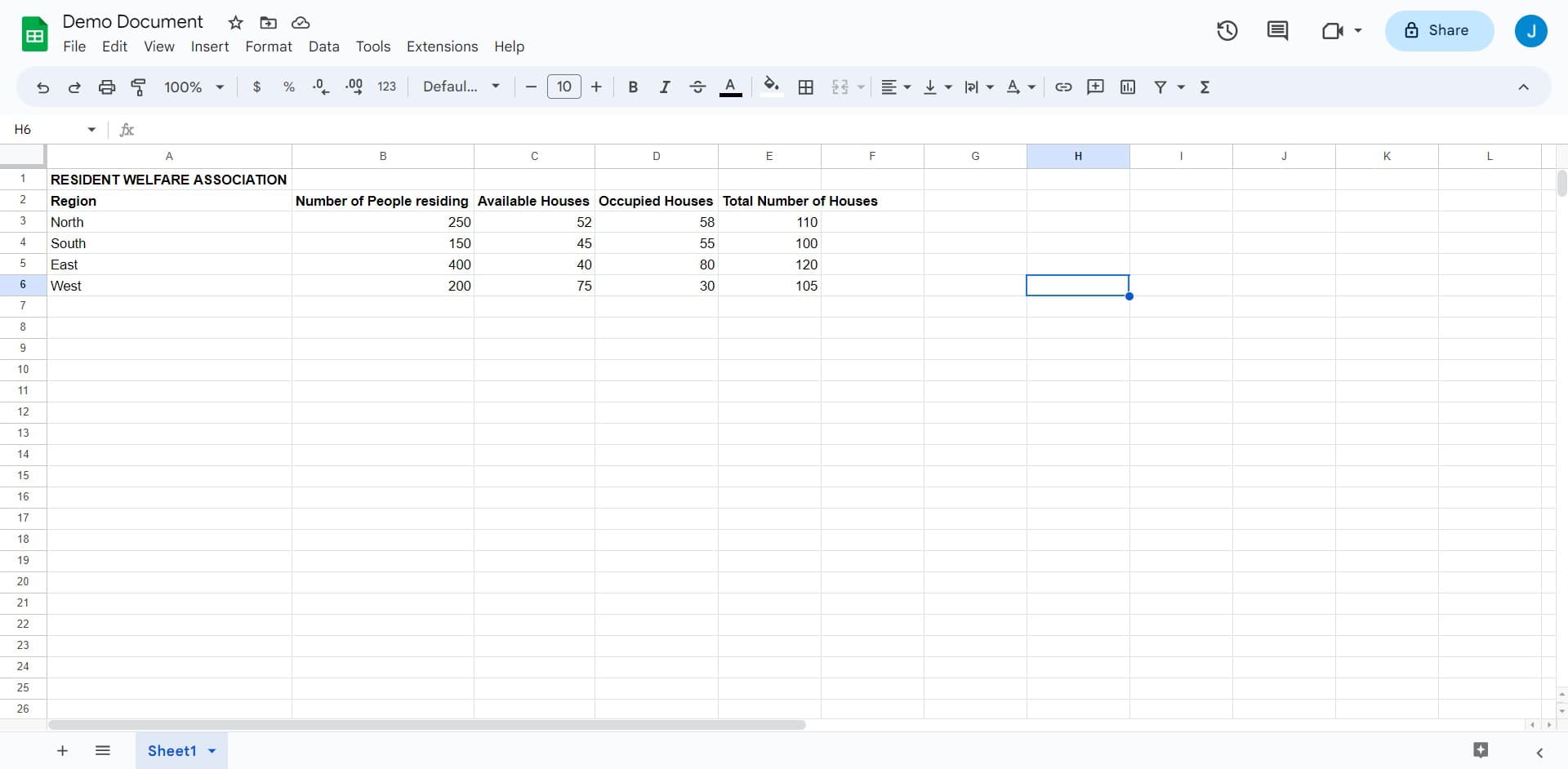
- 2
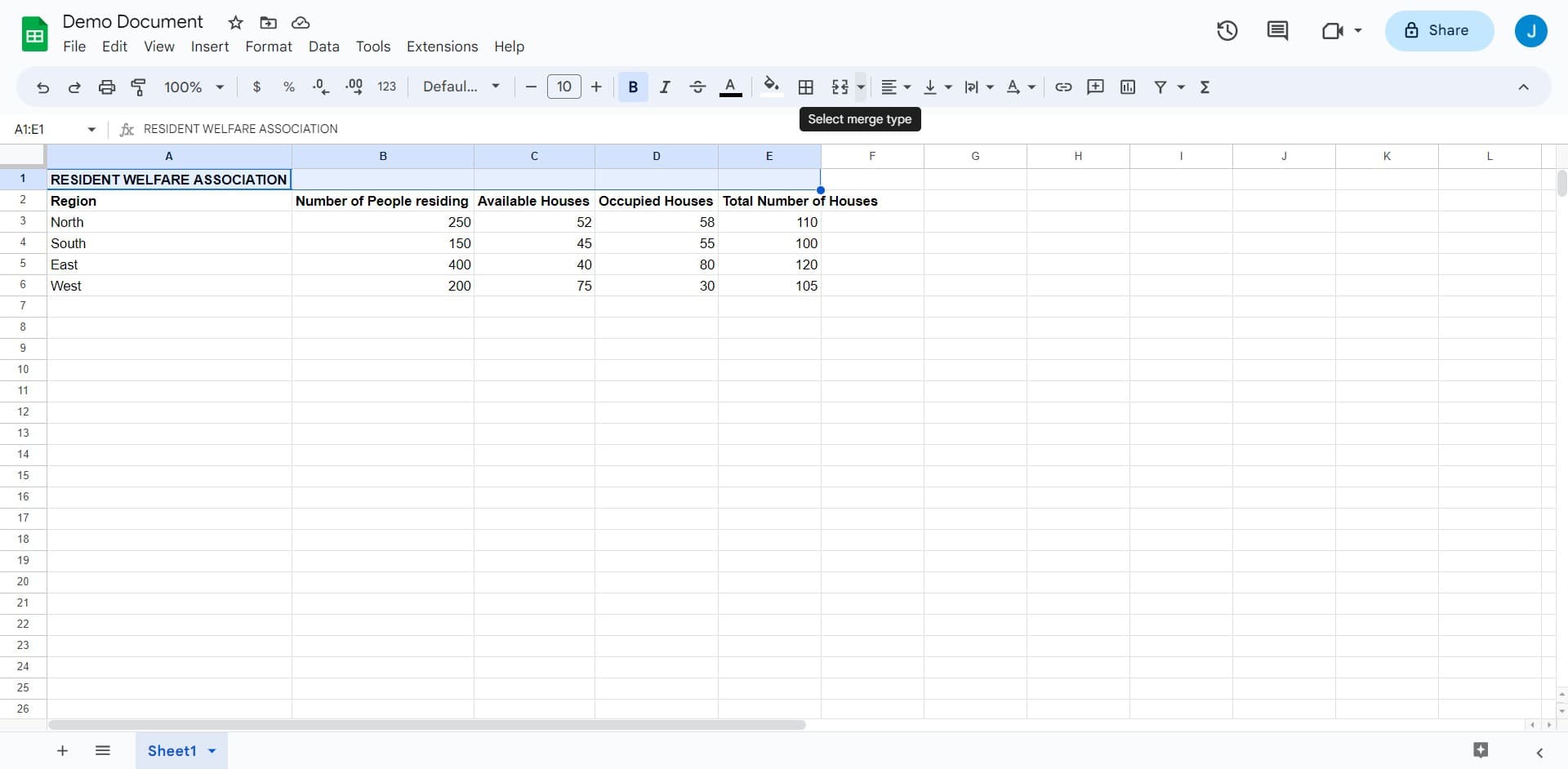
Select the merge cells option
Navigate to the appropriate menu location where merge options are available. This will display merge-related formatting tools for your selected cells or rows.
- 3
Upload or select your data
Upload the file containing the rows you want to merge, or ensure your data is already loaded in the spreadsheet. Verify that the rows you intend to merge are properly formatted and visible.
- 4
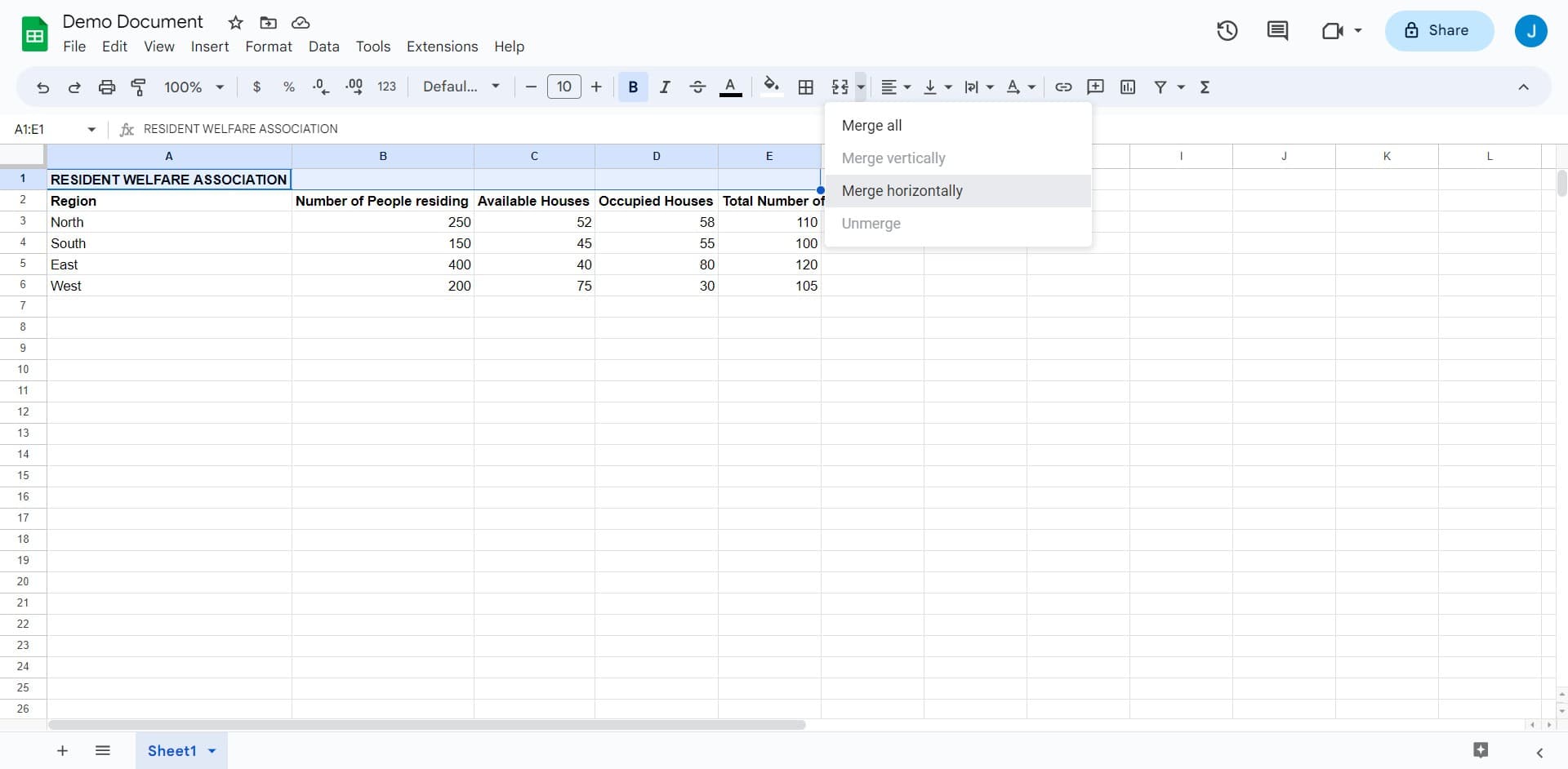
Click on merge horizontally
Select the "Merge horizontally" option from the merge menu. This action will combine your selected rows into a single horizontal row, preserving your data structure.
- 5
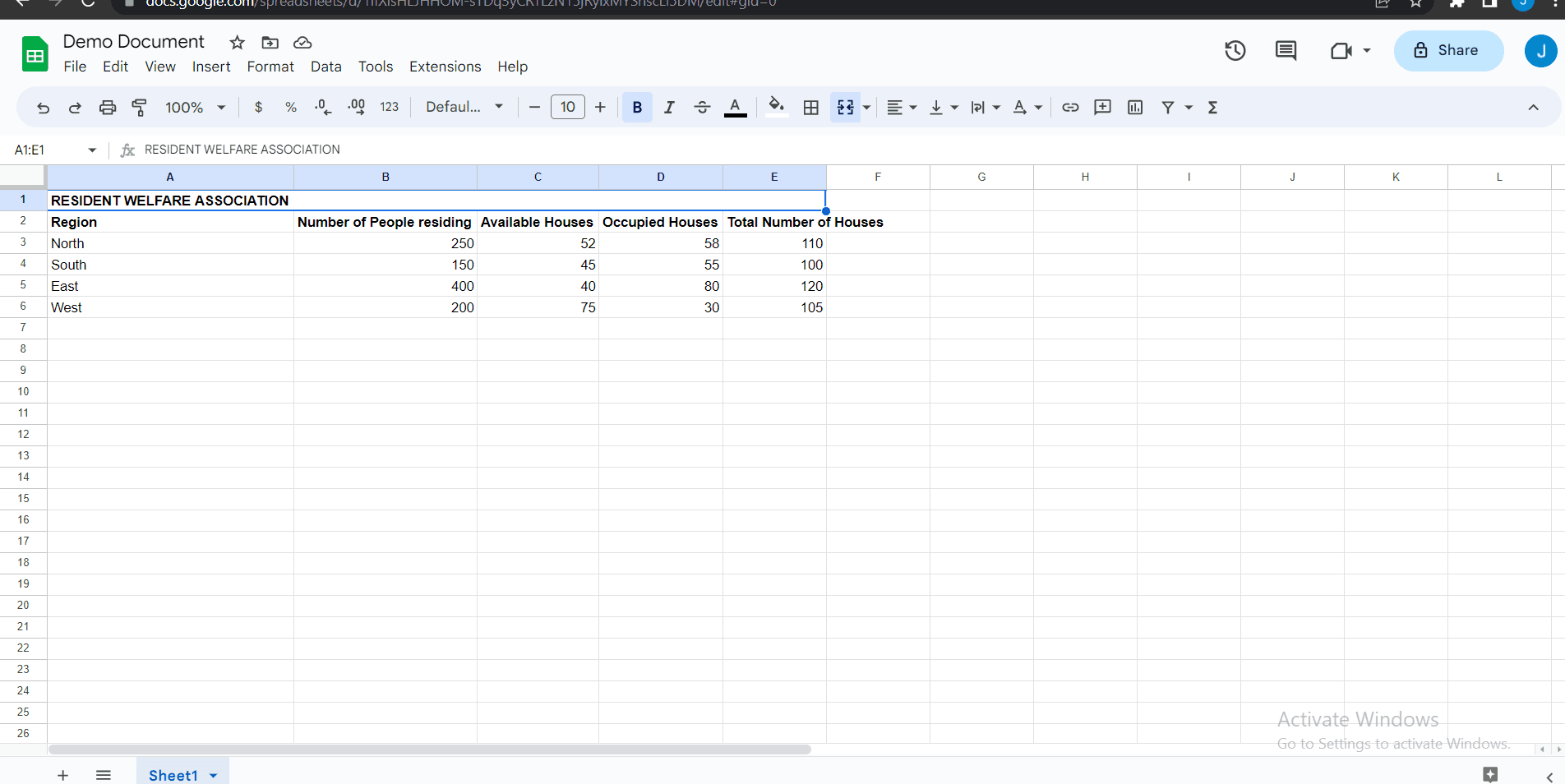
Confirm and apply the merge
Upload or save your changes to complete the merge operation. Your rows will now be combined according to the horizontal merge settings you selected.
Frequently asked questions
Common questions about how to merge rows on google sheets.
When you merge rows in Google Sheets, the content from the merged cells is combined based on the merge type you select. By default, Google Sheets keeps the content from the upper-left cell and removes content from other cells. Always review your data before merging to avoid accidental data loss.
Yes, you can merge rows containing different data types such as text, numbers, and dates. However, Google Sheets will retain only the value from the upper-left cell after the merge. If you need to preserve all data, consider copying it to a new column before merging.
To unmerge rows, select the merged cells and go to Format menu, then choose the unmerge option. Google Sheets will separate the cells back into individual rows. Note that this will only restore the cell boundaries, not data that was removed during the original merge.
Yes, merge horizontally combines cells in a row from left to right. Google Sheets also offers merge vertically (for columns) and merge all options. Choose the merge type that matches your data organization needs.
Yes, you can select multiple rows and columns and apply merging across the entire selection. Simply highlight all the cells you want to merge before selecting your merge option. This is useful for creating headers or combining large data blocks.