How to sort alphabetically in Google Sheets

Sorting data alphabetically is one of the most fundamental operations in Google Sheets, helping you organize information for better readability and analysis. Whether you're managing a contact list, inventory, or any dataset with text values, alphabetical sorting saves time and makes data easier to navigate. This guide walks you through the process step by step.
Quick summary
In this tutorial, you'll learn how to sort your Google Sheets data in alphabetical order using both ascending (A to Z) and descending (Z to A) options. You'll discover where to find the sort feature and how to apply it to your selected data quickly and efficiently.
Why this matters
Alphabetical sorting is essential for maintaining organized spreadsheets, especially when dealing with names, product lists, or categories. A well-sorted sheet reduces search time, prevents duplicate entries, and makes your data more professional and easier to share with others. This skill is fundamental to effective spreadsheet management across any industry.
Step-by-step guide
- 1
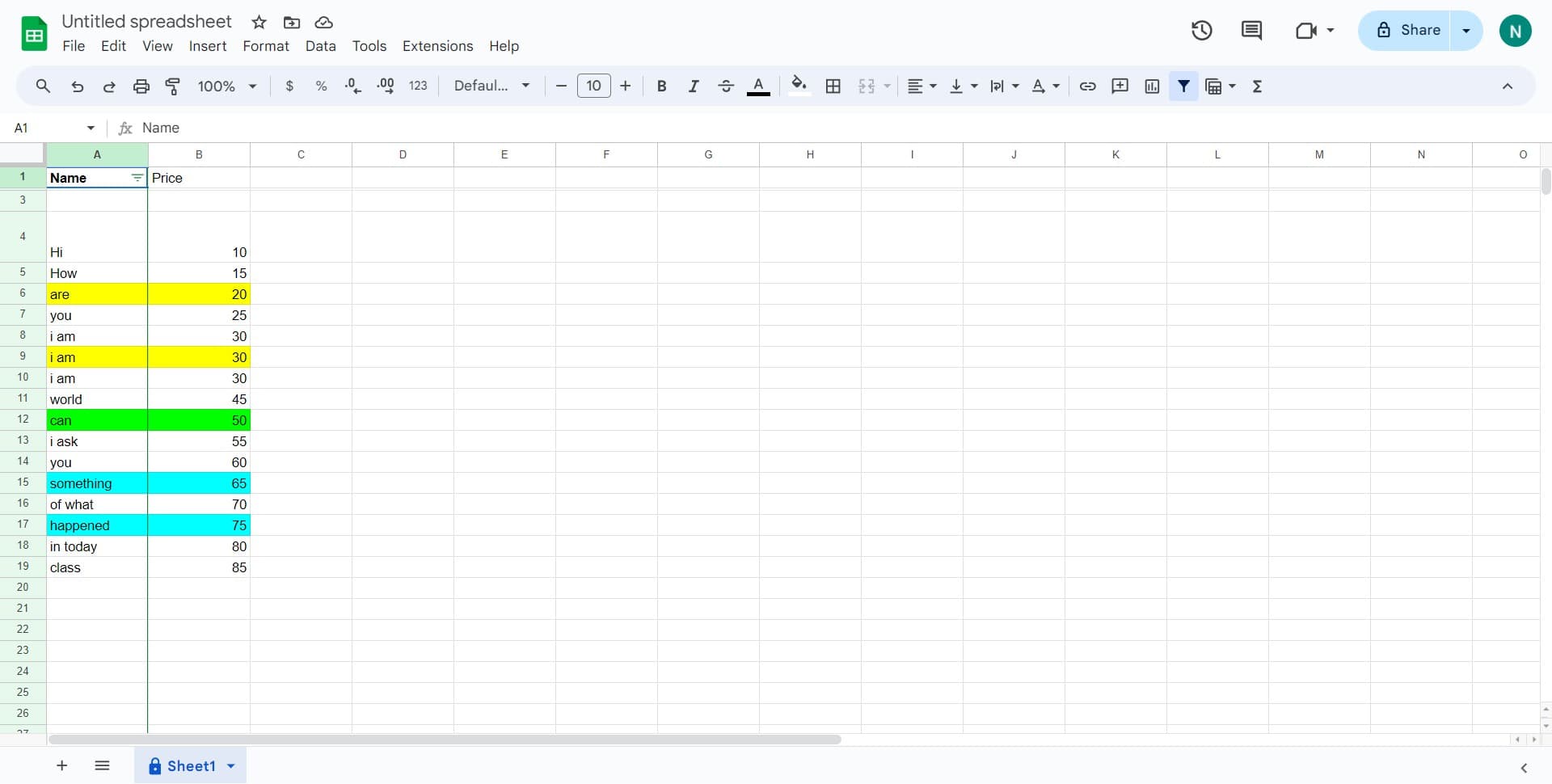
Select your data range
Click on the cell or range containing the data you want to sort. This ensures Google Sheets knows exactly which data to organize alphabetically.
- 2
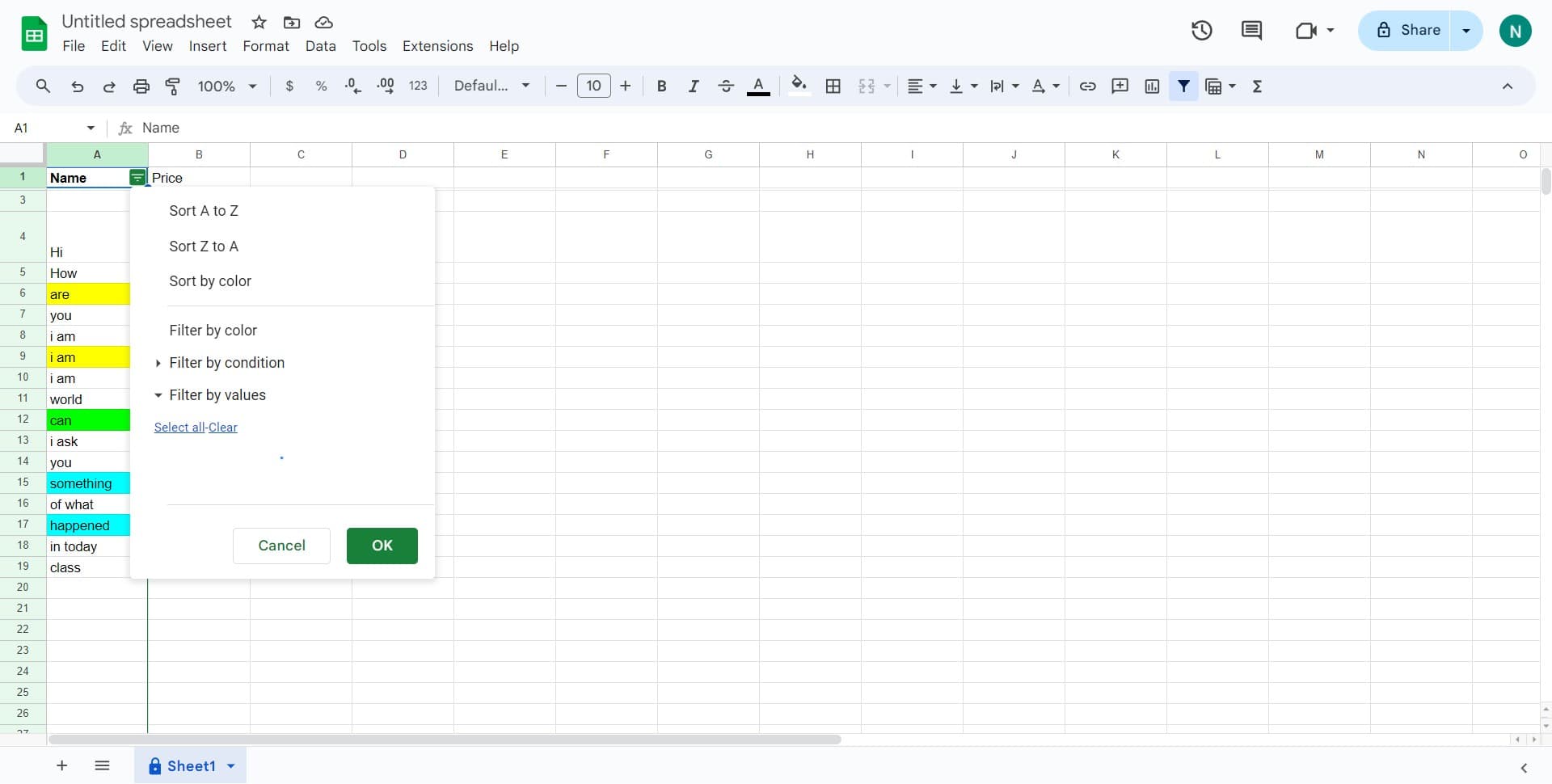
Open the Data menu
Click on the Data menu in the top navigation bar to access sorting and organization options. This menu contains all the tools you need for data manipulation.
- 3
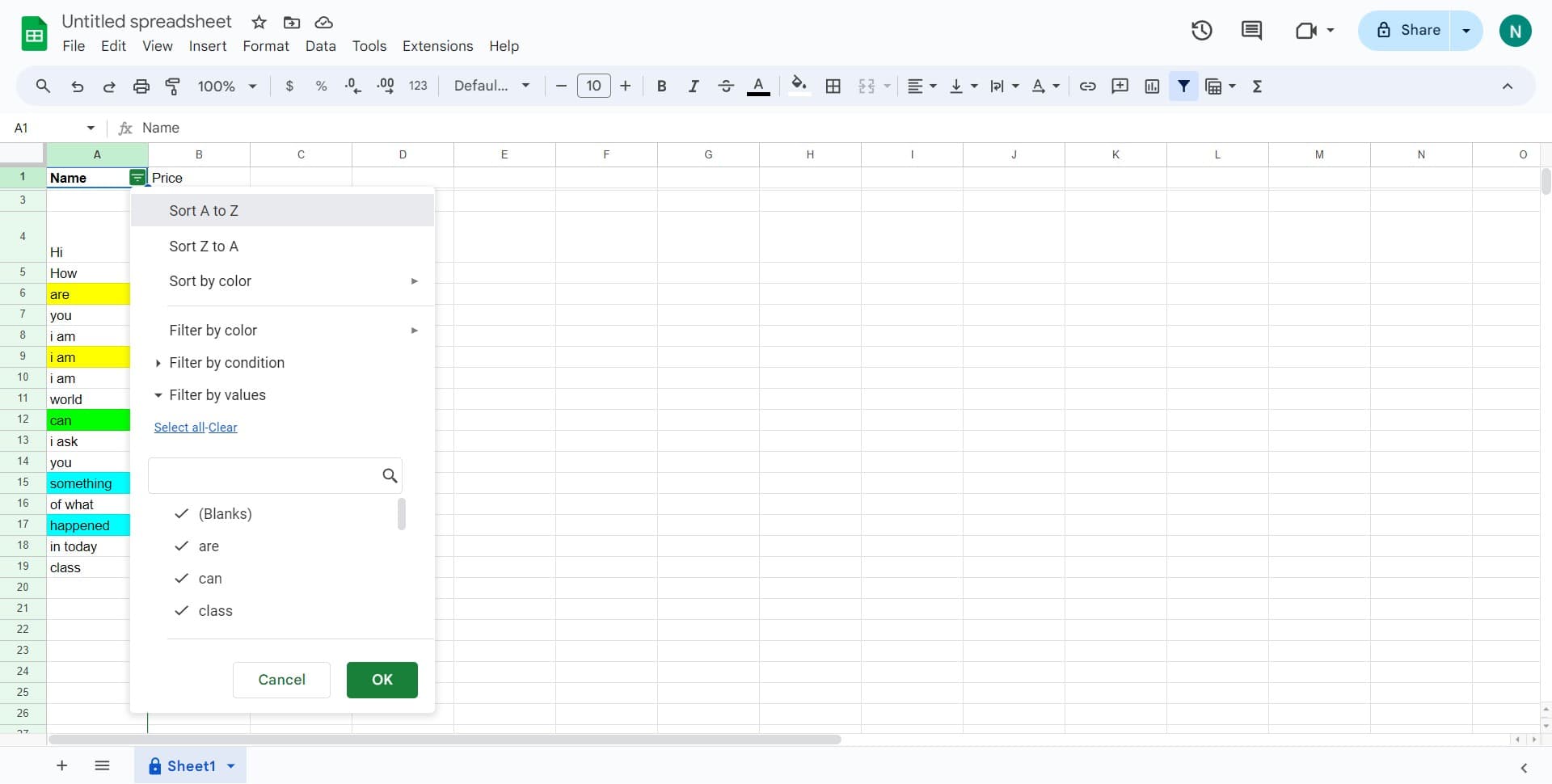
Choose Sort A to Z
Click on 'Sort A to Z' to arrange your selected data in ascending alphabetical order. Your data will be instantly reorganized from A to Z.
- 4
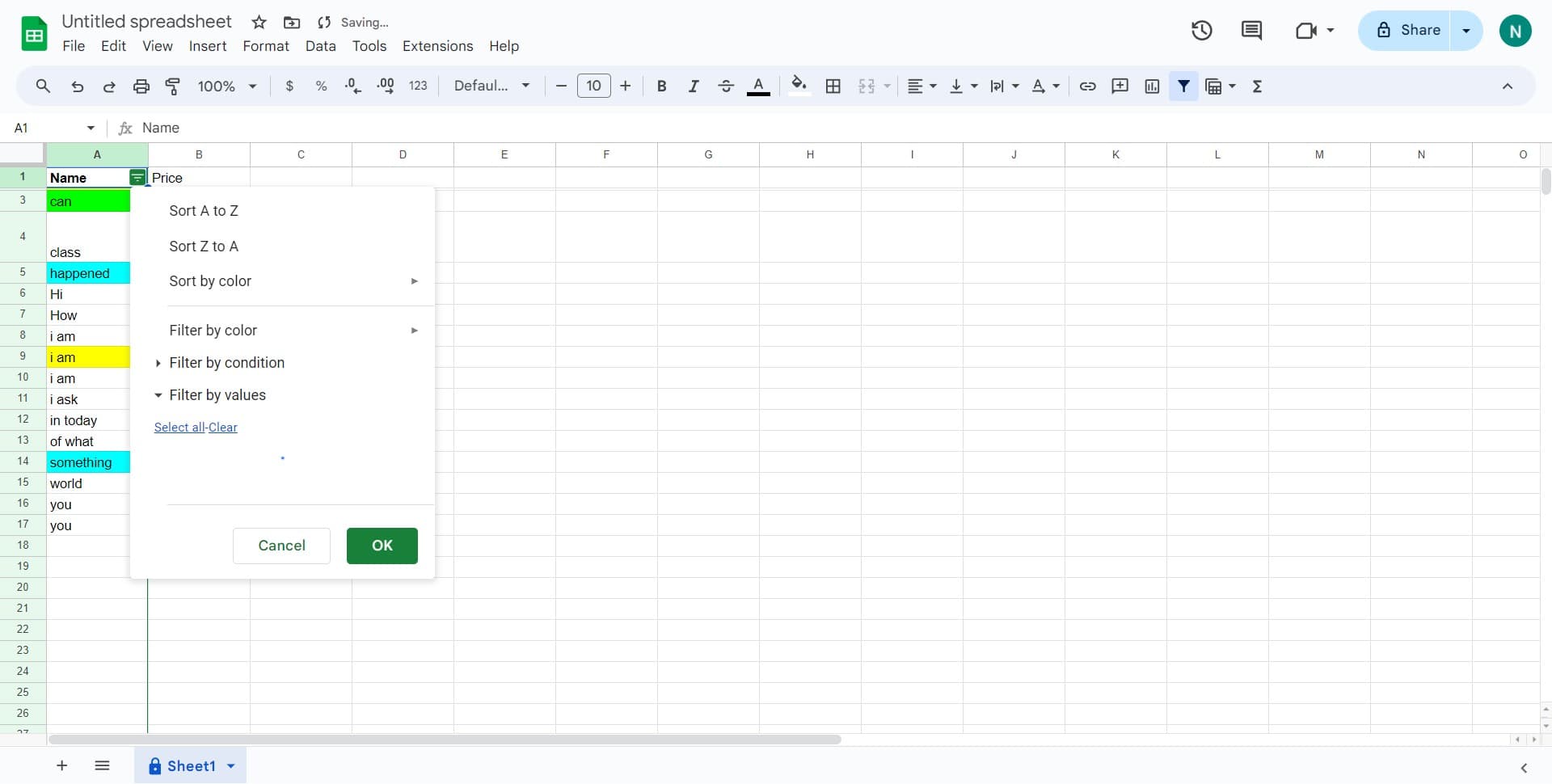
Select data for descending sort
Click on the cell or range you want to sort in reverse alphabetical order. This allows you to organize data from Z to A if needed.
- 5
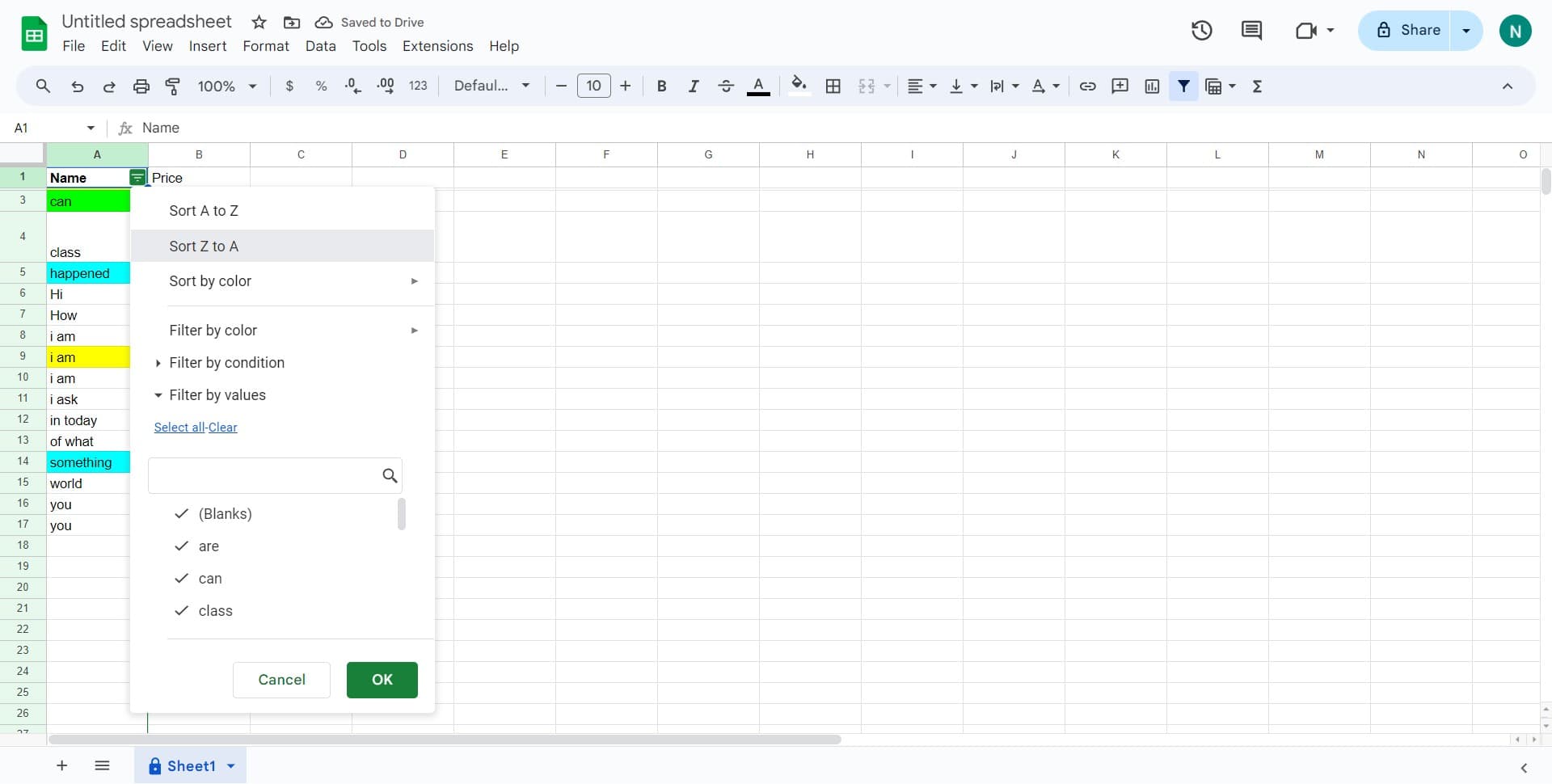
Apply Sort Z to A
Click on 'Sort Z to A' from the Data menu to arrange your selection in descending alphabetical order. Your data will be reorganized from Z to A.
Frequently asked questions
Common questions about how to sort alphabetically in google sheets.
Yes, you can sort by multiple columns using the 'Sort range' option in the Data menu. This allows you to set primary, secondary, and tertiary sort criteria, which is useful for organizing complex datasets with multiple categories or subcategories.
Google Sheets will sort entire rows together by default, so related data in other columns stays aligned with your sorted column. If you only select a single column, you have the option to expand your selection to include related data, preventing misalignment.
Yes, you can use Ctrl+Z (or Cmd+Z on Mac) to undo any sort operation. Google Sheets maintains your undo history, so you can revert to your original data arrangement at any time.
A to Z is ascending order, starting with letters beginning with A and ending with Z. Z to A is descending order, starting with Z and ending with A. For numbers, A to Z sorts from lowest to highest, while Z to A sorts from highest to lowest.
Google Sheets treats mixed data intelligently: numbers typically sort before text when using A to Z, and text sorts alphabetically. If you need custom sorting for mixed data, use the advanced 'Sort range' option to specify exact sorting rules for your specific needs.