How to sync Google sheets in Asana

Syncing your Asana tasks with Google Sheets allows you to maintain a centralized spreadsheet view of your project data while keeping Asana as your source of truth. This integration streamlines reporting, analysis, and sharing of task information across your organization.
Quick summary
In this tutorial, you'll learn how to connect your Asana tasks to Google Sheets using the built-in sync feature. By following these six steps, you'll enable automatic exports of your Asana data to a Google Sheet, making it easy to analyze and share task information with stakeholders.
Why this matters
Syncing Asana with Google Sheets bridges the gap between task management and data analysis, enabling teams to generate custom reports and dashboards without manual data entry. This workflow is particularly valuable when you need to share task status with non-Asana users or perform advanced analysis in spreadsheets.
Step-by-step guide
- 1
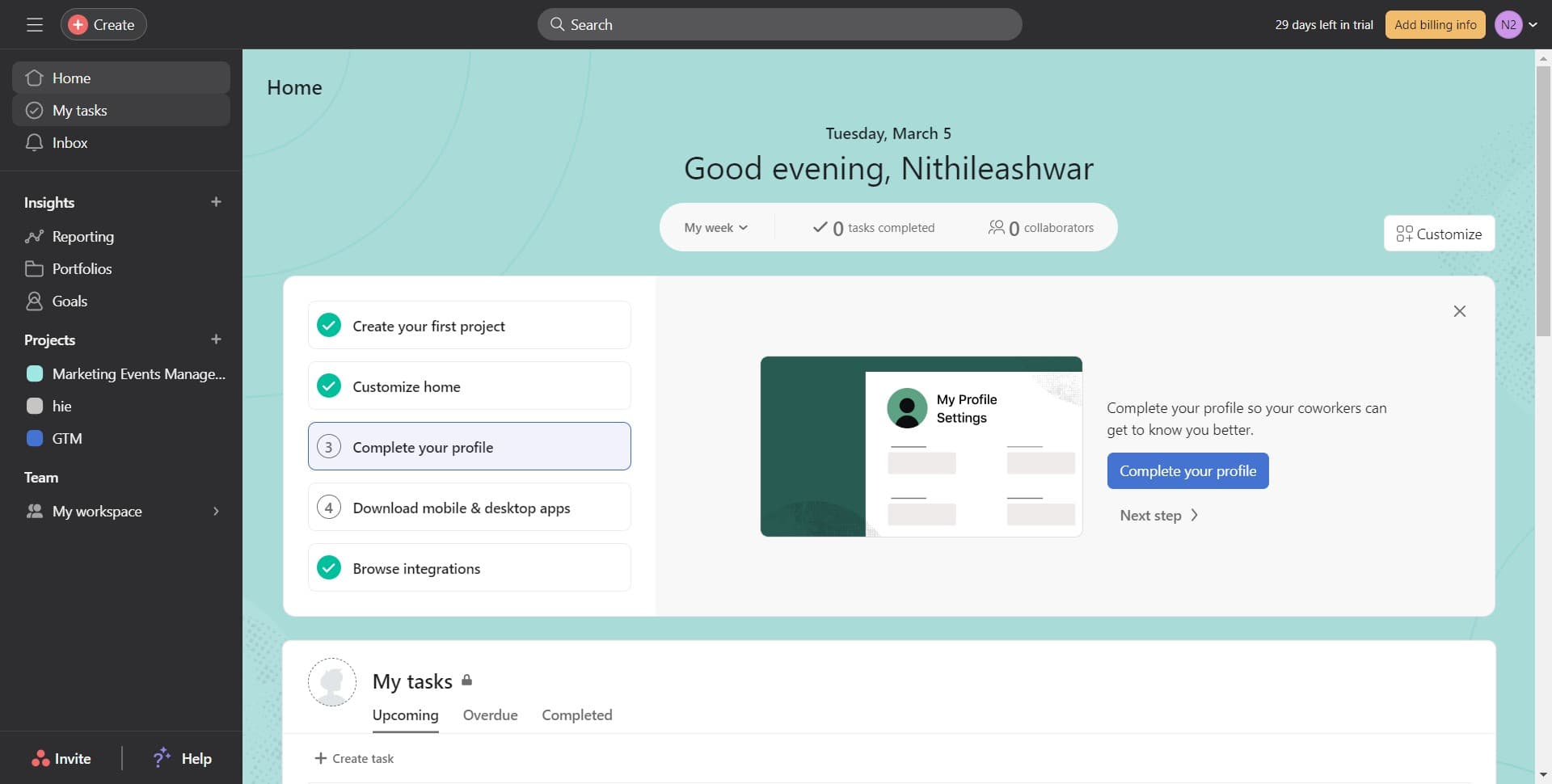
Navigate to My Tasks
Start by clicking on the 'My tasks' section in your Asana sidebar. This will display your personal task list and is the entry point for accessing sync options.
- 2
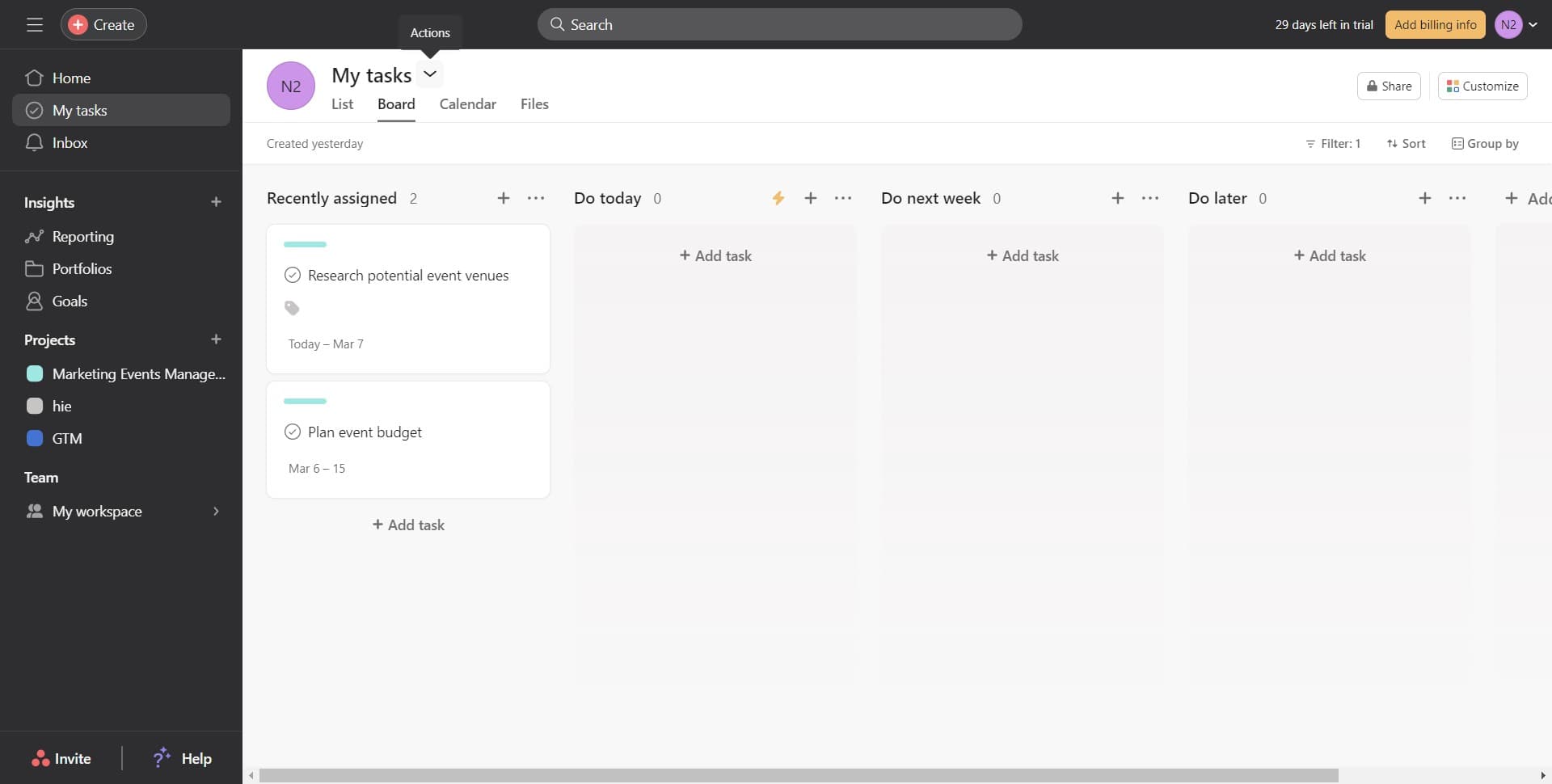
Access the options menu
Click the options menu icon to reveal additional actions available for your tasks. This menu contains the sync and export functionality you need.
- 3
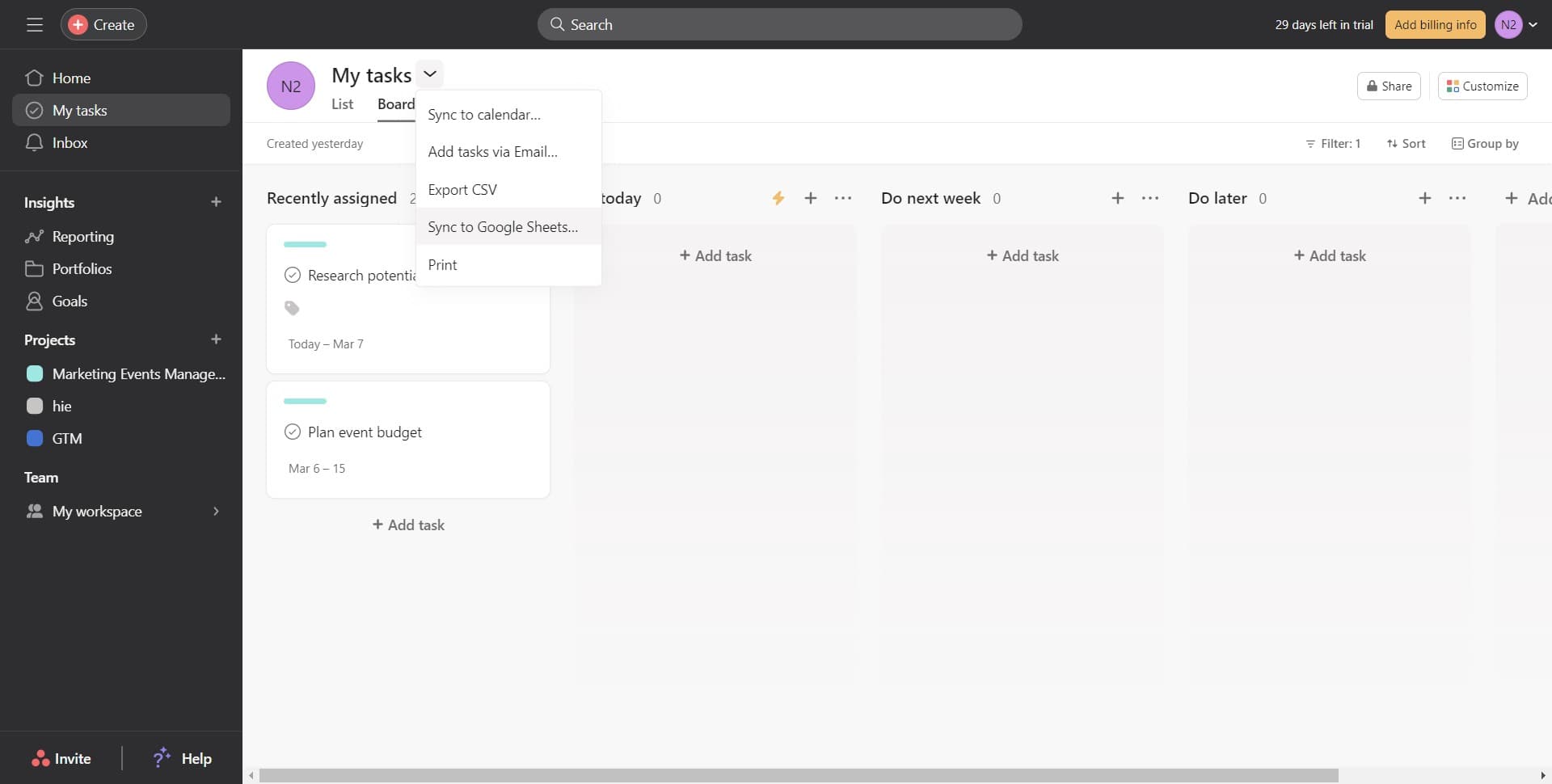
Select Sync to Google Sheets
Click on 'Sync to Google Sheets...' from the dropdown menu. This option initiates the integration process between your Asana tasks and Google Sheets.
- 4
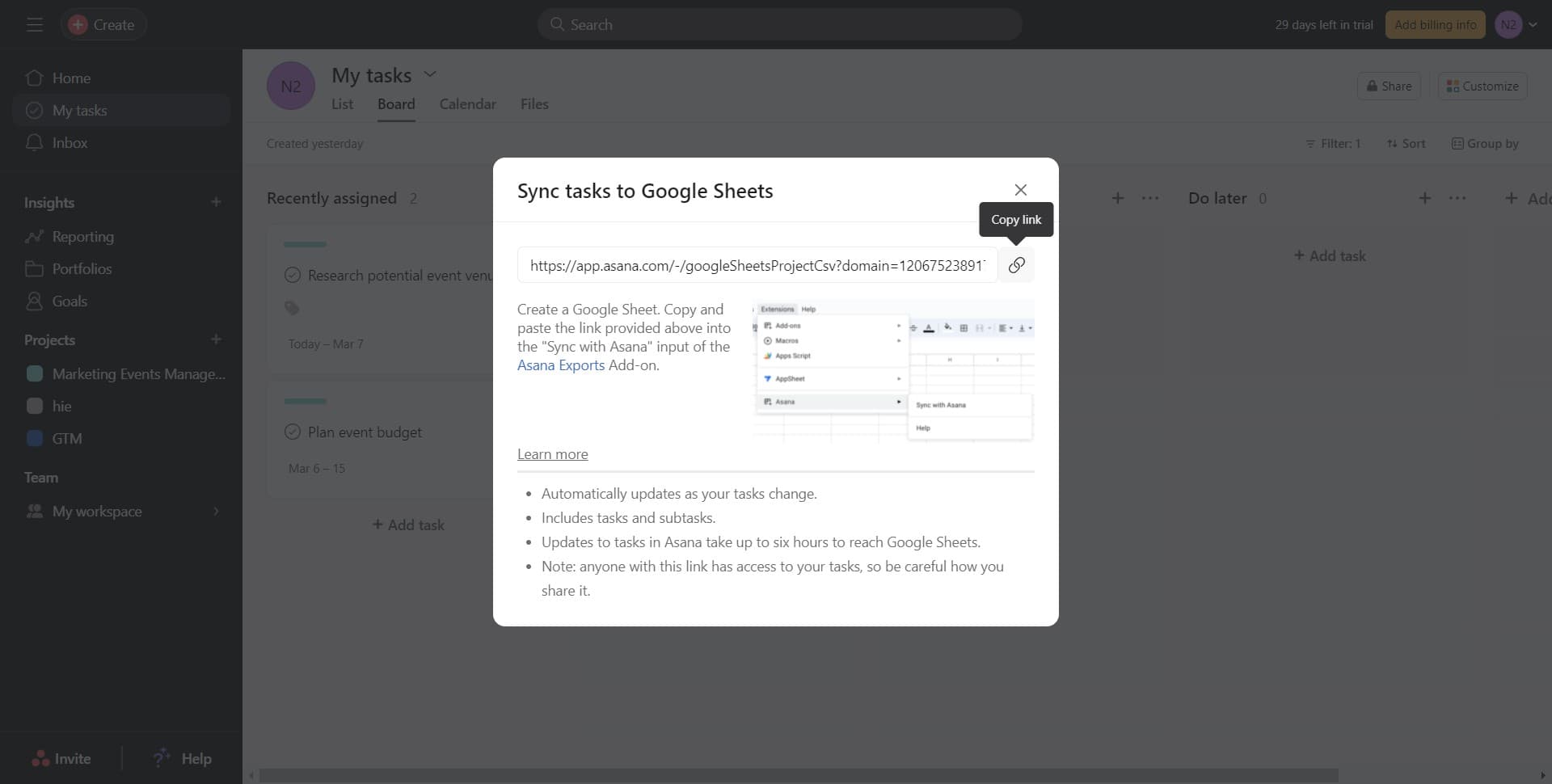
Confirm the sync action
Click the confirmation button to proceed with setting up the Google Sheets integration. You may be prompted to authorize the connection between Asana and your Google account.
- 5
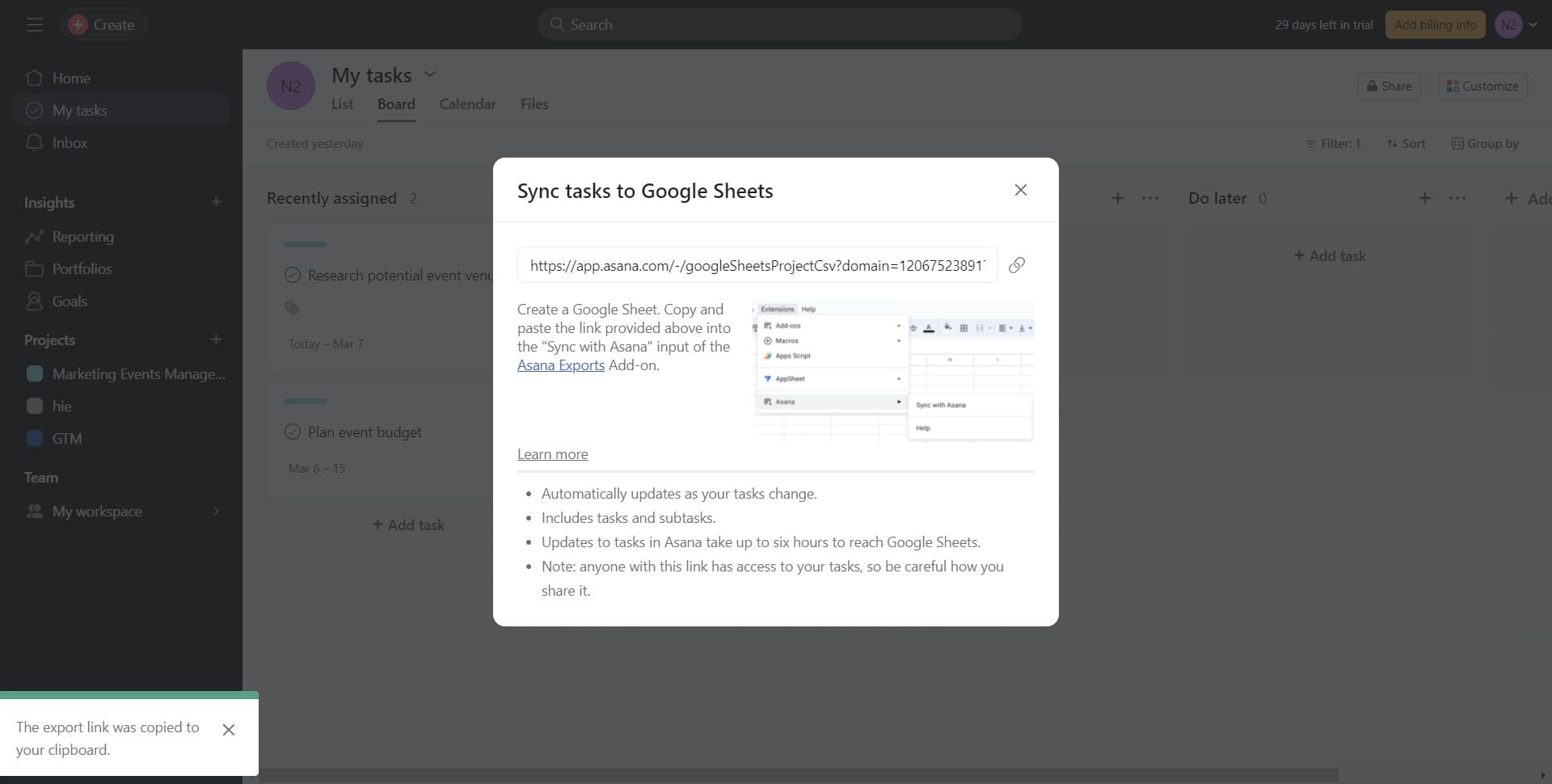
Choose Asana Exports
Click on 'Asana Exports' to select the export destination and configure which data will be synced to your Google Sheet. This step ensures your data is exported to the correct location.
- 6
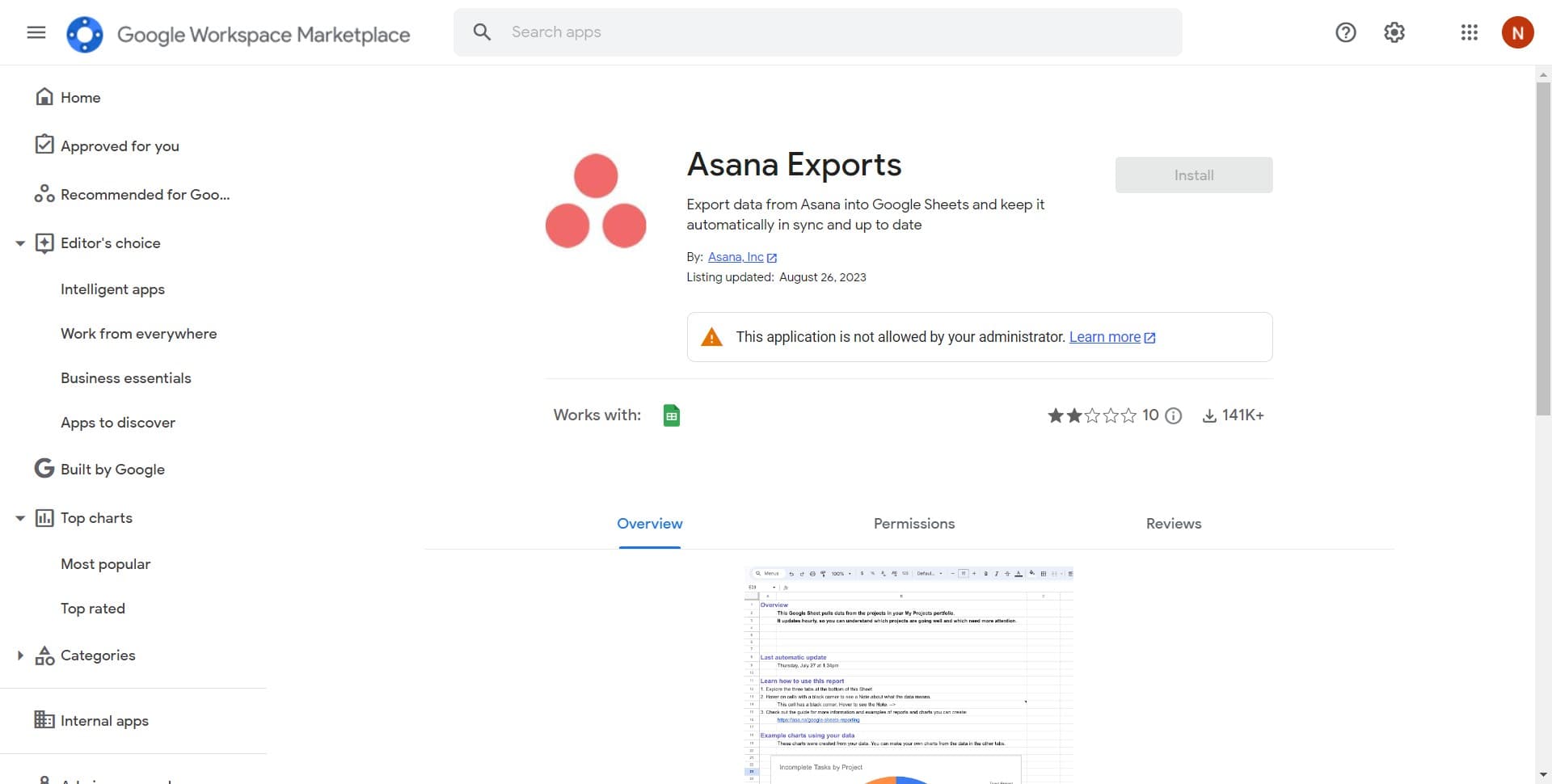
Complete the installation
Click 'Install' to finalize the sync setup and activate the integration. Once installed, your Asana tasks will begin syncing to Google Sheets according to your configuration.
Frequently asked questions
Common questions about how to sync google sheets in asana.
Asana typically syncs data to Google Sheets in real-time or near-real-time after the initial setup. The exact sync frequency depends on your Asana plan and the specific integration configuration, but most updates appear within minutes of changes in Asana.
Yes, during the setup process, you can configure which tasks or projects to include in your Google Sheets export. This allows you to create targeted exports rather than syncing your entire task list.
The sync is typically one-directional, meaning changes in Asana flow to Google Sheets, but edits in the sheet don't automatically update Asana. It's best to treat your Google Sheet as a read-only view for reporting and analysis purposes.
You need administrative or project-level permissions in Asana to enable the Google Sheets sync feature. Additionally, you must have a Google account and proper authorization to connect the two platforms.
Standard Asana fields such as task name, assignee, due date, priority, status, and custom fields are typically exported. The exact fields available depend on your Asana project setup and your plan tier.