How to Auto-Tag Tickets by Brand in Gorgias

Auto-tagging tickets by brand in Gorgias streamlines your support workflow by automatically categorizing incoming messages based on customer brand associations. This feature saves time and ensures consistent ticket organization across your support team.
Quick summary
In this tutorial, you'll learn how to set up automatic brand-based tagging in Gorgias. By the end, you'll have a system that intelligently categorizes tickets without manual intervention, improving response times and team efficiency.
Why this matters
Manual ticket tagging is error-prone and time-consuming, especially when managing multiple brands. Automating this process ensures every ticket is tagged correctly from arrival, allowing your team to prioritize work more effectively and route tickets to the right specialists.
Step-by-step guide
- 1
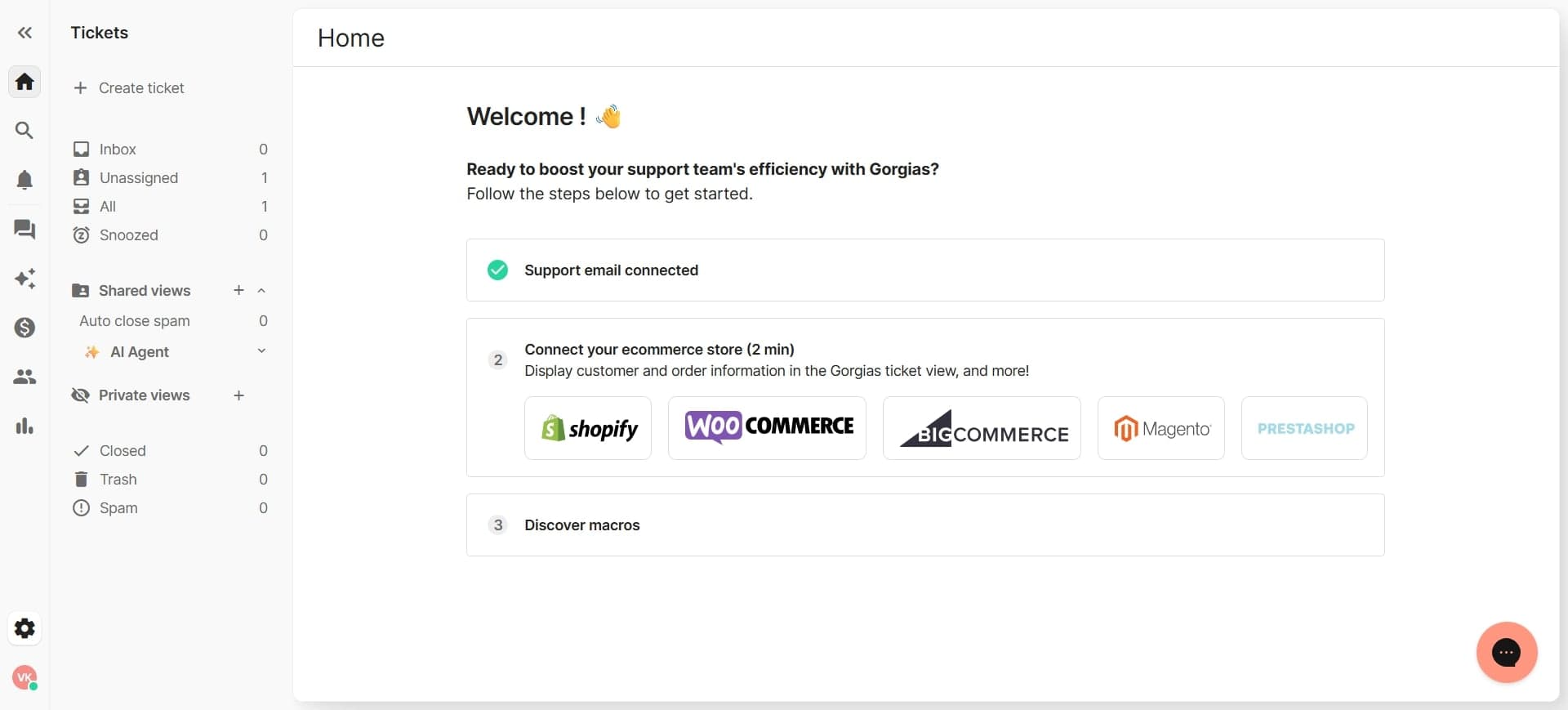
Access Gorgias settings
Log into your Gorgias account and navigate to the settings menu. Look for the main settings icon, typically found in the bottom left corner of the dashboard.
- 2
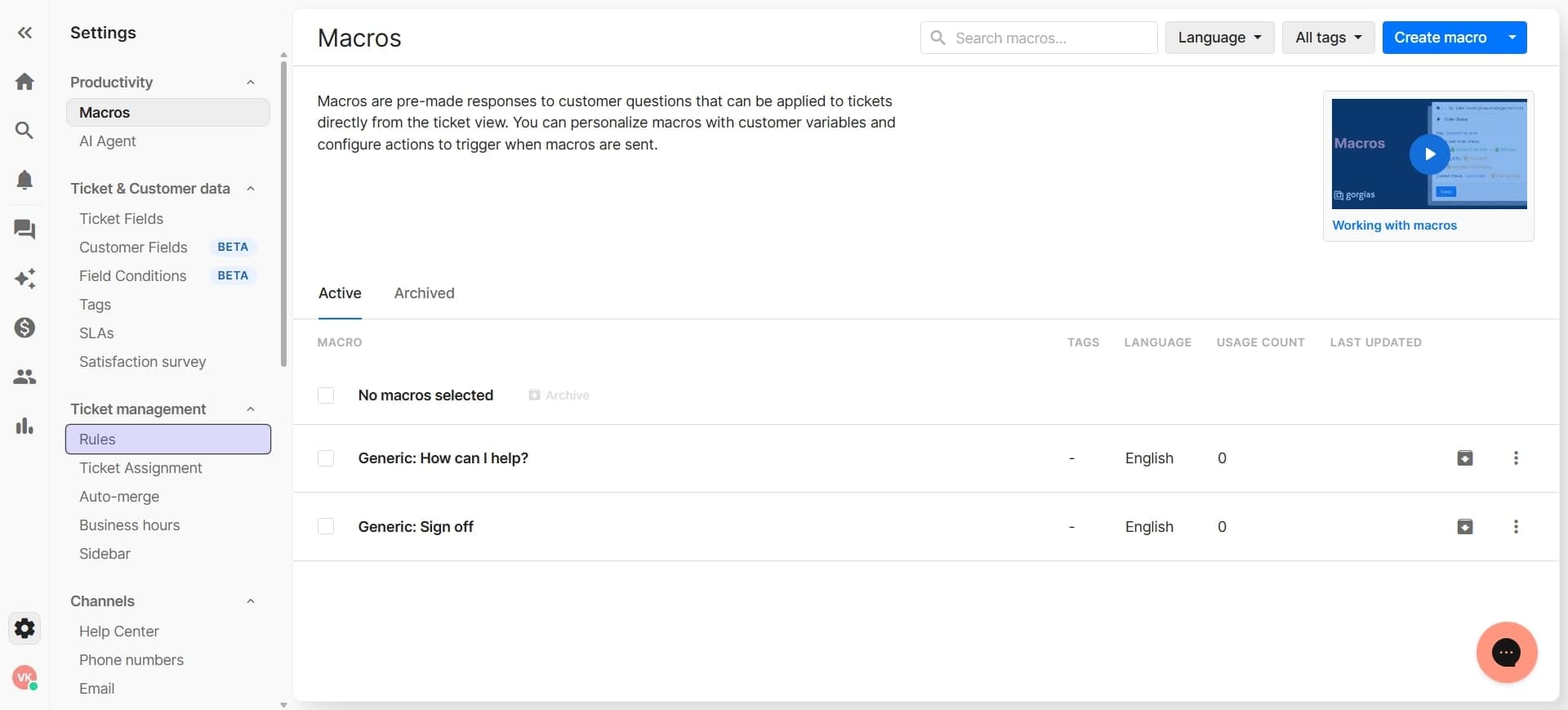
Navigate to automation rules
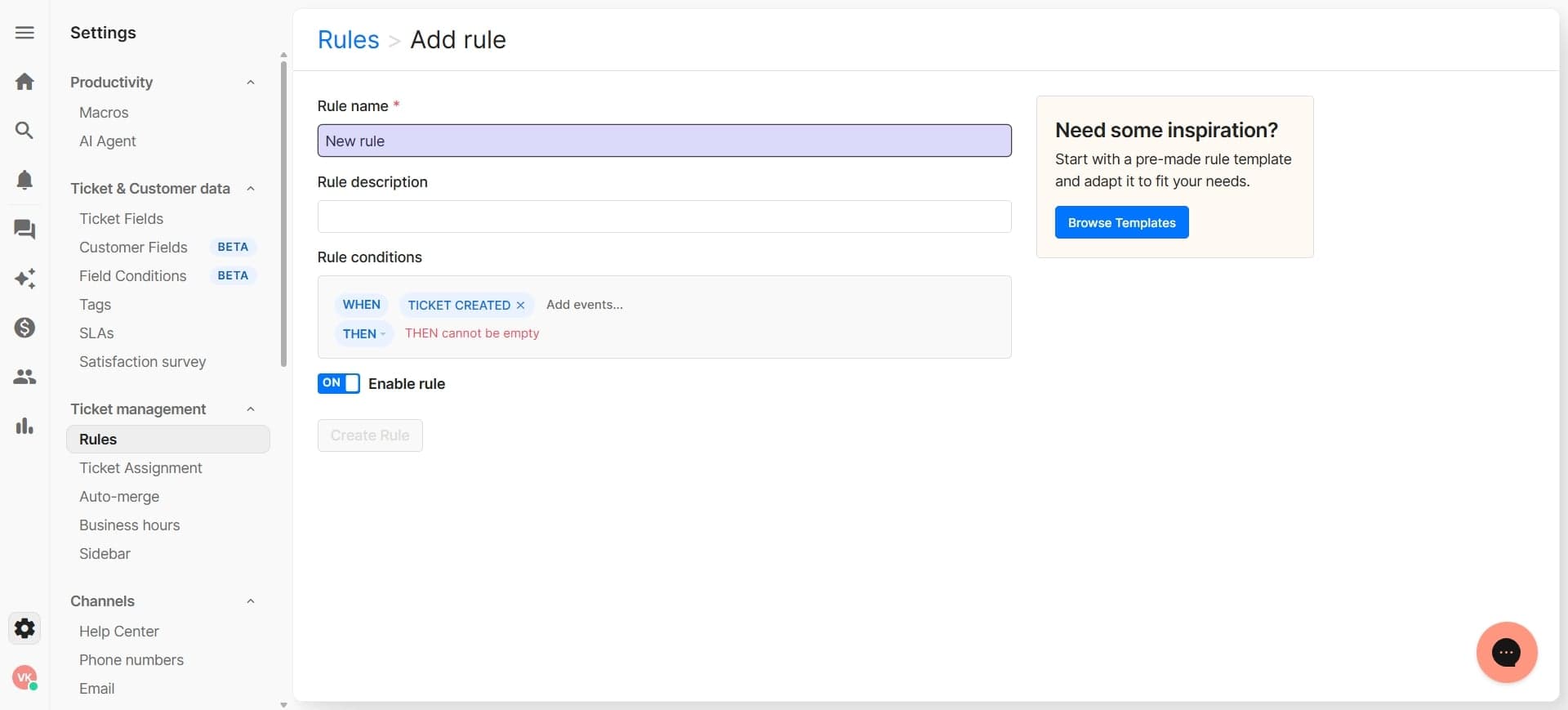
In the settings menu, locate and click on 'Automation' or 'Rules' section. This is where you'll create the logic for auto-tagging your tickets.
- 3
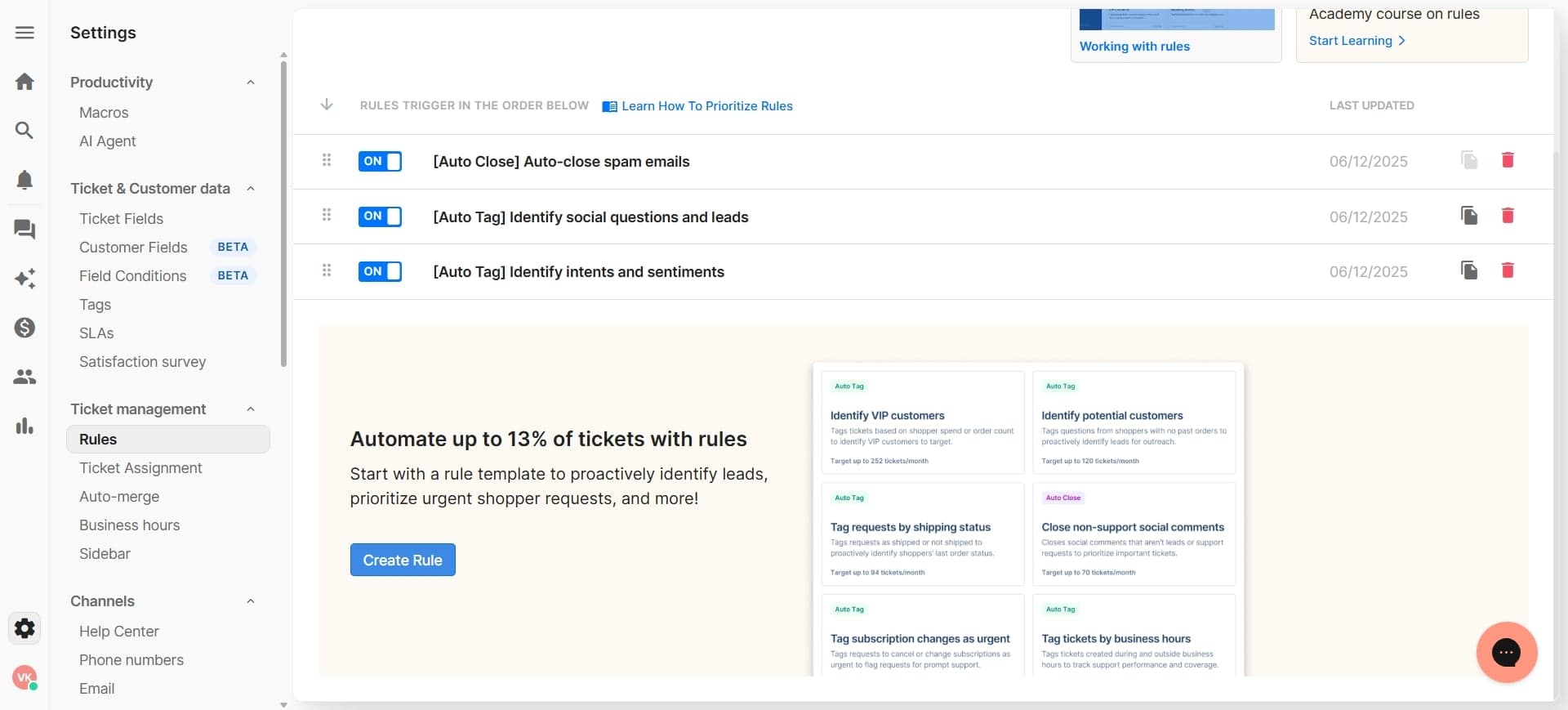
Create a new automation rule
Click the 'Create Rule' or 'New Automation' button to start building your brand-based tagging workflow. You'll be prompted to define conditions and actions.
- 4
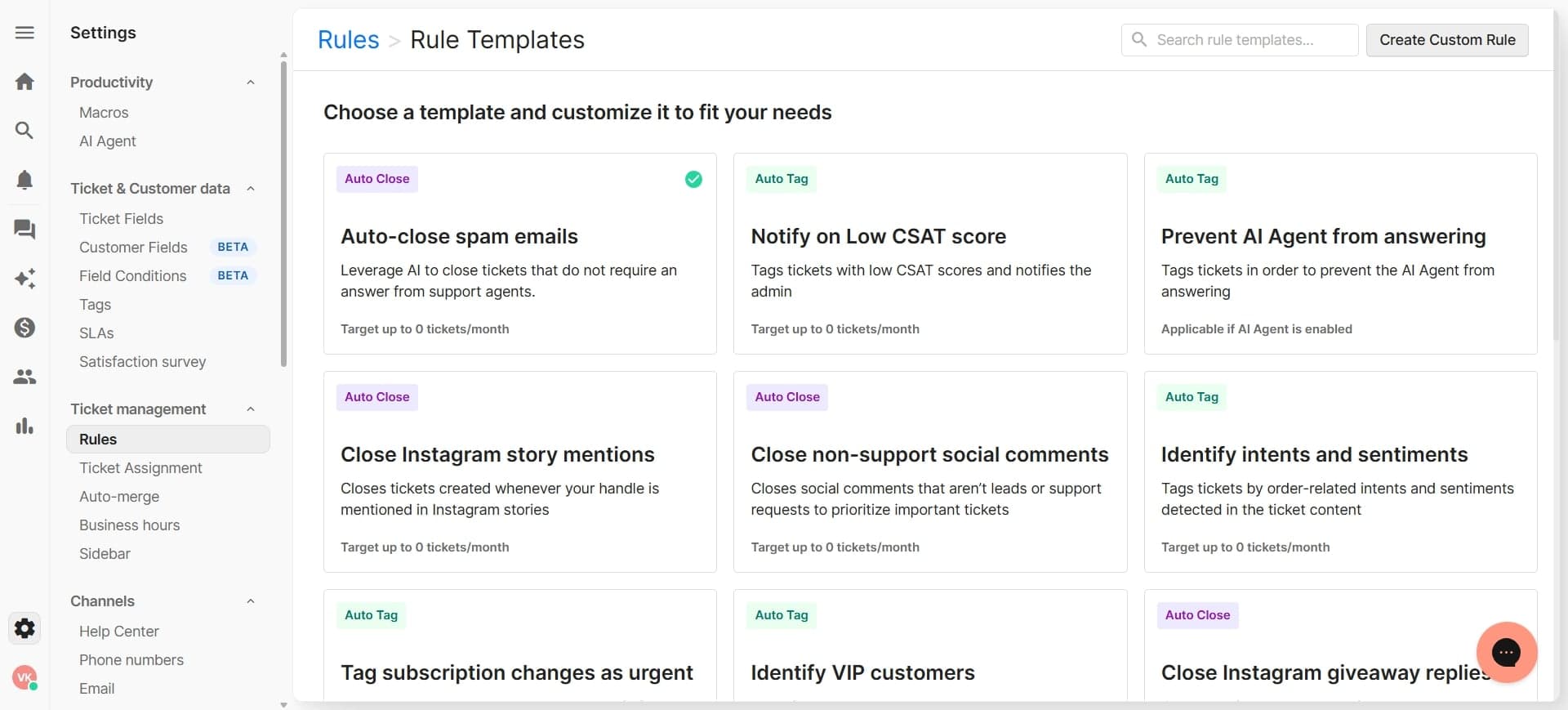
Set the trigger condition
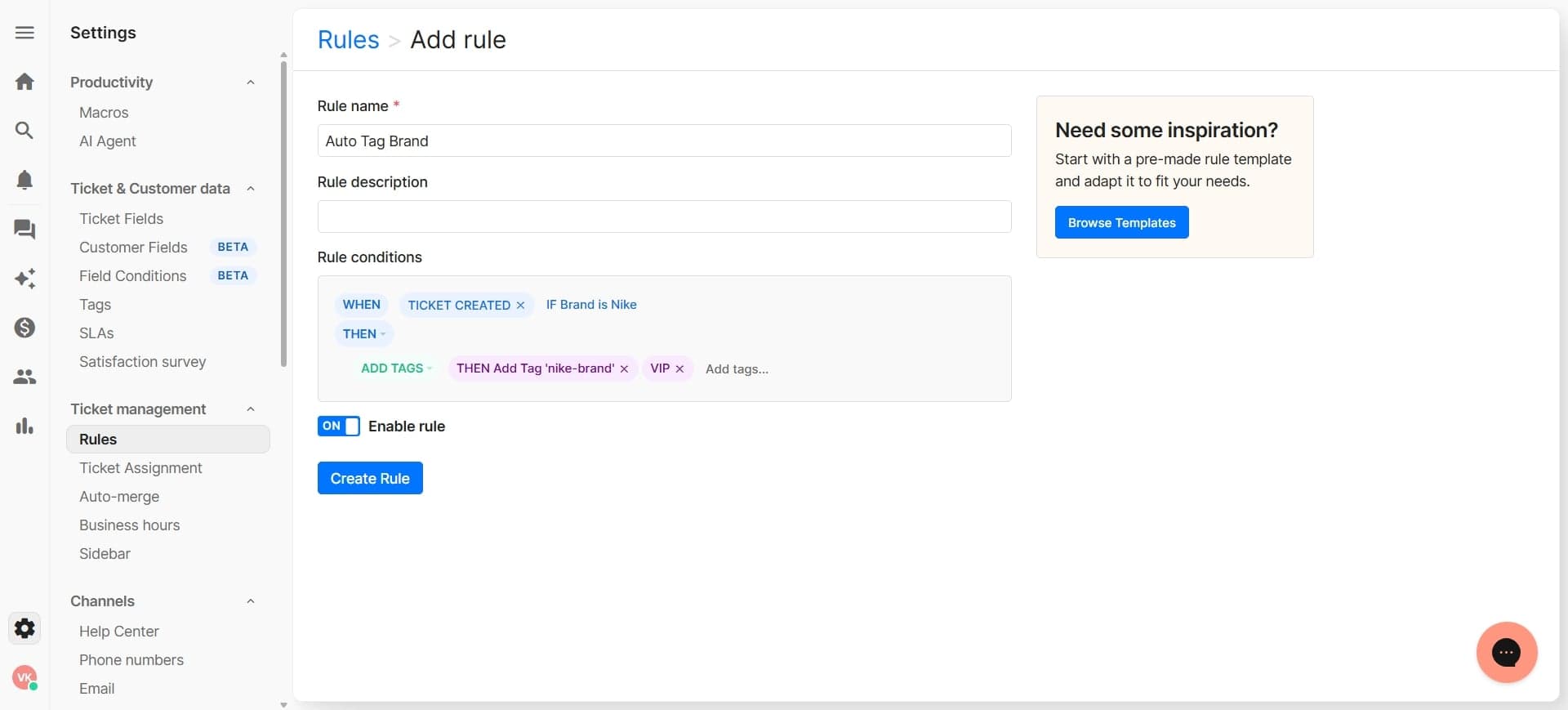
Define what triggers the auto-tag by selecting a condition like 'Customer' or 'Email domain'. Choose the field that identifies your brand, such as customer account or email address.
- 5
Specify brand identifiers
Enter the specific information that identifies each brand, such as email domains, customer segments, or custom fields. This tells Gorgias which tickets belong to which brand.
- 6
Define the tag action
Select 'Add Tag' as your automation action and create or choose a tag that represents your brand. For example, create tags like 'Brand-A', 'Brand-B', etc.
- 7
Configure additional filters
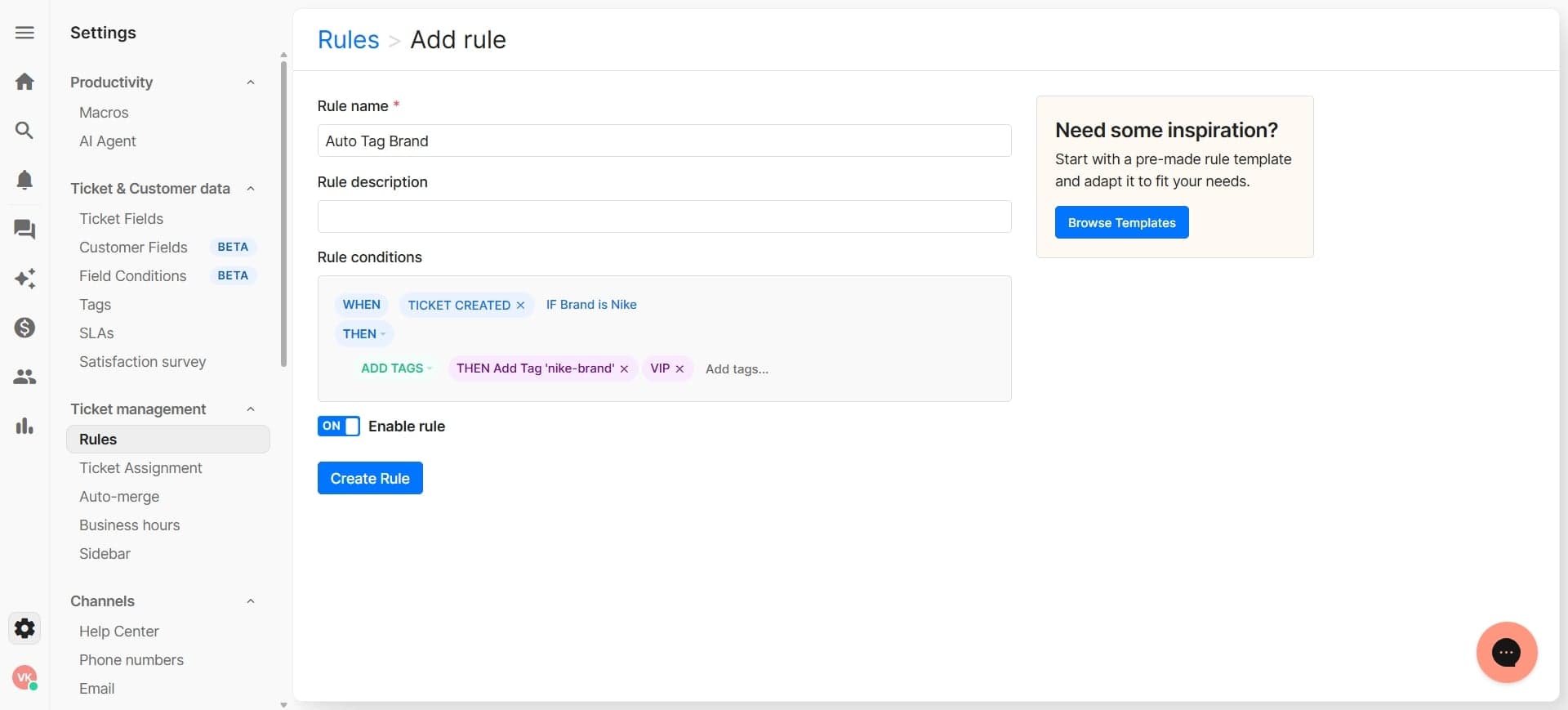
Optionally add more conditions to refine when tags are applied, such as only tagging certain ticket types or channels. This ensures tags are applied only to relevant tickets.
- 8
Review and activate the rule
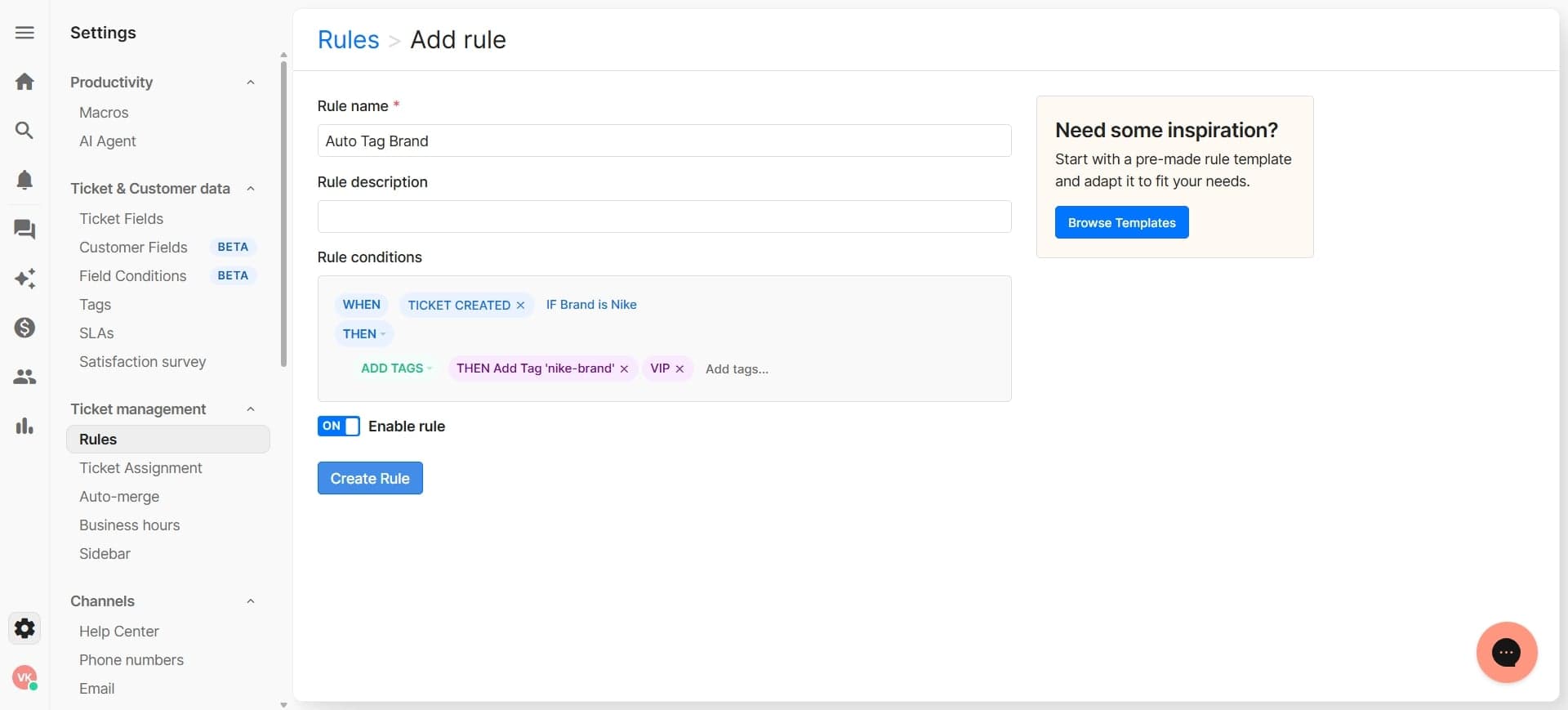
Check all your settings to ensure the condition and action are correct, then click 'Enable' or 'Save and Activate'. Your automation is now live and will apply tags to new incoming tickets.
- 9
Monitor and adjust as needed
Review your tickets over the next few days to verify tags are being applied correctly. Return to the automation settings to modify conditions if needed to improve accuracy.
Frequently asked questions
Common questions about how to auto-tag tickets by brand in gorgias.
Yes. Create separate automation rules for each brand with unique conditions and corresponding tags. Gorgias will apply all applicable rules to each incoming ticket, so a single ticket can receive multiple brand tags if it matches multiple conditions.
Tickets that don't match any of your defined brand conditions will come through without the auto-tag applied. You can then manually tag these tickets or adjust your automation rules to capture them.
Yes. You can manually edit or remove tags on individual tickets at any time. However, the automation rule will continue to apply tags to new incoming tickets based on your conditions.
You can use email domains, customer names, custom fields, contact information, or any other data associated with the customer. The best choice depends on how your brands are organized in your customer database.
Auto-tagging is applied immediately when a ticket arrives, typically within seconds. This ensures your team sees the correct brand tag right away, allowing for faster routing and response.