How to Cancel the Gorgias Account

Canceling your Gorgias account is a straightforward process that can be completed directly through your account settings. This guide walks you through each step to ensure your subscription is properly terminated and your data is handled according to your preferences.
Quick summary
In this tutorial, you'll learn how to navigate to your account settings, initiate the cancellation process, and confirm the termination of your Gorgias subscription. We'll cover all the necessary steps to ensure your account is successfully canceled.
Why this matters
Canceling your Gorgias account may be necessary when you're switching to a different customer support platform, consolidating tools, or simply no longer need the service. Understanding the proper cancellation process ensures you won't continue being charged and can cleanly transition away from the platform.
Step-by-step guide
- 1
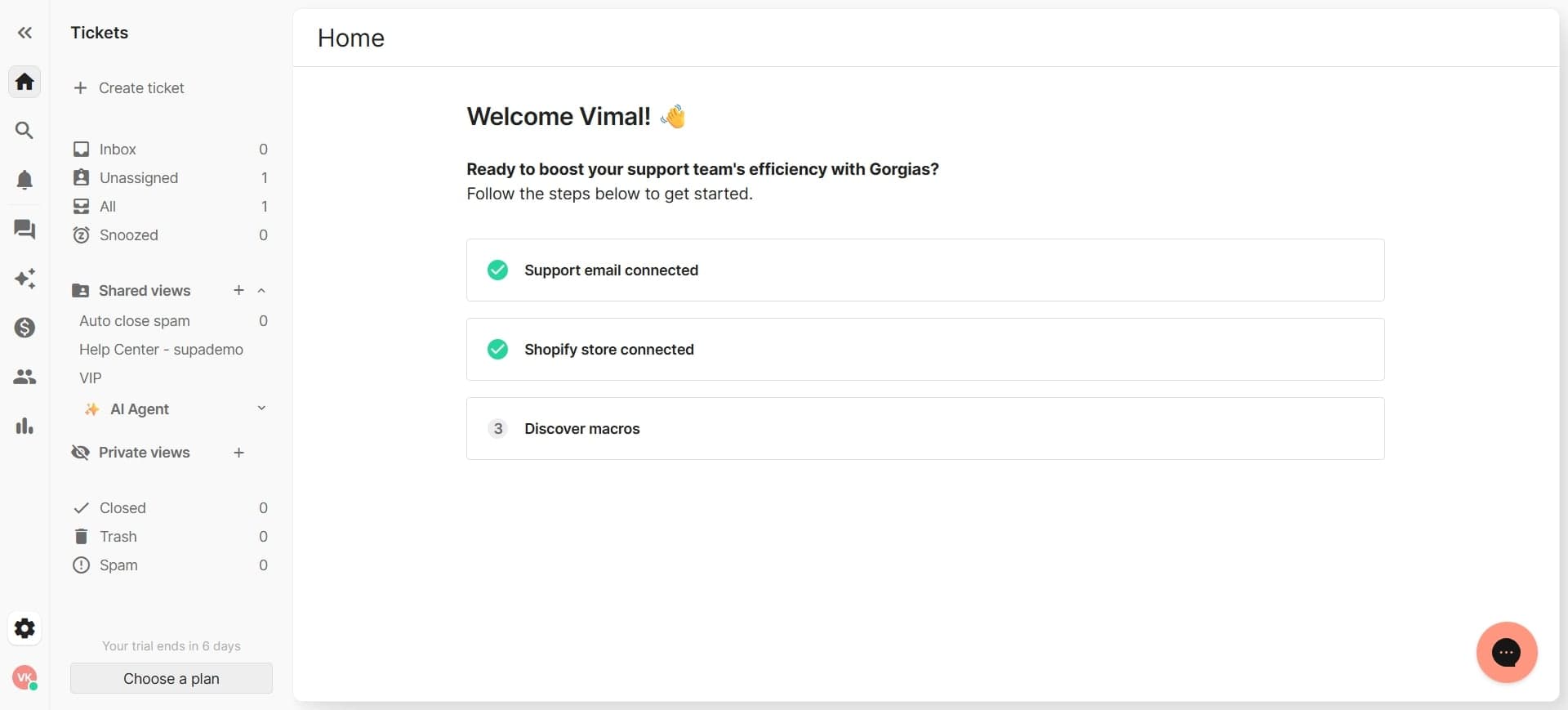
Log in to your Gorgias account
Navigate to the Gorgias login page and enter your email and password to access your account dashboard. Once logged in, you'll be able to access all account settings and management options.
- 2
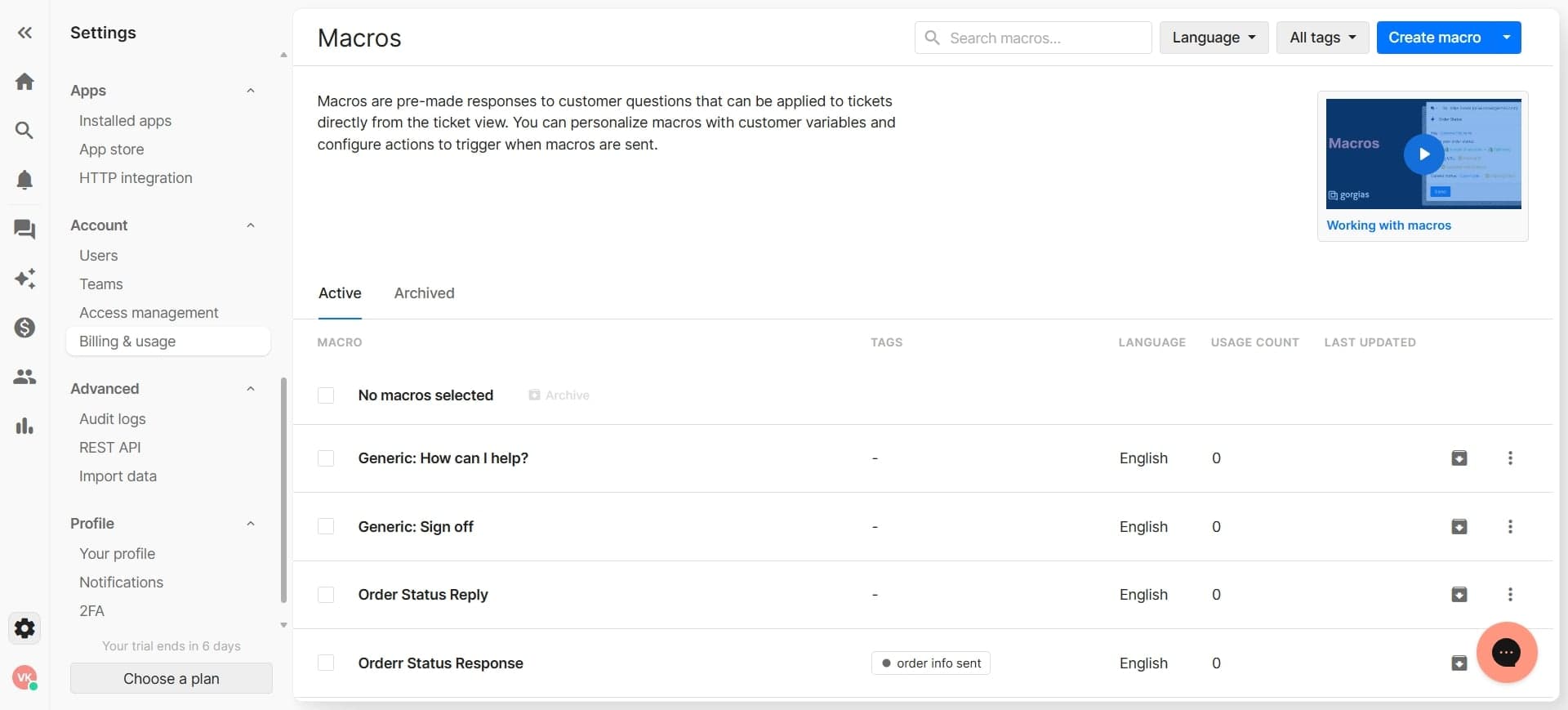
Navigate to account settings
Look for the settings or account menu, typically found in the top navigation bar or user profile dropdown. Click on the account settings or billing section to access subscription management options.
- 3
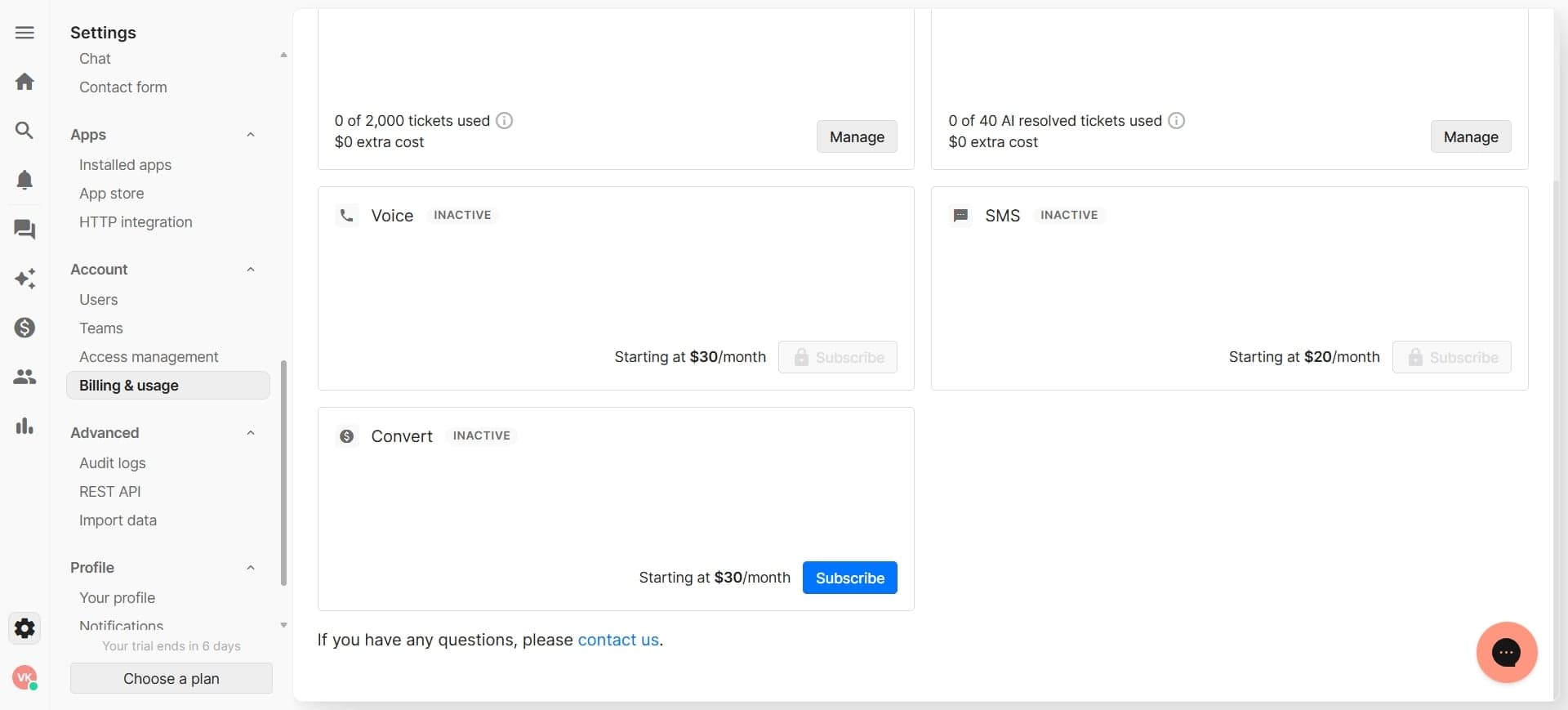
Locate subscription or billing section
Within account settings, find the subscription, billing, or plan management section. This is where you'll find information about your current subscription and cancellation options.
- 4
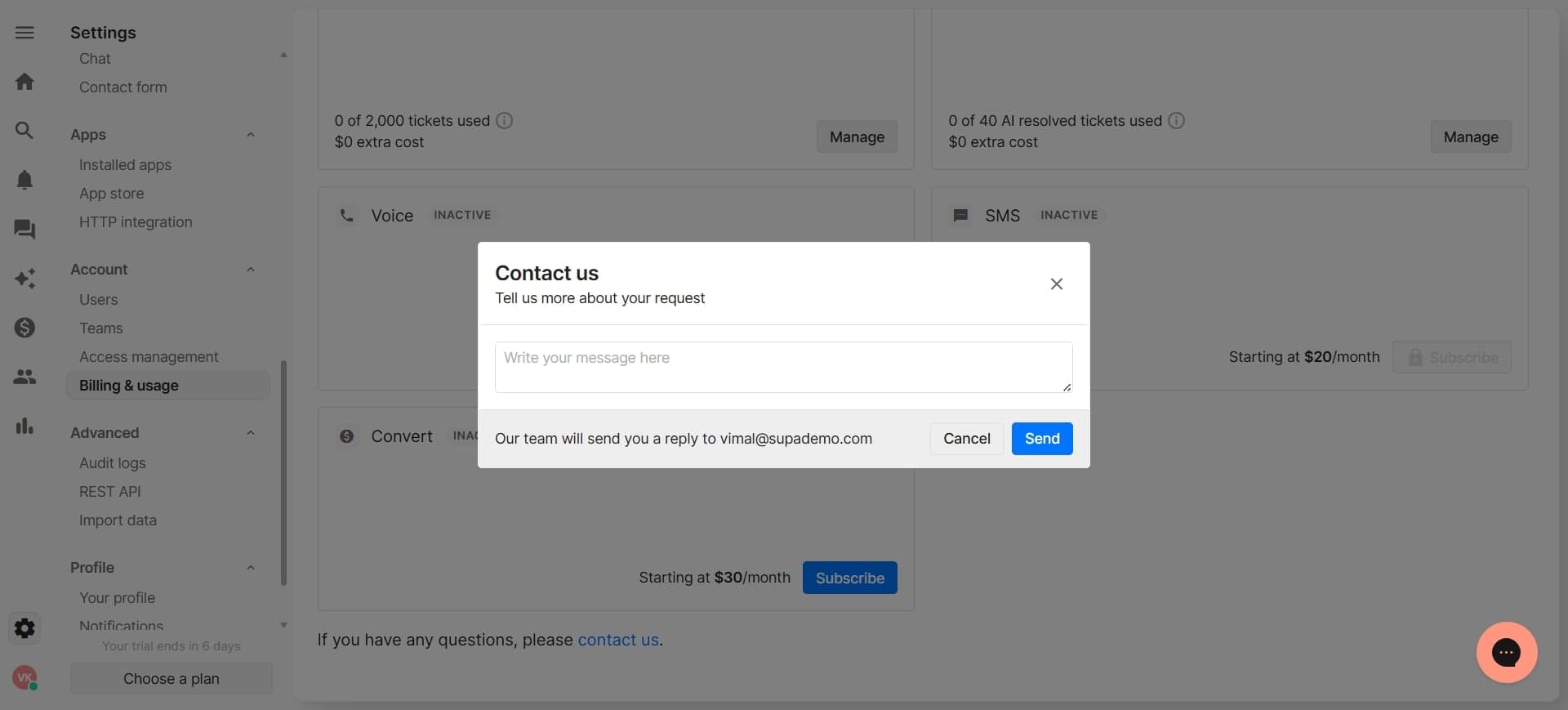
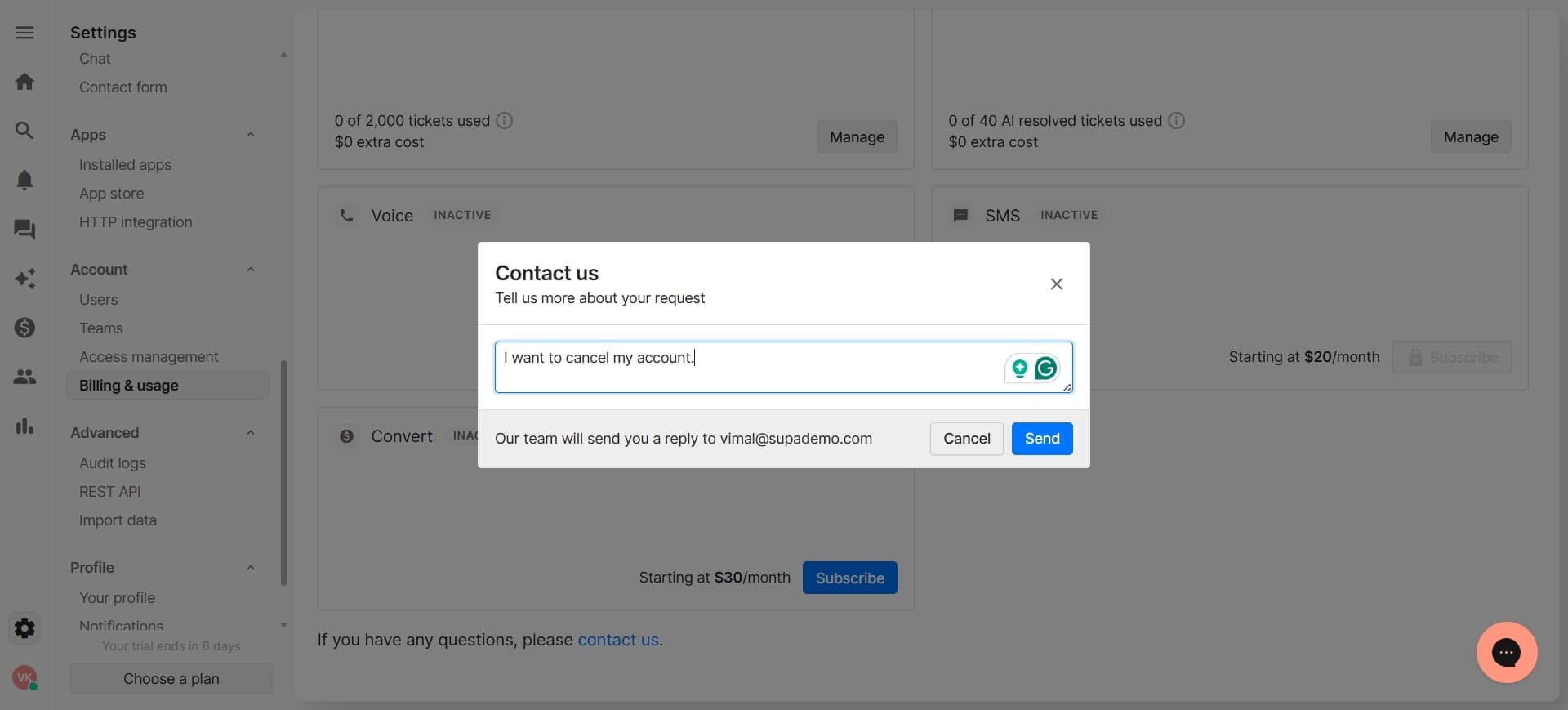
Select cancel subscription option
Click on the cancel or downgrade button associated with your current plan. Gorgias may present you with alternatives or retention offers before finalizing the cancellation.
- 5
Confirm cancellation and complete process
Review the cancellation details, including your final billing date and any data retention policies. Click the confirm button to complete the cancellation process and receive a confirmation email.
Frequently asked questions
Common questions about how to cancel the gorgias account.
No, your subscription will be terminated at the end of your current billing cycle, and you won't be charged for any future periods. Gorgias will send you a confirmation email with your cancellation details and final billing information.
Yes, you can reactivate your Gorgias account at any time by logging back in and selecting a plan. However, you may need to reconfigure your settings and integrations if significant time has passed since cancellation.
Gorgias typically retains your data for a period after cancellation according to their data retention policy. You should review their privacy policy or contact support if you need information about how long your data will be stored and your options for data export.
Depending on your plan, Gorgias may offer downgrade or pause options as an alternative to full cancellation. Check the subscription management section to see if these options are available for your account.
You don't need to manually cancel integrations before closing your Gorgias account, as the cancellation process will disconnect your account from connected third-party services. However, you may want to verify those connections in your third-party apps afterward to ensure proper cleanup.