How to Configure Multi-Brand Ticket Tagging in Gorgias

Managing tickets across multiple brands requires a strategic tagging system that keeps customer inquiries organized and routable to the right teams. Gorgias enables you to configure multi-brand ticket tagging, ensuring that regardless of which brand a customer contacts, tickets are automatically categorized and tracked consistently. This guide walks you through the configuration process step-by-step.
Quick summary
In this tutorial, you'll learn how to set up and configure multi-brand ticket tagging in Gorgias. You'll discover how to create brand-specific tags, apply tagging rules across multiple brand channels, and ensure tickets are properly categorized from intake through resolution.
Why this matters
Multi-brand ticket tagging is critical for scaling customer support across multiple brand properties without creating confusion or duplicate work. Properly configured tags improve team visibility, streamline ticket routing, enable accurate reporting by brand, and help maintain consistent service standards across all customer touchpoints. Without clear tagging, support teams waste time searching for relevant tickets and lose visibility into which brand a customer represents.
Step-by-step guide
- 1
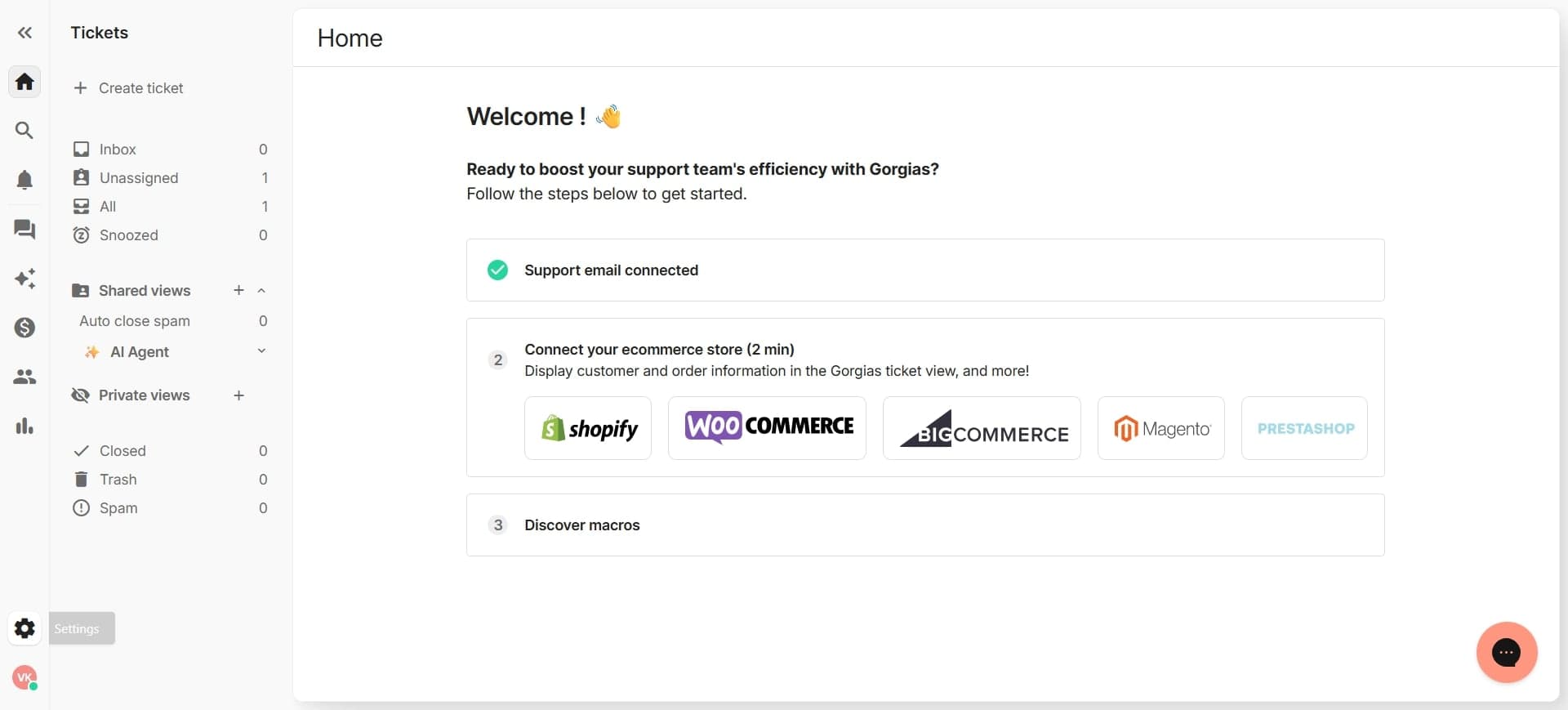
Access Gorgias settings panel
Log into your Gorgias account and navigate to the main settings or administration area. Look for the settings icon or menu option typically located in the top navigation or sidebar.
- 2
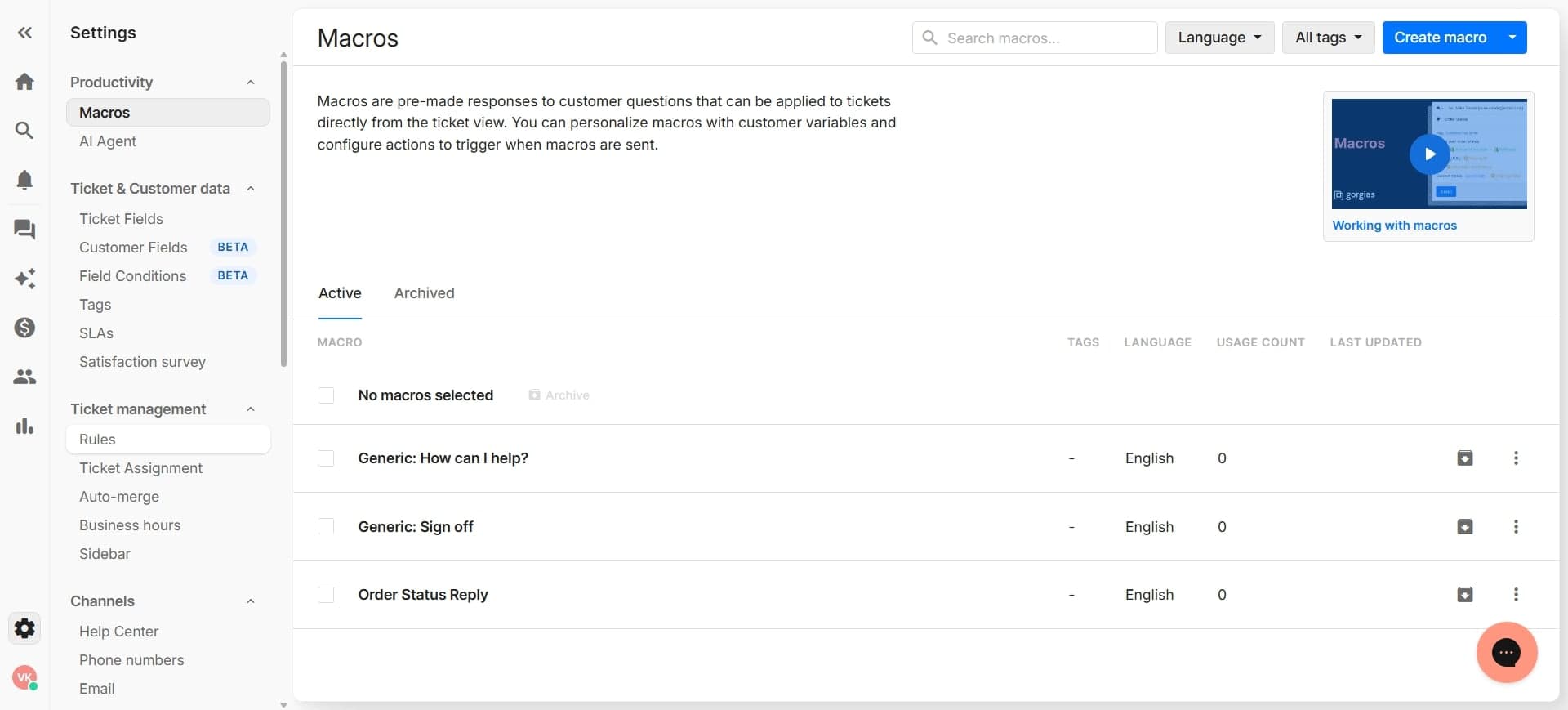
Locate ticket tagging settings
Find the section dedicated to tags or ticket management within the settings interface. This section controls how tags are created, managed, and applied across your account.
- 3
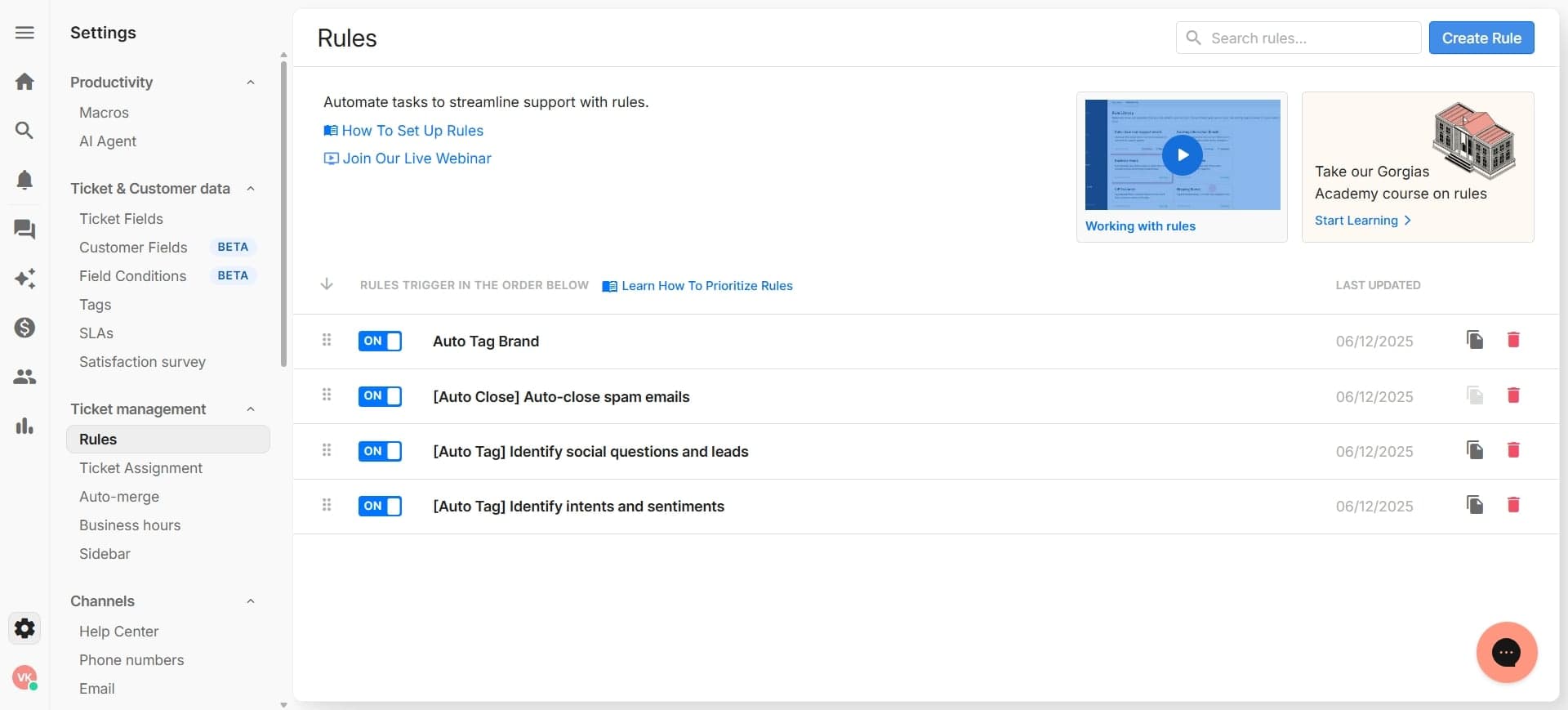
Create brand-specific tag categories
Set up new tag categories that correspond to each of your brands. Name each category clearly using your brand identifiers so team members can easily recognize which brand a tag represents.
- 4
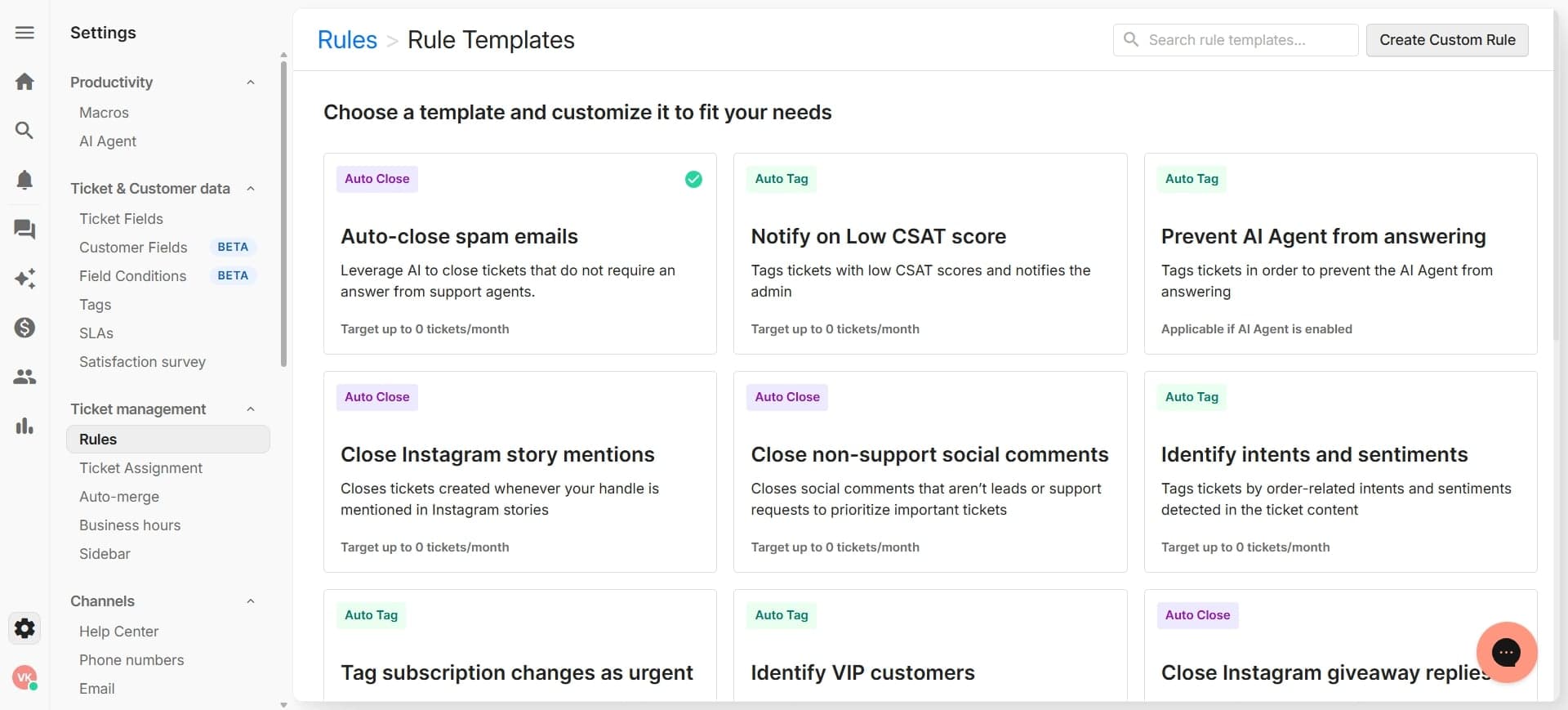
Define individual tags per brand
Within each brand category, create specific tags for common ticket types, priorities, or status indicators relevant to that brand. Establish a consistent naming convention across all brands for easier filtering and reporting.
- 5
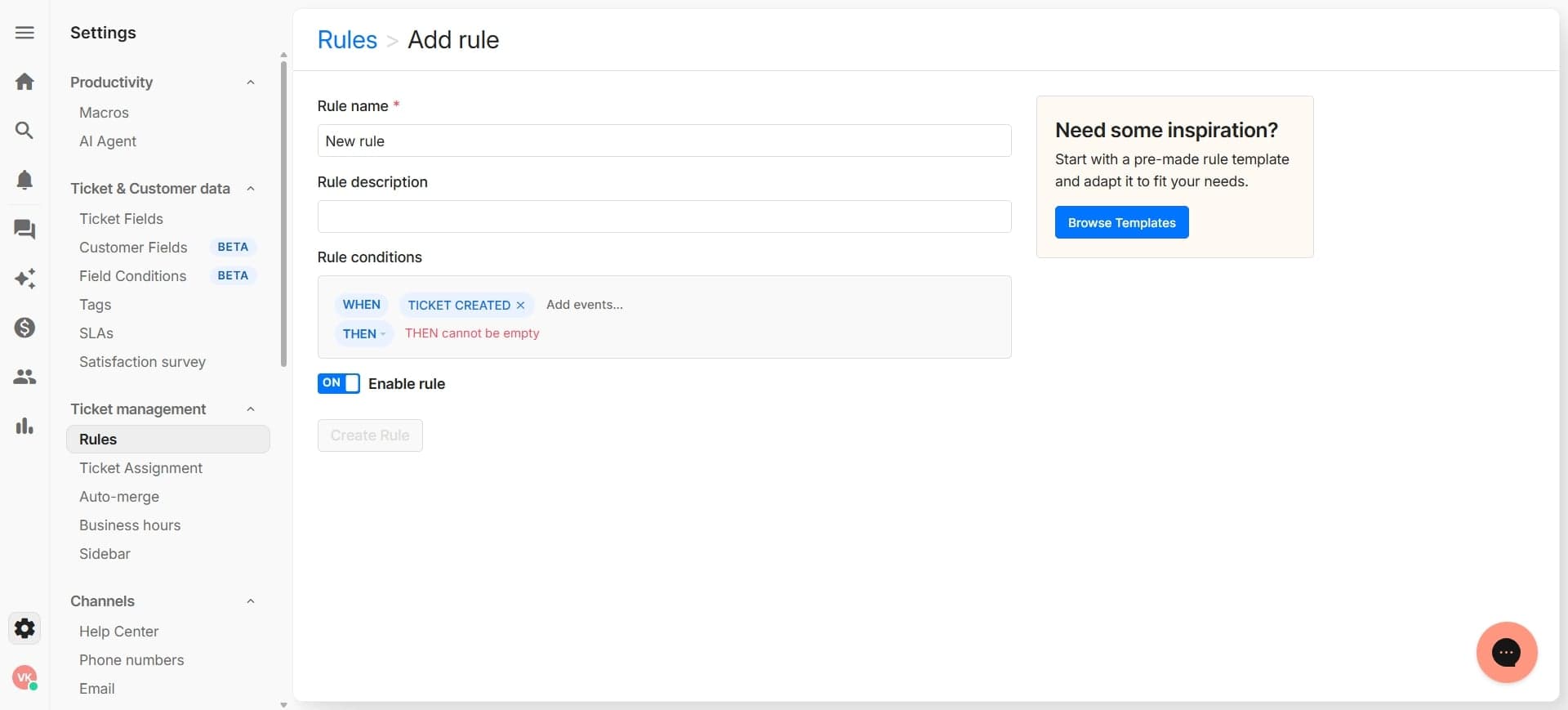
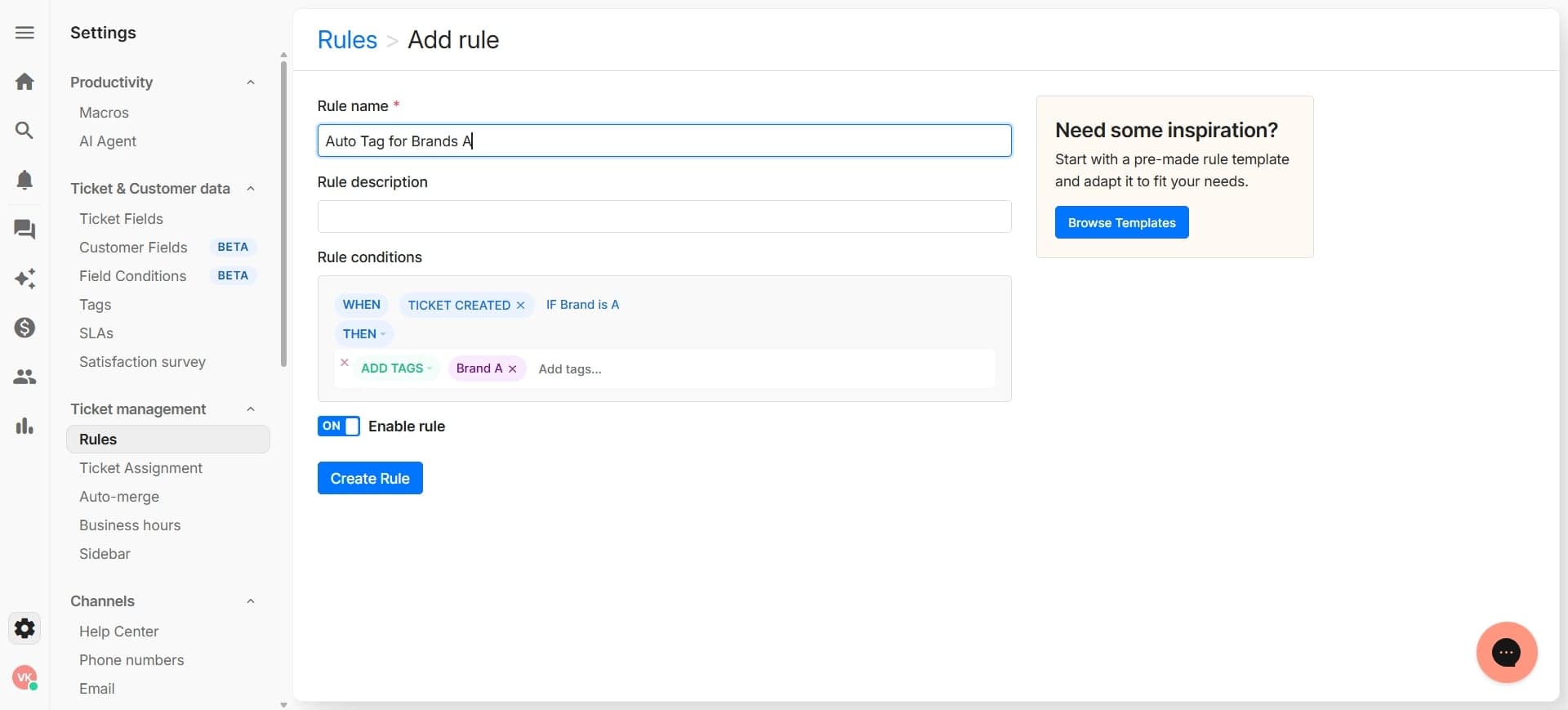
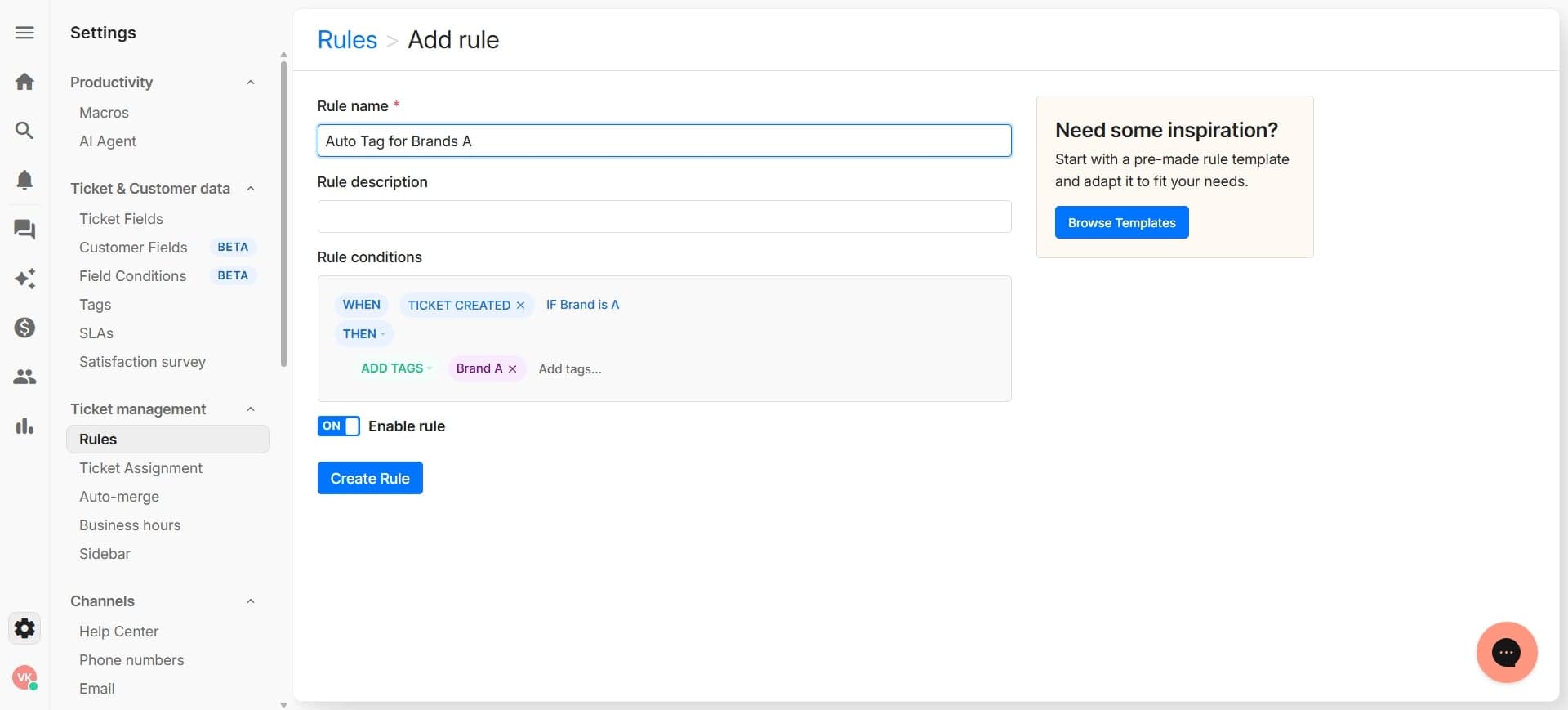
Configure automated tagging rules
Set up rules that automatically apply tags based on ticket attributes such as incoming channel, customer segment, or keyword matches. This ensures tickets are tagged consistently without manual intervention.
- 6
Assign tags to team members or groups
Determine which team members or support groups have permission to view, create, and modify tags for each brand. This prevents accidental tag changes and maintains organizational integrity.
- 7
Test tagging across brand channels
Submit test tickets from each of your brand channels to verify that tags are being applied correctly and automatically. Confirm that tickets are properly categorized regardless of which brand channel they originate from.
- 8
Review and optimize tag performance
Monitor tag usage over a test period and adjust your tagging rules or categories as needed based on real workflow patterns. Remove unused tags and refine rules that aren't capturing tickets as intended.
Frequently asked questions
Common questions about how to configure multi-brand ticket tagging in gorgias.
Yes, you can create shared tags that apply across all brands, or create brand-specific tags that apply only to individual brands. Many teams use a hybrid approach with universal tags for common attributes and brand-specific tags for unique workflows. Your tagging structure should reflect how your support team actually organizes and discusses tickets.
Gorgias will apply all matching tags to the ticket, which is helpful for tickets that fall into multiple categories. You can prioritize rules through the rule configuration interface to control the order in which tags are applied if certain tags should take precedence.
You can restrict tag creation permissions to administrators or specific team leads, requiring other team members to select from pre-defined tags only. This maintains consistency and prevents tag sprawl across your support system.
You can rename or modify tag properties in Gorgias, but the system handles historical data appropriately. Deleting a tag will typically remove it from future tickets but won't erase it from historical ticket records, preserving your audit trail.
Once your multi-brand tags are configured, you can filter and report on tickets using the tagging system in Gorgias analytics and reporting dashboards. Apply your brand tags as filters to view metrics specific to each brand, such as response time, resolution rate, and volume by brand.