How to Add Team Members in HelpScout

Adding team members to HelpScout is essential for scaling your customer support operations and ensuring your entire team can access and manage customer conversations. This guide walks you through the process of inviting new team members and configuring their permissions within HelpScout.
Quick summary
In this tutorial, you'll learn how to navigate to the team management settings, invite new members to your HelpScout workspace, and assign appropriate roles and permissions. By the end, you'll be able to onboard team members quickly and control what they can access.
Why this matters
Properly managing team members in HelpScout ensures that your support staff has the right access levels to handle customer inquiries efficiently while maintaining security and data privacy. Adding team members with appropriate permissions reduces response times and prevents unauthorized access to sensitive customer information.
Step-by-step guide
- 1
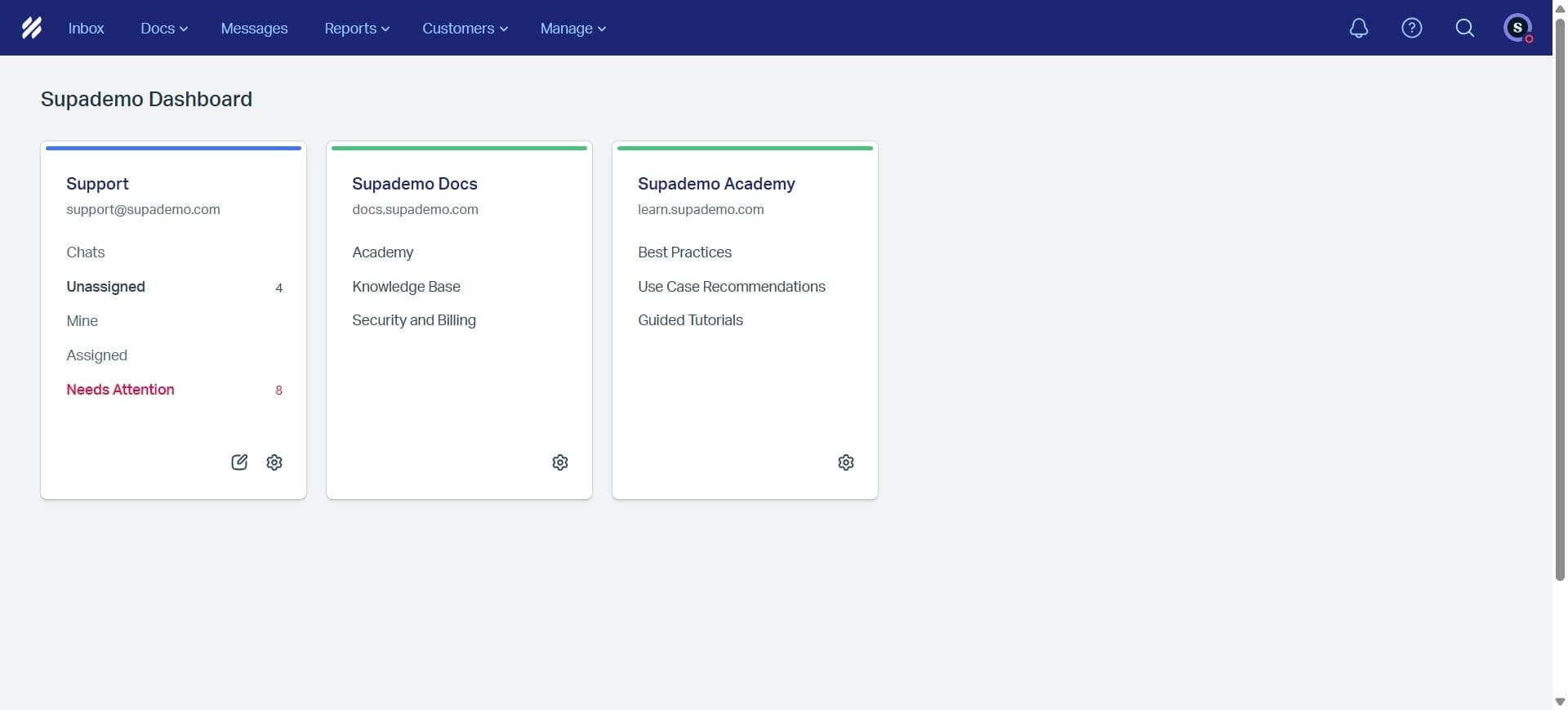
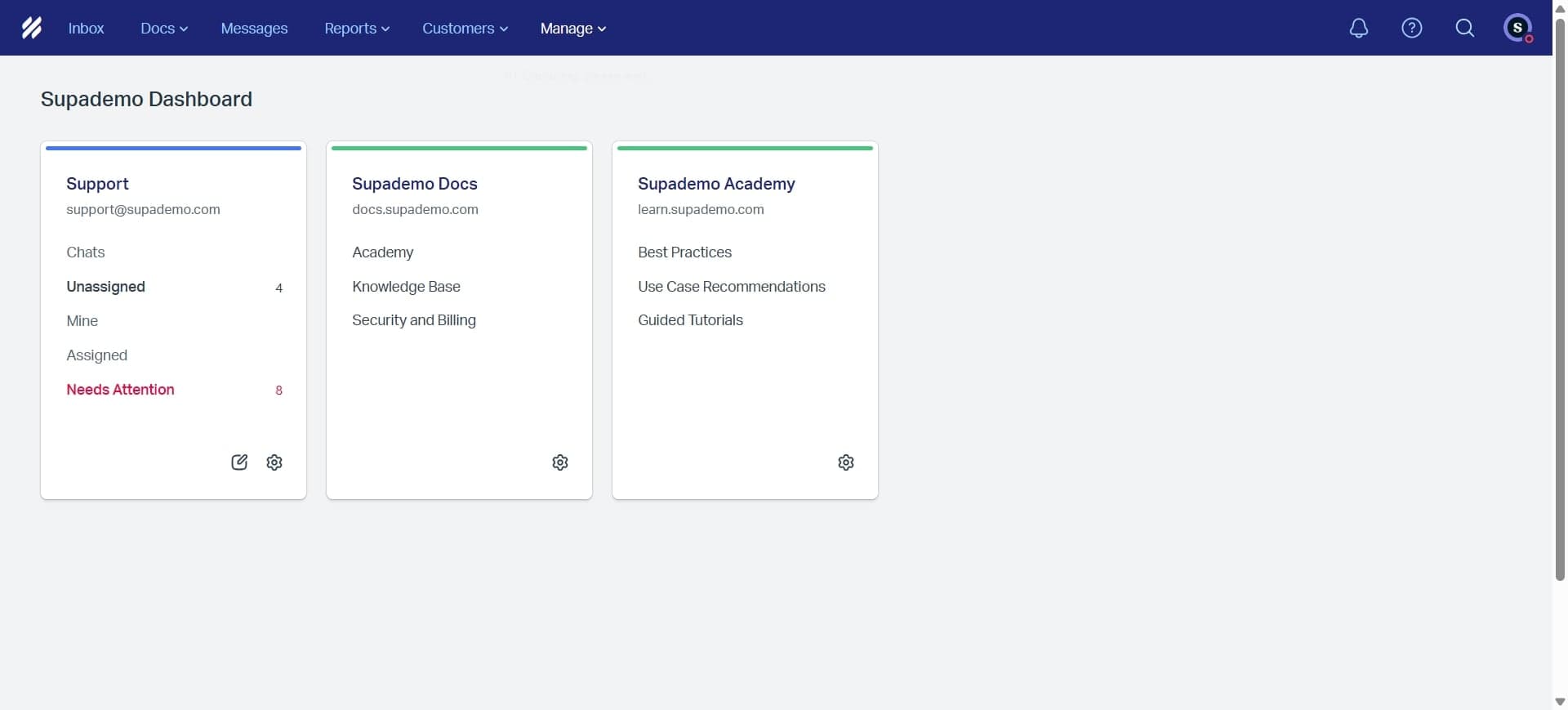
Access the settings menu
Log in to your HelpScout account and locate the settings icon in the main navigation. Click on it to open the settings dropdown menu where team management options are available.
- 2
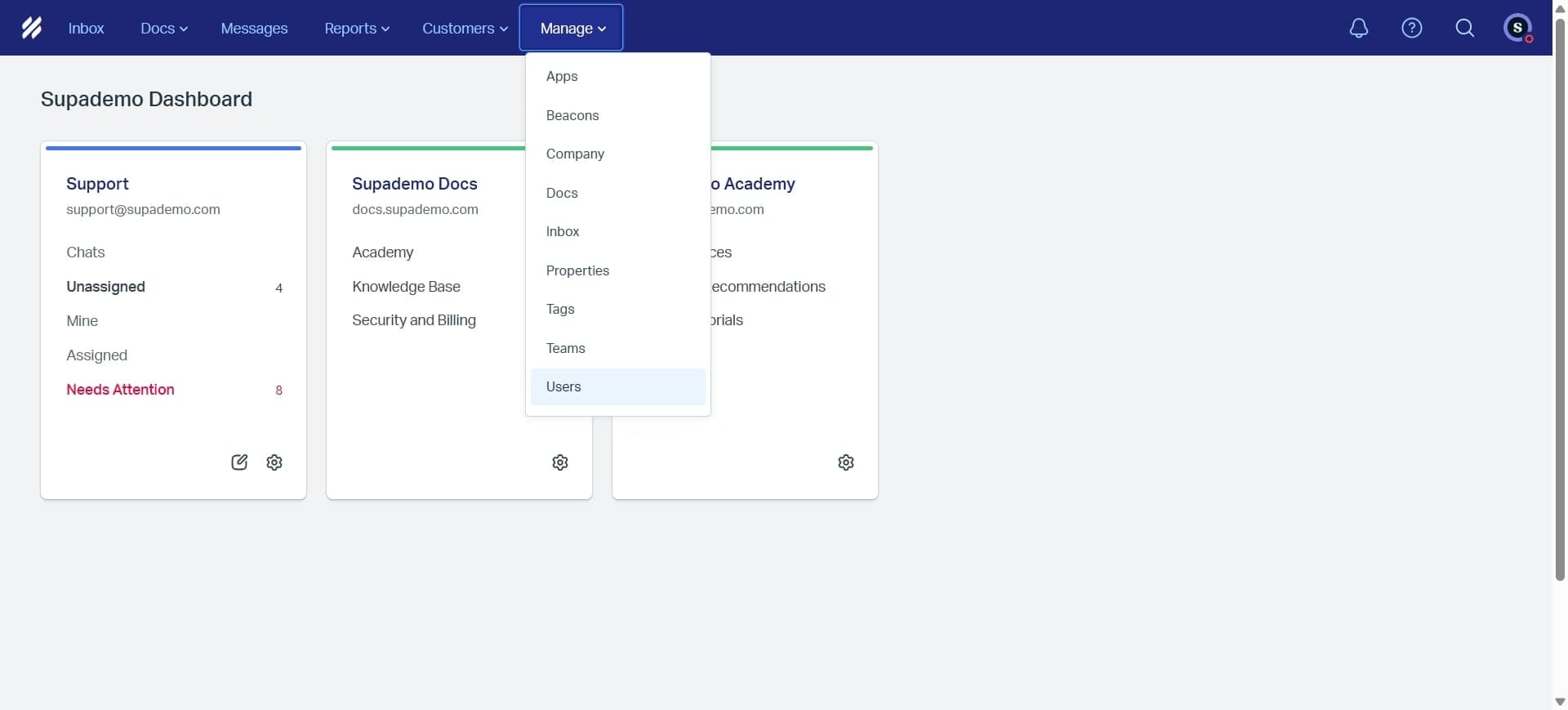
Navigate to team settings
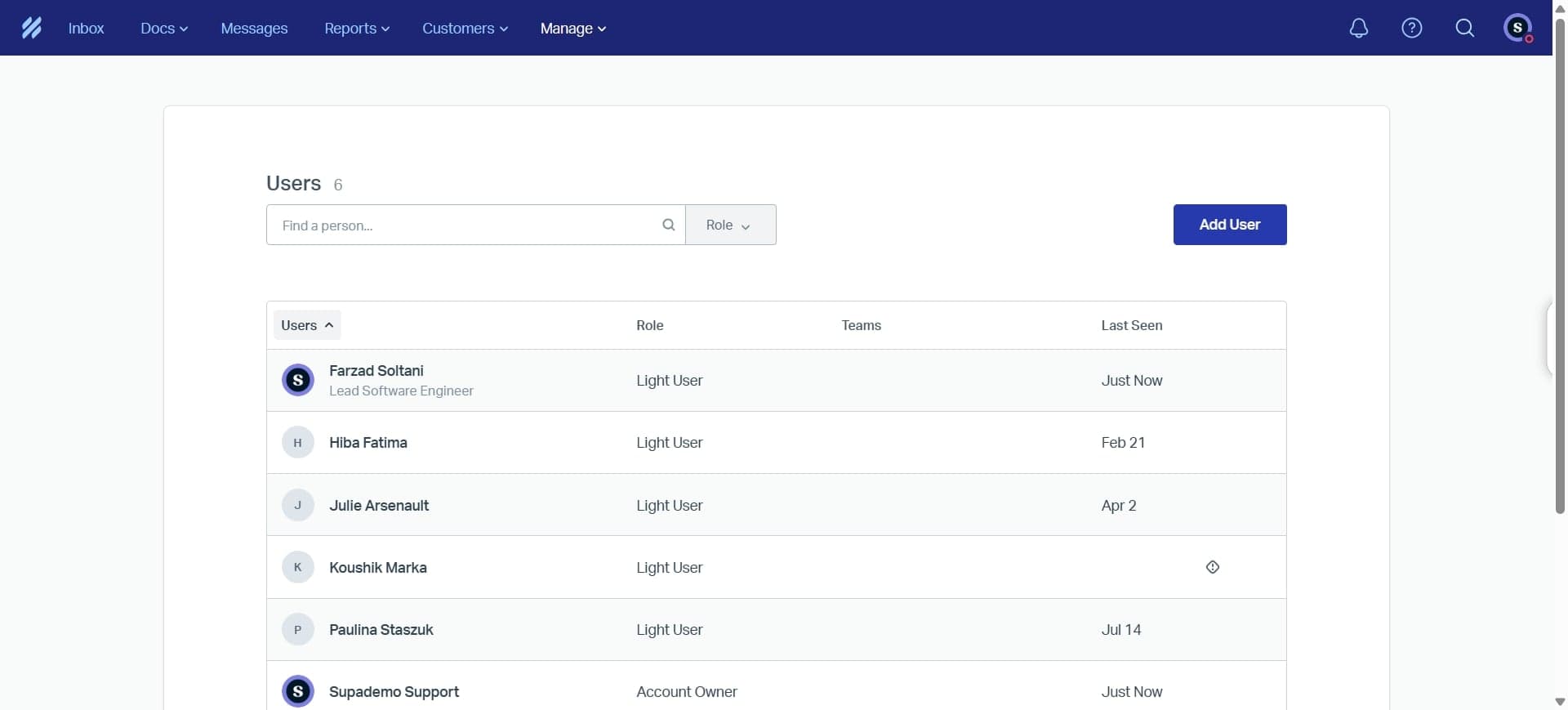
From the settings menu, select the 'Team' or 'Users' option to access the team management dashboard. This page displays all current team members and provides the interface for adding new ones.
- 3
Click the invite button
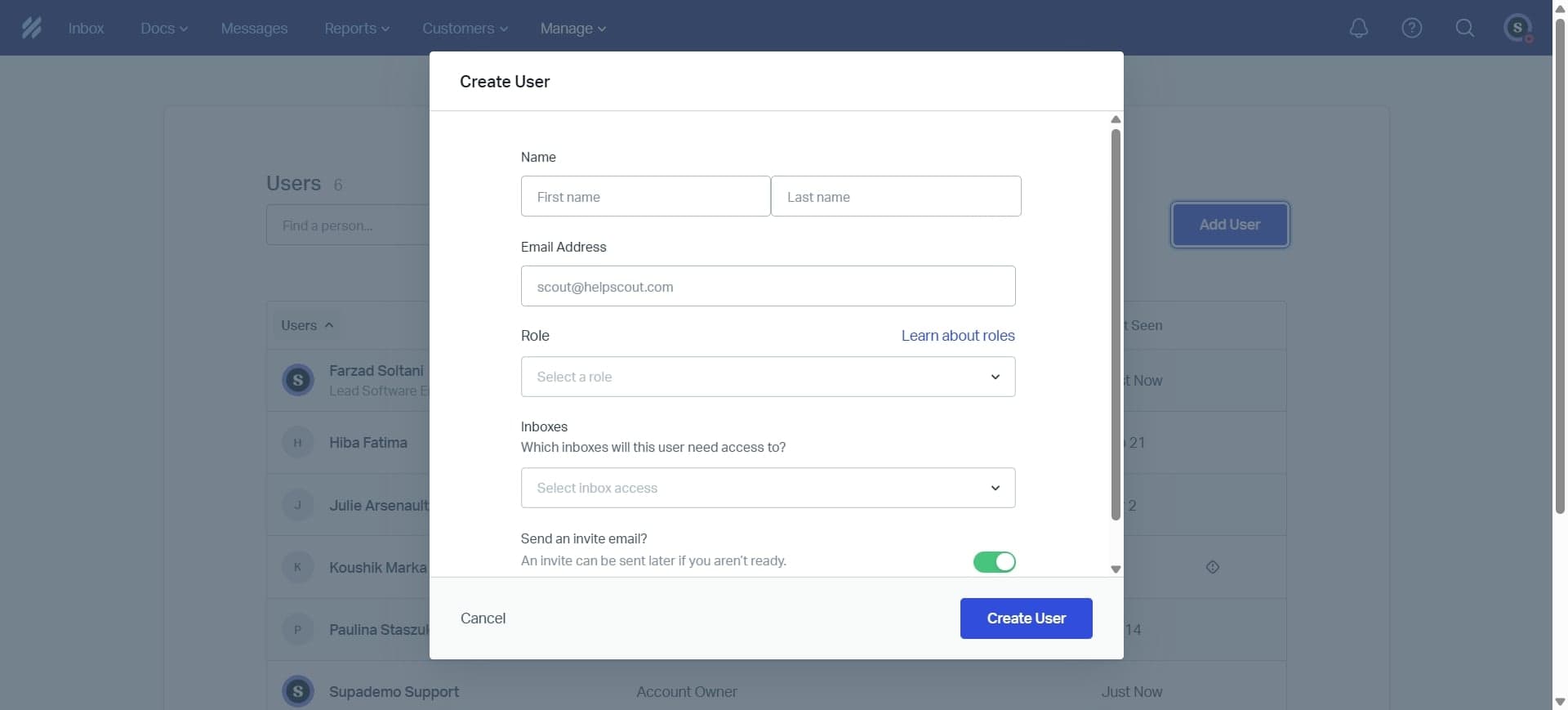
Look for the 'Add Team Member' or 'Invite' button on the team management page. Click this button to open the invitation form where you'll enter new member details.
- 4
Enter member email address
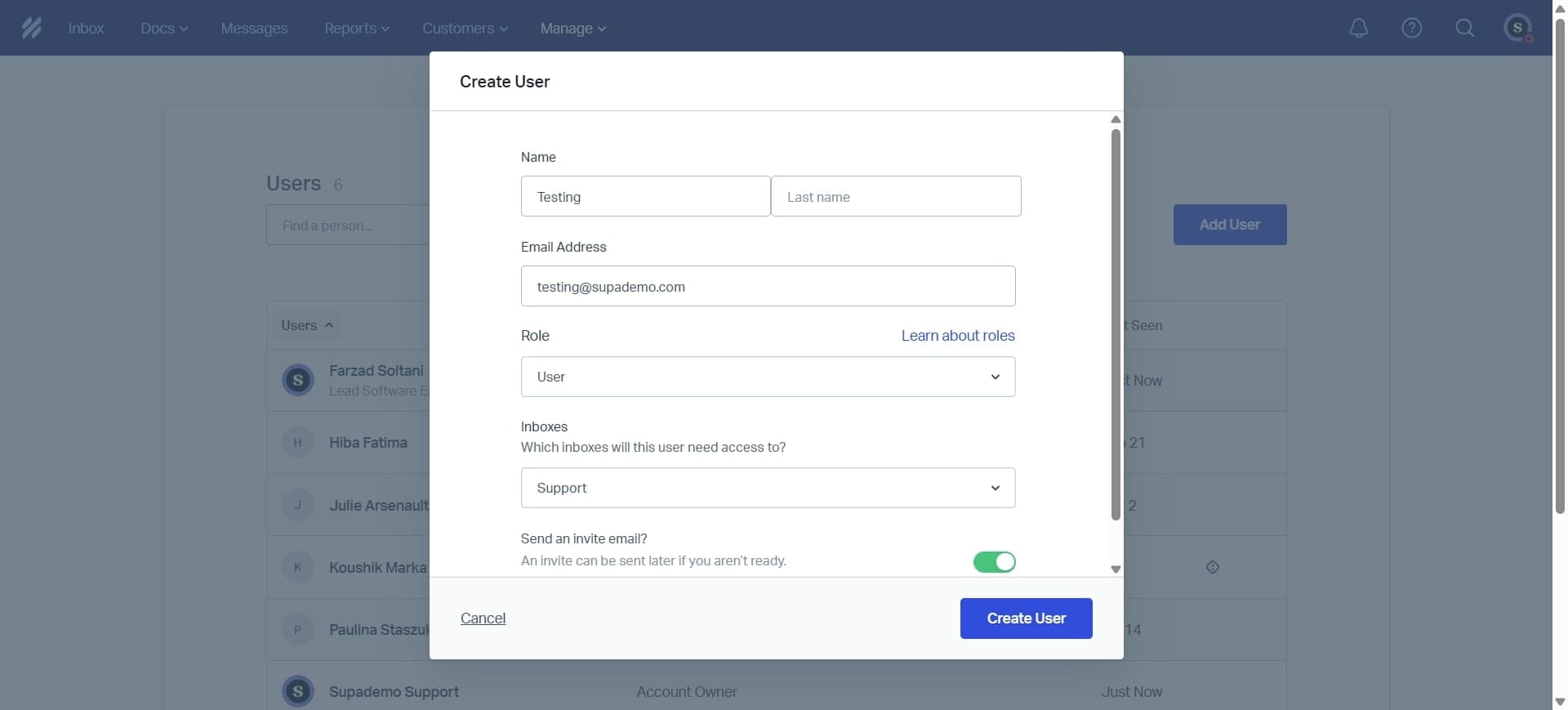
Type the email address of the person you want to add to your HelpScout team in the designated field. Ensure the email is accurate, as the invitation will be sent to this address.
- 5
Select role and permissions
Choose the appropriate role for the new team member from the dropdown menu (e.g., Admin, Agent, Manager). Review the permissions associated with that role to ensure it matches their responsibilities.
- 6
Send the invitation
Click the 'Send Invite' or 'Add Member' button to send the invitation to the team member's email. They will receive an email with instructions to accept the invitation and set up their account.
Frequently asked questions
Common questions about how to add team members in helpscout.
HelpScout offers several roles including Admin (full access to all features), Agent (can view and manage conversations), and Manager (can manage agents and view reports). Some plans may also include custom roles. Each role comes with predefined permissions that you can adjust based on your team's needs.
Once you send an invitation, the team member will receive an email with a link to accept. After they click the link and complete their setup, they'll have immediate access to HelpScout. The entire process typically takes just a few minutes.
Yes, you can modify team member roles and permissions at any time from the team settings page. Simply select the team member, update their role or individual permissions, and save the changes. The updates take effect immediately.
If a team member doesn't accept within a reasonable timeframe, you can resend the invitation from the team settings page. You can also remove the pending invitation and send a new one if the email address needs to be updated.
The number of team members you can add depends on your HelpScout pricing plan. Most plans allow multiple team members, but there may be per-seat costs. Check your plan details or contact HelpScout support to confirm the member limit for your account.