How to Assign Conversations to Users in HelpScout

Assigning conversations to team members in Help Scout ensures that customer inquiries are routed to the right person and prevents messages from falling through the cracks. This workflow is essential for maintaining organized customer support and improving response times across your team.
Quick summary
In this tutorial, you'll learn how to assign conversations to specific users in Help Scout, manage conversation ownership, and ensure seamless handoffs between team members. You'll discover the quickest ways to assign conversations from your inbox and understand best practices for team collaboration.
Why this matters
Proper conversation assignment prevents duplicate responses, clarifies ownership of customer issues, and helps your support team prioritize their workload effectively. When conversations are clearly assigned, customers receive faster resolutions and your team maintains better accountability and communication.
Step-by-step guide
- 1
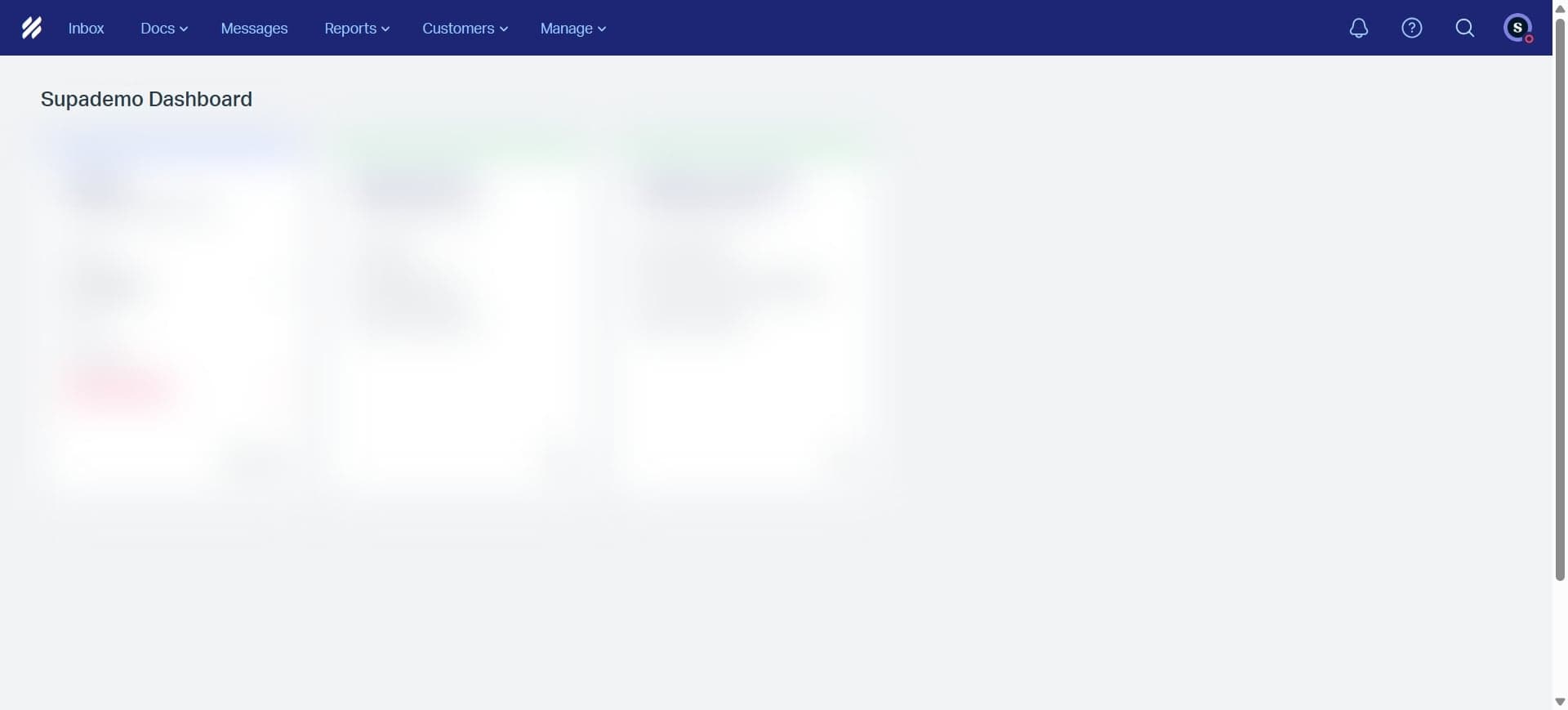
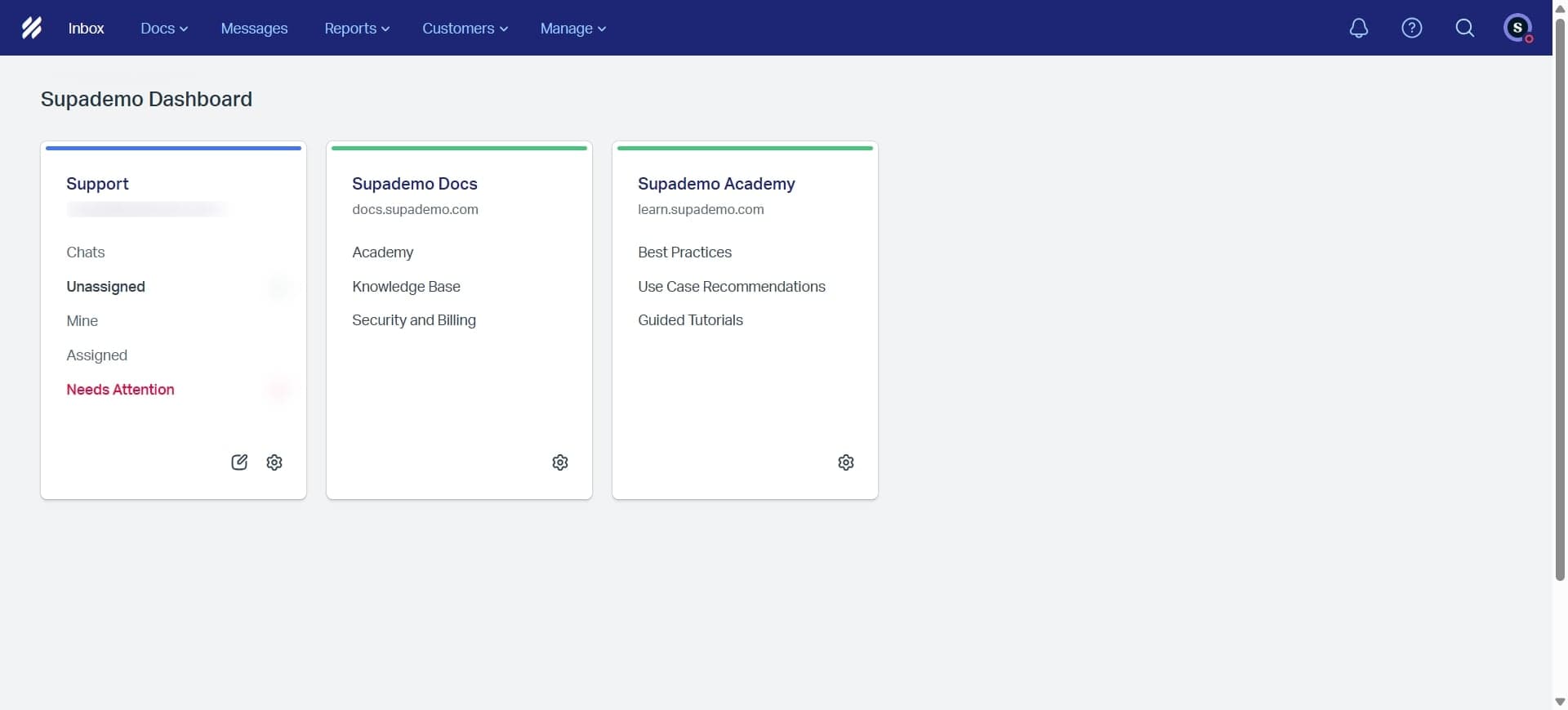
Open Help Scout inbox
Log into your Help Scout account and navigate to your inbox. You'll see a list of all incoming conversations waiting to be addressed or assigned.
- 2
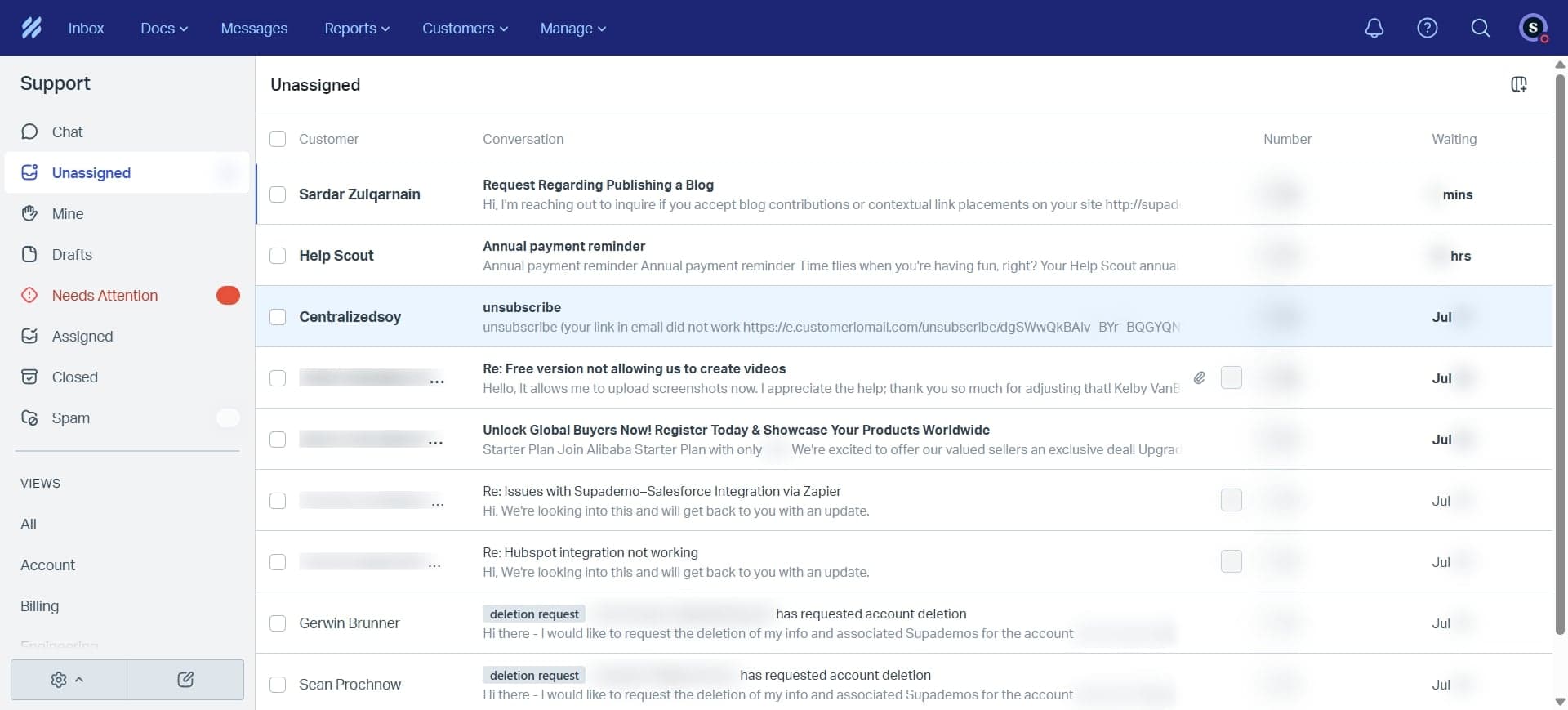
Select a conversation to assign
Click on the conversation you want to assign from the inbox list. The conversation details will open, showing the full message thread and available action options.
- 3
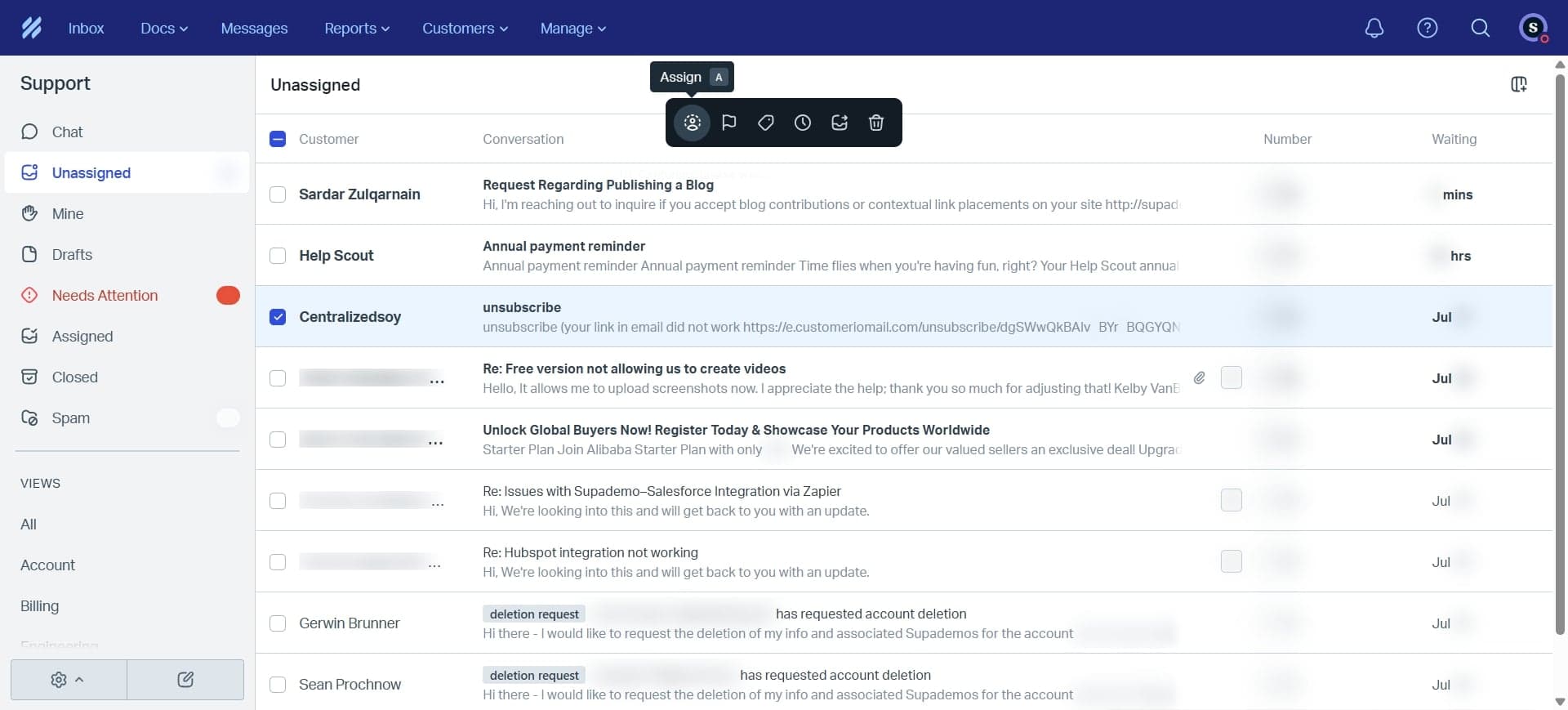
Click the assign option
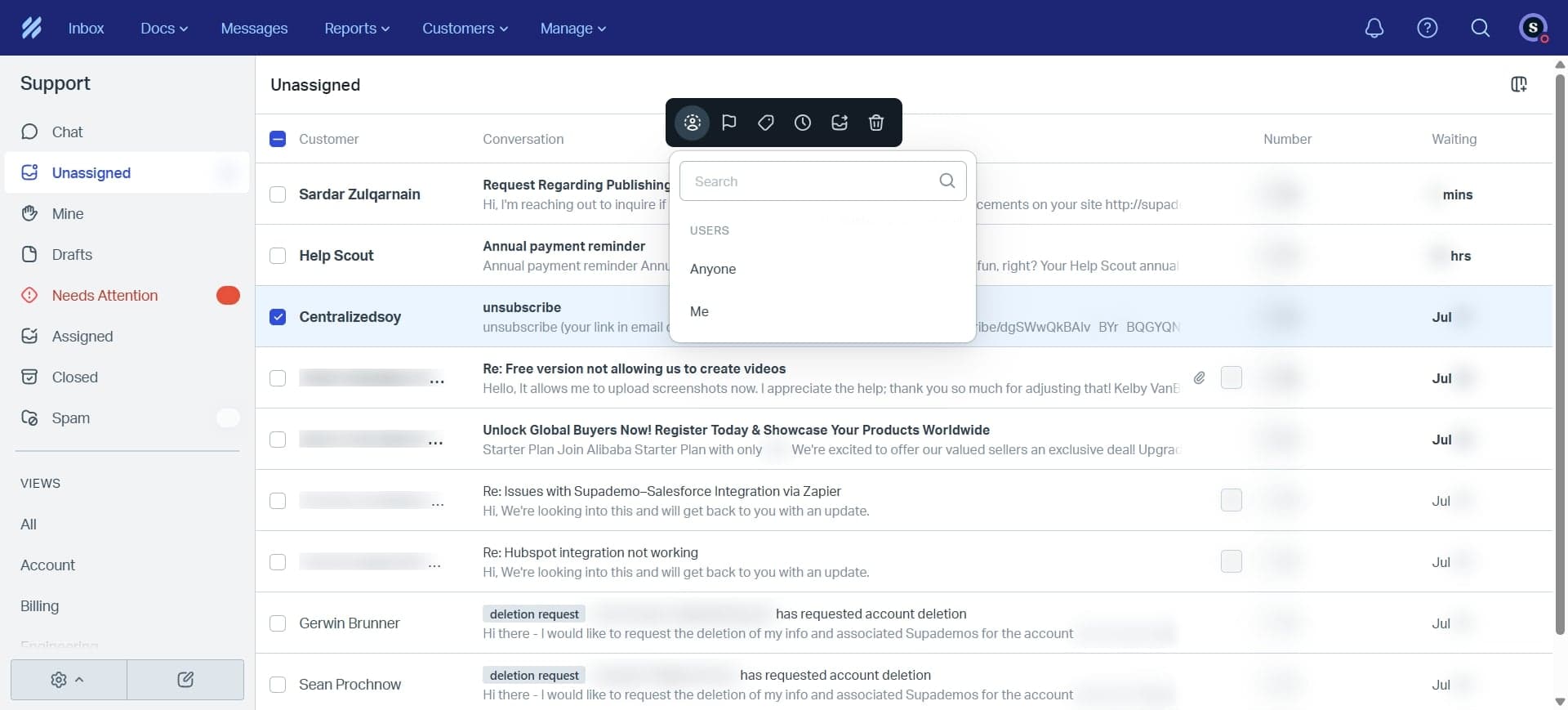
Look for the assign button or dropdown menu within the conversation view, typically located in the top toolbar or sidebar. This will reveal options to assign the conversation to a team member.
- 4
Choose a team member
Select the team member from the dropdown list who should own this conversation. Help Scout will show all available users on your account.
- 5
Confirm the assignment
Click to confirm the assignment. The conversation will now be assigned to the selected user, and they'll be notified of the new assignment in their queue.
Frequently asked questions
Common questions about how to assign conversations to users in helpscout.
No, Help Scout assigns conversations to one primary owner at a time. However, team members can be added as followers to conversations, allowing them to see updates and collaborate without being the primary assignee. This ensures clear ownership while maintaining visibility for the entire team.
Yes, Help Scout notifies the assigned user when a conversation is assigned to them. They'll see the conversation appear in their assigned queue and may receive a notification depending on their account settings and preferences.
Absolutely. You can reassign conversations as needed. This is useful when a customer issue needs to be escalated or when a team member needs to hand off a conversation to a colleague with more expertise in that area.
If a team member is removed from your Help Scout account, conversations previously assigned to them remain visible in your inbox but won't be actively assigned to anyone. You'll need to reassign those conversations to an active team member to ensure they're properly handled.
Yes, Help Scout offers automation features that can automatically assign conversations based on criteria like mailbox, tags, or customer type. Setting up these rules in your Help Scout workflows can streamline assignment and reduce manual work for your team.