How to Create an Inbox in HelpScout

Help Scout's inbox feature is the central hub for managing all your customer conversations in one organized space. Creating a dedicated inbox allows you to streamline communication channels, assign conversations to team members, and maintain a structured workflow for customer support.
Quick summary
In this tutorial, you'll learn how to set up a new inbox in Help Scout from start to finish. You'll discover how to configure inbox settings, connect communication channels, and prepare your team to begin handling customer inquiries efficiently.
Why this matters
A properly configured inbox ensures that customer messages are automatically organized and routed to the right team members without delays. This reduces response times, prevents messages from falling through the cracks, and creates a professional support experience that builds customer trust and satisfaction.
Step-by-step guide
- 1
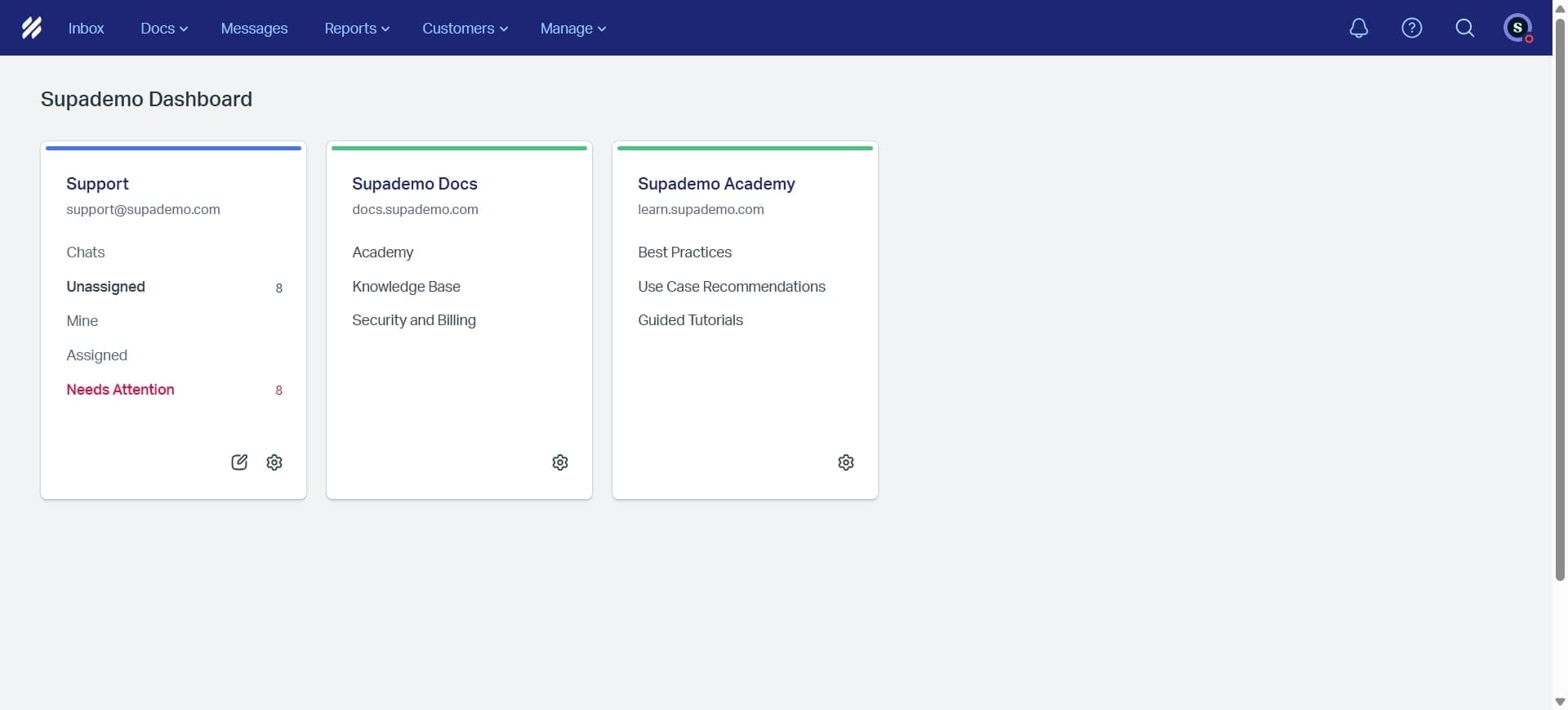
Access the Help Scout dashboard
Log in to your Help Scout account and navigate to the main dashboard. You'll see the primary interface where all your inboxes and settings are accessible from the left sidebar.
- 2
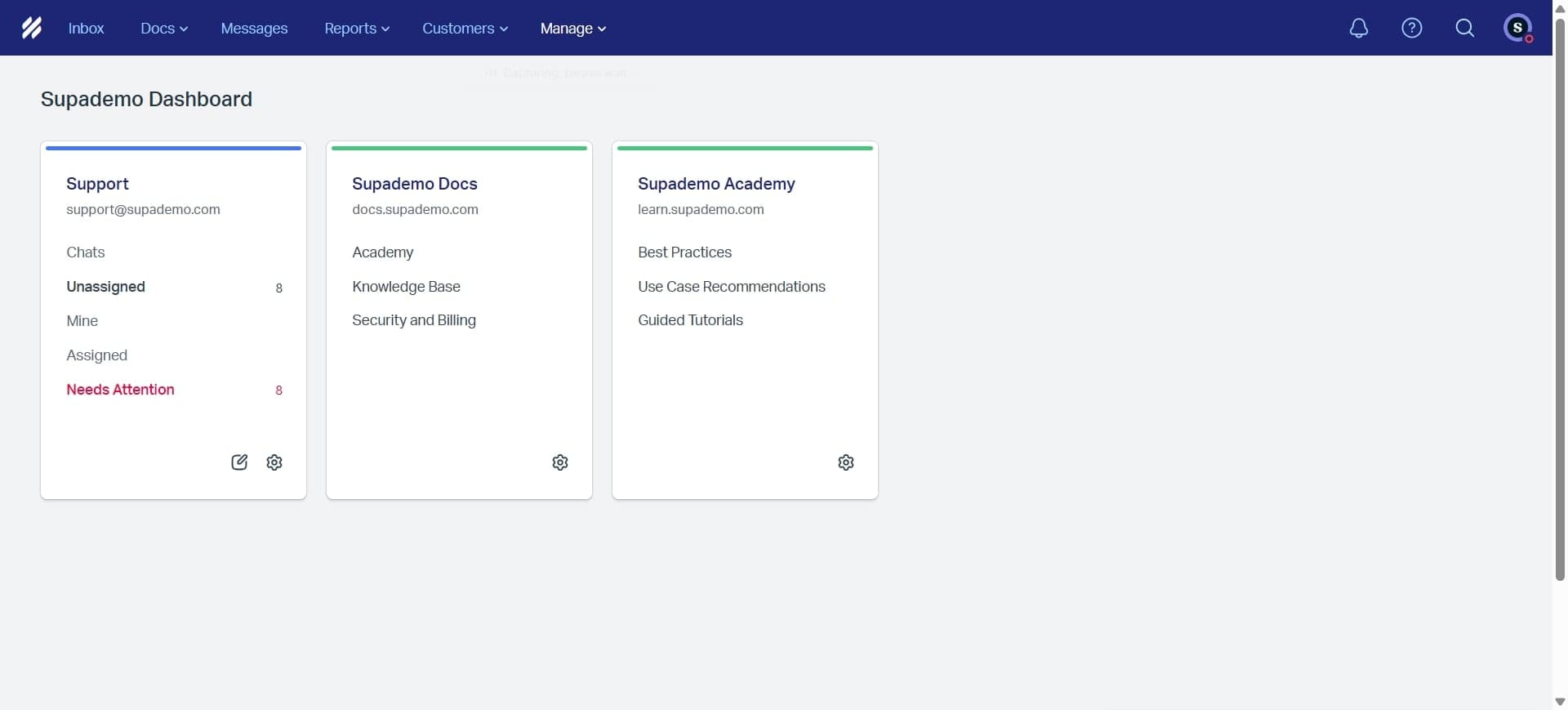
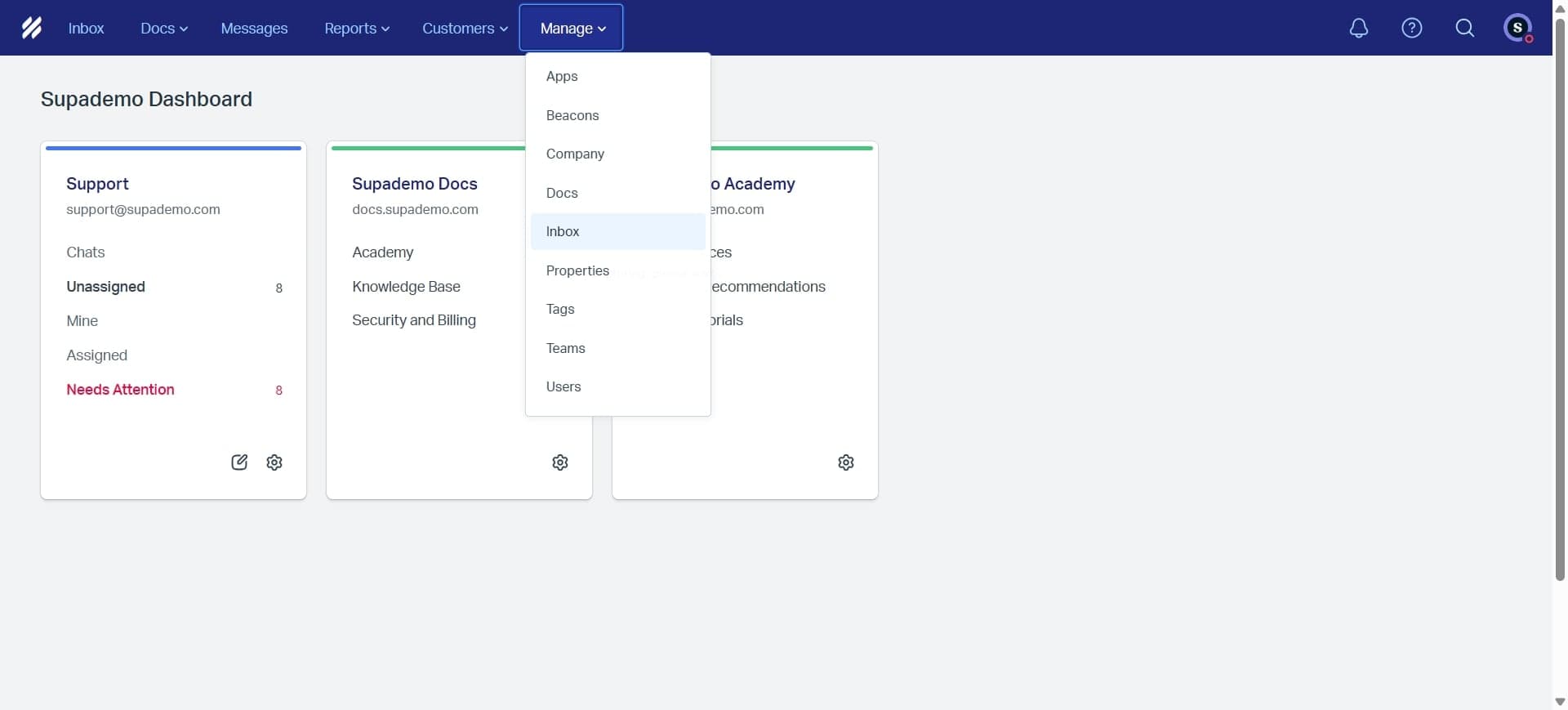
Locate the inbox settings menu
Click on the settings icon or 'Inboxes' section in the left navigation panel. This area displays all existing inboxes and provides the option to create a new one.
- 3
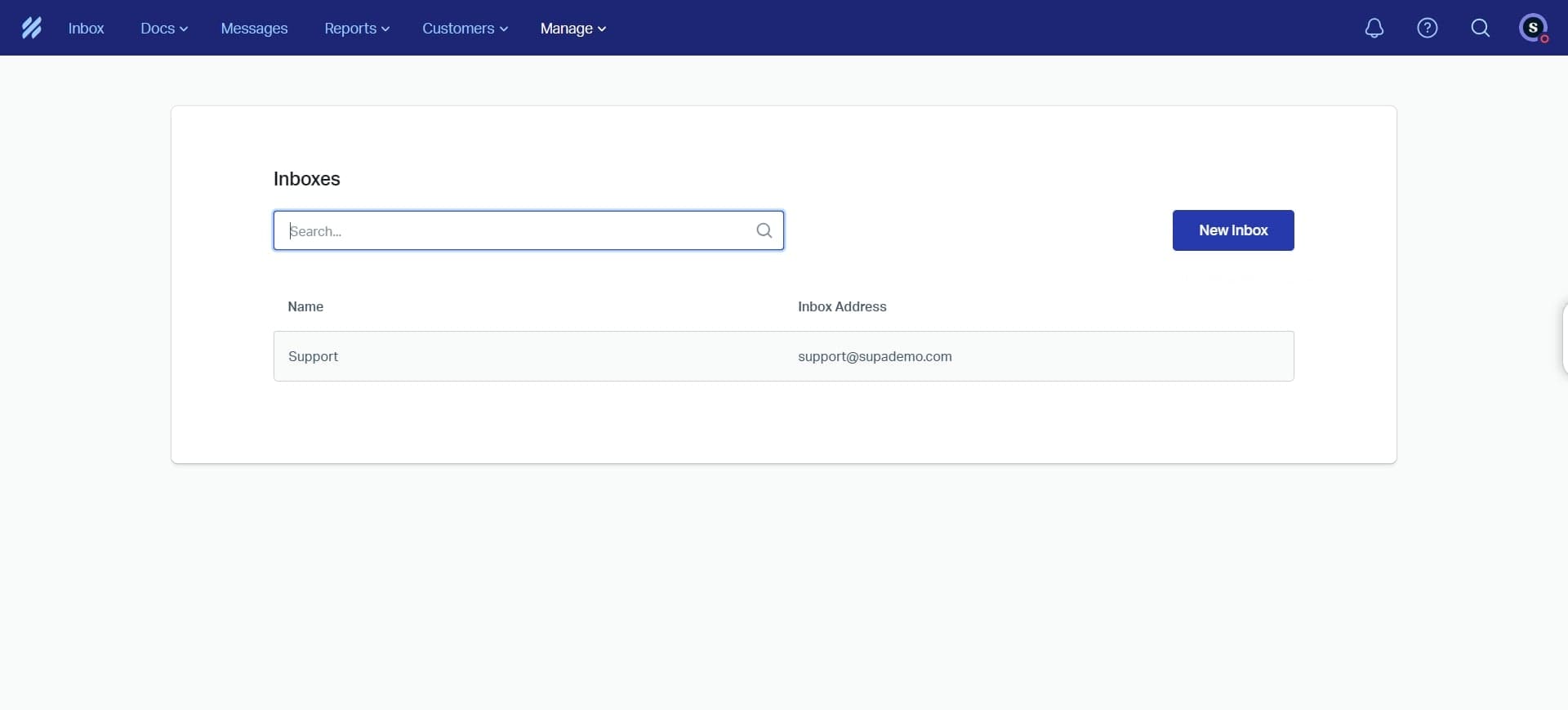
Click Create New Inbox
Select the button or option to create a new inbox. Help Scout will prompt you to choose a name and configure initial settings for your inbox.
- 4
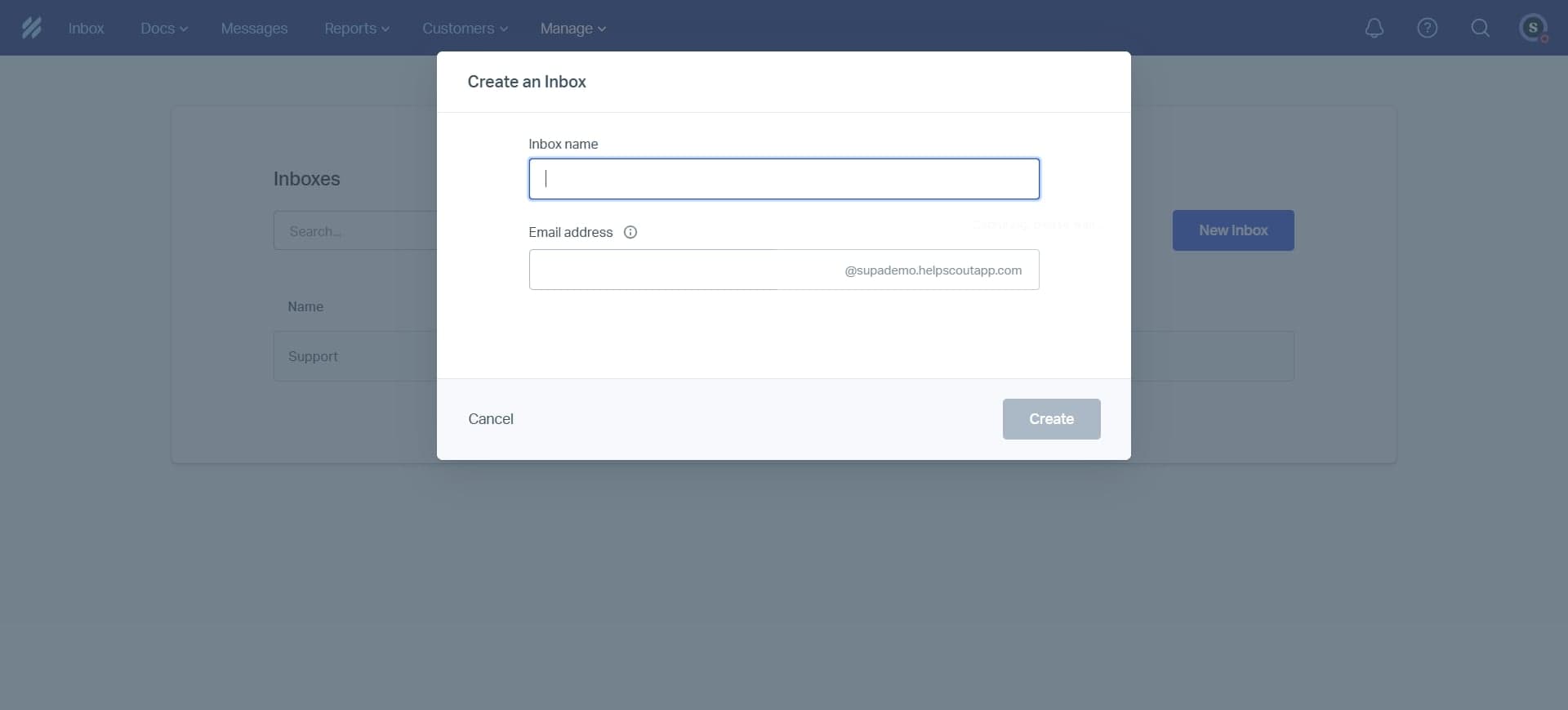
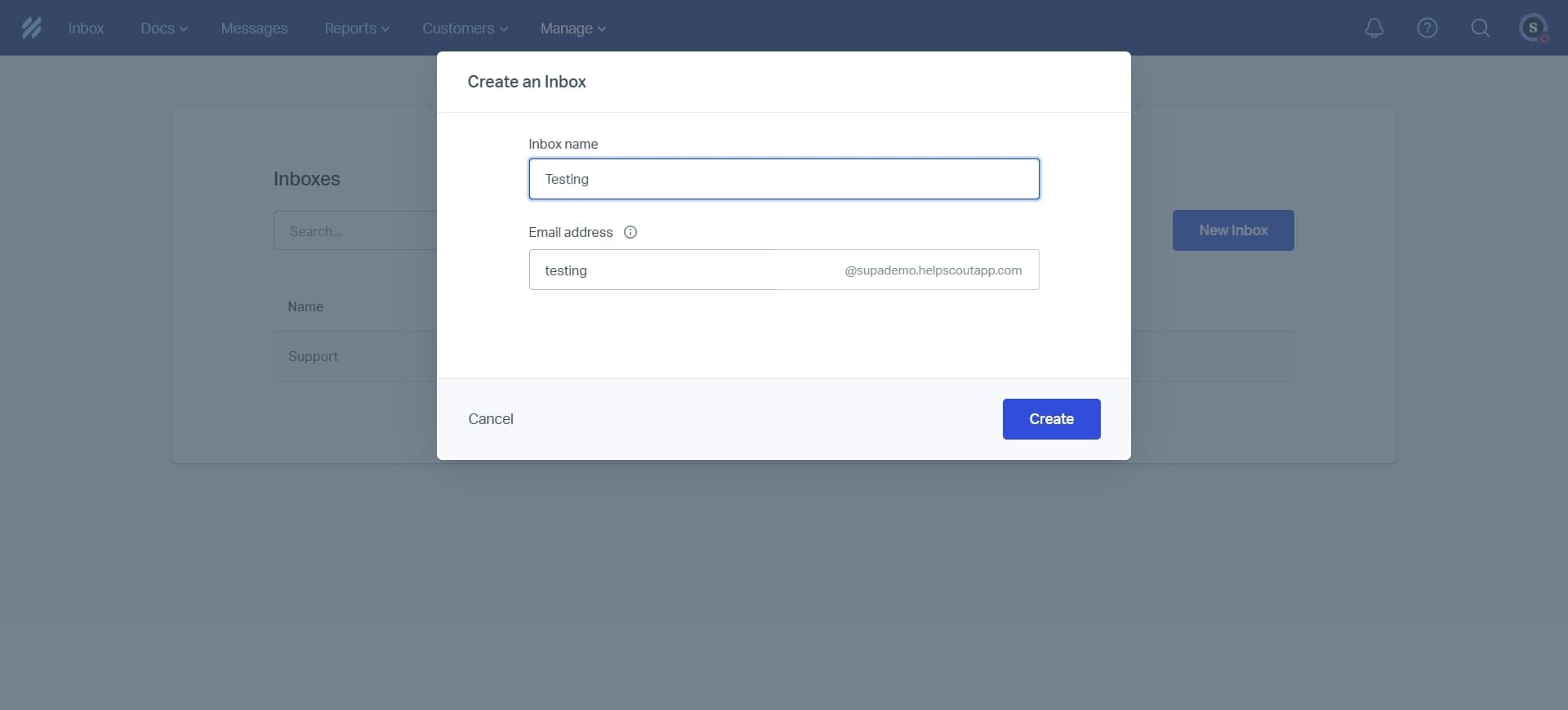
Enter the inbox name and details
Provide a descriptive name for your inbox that reflects its purpose, such as 'Sales Inquiries' or 'Technical Support'. You can also add a description to help team members understand the inbox's function.
- 5
Connect your communication channels
Select which channels you want to route into this inbox, such as email, chat, or social media. Help Scout will guide you through connecting your preferred communication platforms to the inbox.
- 6
Assign team members to the inbox
Choose which team members should have access to this inbox and define their roles. You can set permissions to control who can view, respond to, or manage conversations.
- 7
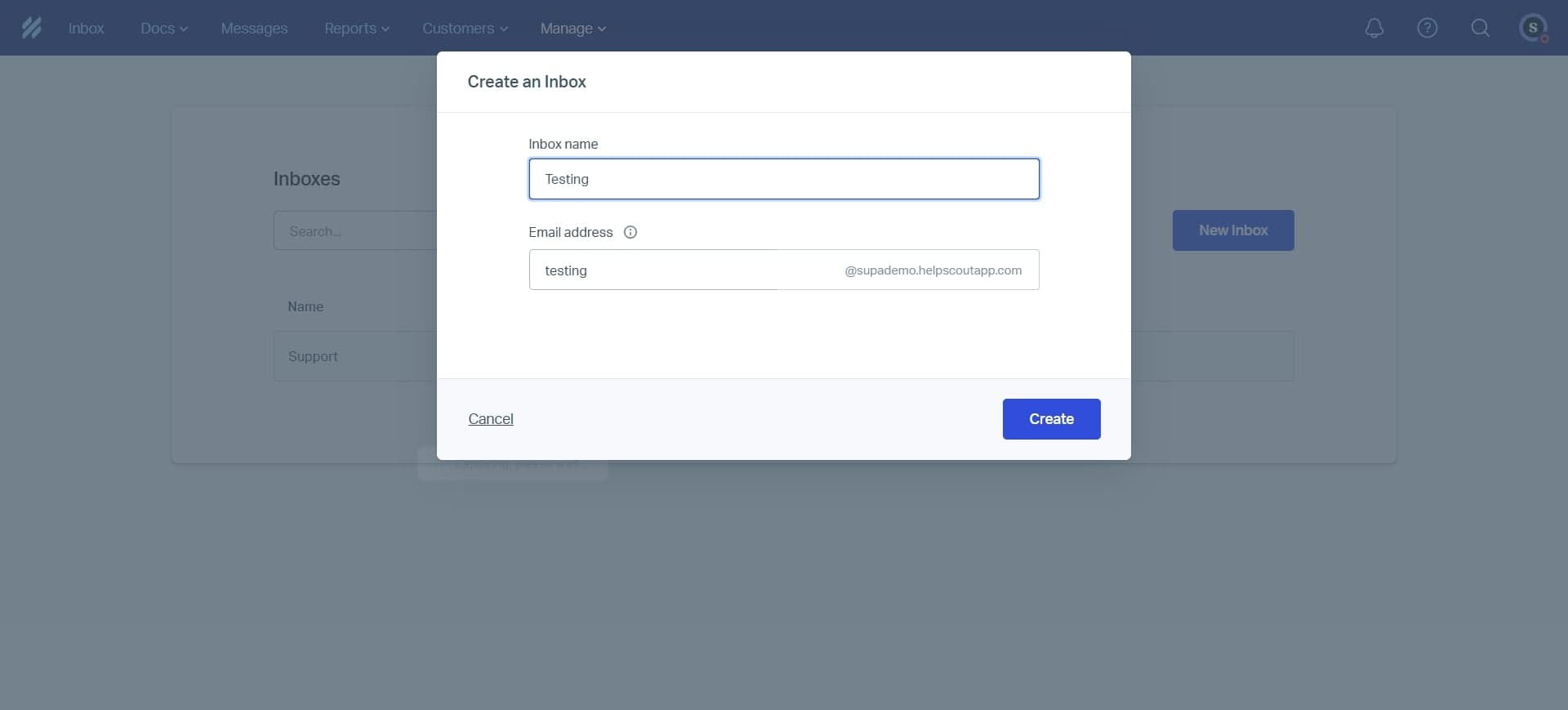
Save and activate the inbox
Review your settings and click save to create the inbox. Your new inbox is now live and ready to receive customer communications through the channels you've configured.
Frequently asked questions
Common questions about how to create an inbox in helpscout.
Yes, Help Scout allows you to create multiple inboxes to organize customer conversations by department, channel, or project. Each inbox can have its own settings, team members, and communication channels, making it easy to segment your customer support operations.
Help Scout supports email, live chat, form submissions, and social media channels. You can integrate multiple channels into a single inbox to centralize all customer communications in one place, or create separate inboxes for different channels depending on your workflow preferences.
You can edit your inbox settings at any time by accessing the inbox settings menu and selecting the specific inbox you want to modify. From there, you can change the name, update channel connections, adjust team member permissions, or configure automation rules.
Yes, you can delete an inbox from the inbox settings menu. Be aware that deleting an inbox will affect how conversations are organized, so it's best to archive or reassign active conversations before removing an inbox from your Help Scout account.
No, Help Scout allows you to control which team members have access to specific inboxes. You can assign different team members to different inboxes based on their roles and responsibilities, ensuring that each person only sees relevant conversations.