How to Delete a Ticket in HelpScout

Deleting tickets in Help Scout is a straightforward process that helps you maintain a clean support inbox and remove resolved or obsolete conversations. Whether you need to remove duplicate tickets or clean up test entries, understanding how to permanently delete tickets is essential for account management.
Quick summary
In this tutorial, you'll learn how to permanently delete a ticket in Help Scout. We'll walk you through locating the ticket, accessing the delete option, and confirming the deletion to ensure your support records stay organized and relevant.
Why this matters
Ticket deletion is important for maintaining data hygiene and ensuring your Help Scout inbox reflects only active, relevant customer conversations. Removing obsolete tickets reduces clutter, improves team focus, and helps you maintain accurate support metrics. Knowing how to delete tickets gives you control over your support data and ensures your team is working with current information.
Step-by-step guide
- 1
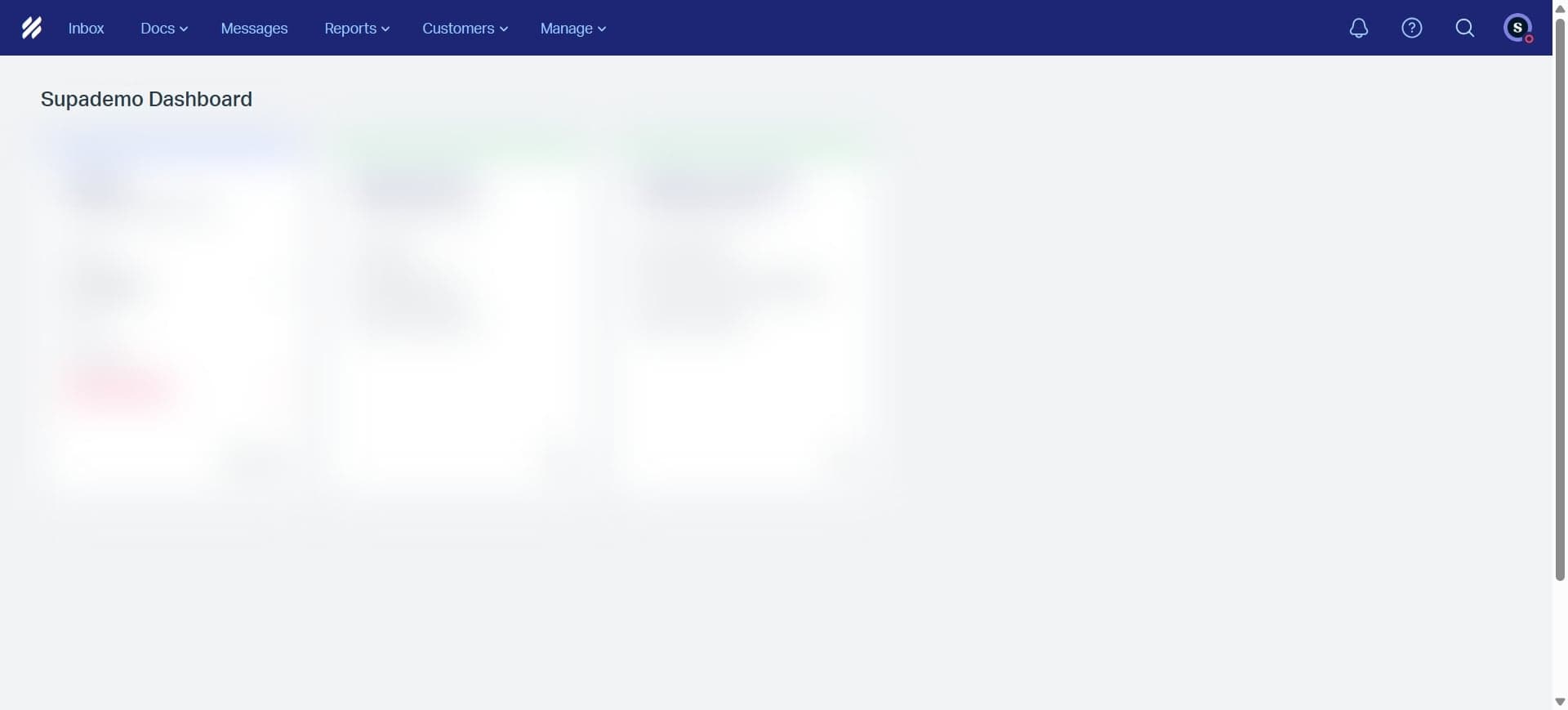
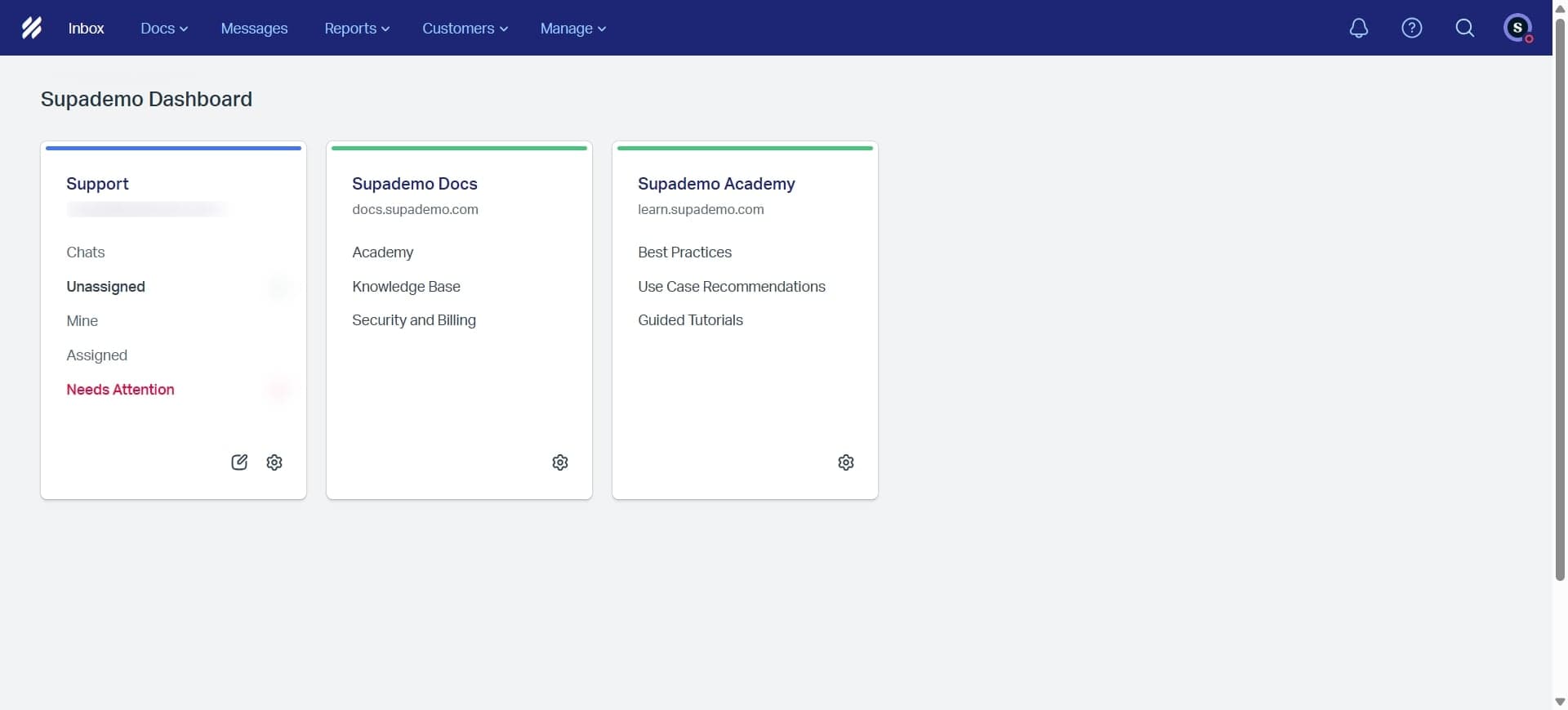
Open Help Scout and navigate to your mailbox
Log in to your Help Scout account and select the appropriate mailbox from your dashboard. You'll see a list of all conversations and tickets associated with that mailbox.
- 2
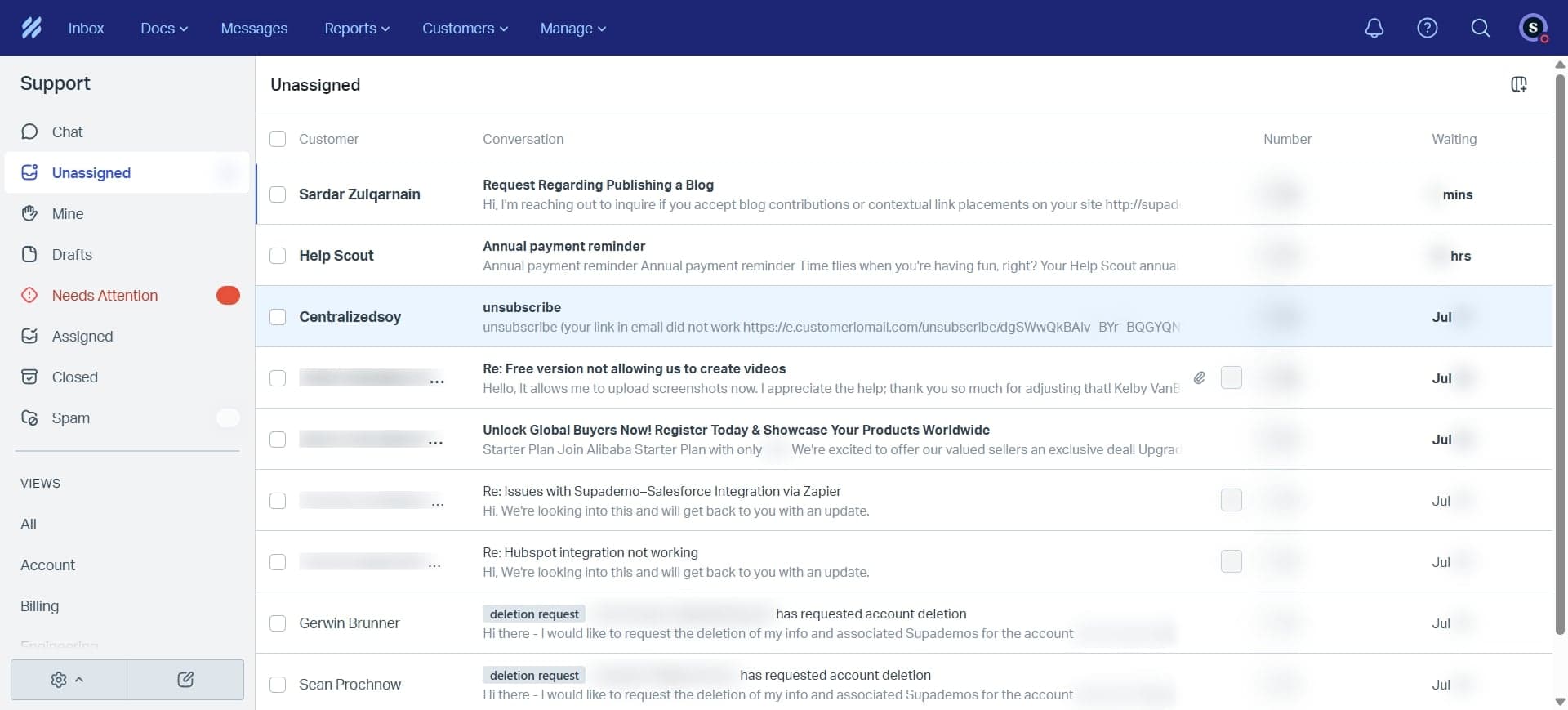
Locate and open the ticket to delete
Search for or scroll through your ticket list to find the specific ticket you want to delete. Click on the ticket to open its full conversation view and details.
- 3
Access the ticket menu options
Look for the menu icon (typically three dots) or settings option at the top or side of the ticket view. Click on it to reveal a dropdown menu containing various ticket management options.
- 4
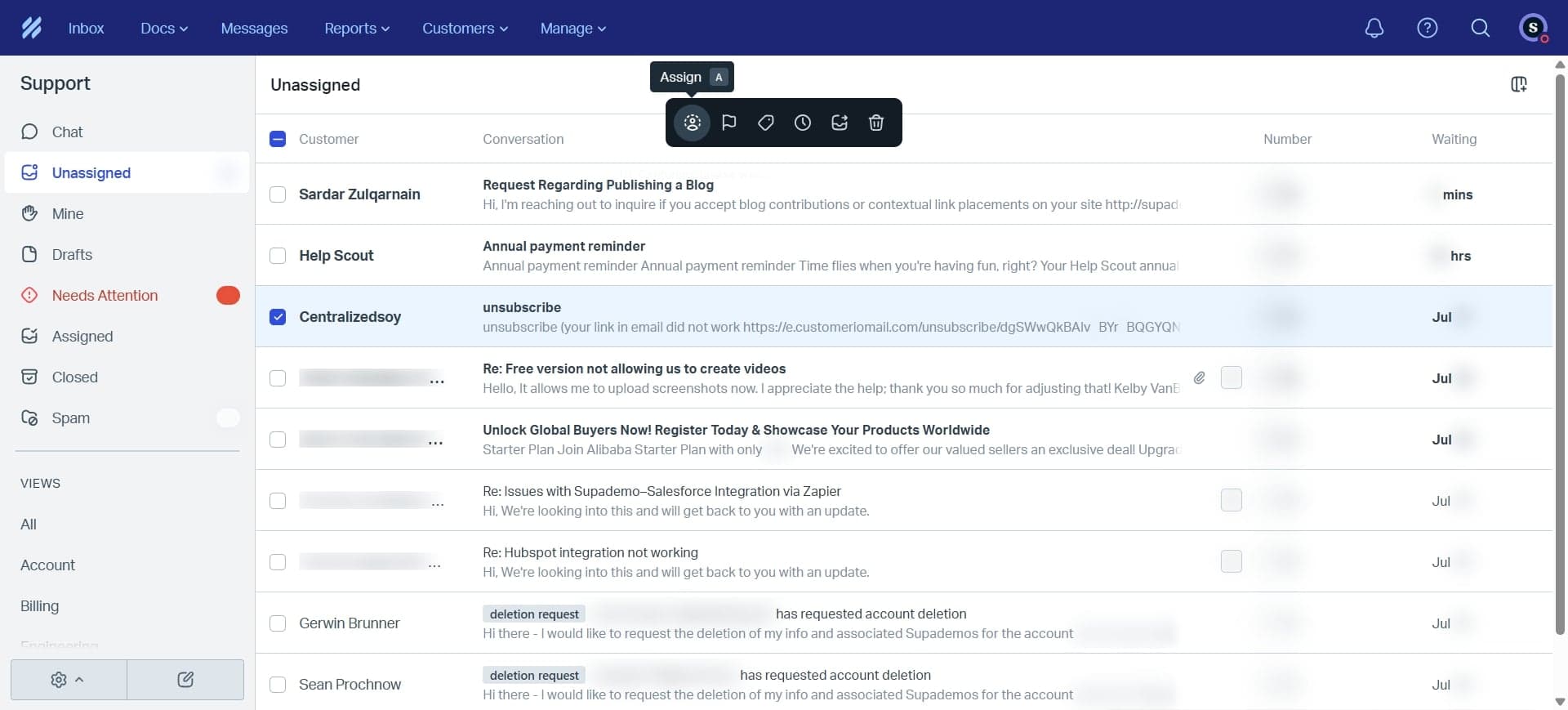
Select delete and confirm the action
From the menu options, click on the delete or remove ticket option. Help Scout will prompt you to confirm the deletion. Review the confirmation message and click the final confirm button to permanently delete the ticket.
Frequently asked questions
Common questions about how to delete a ticket in helpscout.
No, once you delete a ticket in Help Scout, it is permanently removed and cannot be recovered. Make sure you have verified the ticket contents and confirmed it's the correct one before proceeding with deletion. If you're unsure, consider archiving the ticket instead as a safer alternative.
Deleting permanently removes a ticket from your Help Scout account, while archiving keeps the ticket in your system but removes it from your active inbox view. Archived tickets can still be searched for and retrieved later. Archive is recommended if you might need to reference the ticket in the future.
Help Scout typically restricts ticket deletion to users with appropriate permission levels, often account owners or administrators. Check your user role and permissions settings if you don't see the delete option. Contact your Help Scout account administrator if you believe you should have delete access.
Deleting a ticket in Help Scout removes it from your support system, but it does not affect the customer's original email or external email history. The customer will still have the email in their own inbox. However, you will lose internal Help Scout notes and conversations associated with that ticket.
Help Scout's bulk delete functionality depends on your account settings and plan level. Some users can select multiple tickets from the list view and delete them together, while others must delete tickets individually. Check your Help Scout help center or contact support to confirm what's available for your plan.