How to email technical support on Mailchimp

When you need direct assistance with Mailchimp, reaching the technical support team via email is one of the most effective ways to get help. This guide walks you through the process of contacting Mailchimp's technical support department to ensure your issue reaches the right team quickly.
Quick summary
In this tutorial, you'll learn how to navigate Mailchimp's support system and submit an email to the technical support team. You'll discover where to find the contact options and how to access the email support channel for your account.
Why this matters
Email support allows you to document your issue in detail and receive comprehensive responses from Mailchimp's technical team. This method is especially useful for complex problems that require thorough investigation or follow-up communication, ensuring nothing gets lost in conversation.
Step-by-step guide
- 1
Access the main menu
Start by clicking on the menu icon or the designated area to open Mailchimp's navigation menu. This will give you access to the primary options available in your account.
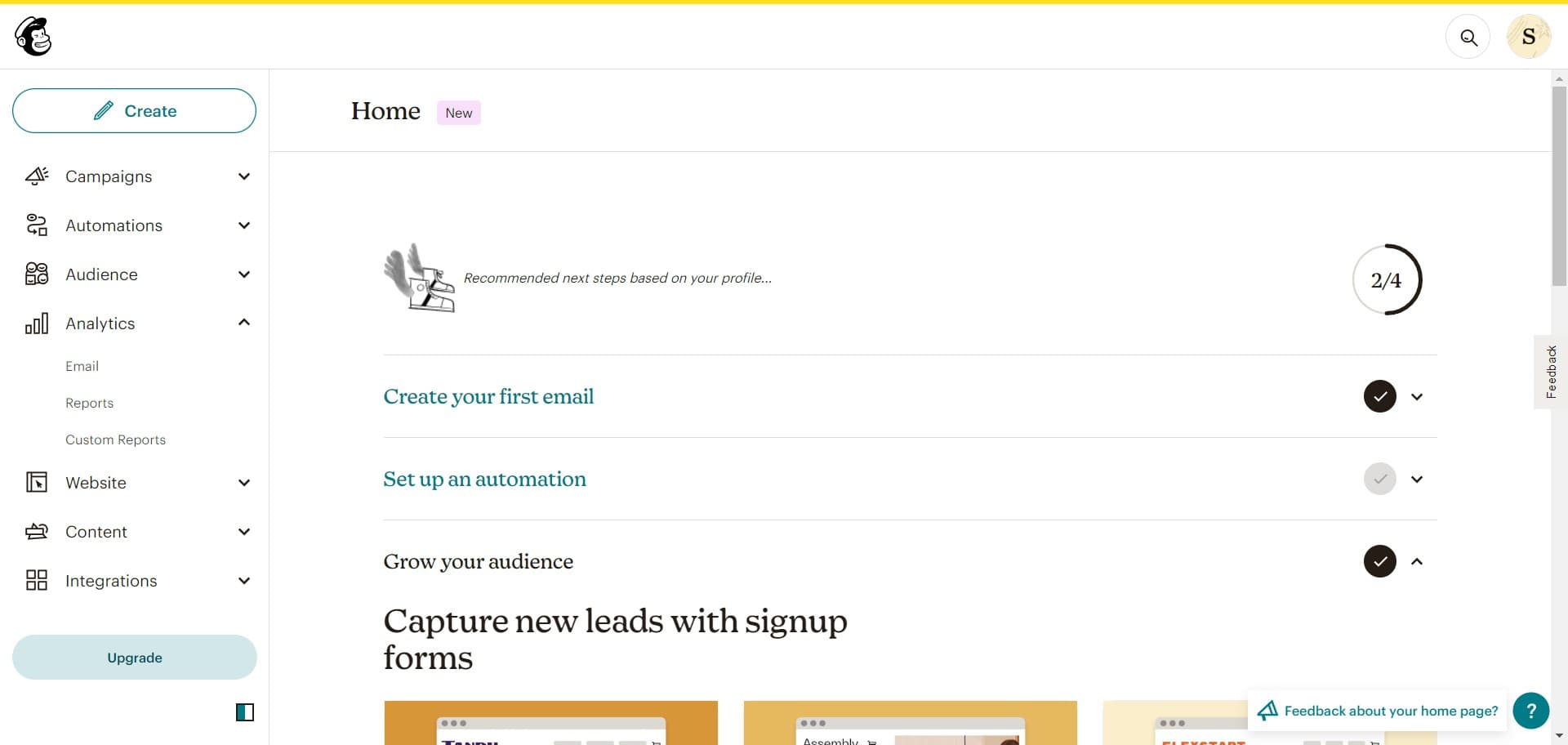
- 2
Click on Help & Support
From the menu, select the 'Help & Support' option. This will take you to Mailchimp's support hub where all assistance resources are available.
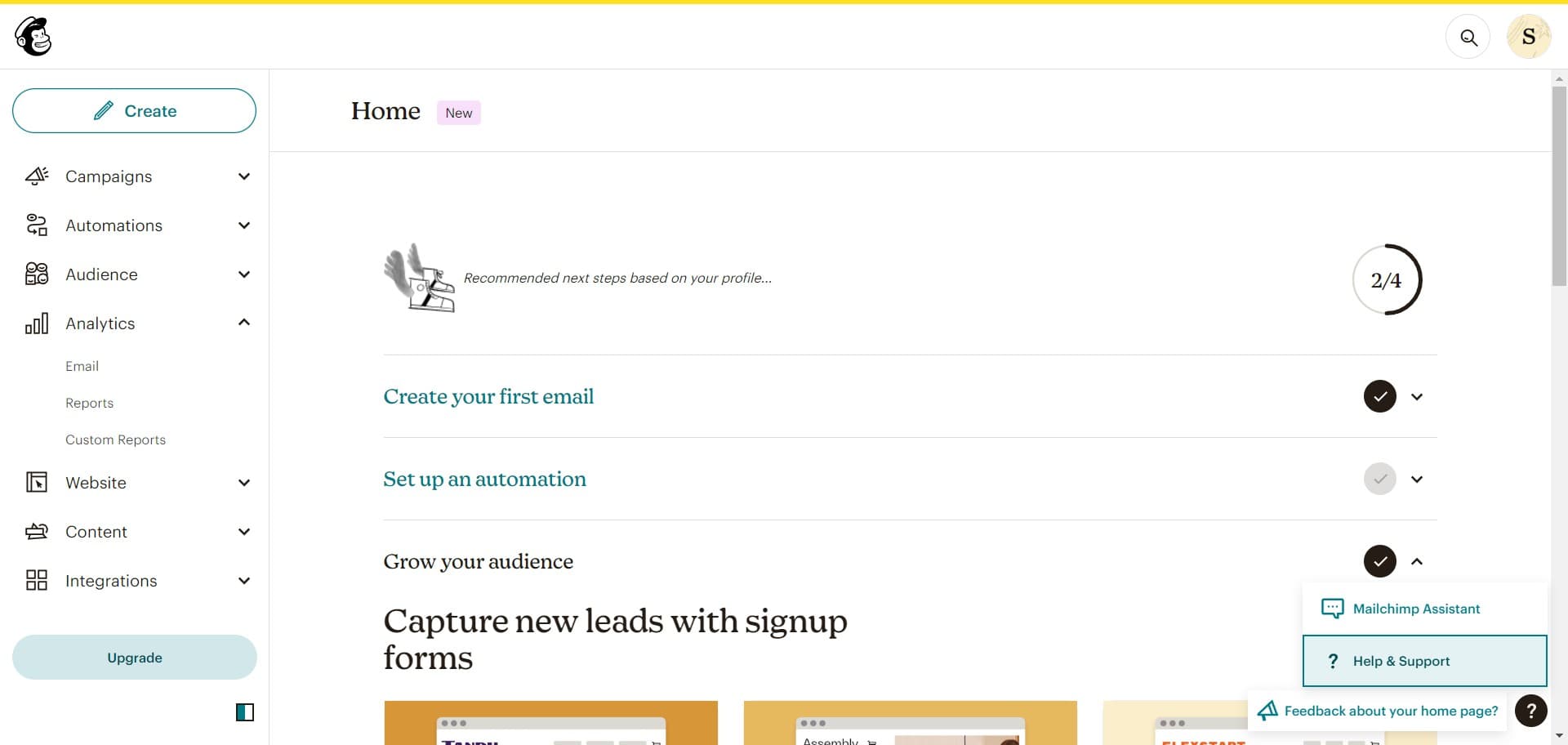
- 3
Select Ask Mailchimp Assistant
Click on the 'Ask Mailchimp Assistant' option to access the support interface. This is your gateway to various support channels, including email contact options.
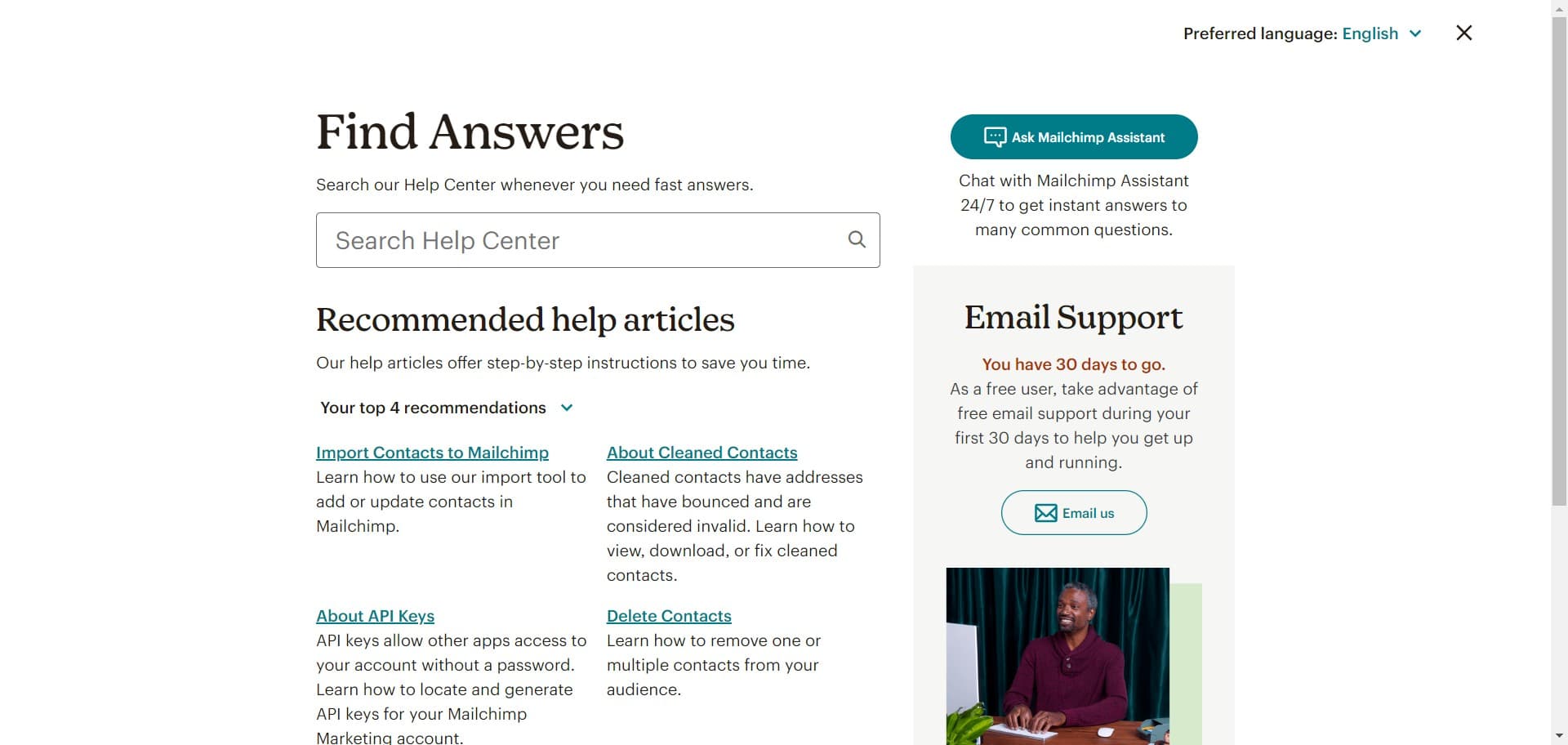
- 4
Confirm Ask Mailchimp Assistant
Click on 'Ask Mailchimp Assistant' again to proceed further into the support system. This step ensures you're ready to access the full range of support features available.
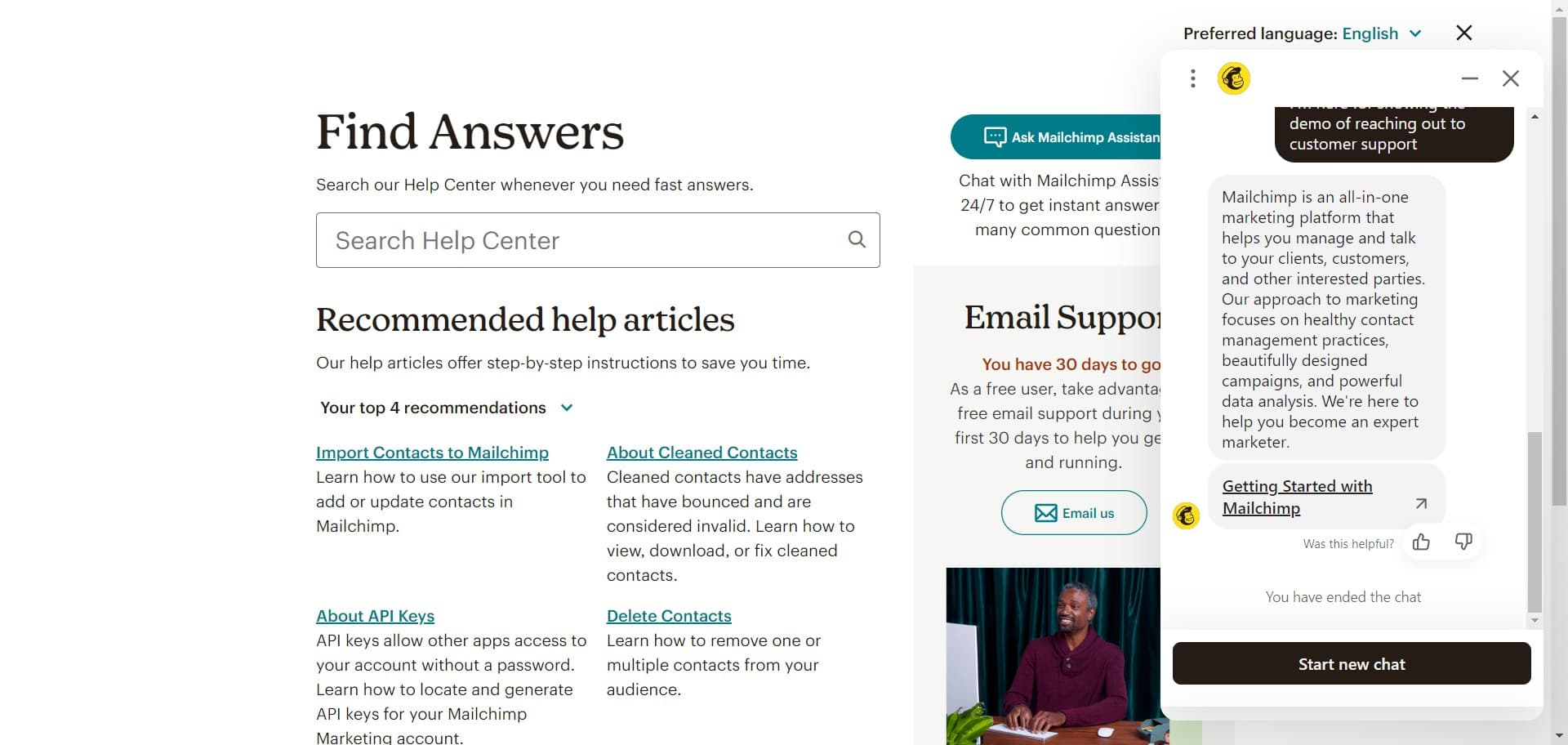
- 5
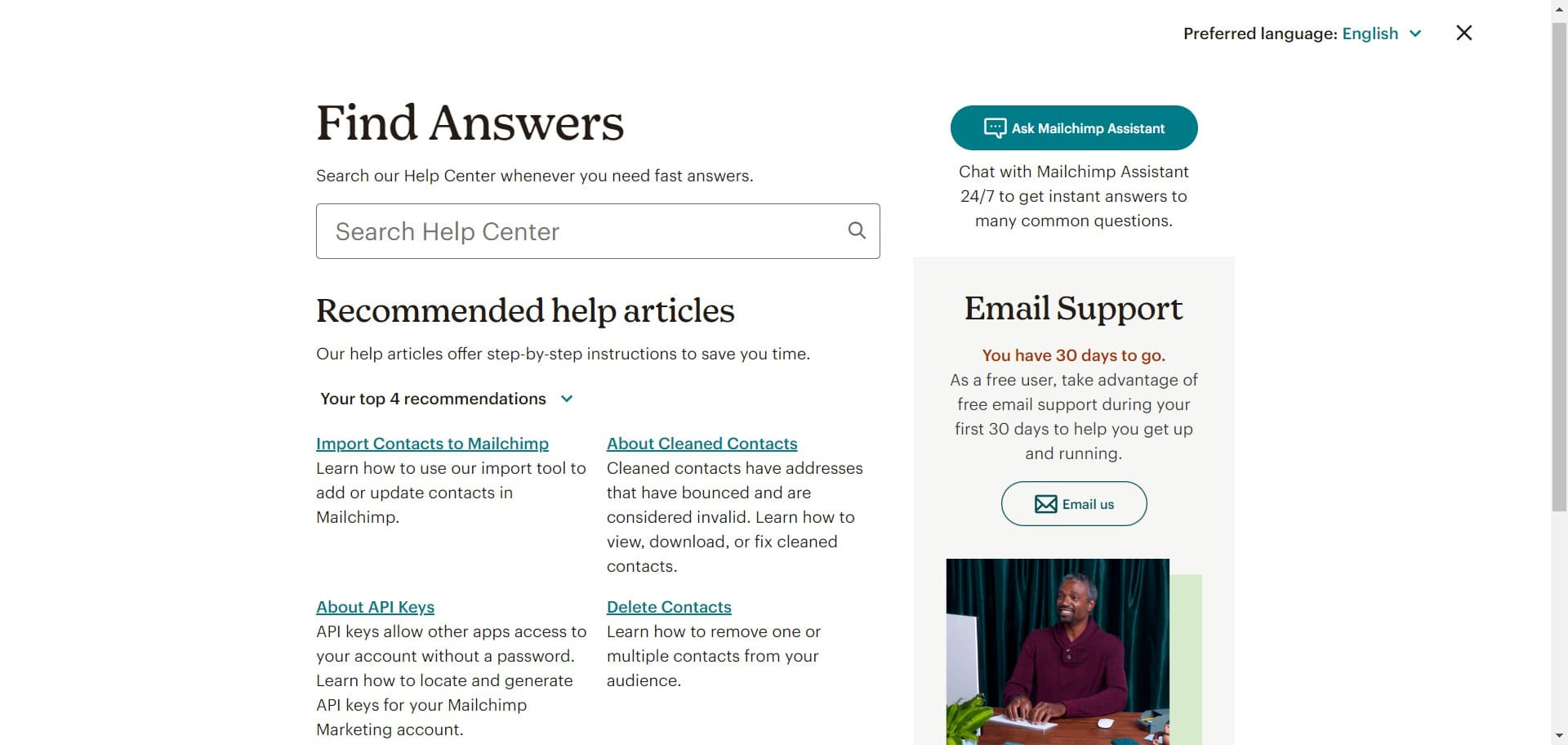
Choose Email us option
Look for and click the 'Email us' button to switch from the chat-based assistant to email support. This will prepare you to submit your inquiry directly to the support team.
- 6
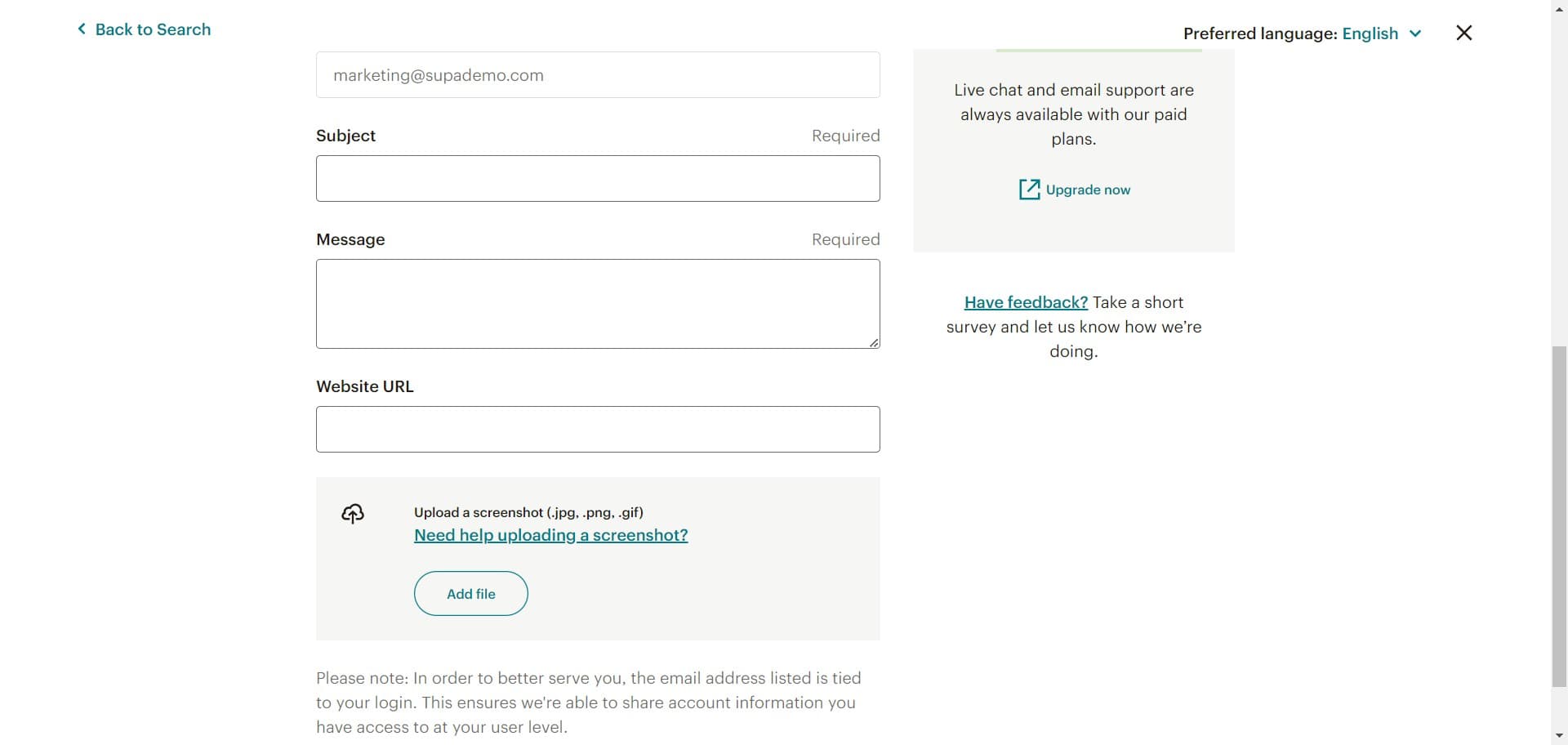
Select Contact Technical Support
Click on 'Contact Technic...' (Contact Technical Support) to specify that your issue requires technical expertise. This routes your email to the appropriate technical team members.
- 7
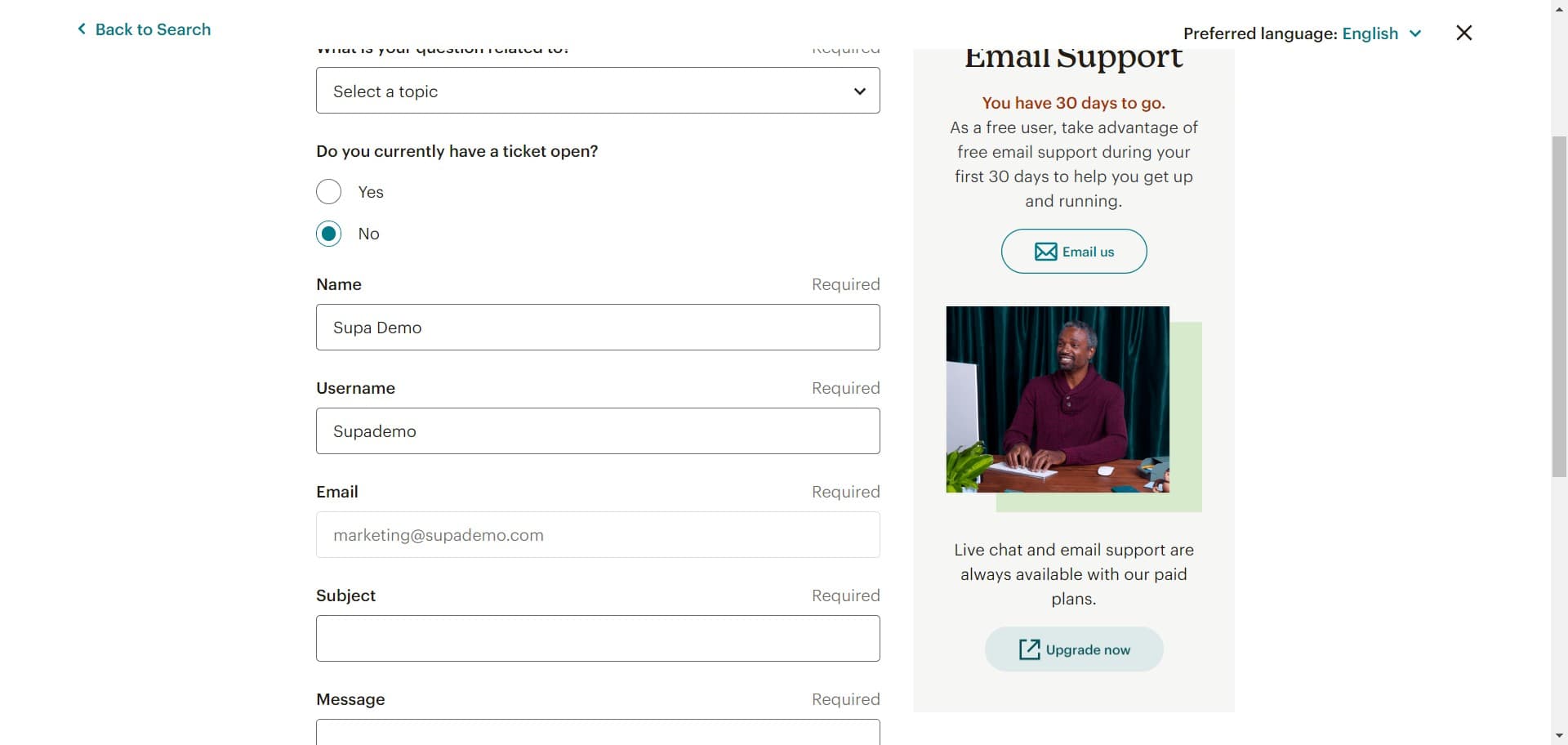
Complete your support request
Click 'Upgrade now' or follow the prompts to finalize your support contact request. Depending on your account type, you may need to select a plan tier to access priority technical support.
Frequently asked questions
Common questions about how to email technical support on mailchimp.
Response times vary depending on your account plan. Free accounts may take several business days, while paid accounts typically receive responses within 24-48 hours. Complex issues may require additional investigation time.
Yes, free account holders can contact technical support through email. However, paid accounts generally receive priority responses and faster resolution times. Some advanced technical issues may require a paid account to be fully supported.
Include your account email, a clear description of the issue, steps you've already taken to troubleshoot, and any error messages you're seeing. Screenshots or videos can be helpful, and details about your setup (integrations, list size, etc.) provide important context.
Yes, Mailchimp's live chat support is available for certain account types and can provide immediate assistance. The Mailchimp Assistant can also help with common questions and troubleshooting steps quickly through its interactive interface.
Check your spam folder first, as support emails sometimes get filtered. If you still haven't received a response after the typical timeframe, you can log back into your account and submit a follow-up email or try contacting support through the chat interface.