How to create a regular email campaign in Mailchimp

Email campaigns are a cornerstone of digital marketing, and Mailchimp makes it easy to create and send targeted messages to your audience. This guide walks you through the process of setting up a regular email campaign from start to finish, covering everything from campaign creation to selecting your content format.
Quick summary
In this tutorial, you'll learn how to create a regular email campaign in Mailchimp by navigating through the campaign creation workflow, selecting your email format, choosing a template, and preparing to send your message to your subscribers.
Why this matters
Regular email campaigns allow you to communicate directly with your audience on your schedule, whether you're sharing updates, promotions, or valuable content. Mastering this workflow ensures you can quickly launch professional campaigns without unnecessary complexity, helping you maintain consistent engagement with your subscribers.
Step-by-step guide
- 1
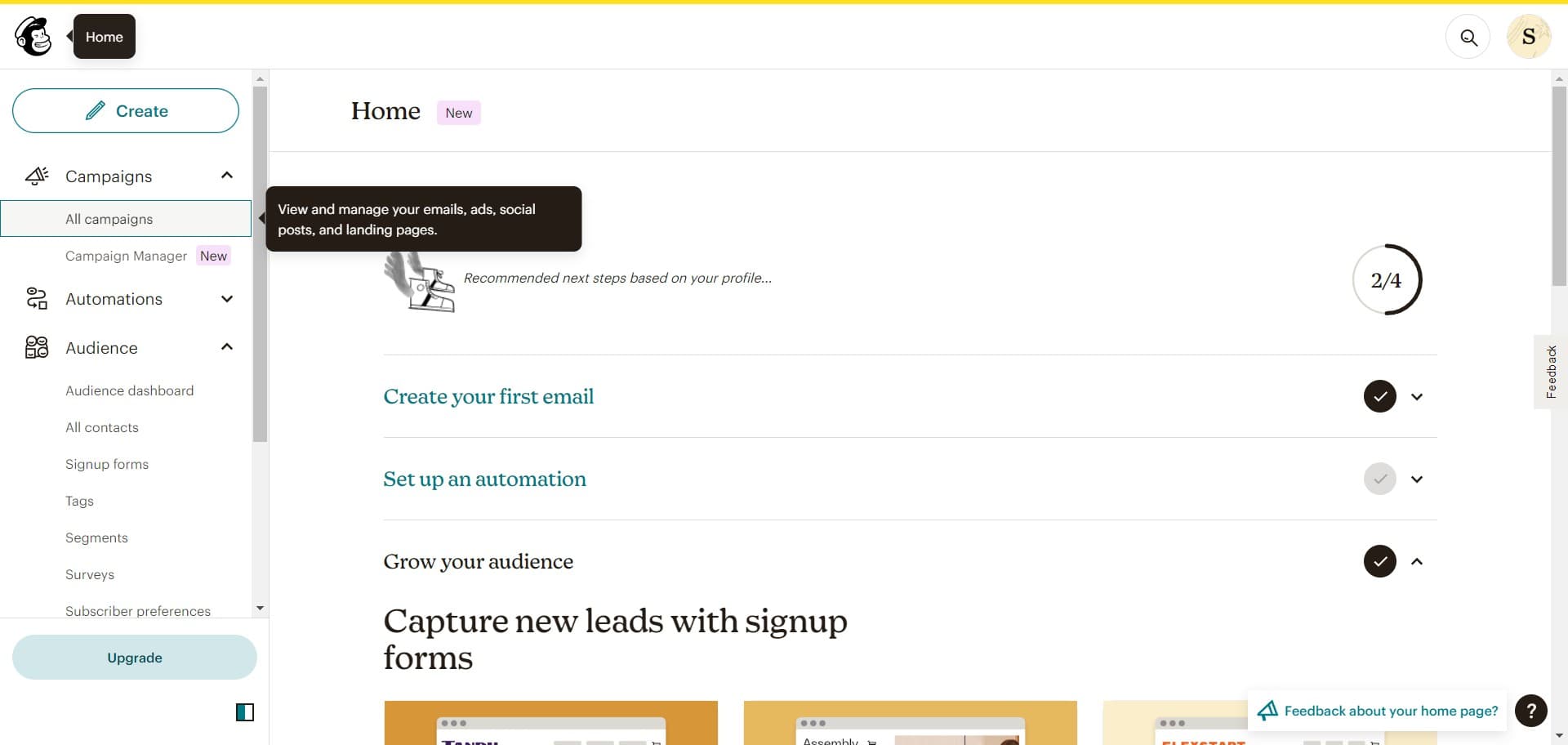
Access your campaigns
Log into your Mailchimp account and navigate to the Campaigns section. Click on "All campaigns" to view your existing campaigns and access the campaign creation interface.
- 2
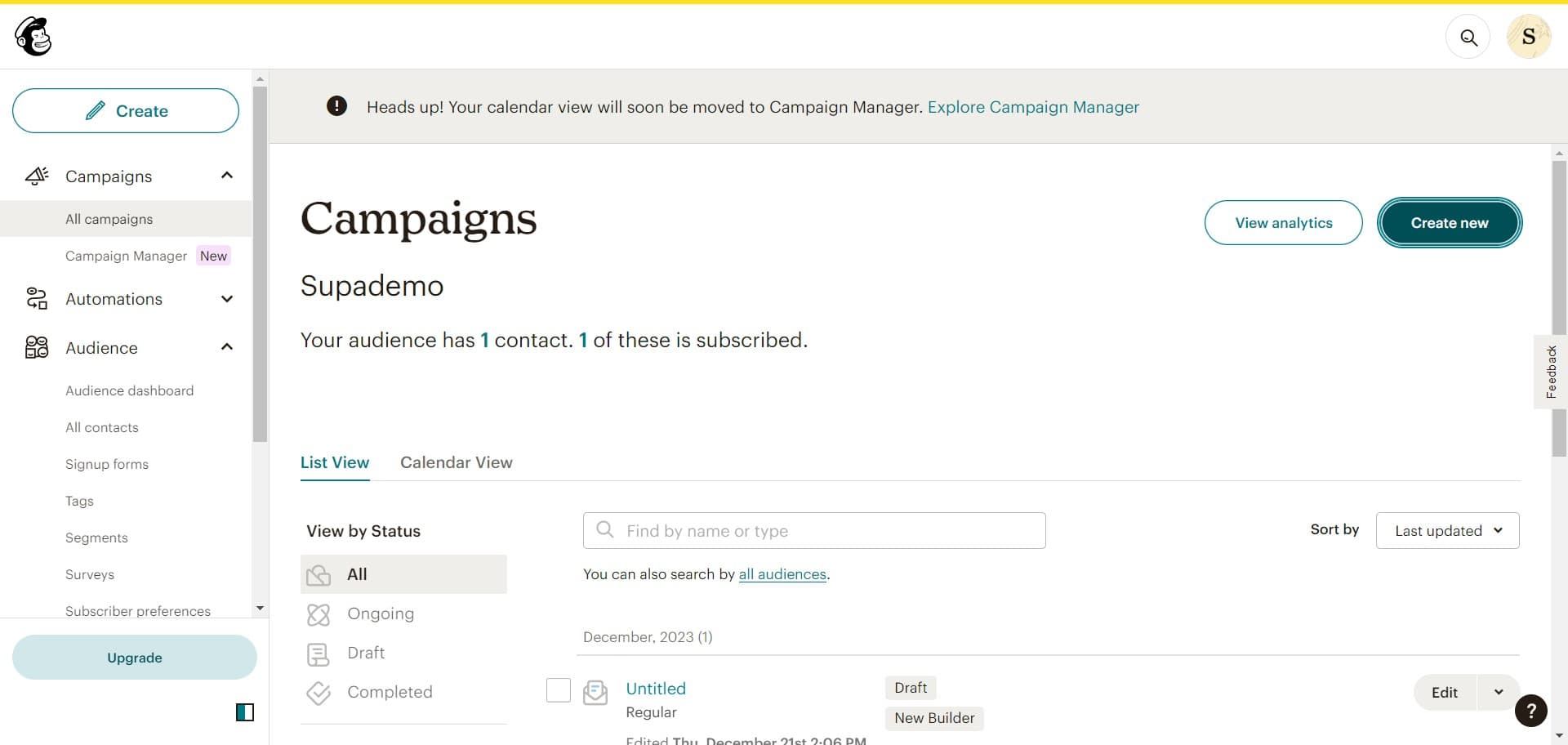
Begin creating a new campaign
Click on the "Create new" button to initiate the campaign setup process. This opens the campaign type selection menu where you'll specify what kind of campaign you want to build.
- 3
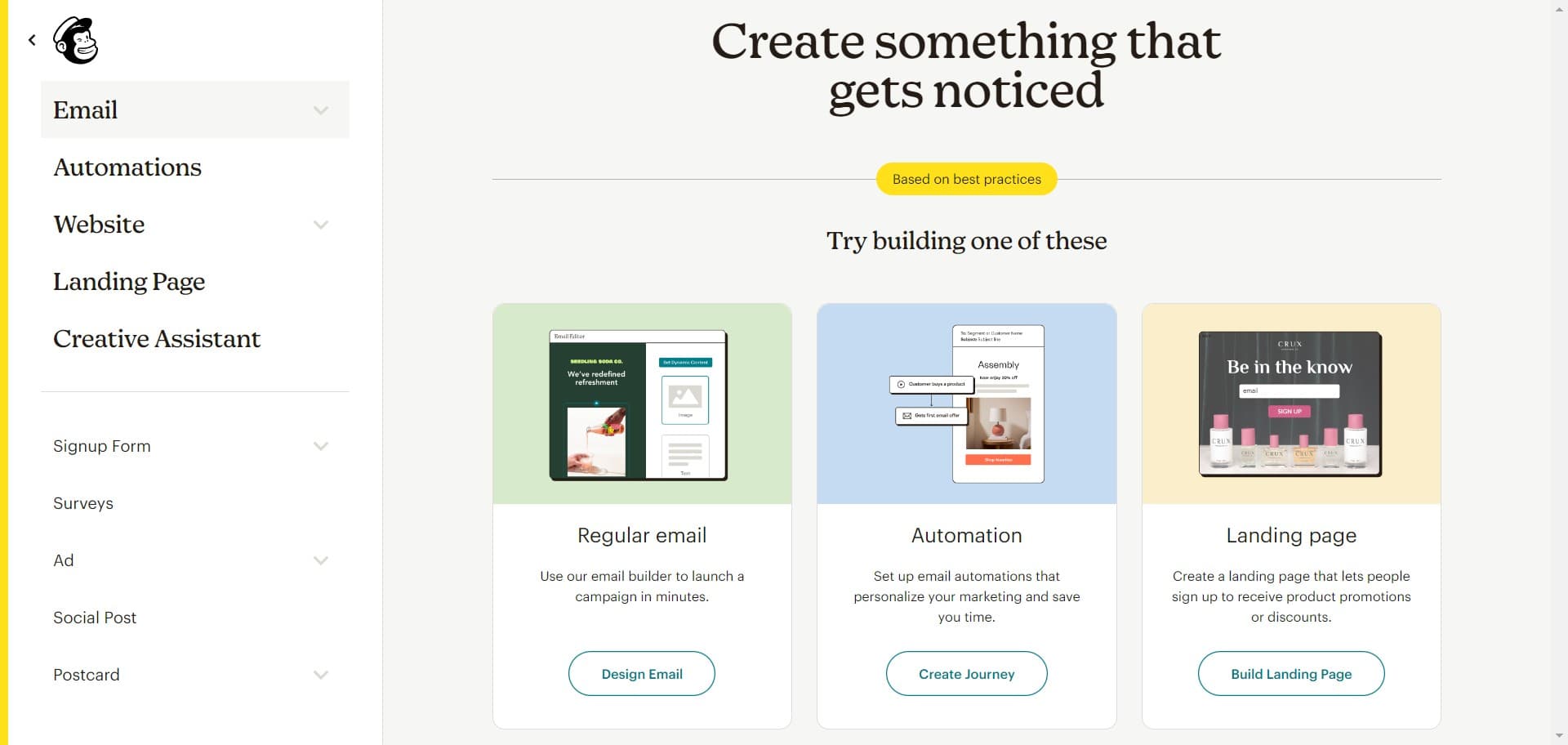
Confirm campaign creation
Follow the on-screen prompt to confirm your action and proceed to the next step in the campaign creation wizard.
- 4
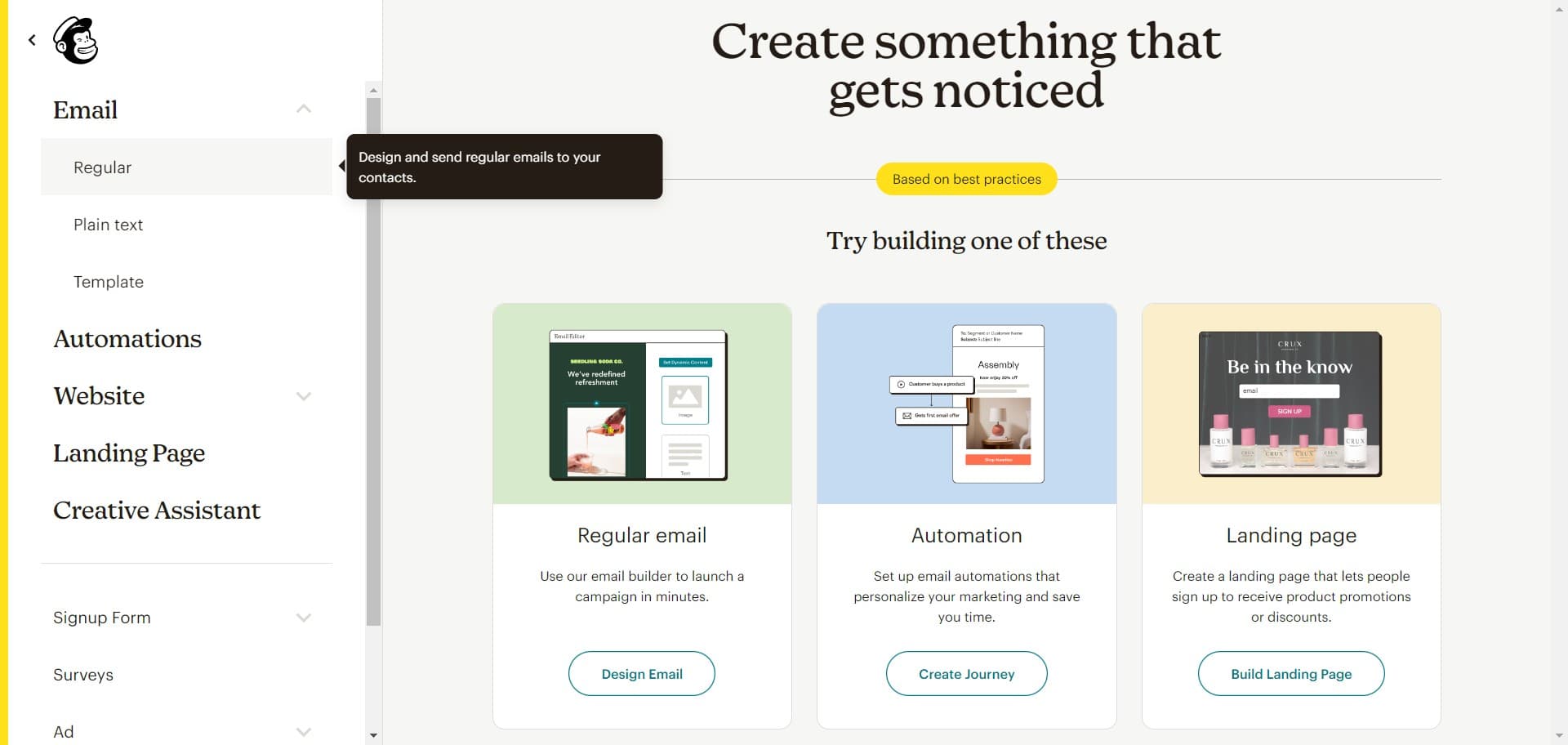
Select Regular campaign type
Click on "Regular" to choose the standard email campaign format. This is the most common campaign type for sending scheduled emails to your audience.
- 5
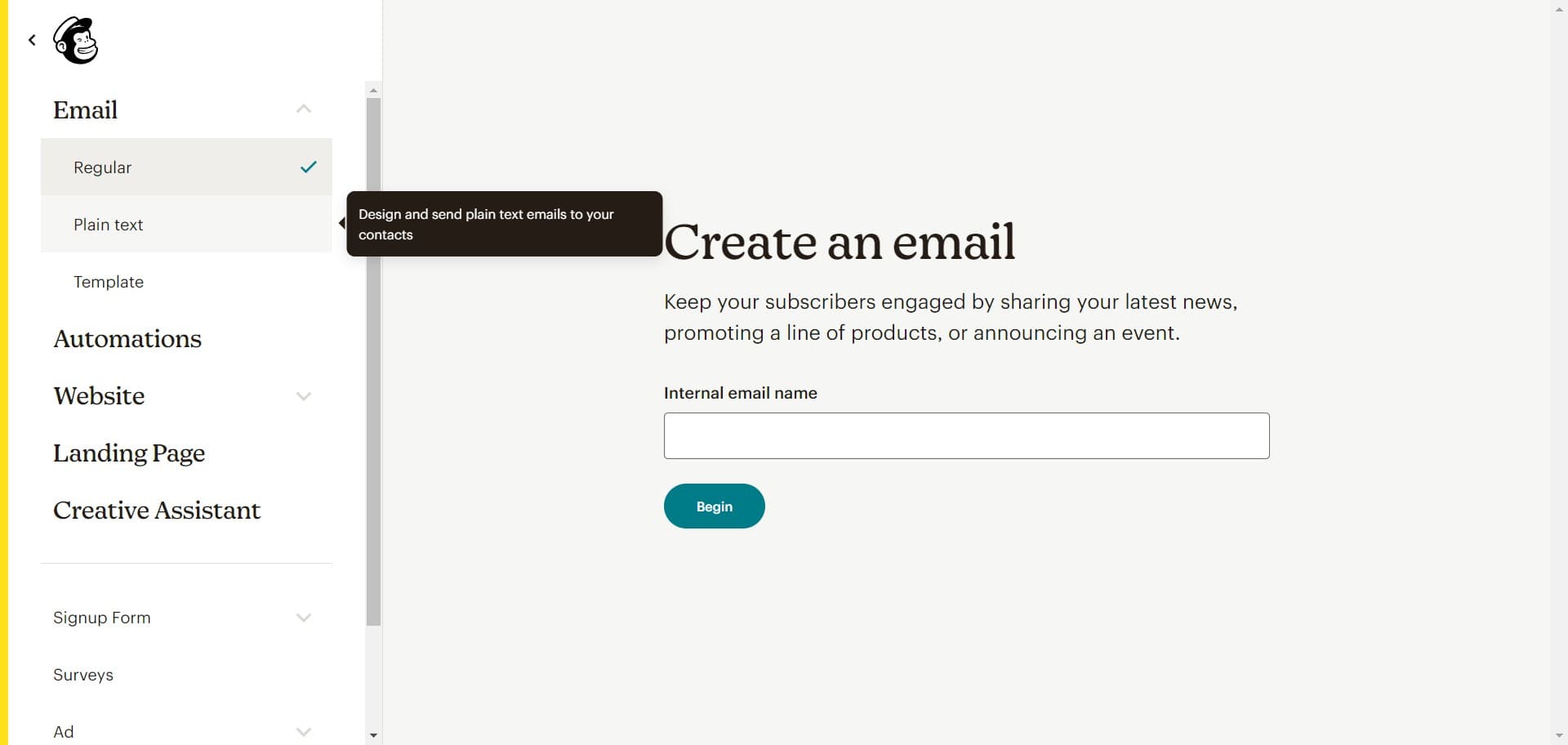
Choose Plain text format
Select "Plain text" as your email format if you prefer a simple, text-only message. Plain text emails are lightweight and have excellent deliverability across all email clients.
- 6
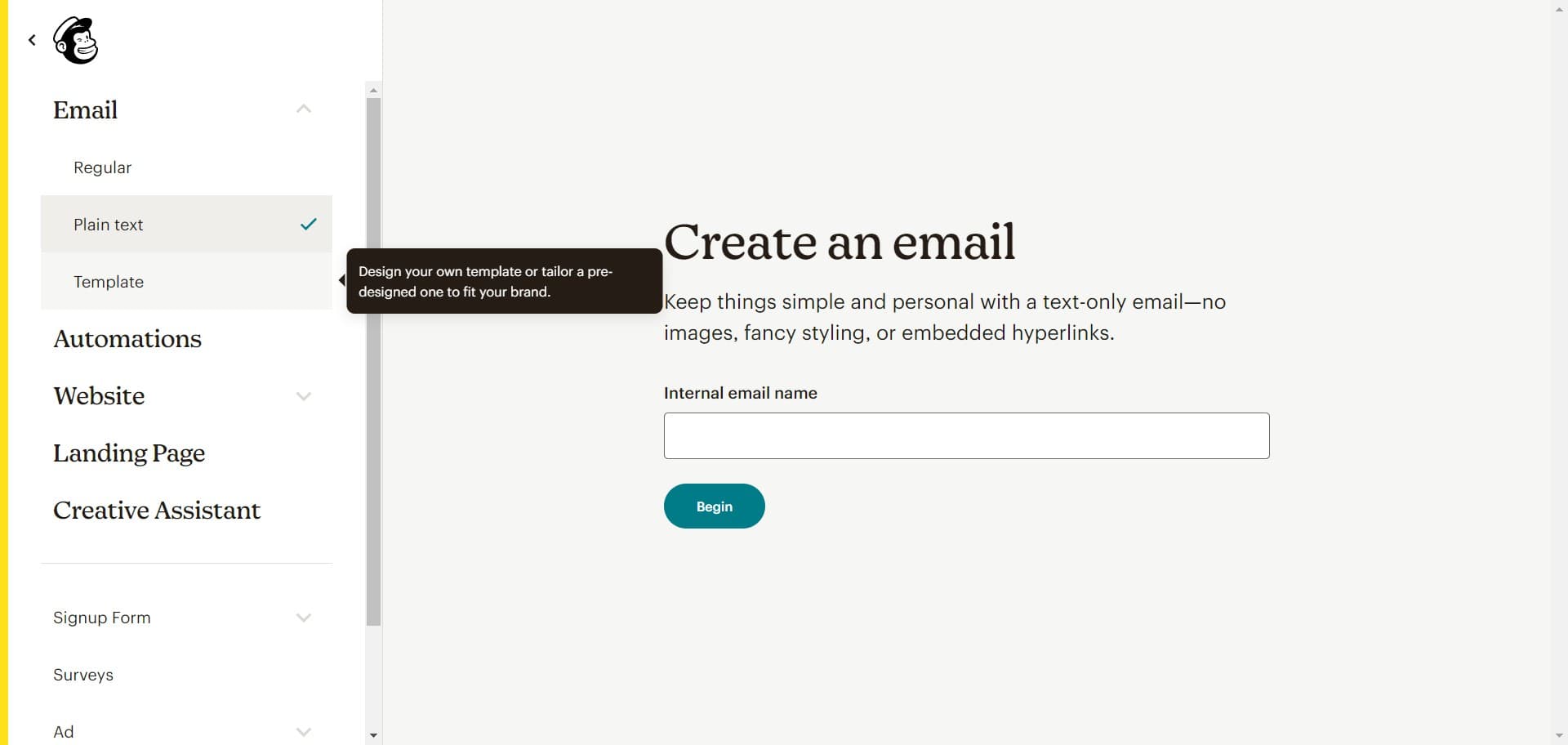
Choose a template option
Click on "Template" to browse and select a pre-designed email template. Templates provide a quick starting point for professional-looking campaigns.
- 7
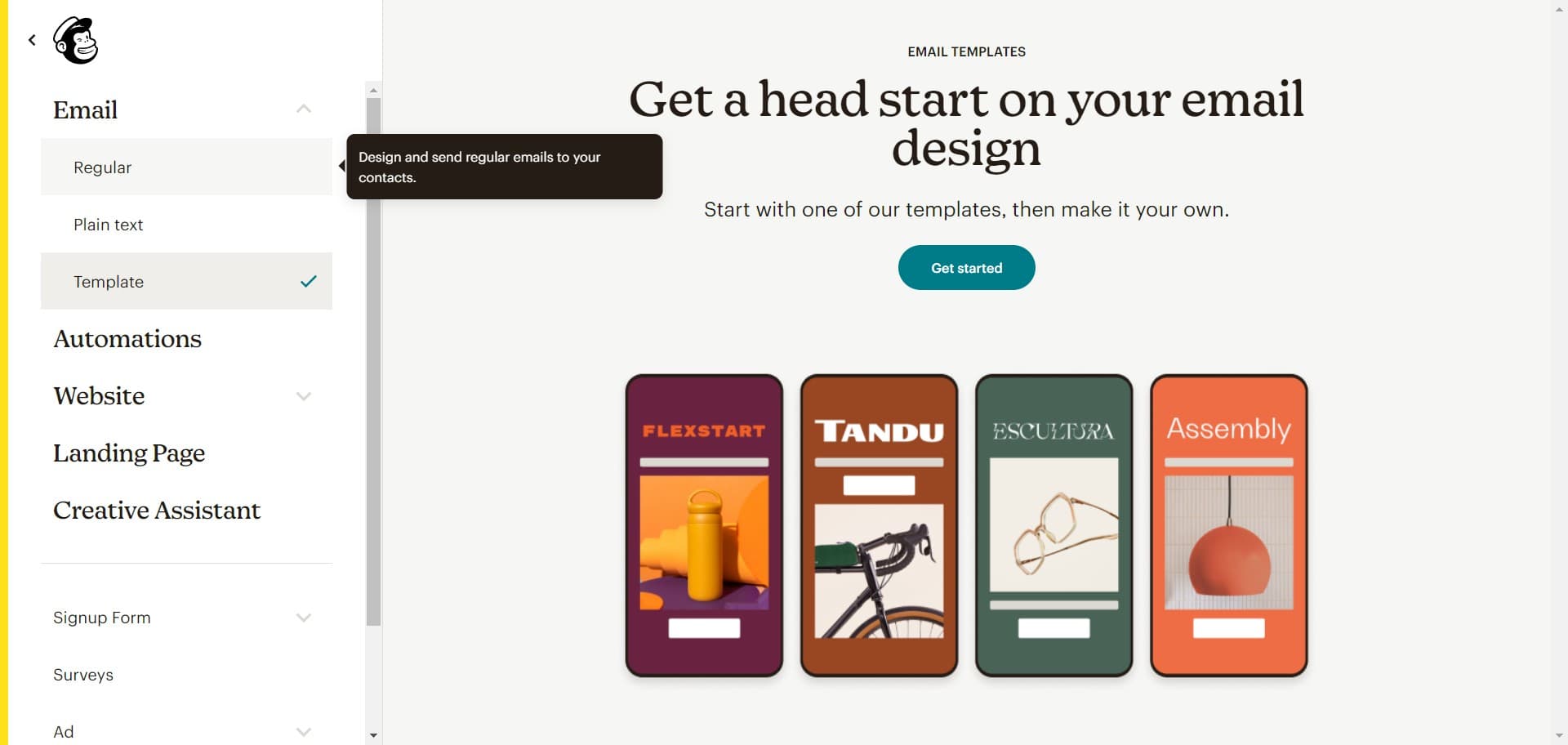
Select a template design
Click on "Regular" to choose a standard template layout that fits your campaign needs. Review the preview to ensure it matches your intended design.
- 8
Confirm template selection
Follow the prompt to confirm your template choice and load it into the campaign editor.
- 9
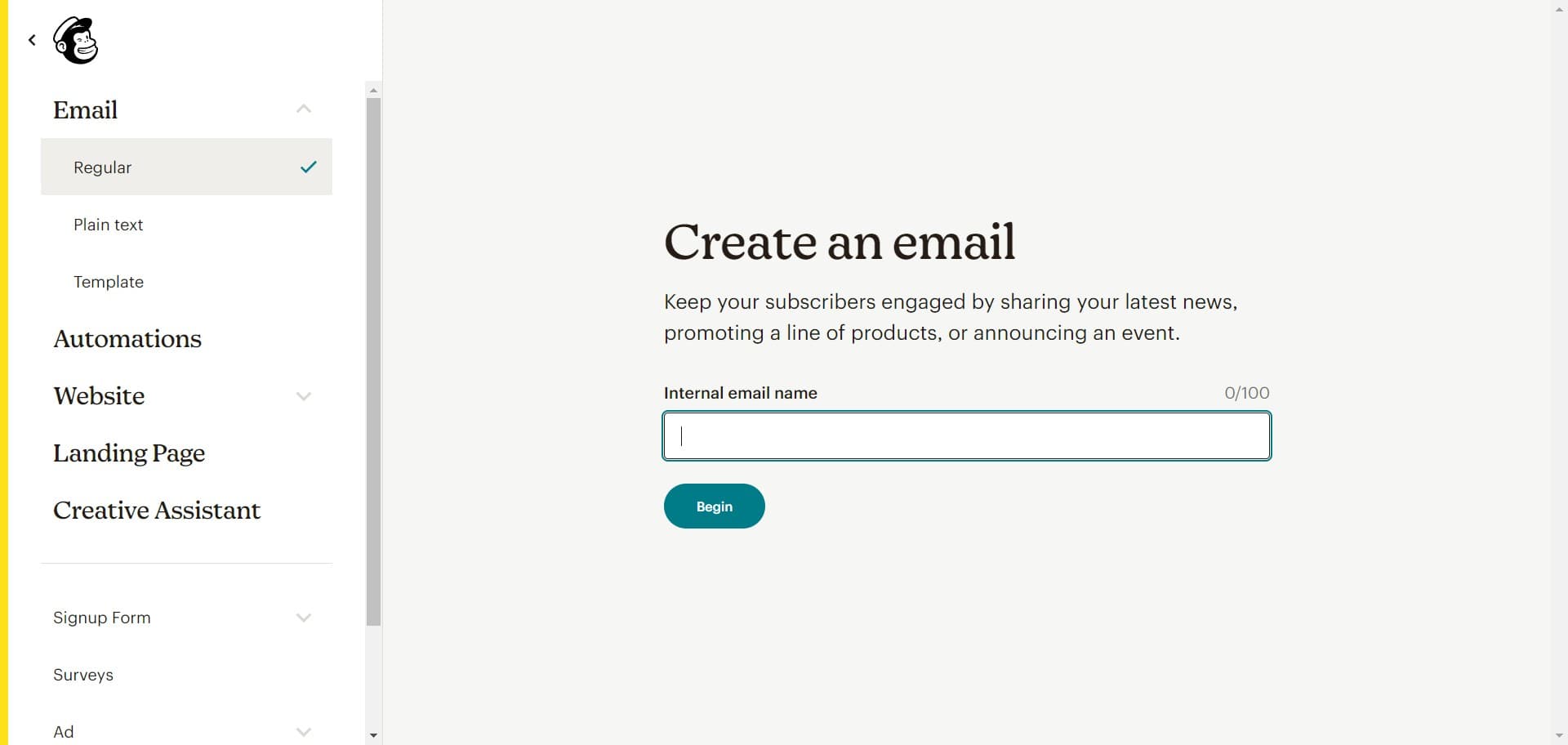
Start editing your campaign
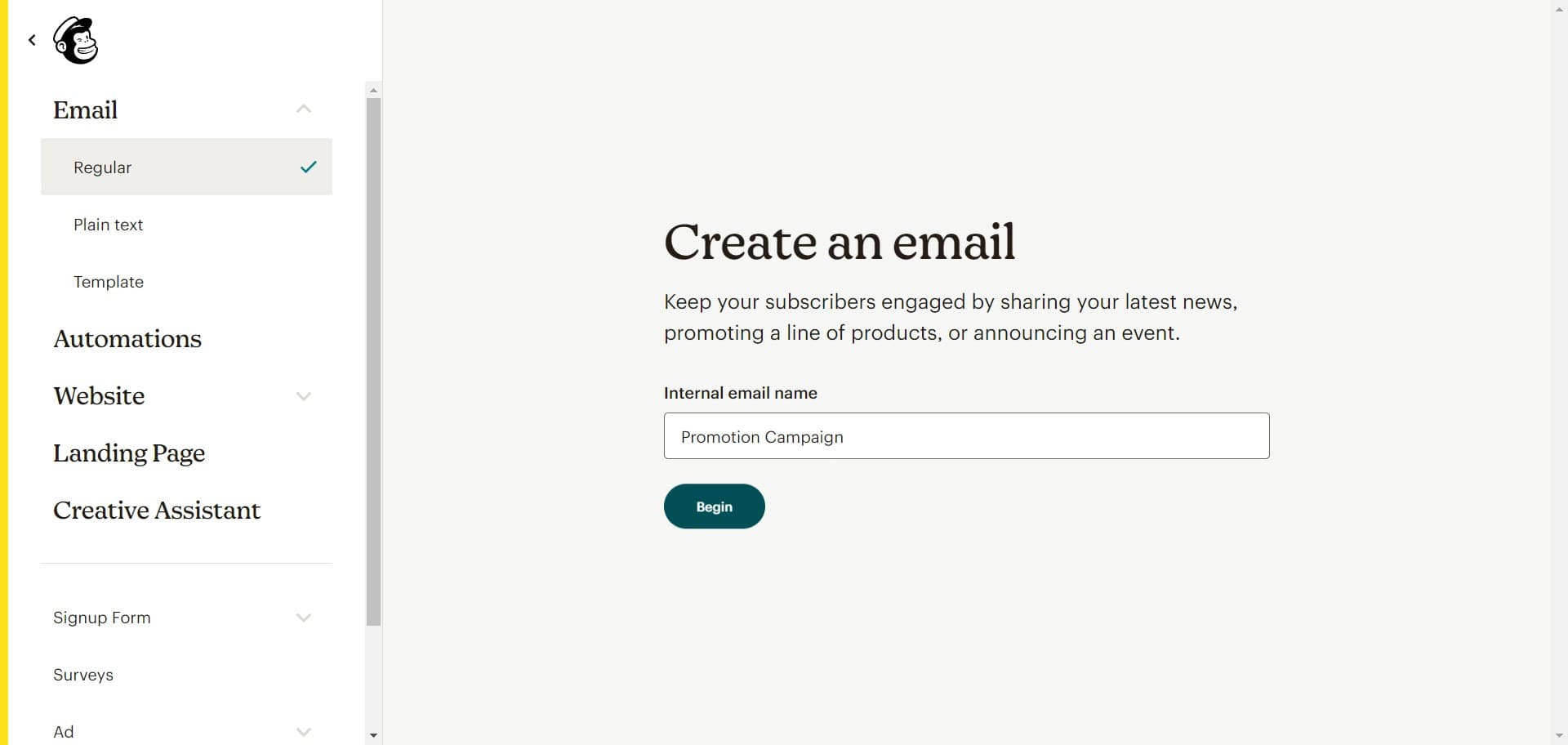
Click on "Begin" to enter the full campaign editor where you can customize your email content, subject line, and sender information.
- 10
Configure campaign settings
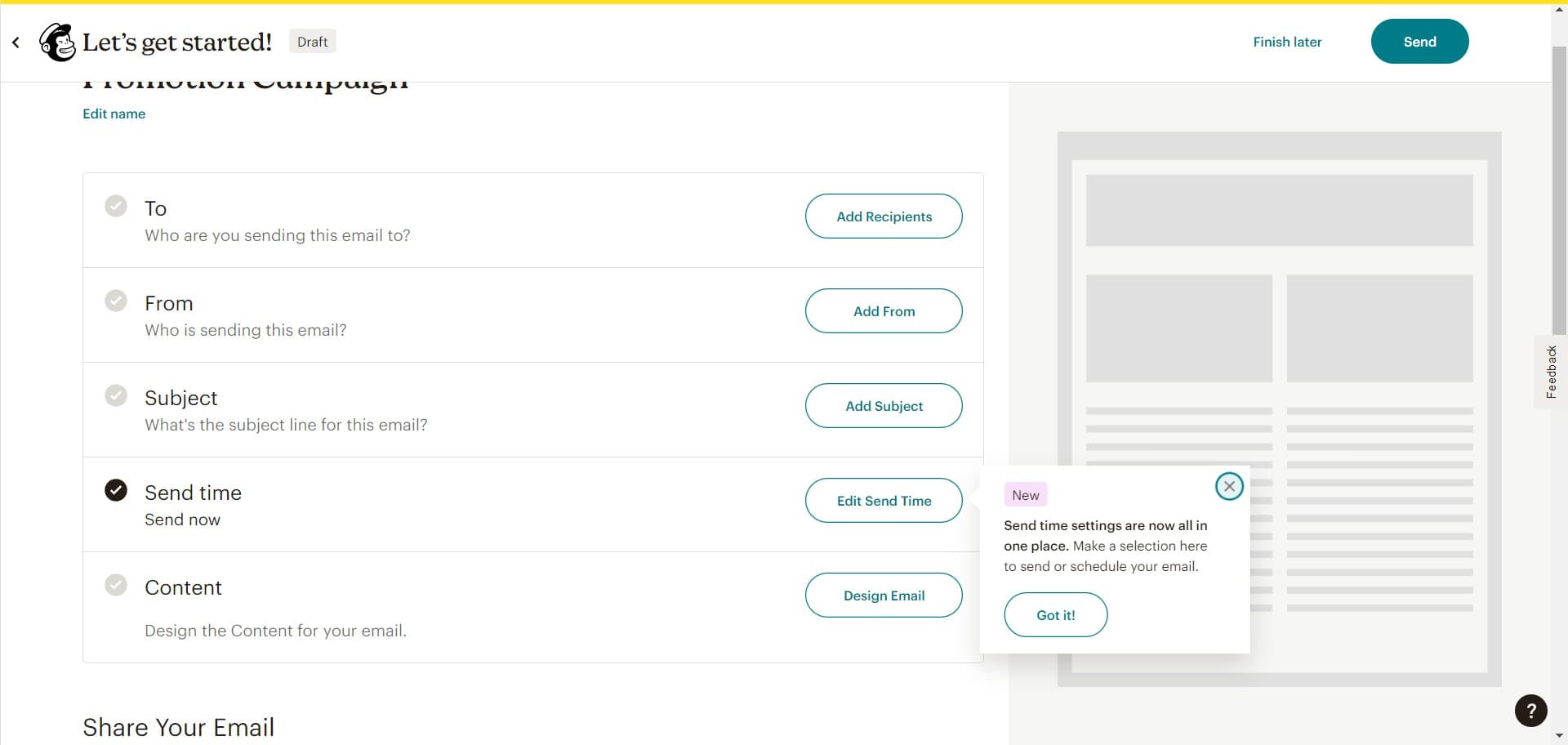
Complete the campaign setup by configuring essential details such as your campaign name, subject line, and recipient list as prompted by the editor.
- 11
Send your campaign
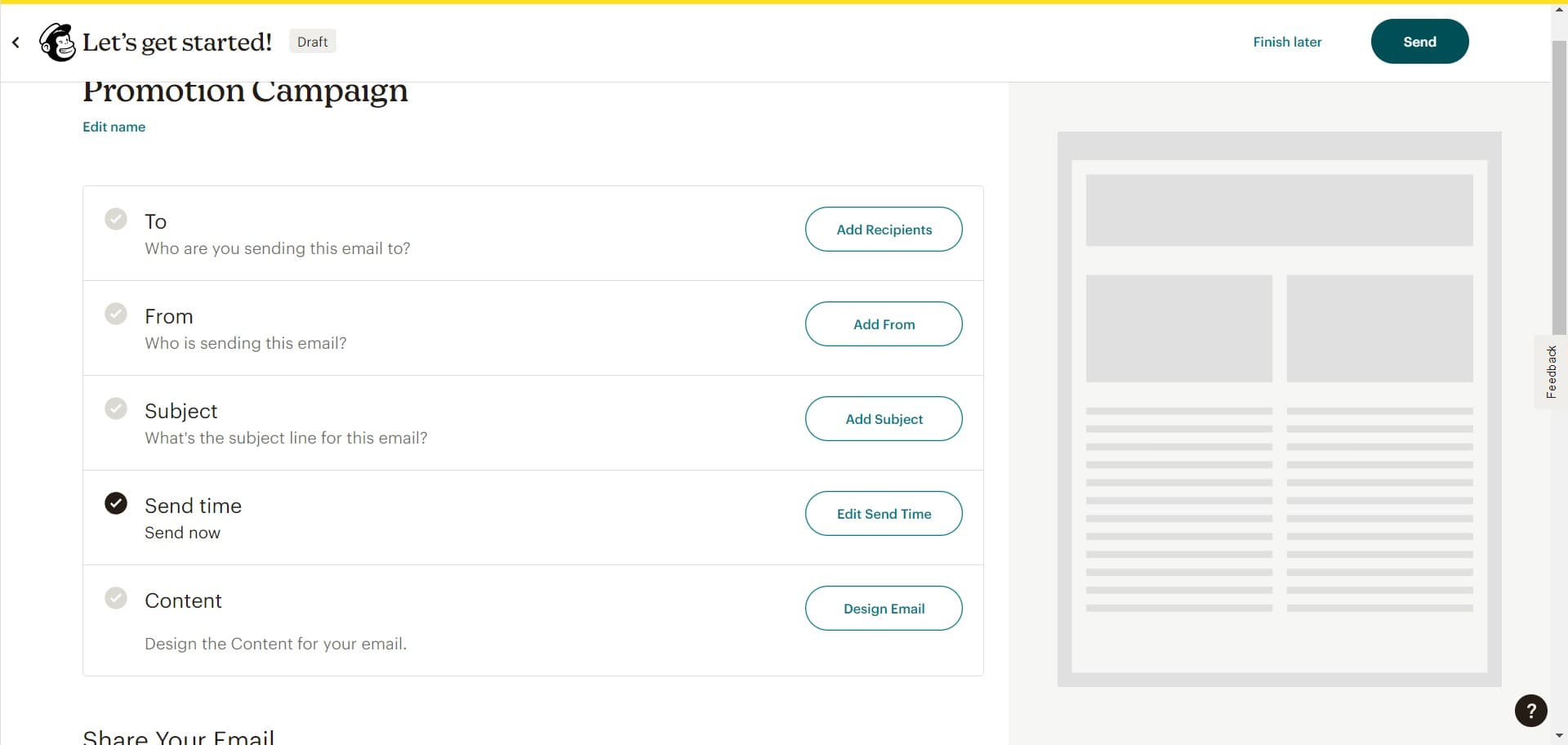
Click on "Send" to deliver your email campaign to your subscribers. Mailchimp will process and distribute your message according to your schedule and settings.
Frequently asked questions
Common questions about how to create a regular email campaign in mailchimp.
Regular campaigns are sent manually on your schedule to your entire list or a segment, while Automated campaigns trigger based on subscriber behavior or specific conditions. Choose Regular when you want direct control over when your message goes out, and Automated for behavior-based messaging like welcome emails or abandoned cart reminders.
Yes, Mailchimp offers multiple format options including HTML for more visually complex designs. When creating your campaign, you can select HTML instead of Plain text to access advanced styling, images, and layout options. Plain text is simpler and often has better deliverability, while HTML allows for richer visual designs.
During the campaign setup process, you'll specify which audience list or segment to send to. Mailchimp pulls from your existing contacts, so ensure you've already uploaded or imported your subscribers into your Mailchimp account before creating the campaign. You can select your entire list or choose specific segments based on criteria.
Yes, Mailchimp allows you to schedule campaigns to send at a specific date and time rather than immediately. In the campaign settings, you'll find options to choose when your email should be delivered. You can also use Mailchimp's send time optimization to send at the optimal time for each subscriber based on their activity.
Before sending, review your email content, subject line, sender name, and recipient list to ensure everything is correct. Run a test send to yourself or a small group, check for broken links and formatting issues, and verify your call-to-action is clear. Mailchimp also provides a preview pane to see how your email will appear in different email clients.