How to create a survey in Mailchimp

Mailchimp's survey feature allows you to gather valuable feedback directly from your audience. This guide walks you through the complete process of creating a survey from start to finish, enabling you to understand customer preferences and improve your products or services.
Quick summary
In this tutorial, you'll learn how to create a survey in Mailchimp by navigating to the Surveys section, setting up your survey questions, configuring response options, and designing your survey layout before publication. By the end, you'll have a fully configured survey ready to deploy to your audience.
Why this matters
Surveys are essential for gathering direct customer feedback, identifying pain points, and validating product ideas. In Mailchimp, the survey tool integrates seamlessly with your contact lists, making it easy to collect insights from your most engaged subscribers and make data-driven business decisions.
Step-by-step guide
- 1
Access the Surveys section
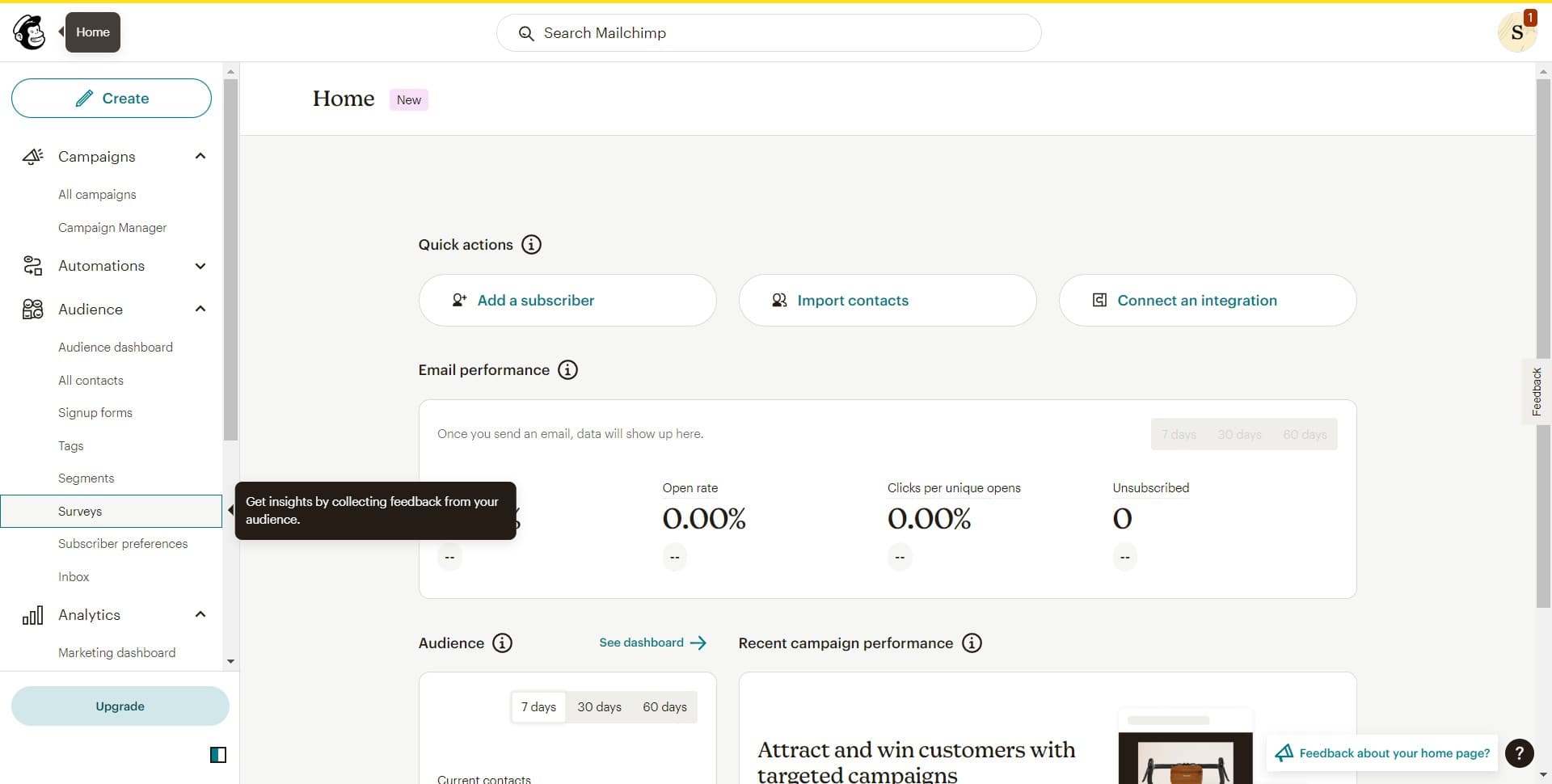
Log into your Mailchimp account and click on 'Surveys' in the main navigation menu. This takes you to the surveys dashboard where you can view existing surveys and create new ones.
- 2
Upload audience or data
Select the option to upload your audience data if needed, or proceed with an existing contact list. This ensures your survey will be targeted to the right recipients.
- 3
Click Create Survey
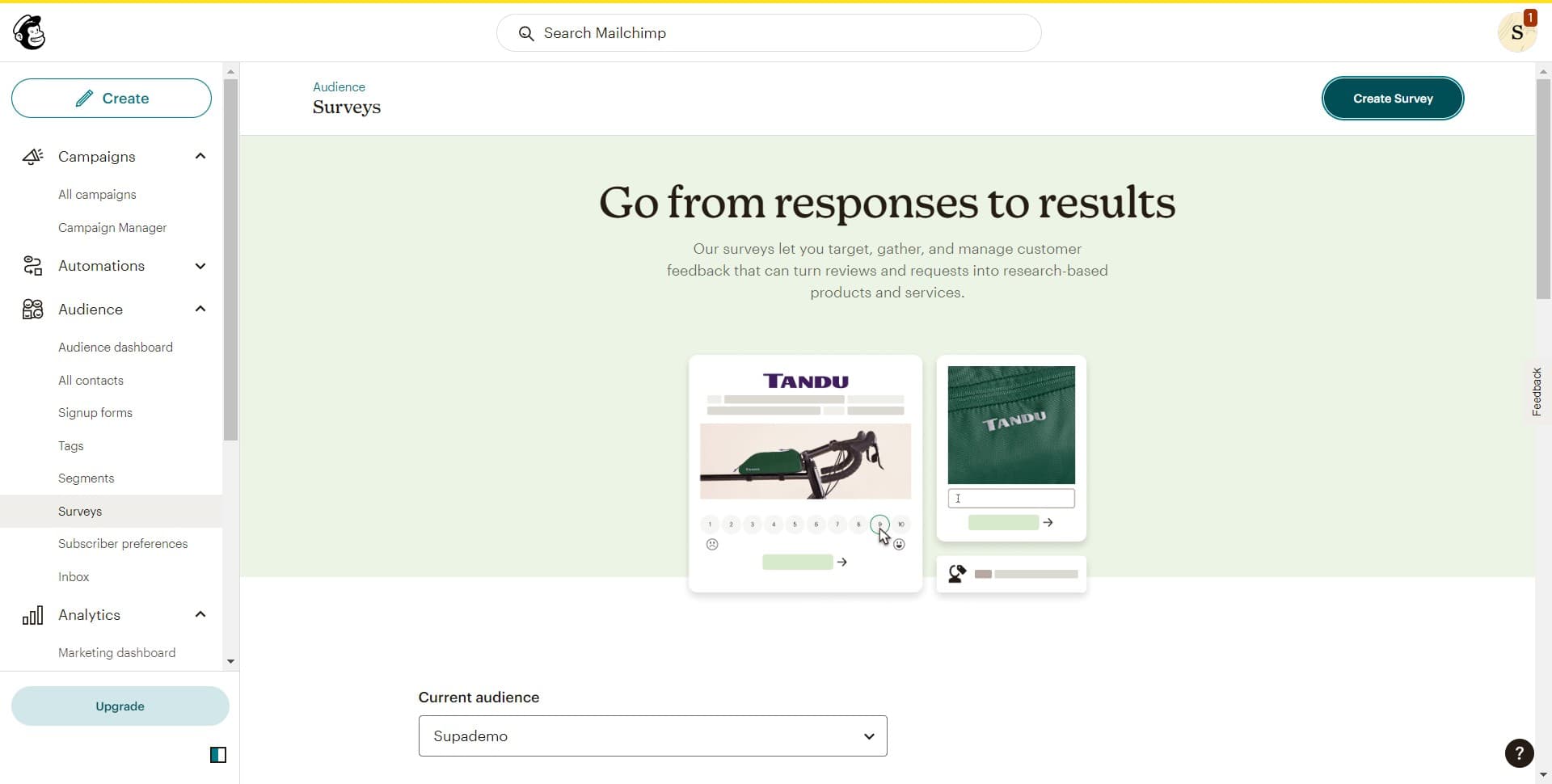
On the surveys dashboard, click the 'Create Survey' button to begin building a new survey. This opens the survey builder interface where you'll configure your questions and settings.
- 4
Configure initial survey settings
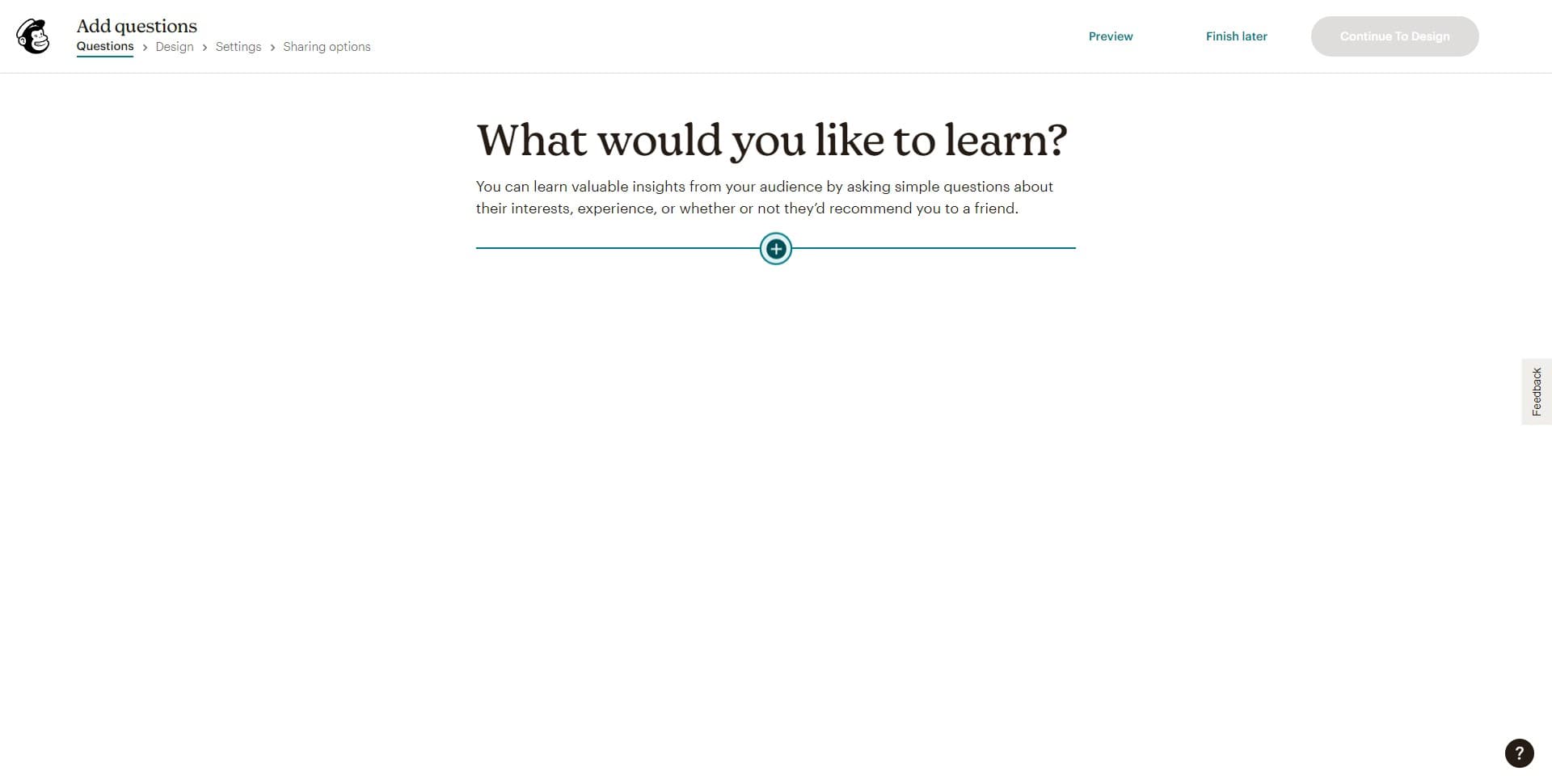
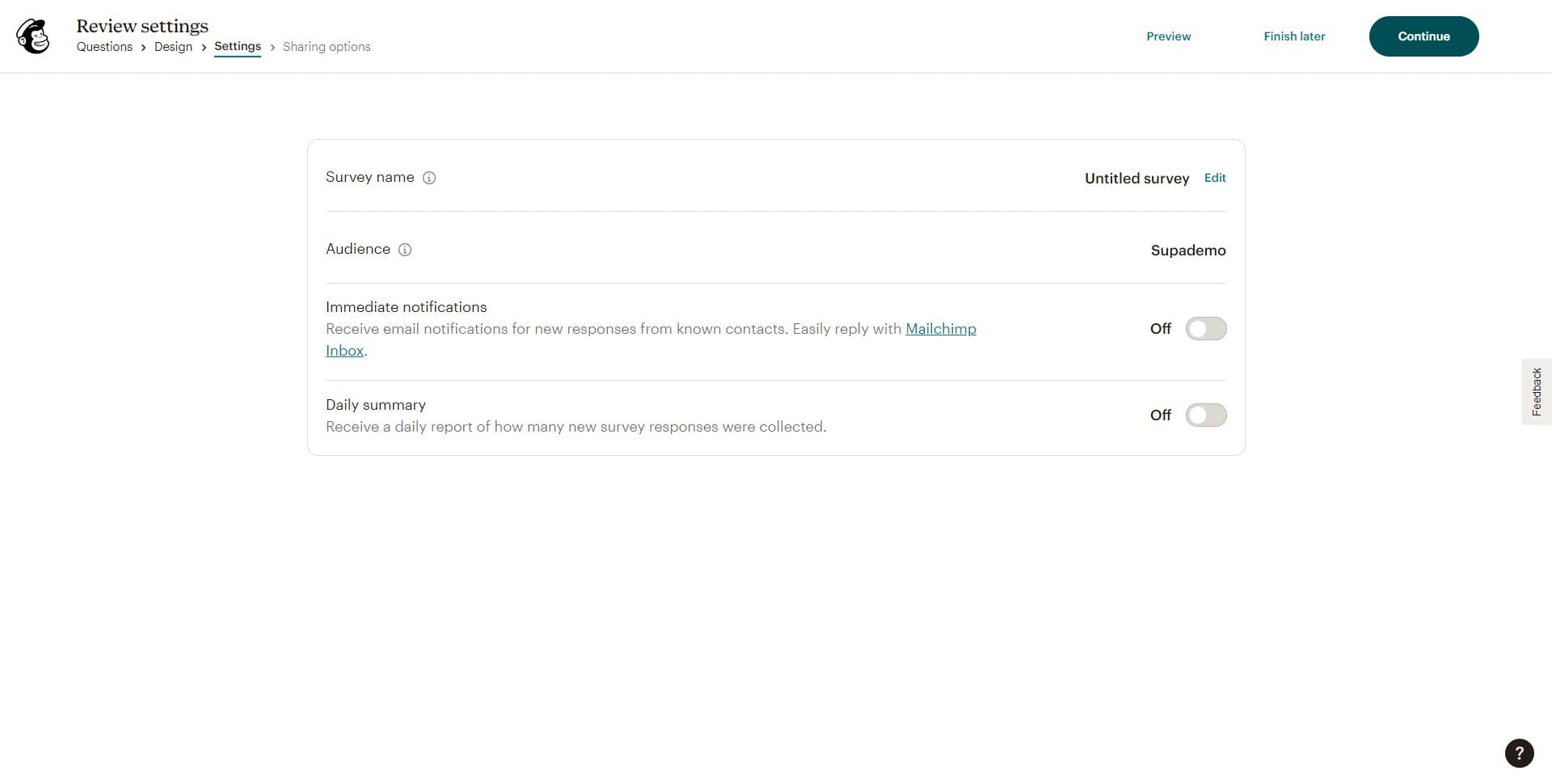
Follow the prompted setup step to configure basic survey settings such as the survey name and general preferences. This establishes the foundation for your survey.
- 5
Select a single response question type
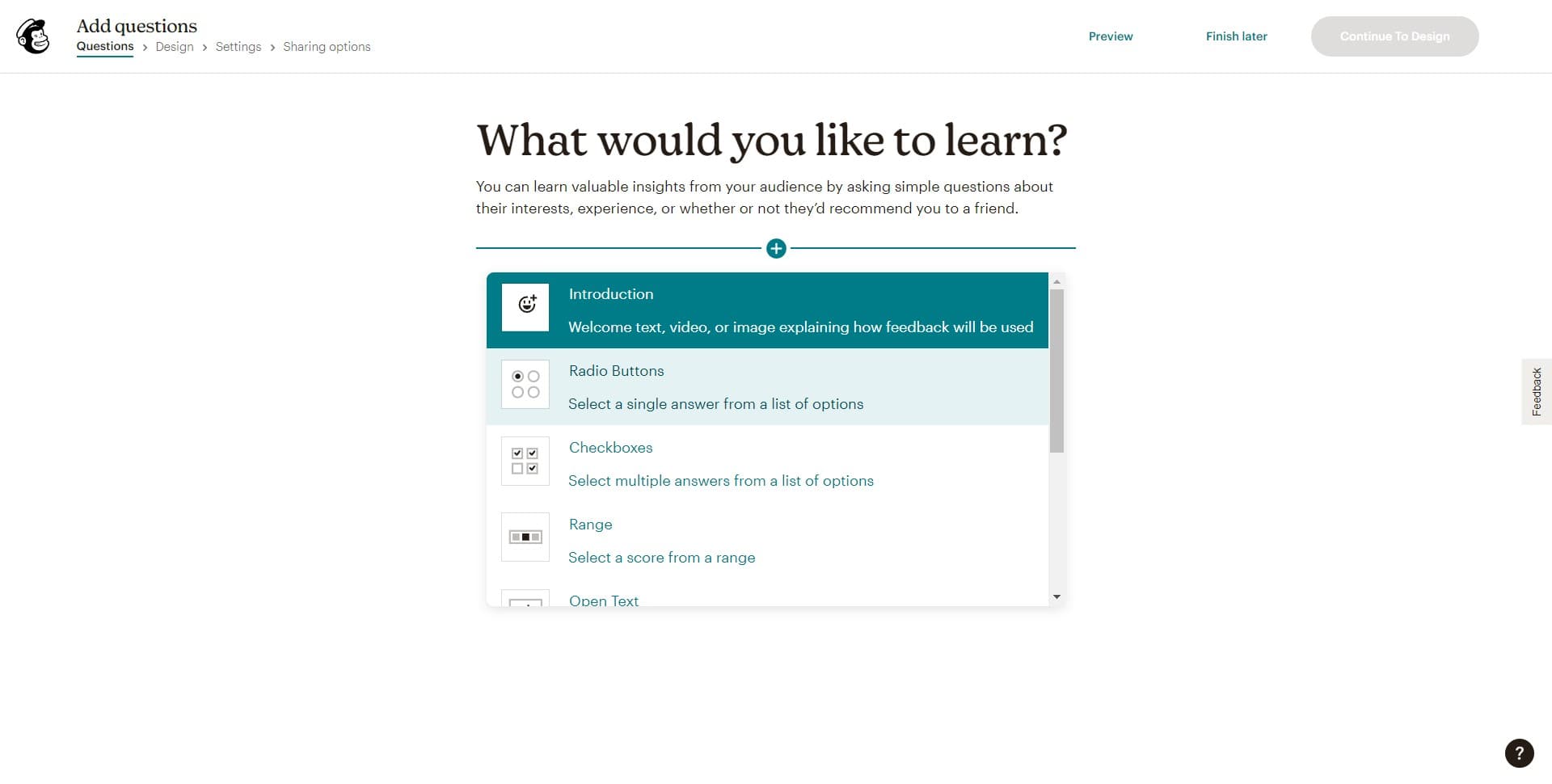
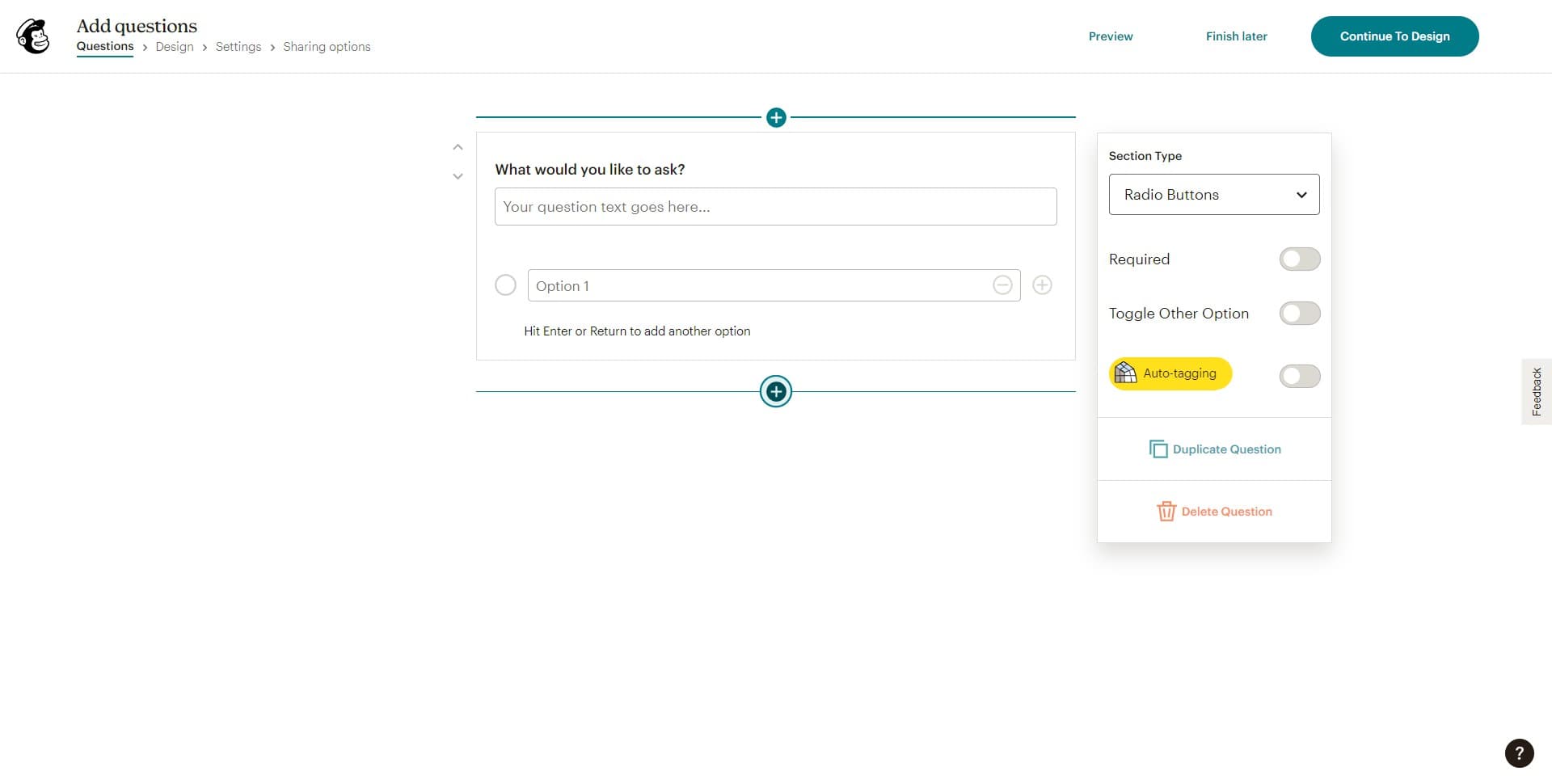
Click on 'Select a single...' to choose your first question type, which allows respondents to select one answer from multiple options. This is a common question format for surveys.
- 6
Add your survey question
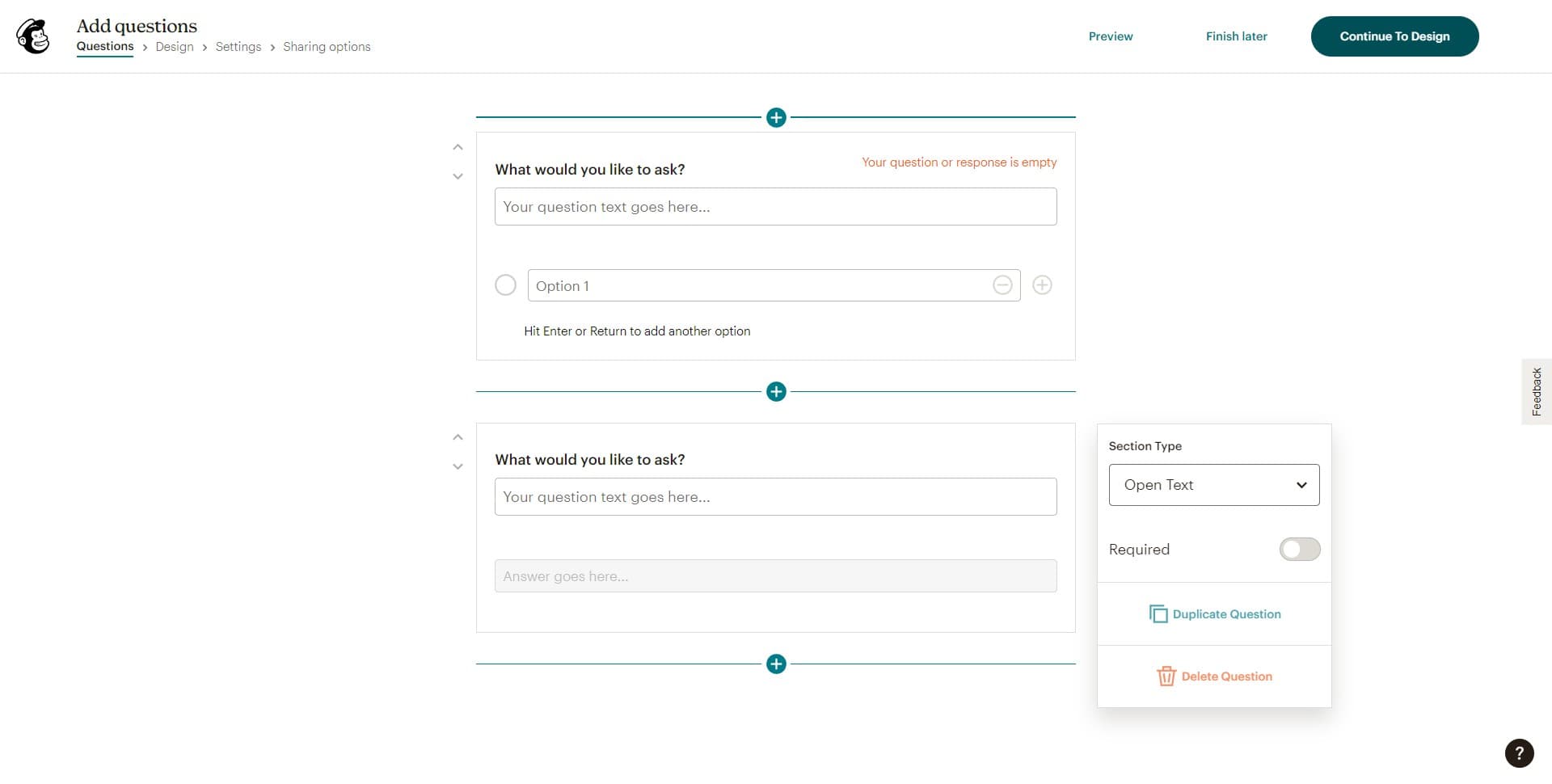
Enter your question text and define the available answer options for respondents. Configure any additional settings specific to this question type.
- 7
Continue to design phase
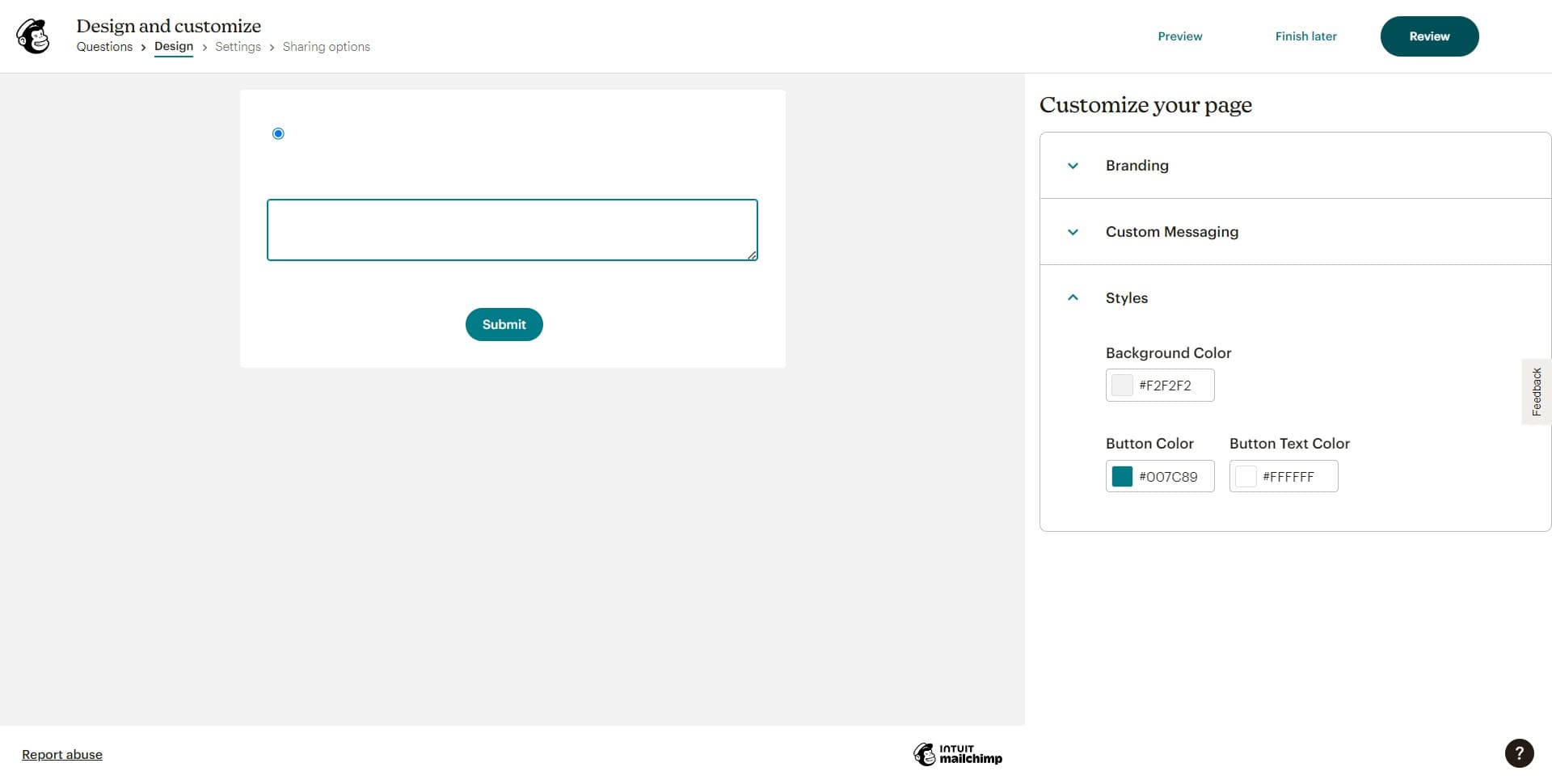
Click 'Continue To Design' to move into the design section where you can customize the look and feel of your survey. This step lets you match the survey appearance to your brand.
- 8
Review survey details
Click 'Review' to examine all survey settings, questions, and design elements before finalizing. This is your opportunity to catch any errors or make last-minute adjustments.
- 9
Finalize and complete setup
Click 'Continue' to complete the survey creation process. Your survey is now ready to be deployed to your audience.
Frequently asked questions
Common questions about how to create a survey in mailchimp.
Yes, you can edit your survey at any point before it goes live. After deployment, you can still view responses and generate reports, though editing active surveys may affect response consistency. It's best to finalize all changes before sending the survey to your audience.
Mailchimp allows you to select specific audience segments or your entire contact list when launching a survey. You can filter by subscriber status, location, engagement level, and other criteria to target the right respondents. This ensures you gather feedback from your most relevant audience members.
Mailchimp offers multiple question types including single-choice, multiple-choice, text responses, and rating scales. Each question type serves different purposes depending on the insights you're trying to gather. Choose question types that best match the feedback you need.
Once responses start coming in, Mailchimp provides a dashboard displaying response counts, percentages, and visual charts for each question. You can filter responses by date range or subscriber segment. Export your data for deeper analysis in spreadsheet applications if needed.
Yes, Mailchimp's design phase allows you to customize colors, fonts, and layout to align with your brand identity. You can add your logo and adjust the visual styling to create a professional, on-brand experience. These customizations help maintain consistency across your customer communications.