How to Use Shopify Variables in Gorgias Macros

Shopify variables in Gorgias macros enable support teams to personalize customer interactions by automatically pulling dynamic data from Shopify into pre-built response templates. This integration streamlines ticket resolution by reducing manual data entry and ensuring consistent, accurate information is delivered to customers every time.
Quick summary
In this tutorial, you'll learn how to connect Shopify variables to Gorgias macros, set up dynamic placeholders for customer data, and deploy these automated responses in your support workflow. By the end, you'll be able to create intelligent macros that adapt to each customer's unique information.
Why this matters
Using Shopify variables in Gorgias macros significantly reduces response time and human error in customer support. Support agents can resolve issues faster while maintaining personalization, leading to improved customer satisfaction and team efficiency across your entire helpdesk operation.
Step-by-step guide
- 1
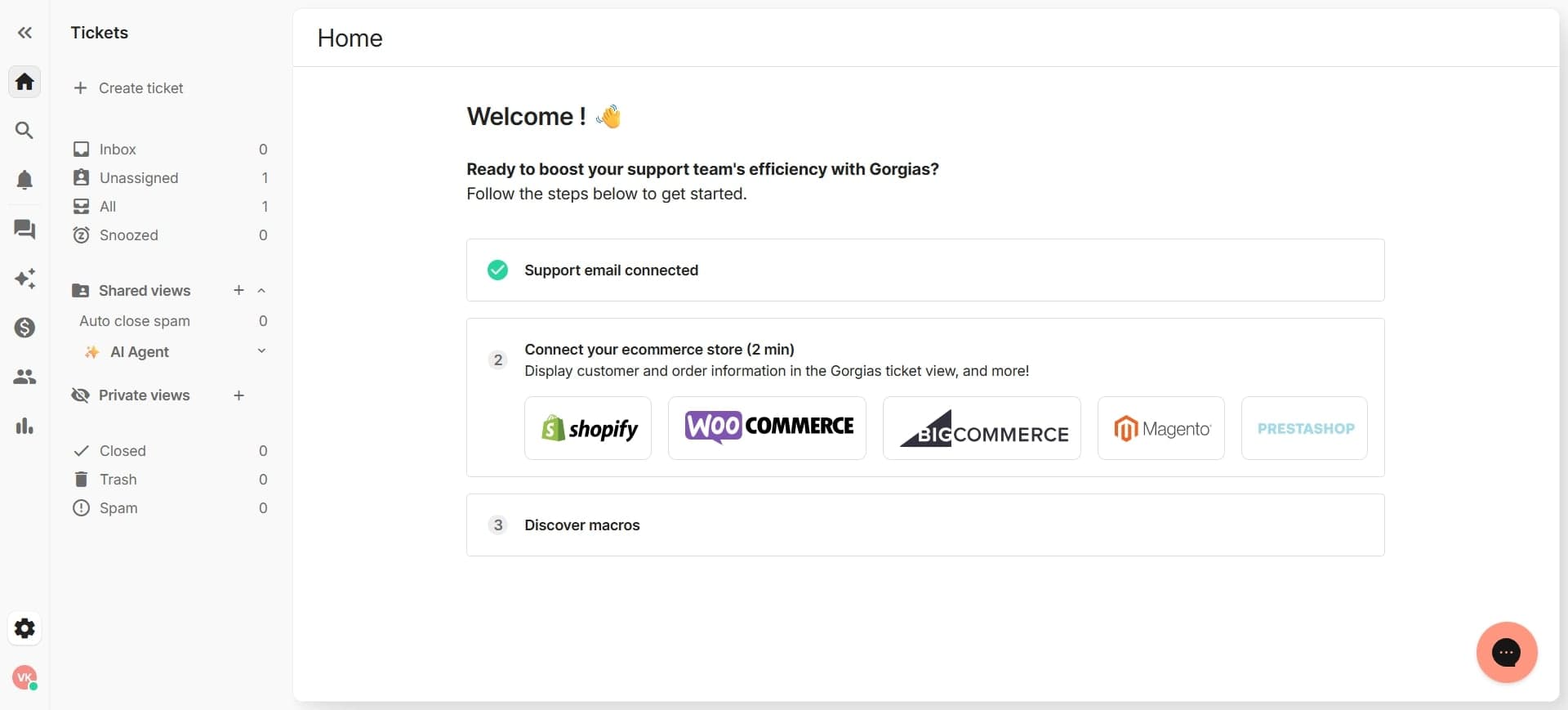
Access your Gorgias dashboard
Log in to your Gorgias account and navigate to the main dashboard. You'll see the central hub where all support channels and tools are accessible.
- 2
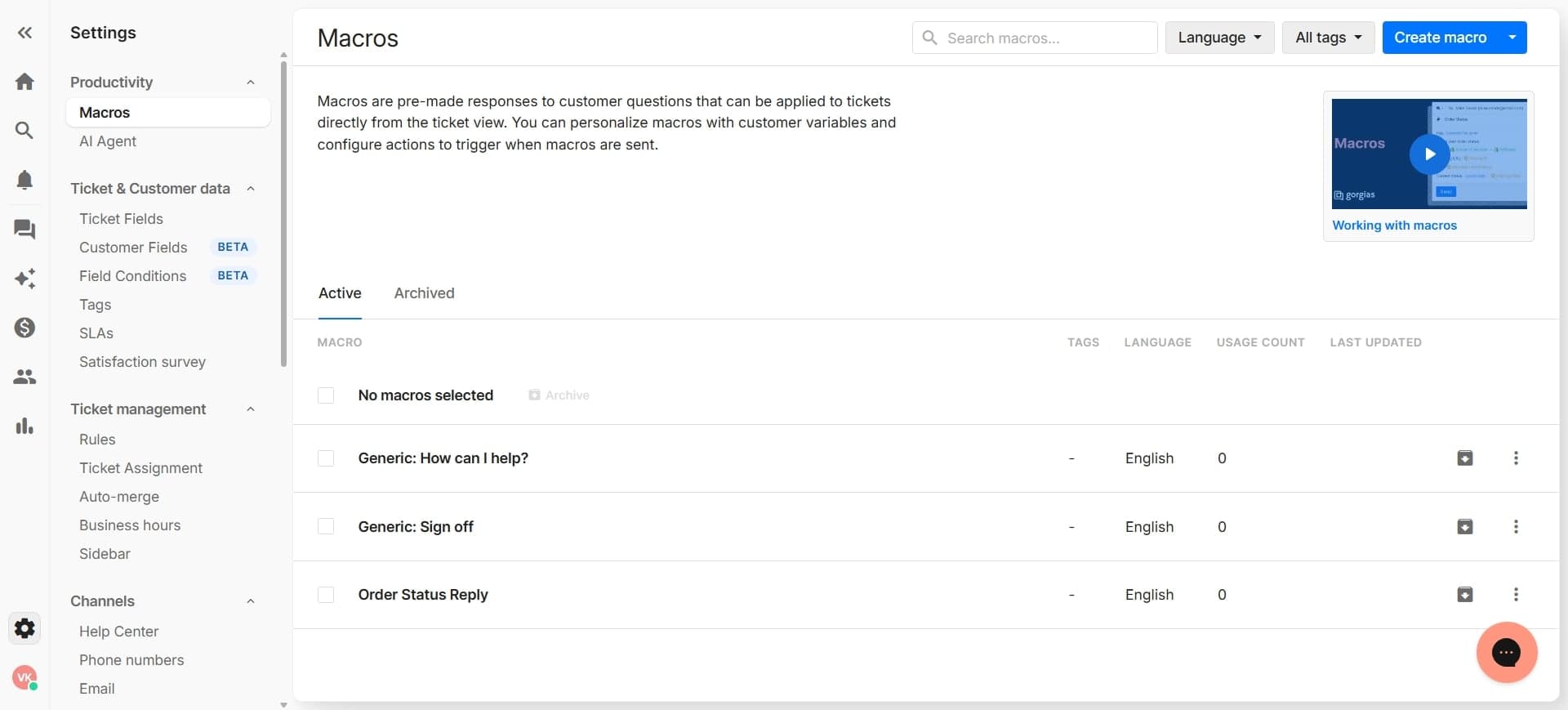
Navigate to the macros section
From the dashboard menu, locate and click on 'Macros' to access the macro management area. This is where you'll create and manage all your pre-built response templates.
- 3
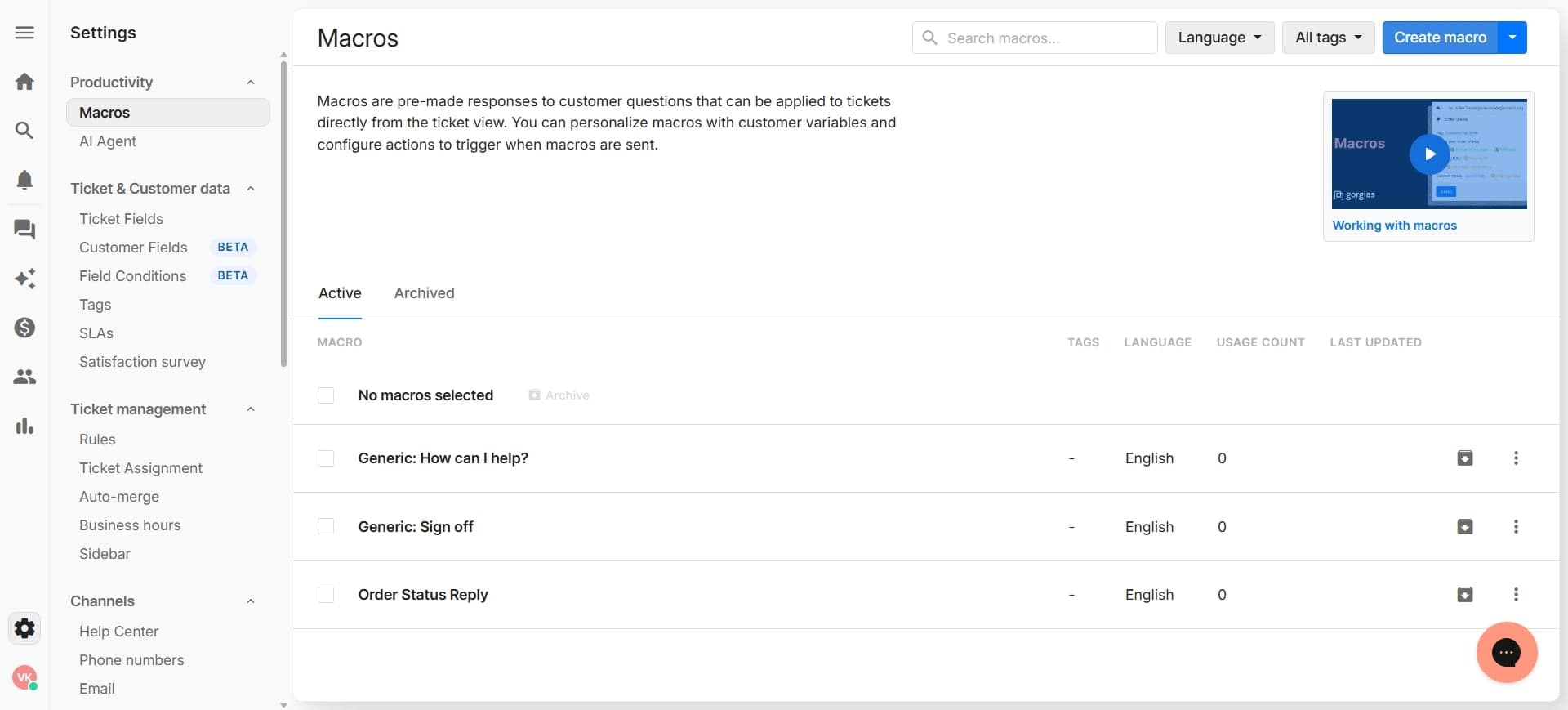
Create a new macro
Click the 'Create Macro' or 'New Macro' button to start building a fresh template. You'll be prompted to name your macro and define its purpose.
- 4
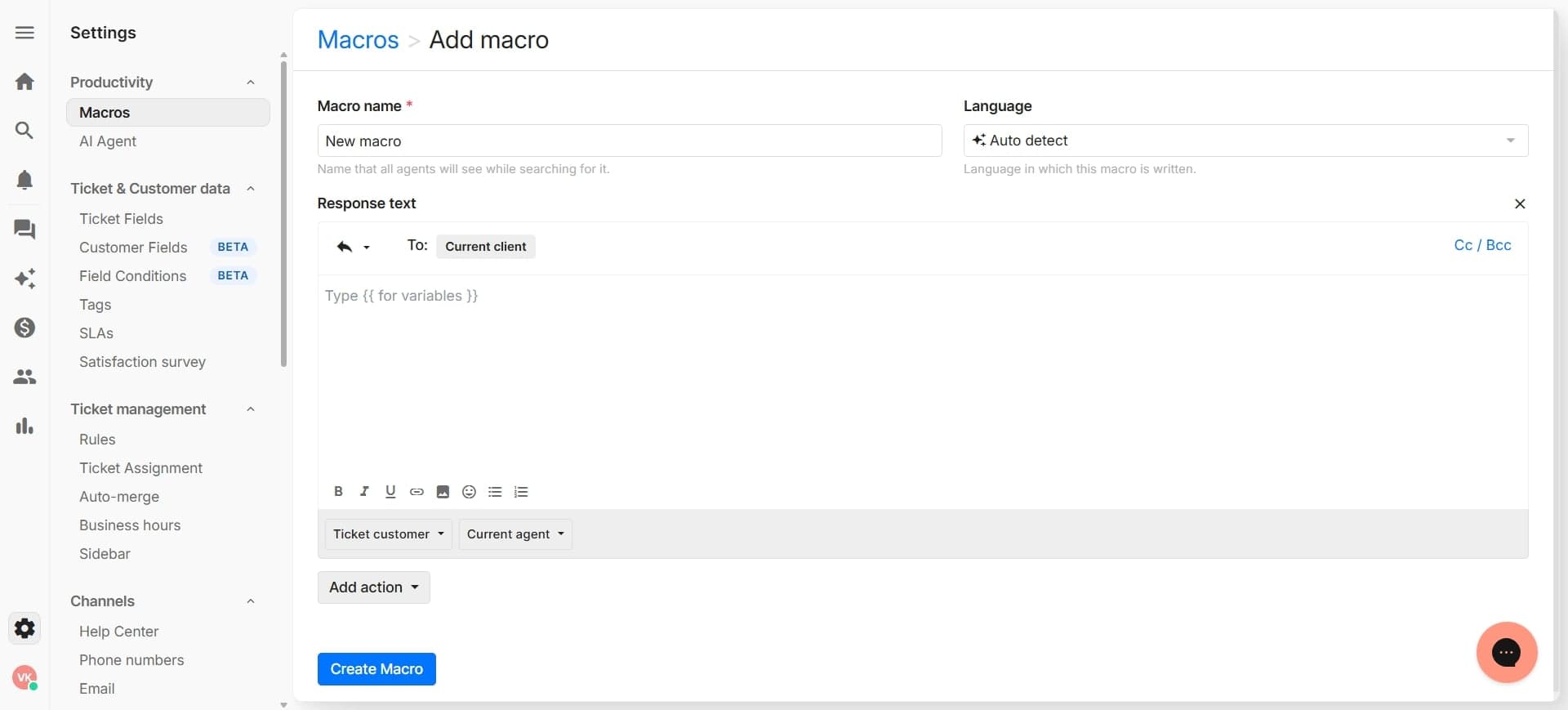
Name your macro descriptively
Enter a clear, descriptive name for your macro such as 'Order Status Update' or 'Refund Confirmation'. This helps your team quickly identify and use the correct macro when responding to tickets.
- 5
Access the Shopify variable insertion panel
Within the macro editor, look for the option to insert variables or integrations. Click on the Shopify integration option to reveal available Shopify data fields.
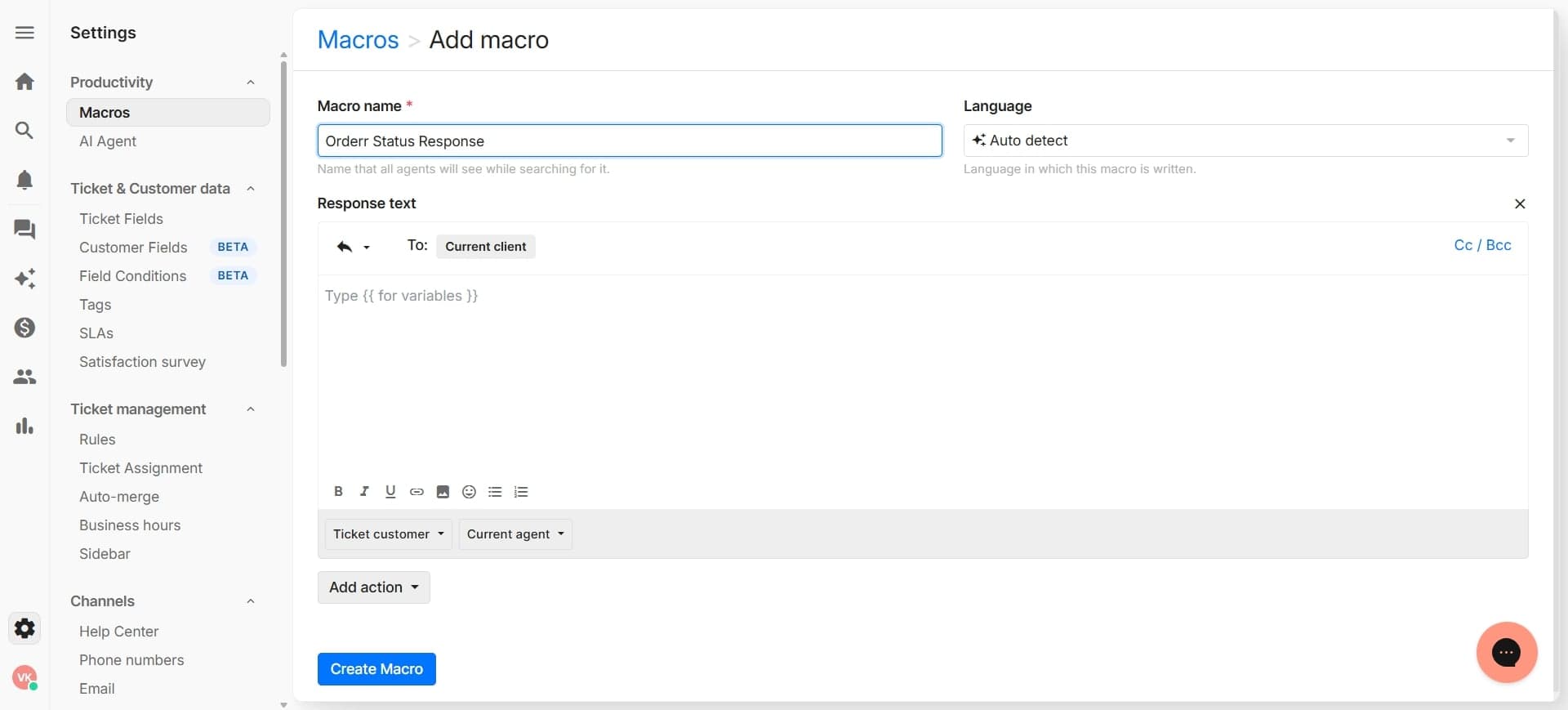
- 6
Select the Shopify variable you need
Browse the list of available Shopify variables such as customer name, order ID, product name, or order total. Click on the variable you want to insert into your macro template.
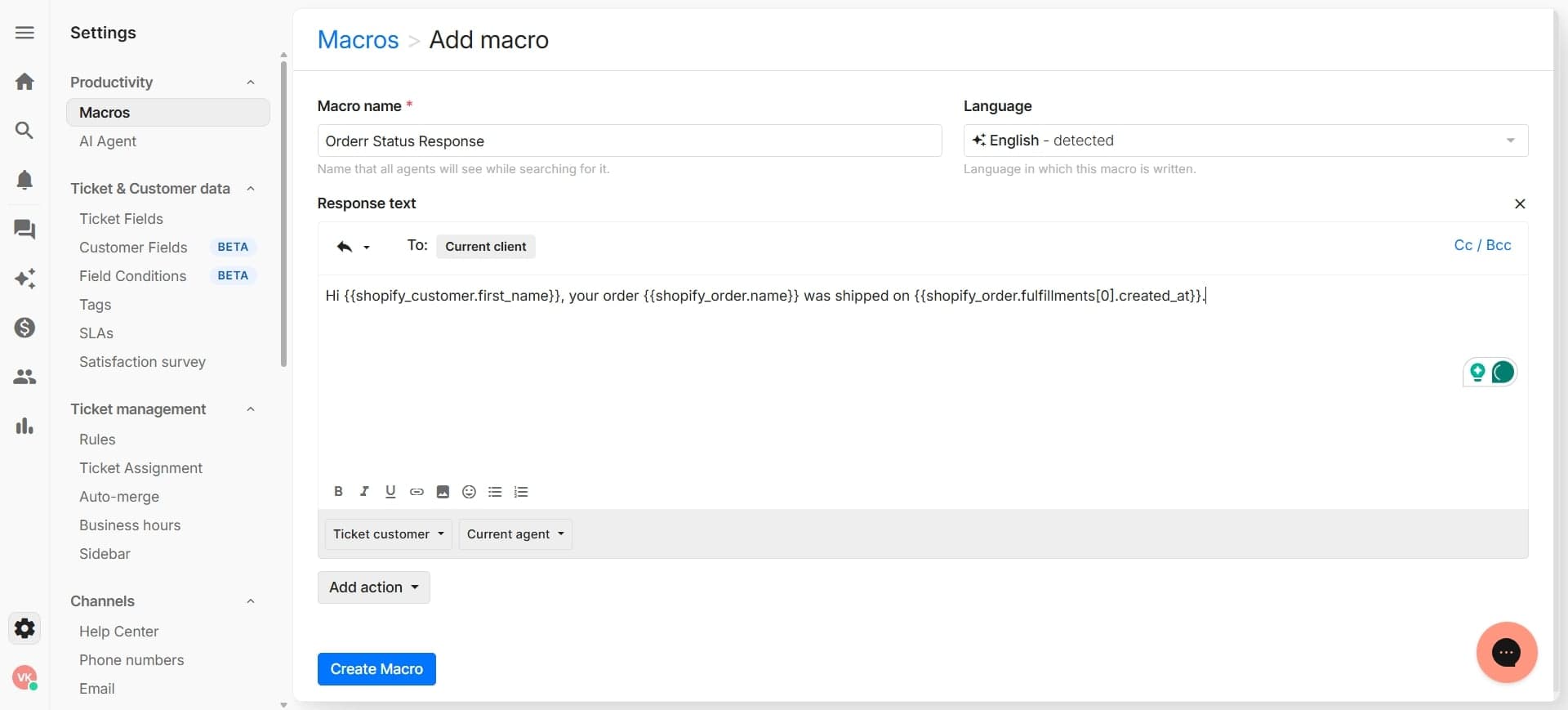
- 7
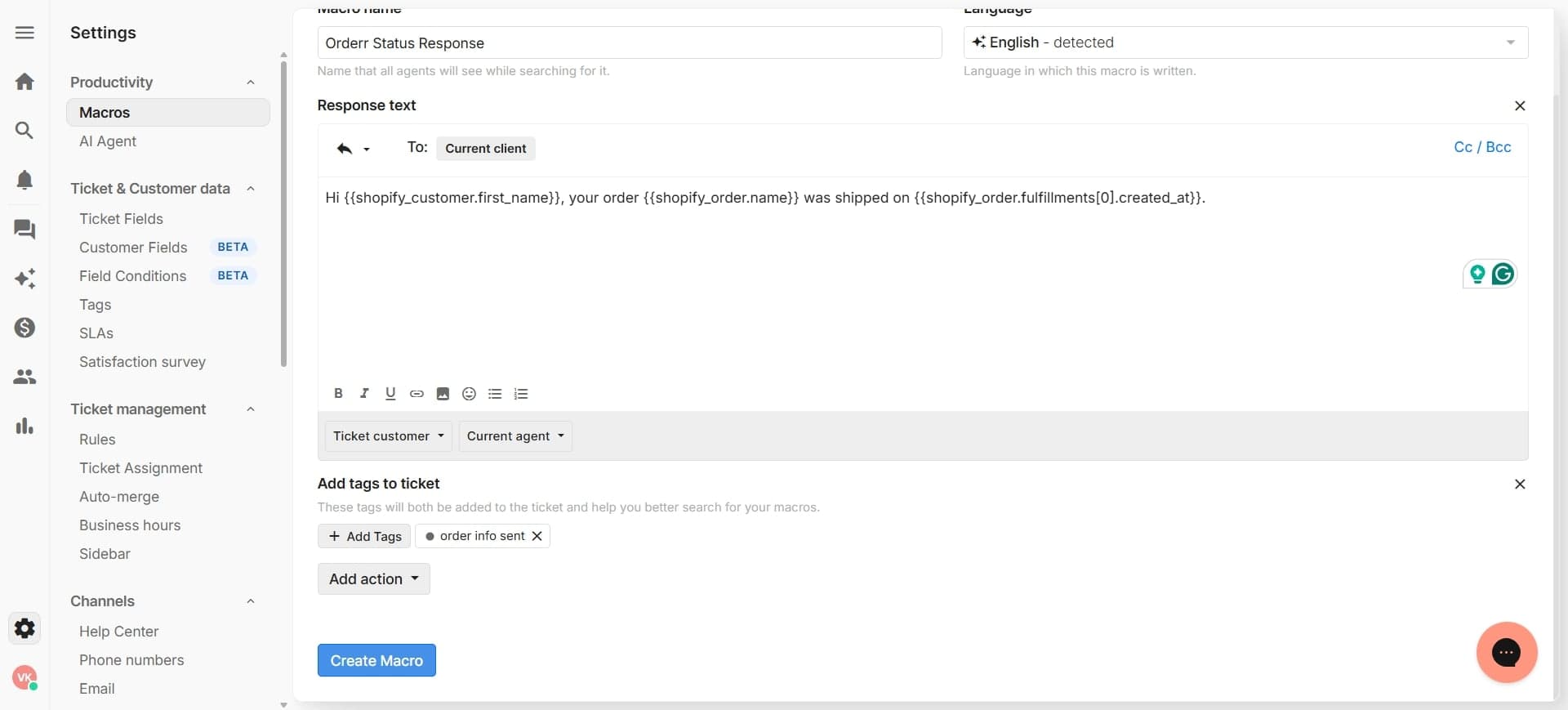
Insert the variable into your response text
Place your cursor in the macro text where you want the dynamic data to appear and click to insert the selected variable. The variable will appear as a placeholder that automatically populates with real customer data when the macro is used.
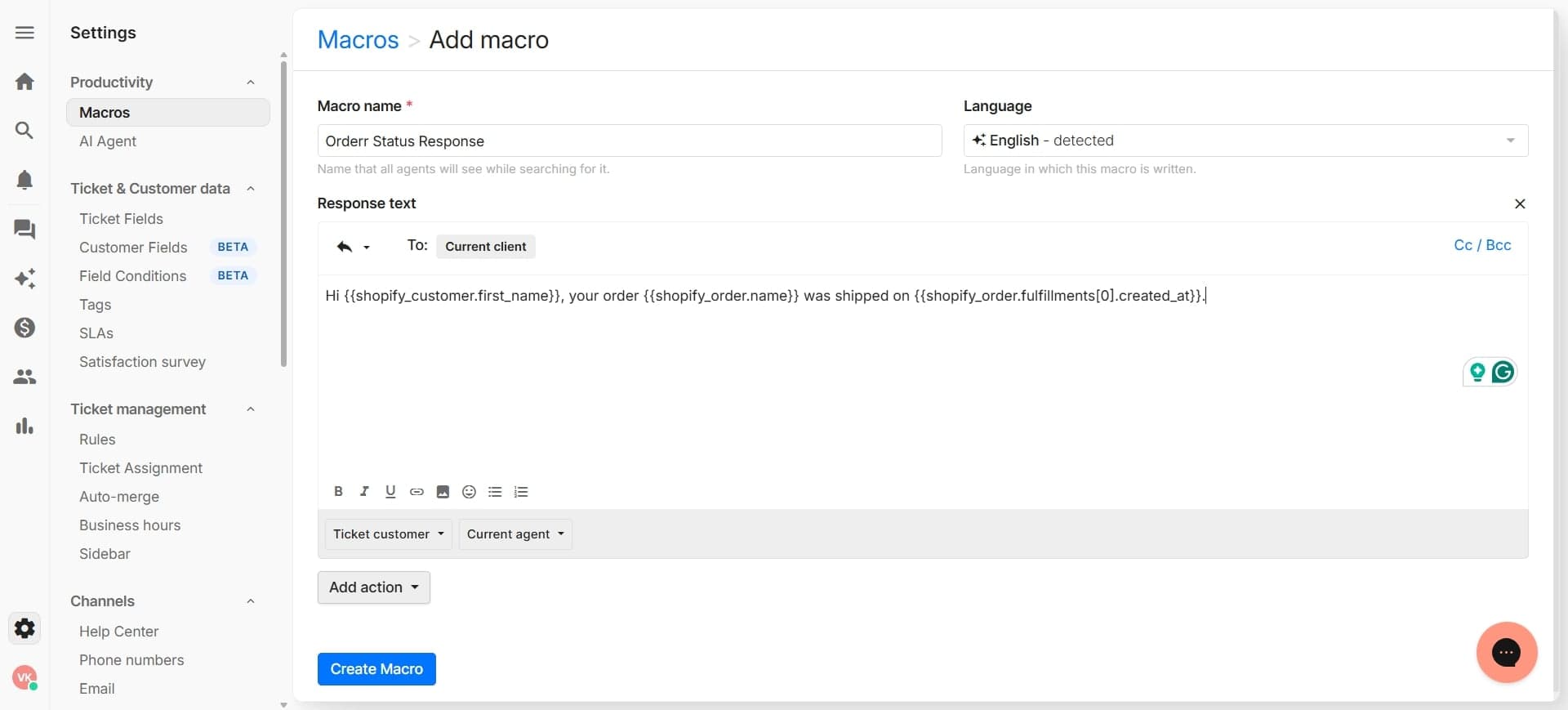
- 8
Add multiple variables as needed
Repeat the process to insert additional Shopify variables throughout your macro response. Build a complete, personalized response that includes all relevant customer and order information.
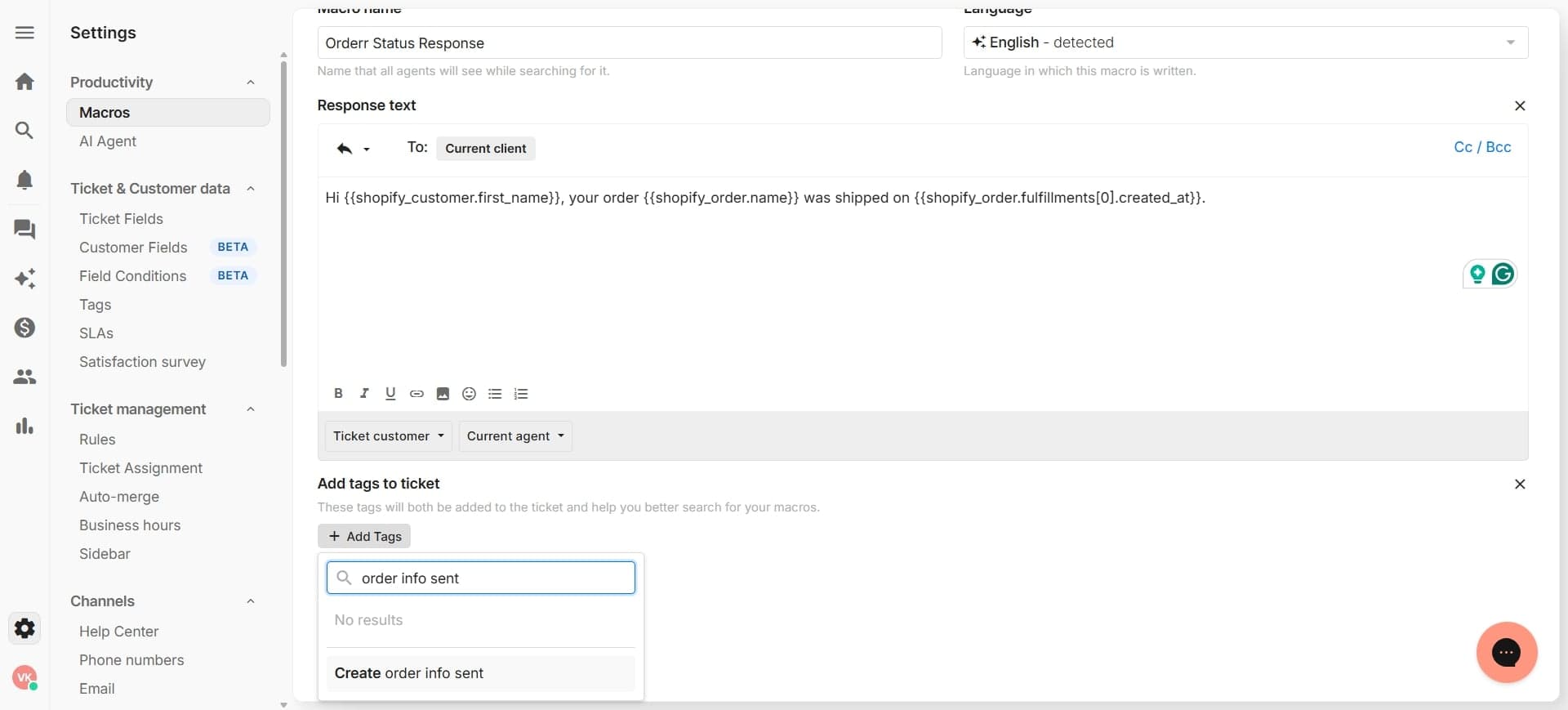
- 9
Save and test your macro
Click 'Save' to finalize your macro, then test it with a sample ticket to ensure all Shopify variables populate correctly. Once verified, your macro is ready for your support team to use in live conversations.
Frequently asked questions
Common questions about how to use shopify variables in gorgias macros.
Gorgias supports a wide range of Shopify variables including customer name, email, order ID, order total, product names, order status, shipping address, and purchase history. The exact variables available depend on your Shopify store configuration and the Gorgias integration level you've set up. Check your Gorgias-Shopify integration settings to see the complete list of accessible variables.
Yes, Shopify variables in Gorgias macros pull real-time data directly from your Shopify store. When a macro is used, it automatically fetches the current information from Shopify, ensuring customers always receive the most up-to-date details about their orders and accounts.
Shopify variables work across all Gorgias support channels including email, live chat, SMS, and social media. However, the variable availability and formatting may vary slightly depending on the channel. Test your macros on each channel to ensure they display properly and provide the best customer experience.
If a Shopify variable contains no data or is unavailable, most macros will display the variable placeholder as blank text. To prevent awkward responses, consider adding conditional text or fallback language in your macro templates for scenarios where certain customer data might not exist.
First, verify that your Gorgias-Shopify integration is properly connected and authorized in your account settings. Ensure the customer in the Gorgias ticket is linked to the correct Shopify customer record. If variables still don't populate, check that the specific variable you're using is available in your Shopify plan and that the data exists in the customer's Shopify profile.