How to Deactivate Your Shopify Store

Deactivating your Shopify store is a straightforward process that allows you to temporarily or permanently close your online business. Whether you're taking a break, restructuring, or moving to another platform, understanding how to properly deactivate your store ensures you maintain control over your data and account settings.
Quick summary
In this tutorial, you'll learn how to navigate Shopify's account settings and complete the store deactivation process step by step. By following these instructions, you'll be able to safely shut down your storefront while preserving your account information.
Why this matters
Properly deactivating your Shopify store is important to prevent unauthorized transactions, manage your billing cycle, and maintain account security. Taking the time to follow the correct deactivation steps ensures a clean shutdown without losing access to your valuable business data and transaction history.
Step-by-step guide
- 1
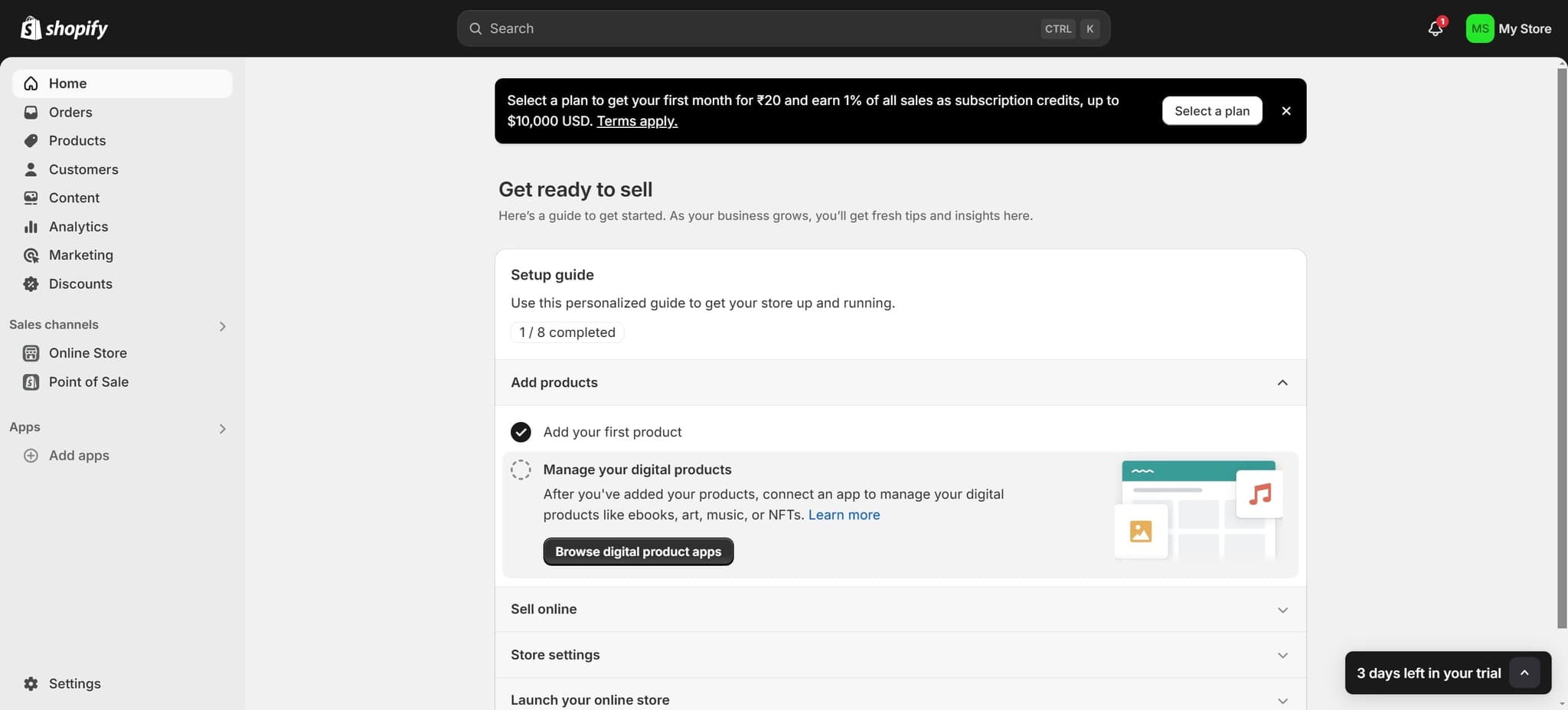
Select Your Plan Option
Begin by clicking on the plan selection prompt that appears on your screen. This step allows you to review and confirm your current billing plan before proceeding with deactivation.
- 2
Upload Required Information
Upload any necessary documentation or information as prompted by the system. This ensures that Shopify has all the details needed to process your deactivation request.
- 3
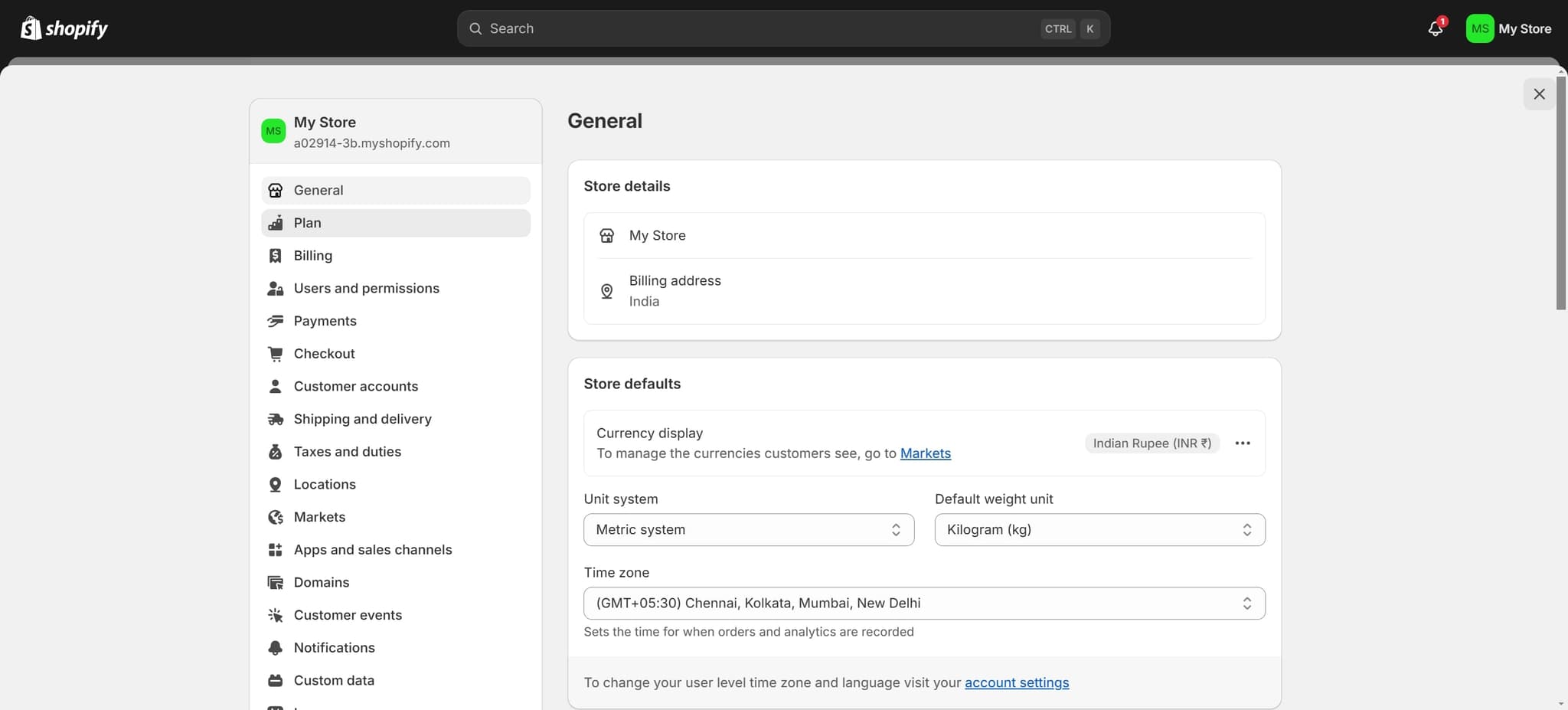
Click on Plan Settings
Navigate to the Plan section by clicking the designated button. This section contains your subscription details and deactivation options.
- 4
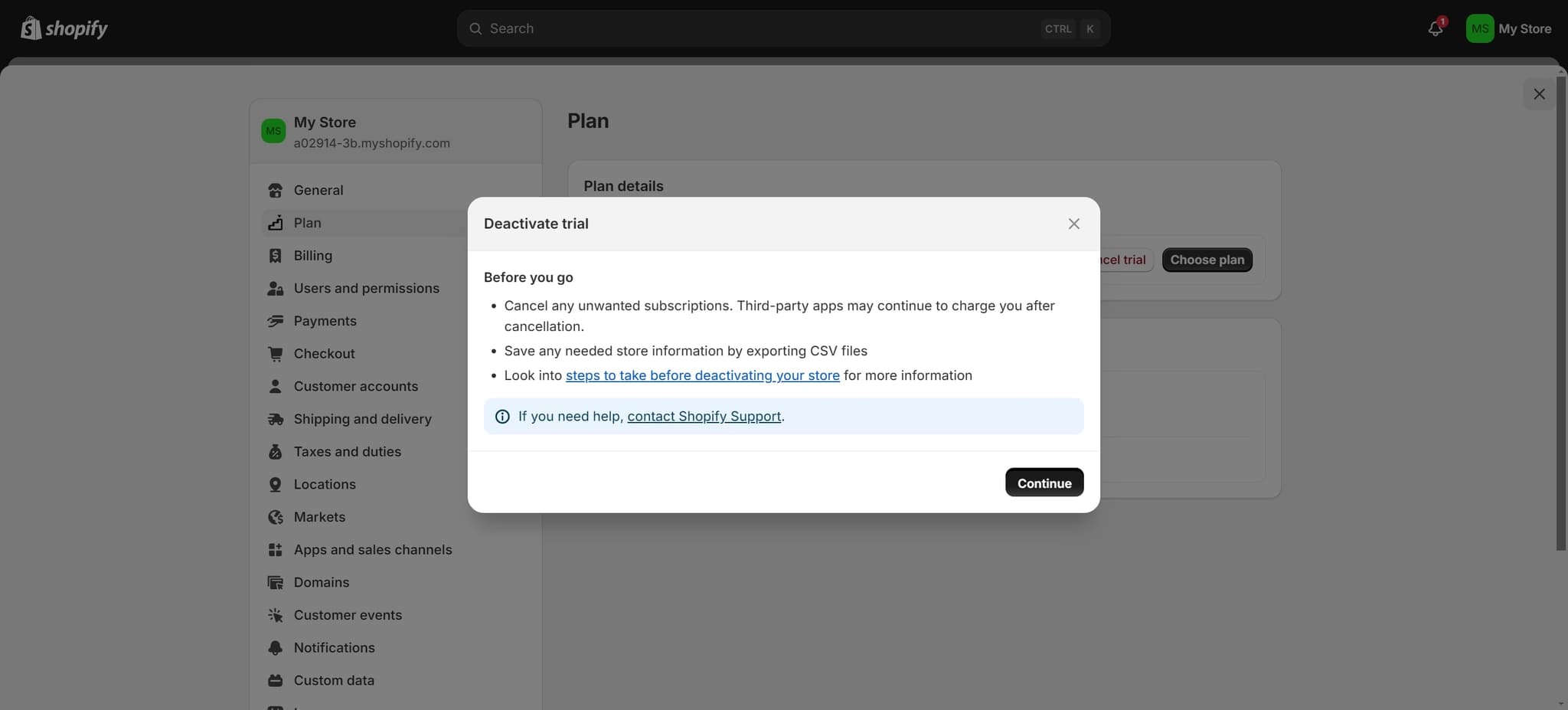
Proceed with First Confirmation
Click the Continue button to advance to the next step. This confirmation ensures you've reviewed all plan-related information before moving forward.
- 5
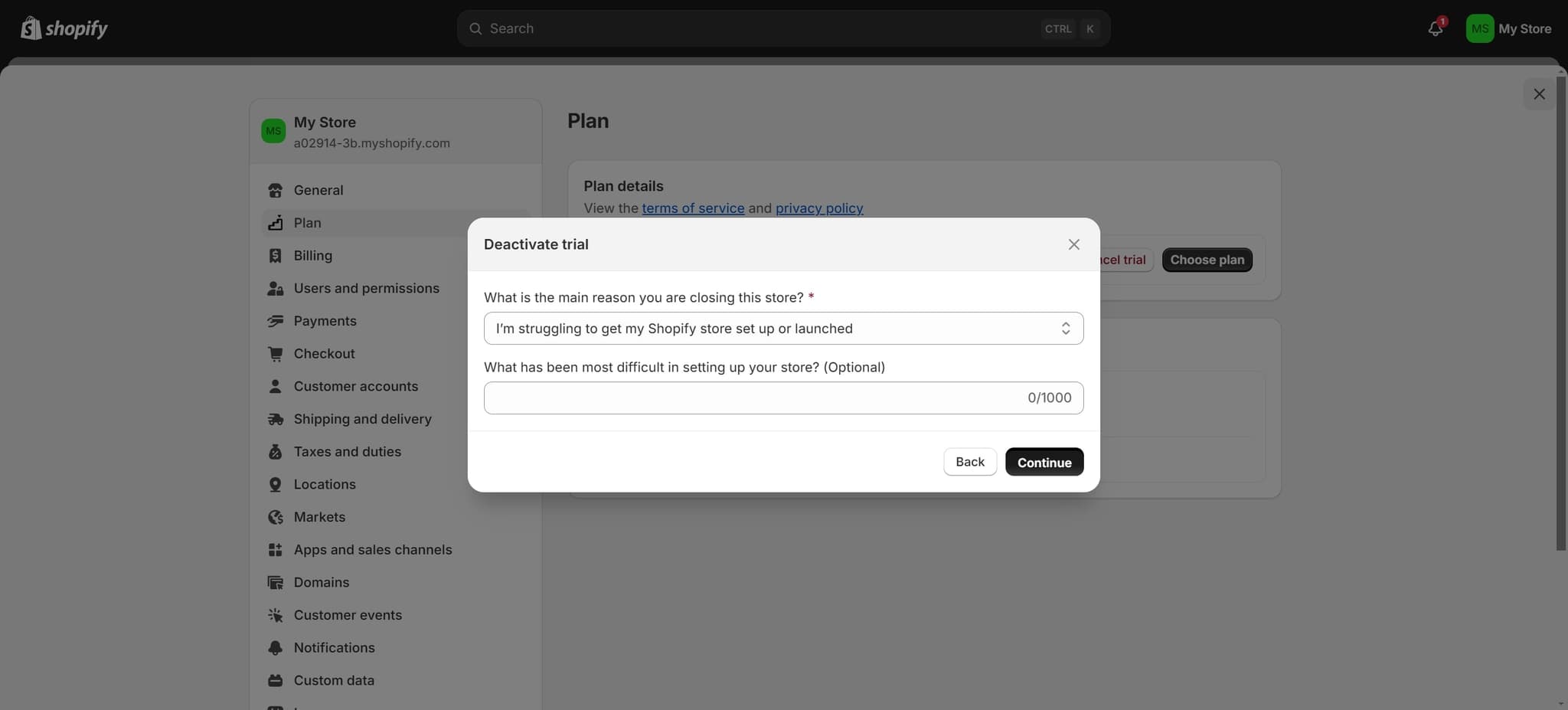
Confirm and Continue Again
Click Continue once more to proceed to the final deactivation screen. This secondary confirmation helps prevent accidental store closures.
- 6
Access Deactivation Options
Click the designated button to access additional store management options. This will bring you closer to the final deactivation controls.
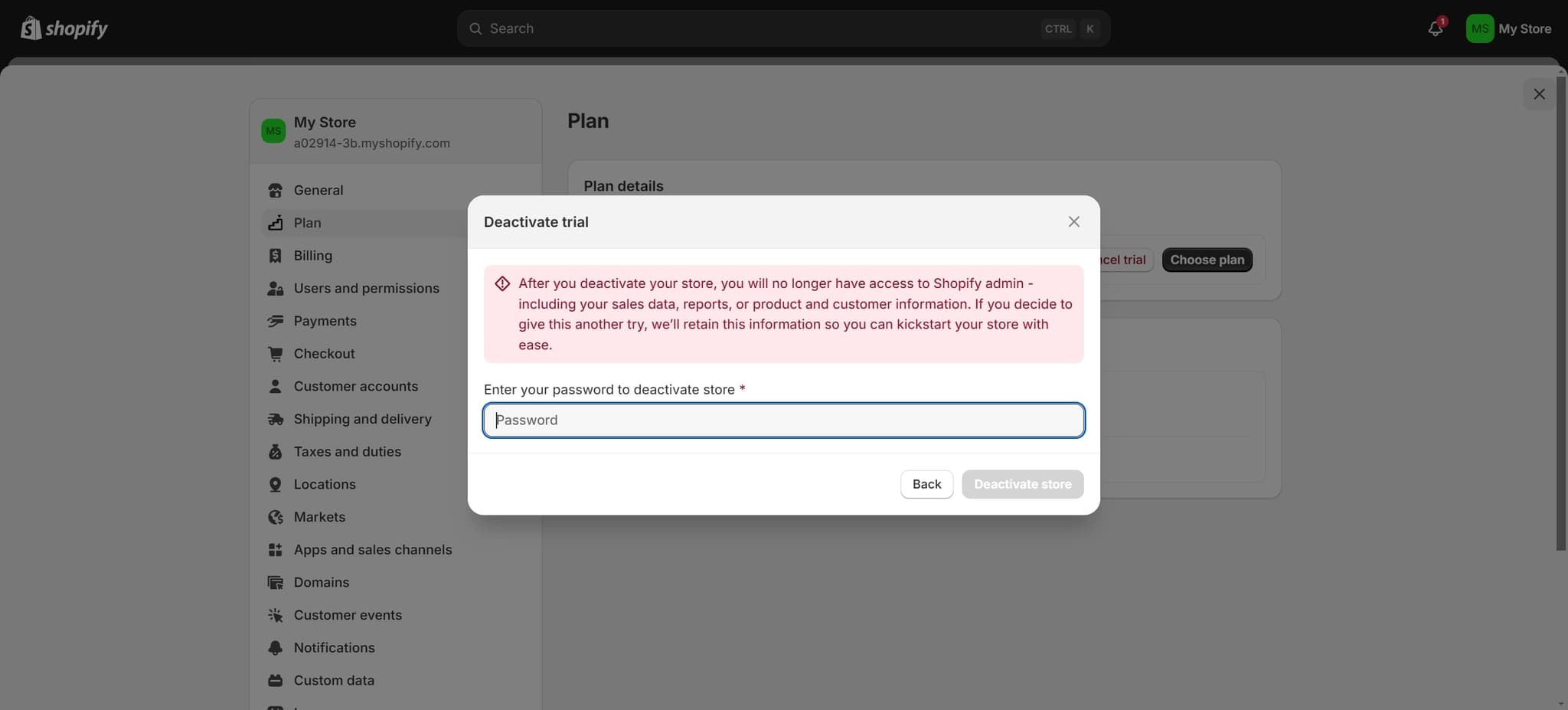
- 7
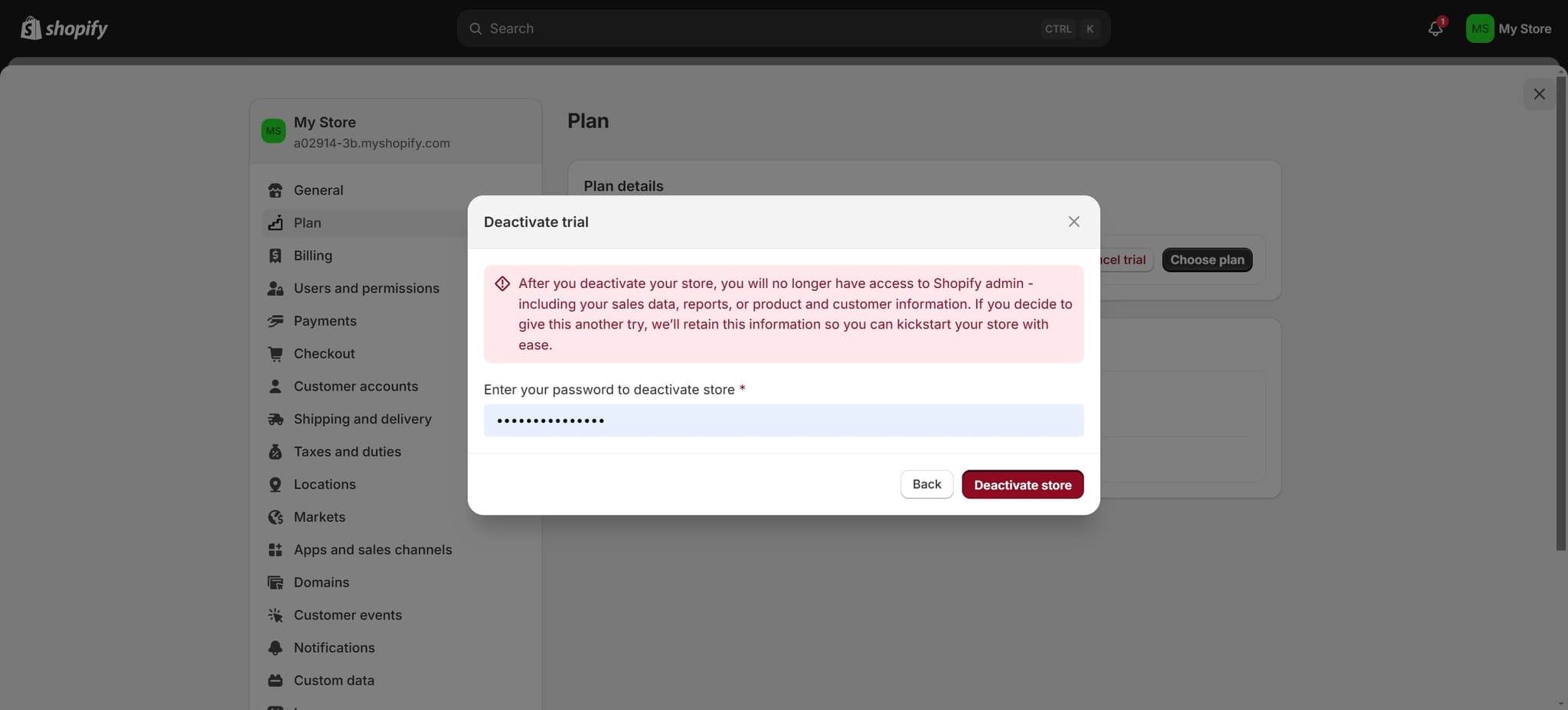
Deactivate Your Store
Click on the Deactivate Store button to complete the process. Your store will be immediately taken offline, and you will no longer incur charges for active storefront services.
Frequently asked questions
Common questions about how to deactivate your shopify store.
Yes, you can reactivate your Shopify store at any time by logging into your account and selecting the option to reactivate. Your data, products, and customer information will be preserved as long as you maintain your account. Simply follow the reactivation prompts to bring your store back online.
Once your store is deactivated, you will no longer be charged for active storefront services. However, you may still incur charges for apps, add-ons, or premium services that remain active on your account. It's recommended to review and cancel any unnecessary paid services before deactivating.
Your customer data, order history, and product information remain safe and stored in your Shopify account after deactivation. You can access this information anytime by reactivating your store or exporting your data through your account settings. Deactivation does not delete any of your business information.
Your Shopify store typically goes offline immediately after you click the Deactivate Store button. Your customers will see an offline message when they try to access your storefront, though the time to fully propagate across all systems may take a few minutes.
You do not need to cancel your domain when deactivating your store. Your domain will remain registered and you can reactivate your store later using the same domain. However, if you wish to disconnect your domain permanently, you can do so separately through your domain settings.