How to Map Data Fields During Import in Attio

Data field mapping is a critical step when importing data into Attio, ensuring that your external data aligns correctly with your workspace structure. This tutorial walks you through the complete process of mapping fields during import, from initiating the import to confirming your mappings.
Quick summary
In this tutorial, you'll learn how to map data fields during import in Attio. You'll discover how to match source fields from your import file to destination fields in your workspace, handle unmapped fields, and complete the import process successfully.
Why this matters
Proper field mapping prevents data misalignment and ensures that imported information lands in the correct fields within your Attio workspace. This accuracy is essential for maintaining data integrity and avoiding downstream issues in your CRM workflows and reporting.
Step-by-step guide
- 1
Access the import feature
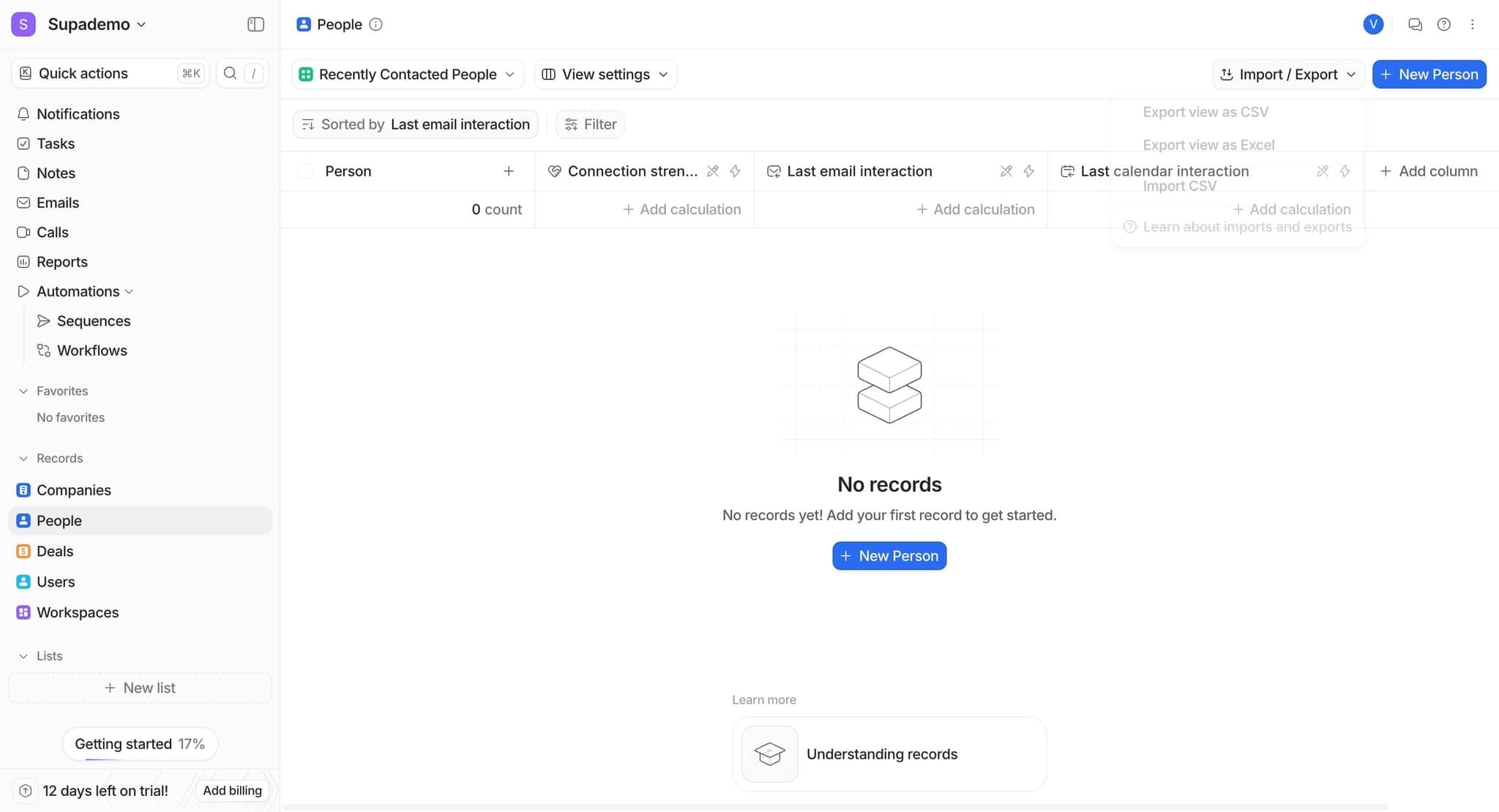
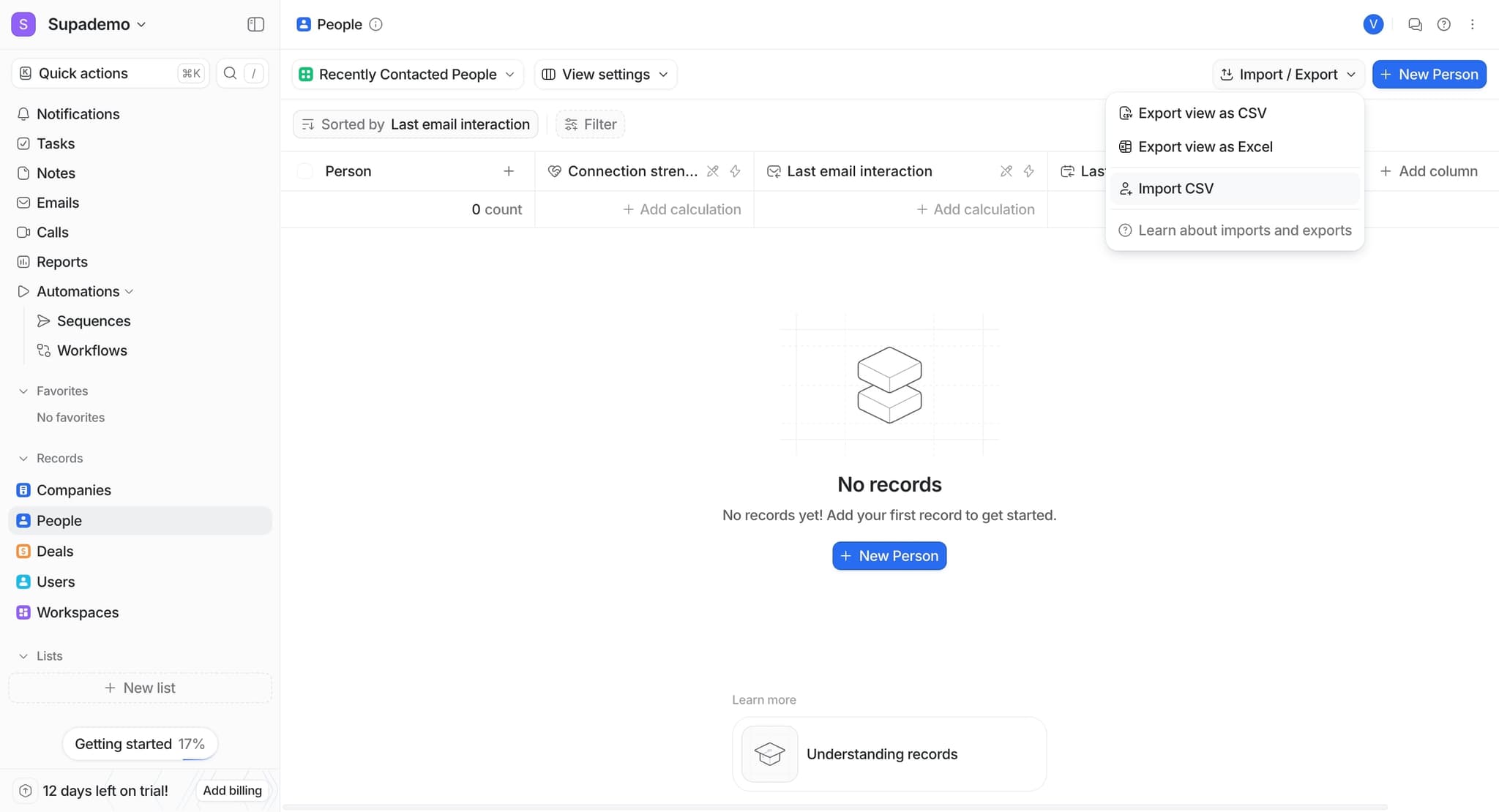
Navigate to your Attio workspace and locate the import option in the main menu or settings area. Click on it to begin the data import process.
- 2
Upload your data file
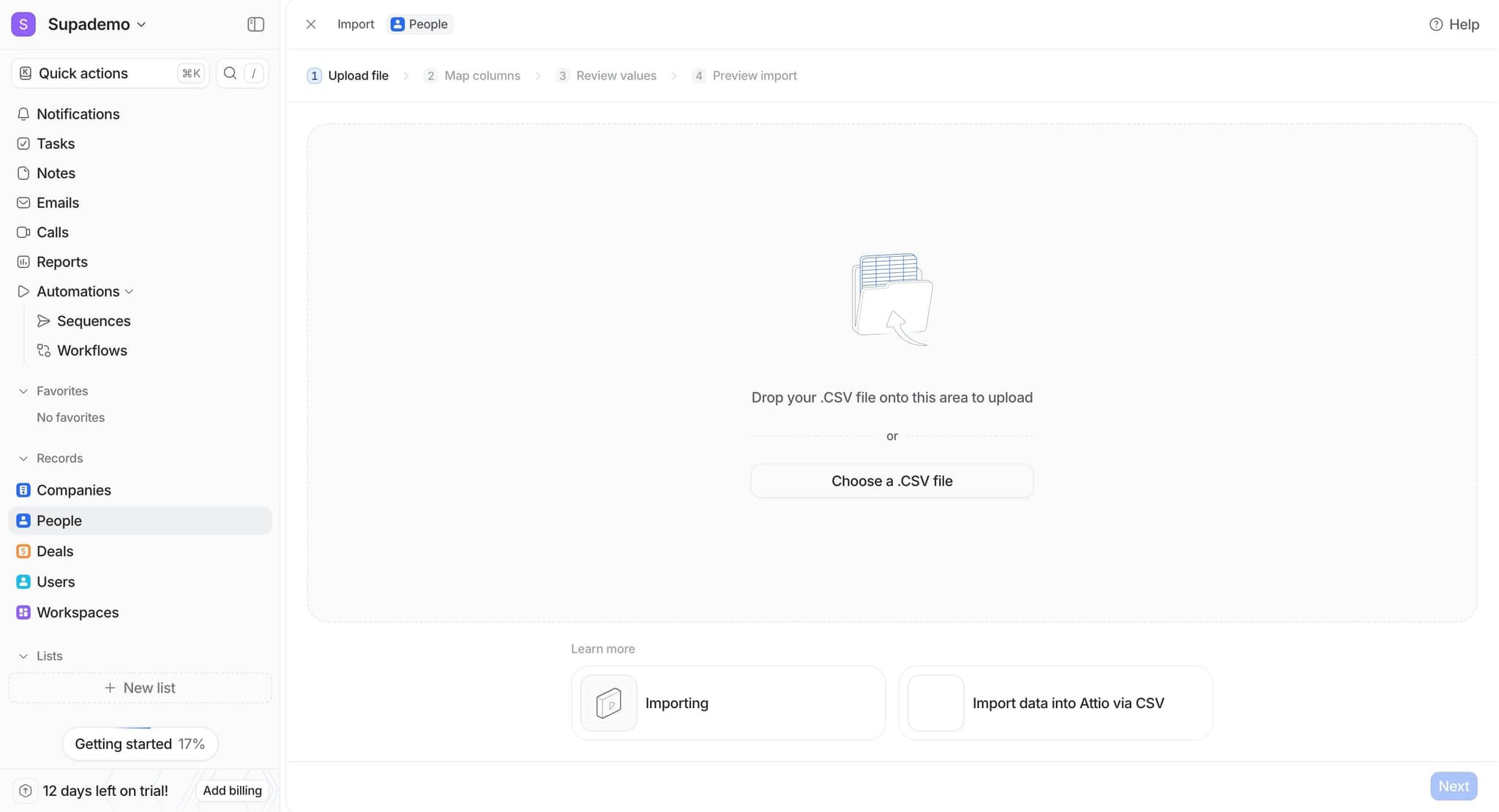
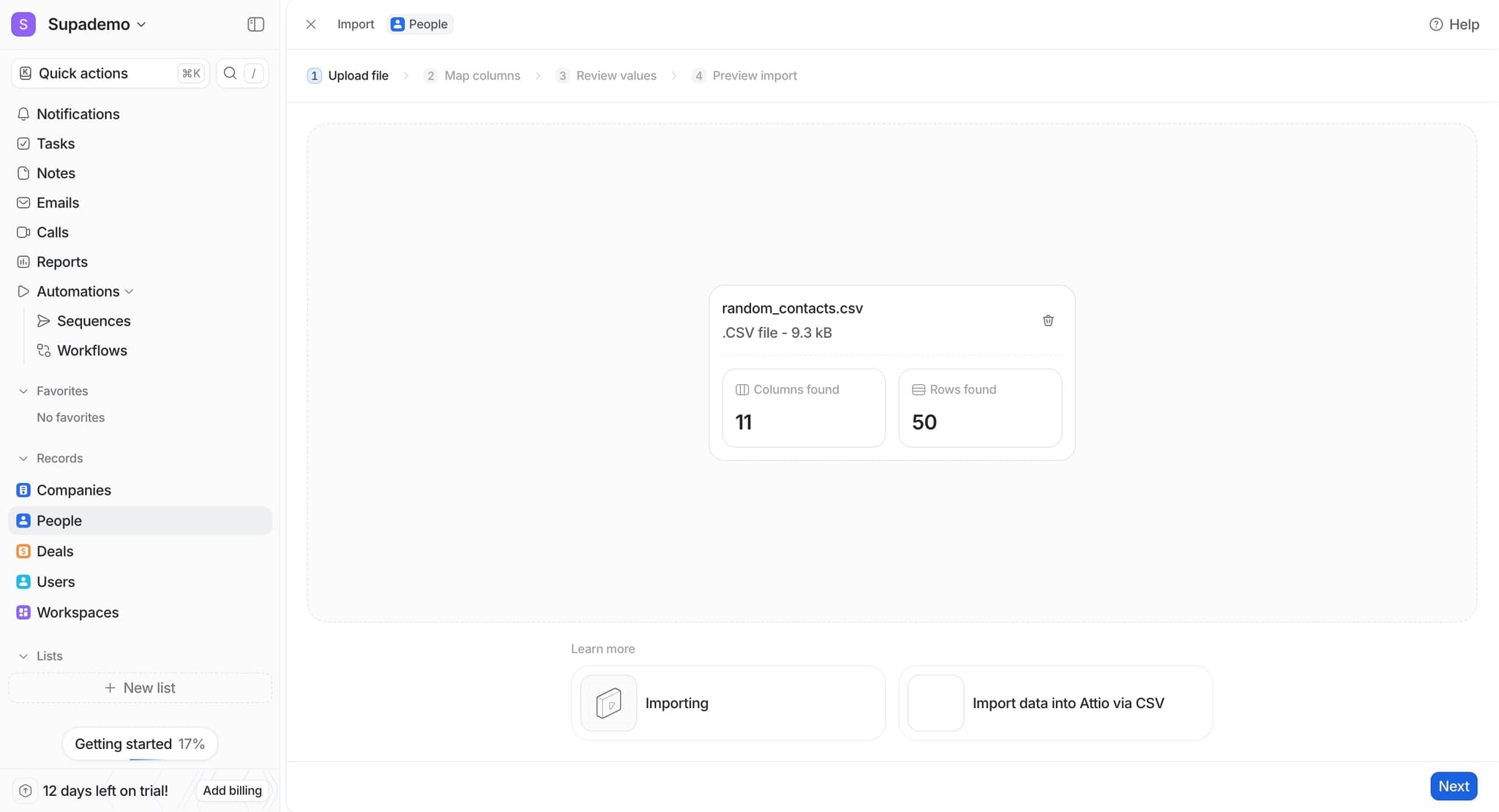
Select and upload the CSV or other supported file format containing the data you want to import. Attio will preview the file contents and display available columns.
- 3
Review source fields
Examine the fields detected from your import file. These are listed in the preview and represent the columns available for mapping to your Attio workspace.
- 4
Open field mapping interface
Click on the field mapping section to access the interface where you'll connect source fields to destination fields. This is typically presented as a matching or configuration screen.
- 5
Map primary identifier field
Start by mapping the primary identifier field from your source file, such as an email address or unique ID. This field helps Attio determine whether records are new or existing, preventing duplicates.
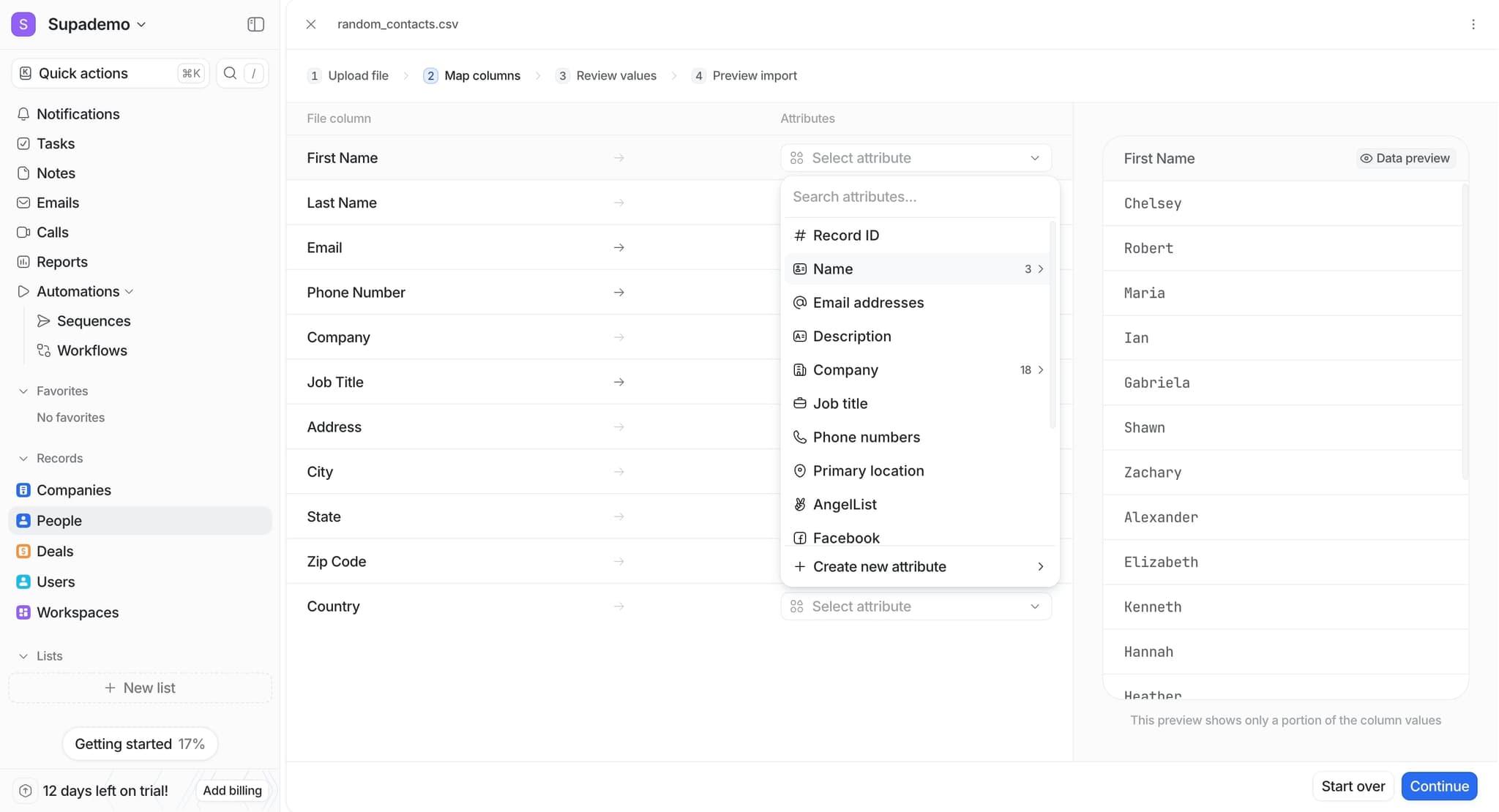
- 6
Match standard fields
Map common fields like Name, Email, Phone, and Company to their corresponding fields in Attio. Use the dropdown menus or search functionality to find the correct destination field for each source field.
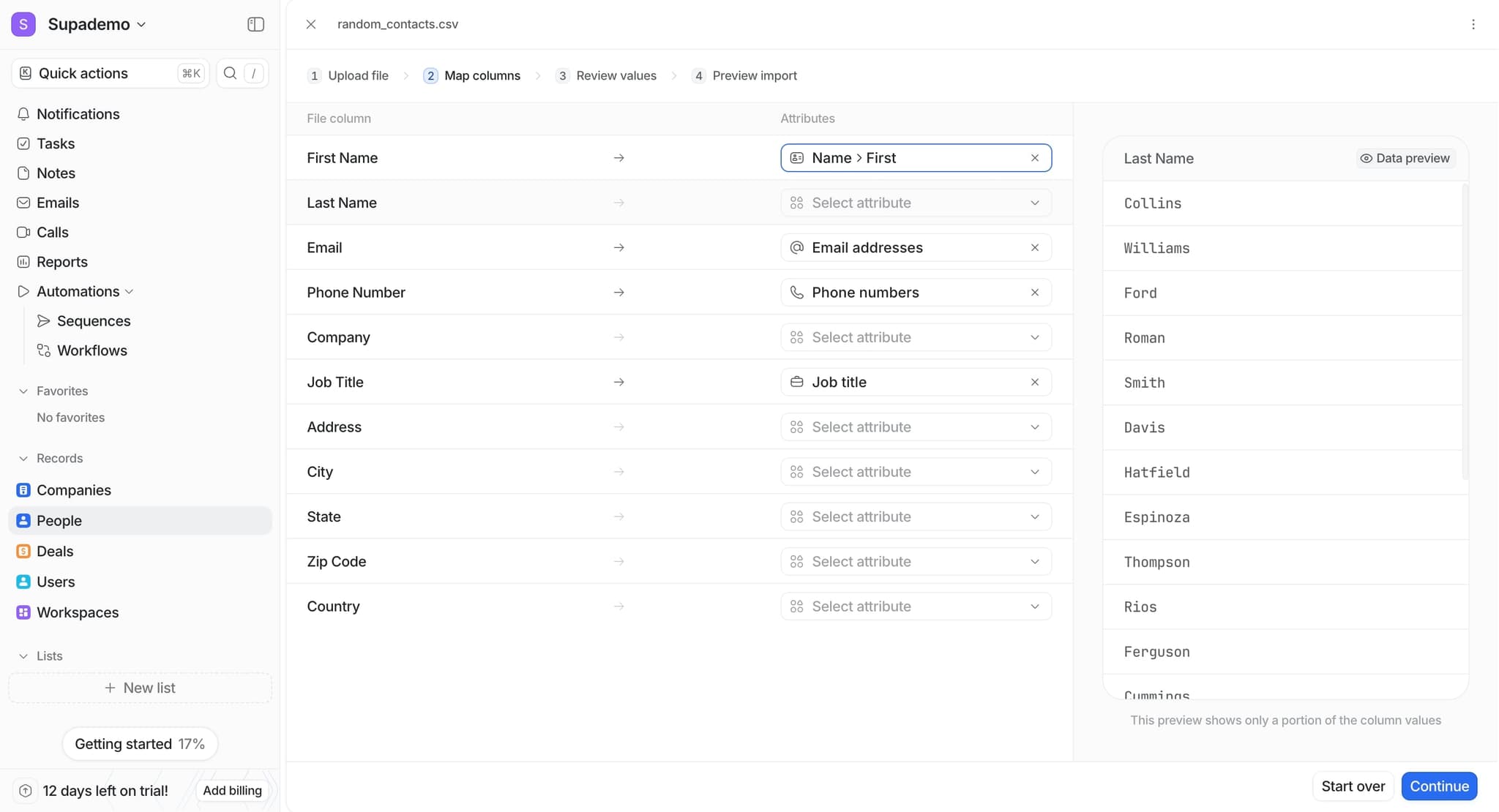
- 7
Configure custom field mappings
For any custom fields in your source data, identify the matching custom fields in your Attio workspace and establish the mapping. If a custom field doesn't exist, you may need to create it before completing the import.
- 8
Review unmapped fields
Check which fields remain unmapped. You can choose to ignore these fields or create new fields in Attio to accommodate them, depending on your data strategy.
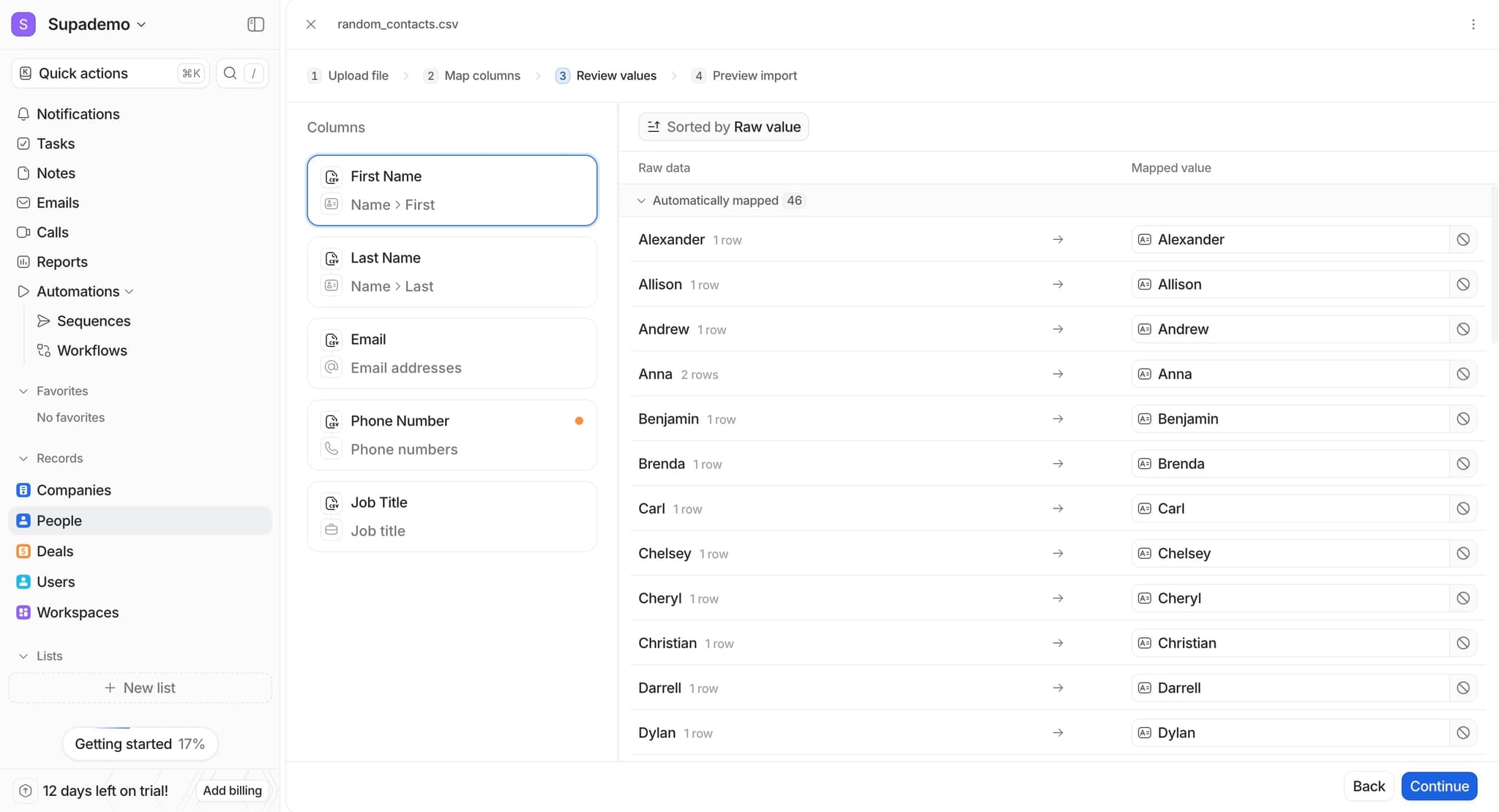
- 9
Set import preferences
Configure how Attio should handle the import, such as whether to update existing records or create only new ones. Select your preferred merge strategy if applicable.
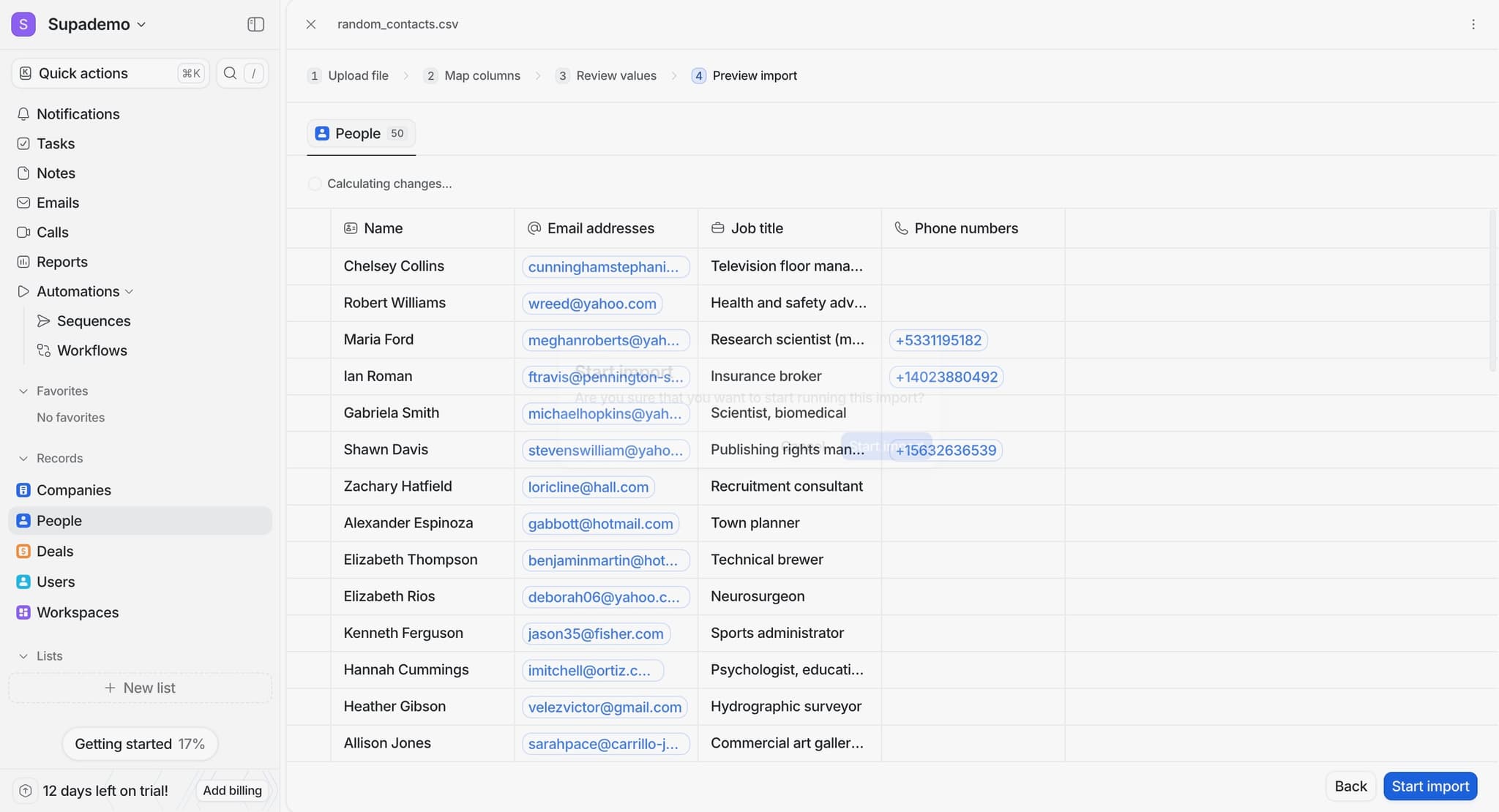
- 10
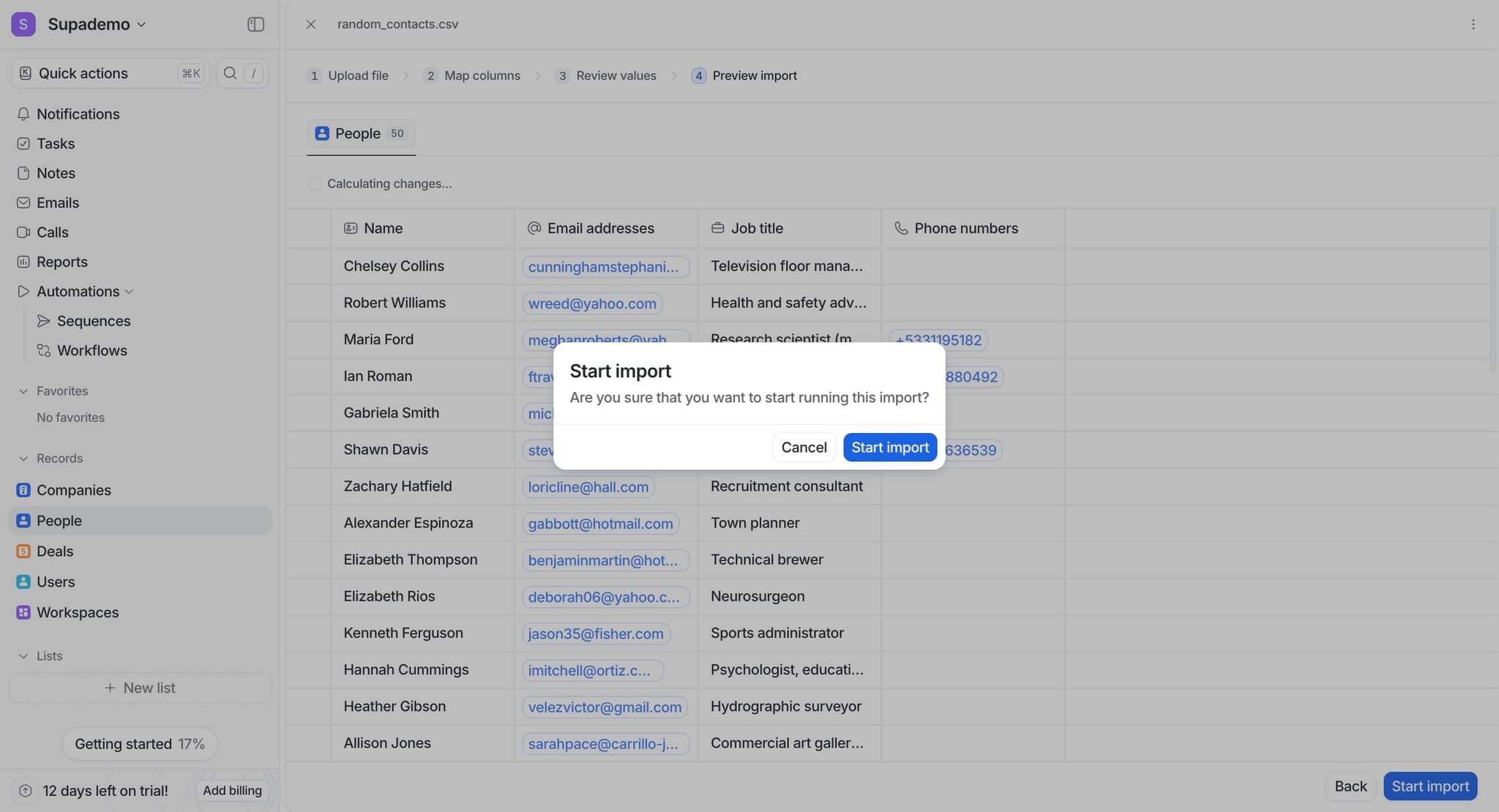
Complete the import
Review your field mappings one final time, then click the import button to execute the data transfer. Attio will process the import and display a confirmation with details about records created or updated.
Frequently asked questions
Common questions about how to map data fields during import in attio.
What happens if I don't map all fields in my import file?
Unmapped fields will be ignored during the import, and the data in those columns will not be transferred to Attio. You can choose to map additional fields by going back to the mapping interface, or you can skip unmapped fields intentionally if they're not needed in your workspace.
Can I create new fields in Attio during the import process?
Yes, most import workflows in Attio allow you to create new custom fields on the fly if a destination field doesn't already exist. This is useful when your source data contains fields that aren't yet configured in your workspace.
How does Attio handle duplicate records during import?
Attio uses the primary identifier field you map during import to detect duplicates. Depending on your import settings, it can either skip duplicates, update existing records, or create new ones. Choose your merge strategy carefully to avoid unintended data overwrites.
What file formats does Attio support for import?
Attio typically supports CSV files for data import, and may also support other common formats. Check your file format before uploading, and ensure it's properly formatted with clear column headers that match your source field names.
Can I undo an import after it's been completed?
Most import actions in Attio can be undone or rolled back if you act quickly after completion. However, it's best practice to review your mappings thoroughly before executing the import to avoid needing a rollback. Contact Attio support for assistance if you need to reverse an import.