How to Record a Zoom Meeting

Recording a Zoom meeting is essential for capturing important discussions, training sessions, and presentations for future reference. This guide walks you through the process of uploading and storing your recordings securely within Zoom's platform.
Quick summary
In this tutorial, you'll learn how to record a Zoom meeting and manage your recordings through Zoom's upload system. By following these steps, you'll be able to capture meetings locally and upload them for cloud storage and easy sharing.
Why this matters
Recording meetings ensures you have a permanent record of important discussions and decisions, allowing team members who couldn't attend to catch up asynchronously. Cloud storage through Zoom also eliminates the need to manually manage large video files on your device.
Step-by-step guide
- 1
Upload your first recording file
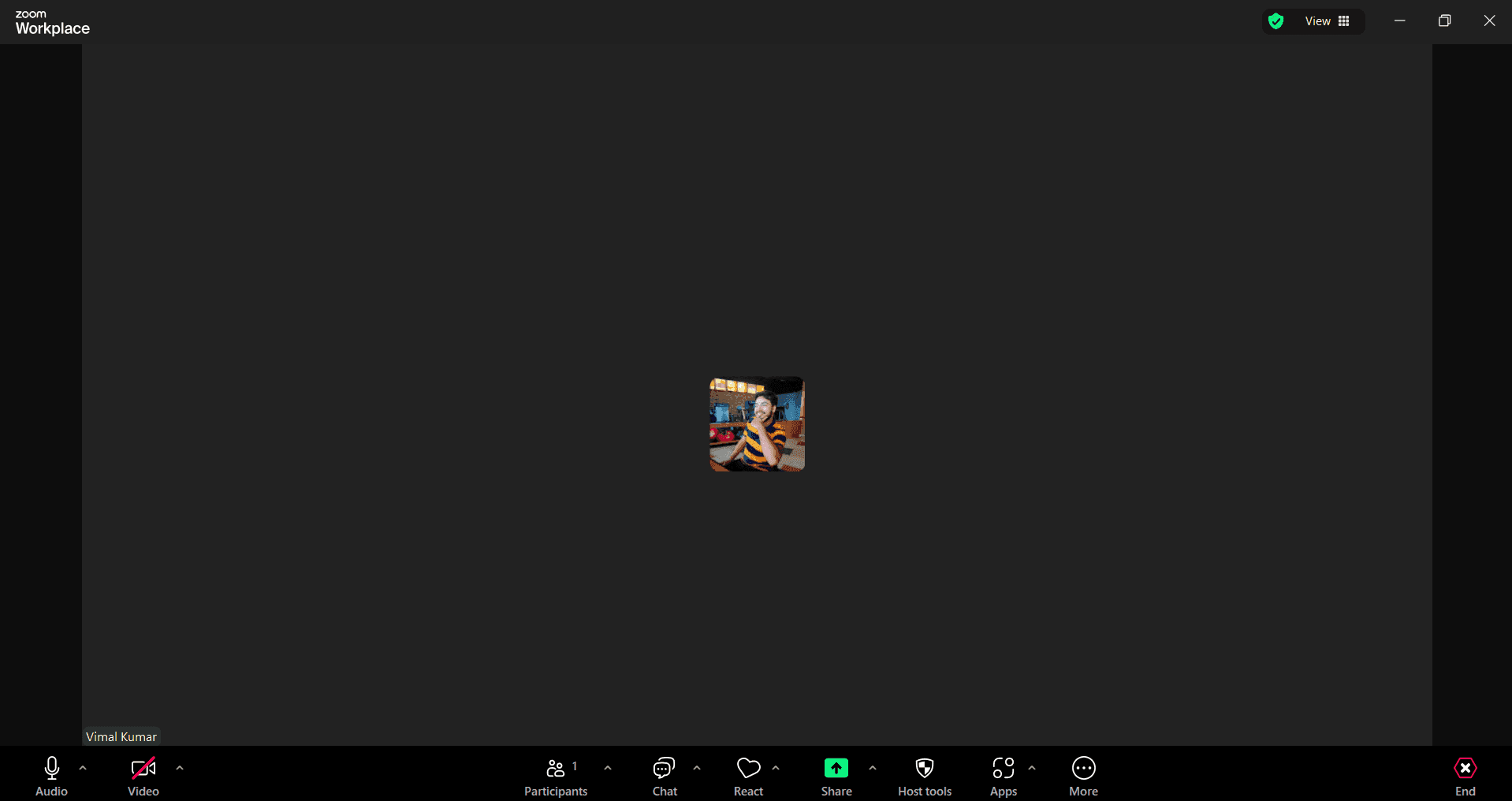
Navigate to your Zoom account and select the Recordings section. Click the upload button and choose your first meeting recording file from your computer to begin the upload process.
- 2
Upload additional recording segments
If your meeting was split into multiple files, continue uploading each segment by selecting the upload option again. Zoom will process each file and organize them within your recordings library.
- 3
Upload backup recordings to cloud storage
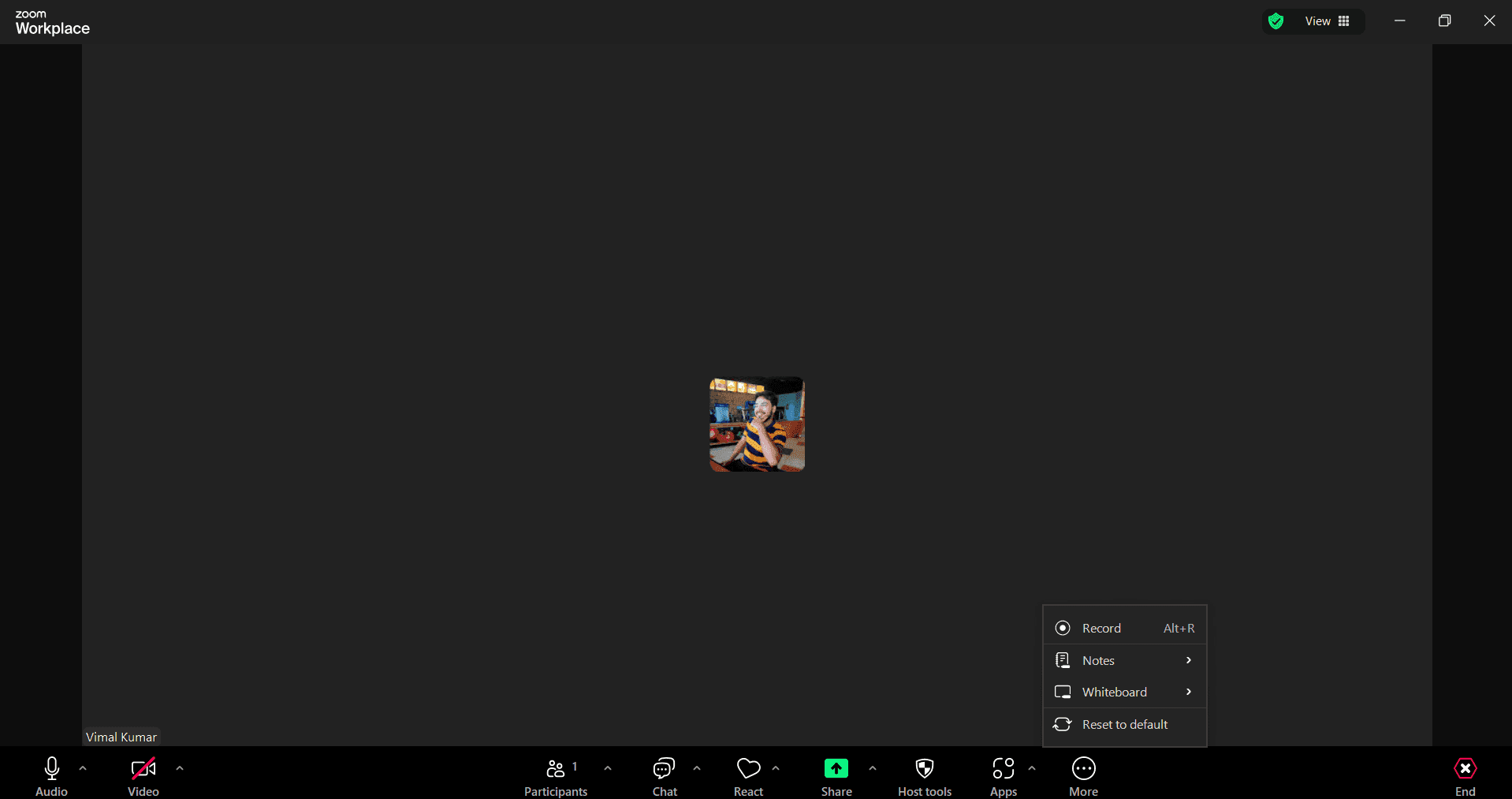
For redundancy and accessibility, upload copies of your important recordings to Zoom's cloud storage system. This ensures your meetings are protected and accessible from any device.
- 4
Upload and organize your recording library
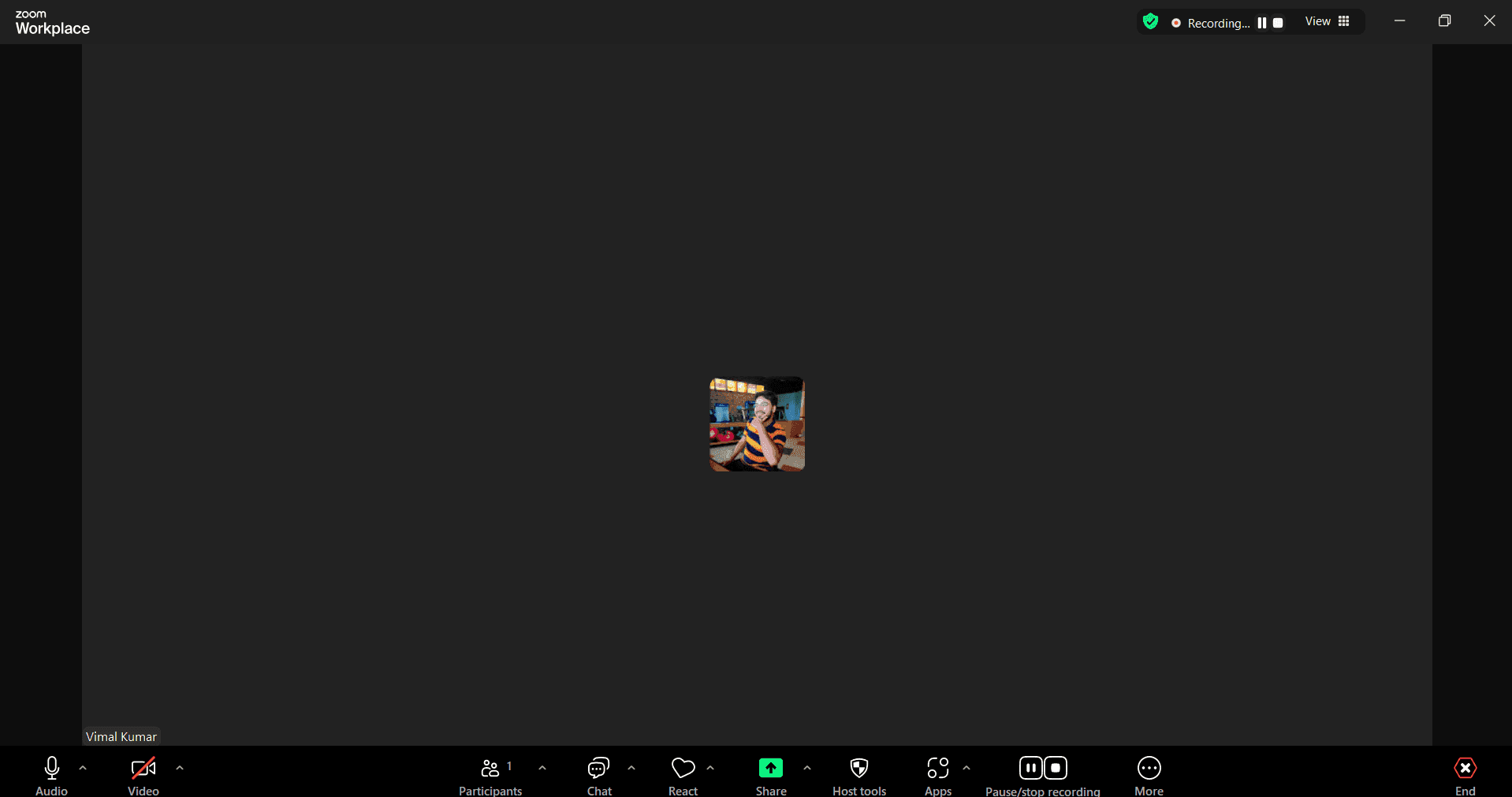
Complete the upload process for all remaining recordings and organize them by meeting date or topic using Zoom's naming and tagging features. This makes it easy to locate specific recordings later.
Frequently asked questions
Common questions about how to record a zoom meeting.
Zoom supports common video formats including MP4, MOV, M4A, and WebM files. Make sure your recording file is in one of these formats before uploading to ensure compatibility with the Zoom platform.
Upload time depends on your file size and internet connection speed. A typical one-hour meeting recording (500MB-1GB) may take 5-30 minutes to upload completely. You can continue working while the upload processes in the background.
Zoom allows you to trim recordings and add titles or descriptions after upload through the Recordings section of your account. However, for extensive edits, you may need to use third-party video editing software before uploading.
Storage limits depend on your Zoom plan. Free accounts receive limited cloud storage, while paid plans offer significantly more space. You can check your current usage and limits in your Zoom account settings under the Recordings section.
Yes, Zoom allows you to generate shareable links for your recordings with customizable permission settings. You can control whether viewers can download the file and set expiration dates for access if needed.