How to add a legend to your chart in Google Sheets

Nithil Shanmugam
Nithil Shanmugam·
Featured image for How to add a legend to your chart in Google Sheets

Overview

Elevate your chart presentation in Google Sheets by seamlessly adding a legend to enhance clarity and understanding. Optimize user experience and simplify data interpretation by incorporating relevant labels that provide key insights. This guide offers a step-by-step process for effortlessly integrating a legend into your charts, ensuring enhanced efficiency and clear communication within the Google Sheets platform.

Interactive demo powered by Supademo

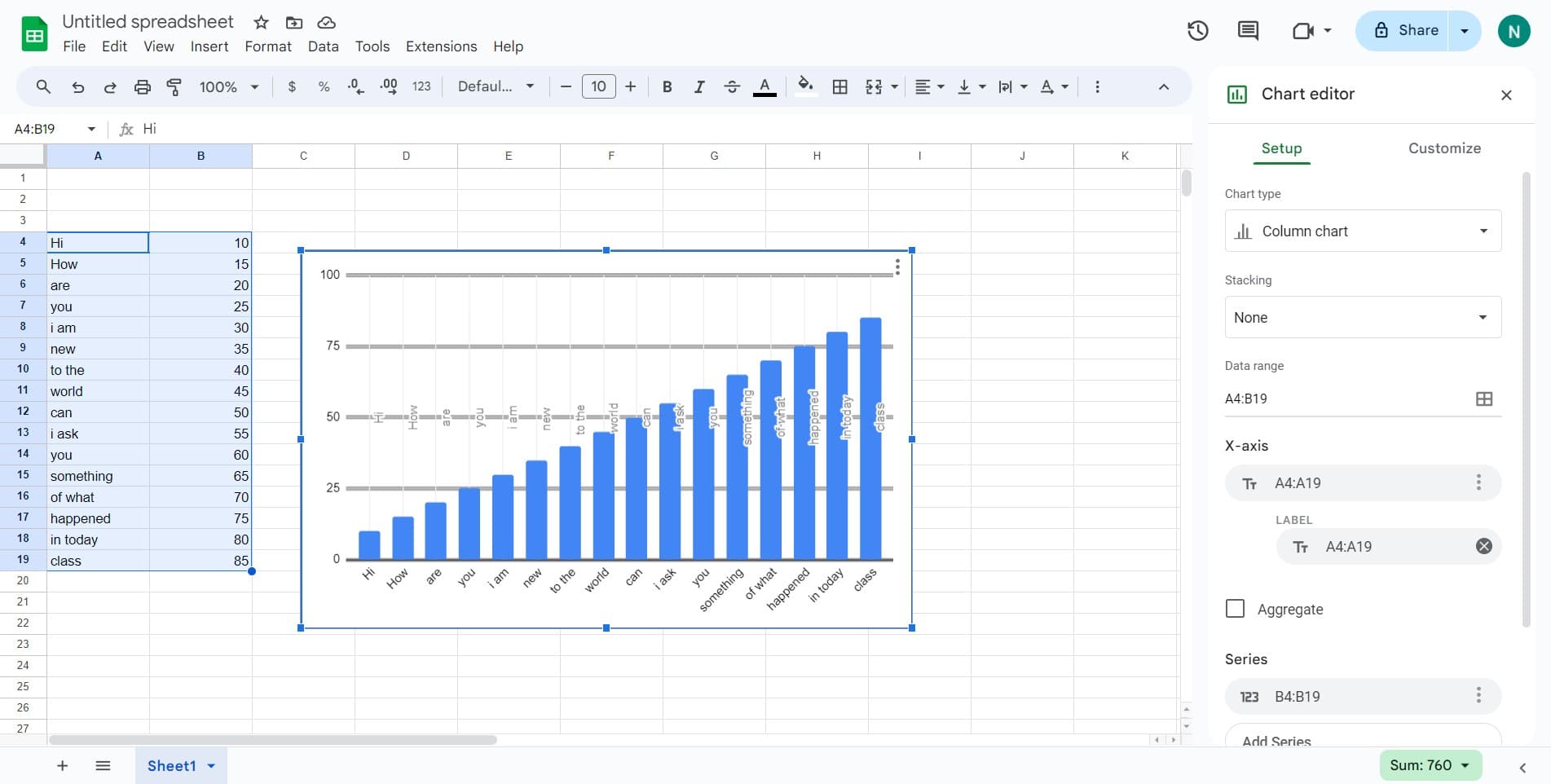
1. Start by double-clicking your desired chart.

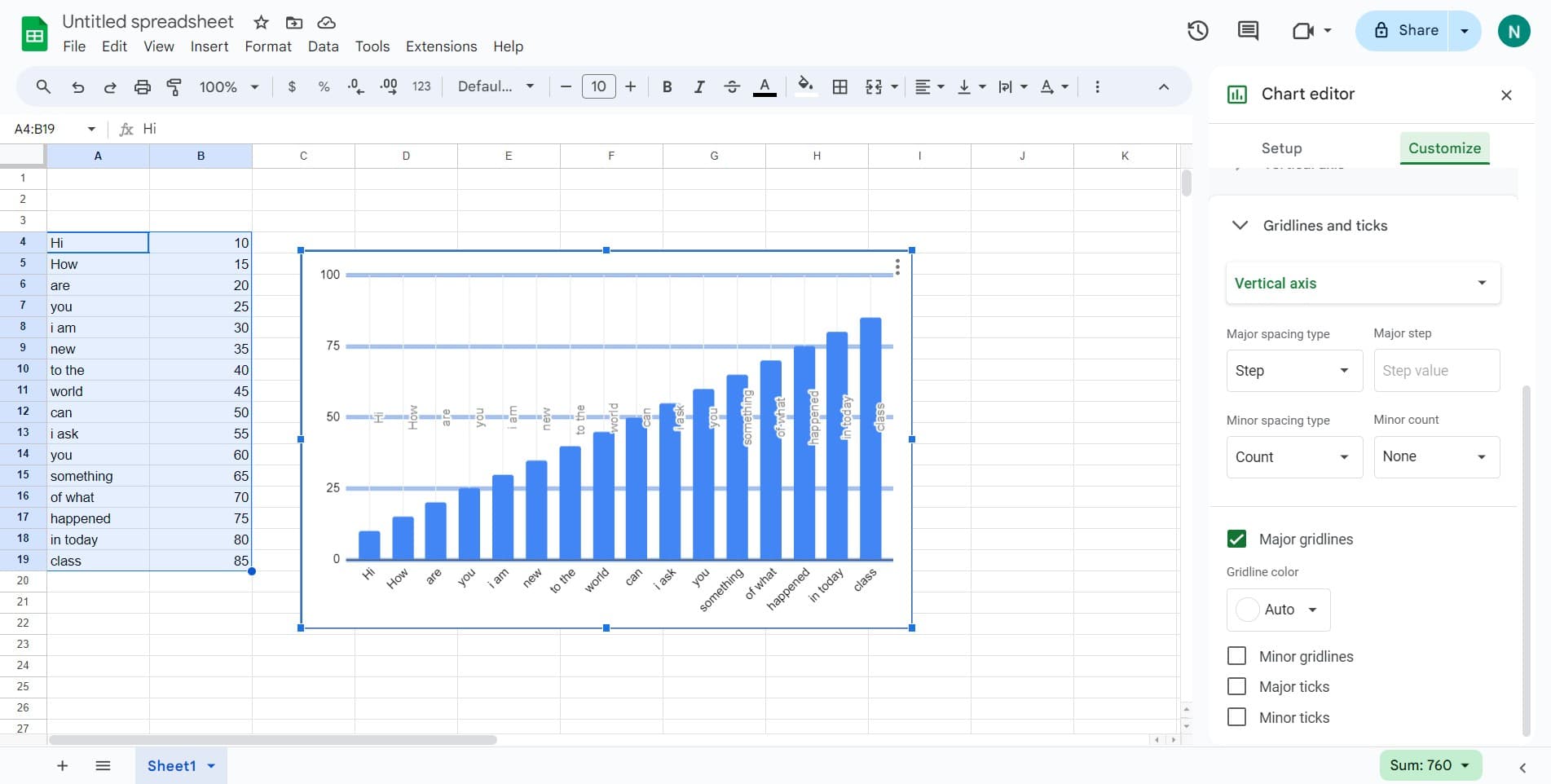
2. Next, seek out and click the 'Customize' option.

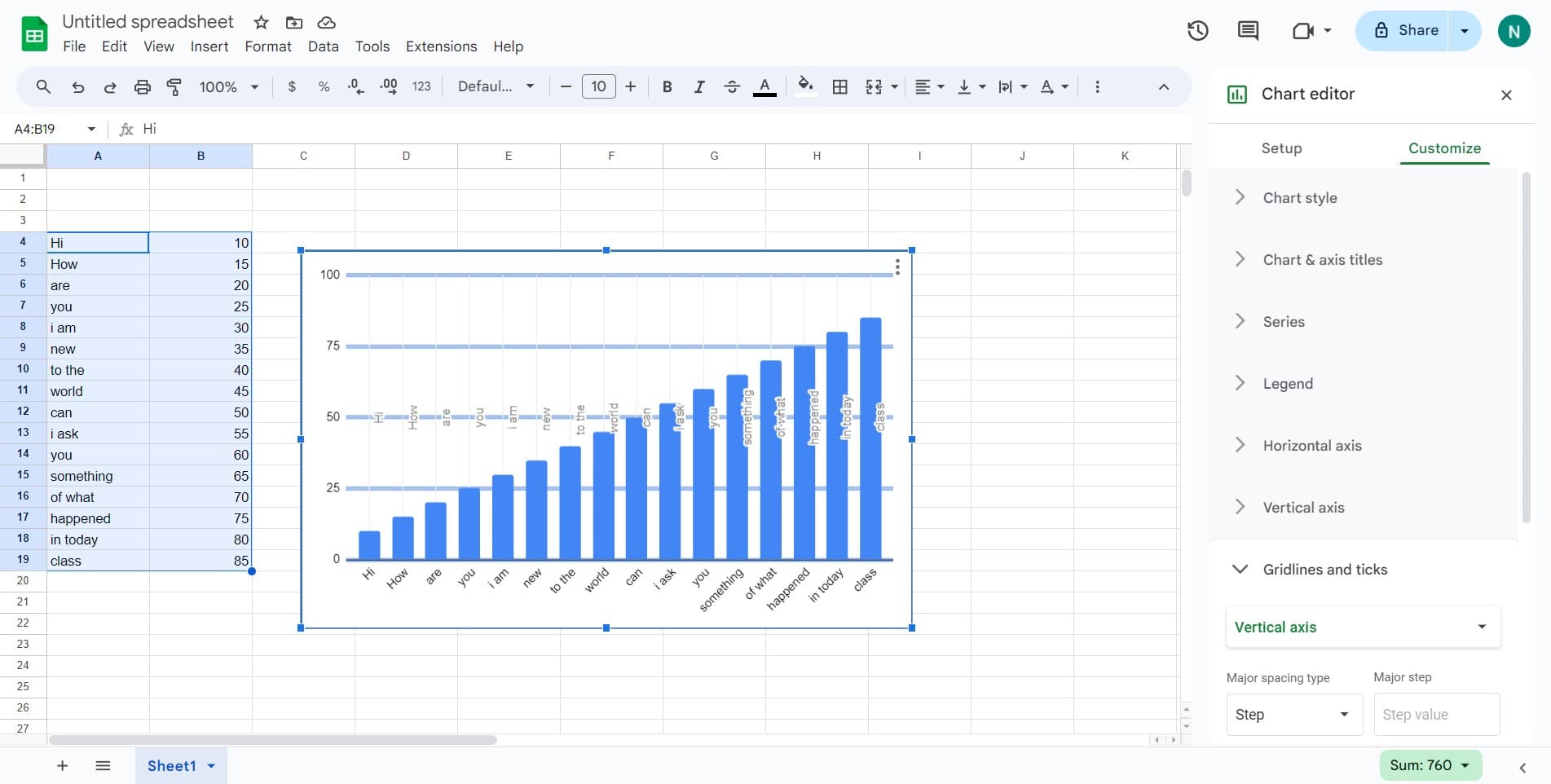
3. Now, locate and select the 'Legend' section.

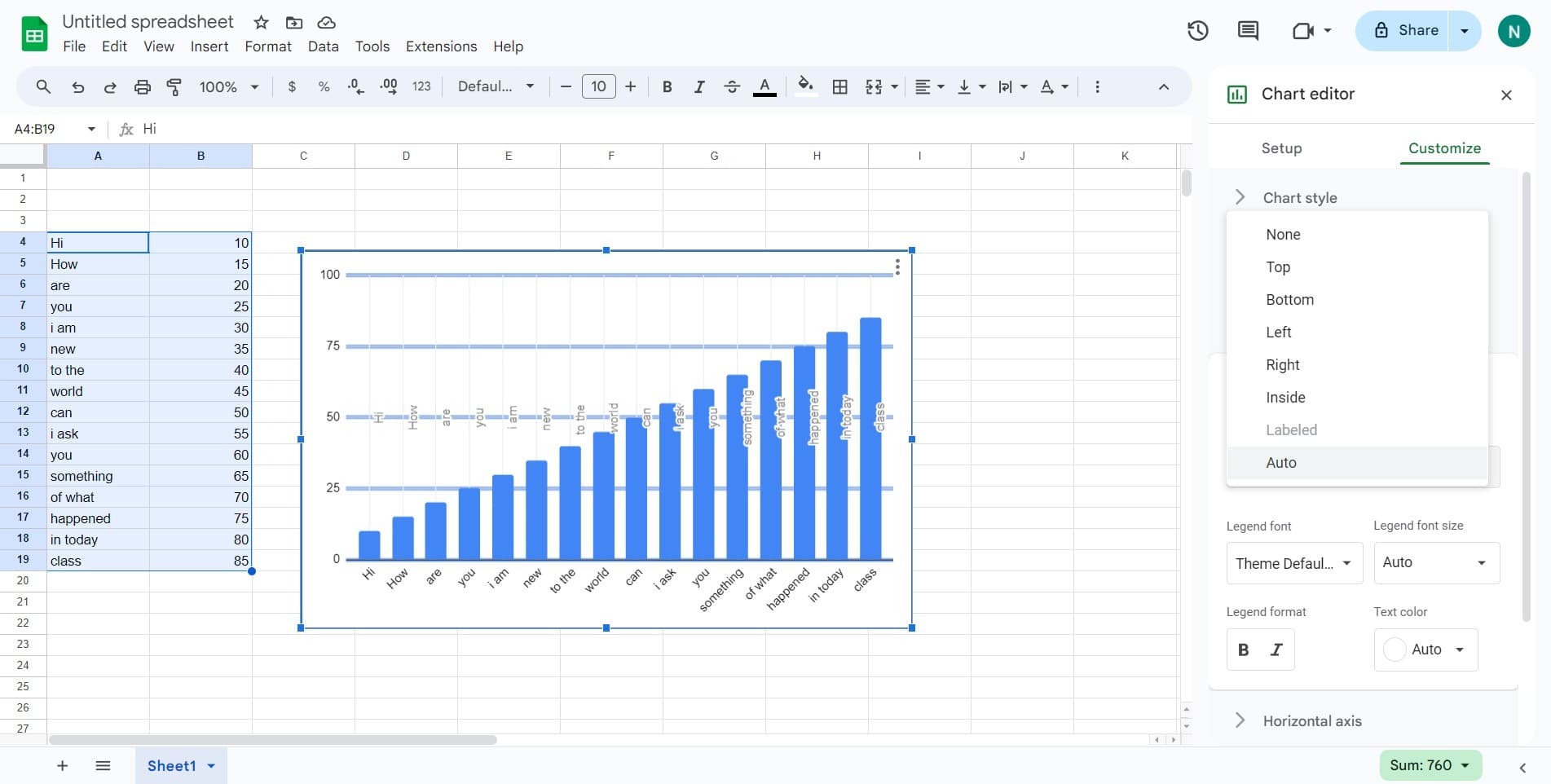
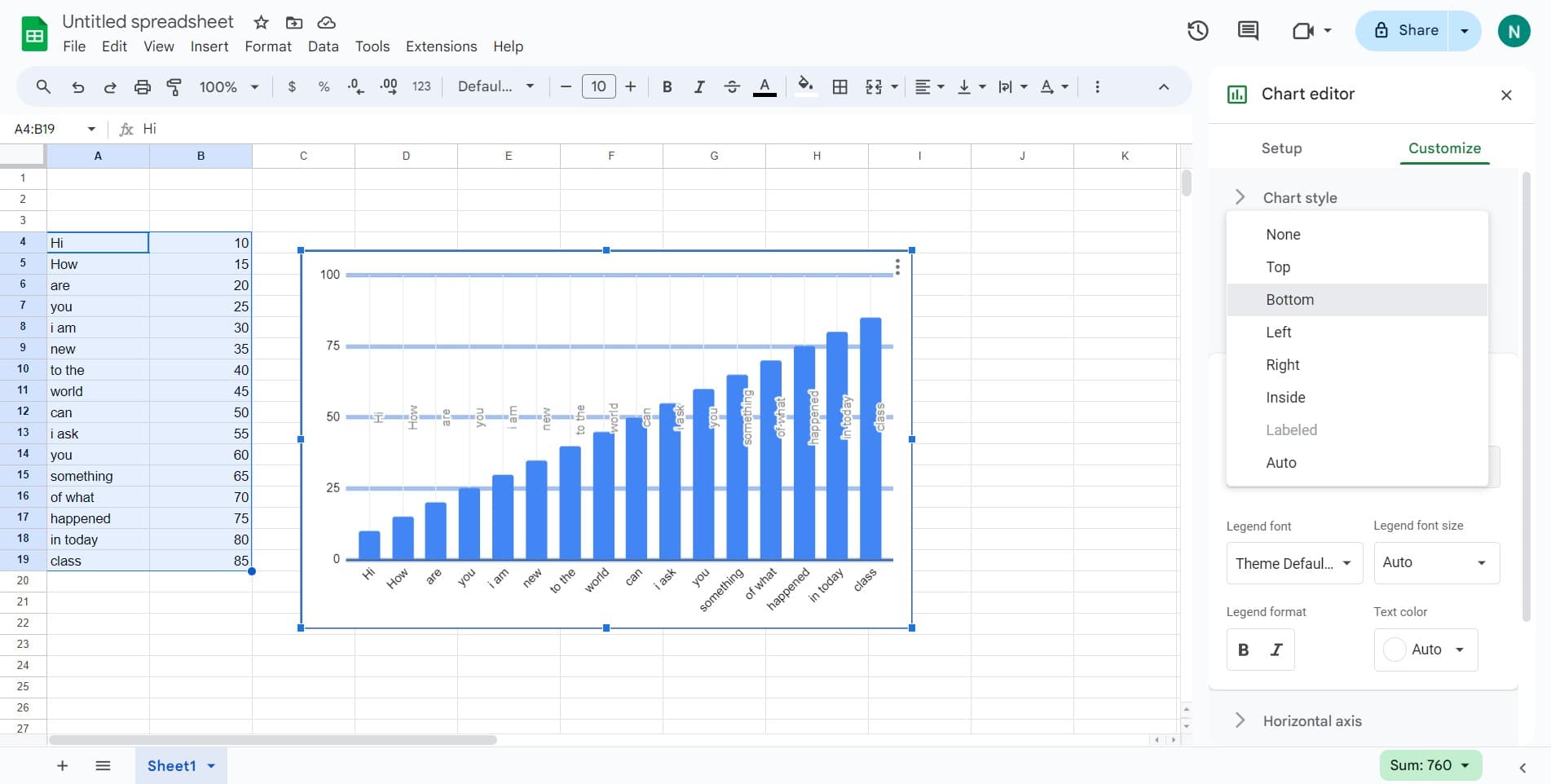
4. Find the option labeled 'Auto' and click on it.

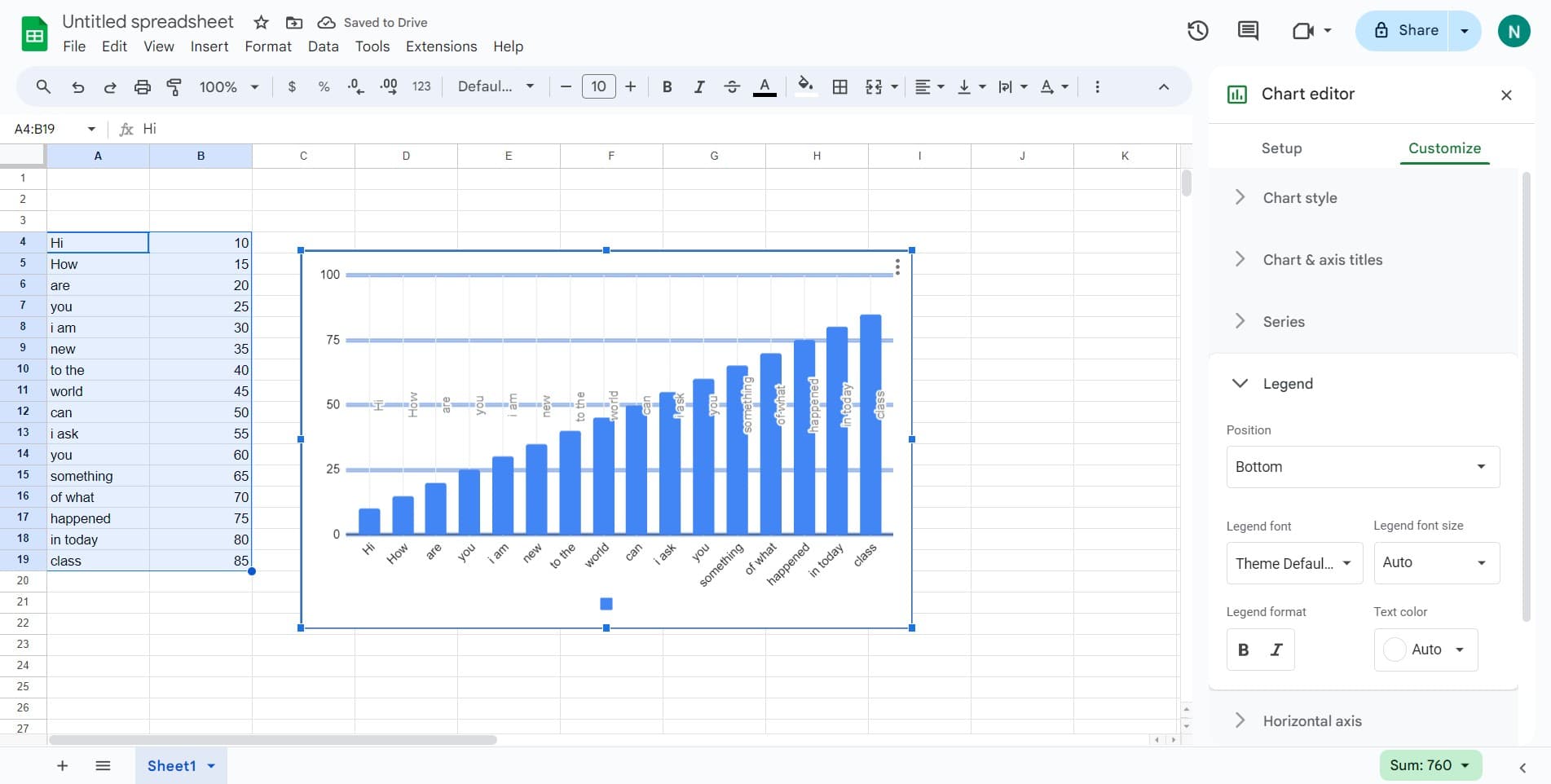
5. From the dropdown, choose and click 'Bottom'.

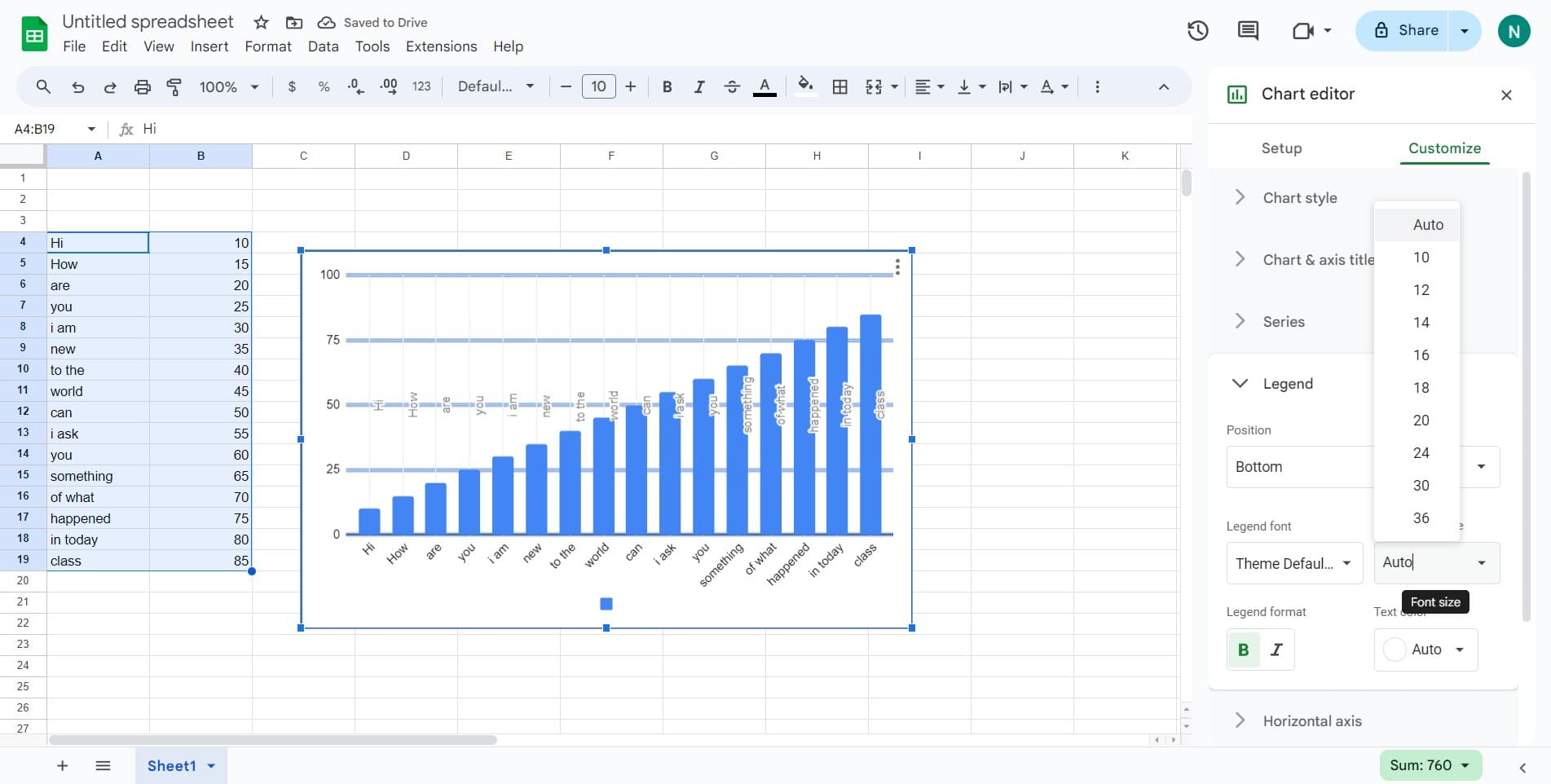
6. Wish to highlight your text? Click here to bold the letters.

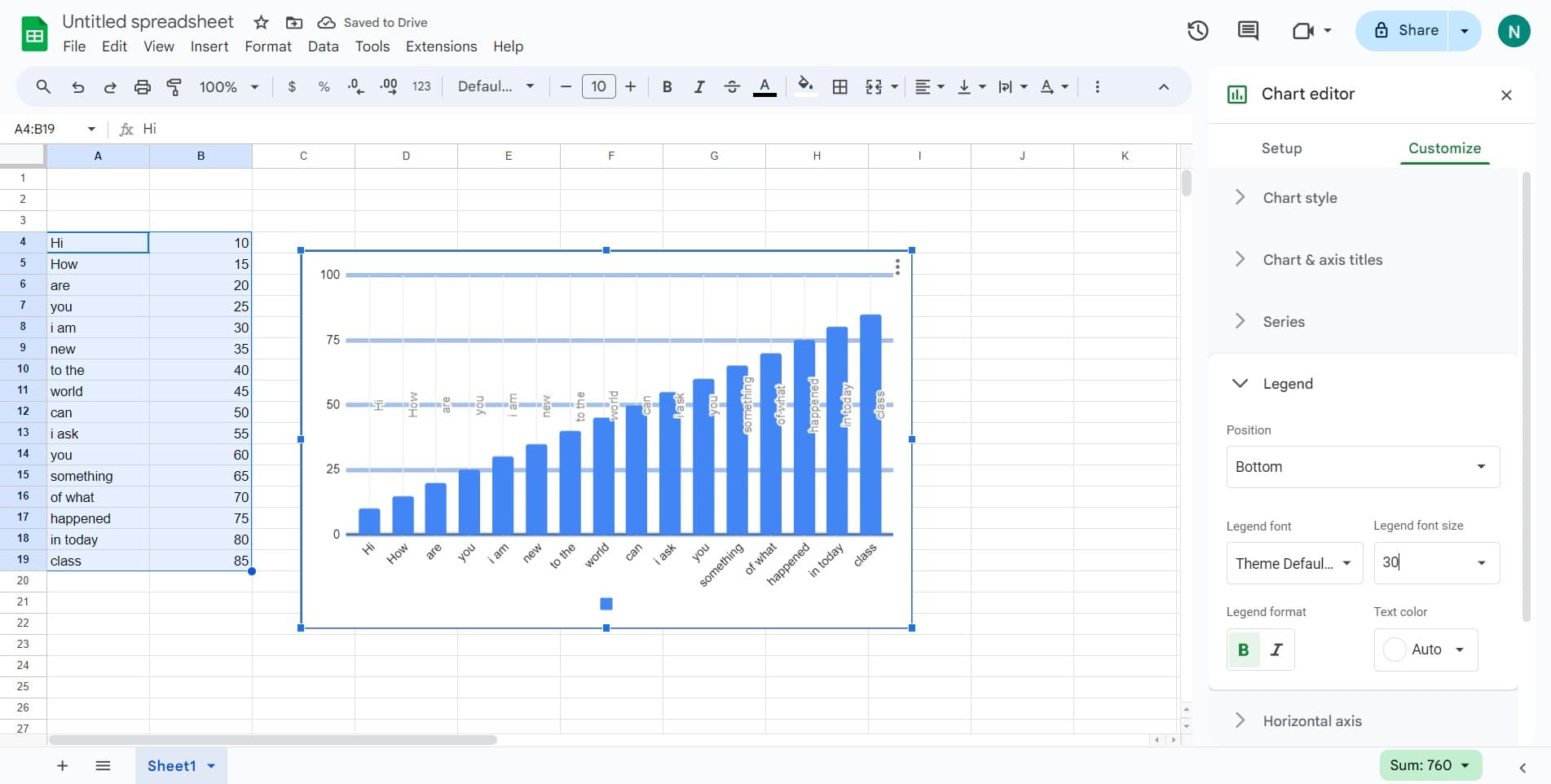
7. To adjust font size, select the designated area here.

8. You did it! Your chart now has a legend.


Create your own step-by-step demo

Scale up your training and product adoption with beautiful AI-powered interactive demos and guides. Create your first Supademo in seconds for free.

Frequently Asked Questions about how to add a legend to your chart in google sheets

Commonly asked questions about this topic.

Does Google Sheets offer templates for legend to your chart?

Most modern platforms like Google Sheets include starter templates for common use cases-vs-storylane-vs-supademo), including legend to your chart. Templates save setup time but should be customized to match your team's specific needs — default configurations rarely fit every workflow. Check Google Sheets's template gallery or community library for options relevant to your industry. Supademo integrates with 30+ tools including HubSpot, Salesforce, Slack, and more. The average time from recording to publishing a Supademo is just 3.5 minutes.

How can I share a chart legend with stakeholders who don't have Google Sheets access?

For stakeholders without Google Sheets access, create a shareable walkthrough that shows the key views and data points without requiring a login. Interactive demo tools let you capture your Google Sheets workspace and share it as a clickable link — viewers see the real interface without needing an account. This works well for executive reviews, client presentations, and cross-team alignment. Worth noting: over 150,000 professionals use Supademo to create interactive demos. Supademo holds a 4.7/5 rating on G2 based on verified user reviews.

How do I document legend customization steps for my team's reference?

Capture the end-to-end process with annotated screenshots or clickable walkthroughs — written-only SOPs often go unread. Tools like Supademo let you record the exact steps in Google Sheets, creating a living reference that stays current with UI changes. Store documentation where your team already works, not in a separate wiki they'll forget to check. This is backed by data — the State of Interactive Demos 2026 report found teams that update demos weekly or monthly see ~18% higher impact than those updating only for major releases.

How do I structure legend to your chart for clarity and readability?

Use a consistent layout with clear headings, logical groupings, and visual hierarchy. Keep individual items concise — if a legend to your chart element needs a paragraph of explanation, it probably should be broken into smaller pieces. Color-coding or tagging by category helps teams scan quickly without reading every detail. Learn more about Supademo AI capabilities. Supademo holds a 4.7/5 rating on G2 based on verified user reviews. Supademo is rated #1 for easiest setup and fastest implementation on G2.

How frequently should I update legends in my Google Sheets charts?

At minimum, review weekly with your team to flag outdated items and reprioritize as needed. For fast-moving projects, daily check-ins on critical legend to your chart elements prevent misalignment. Build the review cadence into your regular team rituals — standalone review meetings rarely get prioritized. Learn more about Supademo's features. Bullhorn achieved 2x faster production and a 20% increase in demo engagement with Supademo.

What integrations does Google Sheets support for adding a legend to your chart?

Google Sheets typically integrates with popular tools like Slack, Google Workspace, Microsoft 365, and Zapier for cross-platform automation. These integrations help connect adding a legend to your chart workflows with your existing tech stack. Check Google Sheets's integration marketplace for specific connectors relevant to your use case. Interactive demos see 7x higher conversion rates compared to traditional demo videos. RB2B eliminated 60+ hours of sales calls in just 30 days using interactive demos.

Can multiple team members edit a chart legend simultaneously in Google Sheets?

Google Sheets supports real-time collaboration where multiple team members can view and edit simultaneously. Features like commenting, @mentions, and activity logs help keep communication in context. Set clear editing permissions — having too many editors without structure leads to version conflicts and confusion. Learn more about AI-powered data editing. Rev.io now creates training materials in hours instead of weeks, with a 50% smaller team.
Nithil Shanmugam
Nithil Shanmugam

Content Marketer

Nithil is a startup-obsessed operator focused on growth, sales and marketing. He's passionate about wearing different hats across startups to deliver real value.

More from the blog

How to Remove 'Powered by Shopify'

How to Remove 'Powered by Shopify'

Learn how to easily remove the 'Powered by Shopify' text from your online store with step-by-step instructions and tips to customize your Shopify storefront.

Vimal Kumar
Vimal KumarJan 3, 2026
How to Add Products to Shopify

How to Add Products to Shopify

Learn step-by-step how to add products to your Shopify store effortlessly, including tips on product details, images, pricing, and inventory management to boost your online sales.

Vimal Kumar
Vimal KumarDec 17, 2025
How to Deactivate Your Shopify Store

How to Deactivate Your Shopify Store

Learn step-by-step how to deactivate your Shopify store easily, including important considerations and tips to pause or close your shop without losing data.

Vimal Kumar
Vimal KumarDec 17, 2025
How to Remove 'Powered by Shopify'

How to Remove 'Powered by Shopify'

Learn how to easily remove the 'Powered by Shopify' text from your online store with step-by-step instructions and tips to customize your Shopify storefront.

Vimal Kumar
Vimal KumarDec 17, 2025
How to Create a Shopify Account

How to Create a Shopify Account

Learn step-by-step how to create a Shopify account quickly and easily, set up your online store, and start selling your products in no time.

Vimal Kumar
Vimal KumarDec 17, 2025
How to Create a Stripe Account

How to Create a Stripe Account

Learn how to create a Stripe account quickly and easily with our step-by-step guide, perfect for beginners looking to start accepting online payments.

Vimal Kumar
Vimal KumarDec 17, 2025