How to add an attachment on a task in Asana

Attachments are essential for keeping all task-related files organized in one place within Asana. This guide walks you through the process of adding an attachment to a task, whether you're uploading from your computer or linking external files.
Quick summary
In this tutorial, you'll learn how to attach files to your Asana tasks in just a few clicks. By the end, you'll be able to upload documents from your computer and manage attachments directly within your task details.
Why this matters
Adding attachments to tasks keeps your project documentation centralized and accessible to your entire team. Rather than sharing files through email or separate tools, attaching files directly to tasks ensures everyone has access to the latest versions and relevant context.
Step-by-step guide
- 1
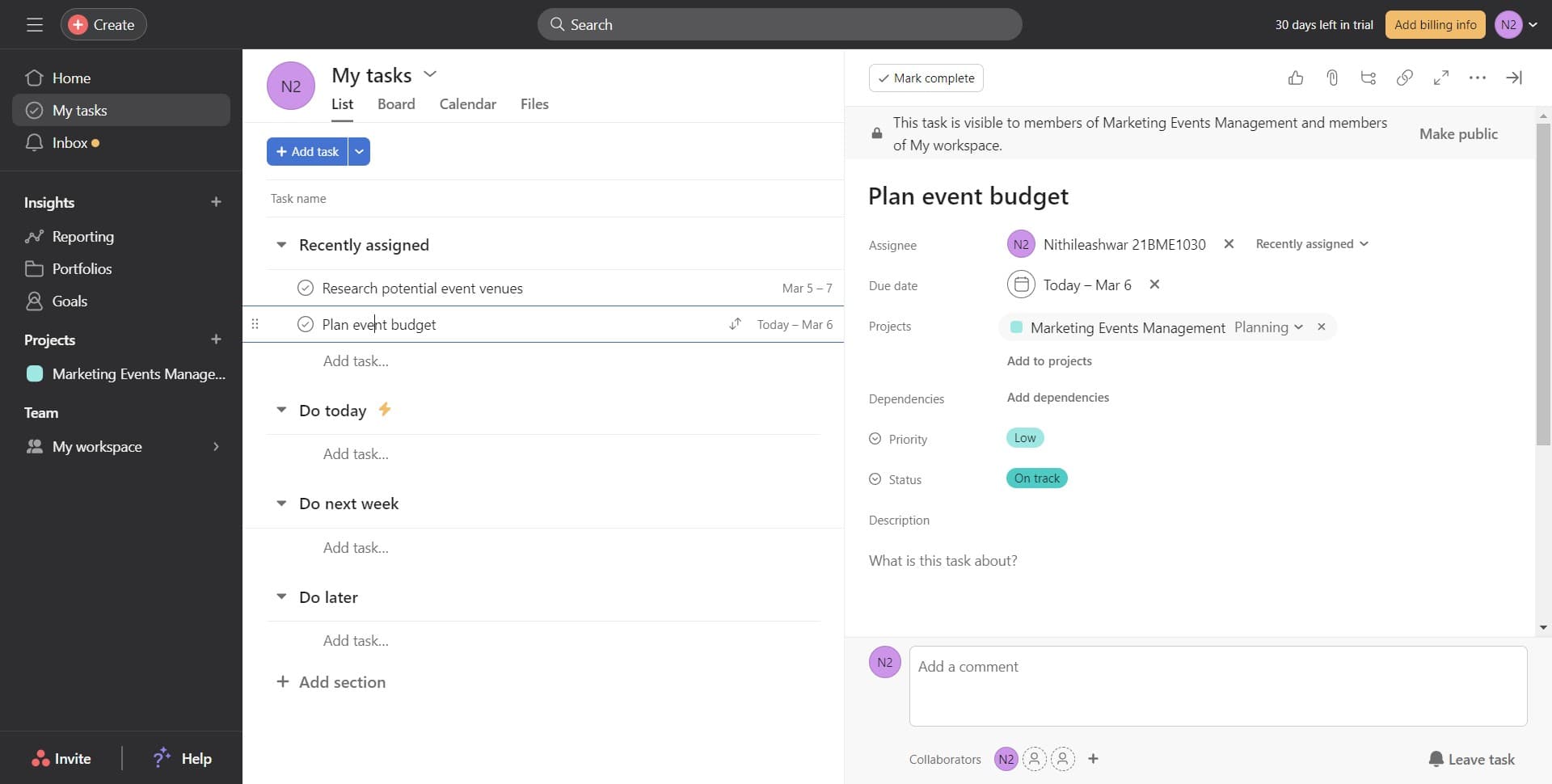
Open the task details
Click on the task you want to add an attachment to. The task details panel will open on the right side of your screen, displaying all task information and options.
- 2
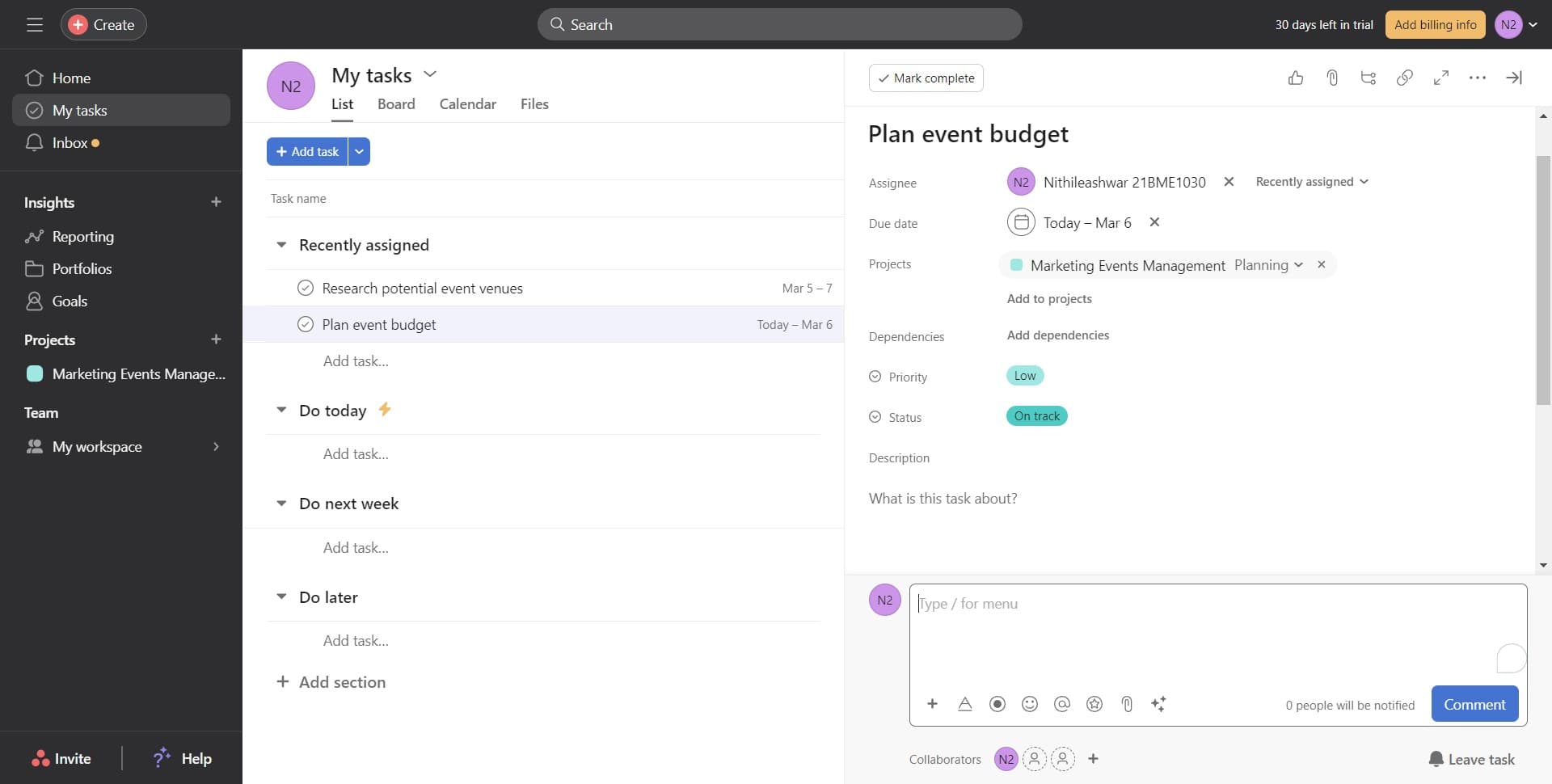
Locate the attachment section
Look for the attachment area within the task details panel. You'll see a dedicated section where you can add files to this task.
- 3
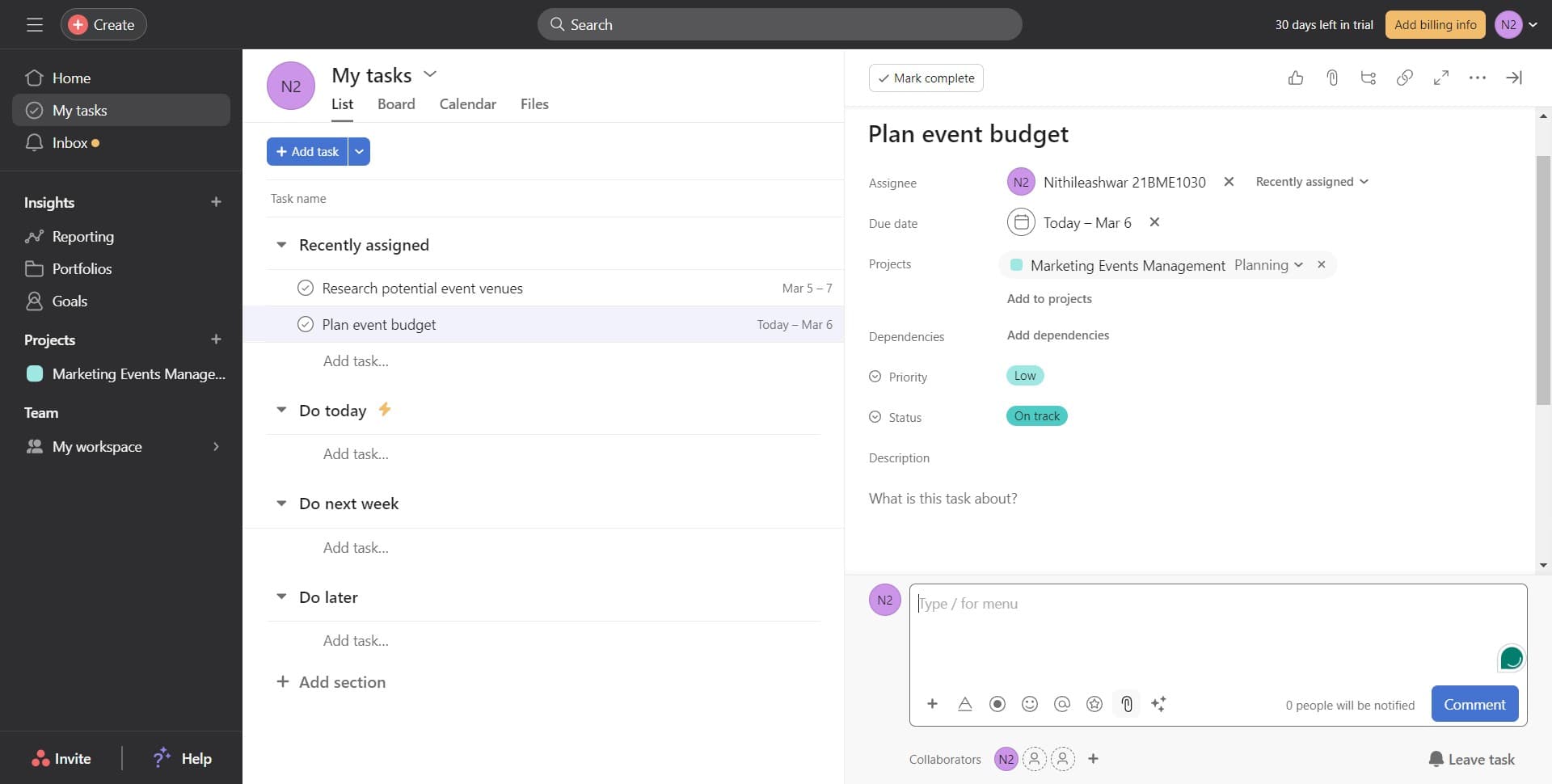
Click the upload button
Click on the attachment icon or upload button to initiate the file upload process. This will open your file browser or attachment menu.
- 4
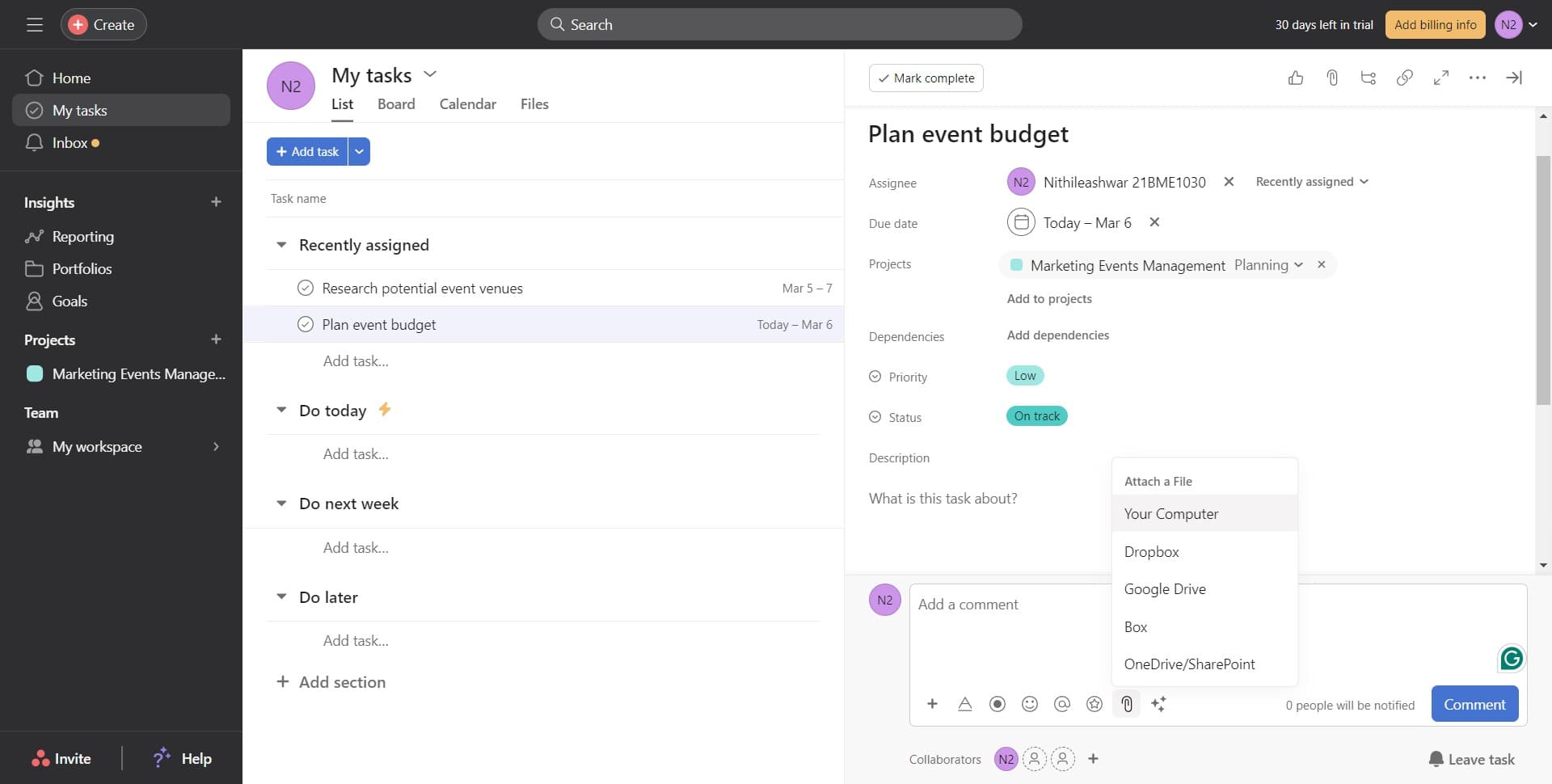
Select Your Computer option
Choose 'Your Computer' from the available upload options. This allows you to browse and select files from your local device.
- 5
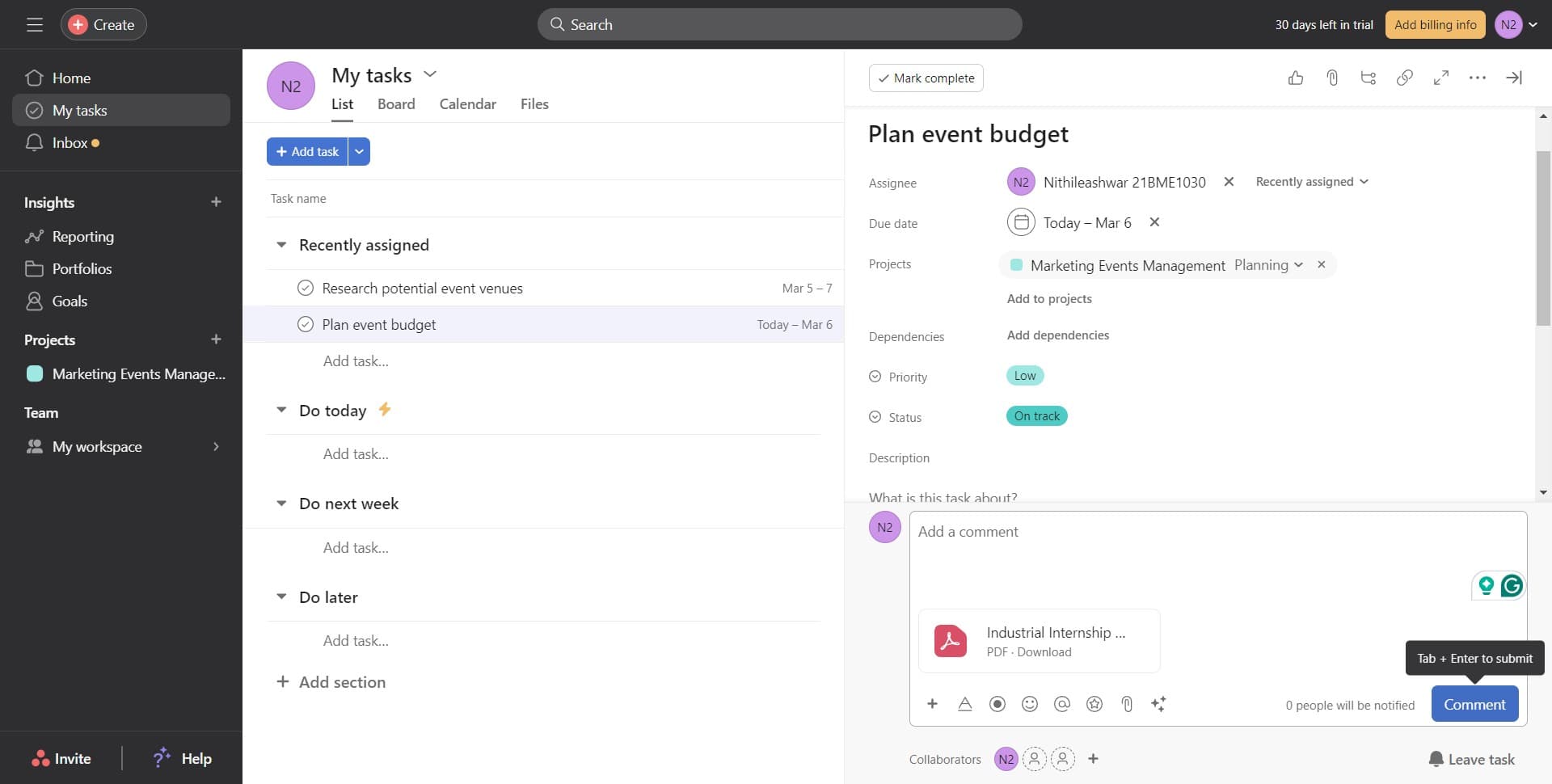
Add a comment about the file
After uploading, click on 'Comment' to add a note explaining the attachment. This helps your team understand the file's purpose and relevance to the task.
- 6
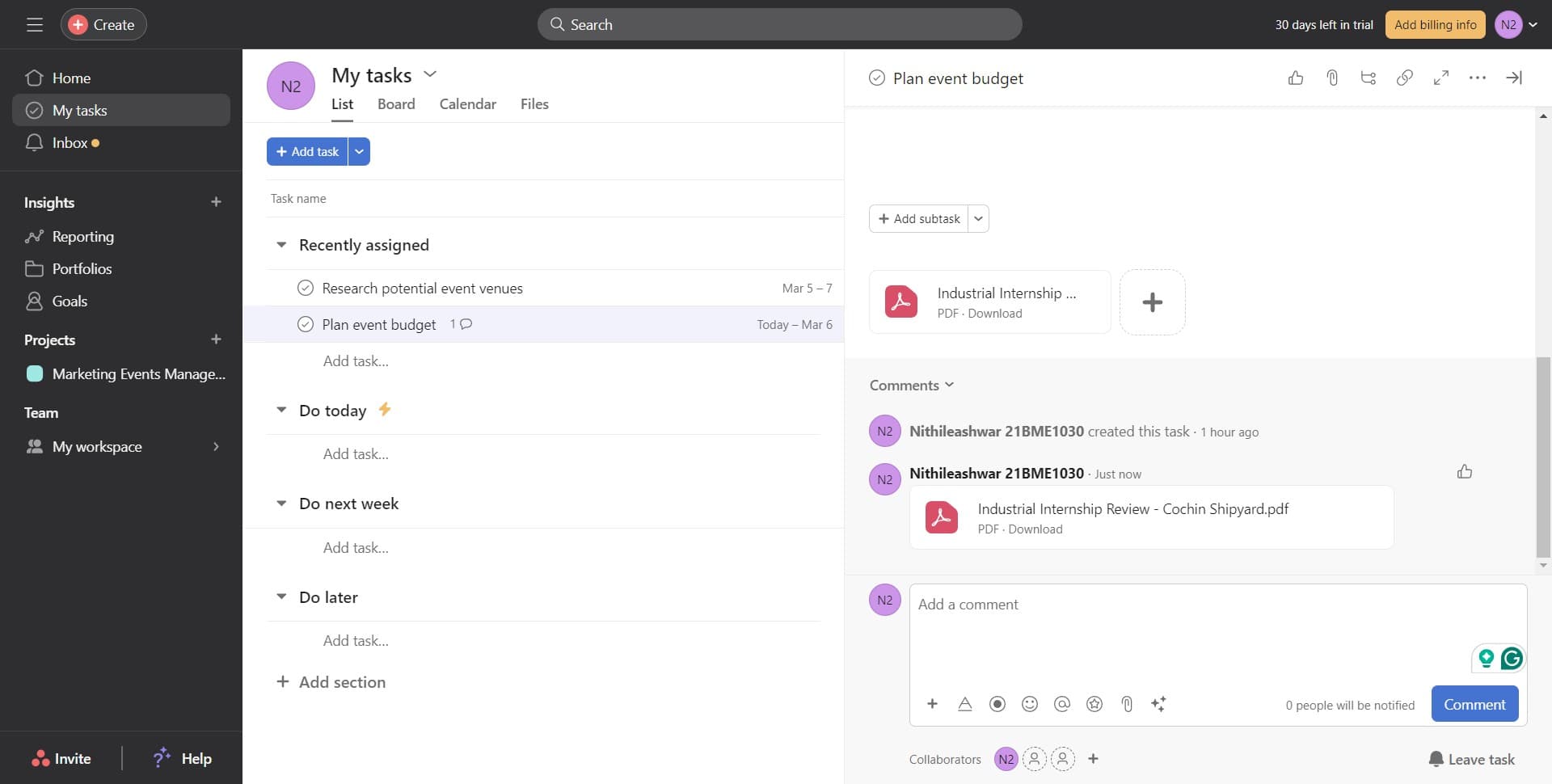
Review attached files
The attachment will now appear in the Comments section with any note you added. Team members can view, download, or comment on the attached file directly.
Frequently asked questions
Common questions about how to add an attachment on a task in asana.
What file types can I attach to an Asana task?
Asana supports most common file types including documents, spreadsheets, images, PDFs, and videos. There is typically a file size limit per attachment, so very large files may need to be compressed or shared via cloud storage links instead.
Can multiple team members attach files to the same task?
Yes, multiple team members can add attachments to a single task. Each attachment will be visible to all task collaborators, making it easy to share multiple versions or supporting documents.
How do I attach files from Google Drive or Dropbox instead of my computer?
While the upload process focuses on computer files, you can also link to cloud storage files by pasting the link in a task comment. Some Asana integrations allow direct cloud storage connections, depending on your plan and configured integrations.
Can I delete an attachment after uploading it?
Yes, you can remove attachments from a task if you have edit permissions. Click on the attachment in the Comments section and select the delete or remove option to take it off the task.
Will my team get notified when I add an attachment?
Yes, team members who are assigned to or following the task will receive a notification when you add an attachment. This ensures they stay informed about new files related to the task.