How to add apps in Asana

Integrating third-party apps into Asana streamlines your workflow by connecting your favorite tools directly to your projects. This guide walks you through adding Google Calendar to Asana, enabling you to sync calendars and manage scheduling without switching between platforms.
Quick summary
In this tutorial, you'll learn how to add Google Calendar as an app in Asana. You'll navigate to your project settings, locate the app integration menu, select Google Calendar, and complete the authorization process to enable the integration.
Why this matters
Adding apps like Google Calendar to Asana eliminates context-switching and keeps your team's schedule visible alongside project tasks. This integration ensures deadlines and calendar events stay synchronized, reducing missed deadlines and improving project planning accuracy.
Step-by-step guide
- 1
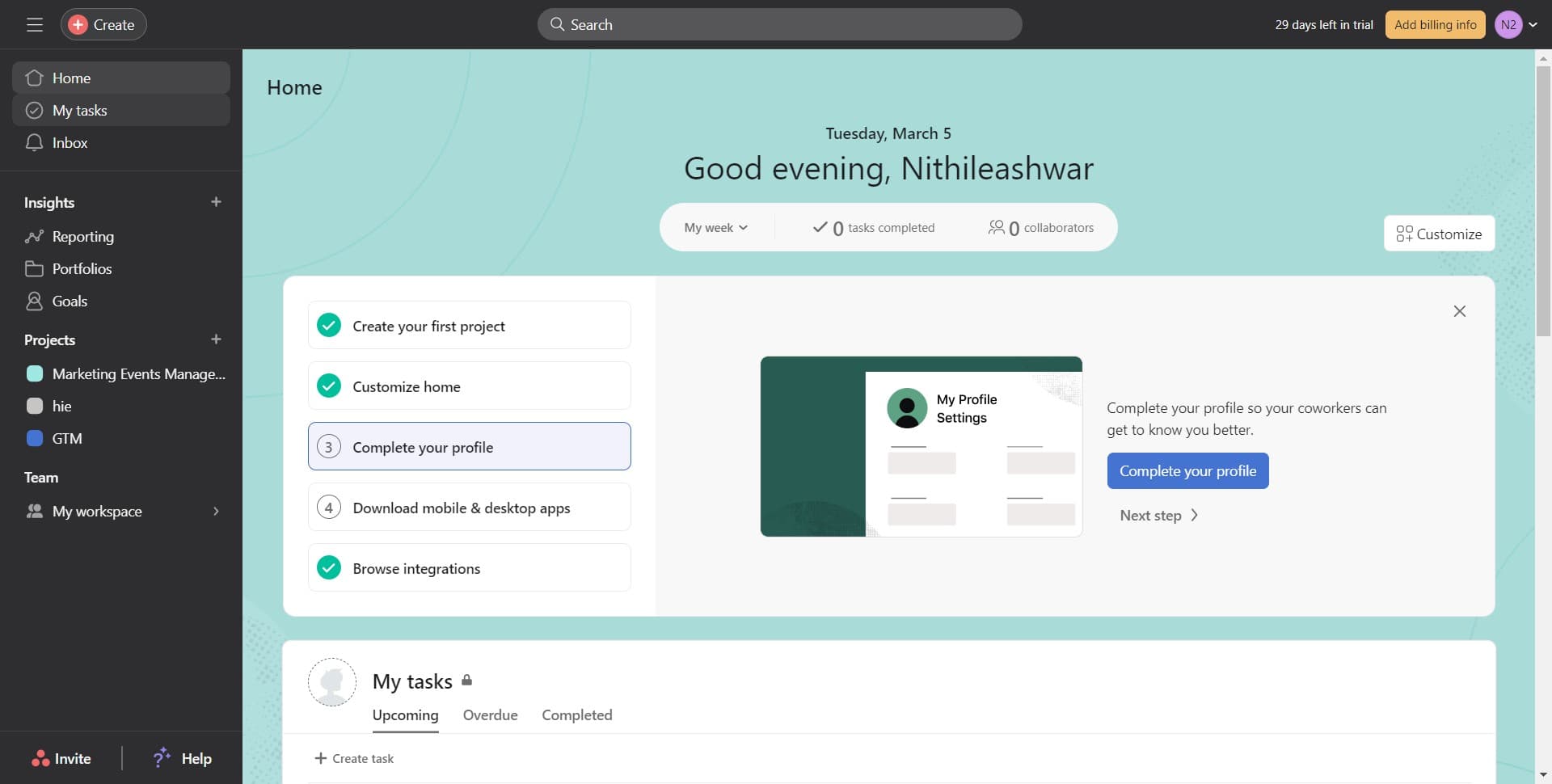
Click on My Tasks
Start by clicking the "My Tasks" section in your Asana sidebar. This is your primary workspace where you can access project settings and app integrations.
- 2
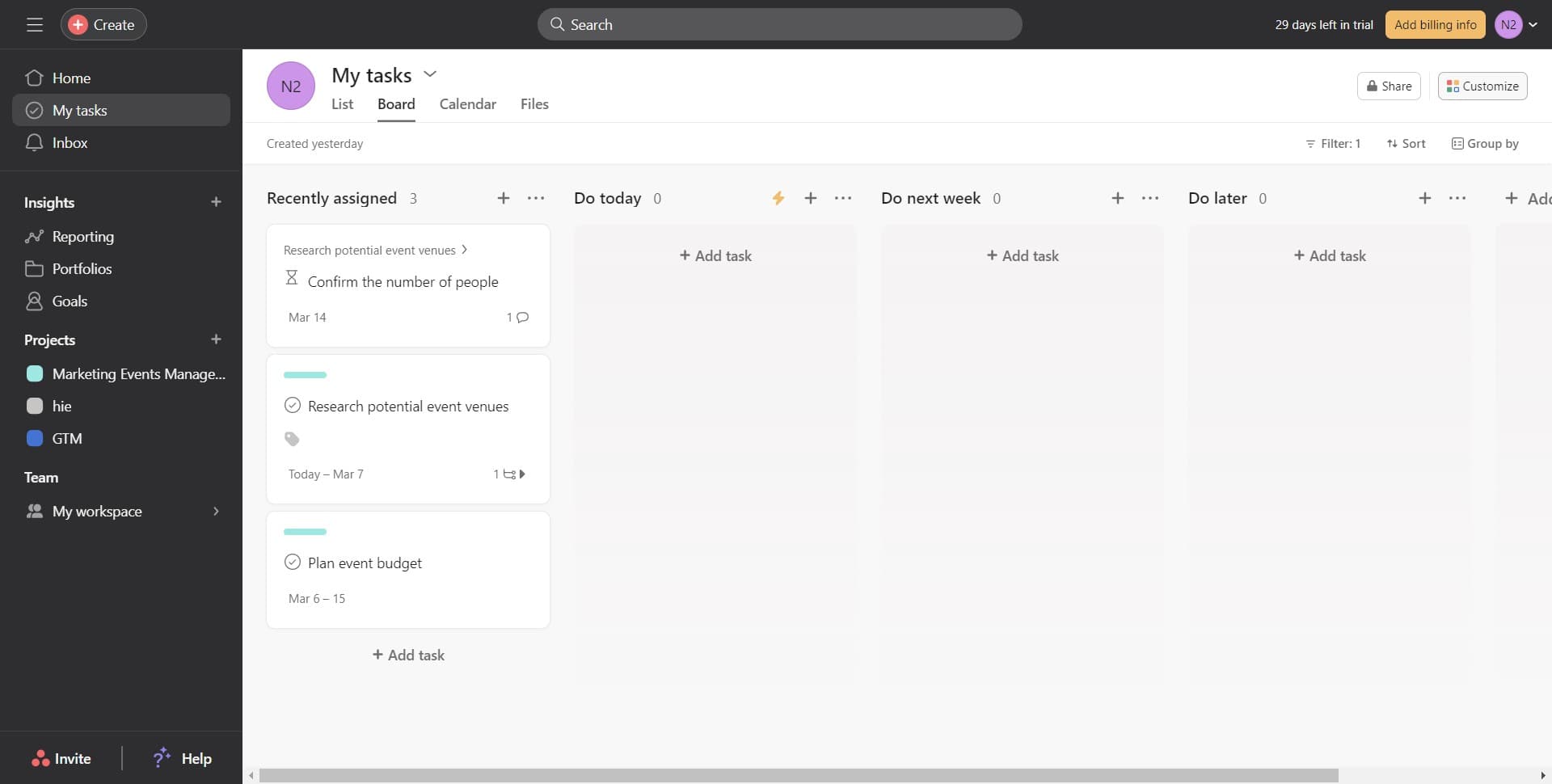
Click on Image
Locate and click on the Image element in your current view. This will display additional options related to your project or workspace settings.
- 3
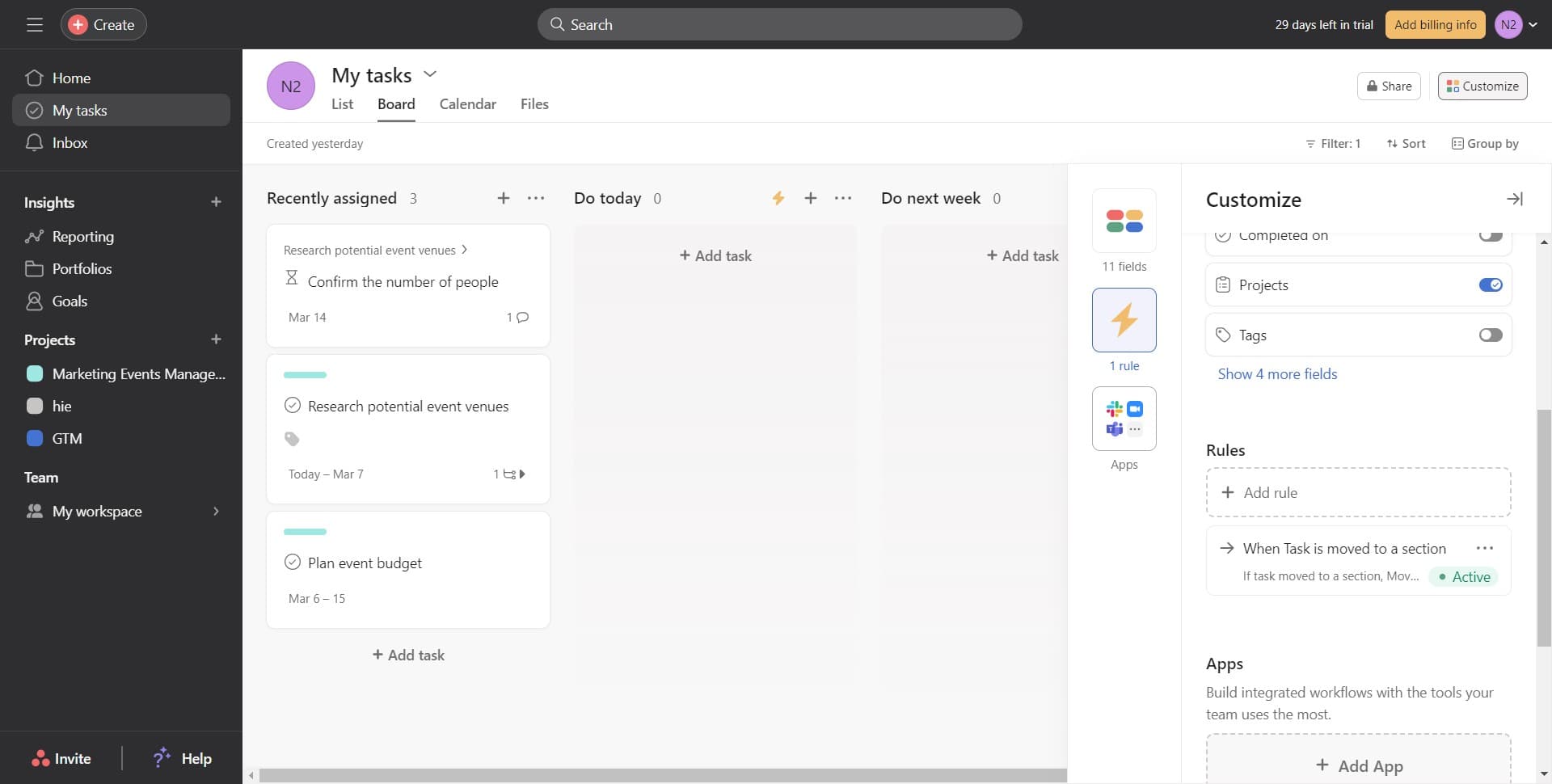
Access the App Menu
Click on the designated area to open the app management section. This section contains all available integrations you can add to your Asana workspace.
- 4
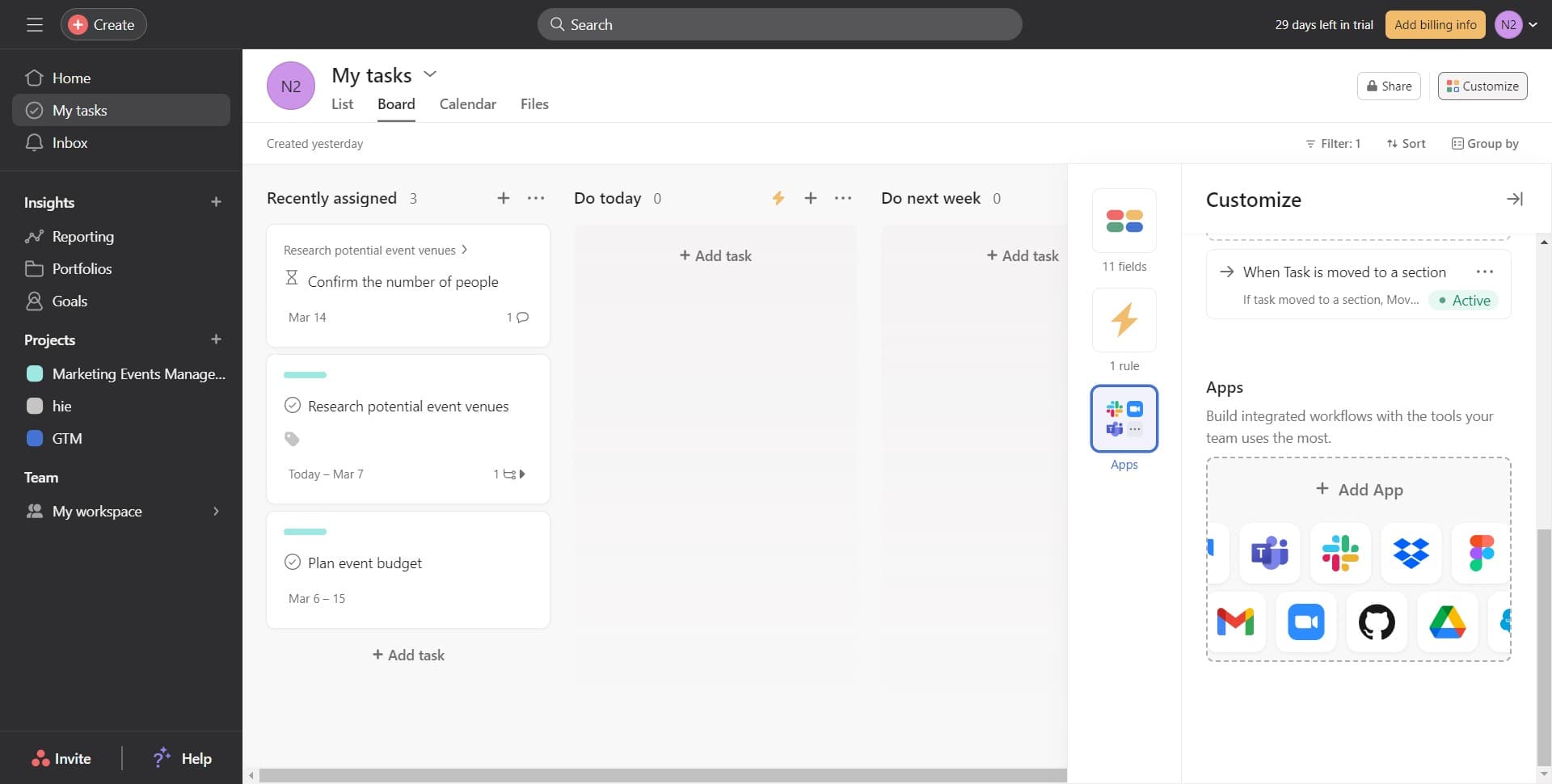
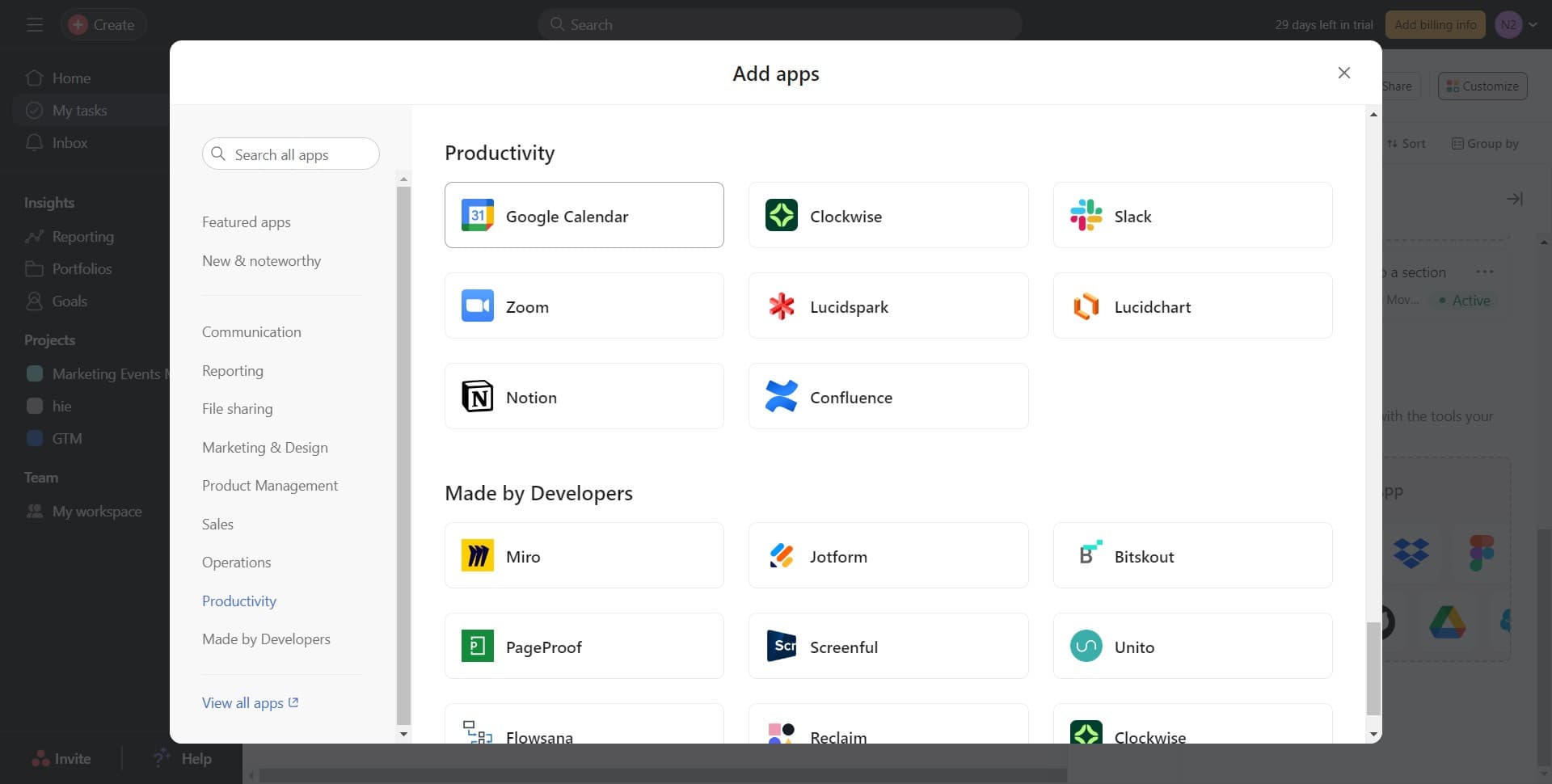
Click on Add App
Select the "Add App" button to view the list of available integrations. A menu will appear showing various third-party apps you can connect to Asana.
- 5
Select Google Calendar
Find and click on "Google Calendar" from the available apps list. This will initiate the connection process between Asana and your Google Calendar account.
- 6
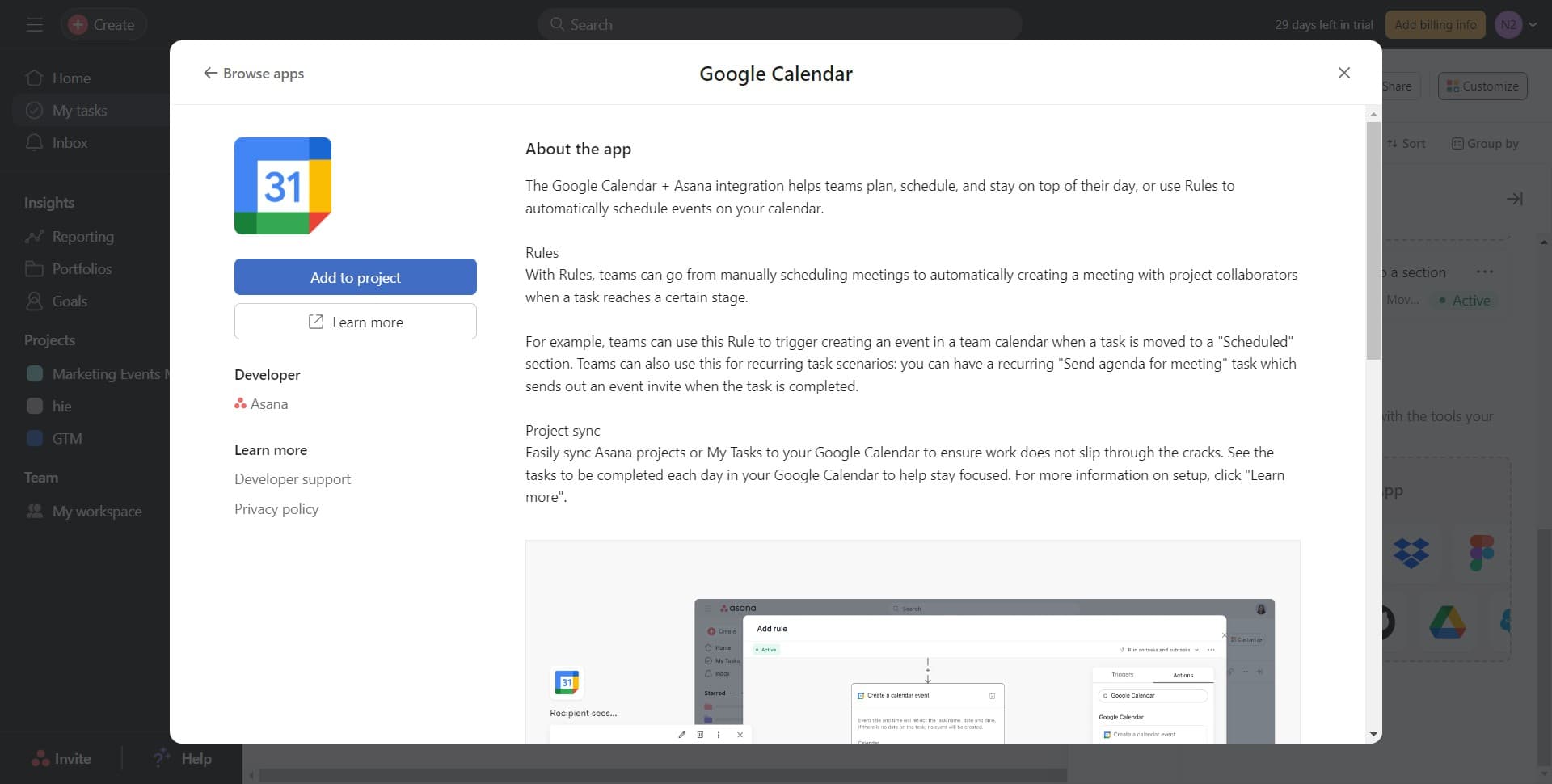
Click Add to Project
Click the "Add to project" button to confirm you want to integrate Google Calendar with your current project. This will prepare the authorization connection.
- 7
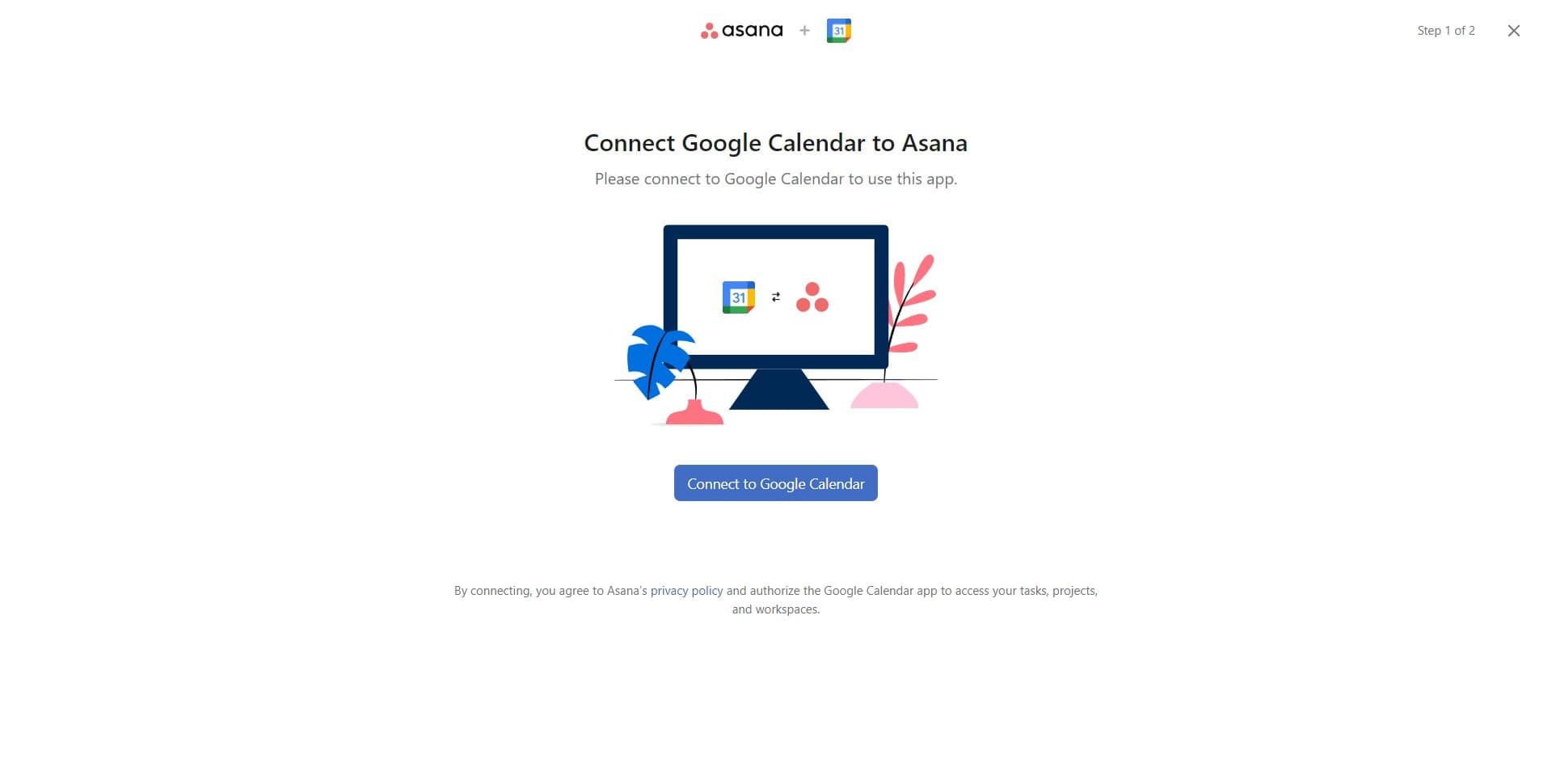
Connect to Google Calendar
Click the "Connect to Google Calendar" button to begin the authentication process. You'll be prompted to sign in with your Google account credentials.
- 8
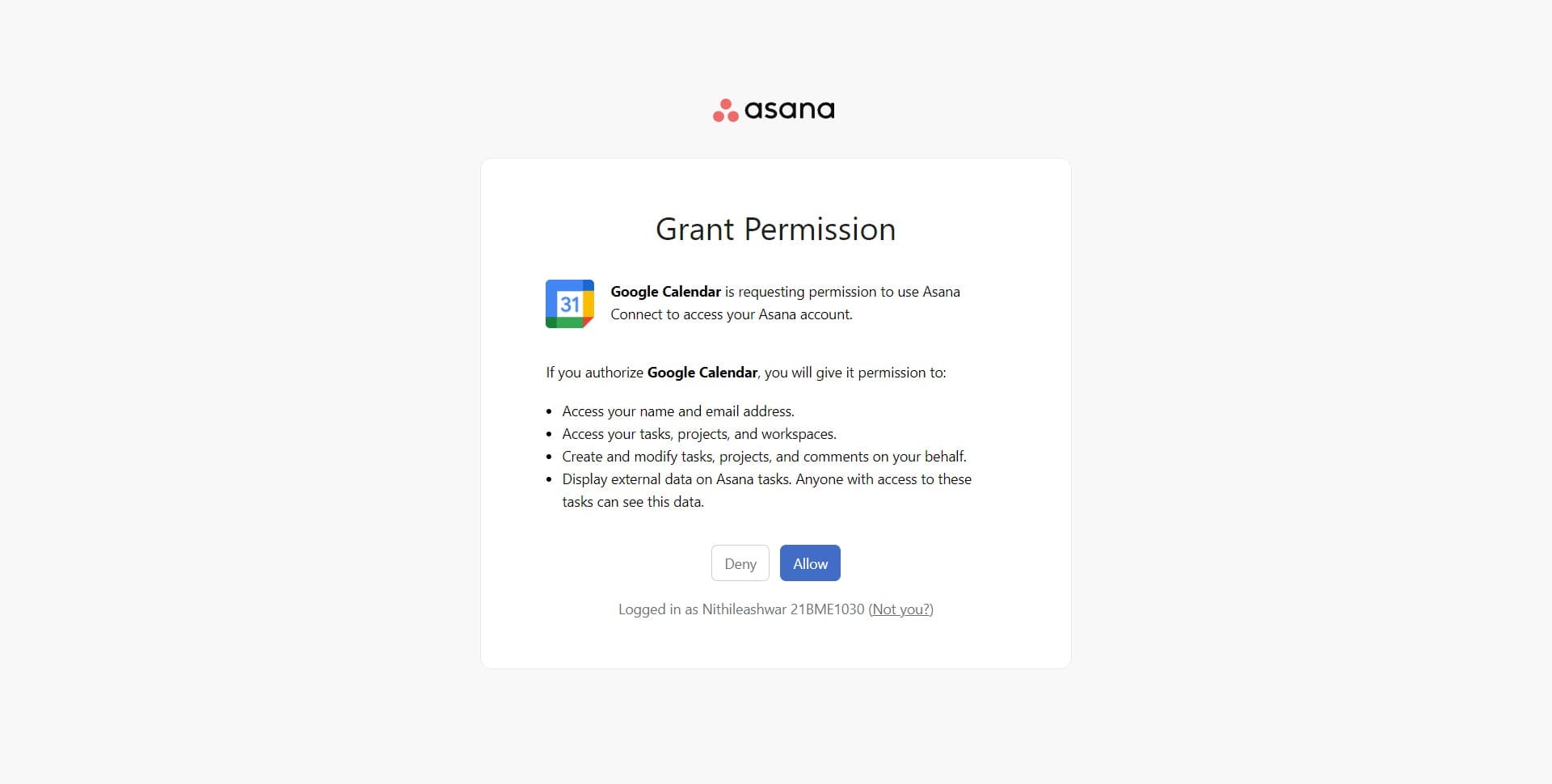
Grant Permission Access
Click the "Allow" button to grant Asana permission to access your Google Calendar. After confirming, the integration will be complete and your calendars will sync.
Frequently asked questions
Common questions about how to add apps in asana.
Can I add multiple apps to a single Asana project?
Yes, Asana supports adding multiple third-party apps to the same project. You can repeat the integration process for each app you want to connect. This allows you to build a customized workspace with all the tools your team needs.
What happens to my Google Calendar events after connecting?
Once connected, your Google Calendar events will be visible within Asana, and you can view them alongside your project tasks. The integration is typically read-only for calendar viewing, but this may vary depending on your Asana plan and app permissions.
Do I need a paid Asana plan to add apps?
App availability depends on your Asana plan level. Some integrations are available on all plans, while others require a Premium, Business, or Enterprise subscription. Check your plan details in Asana settings to see which apps you can access.
How do I remove or disconnect an app from my project?
To remove an app, go back to the app settings area where you added it and look for a disconnect or remove option. This will unlink the app from your project without affecting your original data in either platform.
What if I encounter an authorization error?
Authorization errors often occur due to incorrect login credentials or insufficient permissions in your Google account. Verify that you're using the correct Google account and that your browser allows pop-ups for authentication. You may also need to check your Google account security settings.