How to Automate GDPR-Compliant Data Deletion Requests in Gorgias

GDPR compliance requires businesses to process customer data deletion requests promptly and securely. Gorgias provides built-in tools to automate this process, ensuring your support team can handle deletion requests efficiently while maintaining full audit trails.
Quick summary
In this tutorial, you'll learn how to set up automated GDPR-compliant data deletion workflows in Gorgias. You'll discover how to configure deletion requests, establish approval workflows, and maintain compliance documentation throughout the process.
Why this matters
Handling data deletion requests manually increases the risk of compliance violations and operational delays. By automating this workflow in Gorgias, your team ensures consistent, documented responses to GDPR requests while reducing administrative overhead and protecting customer privacy.
Step-by-step guide
- 1
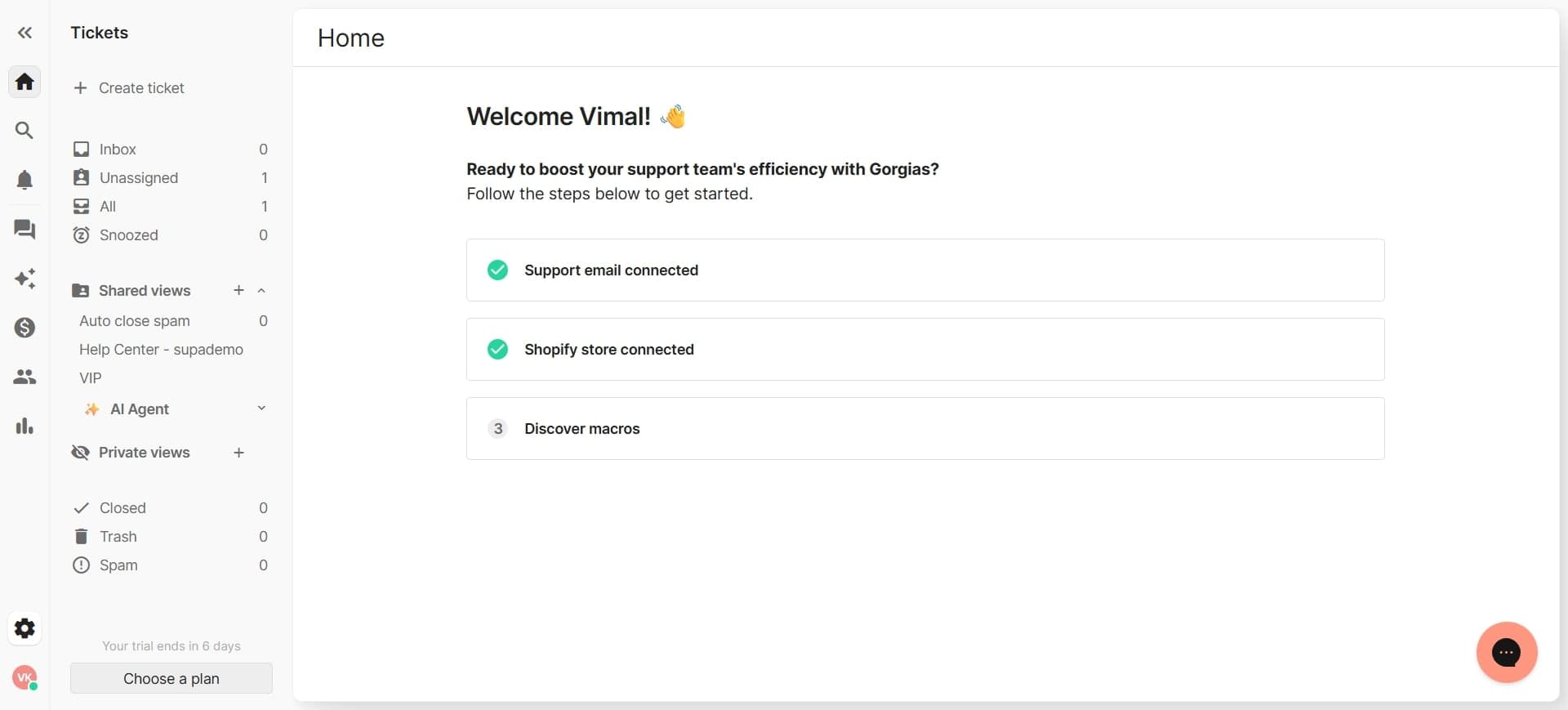
Access the settings menu
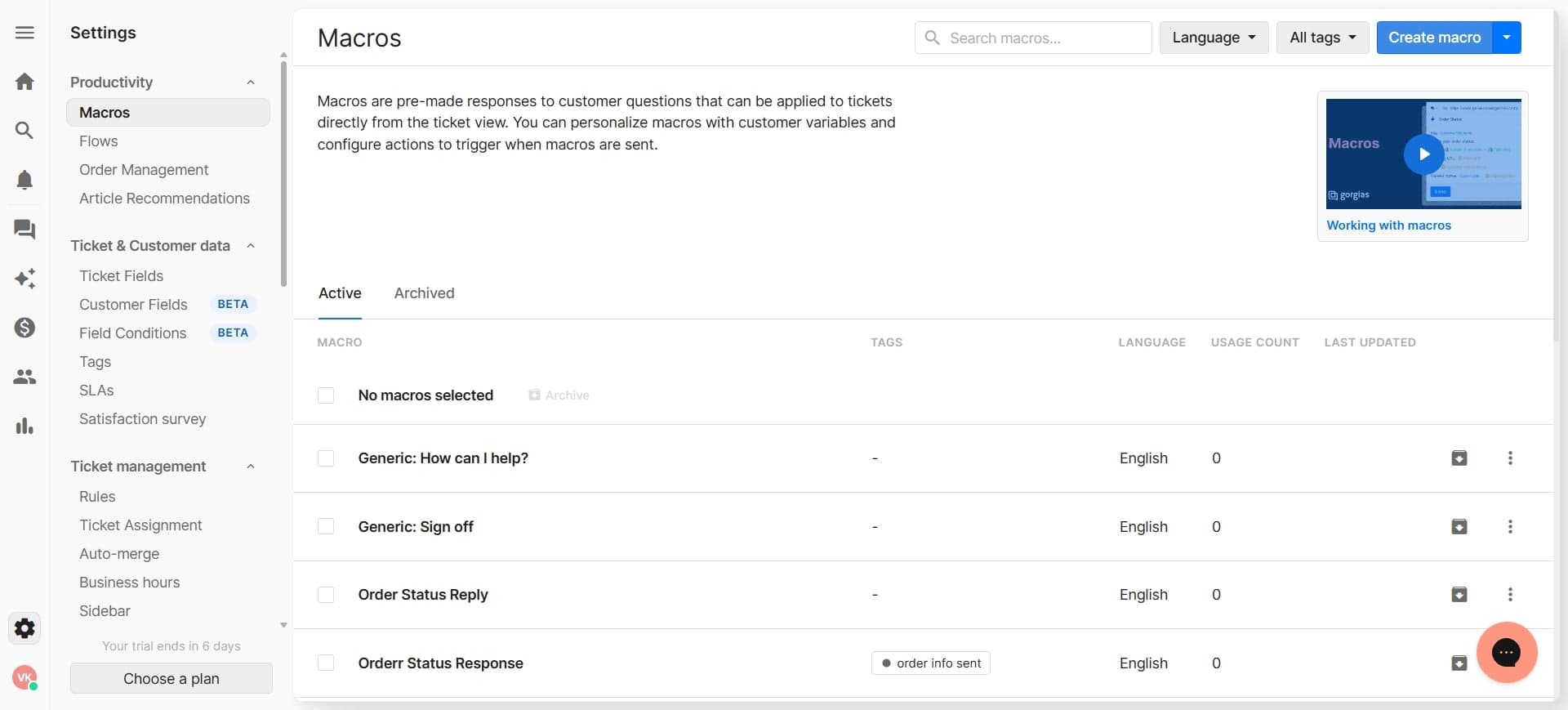
Log into your Gorgias account and navigate to the main settings area. Look for the privacy or compliance section where data management features are located.
- 2
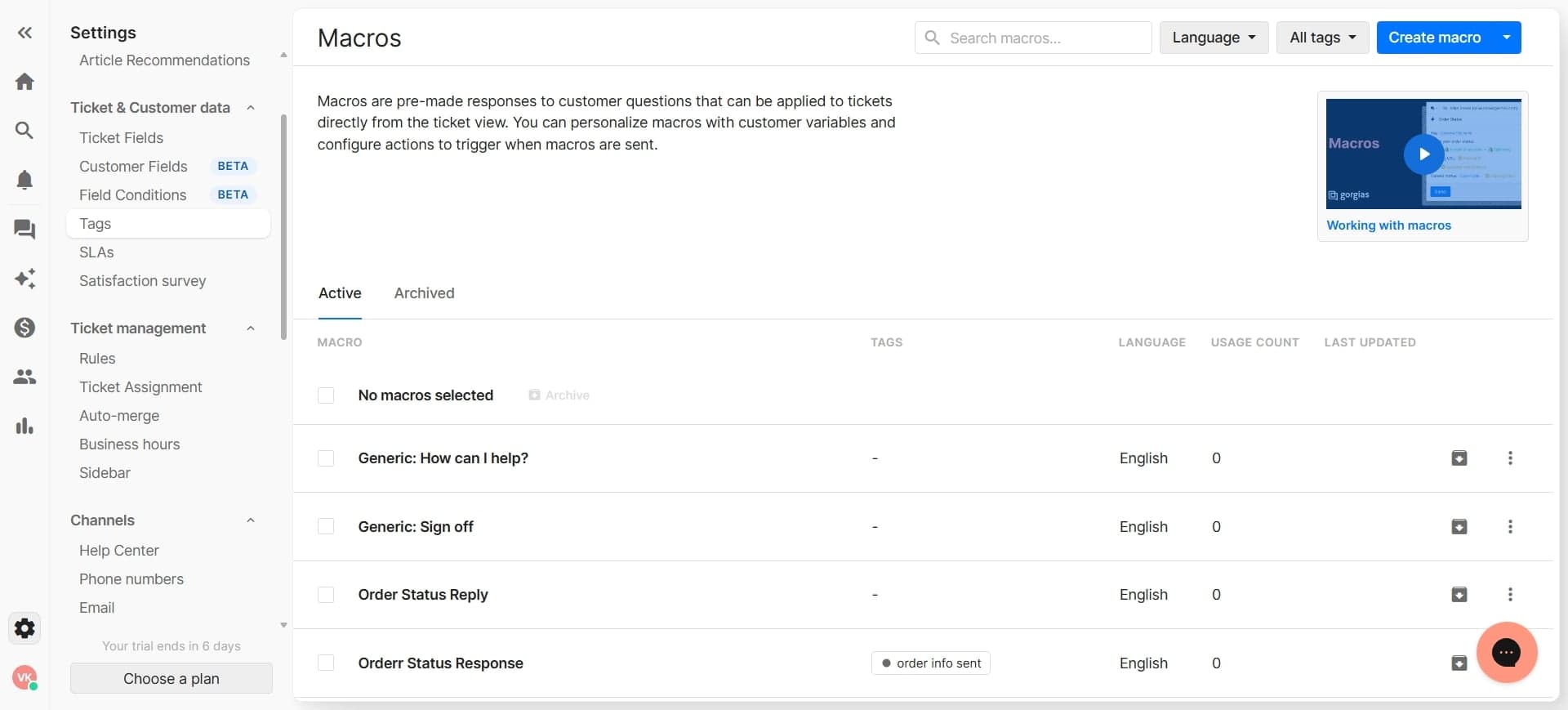
Locate data deletion settings
Find the data deletion or GDPR compliance section within settings. This area contains all controls for managing customer data deletion requests.
- 3
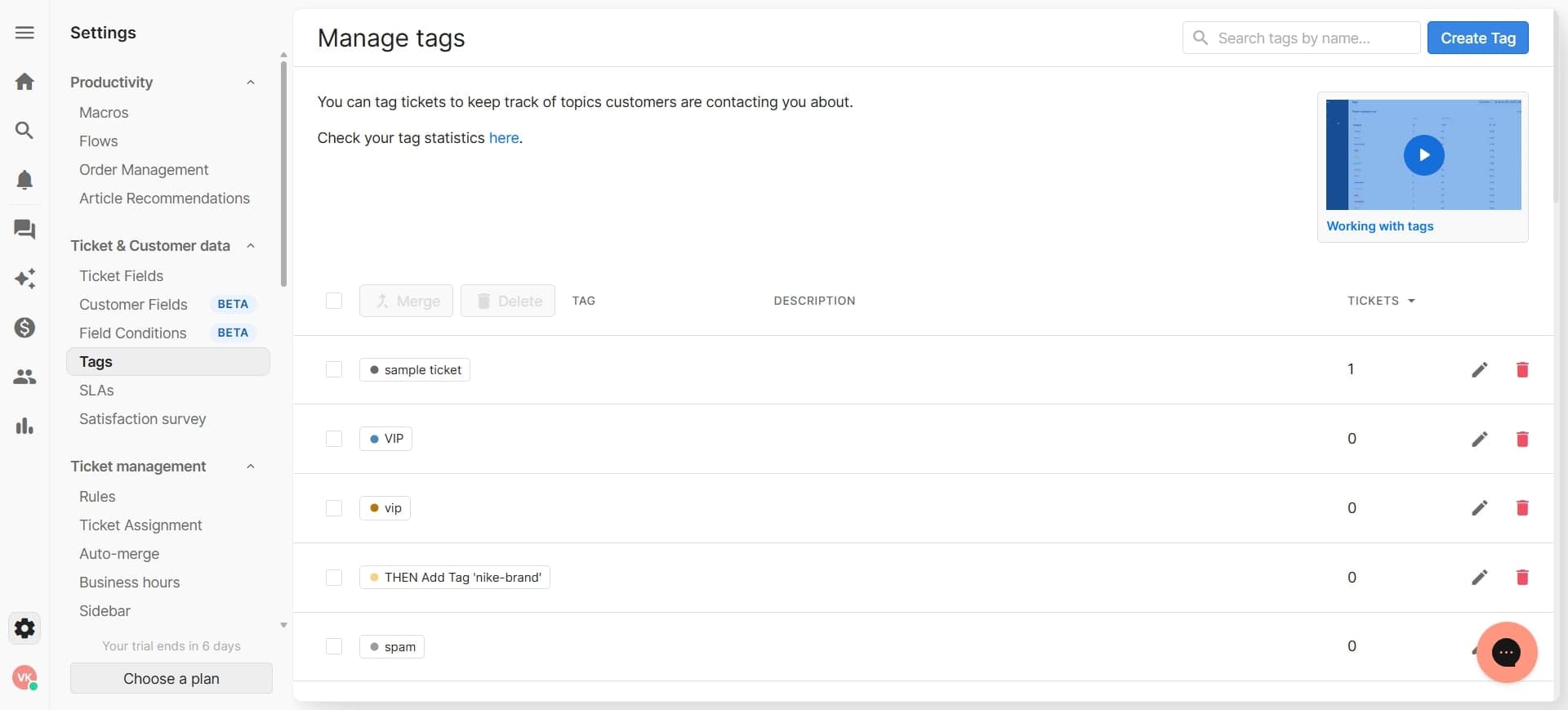
Enable automated deletion requests
Toggle the automated deletion request feature to activate it for your workspace. This enables customers and support agents to submit deletion requests through the system.
- 4
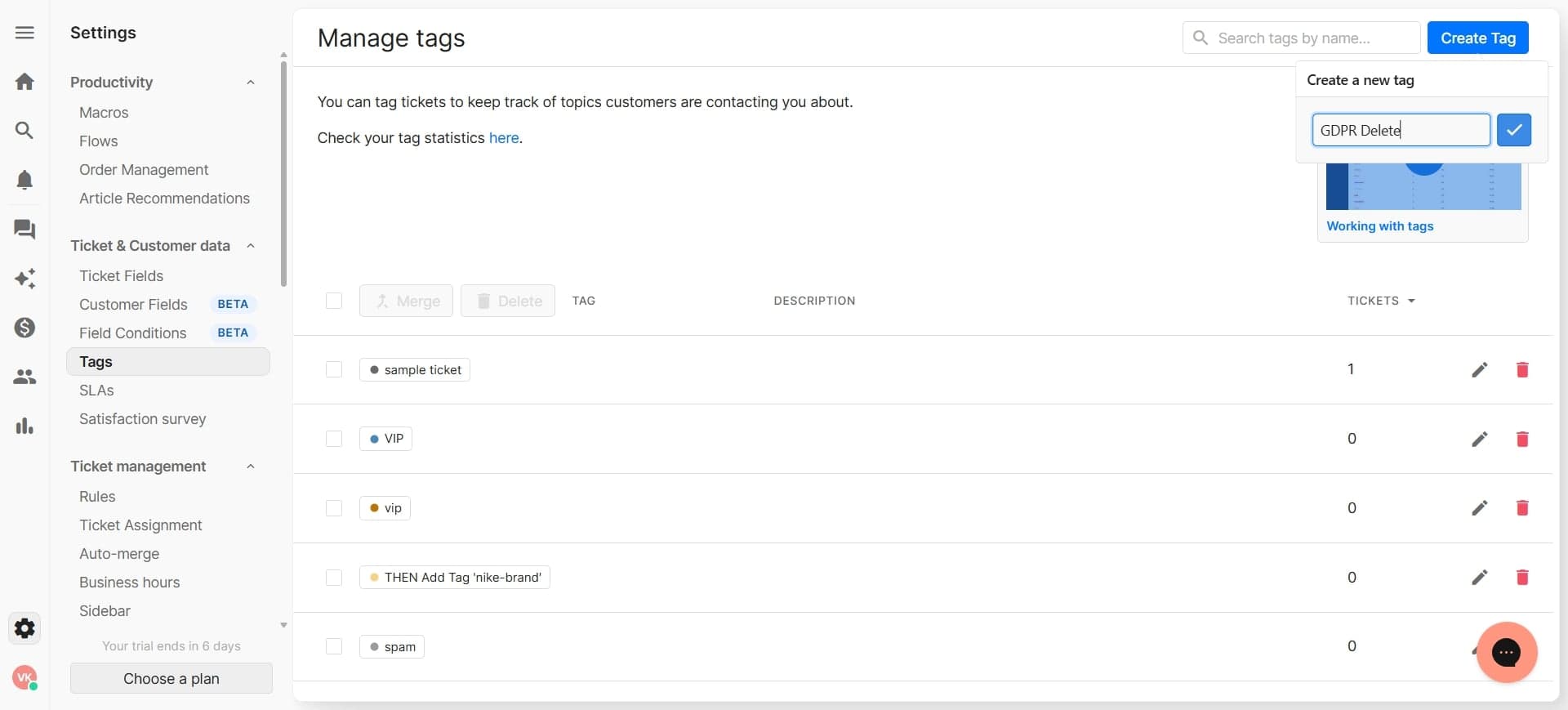
Configure deletion request forms
Customize the deletion request form to capture necessary information from customers. Include fields for customer identification, reason for deletion, and any additional compliance data you need to collect.
- 5
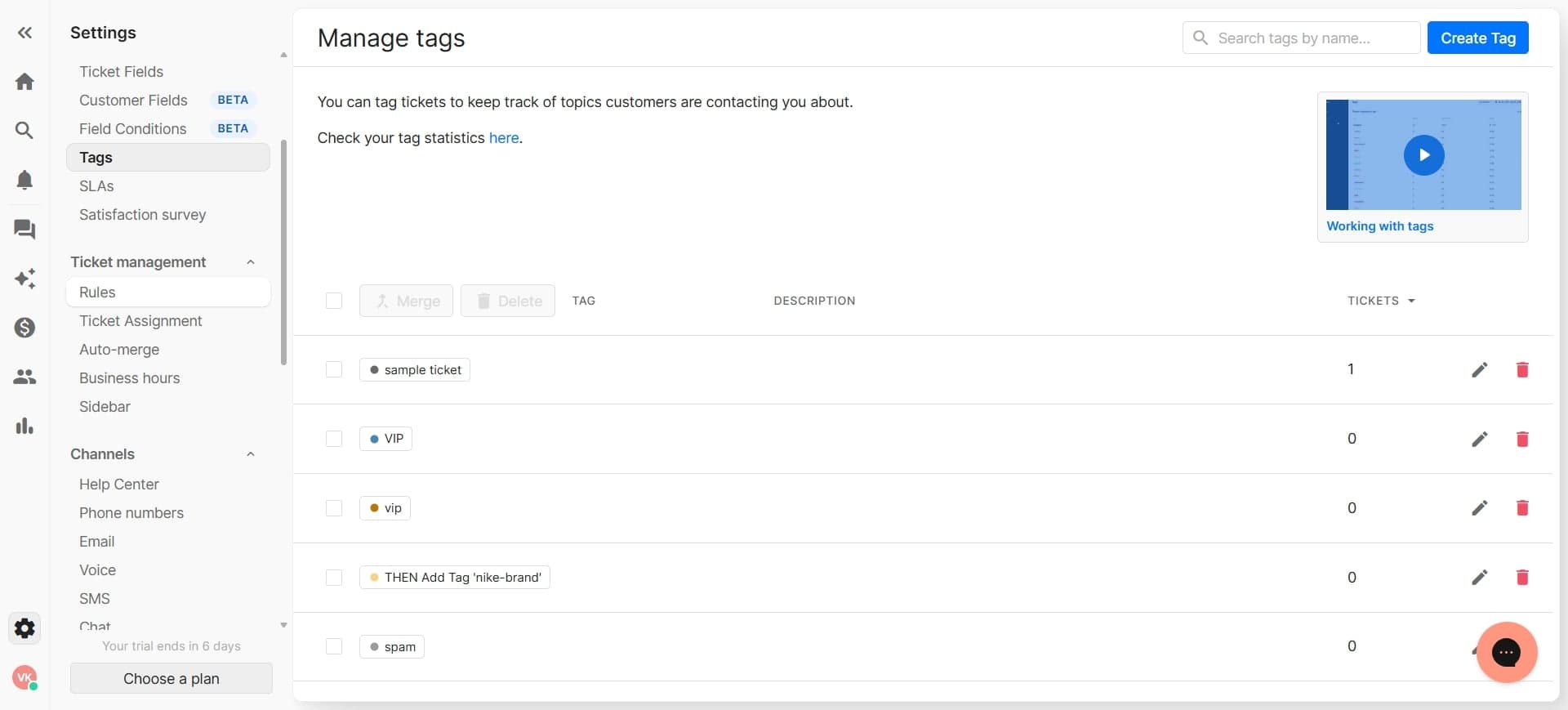
Set up approval workflows
Define who needs to approve deletion requests before they're executed. Establish notification rules so designated team members receive alerts when new requests arrive.
- 6
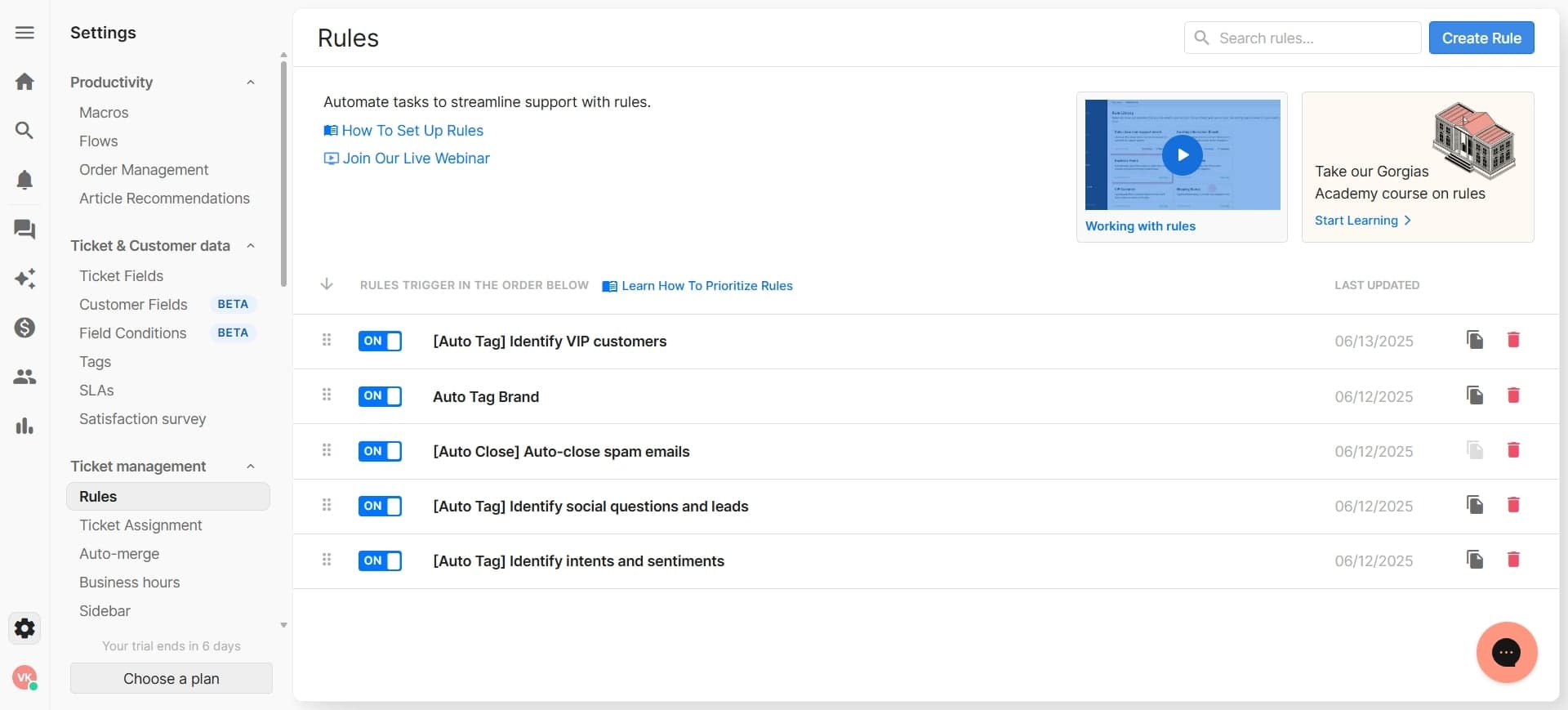
Define data scope for deletion
Specify which customer data categories will be deleted when a request is approved. Include options like conversation history, personal information, and associated metadata.
- 7
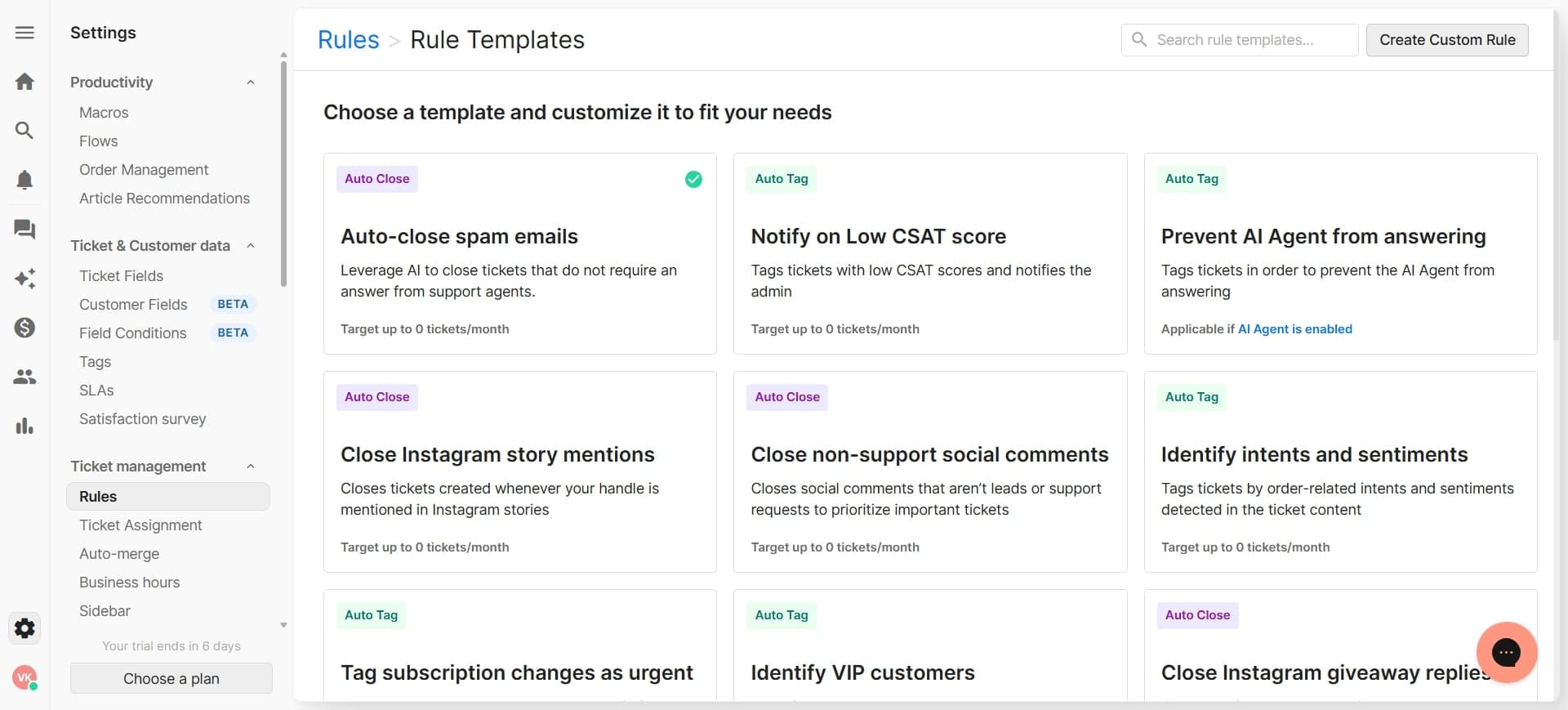
Configure retention policies
Set retention periods for different data types before automatic deletion occurs. Ensure these align with your legal obligations and business requirements.
- 8
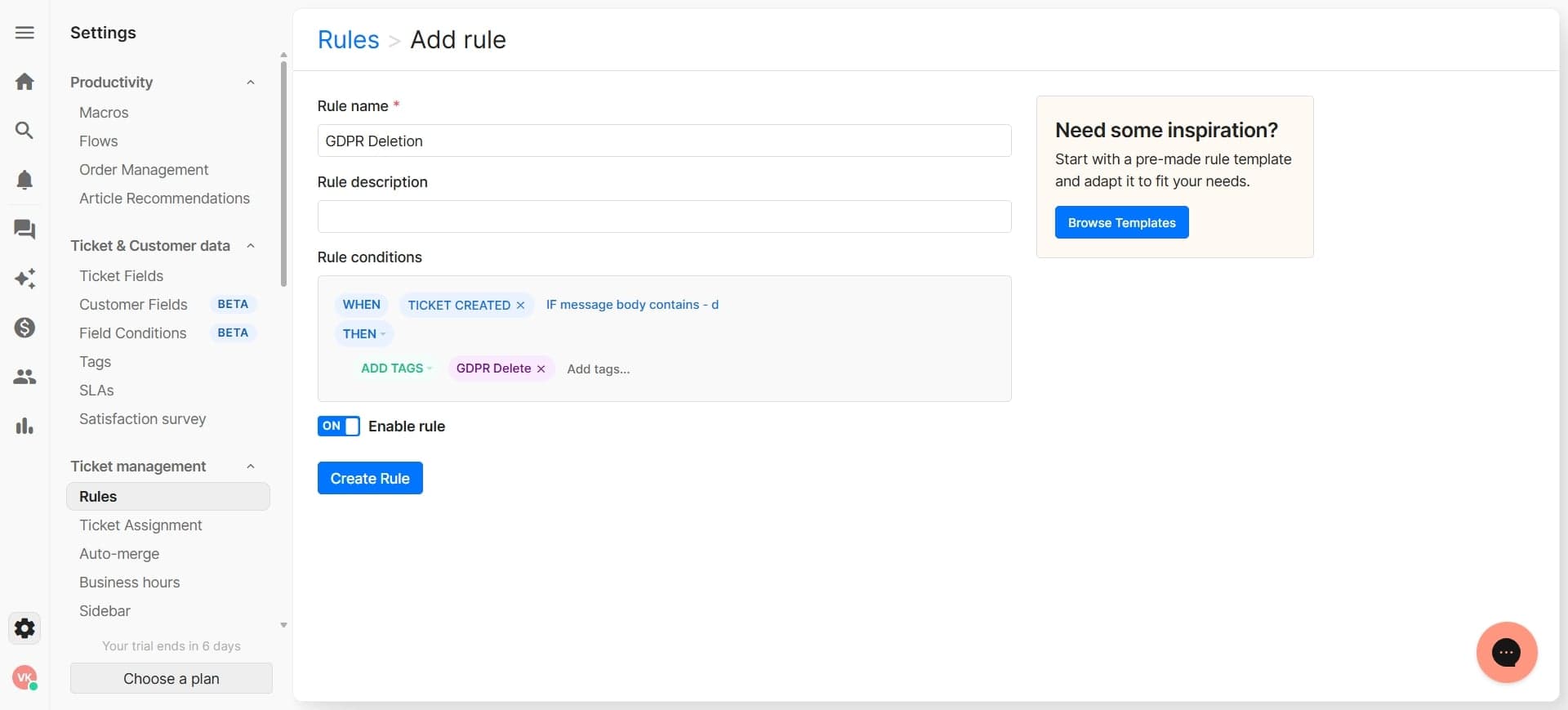
Enable audit logging
Activate audit trail recording so every deletion request and action is logged with timestamps and user information. This documentation is essential for proving GDPR compliance.
- 9
Test and activate the workflow
Run a test deletion request through the complete workflow to verify each step functions correctly. Once confirmed, activate the automated process for your support team.
Frequently asked questions
Common questions about how to automate gdpr-compliant data deletion requests in gorgias.
How long does a customer have to request data deletion after contacting us?
Under GDPR, you must process deletion requests within 30 days of receipt. Gorgias allows you to set custom timeframes for your organization, and automated reminders can notify team members of approaching deadlines to ensure timely compliance.
What data should be included in a deletion request?
A GDPR deletion request should include the customer's name, email address, customer ID, and any other identifiers used in your system. You can customize your Gorgias deletion request form to capture exactly what information you need to locate and verify the customer before proceeding with deletion.
Can we deny a deletion request?
Yes, under GDPR there are legitimate reasons to deny deletion requests, such as legal obligations to retain data or active disputes. Gorgias allows you to document denial reasons and maintain audit trails, which provides legal protection when rejecting requests appropriately.
How do we prove we've complied with deletion requests?
Gorgias generates detailed audit logs for every deletion request, including submission date, approval date, execution date, and who performed each action. These logs serve as documentation of your GDPR compliance and can be provided to regulators or customers if needed.
Does deletion also remove data from backups?
Gorgias deletes active customer data immediately upon approval, but you should maintain a separate backup retention policy aligned with your legal requirements. Review your data backup procedures independently to ensure they comply with GDPR standards for archived data.