How to Build Custom HTTP Integrations for Gorgias

Custom HTTP integrations in Gorgias allow you to connect external systems and automate workflows beyond pre-built connectors. This guide walks you through building a custom HTTP integration from start to finish, enabling you to extend Gorgias functionality to match your unique business needs.
Quick summary
In this tutorial, you'll learn how to set up custom HTTP integrations in Gorgias by configuring endpoints, authentication, request parameters, and response handling. You'll gain the skills to connect third-party APIs and automate data flows between Gorgias and your other business tools.
Why this matters
Custom HTTP integrations eliminate manual data entry and reduce errors by automating communication between Gorgias and your existing systems. Businesses that leverage these integrations see faster response times, better data consistency, and the ability to create workflows that aren't possible with standard connectors alone.
Step-by-step guide
- 1
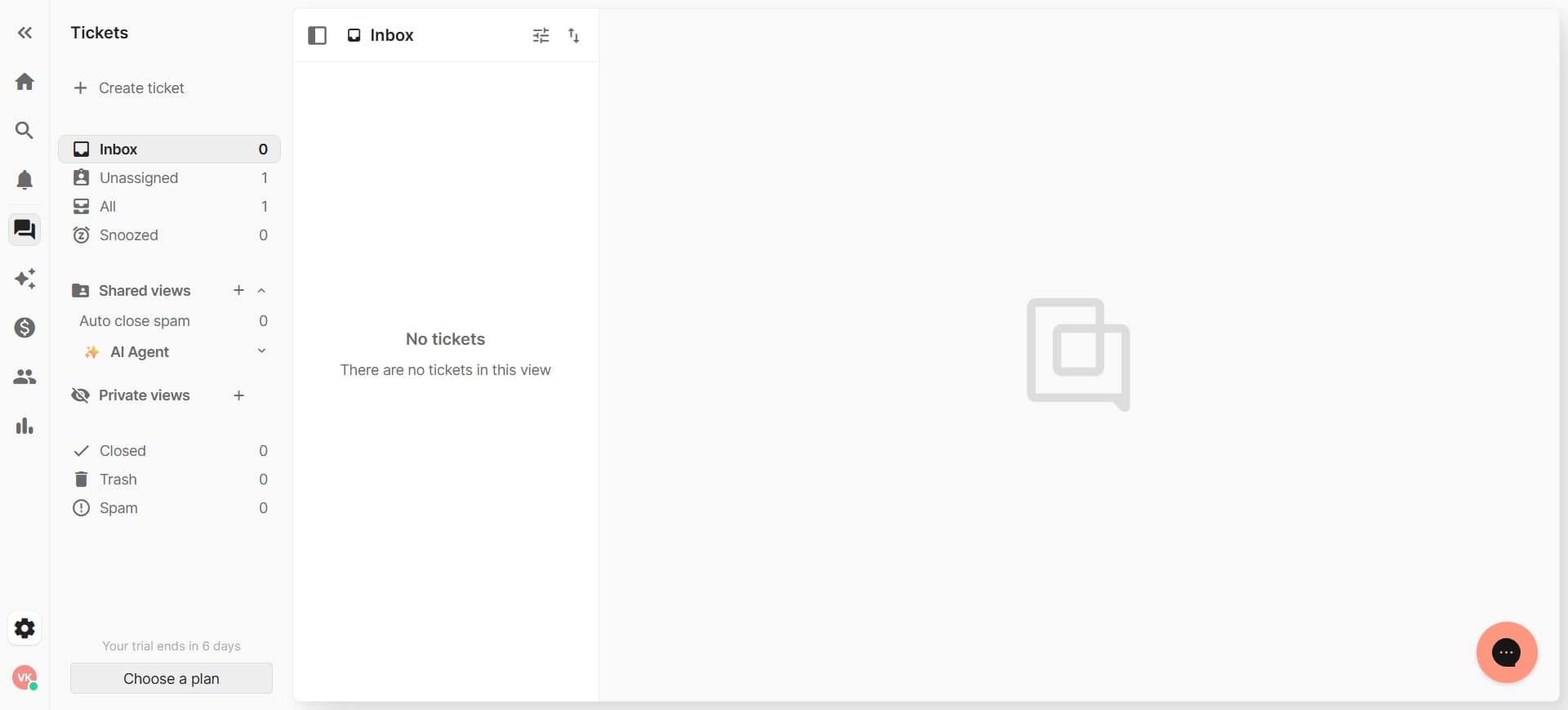
Navigate to the integrations section
Log into your Gorgias account and access the integrations or apps menu from the main navigation. This is where you'll manage all external connections and create new custom integrations.
- 2
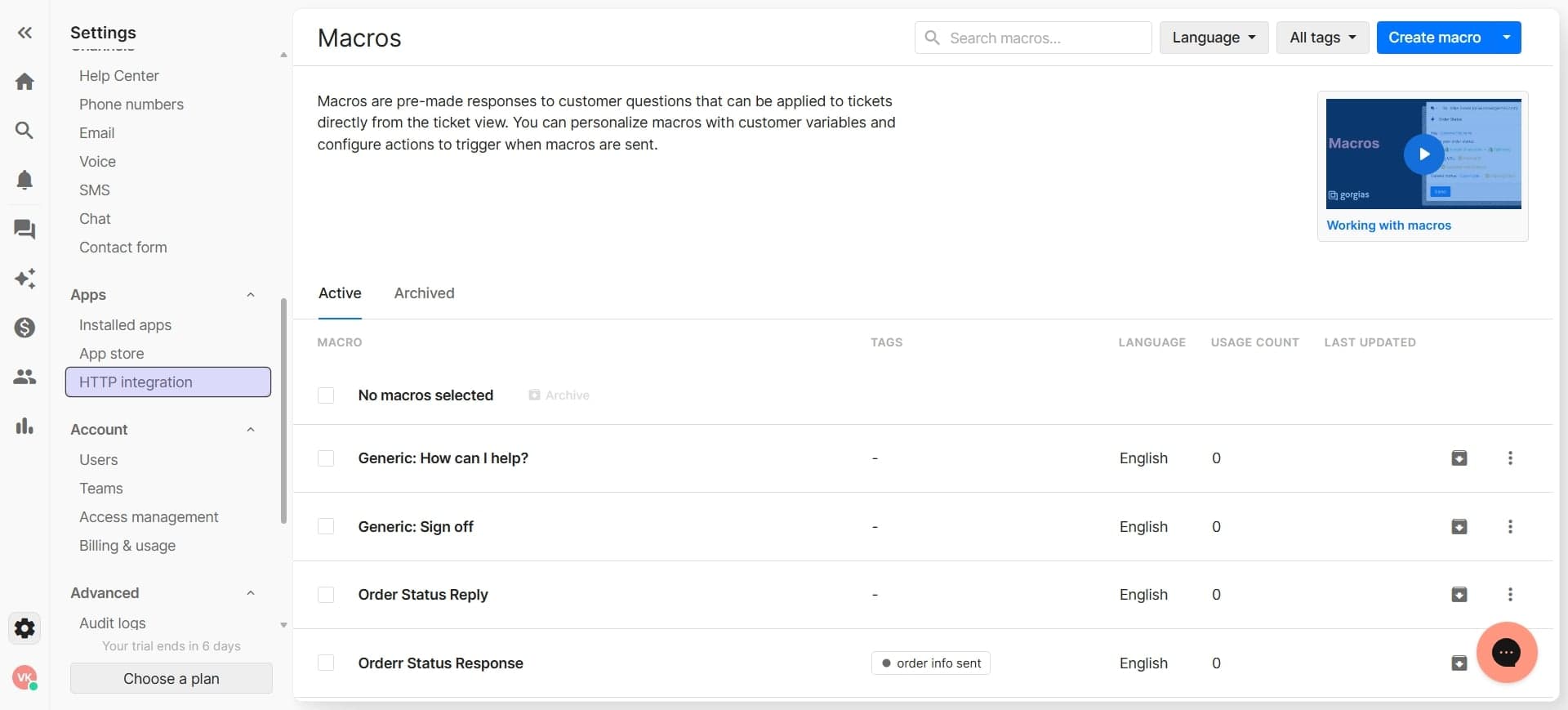
Select create custom HTTP integration
Look for an option to create a new integration or add a custom HTTP connection. Click this button to begin the setup process for your custom integration.
- 3
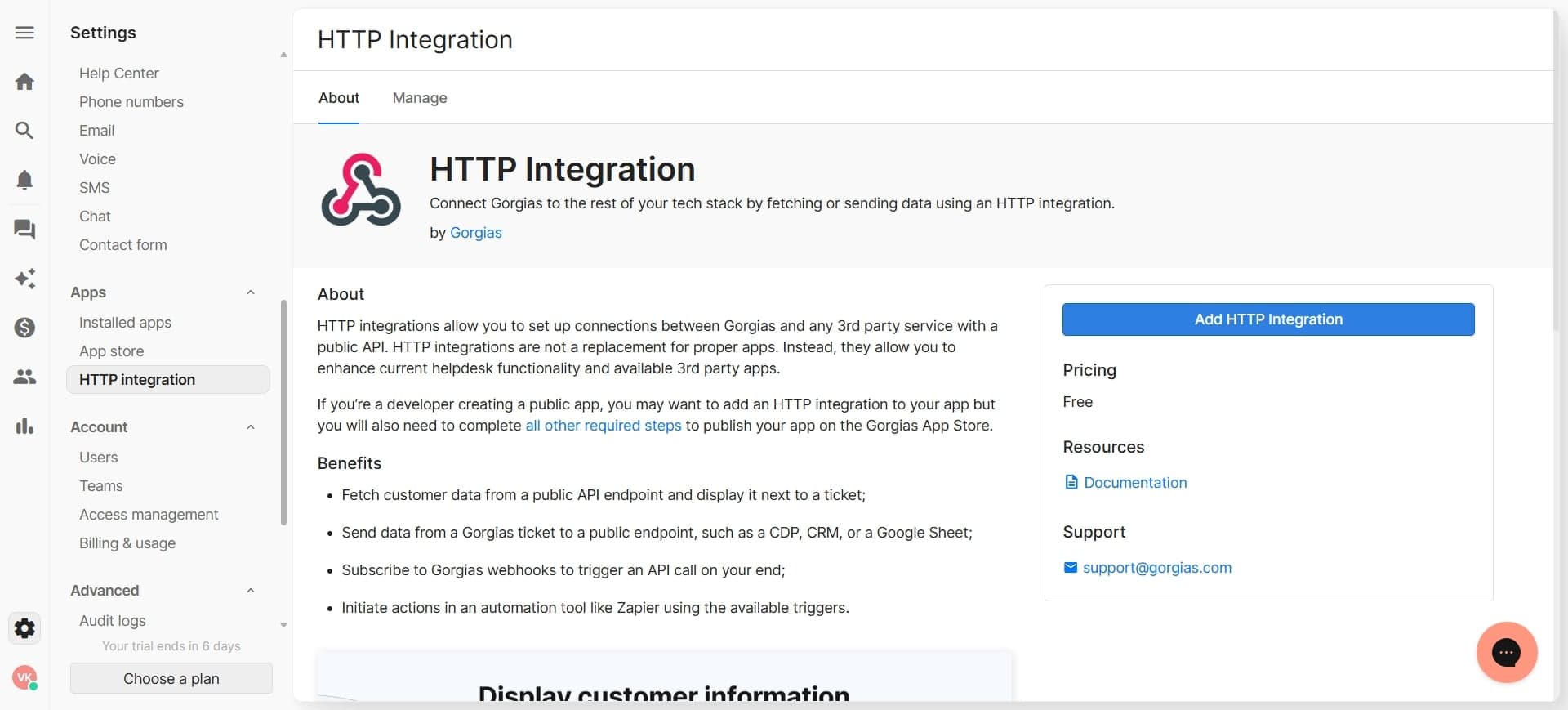
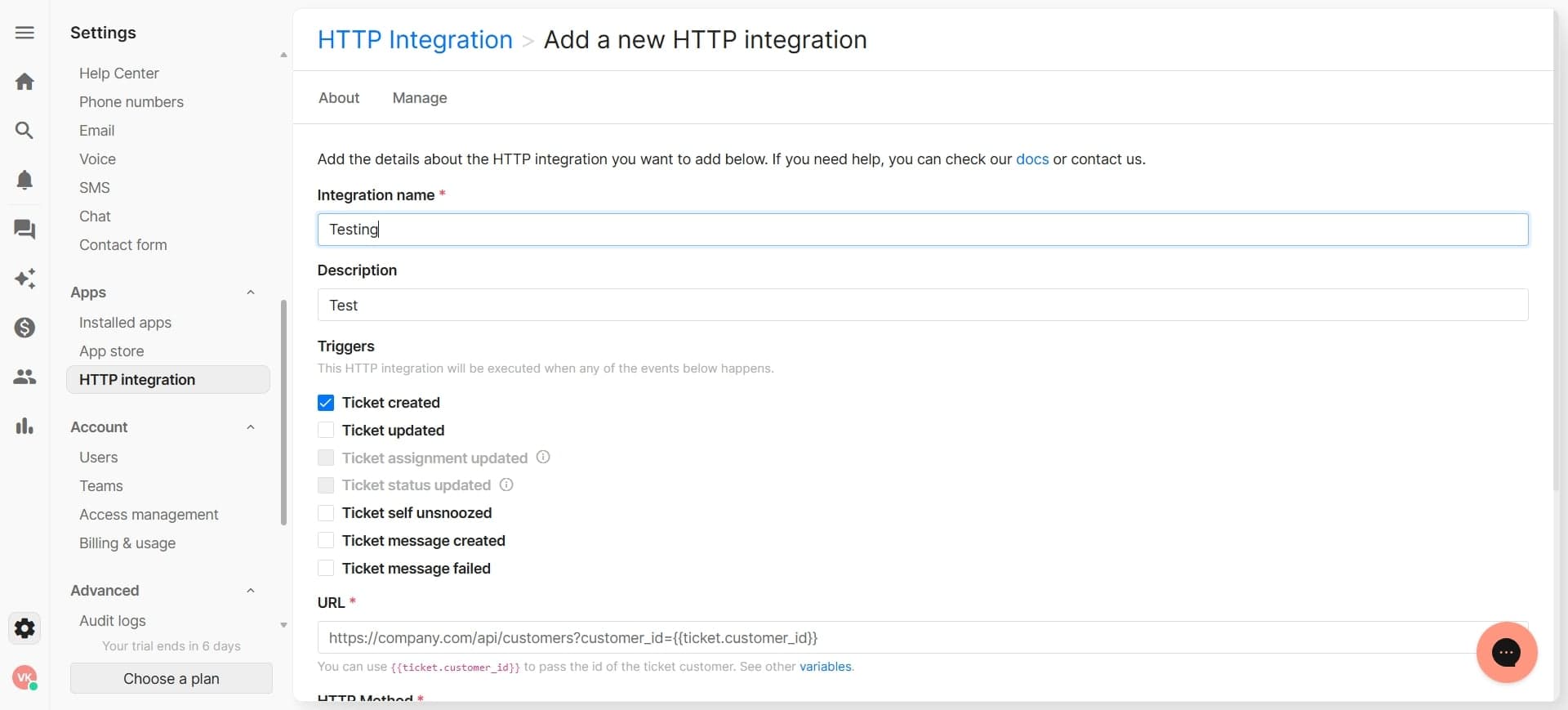
Enter integration name and description
Provide a clear name for your integration that identifies the external system you're connecting to. Add a brief description of what this integration does to help team members understand its purpose.
- 4
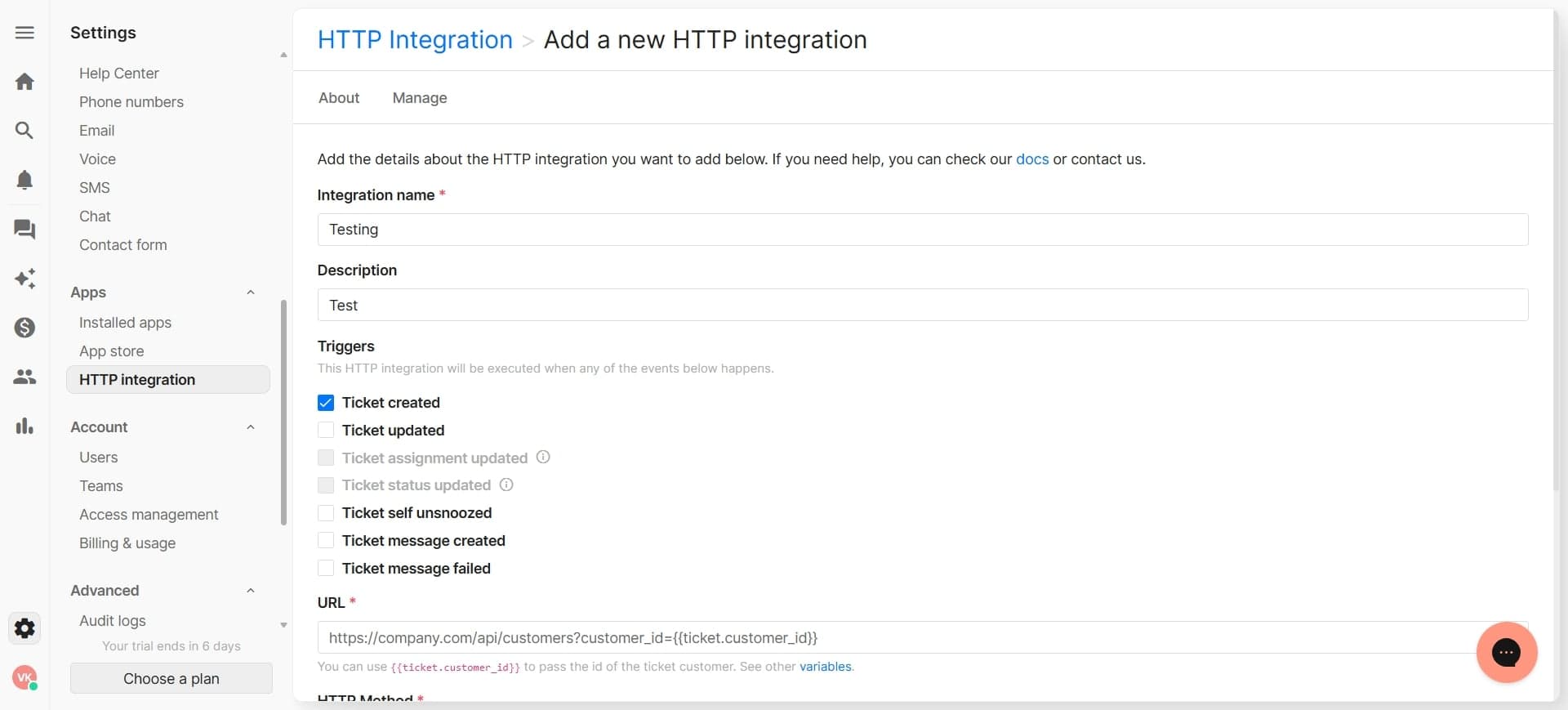
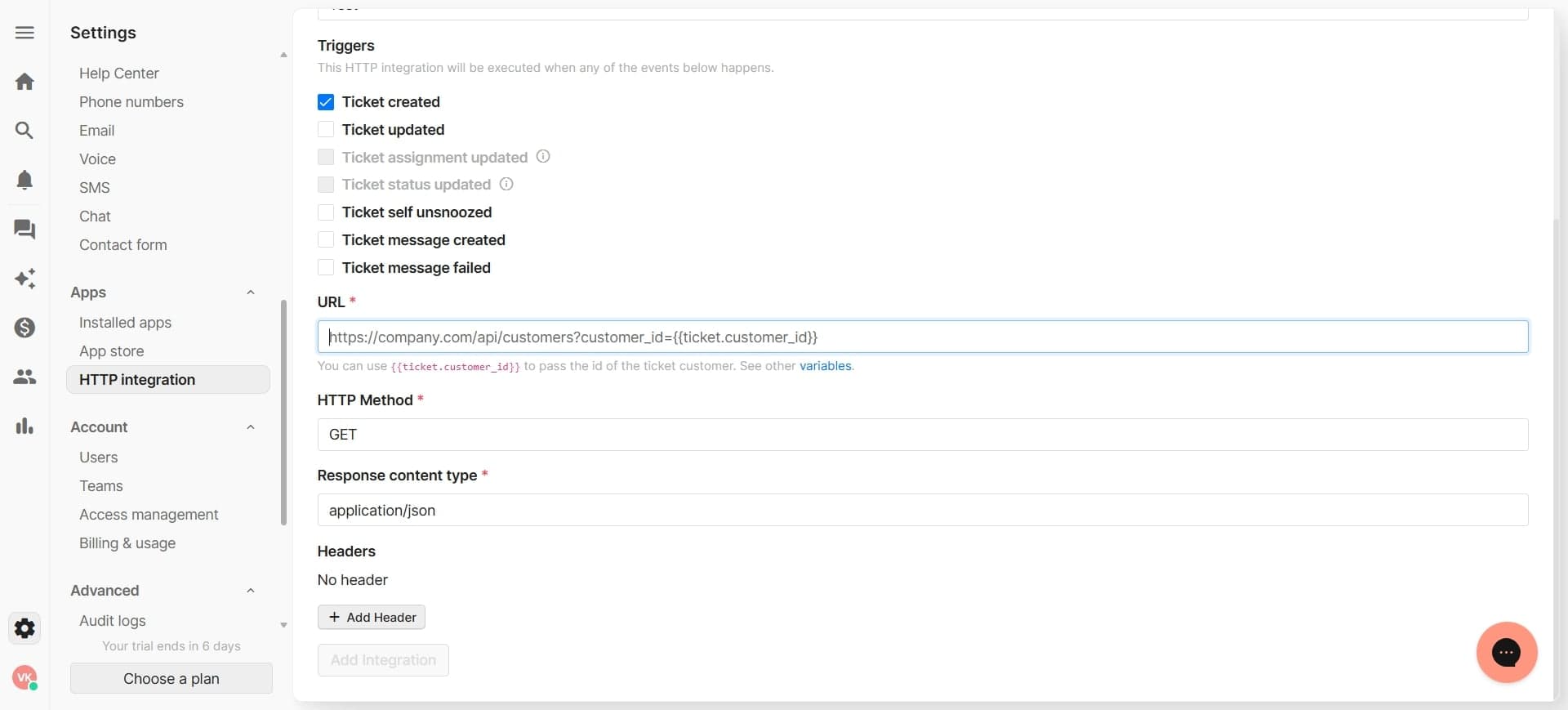
Configure the HTTP endpoint URL
Enter the base URL of the external API you're connecting to. This URL will receive requests from Gorgias when your integration triggers.
- 5
Select authentication method
Choose the appropriate authentication type for your API, such as API key, Bearer token, Basic auth, or OAuth. Enter the required credentials securely in the designated fields.
- 6
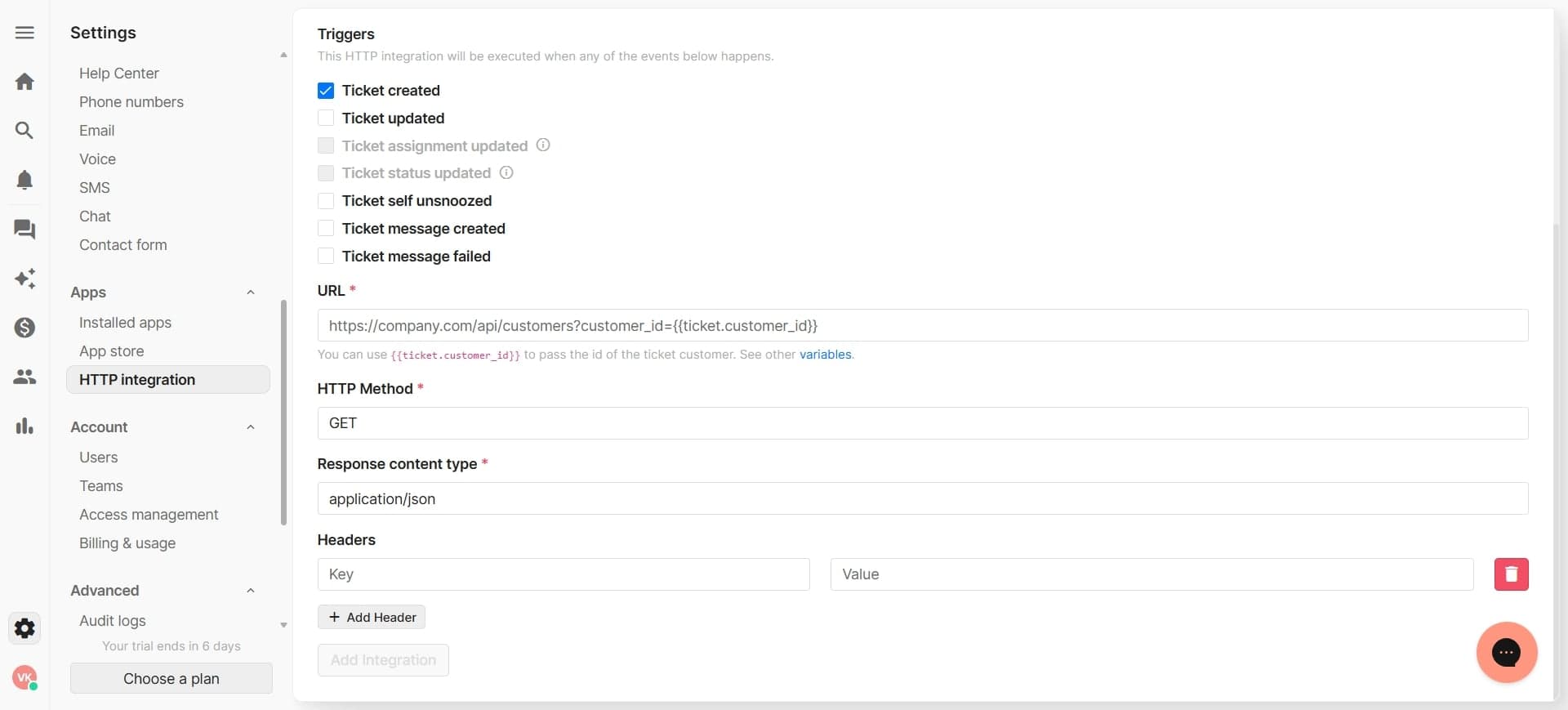
Define request parameters and headers
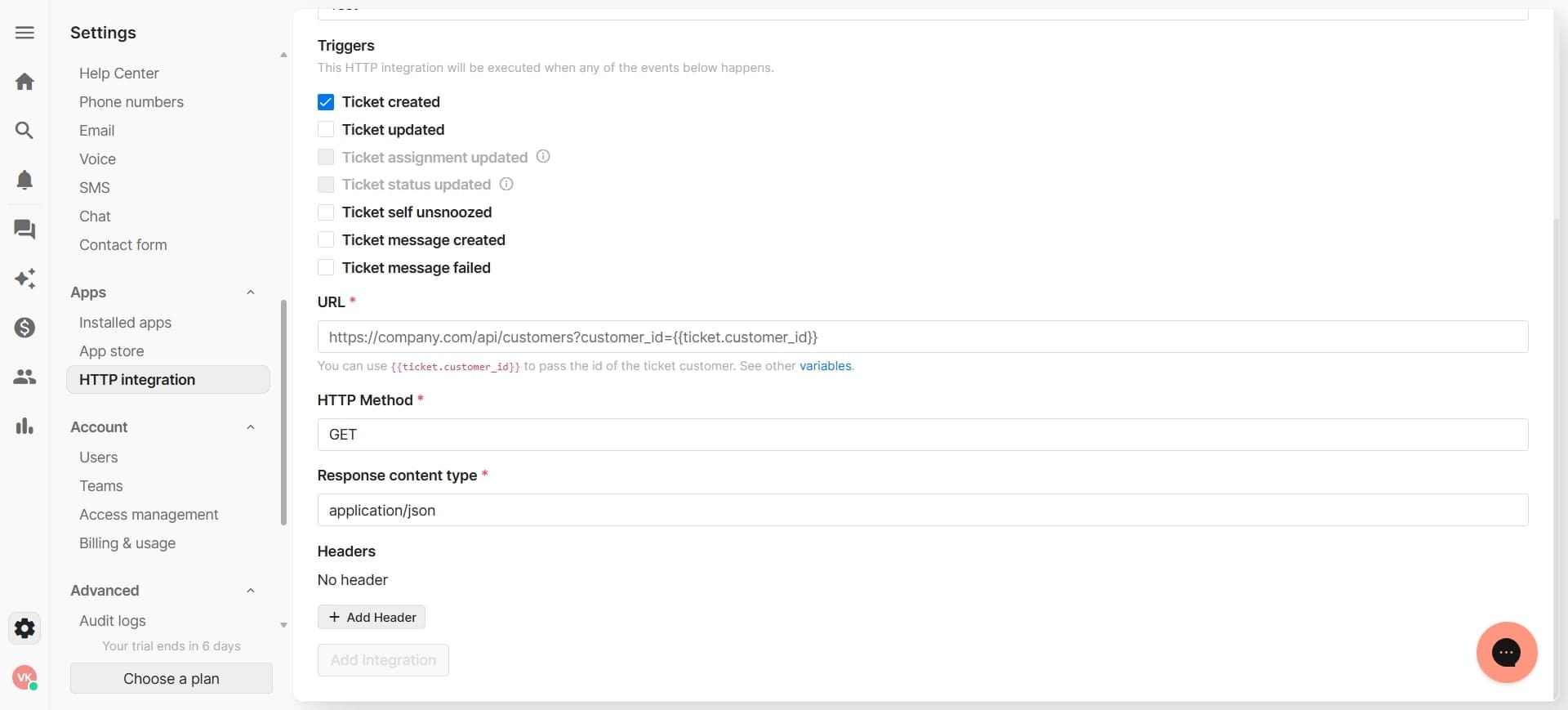
Map the data you want to send to the external API by configuring request parameters and custom headers. Specify which Gorgias fields should be included in each API request.
- 7
Set up request body formatting
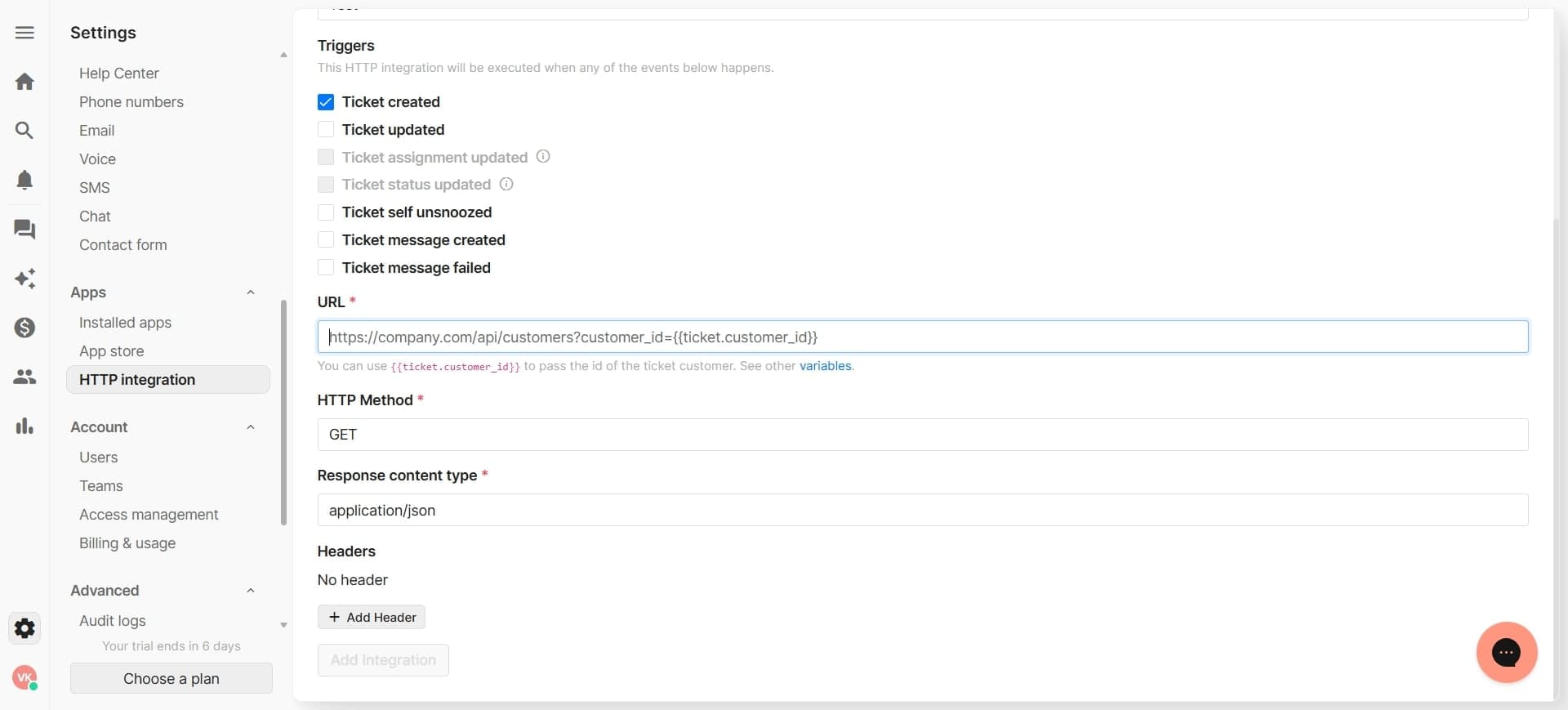
Define how your data should be structured in the HTTP request body, typically as JSON or form-encoded data. Configure any transformations or field mappings needed to match your API's expected format.
- 8
Configure response handling
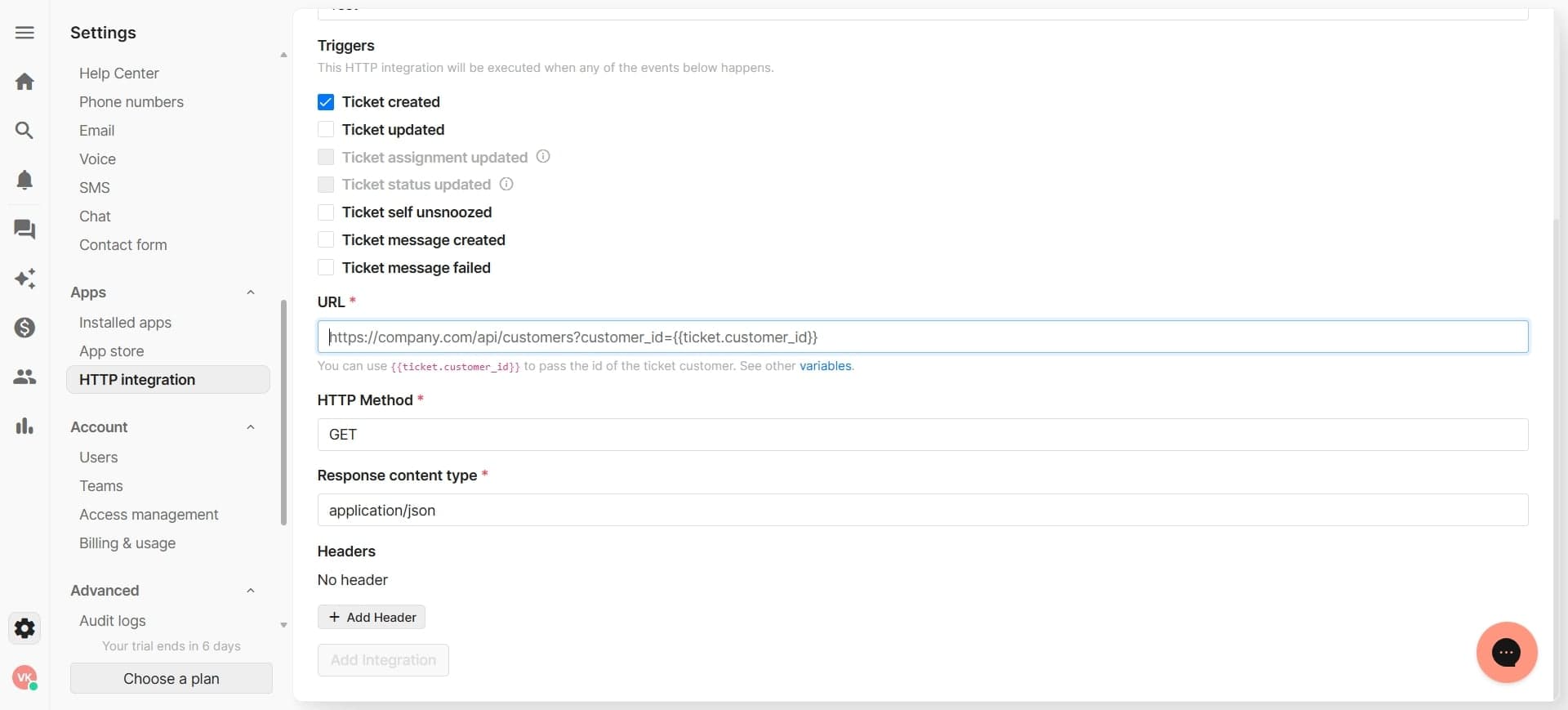
Specify how Gorgias should handle the API response, including success and error conditions. Map response fields back to Gorgias if you need to capture data returned by the external system.
- 9
Test the integration connection
Use the built-in test feature to send a sample request to your external API. Verify that the connection succeeds and the response data is handled correctly.
- 10
Enable and deploy the integration
Once testing is complete, enable the integration to make it available for use in your Gorgias workflows. You can now trigger this integration from rules, automations, or manual actions.
Frequently asked questions
Common questions about how to build custom http integrations for gorgias.
What types of external APIs can I connect to Gorgias?
You can connect to virtually any REST API that supports HTTP requests, including CRM systems, payment processors, inventory management tools, and custom internal APIs. As long as the external service has a documented API with endpoint URLs and authentication, you can build an integration.
Which authentication methods does Gorgias support for custom HTTP integrations?
Gorgias supports multiple authentication methods including API keys, Bearer tokens, Basic authentication, OAuth 2.0, and custom headers. Check your external API's documentation to determine which method it requires, then enter the appropriate credentials in the integration setup.
How do I test my custom HTTP integration before going live?
Gorgias provides a test feature that allows you to send sample requests to your configured endpoint without affecting your live data. Review the response to ensure the connection works and data is formatted correctly before enabling the integration for production use.
Can I use custom HTTP integrations to sync data both ways between Gorgias and external systems?
Yes, you can configure bidirectional syncing by setting up separate integrations or using webhooks to listen for changes in external systems. For incoming data, you'll need to configure the external system to send HTTP requests to Gorgias when data changes.
What should I do if my HTTP integration returns an error?
Check the error message in Gorgias to identify the issue, which may be related to authentication, incorrect endpoint URL, malformed request data, or API rate limits. Verify your credentials, endpoint, and request parameters match your external API's requirements, then test the connection again.