How to Bulk Import Historical Tickets into Gorgias from Zendesk

Migrating historical tickets from Zendesk to Gorgias requires a structured bulk import process to ensure data integrity and continuity of customer support records. This guide walks you through the essential steps to export your ticket data from Zendesk and import it into Gorgias without losing critical information.
Quick summary
In this tutorial, you'll learn how to export historical tickets from Zendesk, prepare the data for migration, and bulk import them into Gorgias. By following these steps, you'll establish a complete ticket history in your new support platform while maintaining all customer context and communication records.
Why this matters
Preserving historical tickets during a platform migration is crucial for maintaining customer context, audit trails, and support continuity. Without a proper bulk import process, you risk losing valuable ticket data and the ability to reference past interactions, which can impact customer service quality and compliance requirements.
Step-by-step guide
- 1
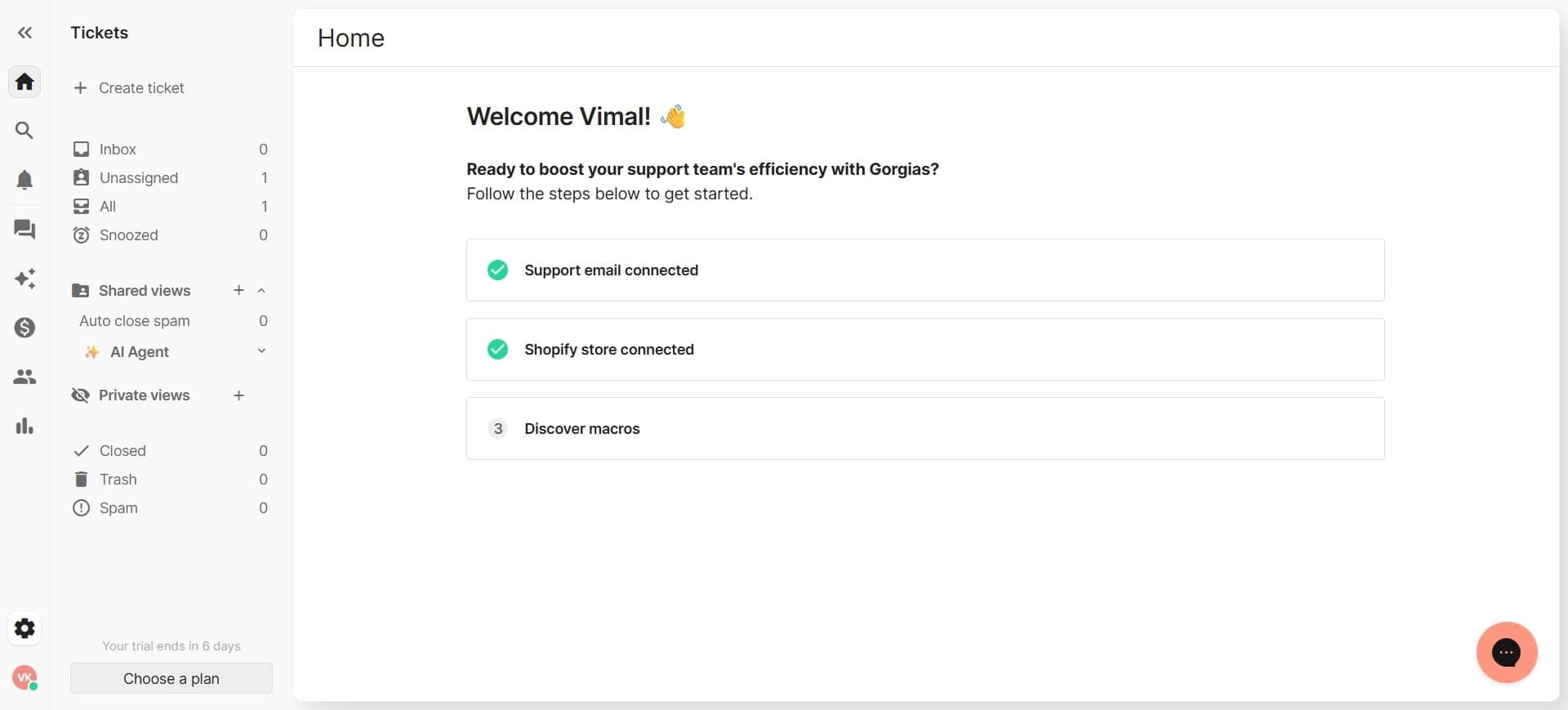
Access Zendesk admin settings
Log into your Zendesk account with administrator privileges and navigate to the Admin section. Look for the Settings or Tools menu where you can access data export and integration options.
- 2
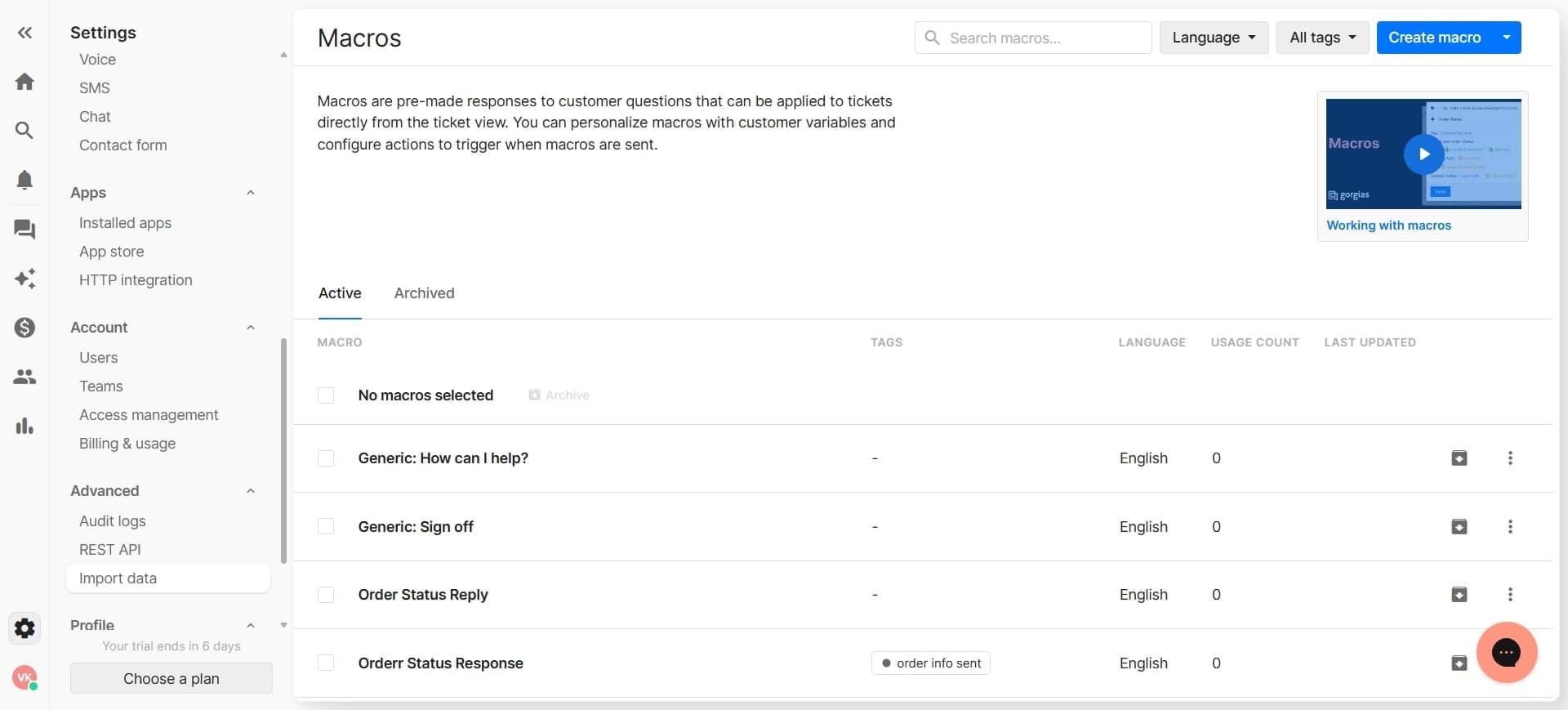
Locate the ticket export function
Find the option to export tickets or access the API/data export tools within Zendesk's admin panel. This is typically found under Tools, Integrations, or Data Management sections depending on your Zendesk plan.
- 3
Configure export parameters
Select the date range, ticket statuses, and fields you want to include in your export. Ensure you're capturing all necessary data such as ticket IDs, customer information, conversation history, and custom fields that exist in Gorgias.
- 4
Generate and download the export file
Initiate the export process and download the resulting file, which will typically be in CSV or JSON format. Save this file securely and verify that all expected tickets and data are included before proceeding.
- 5
Map Zendesk fields to Gorgias fields
Review Gorgias's field mapping requirements and adjust your export data to match the expected format. This ensures that Zendesk ticket data aligns correctly with Gorgias fields like customer name, email, ticket status, and message content.
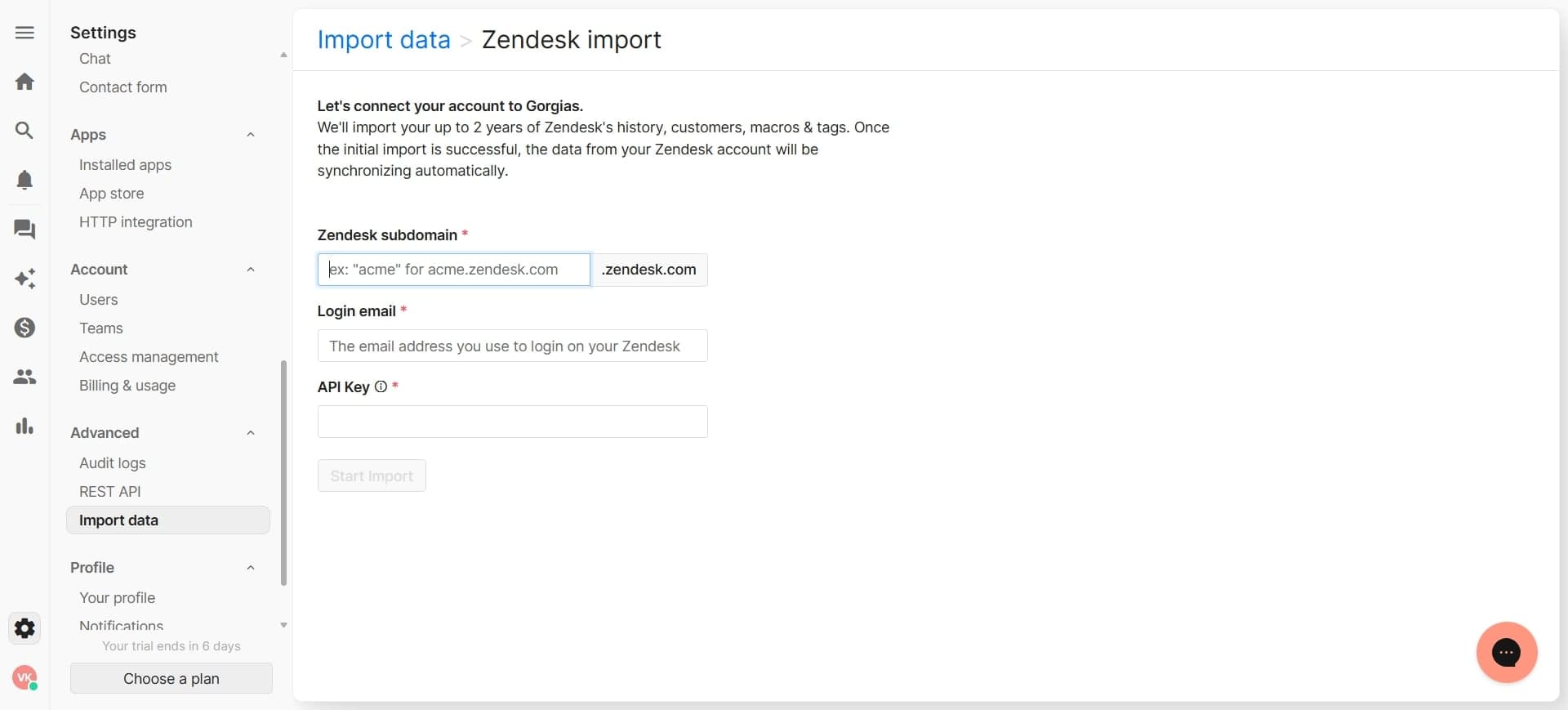
- 6
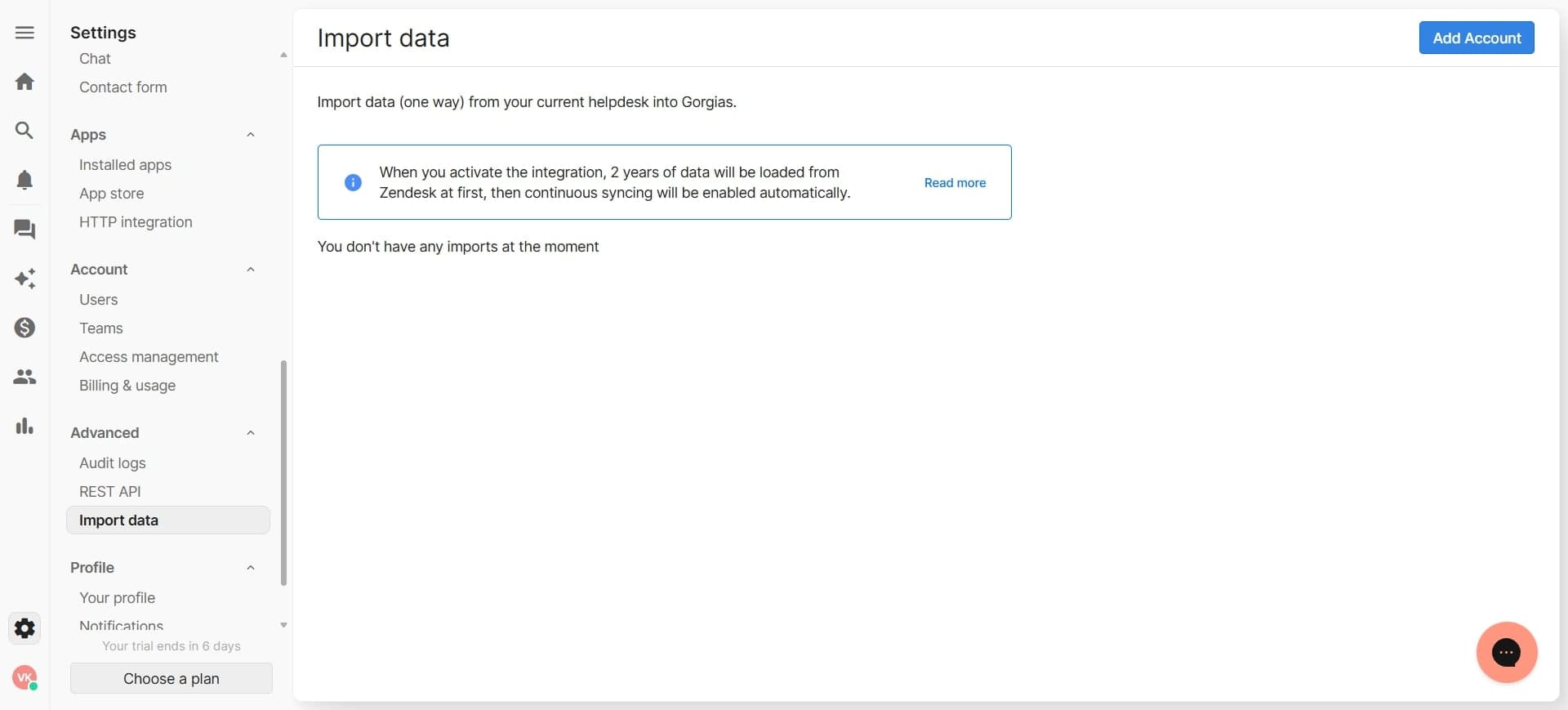
Access Gorgias import settings
Log into Gorgias and navigate to the import or data migration section, typically found in Settings or Integration options. This is where you'll upload your prepared ticket data for bulk import.
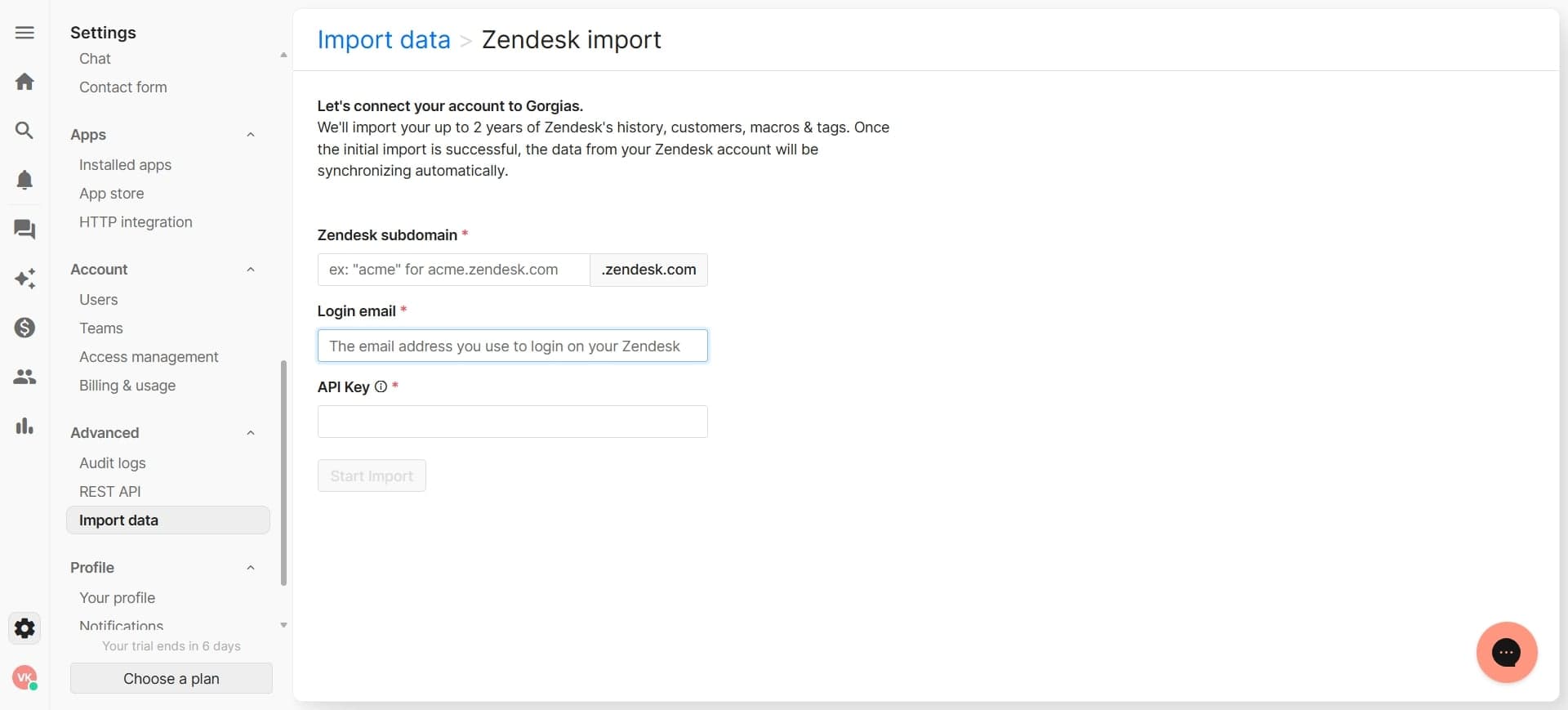
- 7
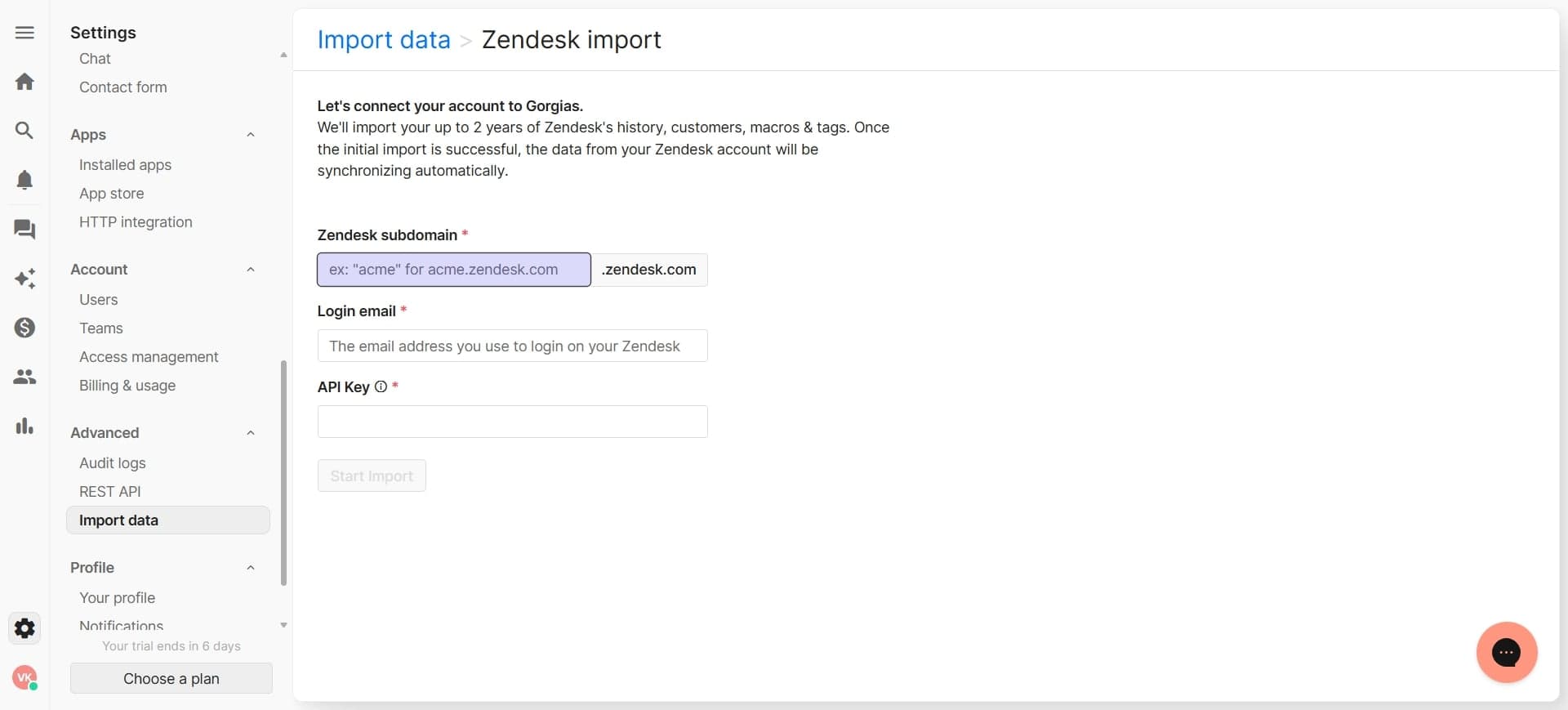
Upload and confirm the import
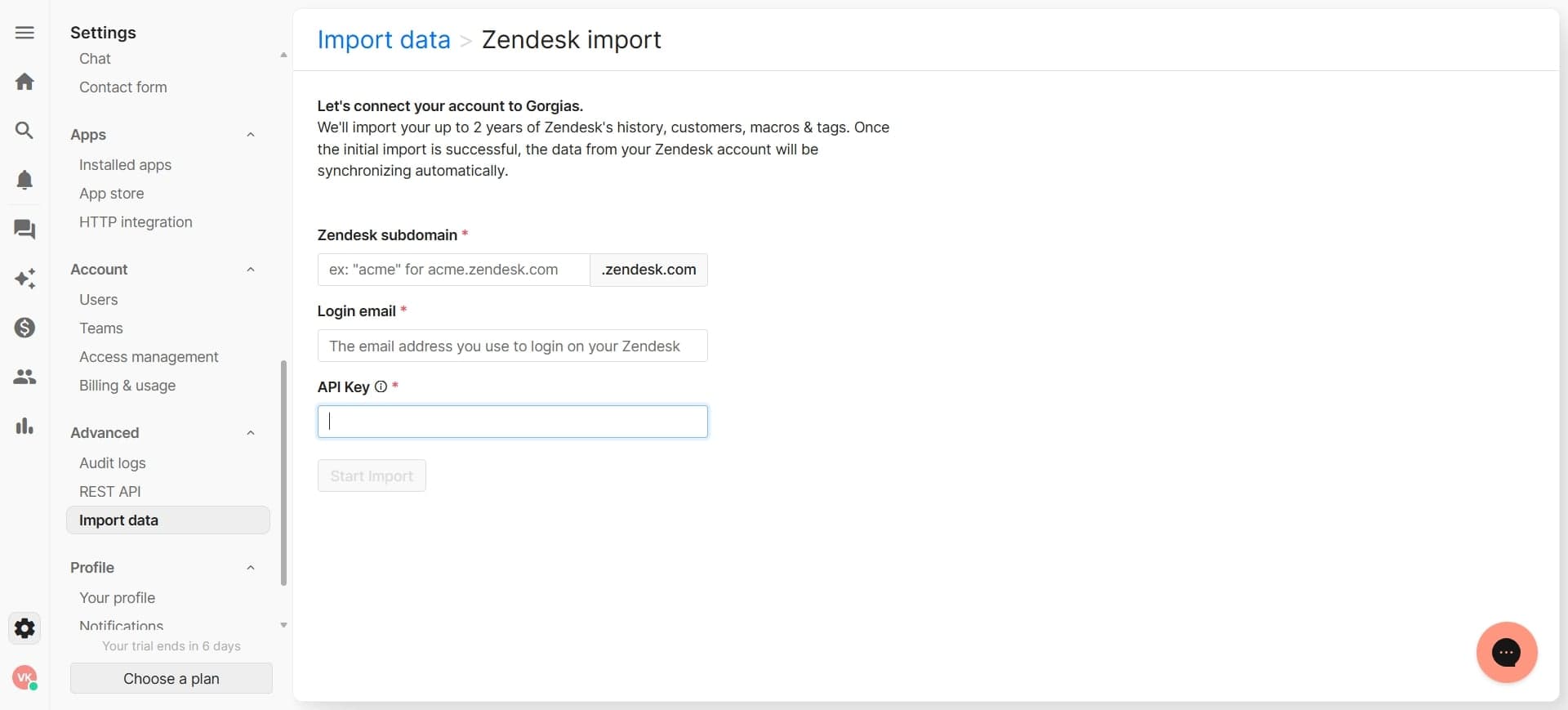
Select your prepared file and upload it to Gorgias, then review the preview to confirm all data will be imported correctly. Complete the import process and monitor for any errors or warnings that may require data adjustments.
Frequently asked questions
Common questions about how to bulk import historical tickets into gorgias from zendesk.
What file formats does Gorgias accept for ticket imports?
Gorgias typically accepts CSV and JSON file formats for bulk ticket imports. Check your Gorgias documentation or contact support to confirm the exact format requirements and any file size limitations that may apply to your import.
Will custom fields from Zendesk transfer to Gorgias automatically?
Custom fields require manual mapping between Zendesk and Gorgias since the platforms may use different field structures. You'll need to identify which Zendesk custom fields correspond to Gorgias custom fields and adjust your export data accordingly during the mapping phase.
Can I import tickets with their full conversation history?
Yes, most bulk import processes preserve conversation history and message threads from Zendesk. Ensure your export includes all message content and timestamps, and verify during the preview step that conversations are properly structured before completing the import.
How long does a bulk import typically take?
Import duration depends on the number of tickets being transferred, typically ranging from minutes to hours for large datasets. Gorgias will usually provide progress updates during the import, and you should avoid making changes to imported data until the process is fully complete.
What should I do if the import fails or has errors?
Review the error report provided by Gorgias to identify problematic rows or fields, then correct the issues in your export file and retry the import. Contact Gorgias support if errors persist, providing them with details about the specific data causing the failure.