How to comment on a Google Sheets

Collaborating effectively in Google Sheets often requires sharing feedback and discussing specific cells or data. Adding comments is a powerful way to annotate your spreadsheet without modifying the actual content, making it ideal for team reviews, data validation, and ongoing discussions.
Quick summary
In this tutorial, you'll learn how to add comments to cells in Google Sheets, making it easy to provide feedback and communicate with collaborators. You'll discover how to access the comment feature and attach notes to specific locations in your spreadsheet.
Why this matters
Comments in Google Sheets streamline team communication by keeping feedback contextual and organized within the document itself. Rather than sending separate emails or messages, team members can see suggestions and discussions tied directly to the relevant data, improving clarity and reducing miscommunication.
Step-by-step guide
- 1
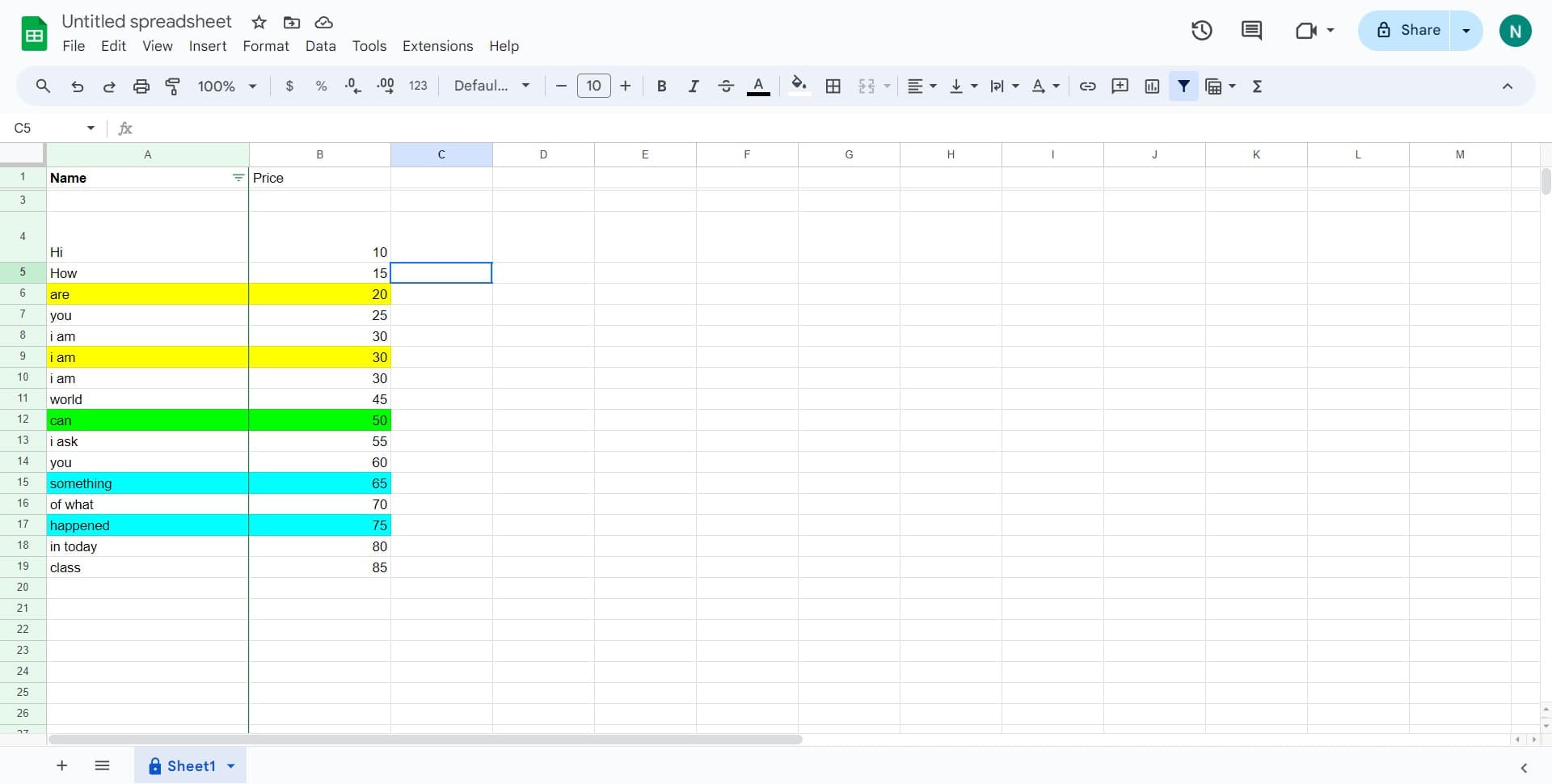
Select the target cell
Click on the cell where you want to add a comment. This cell will be the anchor point for your feedback or note.
- 2
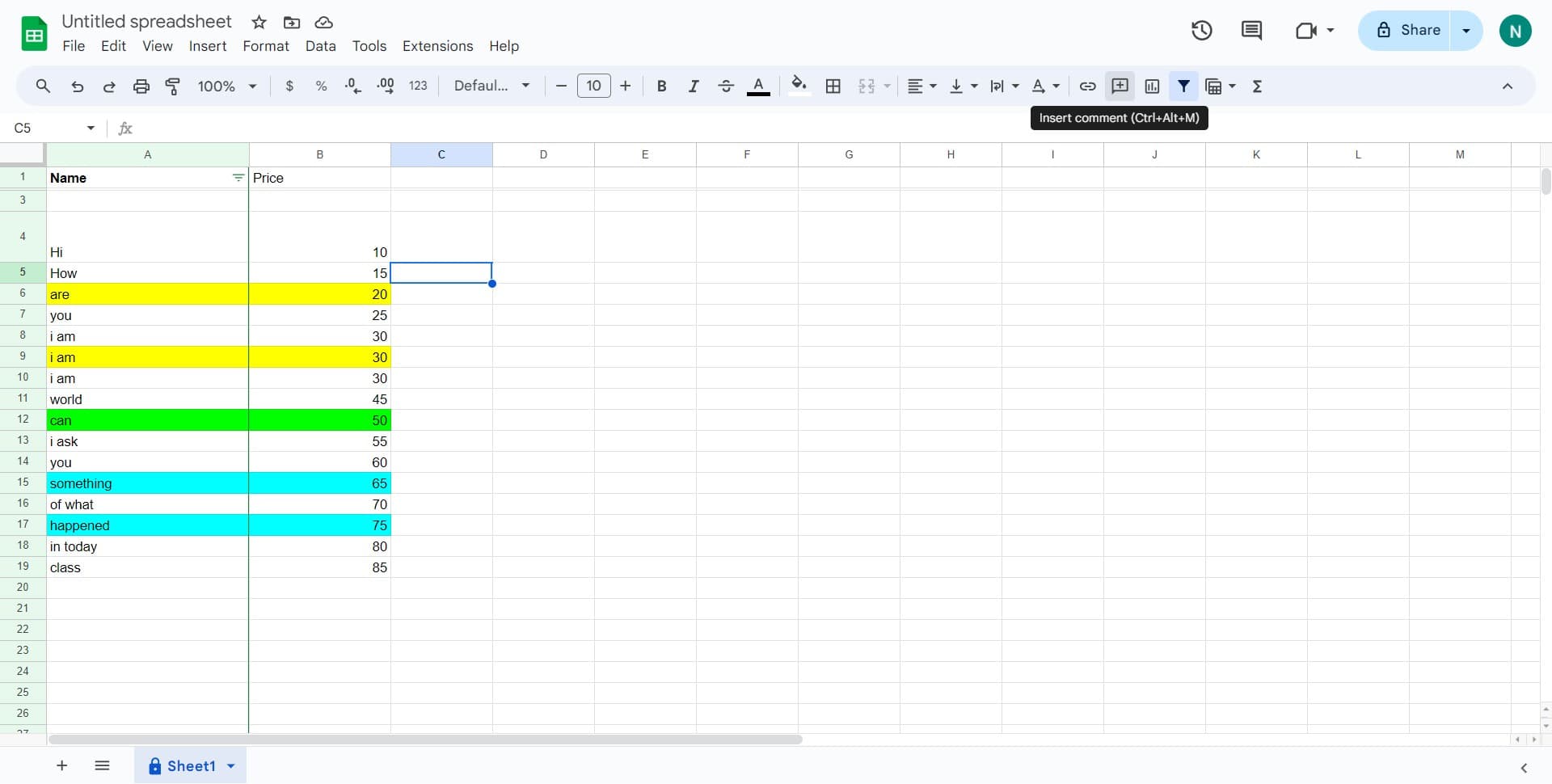
Access the comment menu
Right-click on the selected cell to open the context menu, or look for the comment icon in the toolbar. This will reveal options for adding a comment to that specific location.
- 3
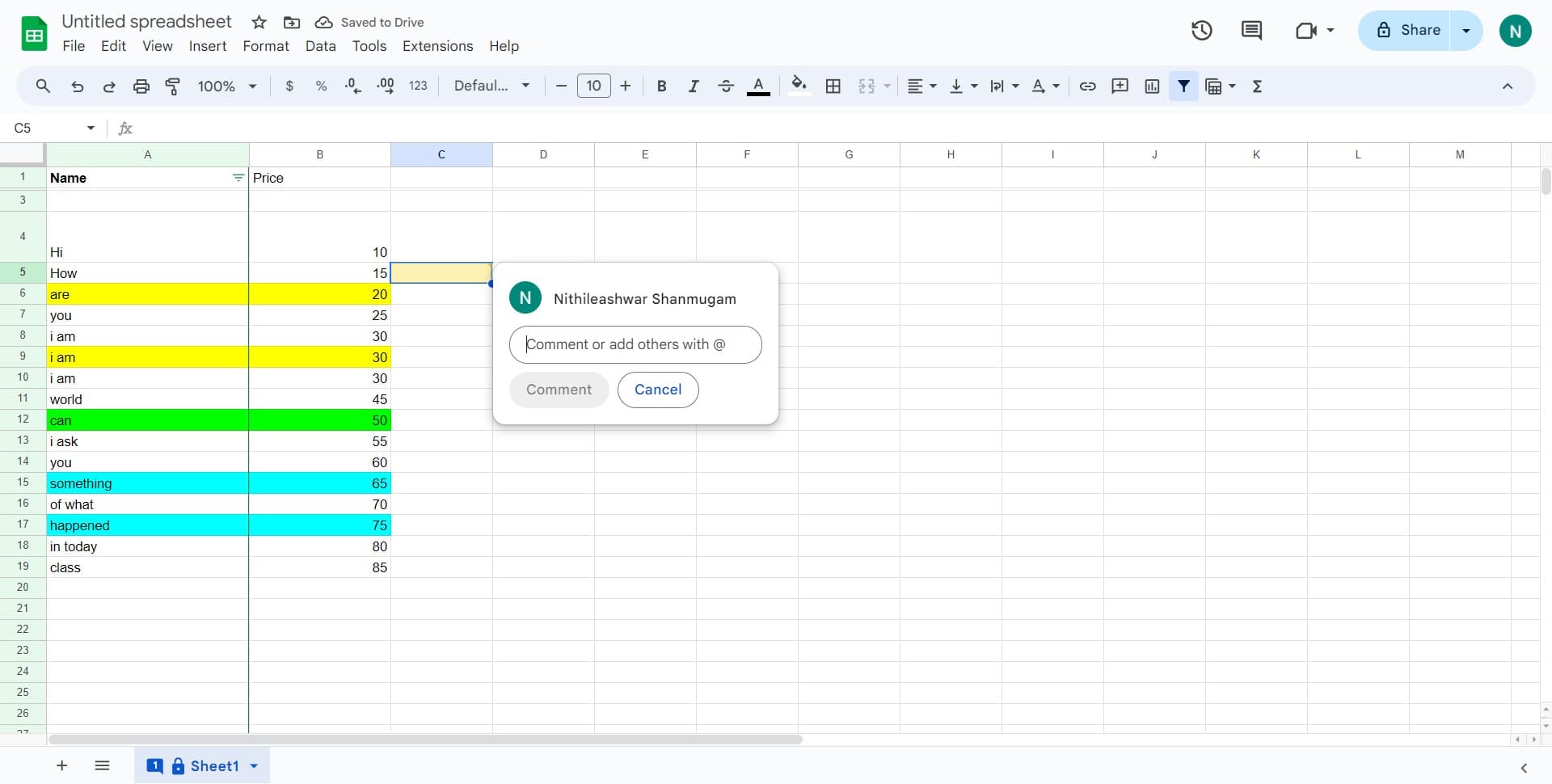
Open the comment box
Select the appropriate option from the menu that allows you to start a new comment. The comment input box will appear, ready for you to type your message.
- 4
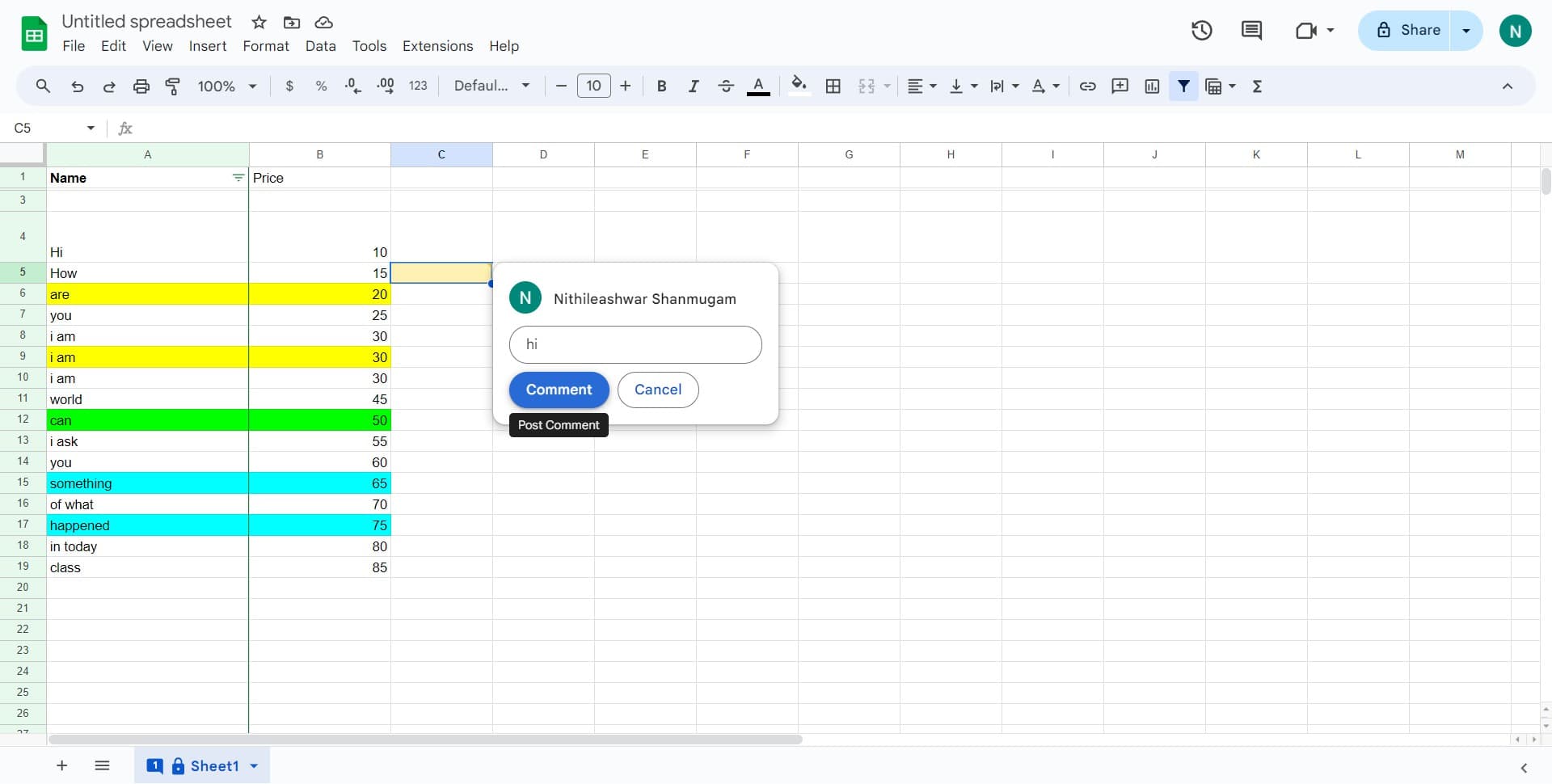
Click on Comment
Finalize your action by clicking the Comment button to confirm and submit your feedback. Your comment is now attached to the cell and visible to other collaborators with access to the sheet.
Frequently asked questions
Common questions about how to comment on a google sheets.
Can multiple people comment on the same cell?
Yes, Google Sheets allows multiple collaborators to add comments to the same cell. Each comment is tracked separately with the commenter's name and timestamp, creating a discussion thread within that cell. This is useful for team feedback and collaborative problem-solving.
How do I know if a cell has a comment?
Cells with comments display a small orange triangle in the top-right corner. Hovering over or clicking the cell will show the comment. You can also use the View menu to display all comments in your spreadsheet at once.
Can I edit or delete a comment after posting it?
Yes, you can edit your own comments by clicking the pencil icon within the comment box. To delete a comment, click the trash icon. However, only the comment author or sheet owner can delete comments.
What's the difference between a comment and a note in Google Sheets?
Comments are collaborative and appear in a side panel where multiple people can reply and discuss. Notes are simple annotations that only appear to the viewer and are not visible to others. Use comments for team feedback and notes for personal reminders.
Can I mention specific people in a comment?
Yes, you can use the @ symbol in your comment to mention specific collaborators. This sends them a notification about the comment, making it an effective way to direct attention to important feedback or questions.