How to create a filter in Google Sheets

Filtering data in Google Sheets allows you to display only the rows that meet your specific criteria, making it easier to analyze large datasets. This guide walks you through the process of applying filters to your spreadsheet using Google Sheets' built-in filter function. Whether you're managing sales data, customer information, or project tracking, filters help you focus on what matters most.
Quick summary
In this tutorial, you'll learn how to create a filter in Google Sheets step by step. You'll navigate through the Insert menu, access the Filter function, and apply filters to your data range. By the end, you'll be able to quickly sort and display only the information you need.
Why this matters
Filters are essential for anyone working with data in Google Sheets, as they save time and reduce errors when analyzing large spreadsheets. Rather than manually sorting or deleting rows, filters let you temporarily hide data that doesn't meet your criteria while keeping your original data intact. This is particularly valuable in business settings where you need to quickly extract insights from complex datasets.
Step-by-step guide
- 1
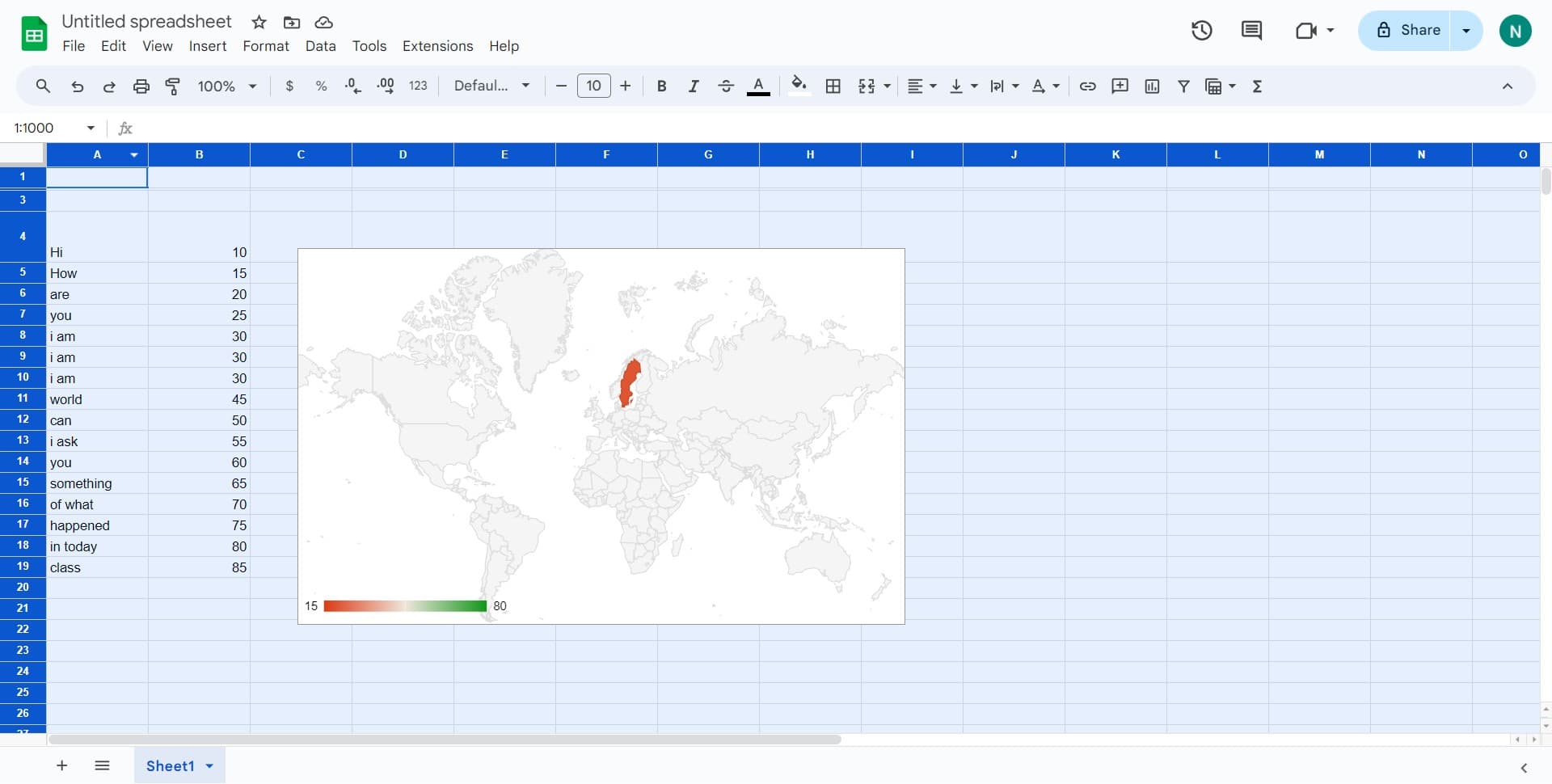
Select your data range
Click on the cell or range where your data begins. This selection will serve as the starting point for your filter, so ensure you've positioned your cursor correctly on the data you want to filter.
- 2
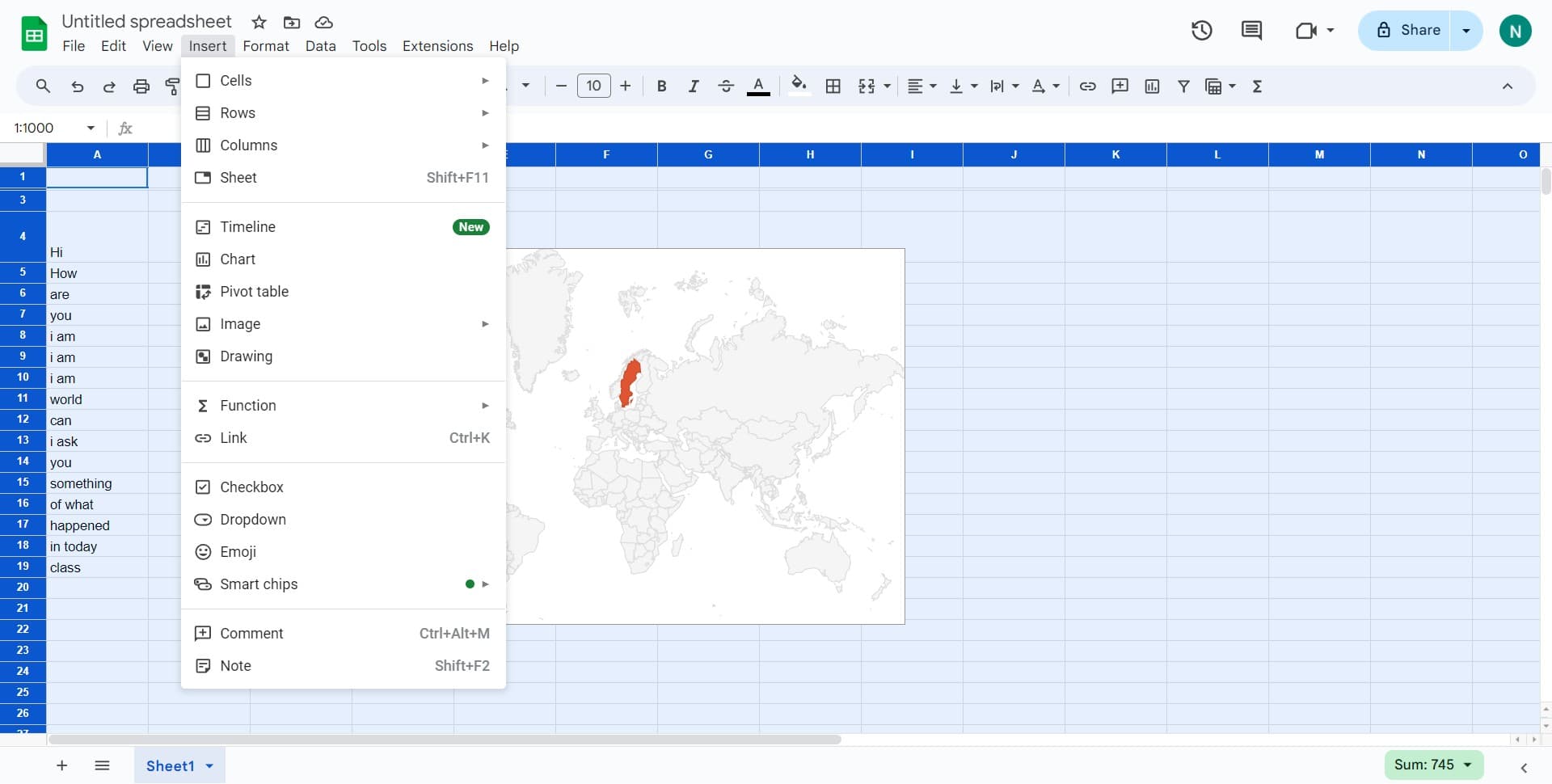
Open the Insert menu
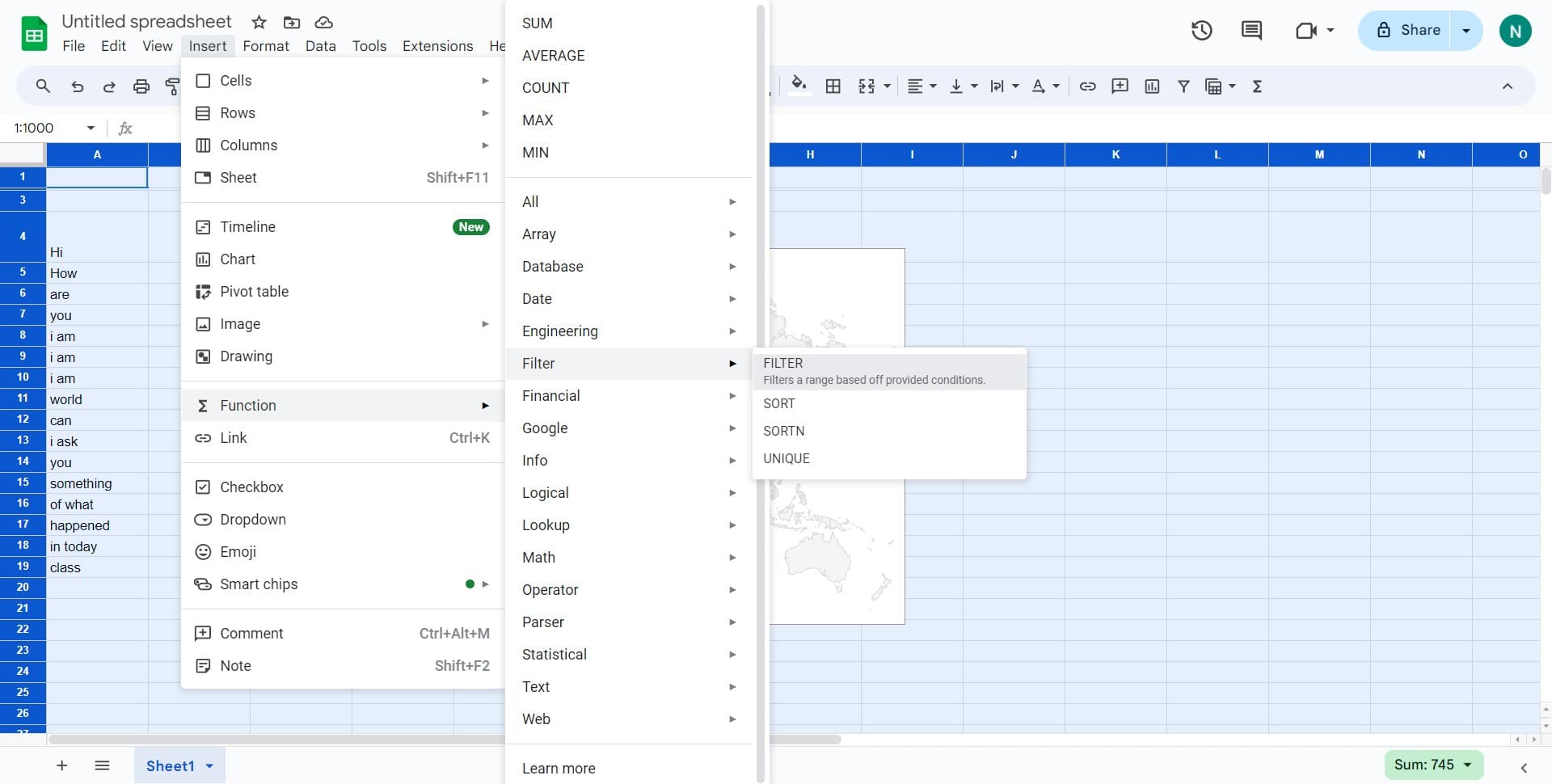
Click on 'Insert' in the top menu bar to access Google Sheets' insertion options. This menu contains all the tools you need to add filters and other elements to your spreadsheet.
- 3
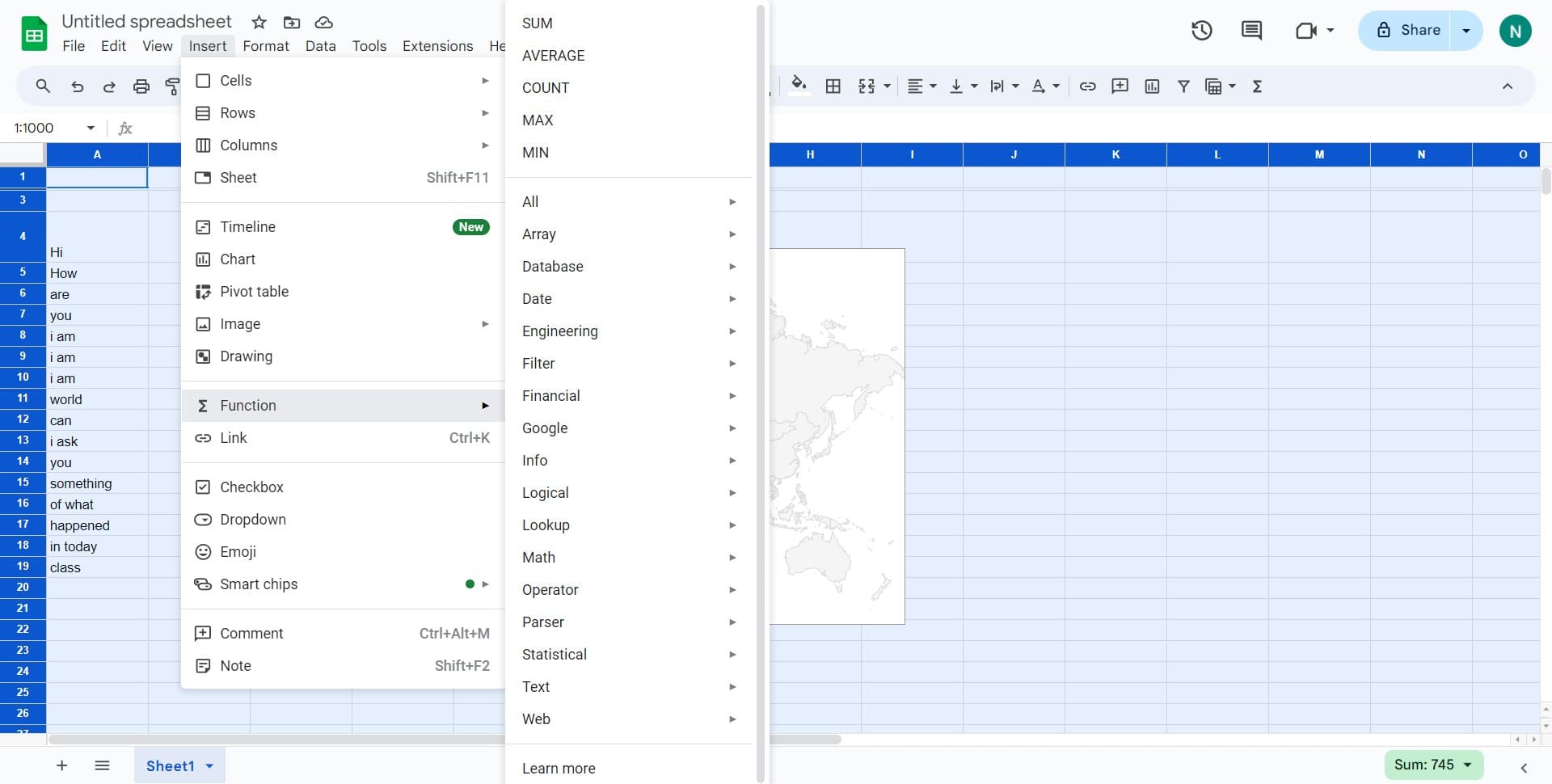
Navigate to the Function submenu
Hover over or click on 'Function' to reveal a submenu with additional options. This will expand to show you advanced features including filtering capabilities.
- 4
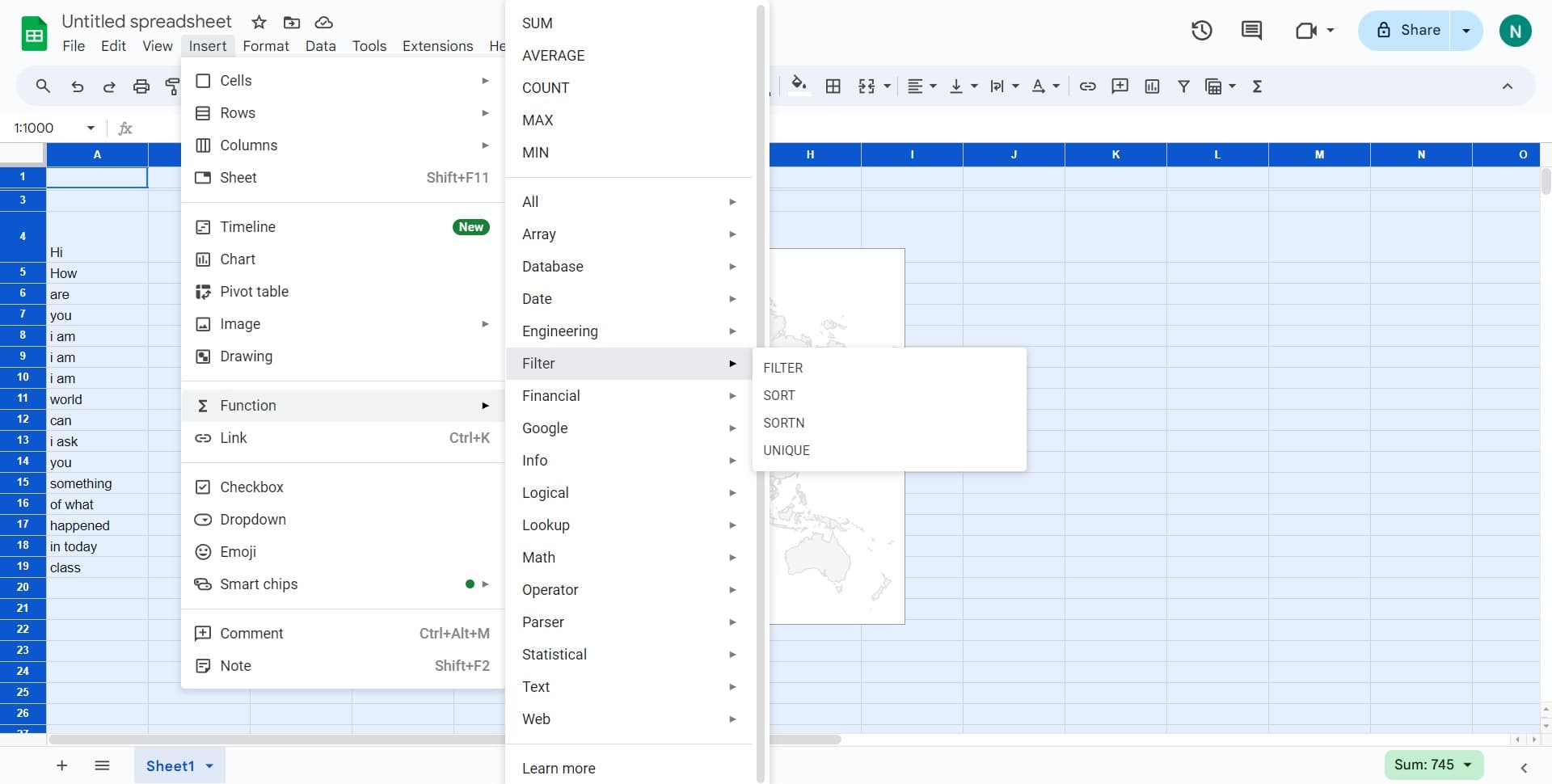
Select the Filter option
Click on 'Filter' from the submenu to access filtering tools. This will show you the available filter types and functions you can apply to your data.
- 5
Choose the filter range option
Click on 'Filters a range...' to apply a filter to your selected data range. This option automatically detects your data boundaries and creates filter dropdowns for each column header.
- 6
Complete the filter setup
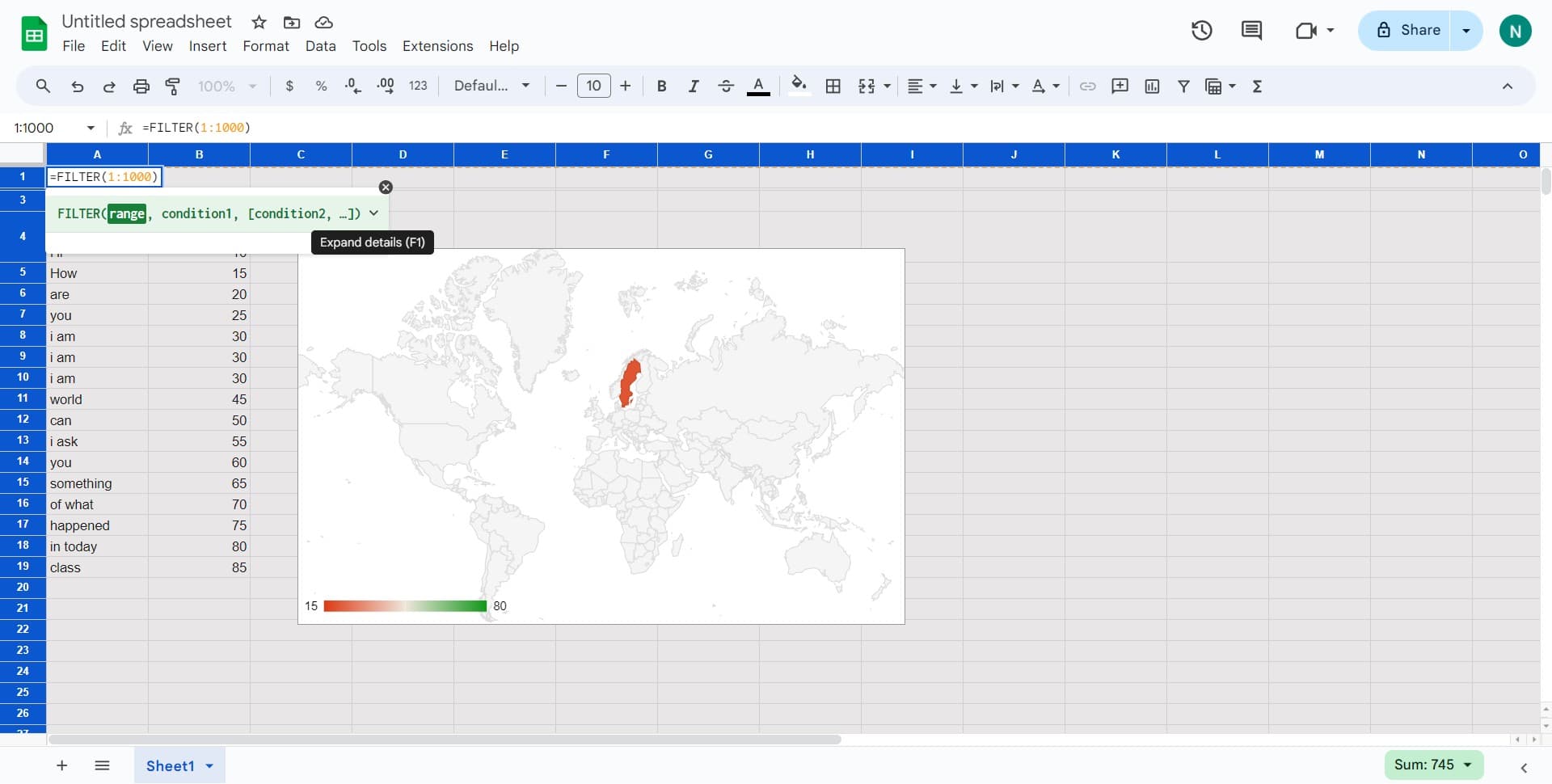
Click to confirm and finalize your filter. Your spreadsheet will now display filter dropdown arrows in the header row, allowing you to customize which rows appear based on your criteria.
Frequently asked questions
Common questions about how to create a filter in google sheets.
Can I filter multiple columns at once?
Yes, once you've created a filter, you can apply criteria to multiple columns simultaneously. Simply click the filter dropdown arrow in each column header and select the values you want to display. Google Sheets will show only rows that match all your selected criteria.
Will filtering delete my original data?
No, filtering only hides rows that don't match your criteria. Your original data remains completely intact in the spreadsheet. You can remove or modify filters at any time to display all rows again.
How do I remove a filter from my spreadsheet?
To remove a filter, click on the Data menu and select 'Remove filter'. Alternatively, you can click the filter icon in any column header and choose to turn off the filter. Your data will immediately return to its unfiltered state.
Can I use filters with formulas and calculated values?
Yes, filters work perfectly with formulas and calculated columns. You can filter based on the results of your formulas just as you would filter regular data. This is useful for organizing data based on computed metrics.
What's the difference between sorting and filtering?
Sorting rearranges your data in a specific order (alphabetical, numerical, etc.), while filtering hides rows that don't match your criteria. You can use both together: first filter to show only relevant data, then sort the filtered results for better organization.