How to Create a Form on Monday.com

Forms are a powerful way to collect information from your team and stakeholders directly within Monday.com. This guide walks you through creating and publishing a form, enabling you to gather data efficiently without leaving your workspace.
Quick summary
In this tutorial, you'll learn how to create a form in Monday.com from start to finish. You'll discover how to access the form builder, customize your form, and share it with others using a direct link.
Why this matters
Forms streamline data collection by providing a structured way for team members and external users to submit information that automatically populates your Monday.com boards. This eliminates manual data entry, reduces errors, and keeps all incoming information organized in one place.
Step-by-step guide
- 1
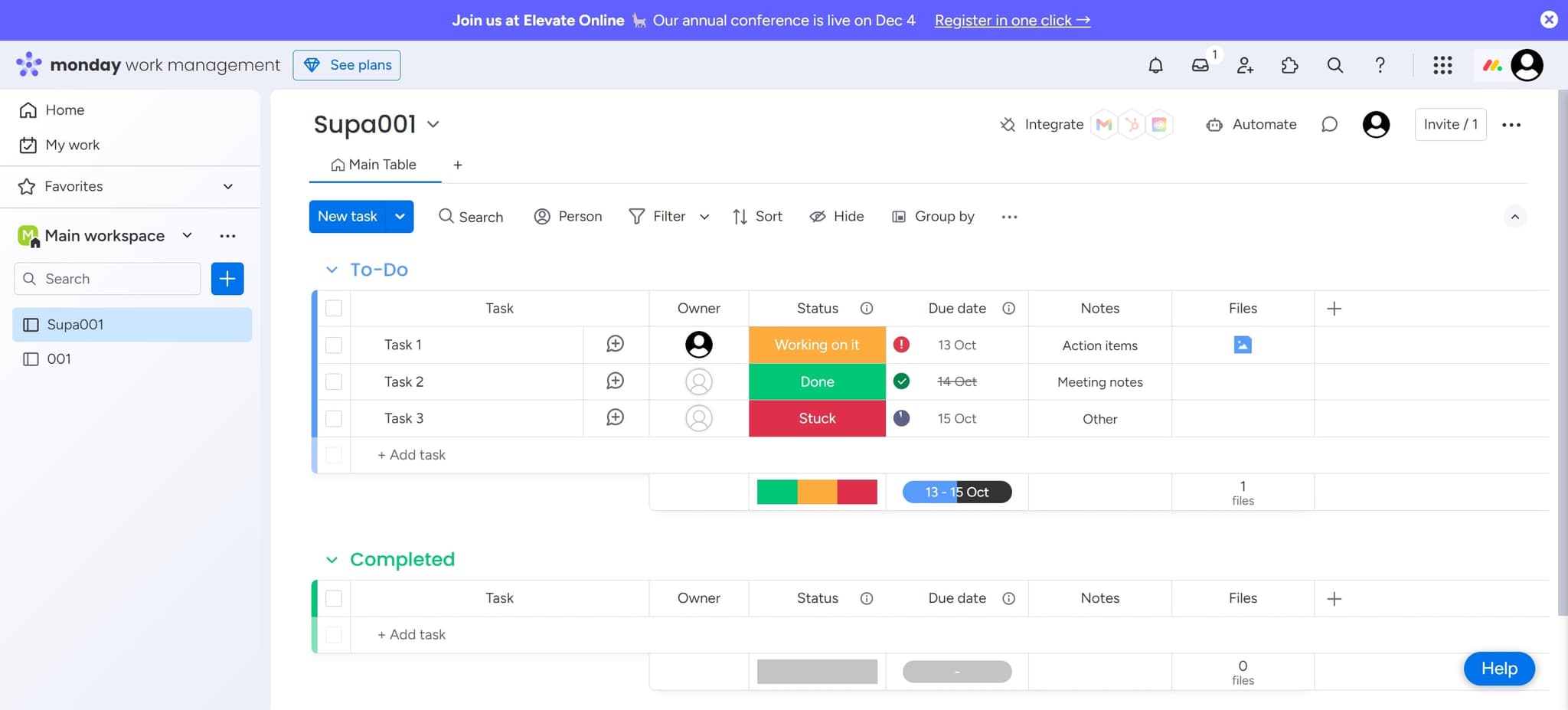
Open your Monday.com workspace
Click on 'Supa001' to access your workspace. This is your starting point for creating a new form.
- 2
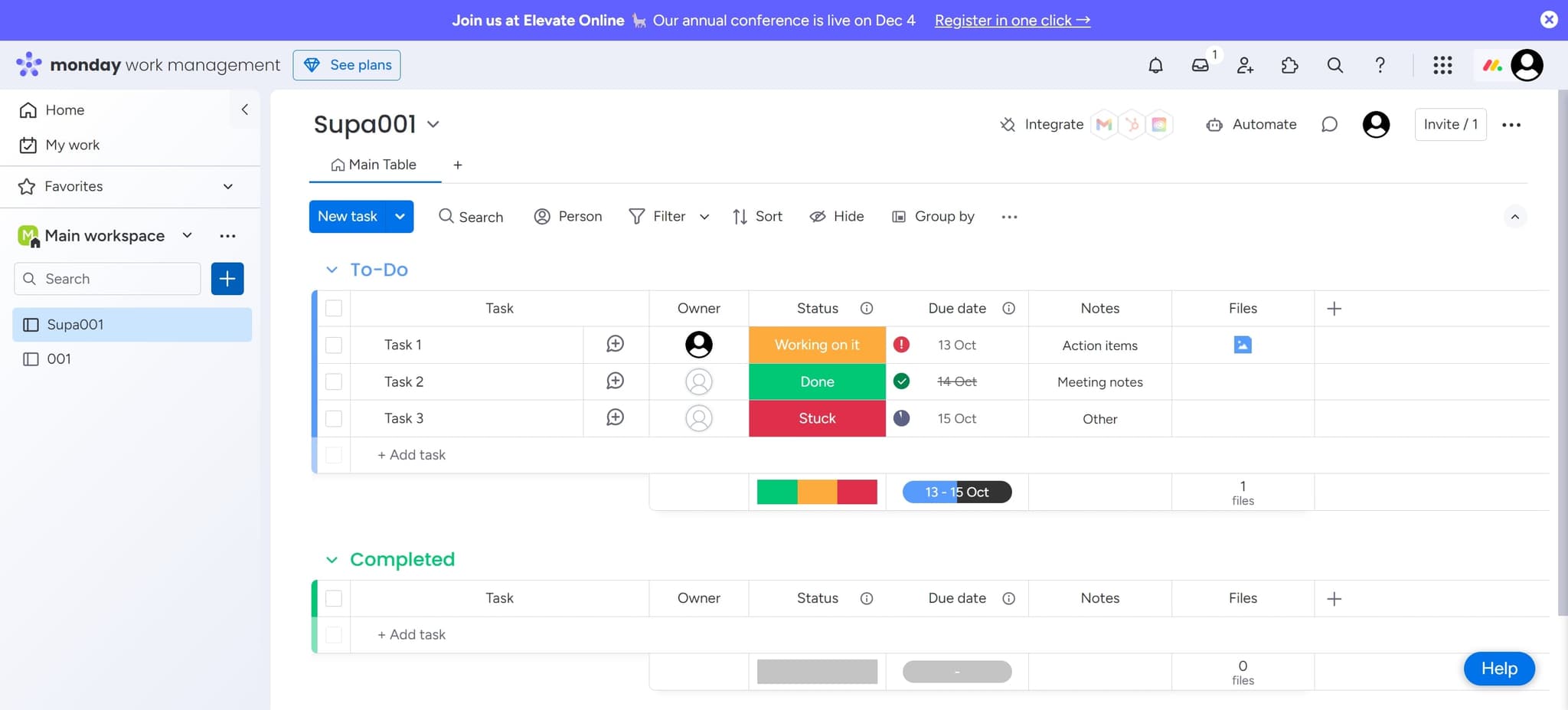
Navigate to the form section
Click the designated area to proceed to the next step. You'll be moving toward the form creation interface.
- 3
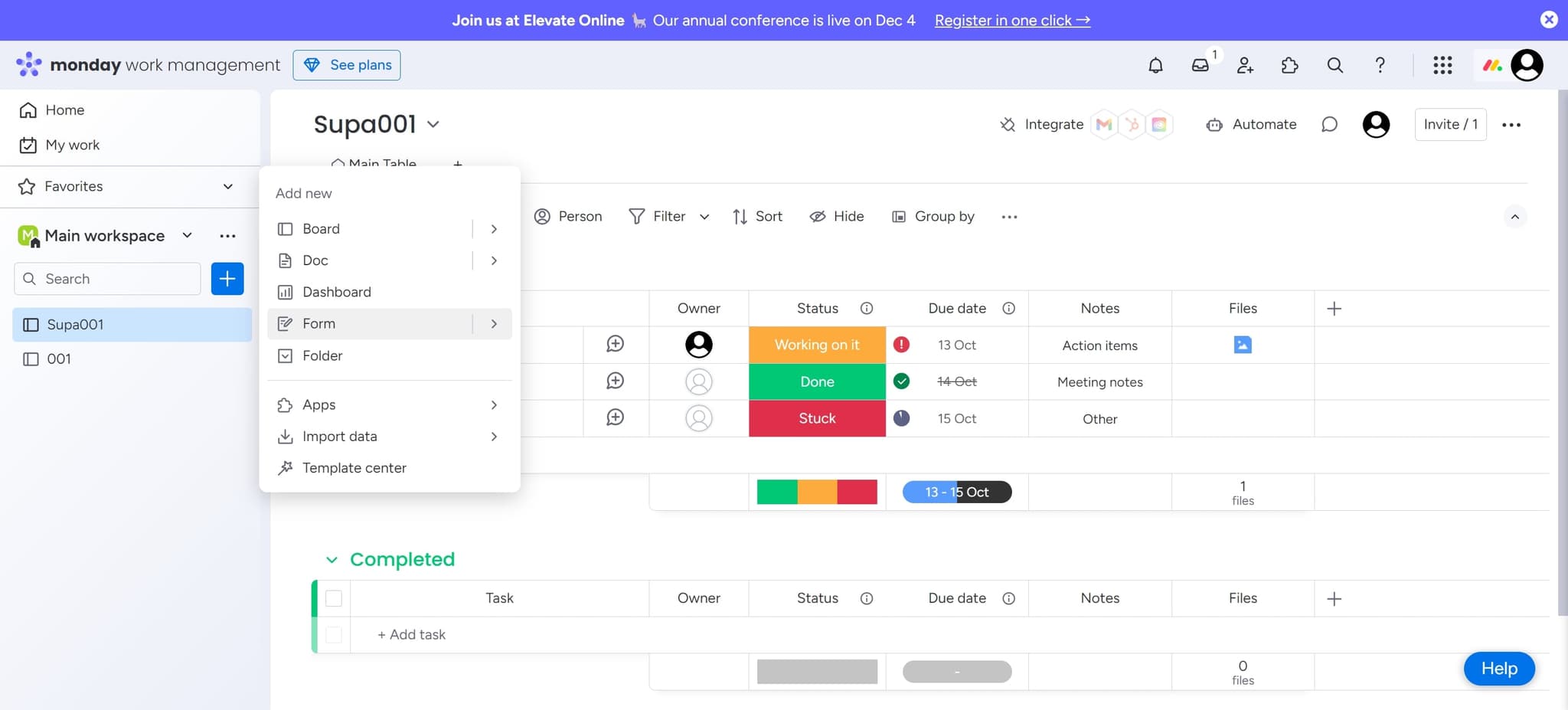
Select the Form option
Click on 'Form' to access the form creation tools. This opens the form management area where you can build new forms.
- 4
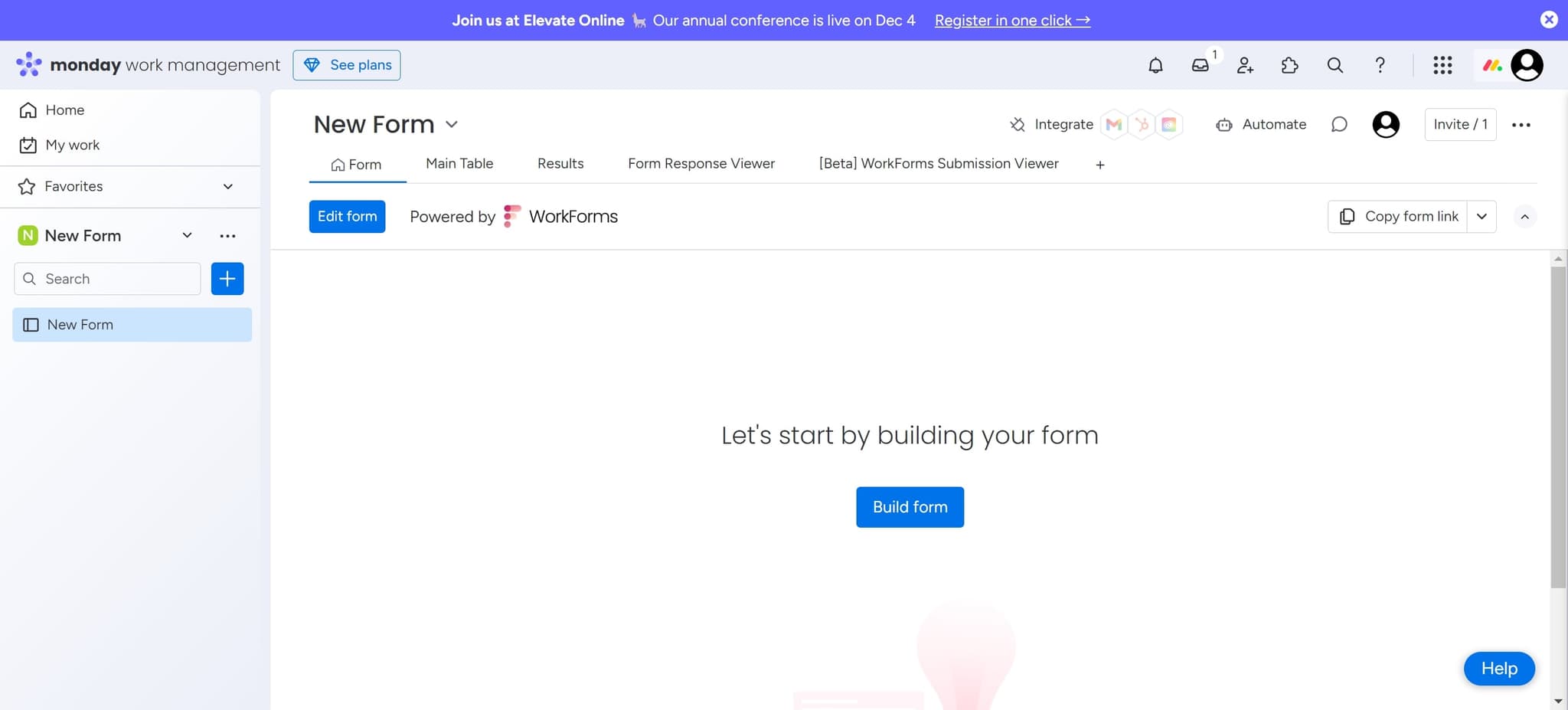
Click Edit form
Select 'Edit form' to enter the form builder. Here you'll customize fields, layout, and content for your form.
- 5
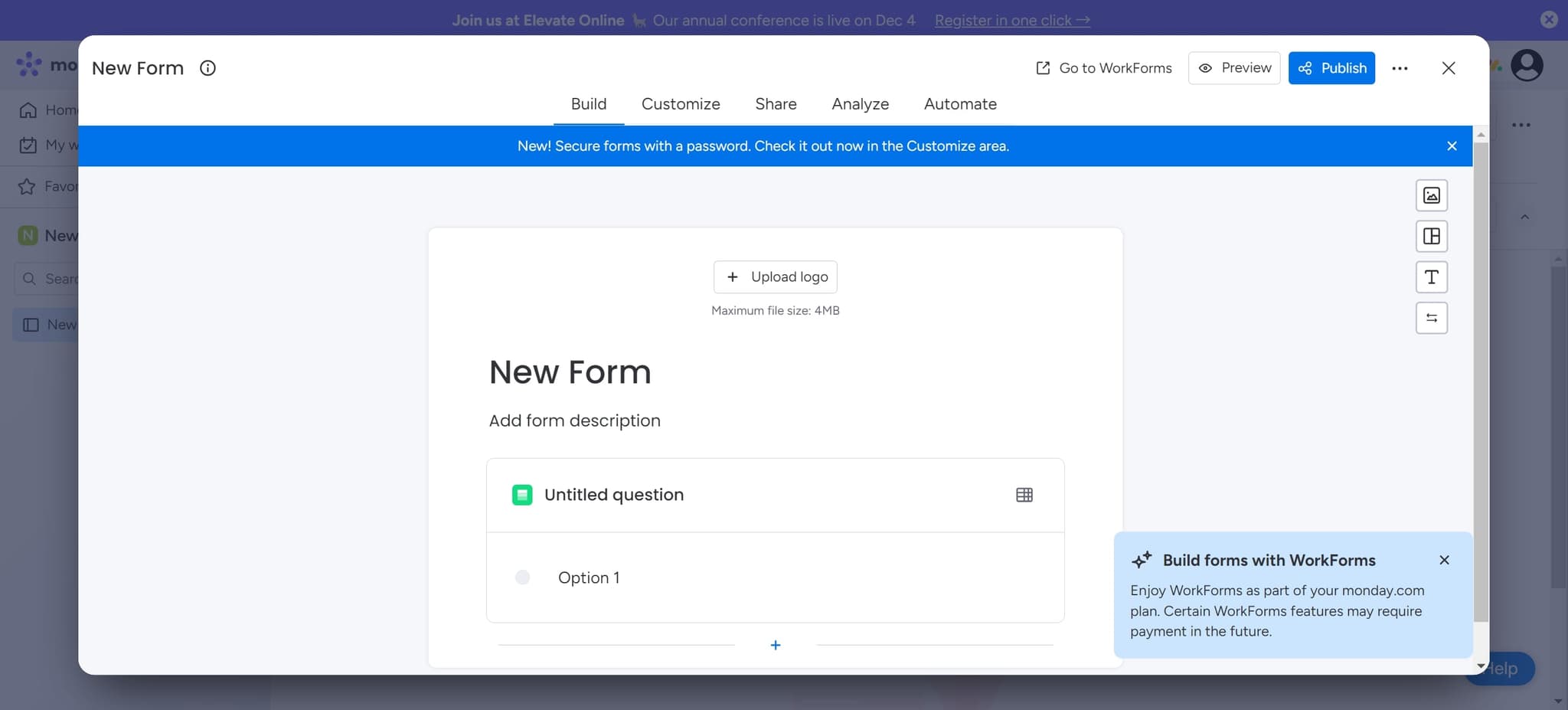
Create a new form
Click on 'New Form' to start building a fresh form from scratch. This initiates the form creation process with a blank template.
- 6
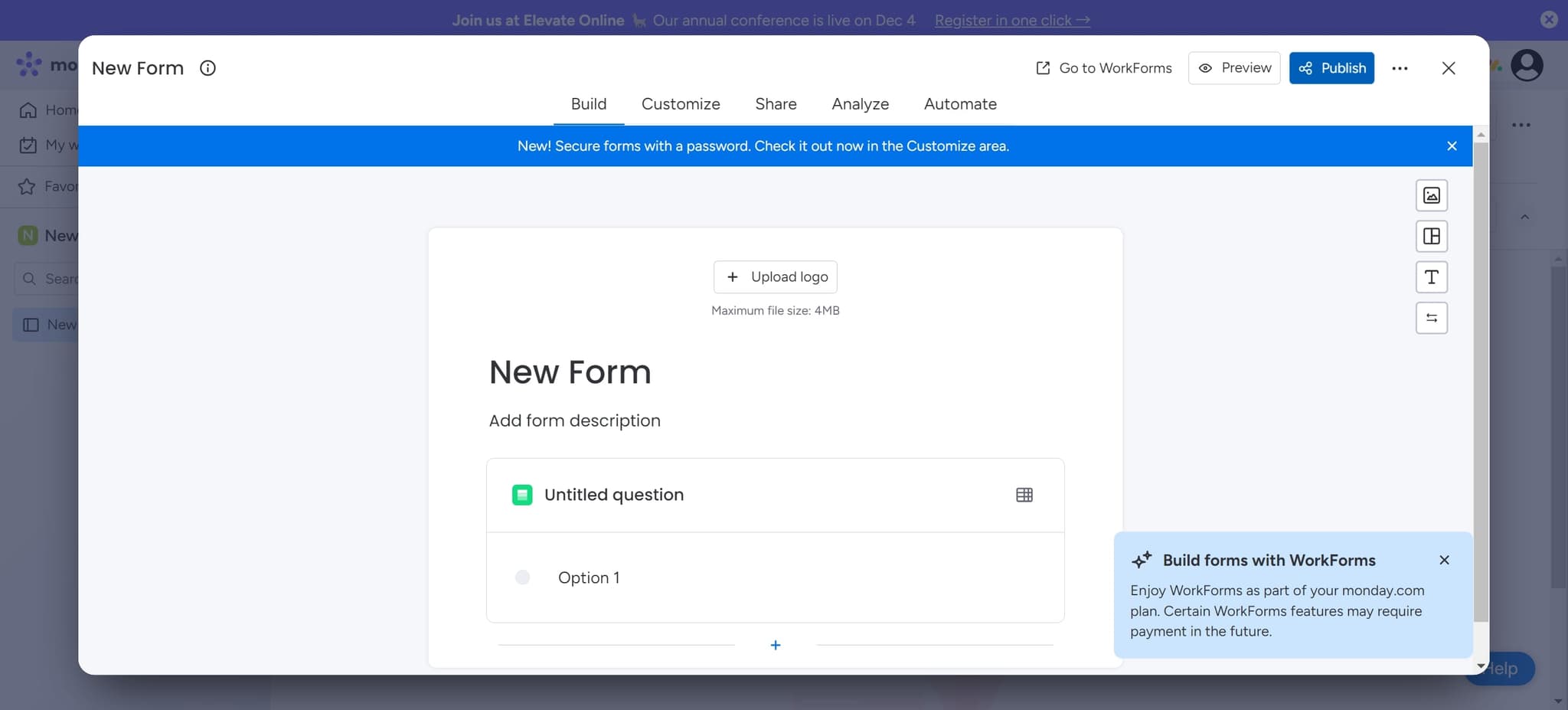
Publish your form
Click 'Publish' to make your form live and accessible. Your form is now ready to receive submissions from users.
- 7
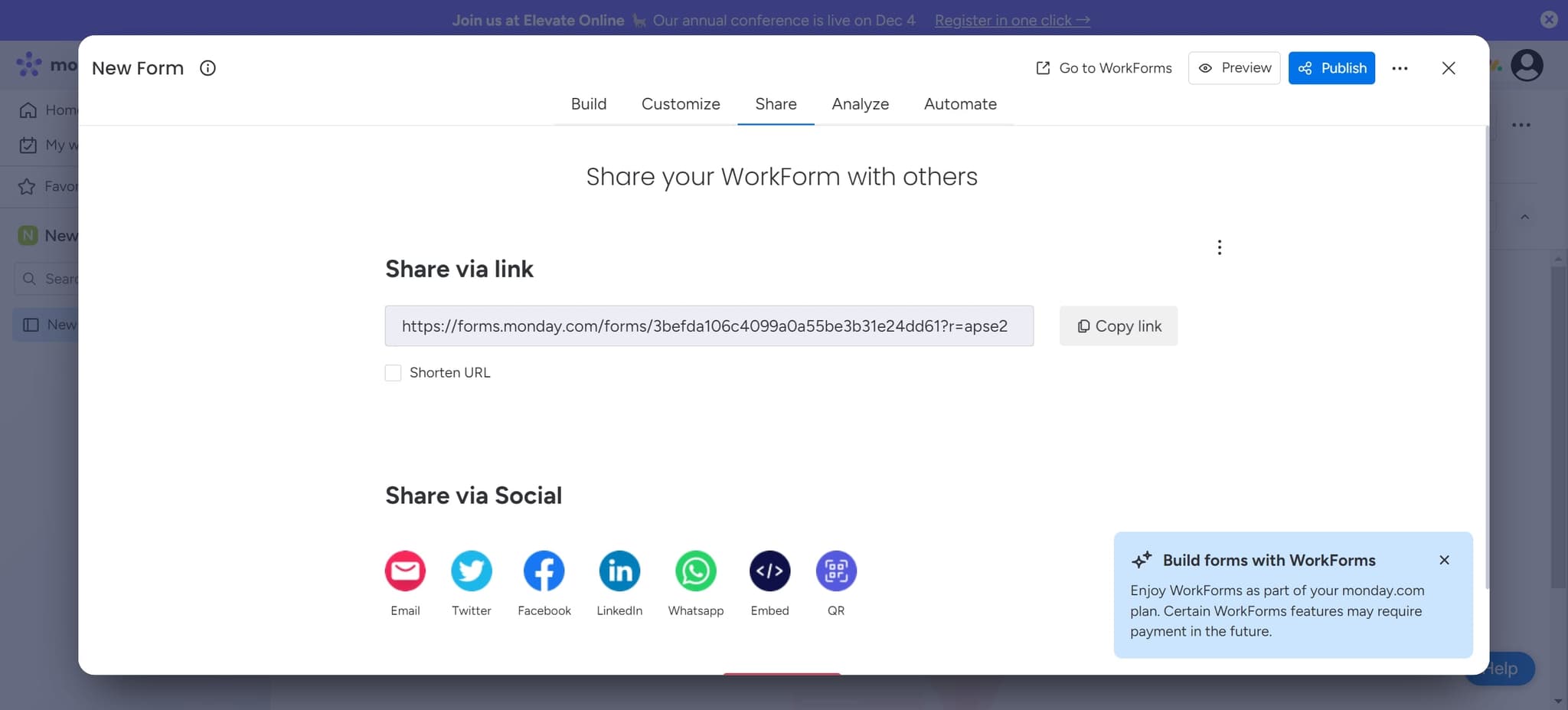
Copy the form link
Click on 'Copy link' to copy the shareable URL to your clipboard. You can now distribute this link to collect responses from others.
Frequently asked questions
Common questions about how to create a form on monday.com.
Can I customize the fields in my Monday.com form?
Yes, when you enter the form editor, you can add, remove, and customize fields to match your data collection needs. You can set field types such as text, dropdown, date, checkbox, and more to capture the specific information you require.
What happens to responses submitted through my form?
All form responses automatically populate into your Monday.com board as new items or rows. This keeps all submitted data organized and accessible within your workspace, eliminating the need for manual data transfer.
Can I share the form link with people outside my workspace?
Yes, the form link you copy can be shared with anyone, including external stakeholders and team members outside your Monday.com workspace. They can access and submit the form without requiring a Monday.com account.
Is it possible to edit my form after publishing it?
Yes, you can edit your form at any time by returning to the form editor and making changes. Published forms can be updated without affecting previously submitted responses, though changes will apply to new submissions.
Can I add conditional logic or required fields to my form?
Monday.com allows you to mark fields as required to ensure users provide necessary information. For advanced conditional logic, you may want to explore form settings or integrations that provide dynamic field visibility based on user responses.