How to move data from one task to other in Monday.com

Moving data between tasks in Monday.com allows you to organize and reorganize your work without losing information or starting from scratch. This workflow is essential for teams that need to transfer task details across different boards or groups as priorities and project structures evolve.
Quick summary
In this tutorial, you'll learn how to move tasks from one board or group to another in Monday.com while preserving all associated data. You'll discover how to select items, access the move functionality, and choose your destination board and group in just a few clicks.
Why this matters
Efficient task management requires the ability to pivot quickly when project scopes change or when tasks need to be reassigned to different teams or initiatives. Moving tasks between boards keeps your Monday.com workspace clean and organized while maintaining complete audit trails and task history.
Step-by-step guide
- 1
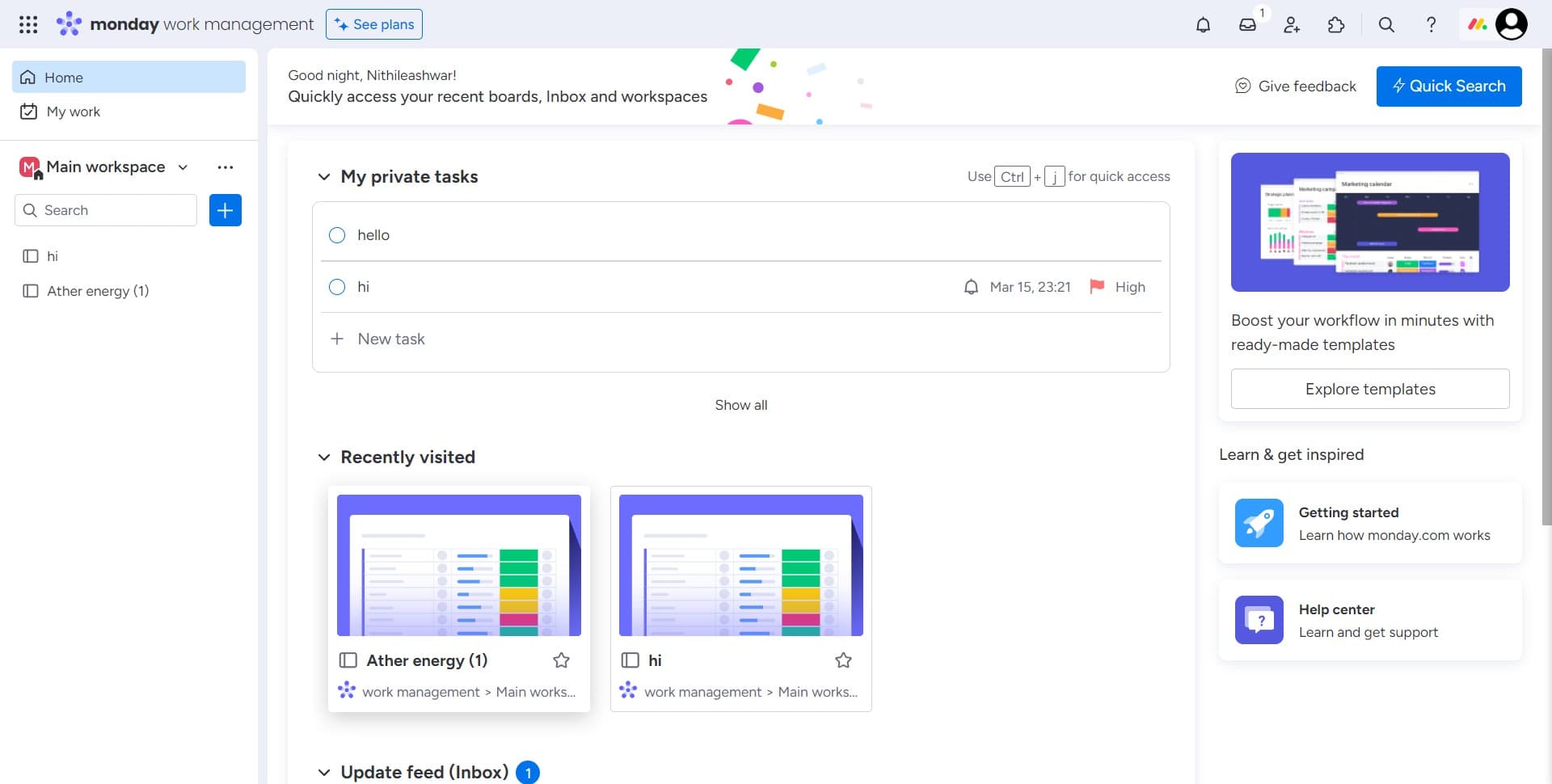
Select the task image or item
Click on the image or icon associated with the task you want to move. This selects the item and prepares it for the move action.
- 2
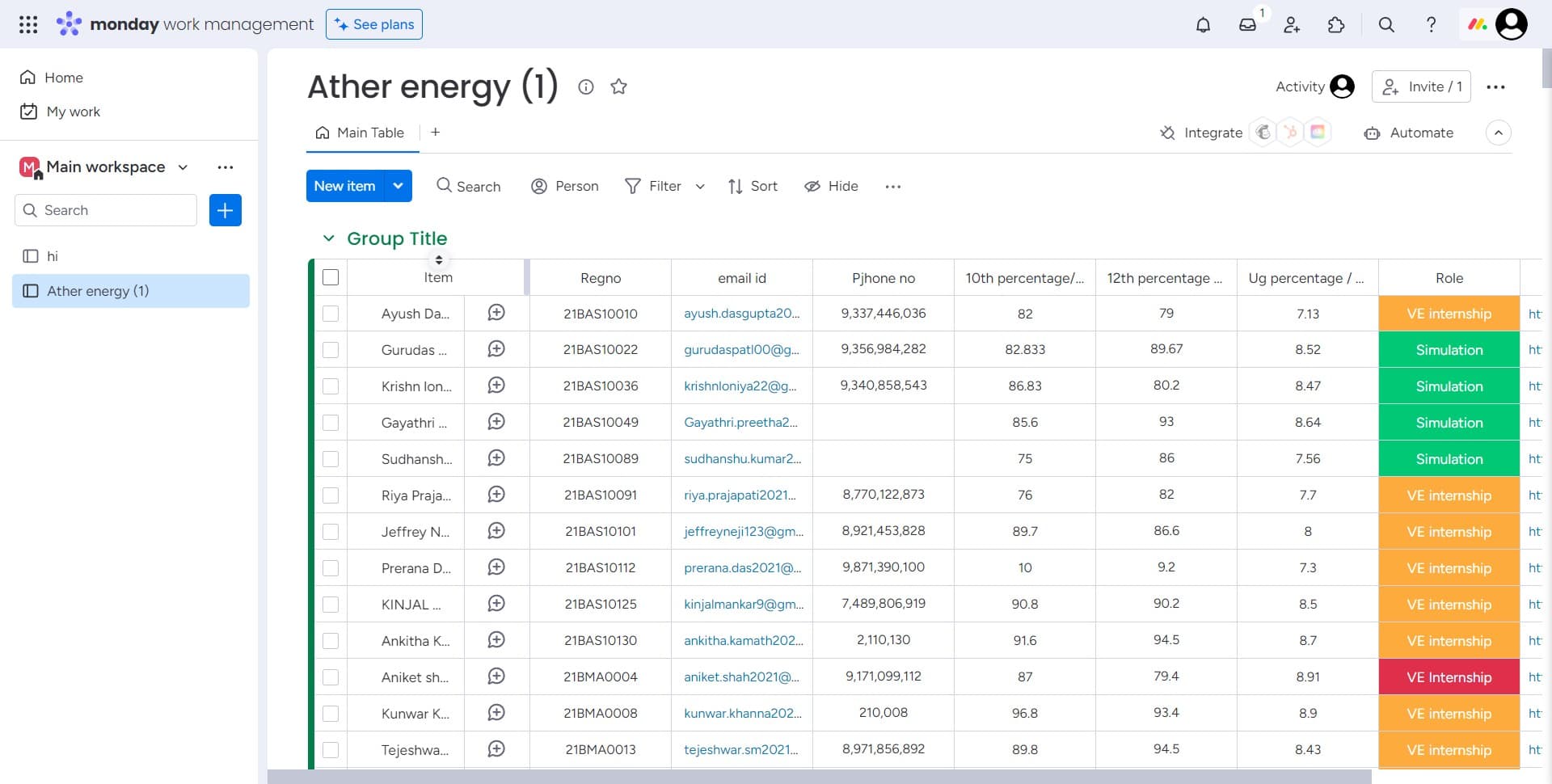
Open the task options menu
Click on the designated menu area to access the available actions for the selected task. This reveals the options menu where you can perform various operations.
- 3
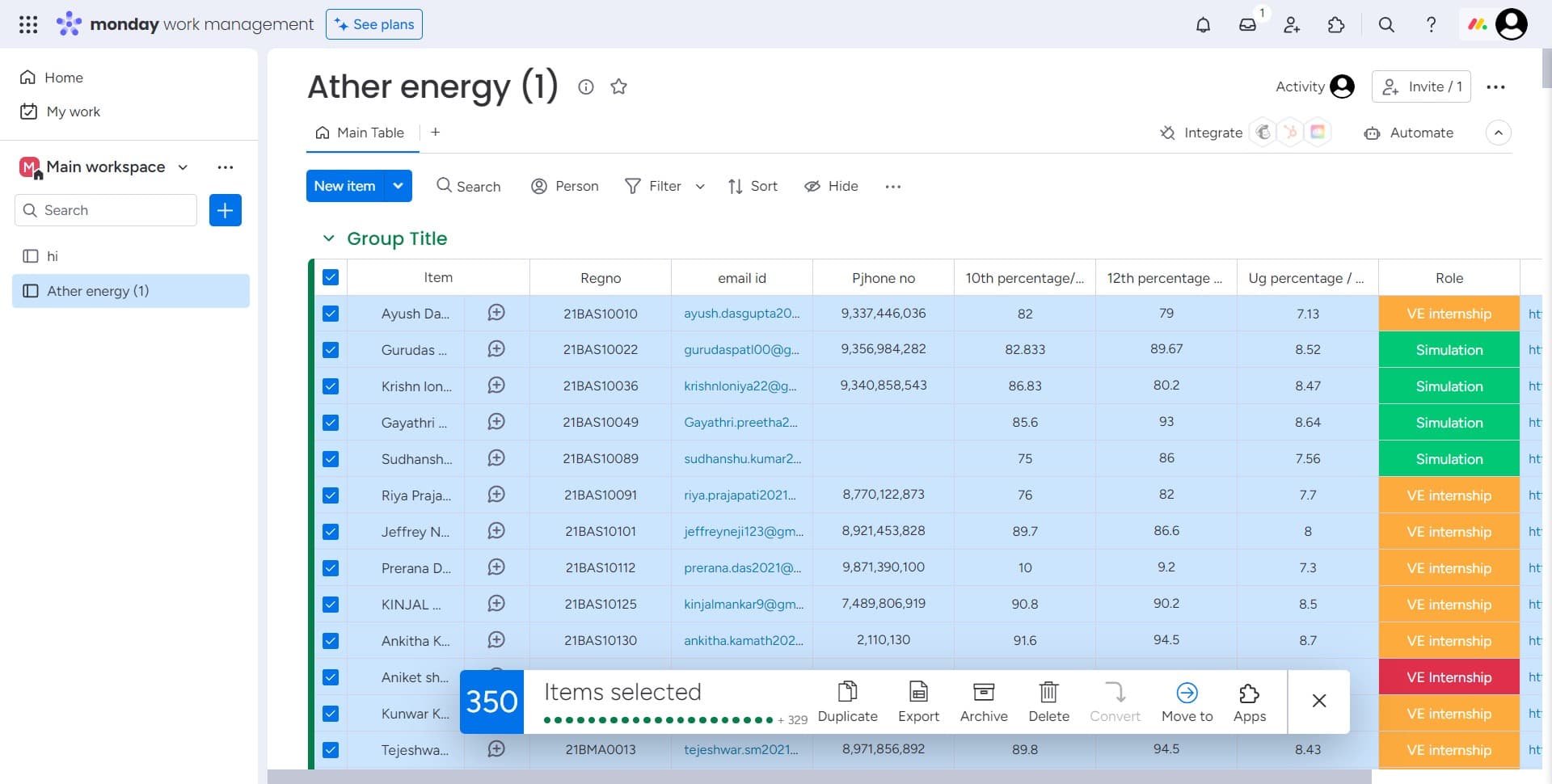
Select Move to option
Click on "Move to" from the context menu. This action initiates the process of relocating your task to a different location.
- 4
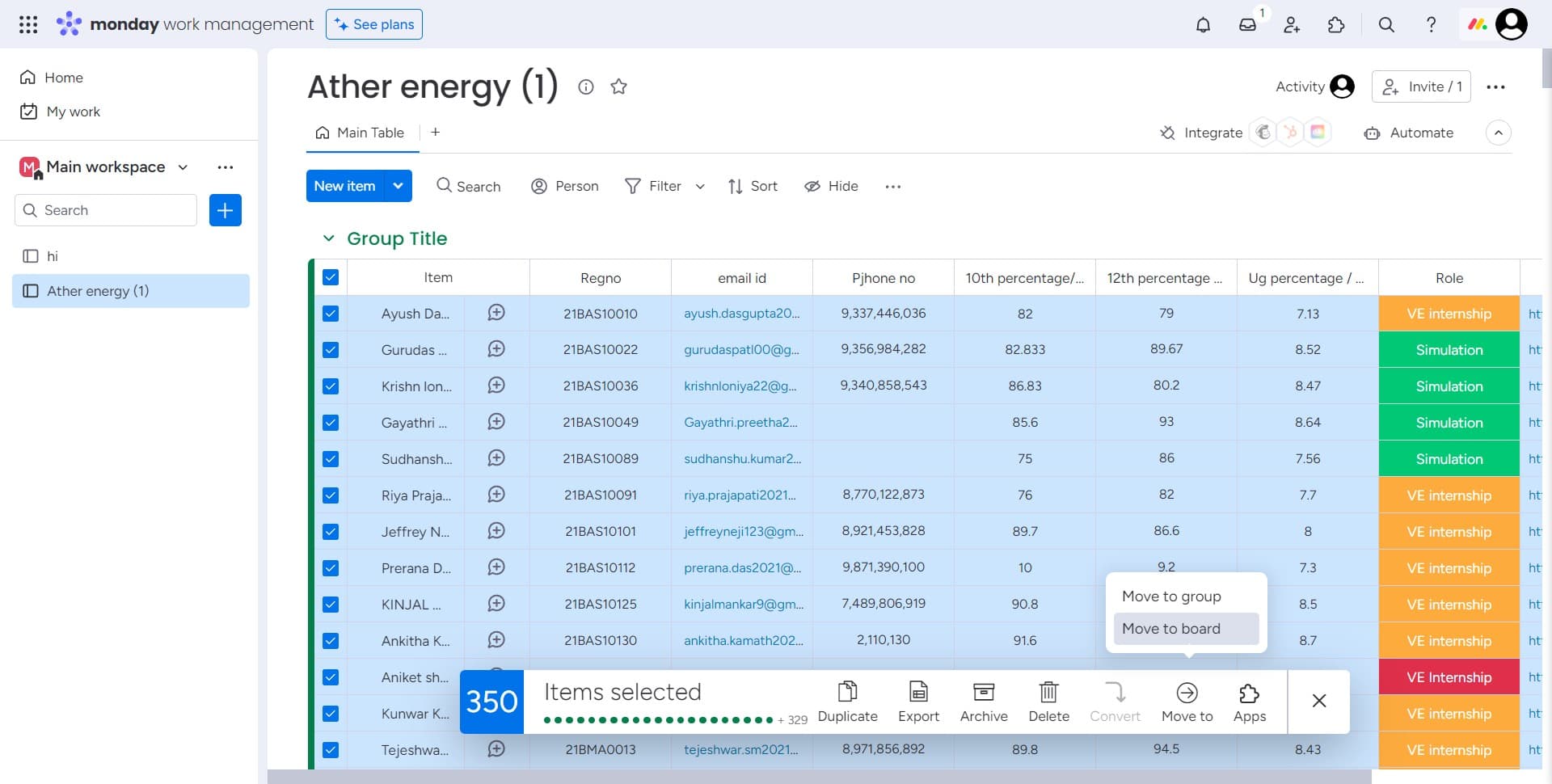
Choose Move to board
Click on "Move to board" to specify that you want to move this task to a different board rather than just a different group within the same board.
- 5
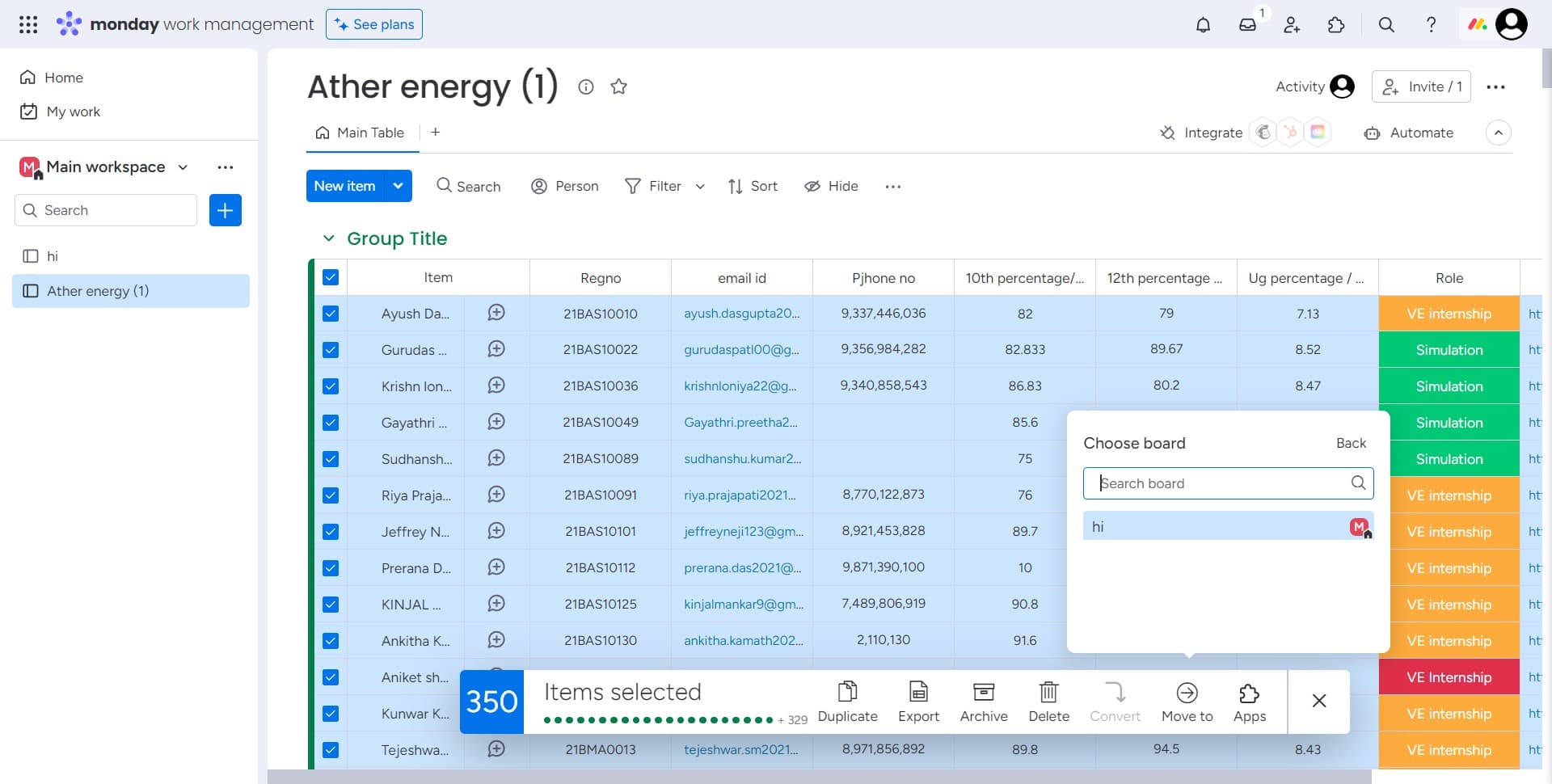
Select the destination board
Click on the board name (in this example, "hi M") where you want to move the task. This identifies the target board for your move operation.
- 6
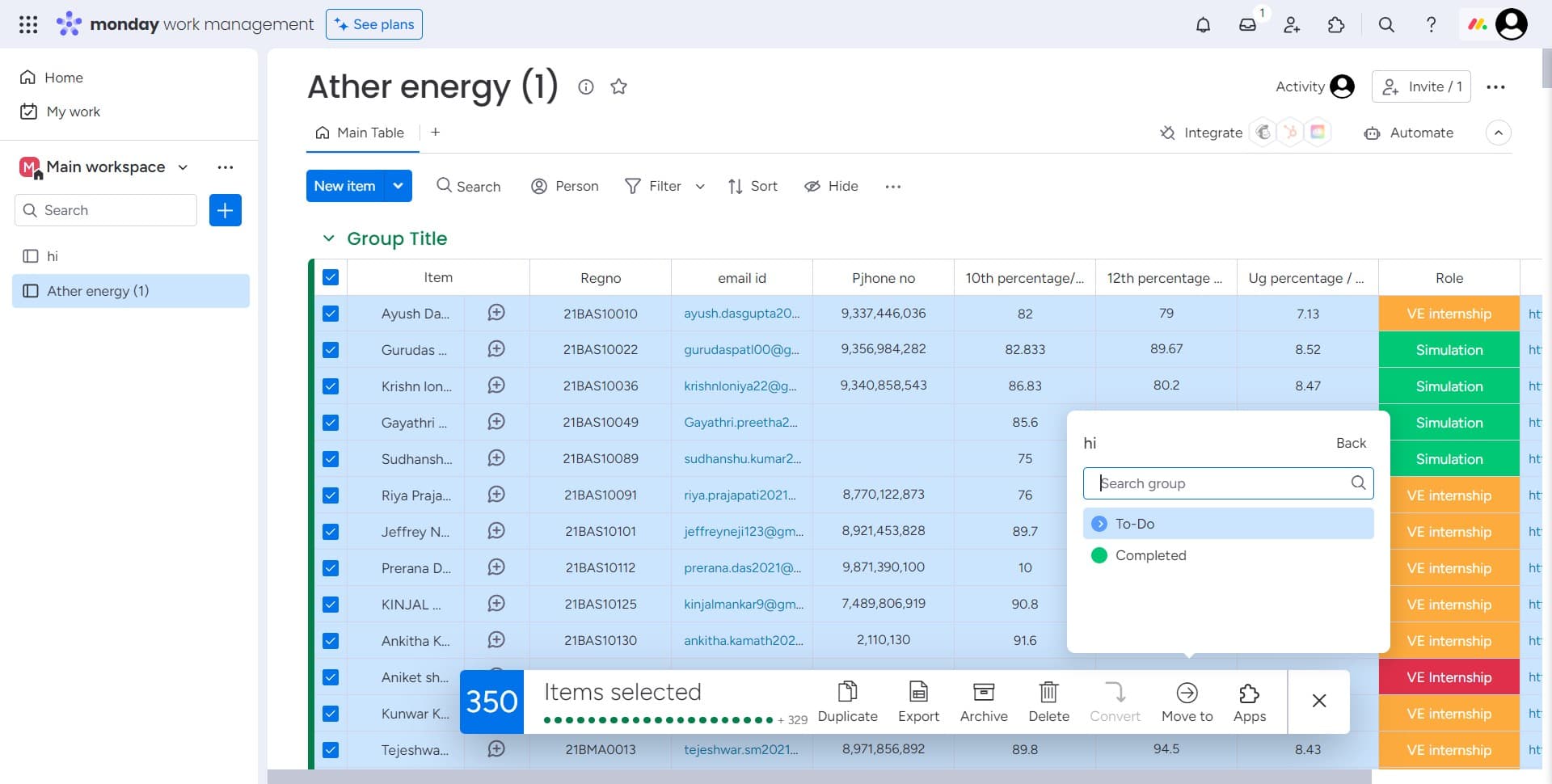
Specify the target group
Click on "To-Do" or the group within the destination board where you want the task to appear. This ensures the task lands in the correct organizational group.
- 7
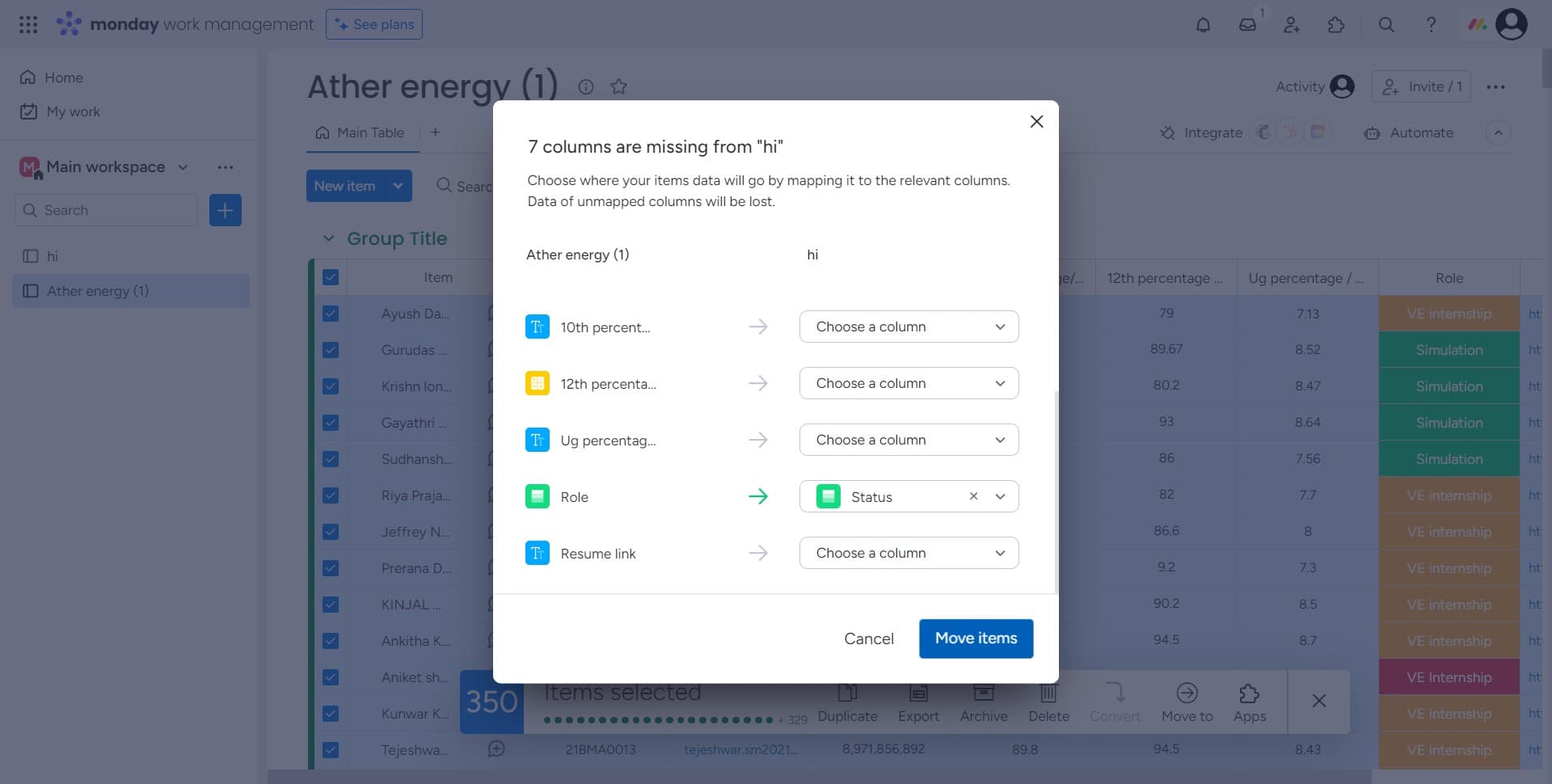
Confirm the move action
Click on "Move items" to finalize the transfer. The task will now be relocated to the specified board and group with all its data intact.
- 8
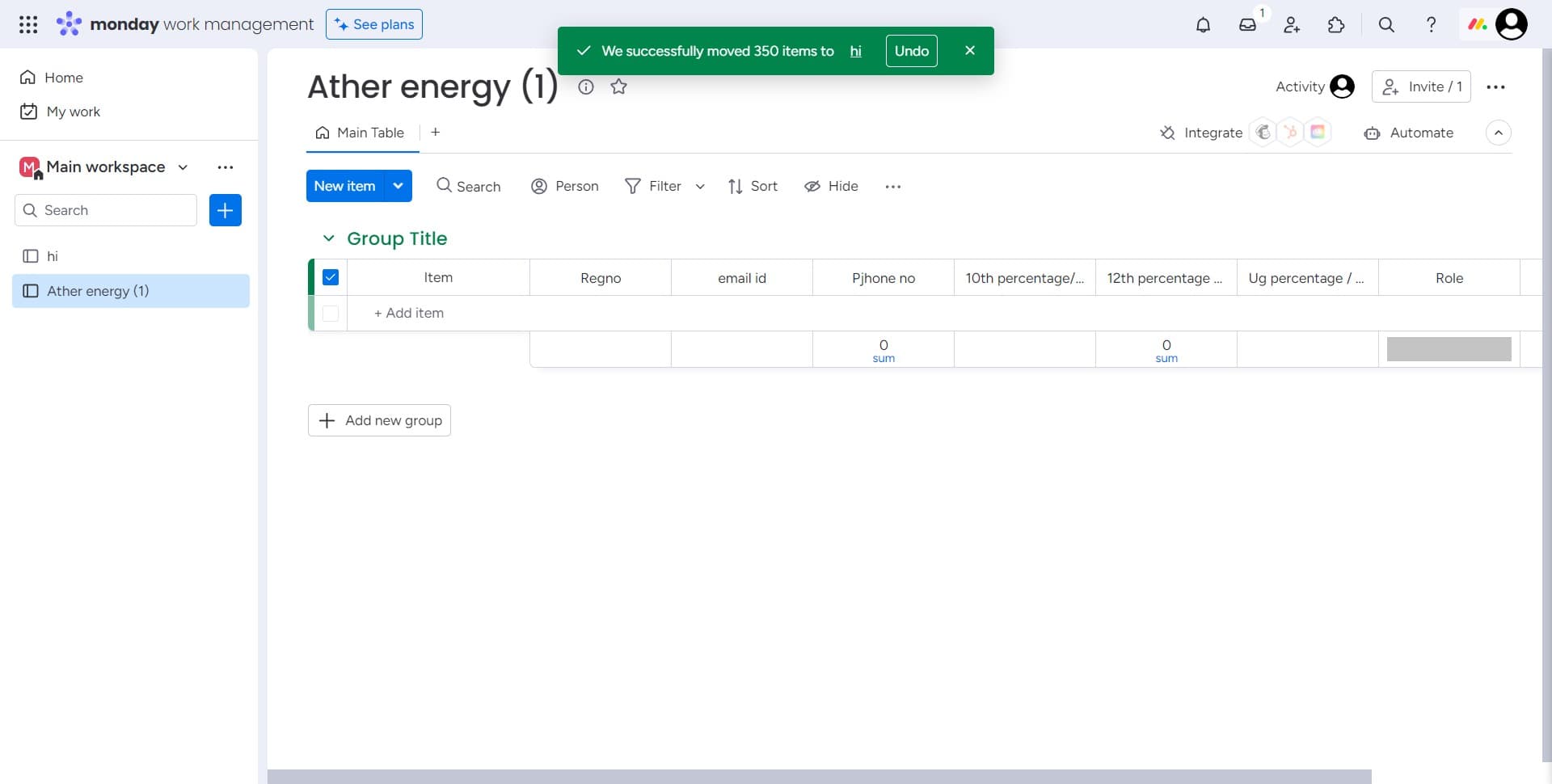
Add a new group if needed
Click on "Add new group" if you need to create a new organizational group in the destination board before completing the move. This option allows you to organize tasks into newly created groups during the move process.
Frequently asked questions
Common questions about how to move data from one task to other in monday.com.
No, moving a task preserves all associated data, including descriptions, attachments, comments, and custom field values. The task maintains its complete history when moved to a new board or group.
Yes, you can select multiple tasks before initiating the move process. Monday.com allows you to move several items simultaneously to the same destination board and group, saving time when reorganizing larger sets of work.
Notifications and updates continue to function normally after a task is moved. Team members assigned to the task will still receive relevant notifications about its status and changes, regardless of which board or group it resides in.
Yes, Monday.com includes an undo function that allows you to reverse a move action immediately after completing it. If you need to undo an older move, you can check the task's activity log to track its previous locations.
Permission requirements depend on your Monday.com workspace settings and user role. Typically, board members with edit permissions can move tasks, but workspace administrators may need to grant specific permissions for moving items between certain boards.