How to Create a Ticket in Freshdesk

Creating tickets in Freshdesk is the foundation of managing customer support requests efficiently. This guide walks you through the process of opening a new ticket, from accessing the ticket creation interface to submitting your request.
Quick summary
In this tutorial, you'll learn how to create a ticket in Freshdesk by navigating through the ticket creation form, entering customer information, describing the issue, and submitting it for assignment. You'll understand each field's purpose and how to properly categorize your support requests.
Why this matters
Properly creating tickets ensures that customer issues are documented, tracked, and routed to the right support team members. A well-structured ticket creation process reduces response times, prevents issues from being lost, and provides a clear record for follow-up and resolution.
Step-by-step guide
- 1
Access the Freshdesk dashboard
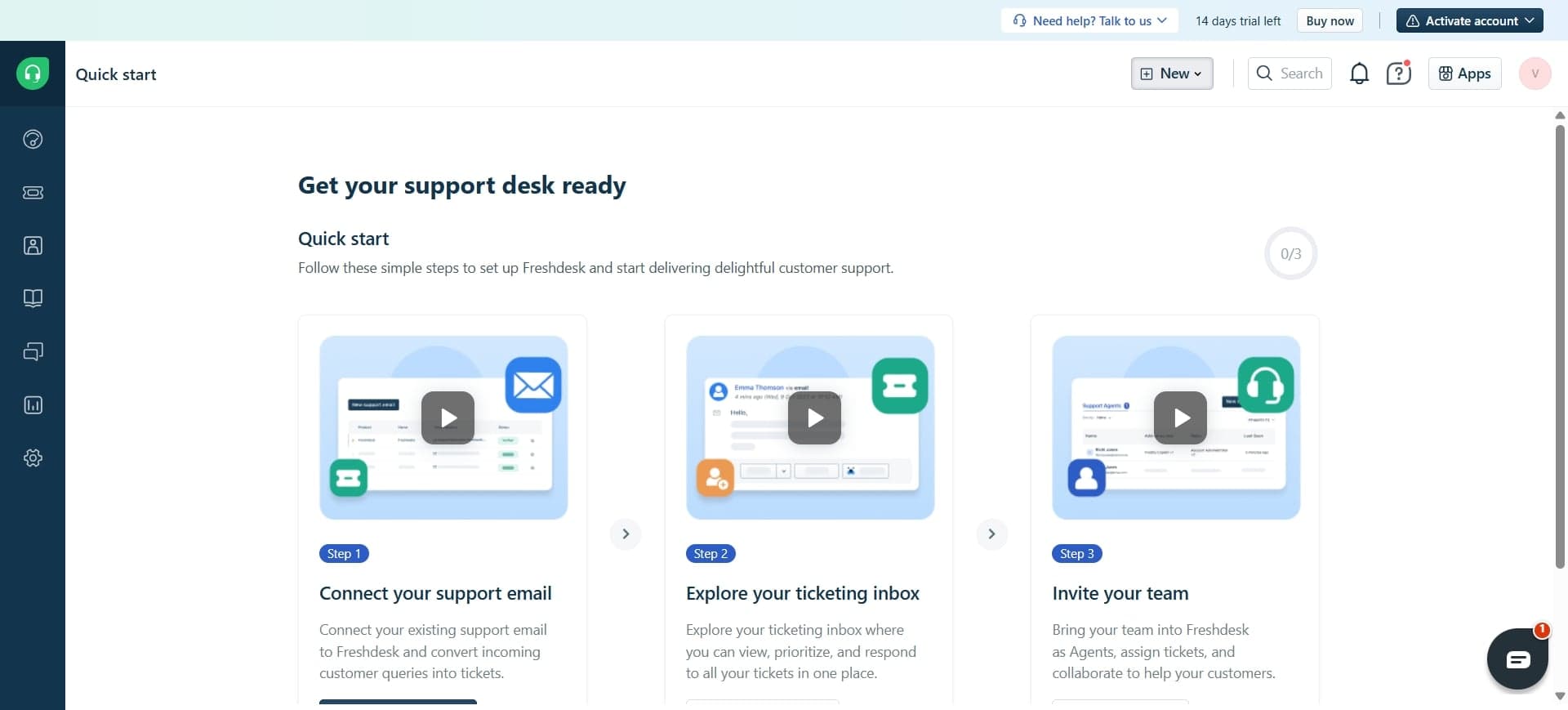
Log into your Freshdesk account and navigate to the main dashboard. You'll see the primary interface with menu options along the left sidebar.
- 2
Click on the Tickets section
In the left sidebar, locate and click on 'Tickets' to open the ticket management area. This displays all existing tickets and provides options for creating new ones.
- 3
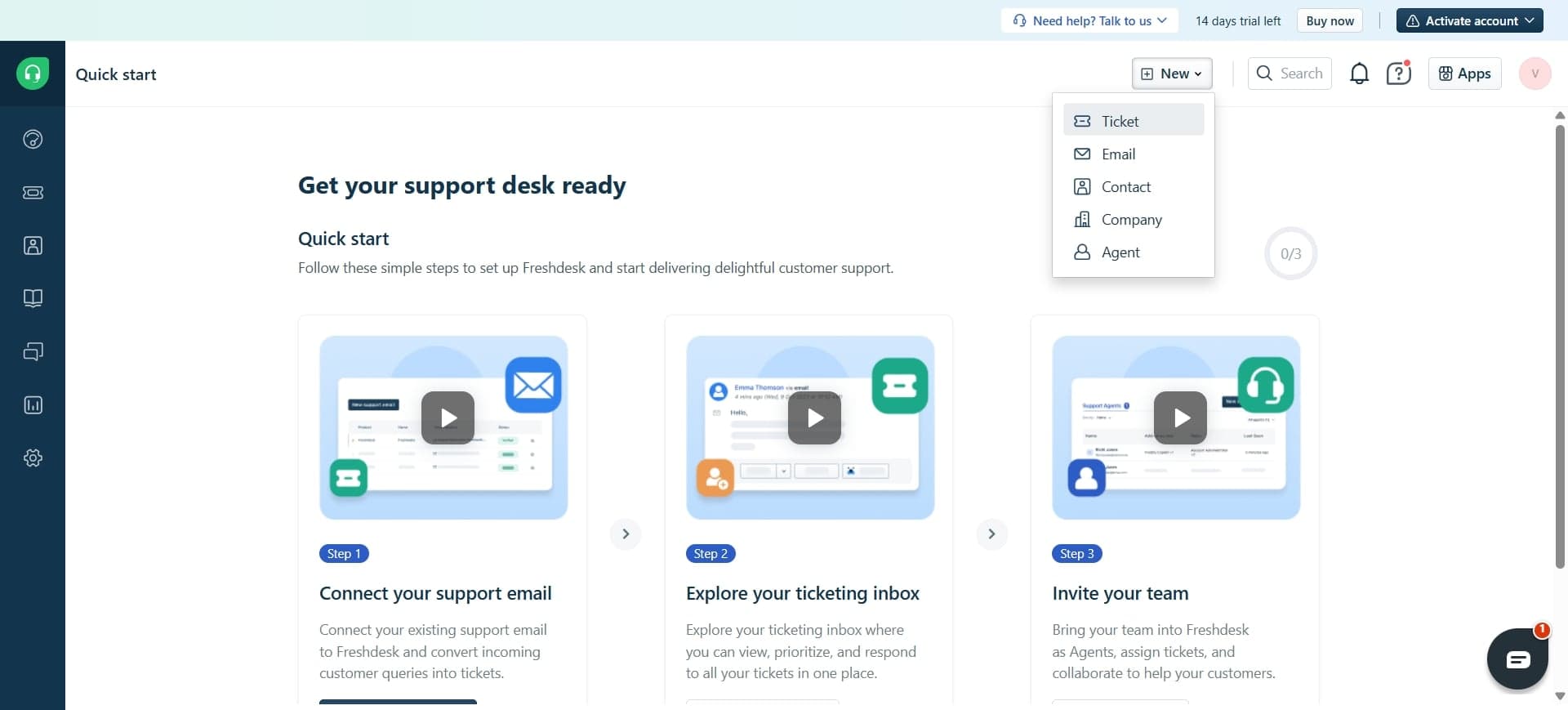
Select 'New Ticket' button
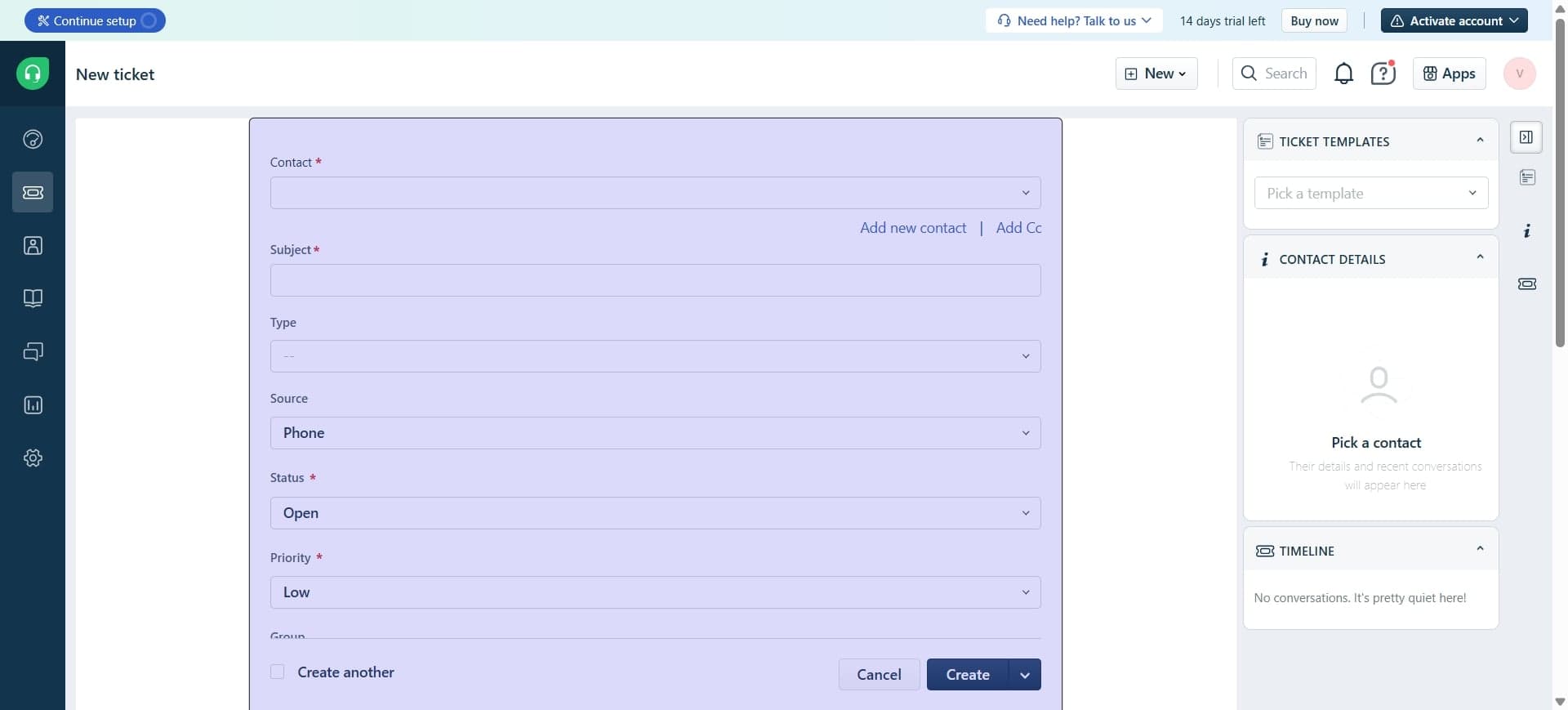
Click the 'New Ticket' button, typically located at the top right of the Tickets page. A ticket creation form will open with fields for ticket details.
- 4
Enter customer and issue details
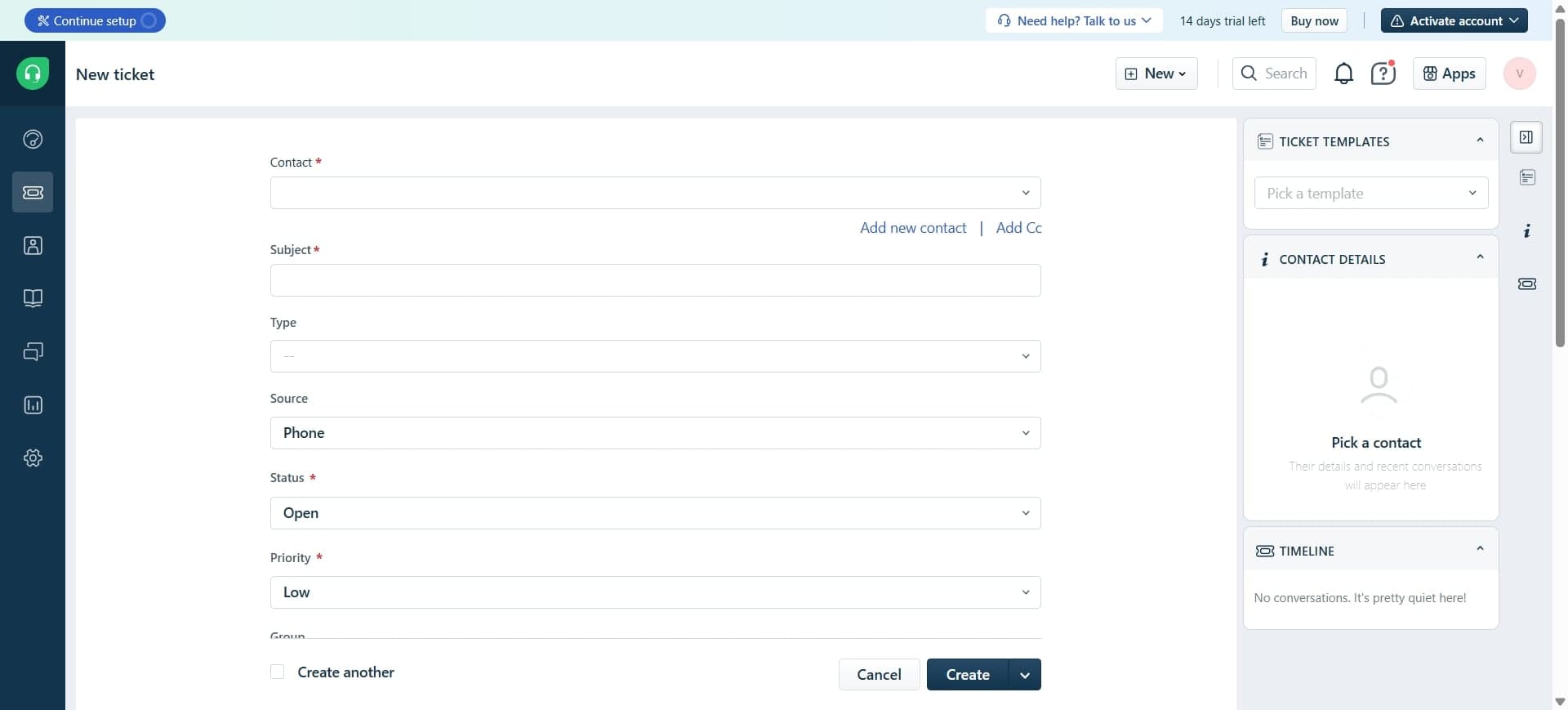
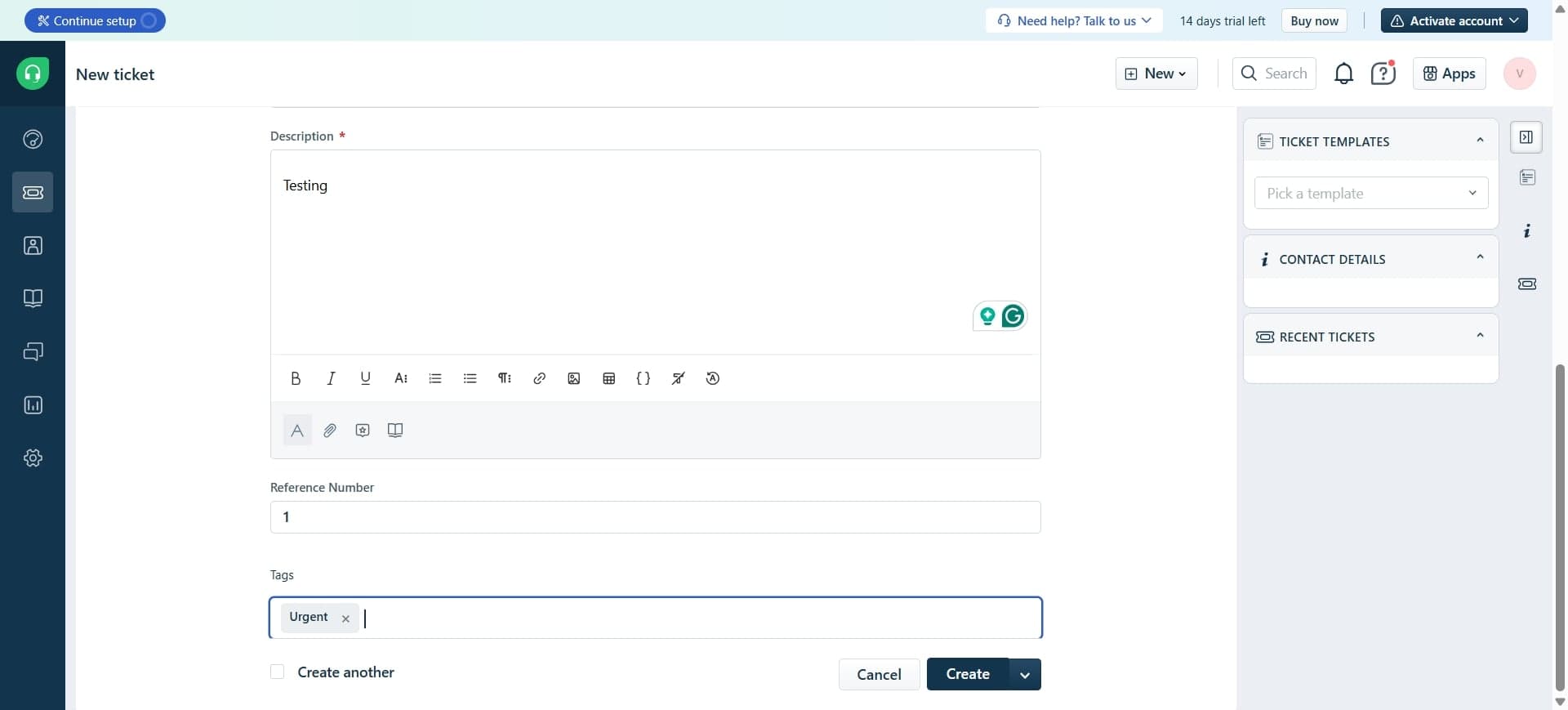
Fill in the required fields including customer name or email, subject line, description of the issue, and priority level. Be specific about the problem to help your support team understand the issue quickly.
- 5
Assign category and status
Select an appropriate category for the ticket from the dropdown menu and set the initial status. You can also add tags and assign the ticket to a specific team member if needed.
- 6
Submit the ticket
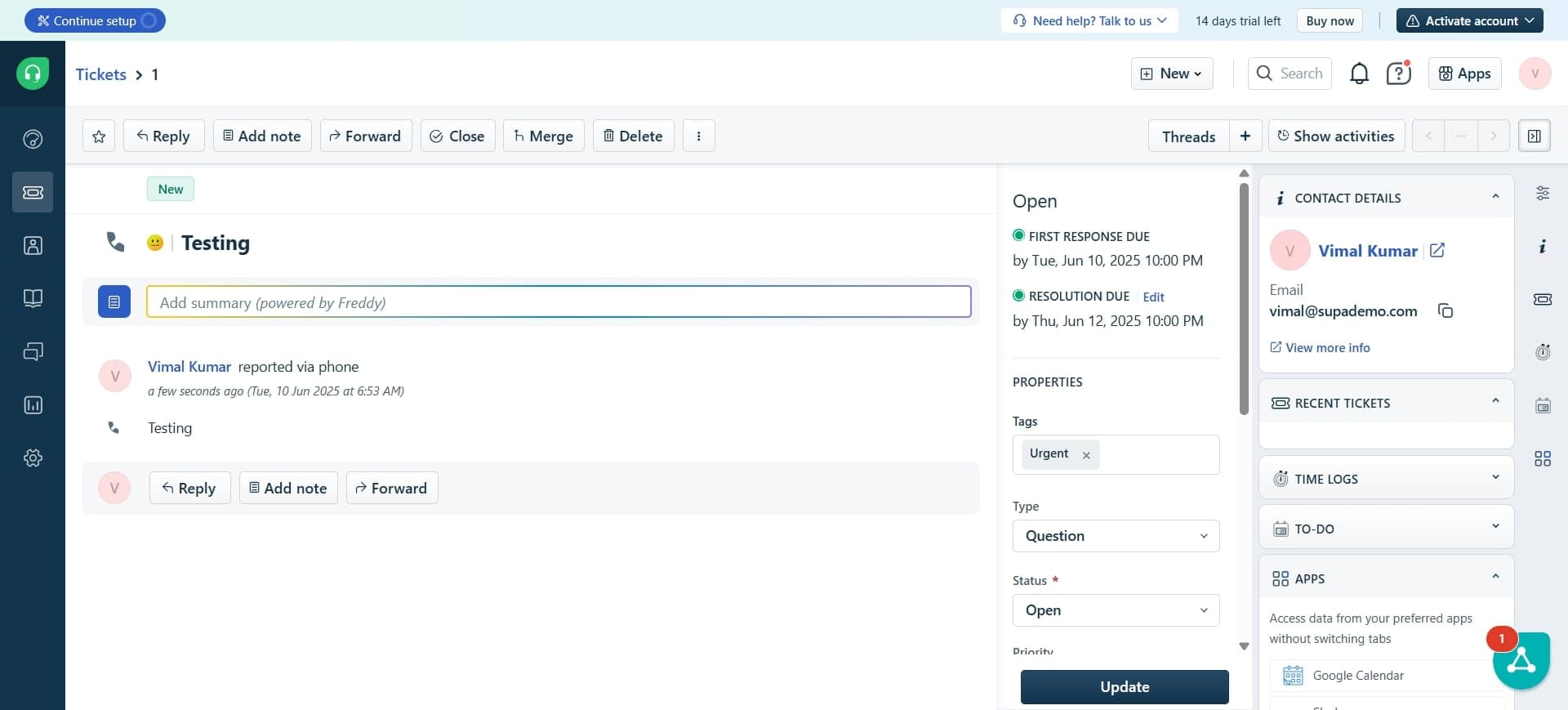
Click the 'Create' or 'Submit' button to save the ticket. A confirmation message will appear, and the ticket will be added to the queue for your support team to handle.
Frequently asked questions
Common questions about how to create a ticket in freshdesk.
What information is required to create a ticket in Freshdesk?
At minimum, you need to provide the customer's email address or name and a clear description of the issue. The subject line and priority level are also important for proper routing. Other fields like category, status, and assignee help organize the ticket but may have defaults.
Can I create tickets on behalf of a customer?
Yes, Freshdesk allows you to create tickets on behalf of customers by entering their email address or selecting them from your contact list. This is useful for phone or in-person support where customers don't submit requests themselves.
How do I set the priority level when creating a ticket?
During ticket creation, you'll find a priority dropdown field where you can select from levels like Low, Medium, High, or Urgent. Choose the priority based on the impact and urgency of the customer's issue to ensure proper escalation.
What happens after I submit a ticket?
After submission, the ticket is created with a unique ticket ID and enters your support queue. It will be assigned to a team member or group based on your routing rules, and notifications will be sent to the relevant staff members to begin handling the request.
Can I add attachments when creating a ticket?
Yes, most ticket creation forms in Freshdesk allow you to attach files directly. You can usually find an attachment option in the ticket form where you can upload screenshots, documents, or other relevant files to support the issue description.