How to Create and Manage Objects in Attio

Attio is a powerful CRM platform designed to help teams organize and manage business relationships efficiently. This guide walks you through creating and managing objects in Attio, from initial setup to advanced configuration, enabling you to tailor the platform to your specific business needs.
Quick summary
In this tutorial, you'll learn how to create custom objects in Attio, configure their properties and relationships, and manage them effectively within your workspace. By the end, you'll be able to design a flexible data structure that matches your organization's unique workflows and requirements.
Why this matters
Objects form the foundation of your Attio workspace, allowing you to structure and track any type of business data beyond standard contacts and companies. Mastering object creation and management ensures your team can capture, organize, and act on the information that matters most to your business.
Step-by-step guide
- 1
Access the workspace settings
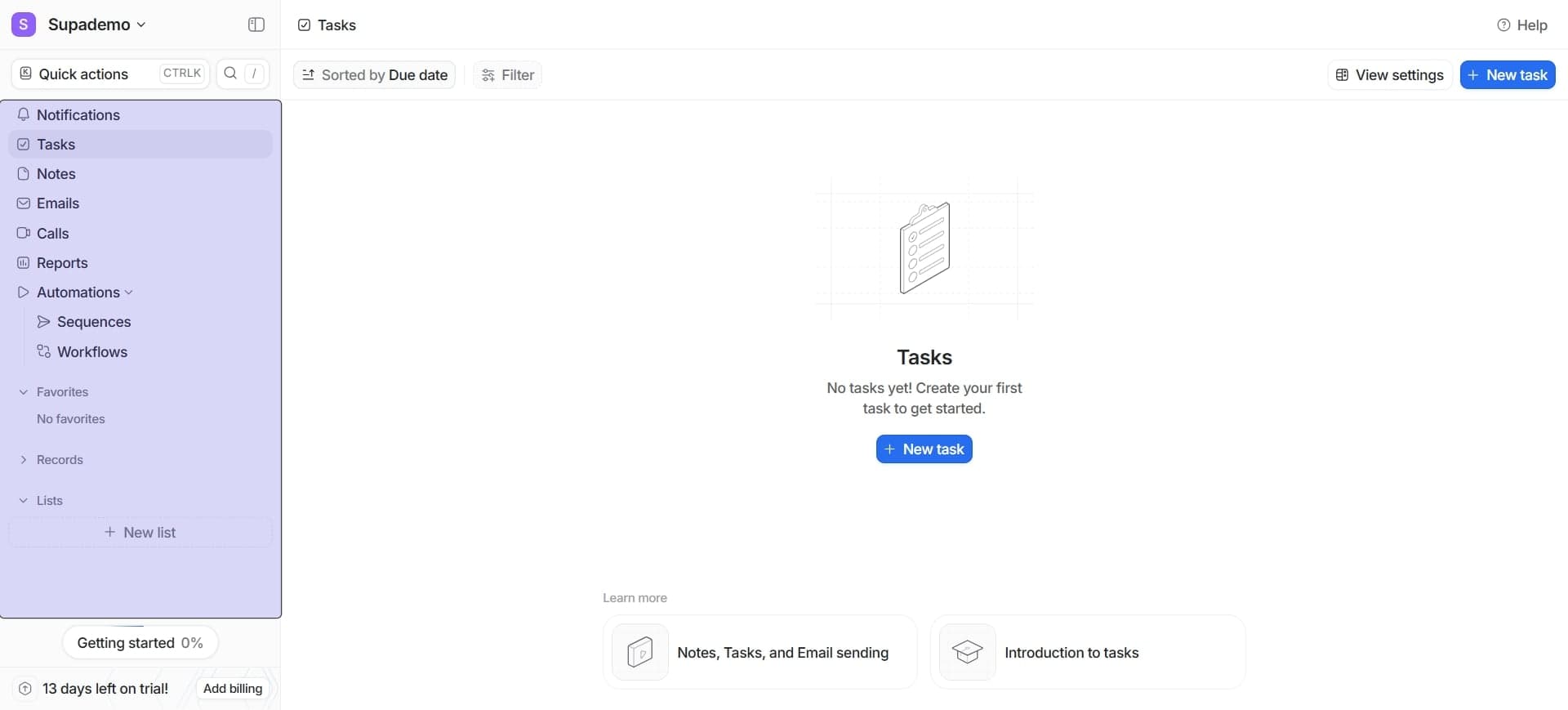
Navigate to your Attio workspace and locate the settings menu, typically found in the navigation bar or account dropdown. This is where you'll manage all configuration options, including object creation.
- 2
Find the objects management section
In the settings area, locate the Objects or Data Structure section where you can create and manage custom objects. This section displays all existing objects and provides options to add new ones.
- 3
Click the create new object button
Select the option to create a new object, which will open a form for configuring your object's name, plural form, and other basic properties. Enter a descriptive name that clearly reflects the purpose of your object.
- 4
Define the object name and description
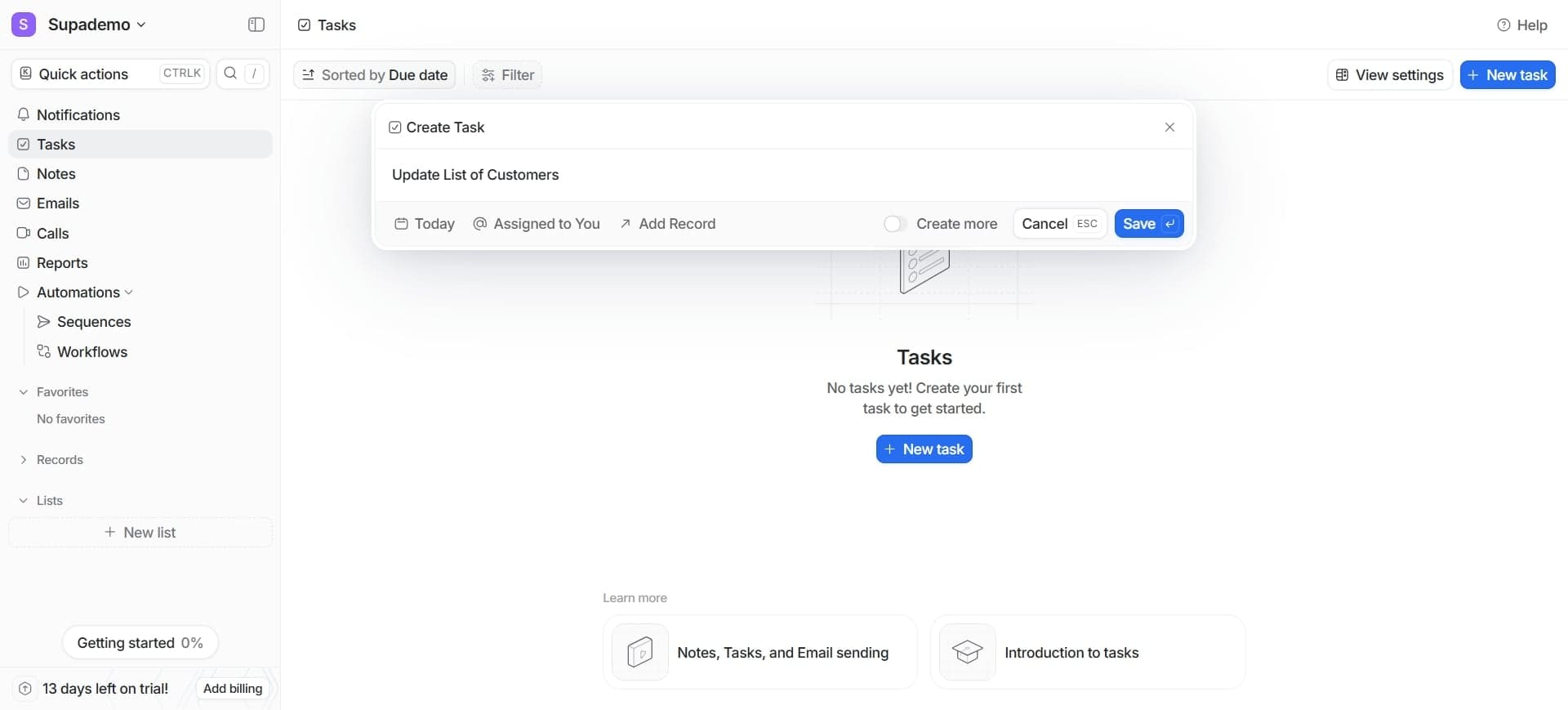
Provide a singular and plural name for your object, along with an optional description that explains its purpose. These details help your team understand the object's role within your workspace.
- 5
Configure display settings
Set how the object will appear in your workspace, including color, icon, and display preferences. These visual settings help team members quickly identify and distinguish different object types.
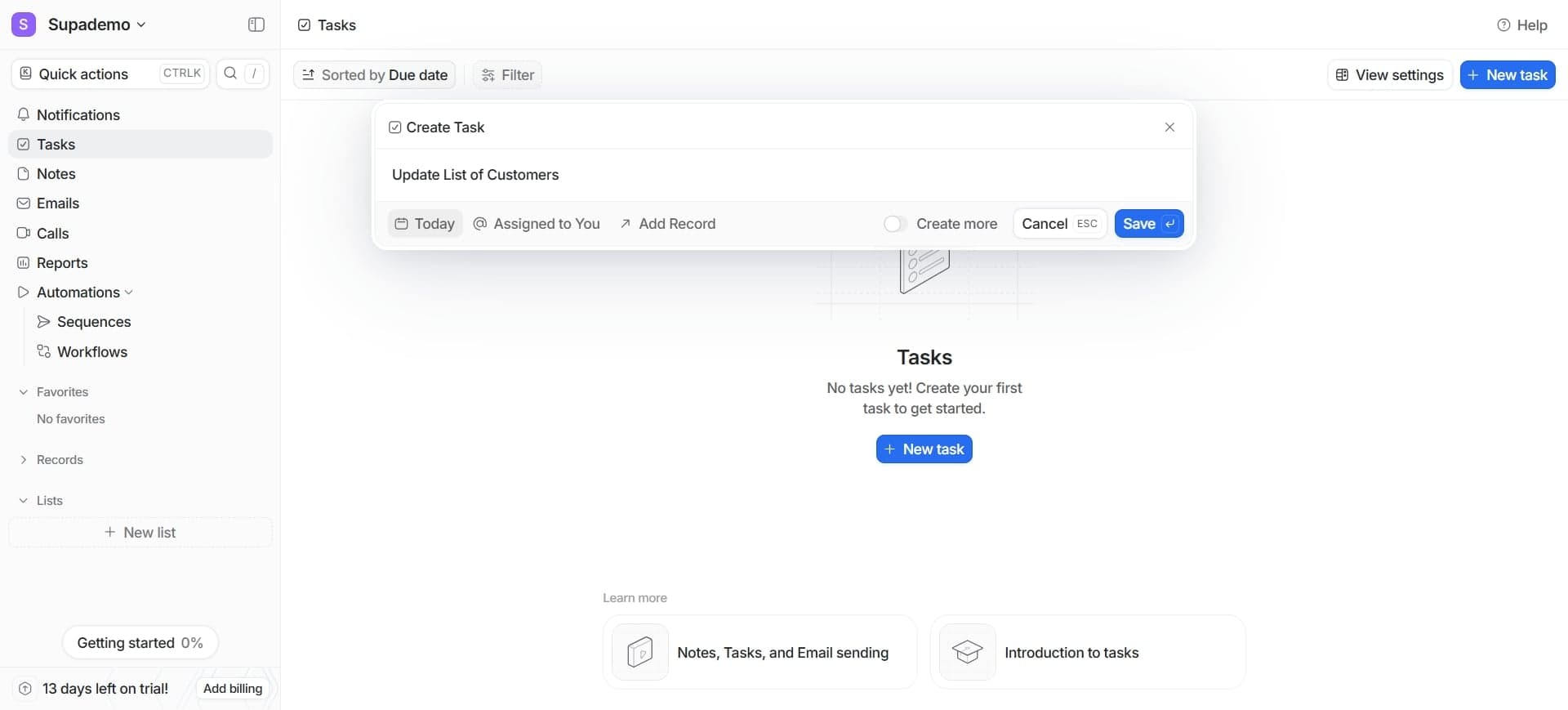
- 6
Add custom fields to the object
Click the option to add fields and choose from various field types such as text, email, date, dropdown, or relationship fields. Each field should correspond to a specific data point you want to track for this object.
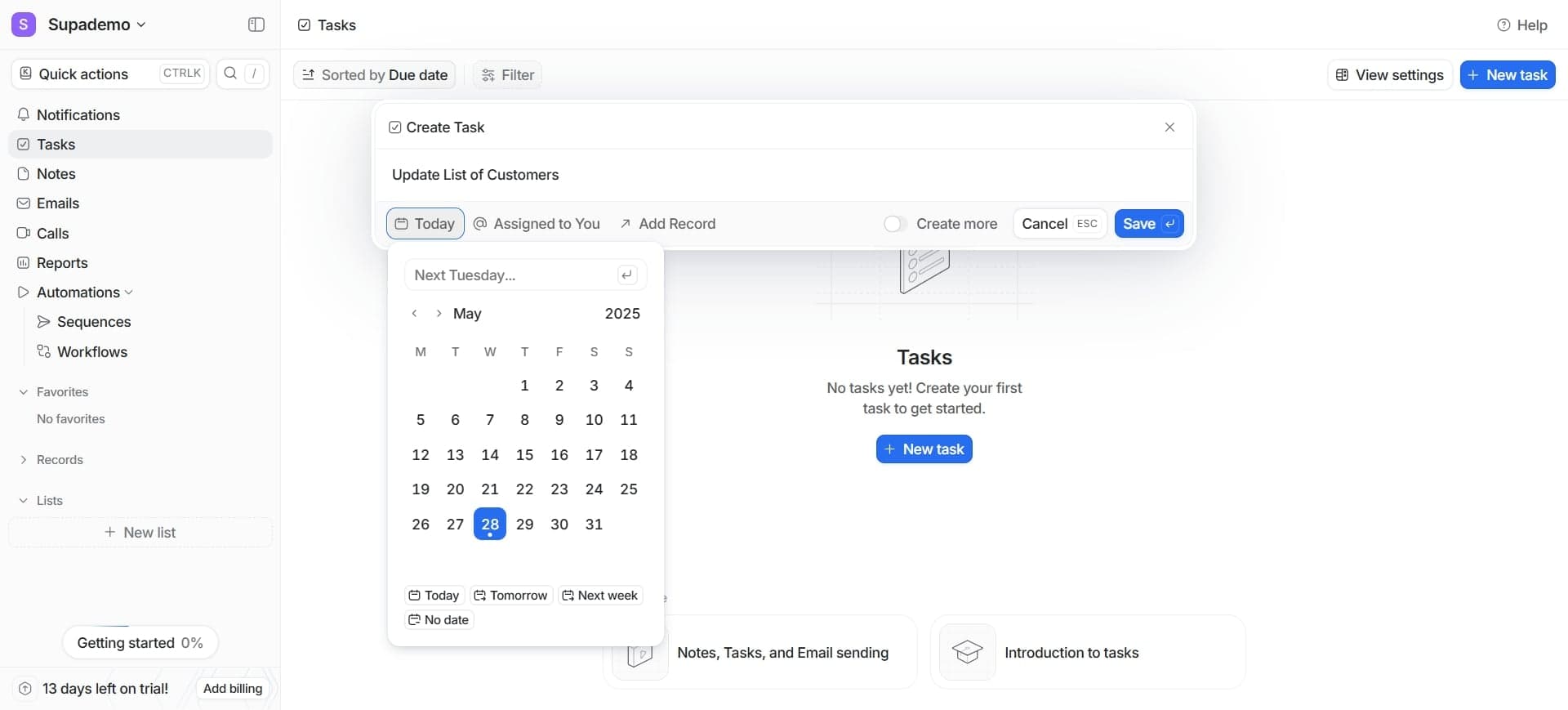
- 7
Configure field properties and validation
For each field, set properties like whether it's required, its default value, and any validation rules. This ensures data consistency and helps prevent incomplete or invalid entries.
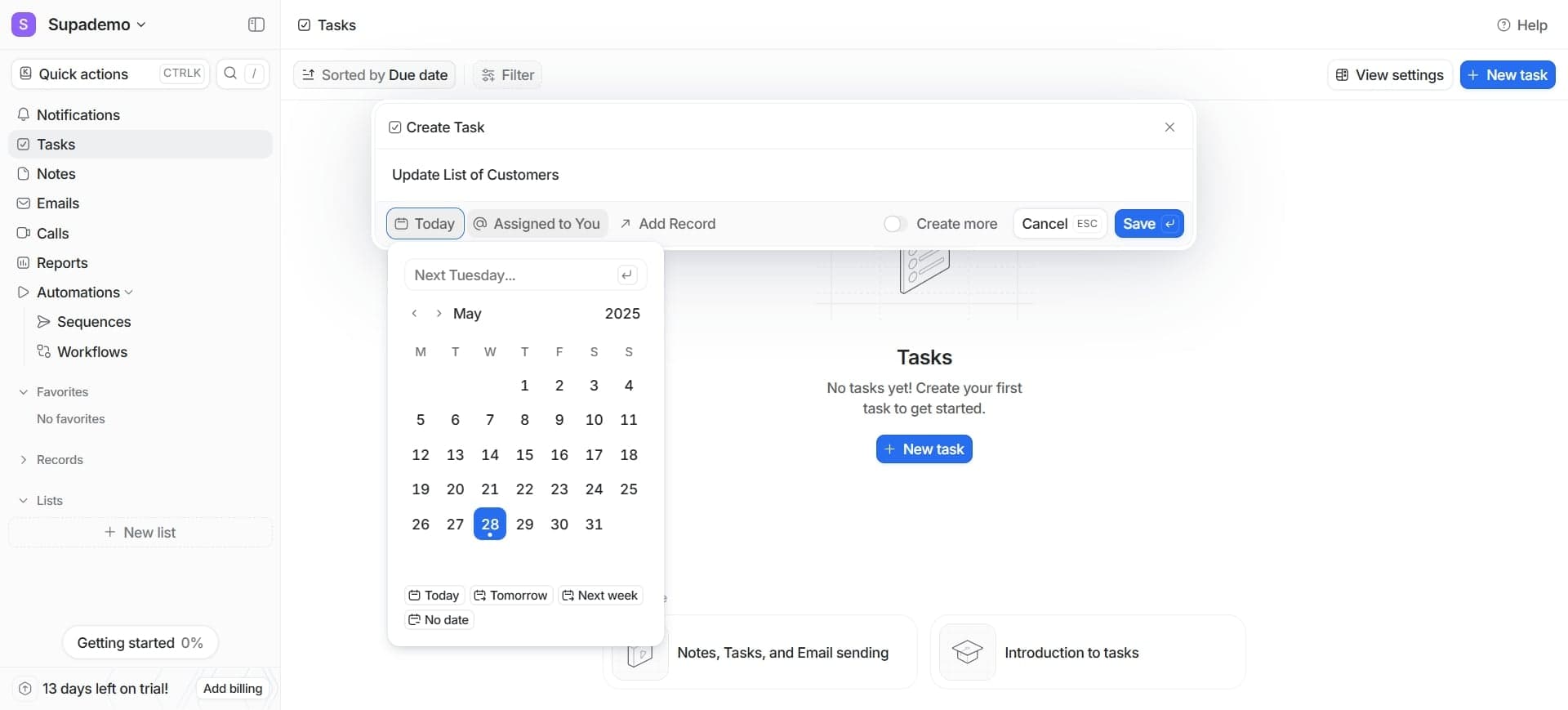
- 8
Set up field permissions
Define who can view and edit each field based on user roles or teams within your workspace. Granular permissions protect sensitive information and ensure proper data governance.
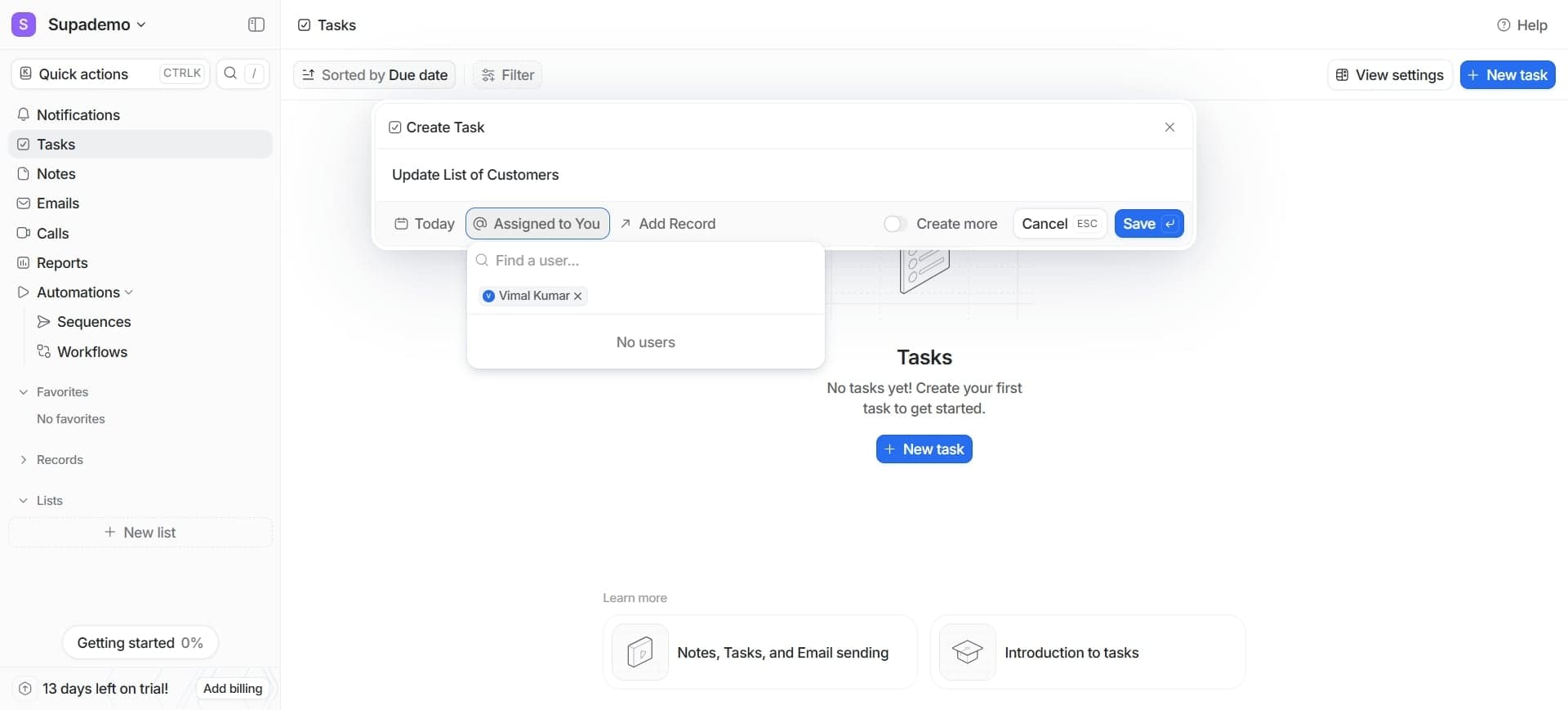
- 9
Create relationship fields between objects
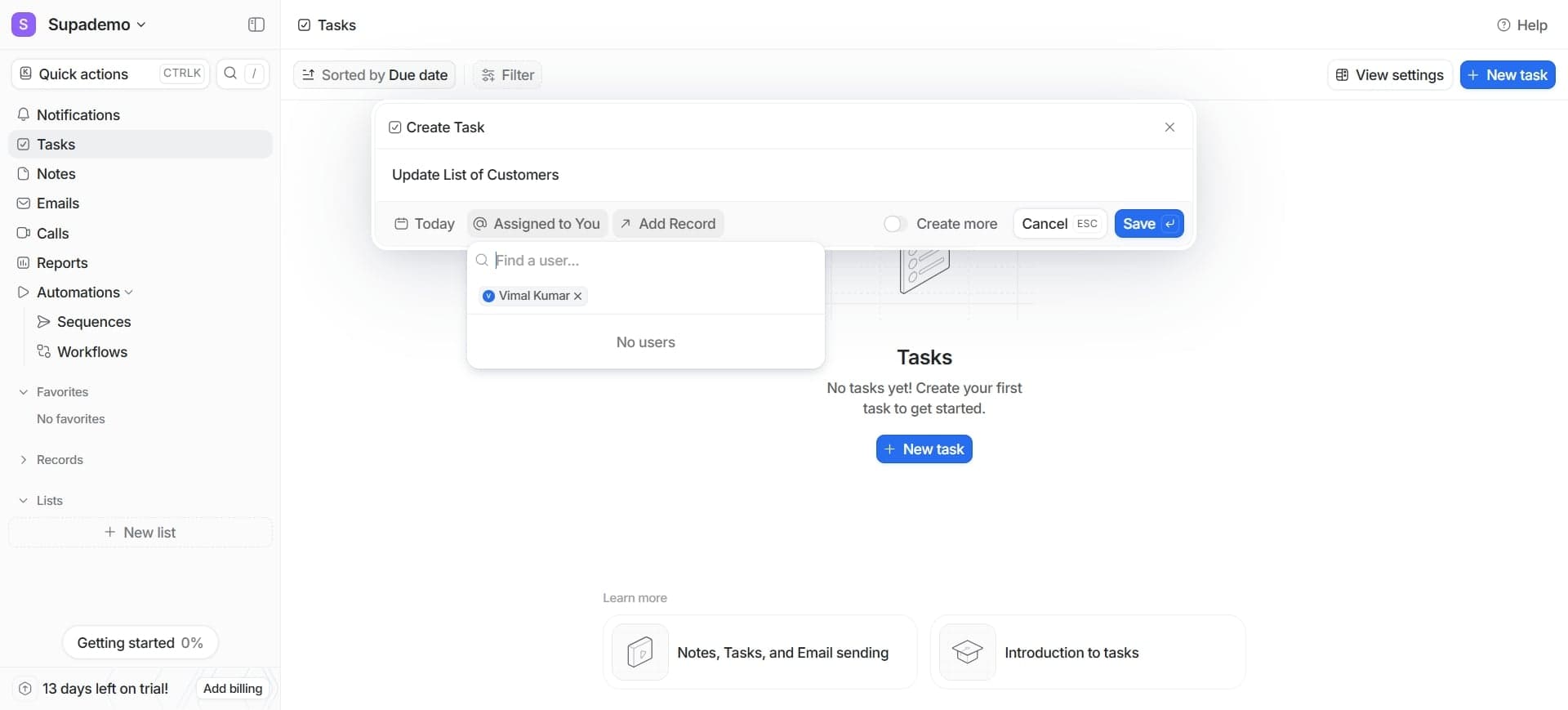
Add fields that link this object to other objects in your workspace, establishing connections between related data. For example, link a Projects object to Companies or Contacts.
- 10
Configure relationship cardinality
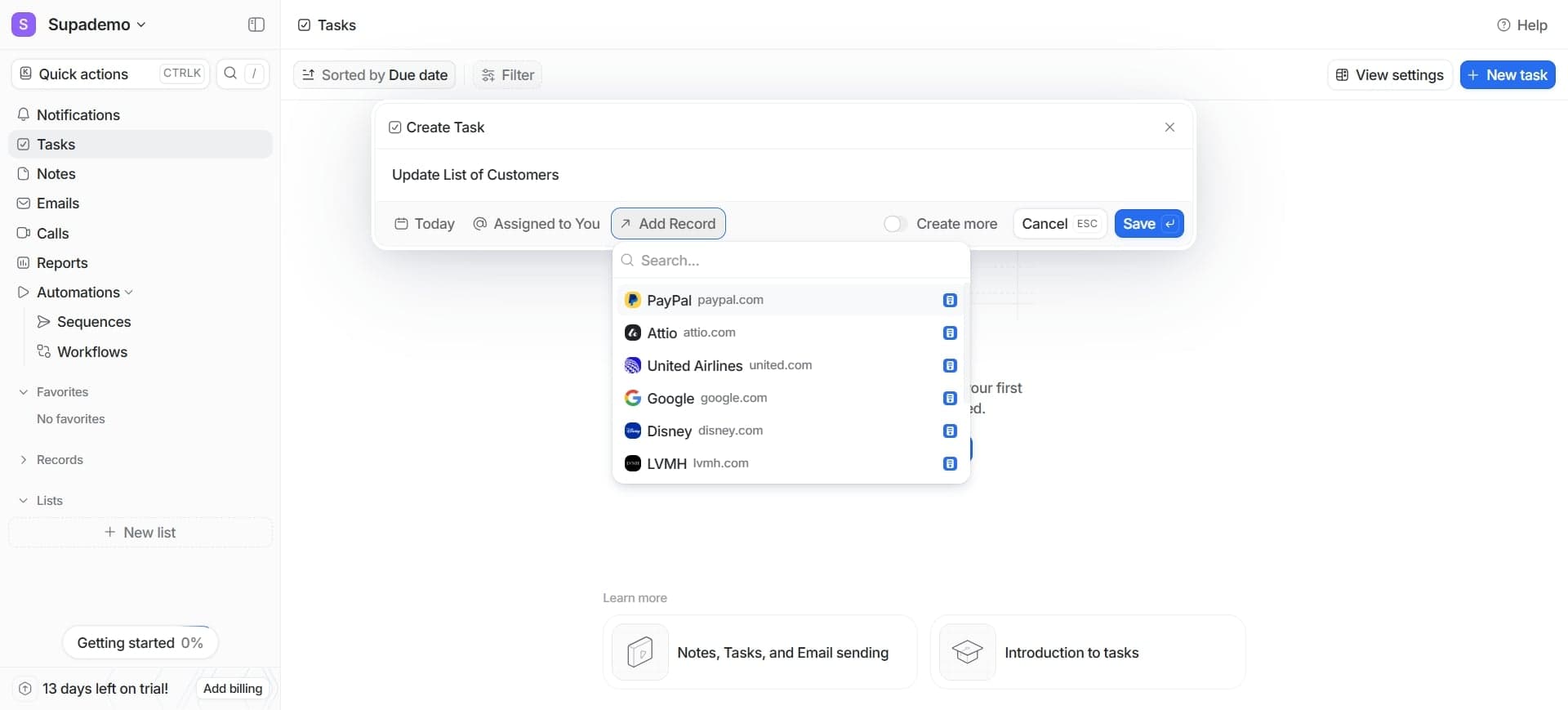
Specify whether relationships are one-to-one, one-to-many, or many-to-many, depending on how objects should connect. This determines how data can be associated across your workspace.
- 11
Set up list views for the object
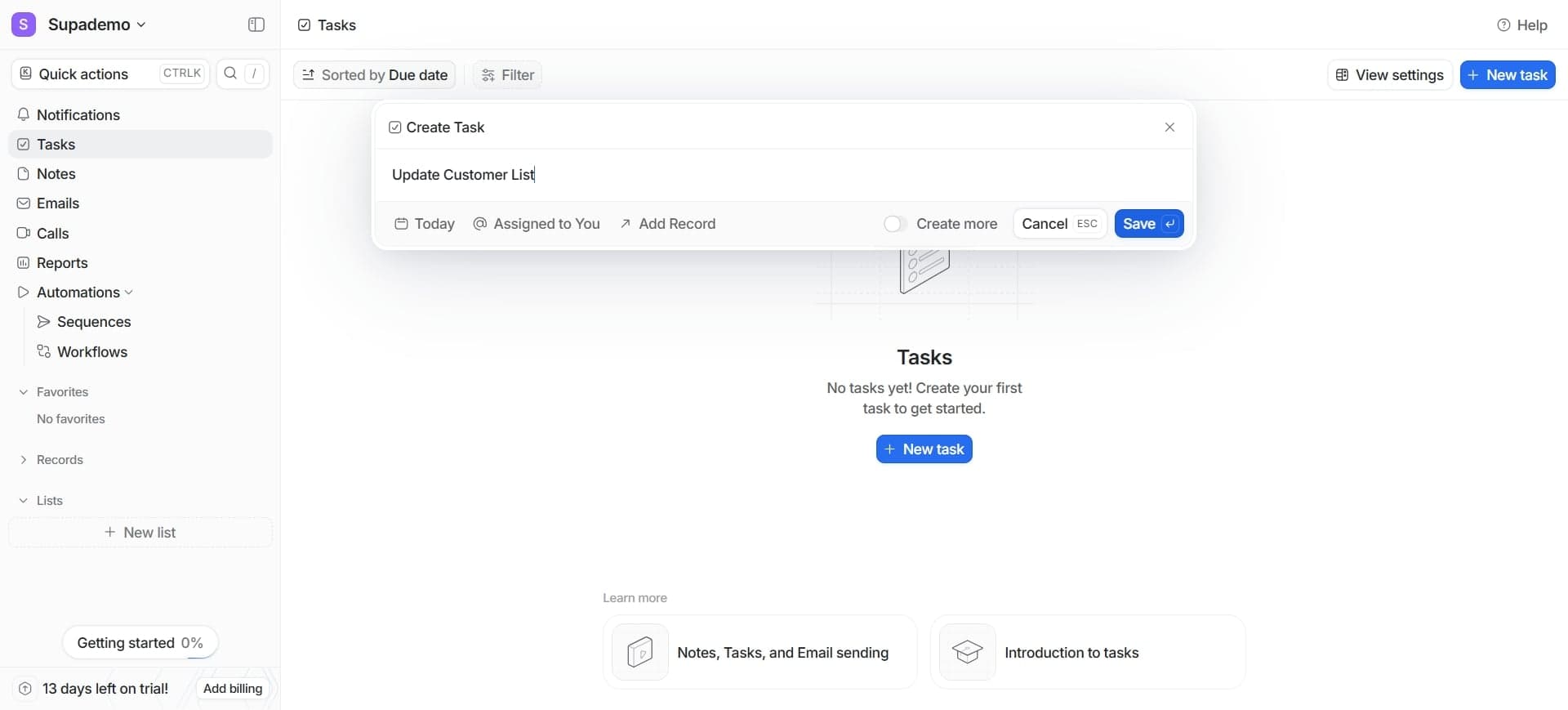
Create default views that display your object data in table format with specific columns, filters, and sorting. Multiple views help teams quickly find relevant records for their workflows.
- 12
Configure automation rules
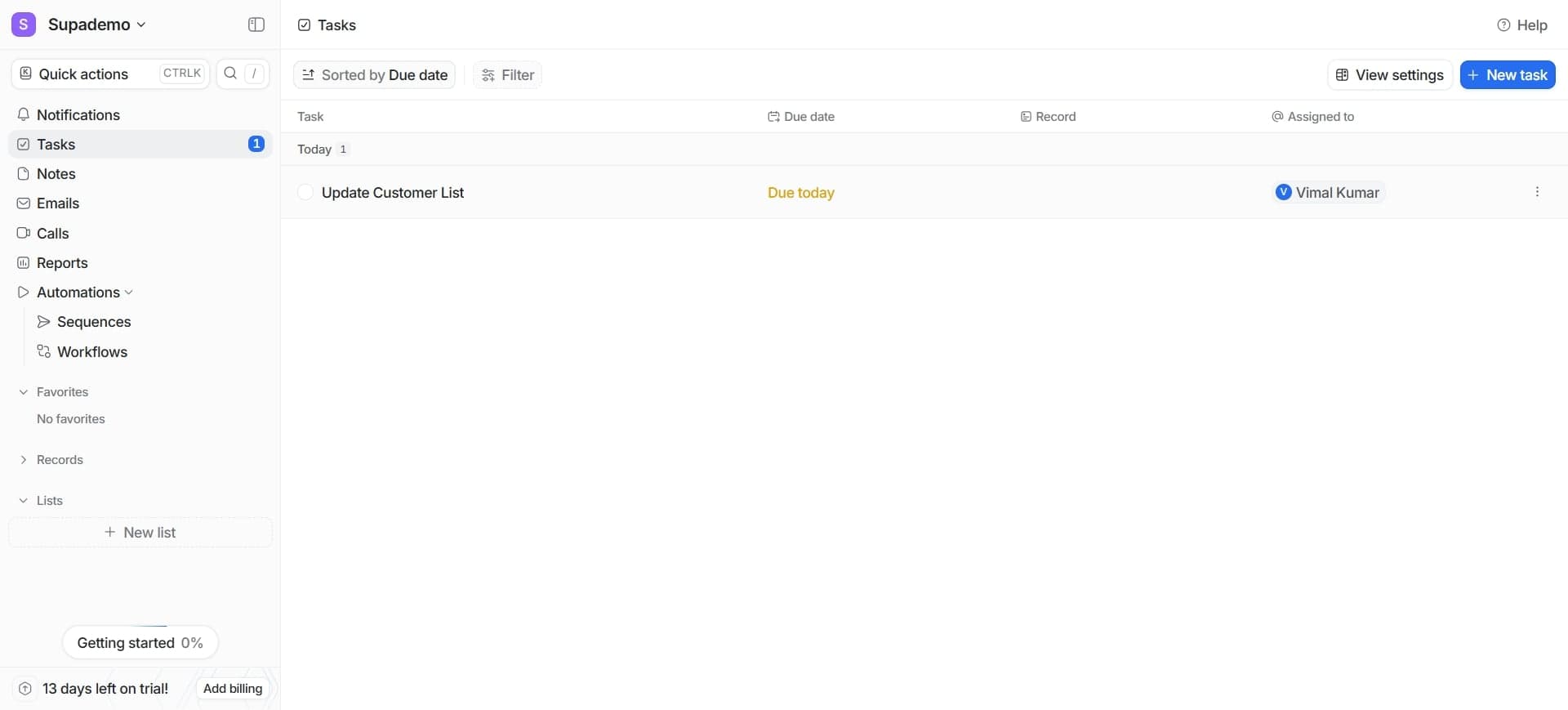
Set up automated actions such as field updates or notifications triggered by specific conditions or events. Automation reduces manual work and ensures consistent processes across your team.
- 13
Enable record templates
Create templates with pre-filled field values to standardize how new records are created. Templates speed up data entry and ensure important fields aren't accidentally skipped.
- 14
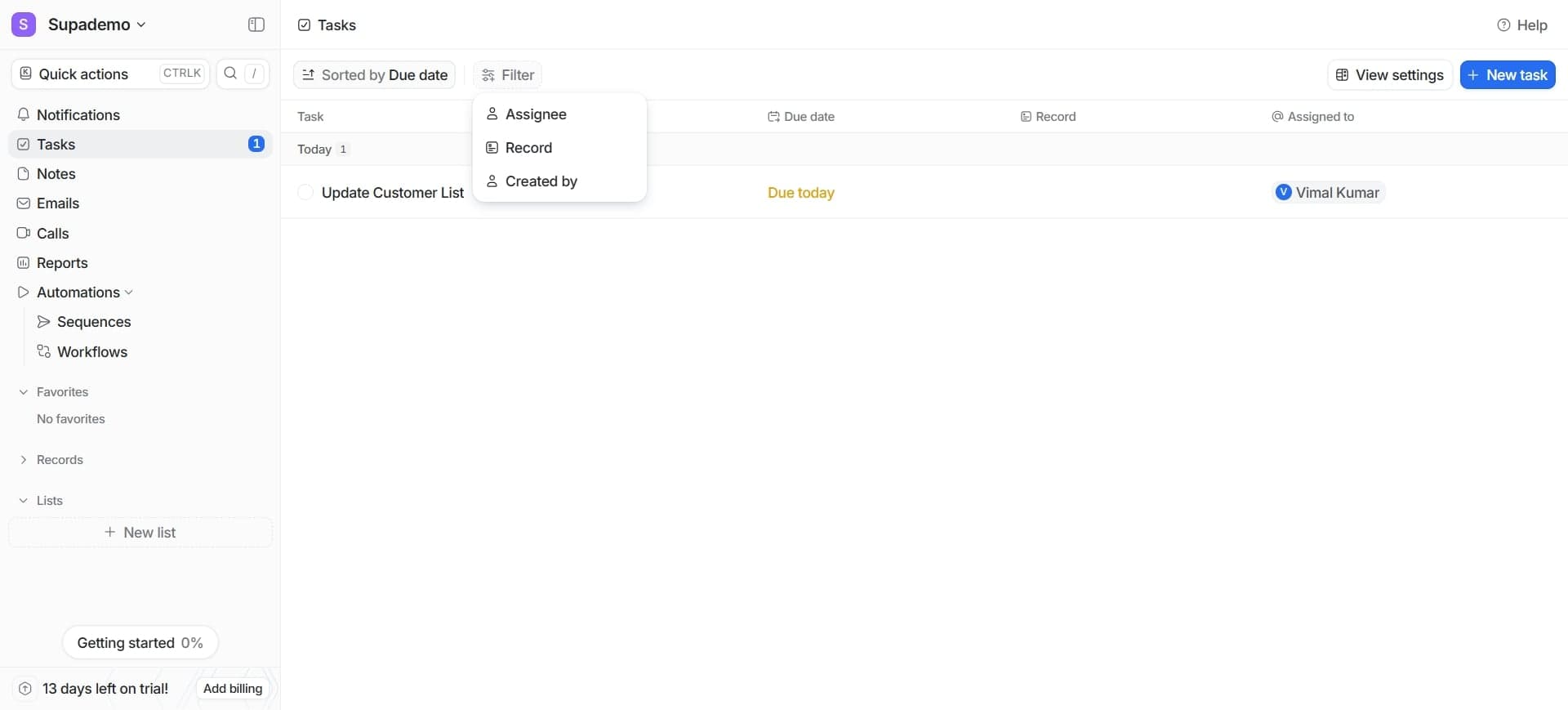
Set up object-level permissions
Define who can create, read, update, and delete records of this object type across your entire workspace. These permissions ensure appropriate access control for sensitive data.
- 15
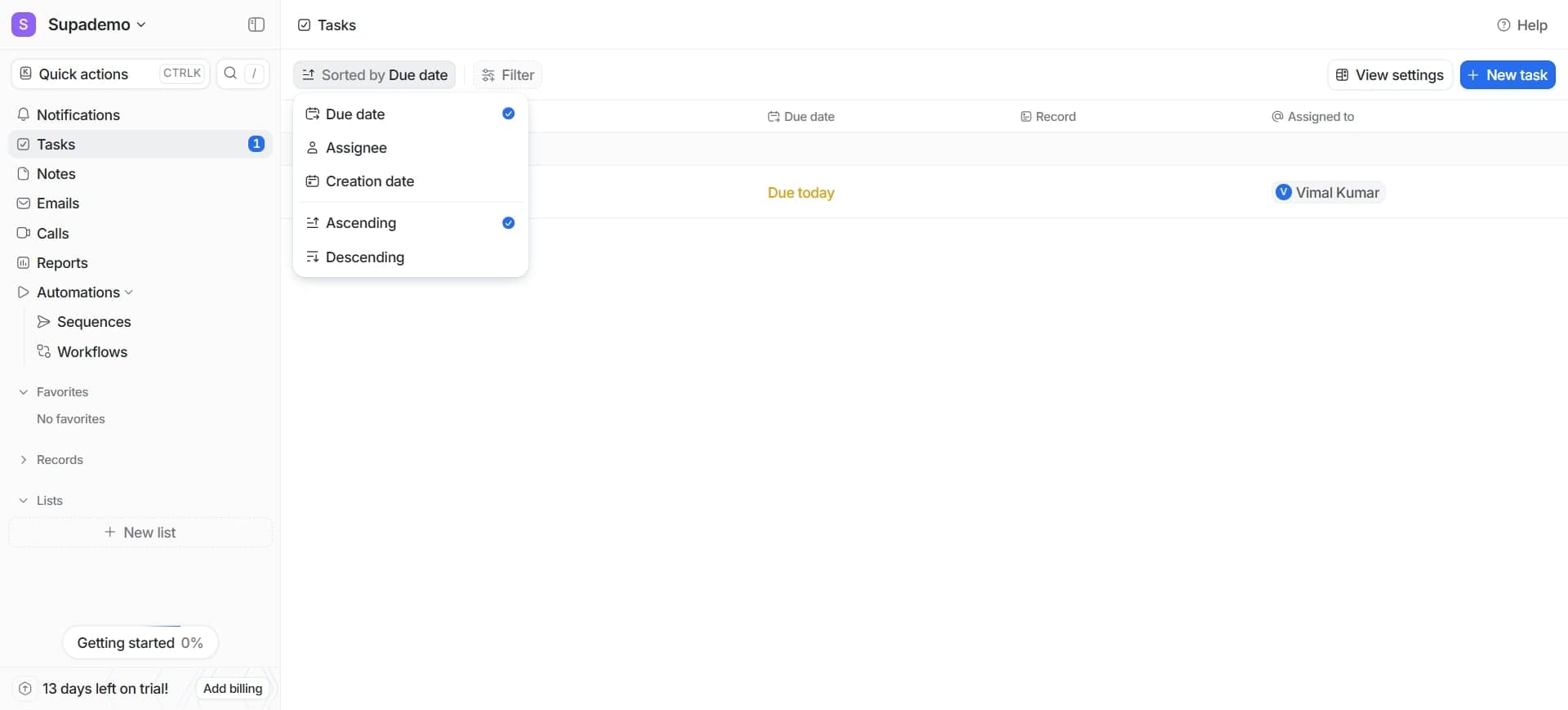
Configure tracking and audit settings
Enable activity tracking and audit logs to maintain a record of all changes made to object records. This provides transparency and helps your team track the history of important data.
- 16
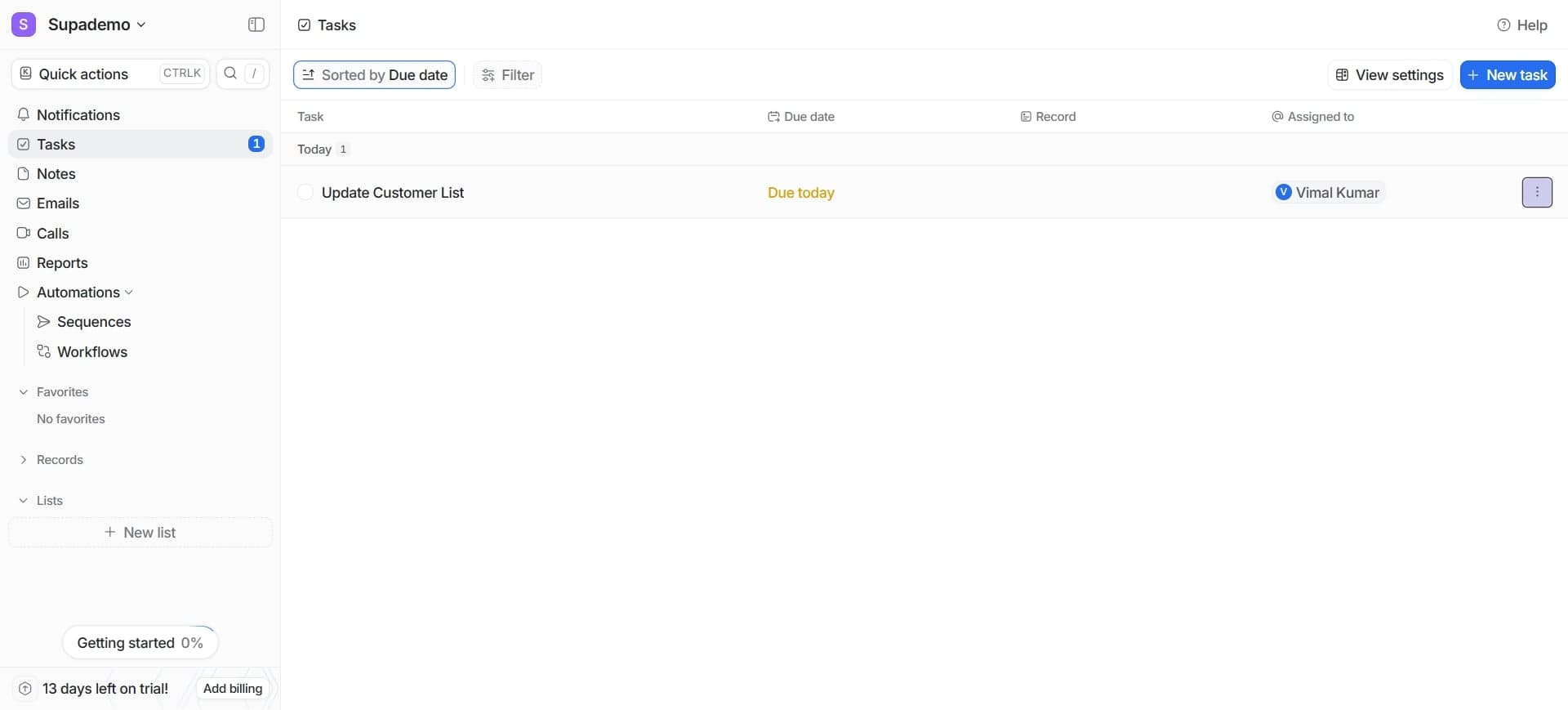
Test the object creation workflow
Create a test record using your newly configured object to verify all fields, relationships, and validations work as expected. This ensures the object is ready for team use.
- 17
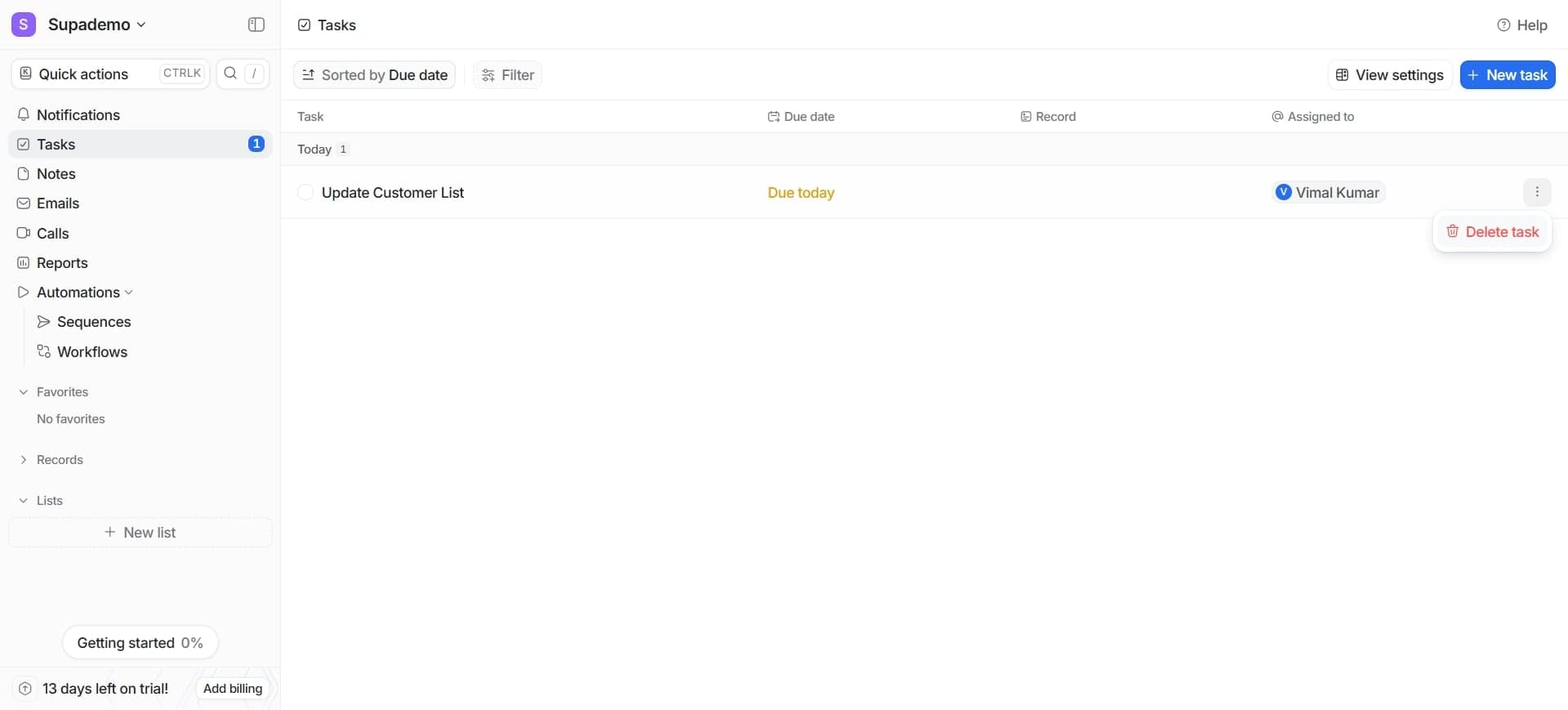
Save and deploy the object
Review your object configuration and save it to make it available throughout your workspace. Your team can now start creating and managing records using this custom object.
Frequently asked questions
Common questions about how to create and manage objects in attio.
Can I modify an object after it's been created?
Yes, you can modify most aspects of an object after creation, including adding new fields, changing display settings, and updating relationships. However, be cautious when modifying existing fields or relationships that contain data, as changes can impact existing records. It's best to test modifications in a non-production environment first.
What's the difference between relationship types?
One-to-one relationships mean each record in one object connects to exactly one record in another object. One-to-many means one record can relate to multiple records in another object. Many-to-many allows multiple records on both sides to connect. Choose based on how your data naturally relates.
How do I control who can see and edit object data?
Attio offers permissions at both field level and object level. Set object permissions to control who can create, view, update, or delete records. Then set individual field permissions to hide sensitive data from specific team members while keeping records accessible.
Can I create objects from templates?
Attio may provide pre-built object templates for common use cases, but exact availability depends on your plan. You can also create custom templates by saving a record with standard field values, making it quick to generate similar records.
What happens if I delete an object?
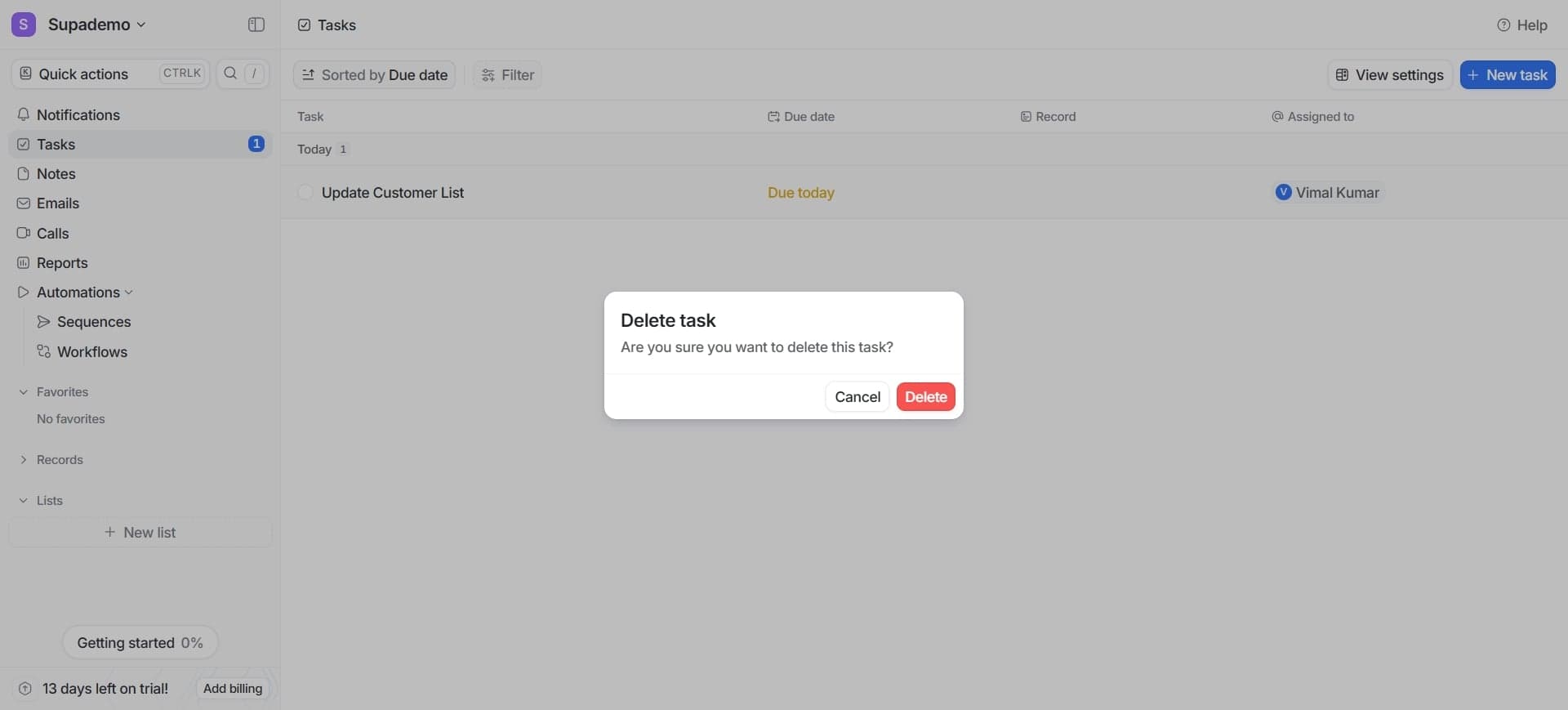
Deleting an object permanently removes the object type and all associated records from your workspace. This action cannot be undone, so always back up important data before deletion. Consider archiving the object instead if you might need the data later.