How to customize a Google Sheets chart

Customizing charts in Google Sheets allows you to tailor data visualization to match your specific needs and presentation style. Whether you need to adjust axis labels, change fonts, or modify colors, the chart customization panel gives you complete control over how your data is displayed.
Quick summary
In this tutorial, you'll learn how to access Google Sheets' chart customization features and modify key elements like axis labels and fonts. By following these steps, you'll be able to create professional, branded charts that effectively communicate your data insights.
Why this matters
Well-customized charts make your data more readable and visually appealing to your audience. Proper labeling and formatting ensure that viewers understand your data at a glance, which is especially important when sharing spreadsheets with stakeholders or including charts in presentations.
Step-by-step guide
- 1
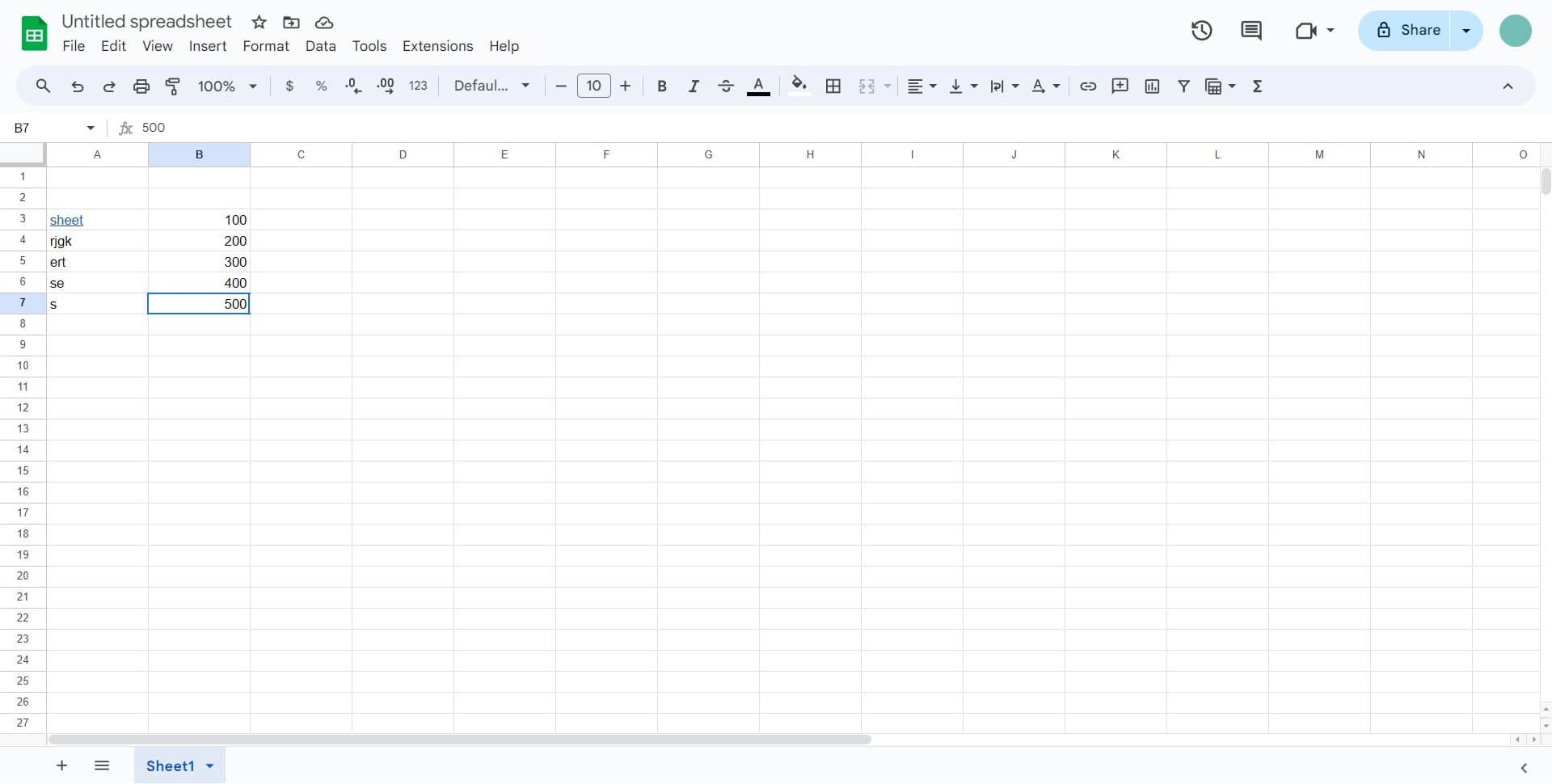
Select your chart in the spreadsheet
Click on the chart you want to customize. The chart will be selected and ready for editing.
- 2
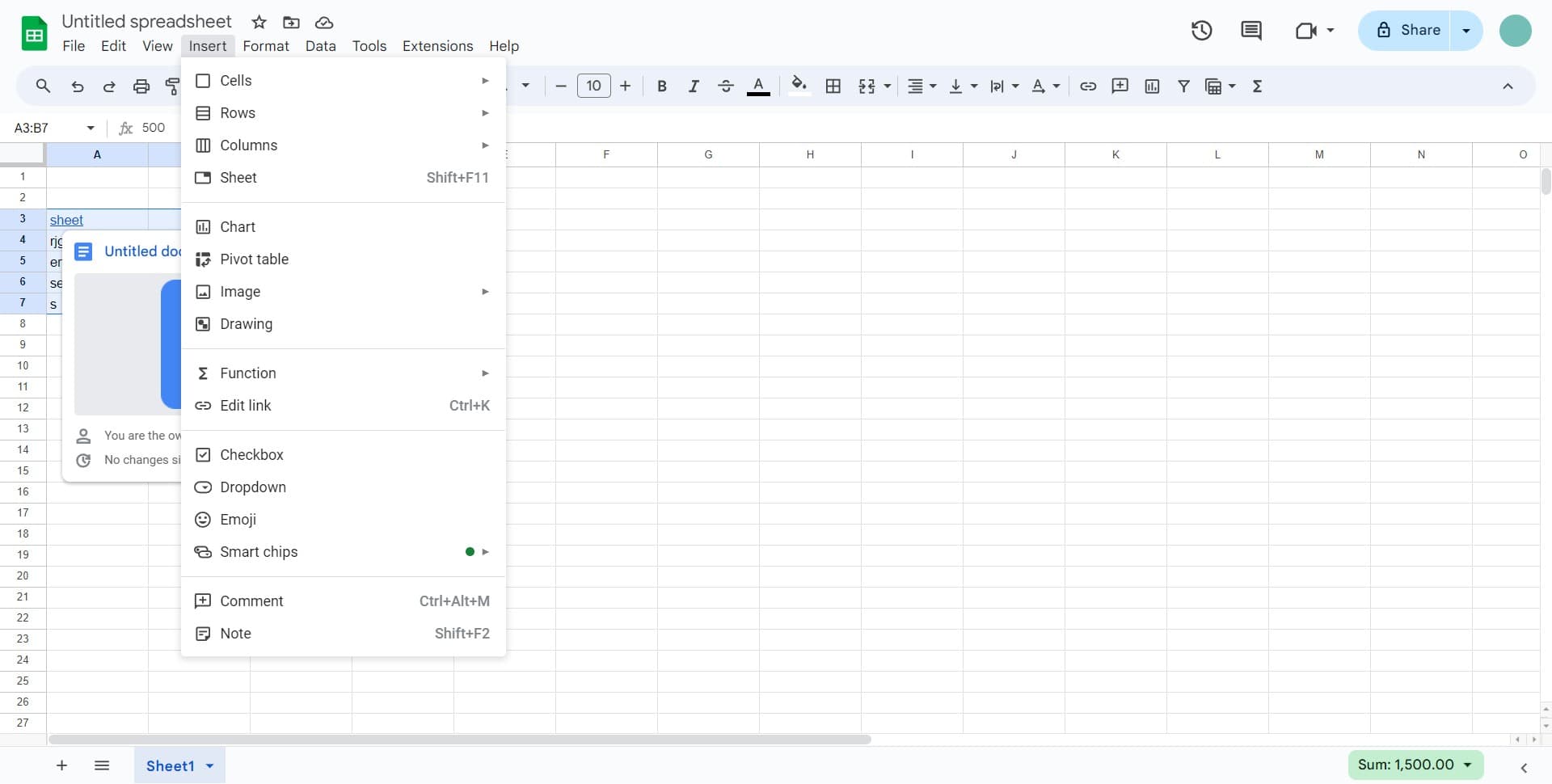
Click on Insert menu
Open the Insert menu from the top navigation bar to access chart-related options.
- 3
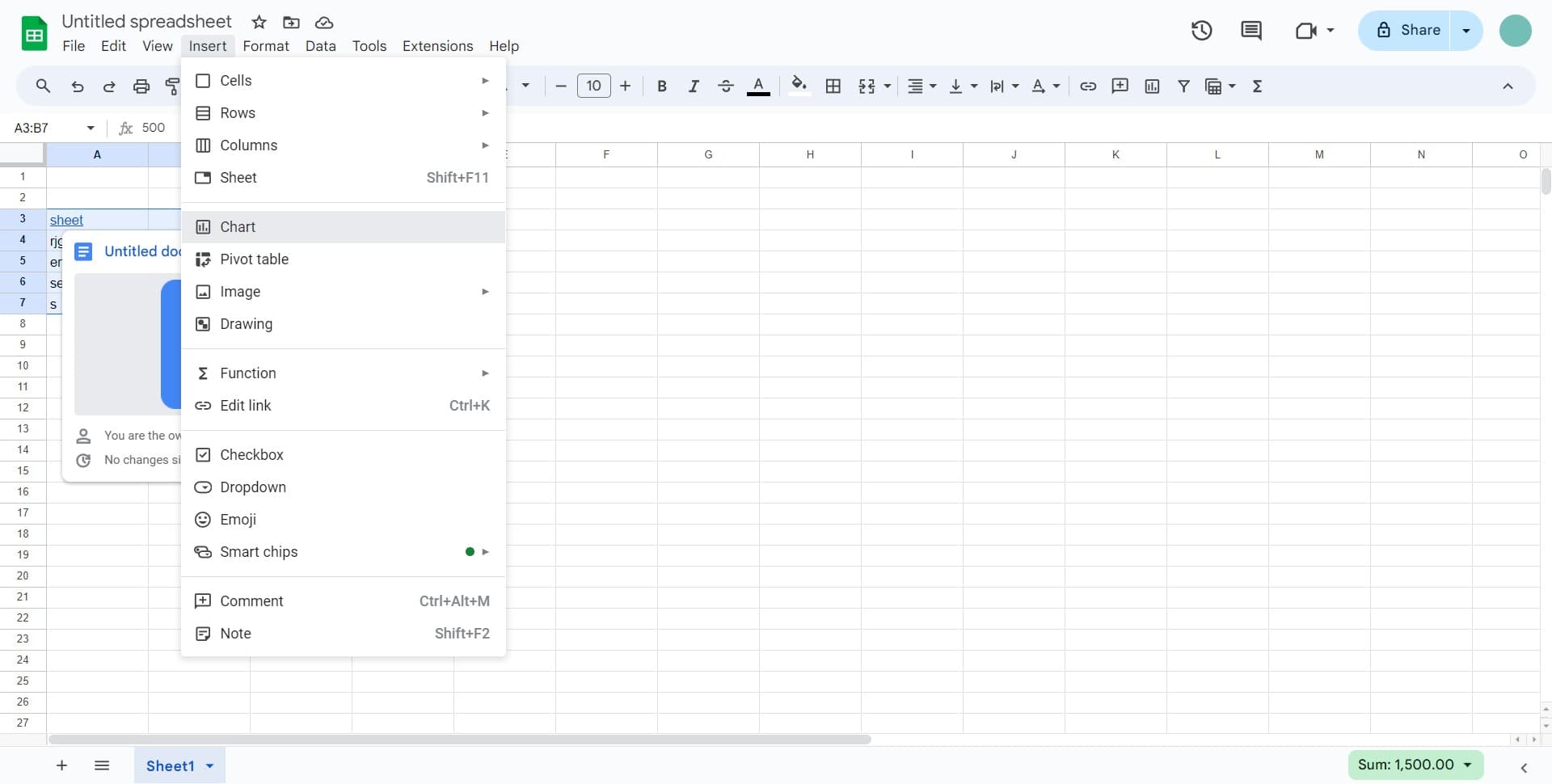
Select Chart option
Click on Chart to either create a new chart or open the customization panel for your selected chart.
- 4
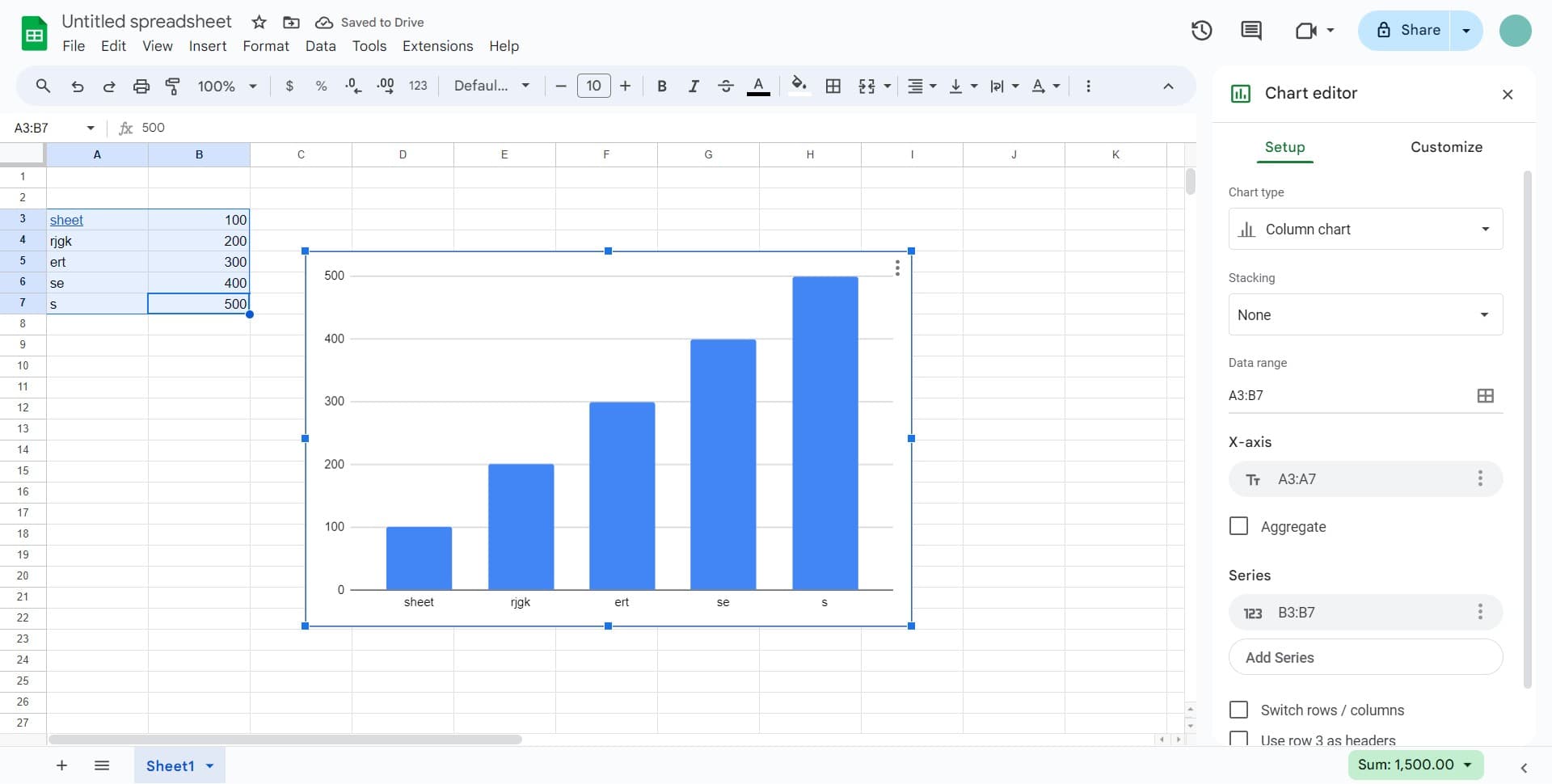
Open Customize panel
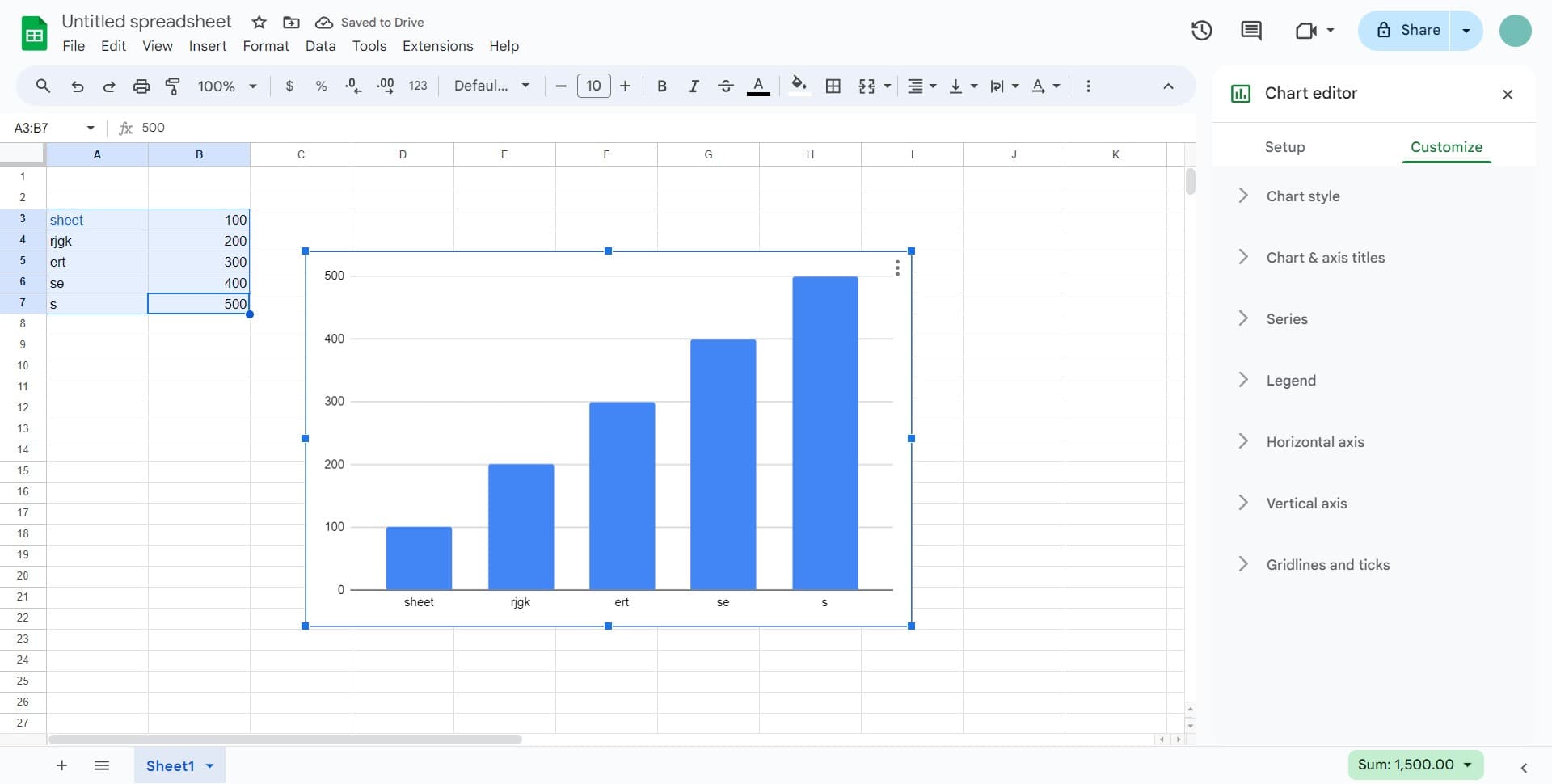
Click on the Customize tab in the chart editor panel that appears on the right side of your screen. This panel contains all formatting and styling options for your chart.
- 5
Click on Vertical axis
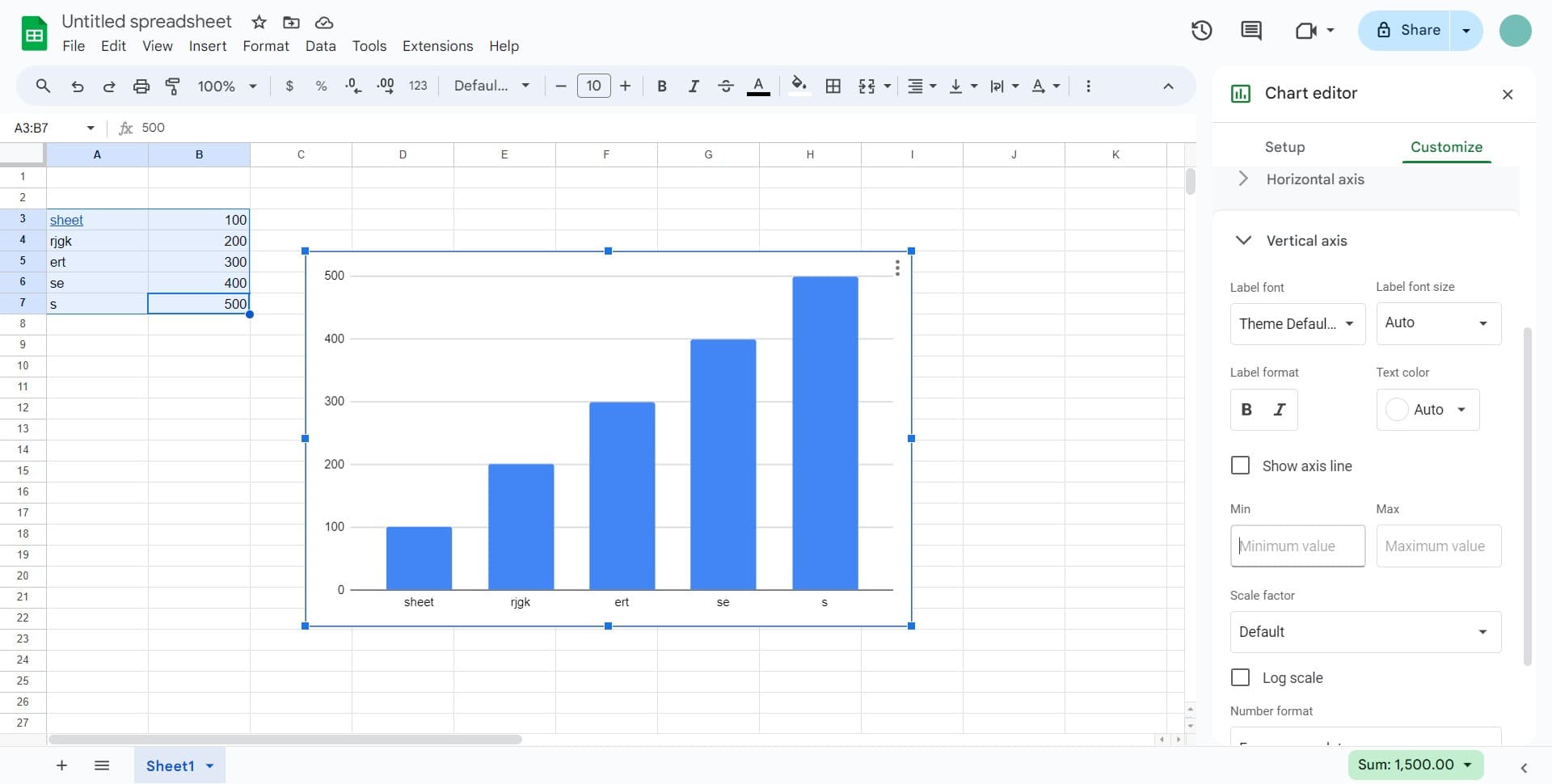
Select the Vertical axis option to customize the Y-axis of your chart, including its scale, labels, and formatting.
- 6
Access axis customization options
Click on the available customization controls to adjust properties like axis title, tick marks, and number format for the vertical axis.
- 7
Modify label font settings
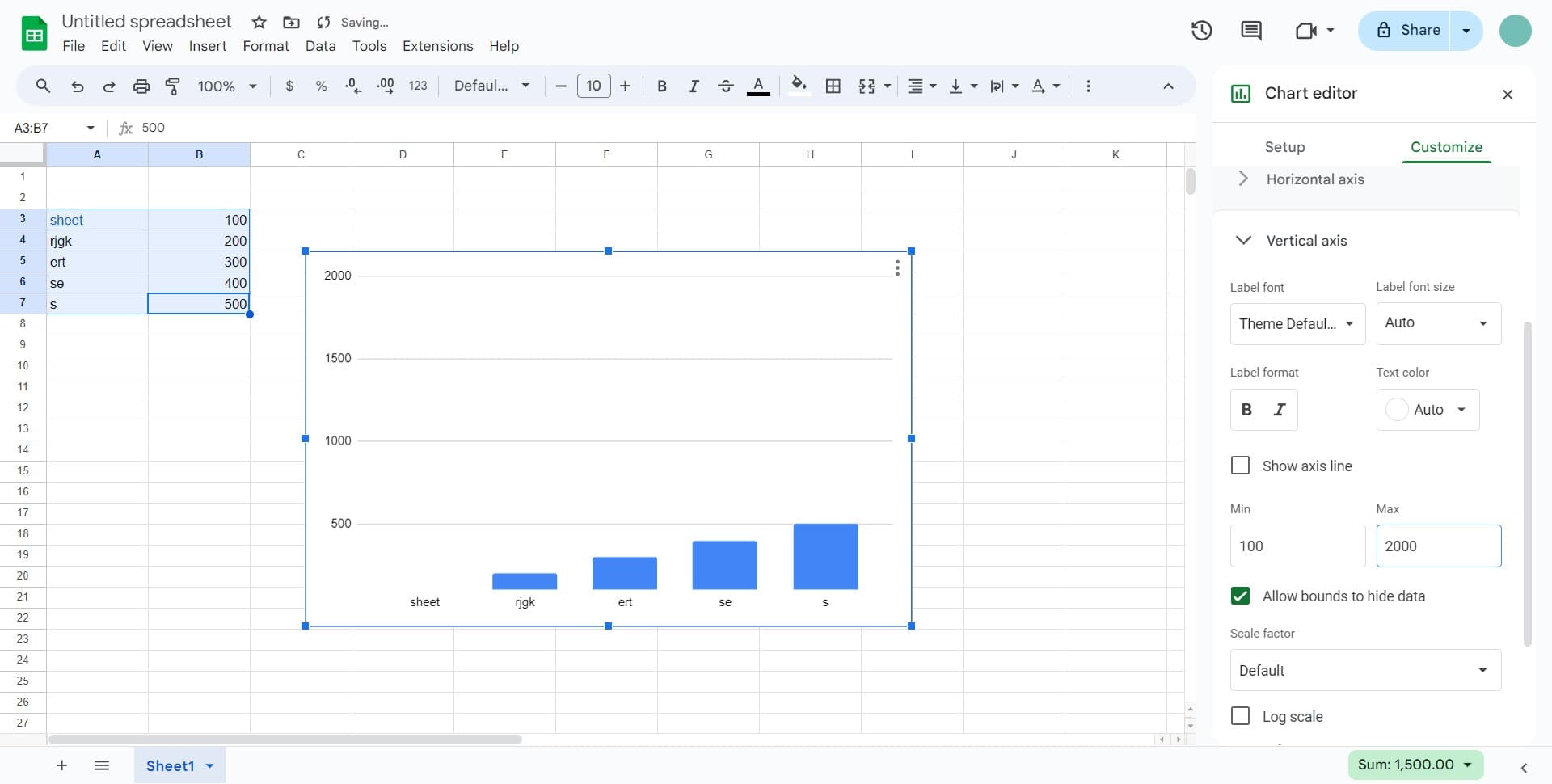
Click on the Label font option to change the typeface, size, and styling of your axis labels. This helps improve readability and match your document's design.
- 8
Apply additional vertical axis settings
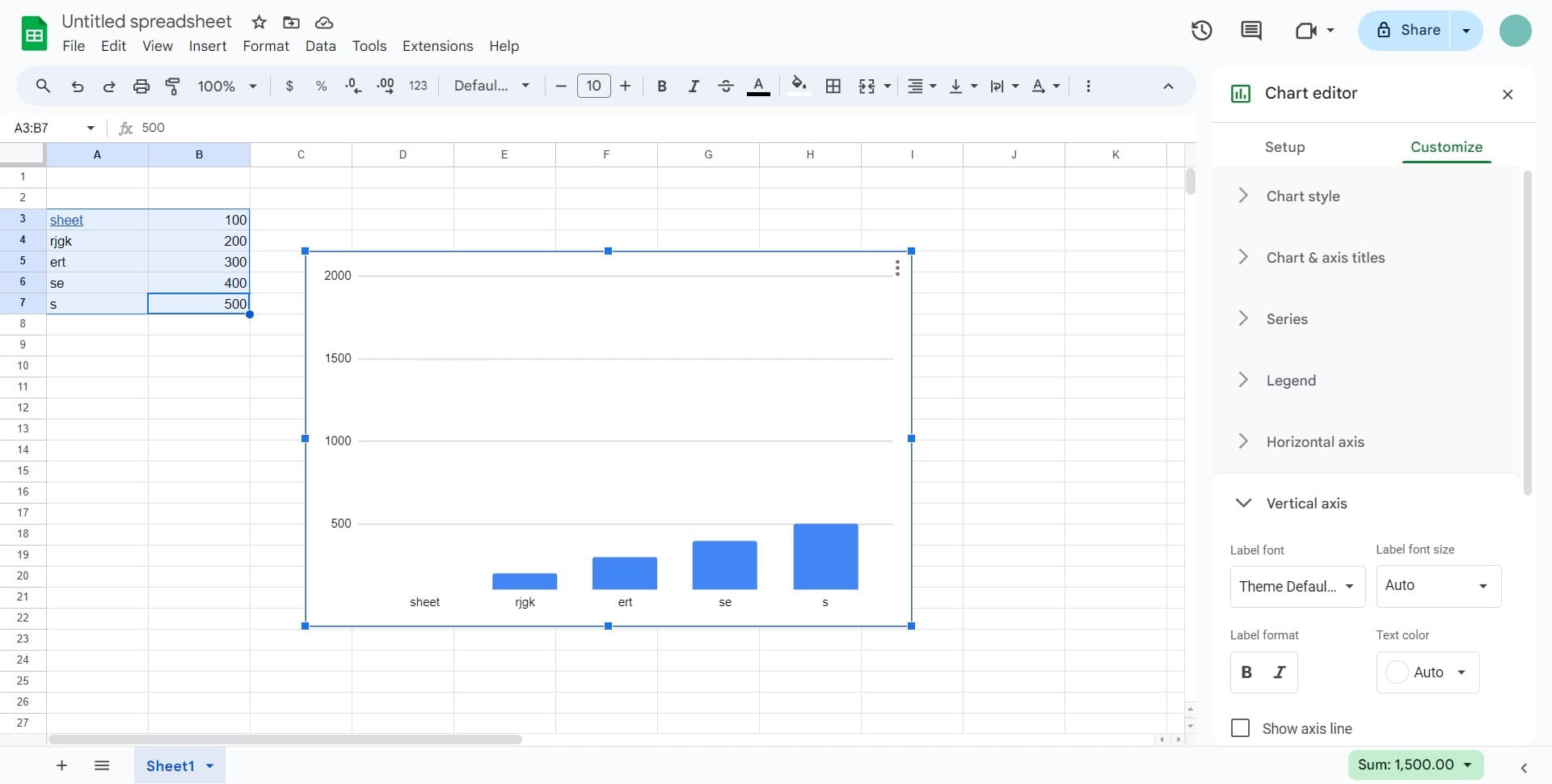
Return to the Vertical axis section if you need to make further adjustments to ensure your axis formatting meets your requirements.
Frequently asked questions
Common questions about how to customize a google sheets chart.
Can I customize both the horizontal and vertical axes?
Yes, Google Sheets allows you to customize both axes independently. Follow the same steps for the horizontal axis by selecting it from the Customize panel. Each axis can have its own font, scale, title, and formatting options.
What font options are available for chart labels?
Google Sheets provides a selection of standard fonts including Arial, Courier New, Times New Roman, and others. You can also adjust the font size and apply bold or italic formatting to enhance readability.
How do I change the chart title while customizing?
In the Customize panel, look for the Chart & axis titles section at the top. Click on it to access options for editing the main chart title, subtitle, and axis titles.
Can I undo changes if I customize the chart incorrectly?
Yes, you can use the standard undo function (Ctrl+Z on Windows or Command+Z on Mac) to revert any customization changes. You can also close the chart editor without saving changes by clicking outside the chart.
Do customization changes apply to all charts in my spreadsheet?
No, customization changes only apply to the individual chart you have selected. Each chart in your spreadsheet maintains its own independent settings, allowing you to customize them separately as needed.