How to Delete a Google Analytics Account

Deleting a Google Analytics account is a straightforward process that removes all associated data and properties from your account. Whether you're consolidating accounts, switching analytics providers, or cleaning up unused accounts, understanding how to permanently delete an account ensures your workspace stays organized.
Quick summary
In this tutorial, you'll learn how to navigate Google Analytics settings and delete your account in just a few clicks. We'll walk you through accessing account details and confirming the deletion to remove your account completely from the platform.
Why this matters
Properly deleting Google Analytics accounts prevents data clutter, ensures you're not paying for unused accounts, and maintains security by removing unnecessary data sources. This process is essential for organizations managing multiple properties or transitioning to different analytics solutions.
Step-by-step guide
- 1
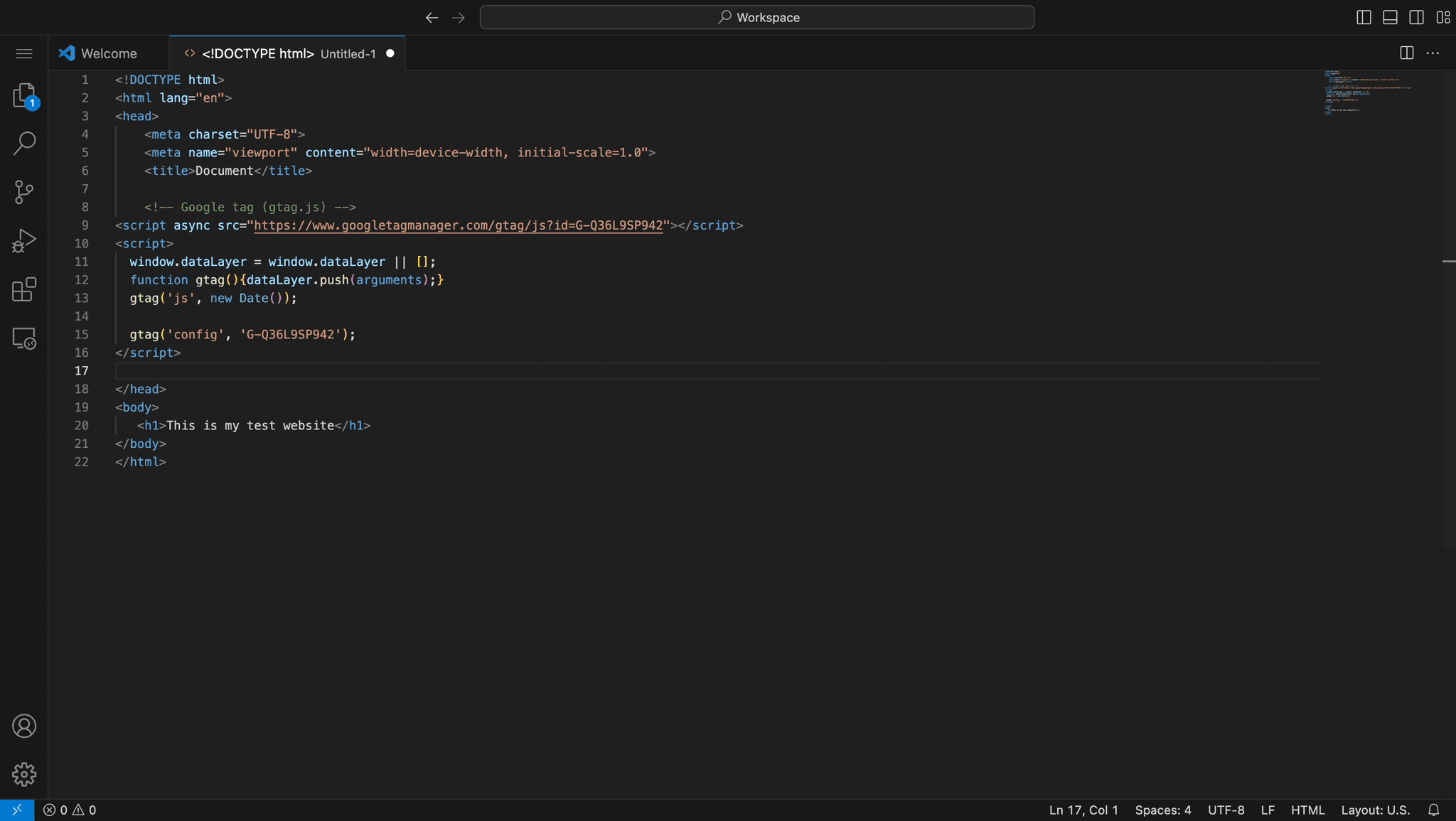
Upload your Google Analytics account
Begin by accessing your Google Analytics account and preparing it for deletion. Ensure you have the necessary administrator permissions required to delete the account.
- 2
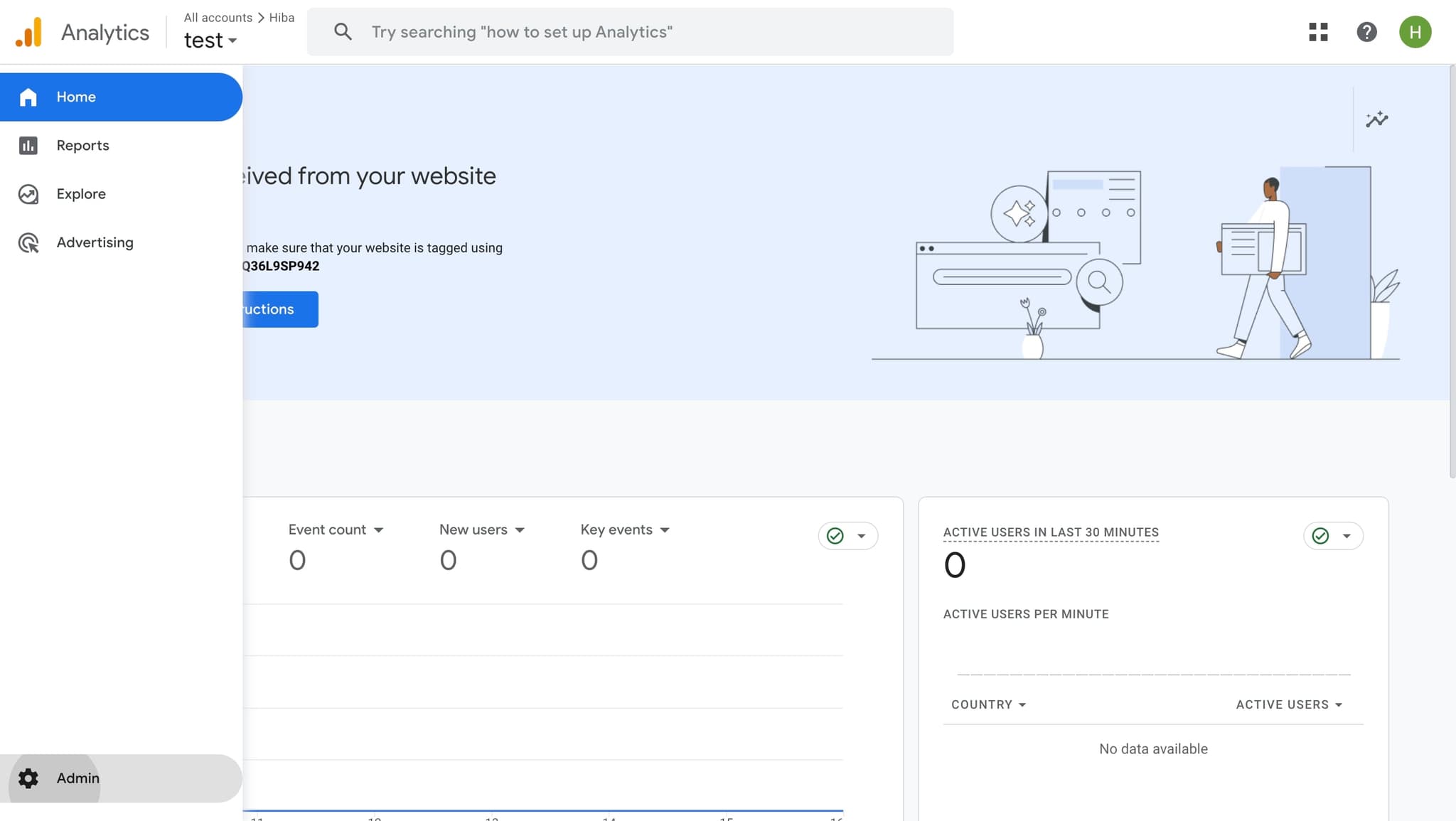
Click on the settings icon
Locate and click the settings icon (settings_filled) in the interface. This will open the settings menu where you can access account management options.
- 3
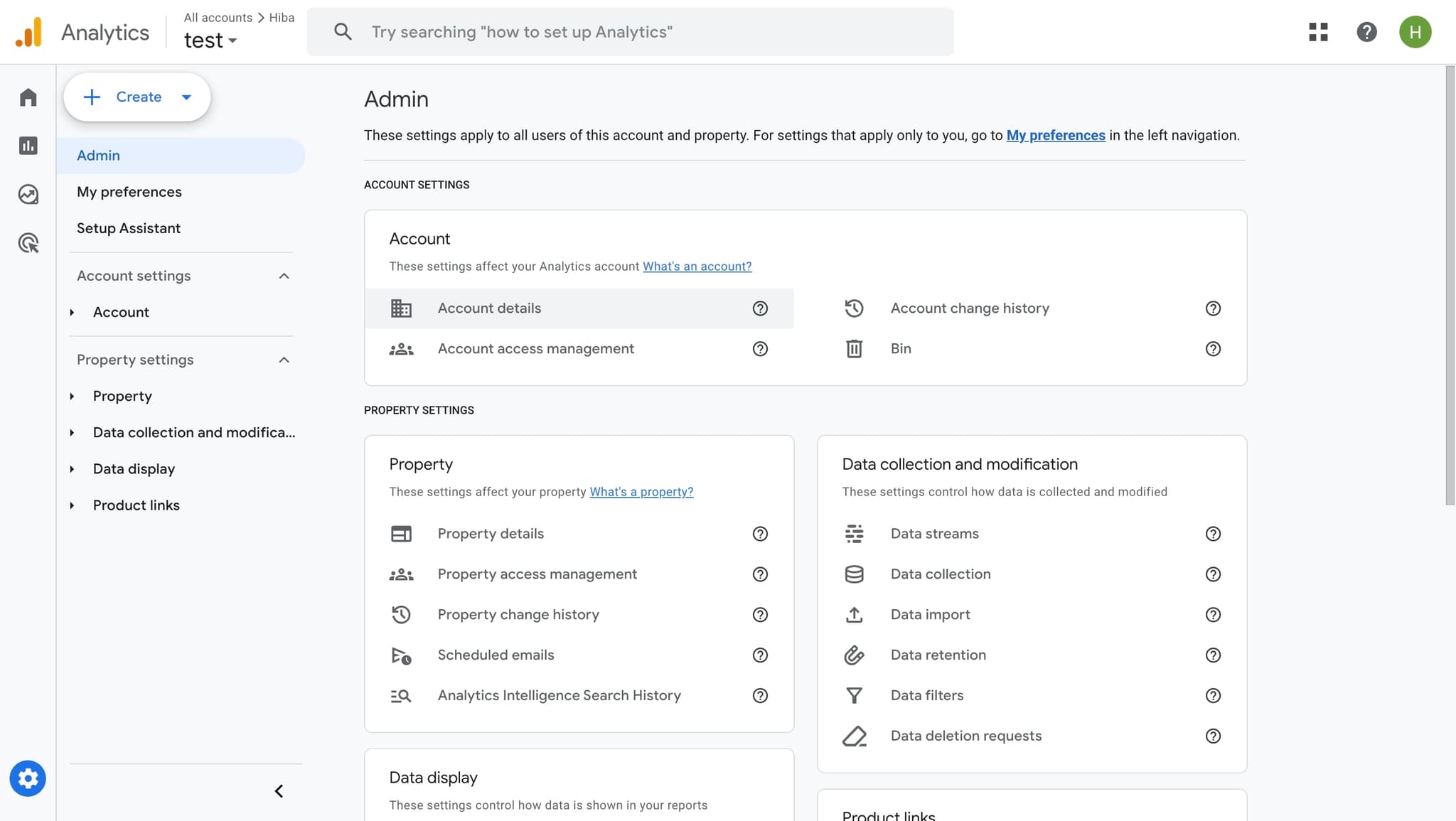
Navigate to Account details
From the settings menu, select 'Account details' to view comprehensive information about your account. This section contains the account deletion option.
- 4
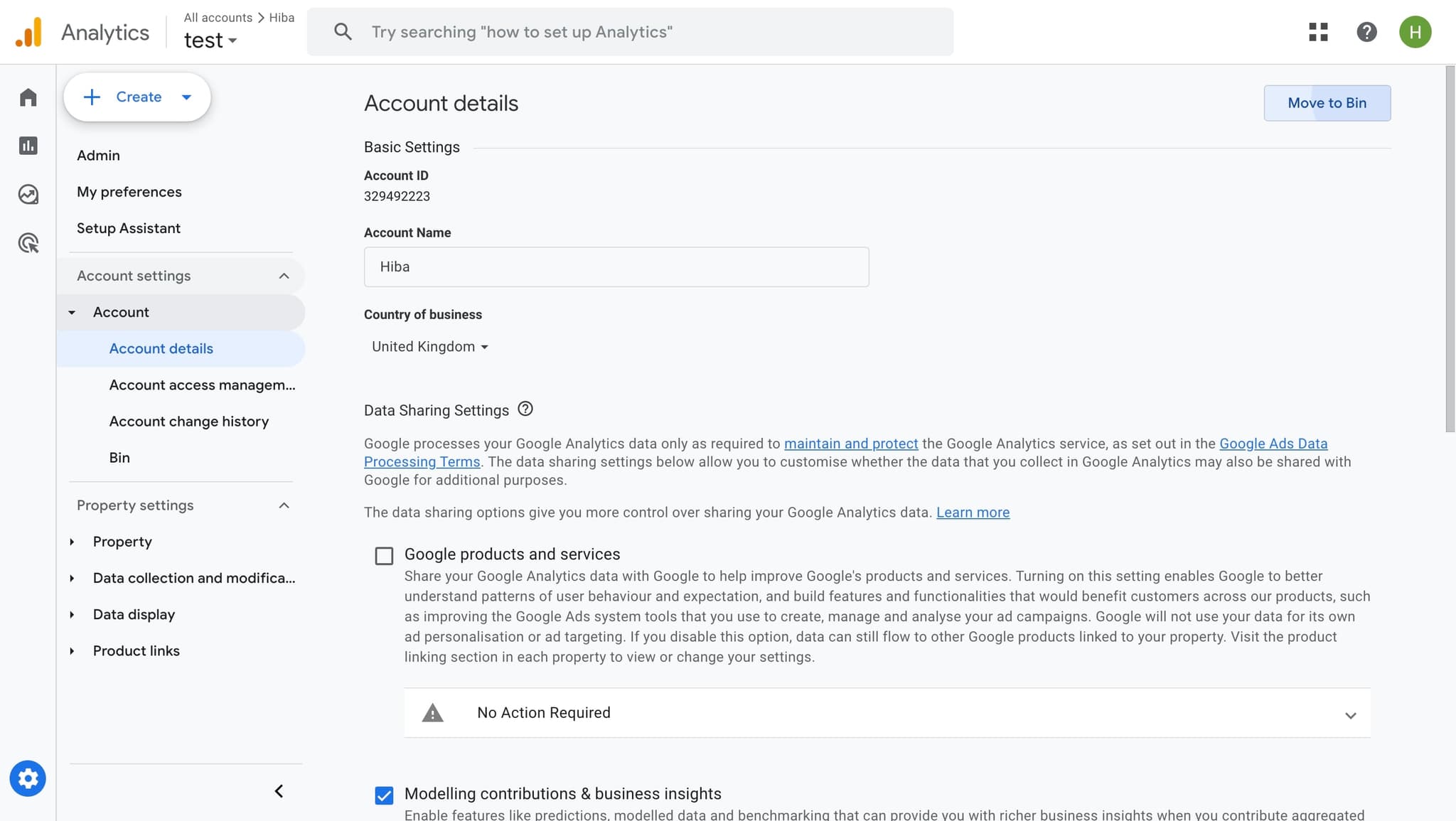
Click to access deletion options
Click the designated element to reveal the deletion controls. This will display options related to managing or removing your account.
- 5
Initiate the account deletion
Click the confirmation button to start the deletion process. Google Analytics may require you to confirm this action to prevent accidental deletion.
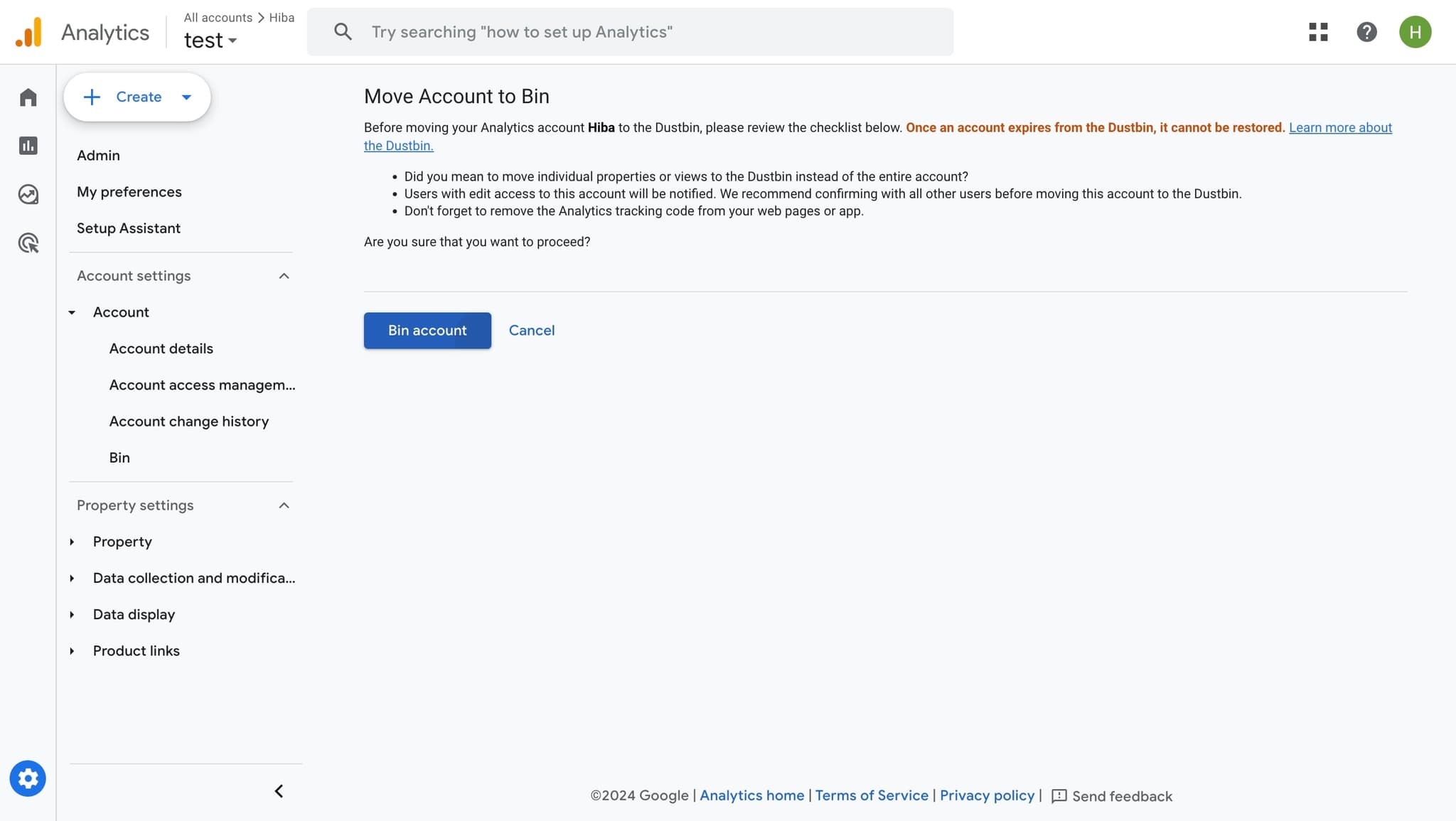
- 6
Confirm and complete deletion
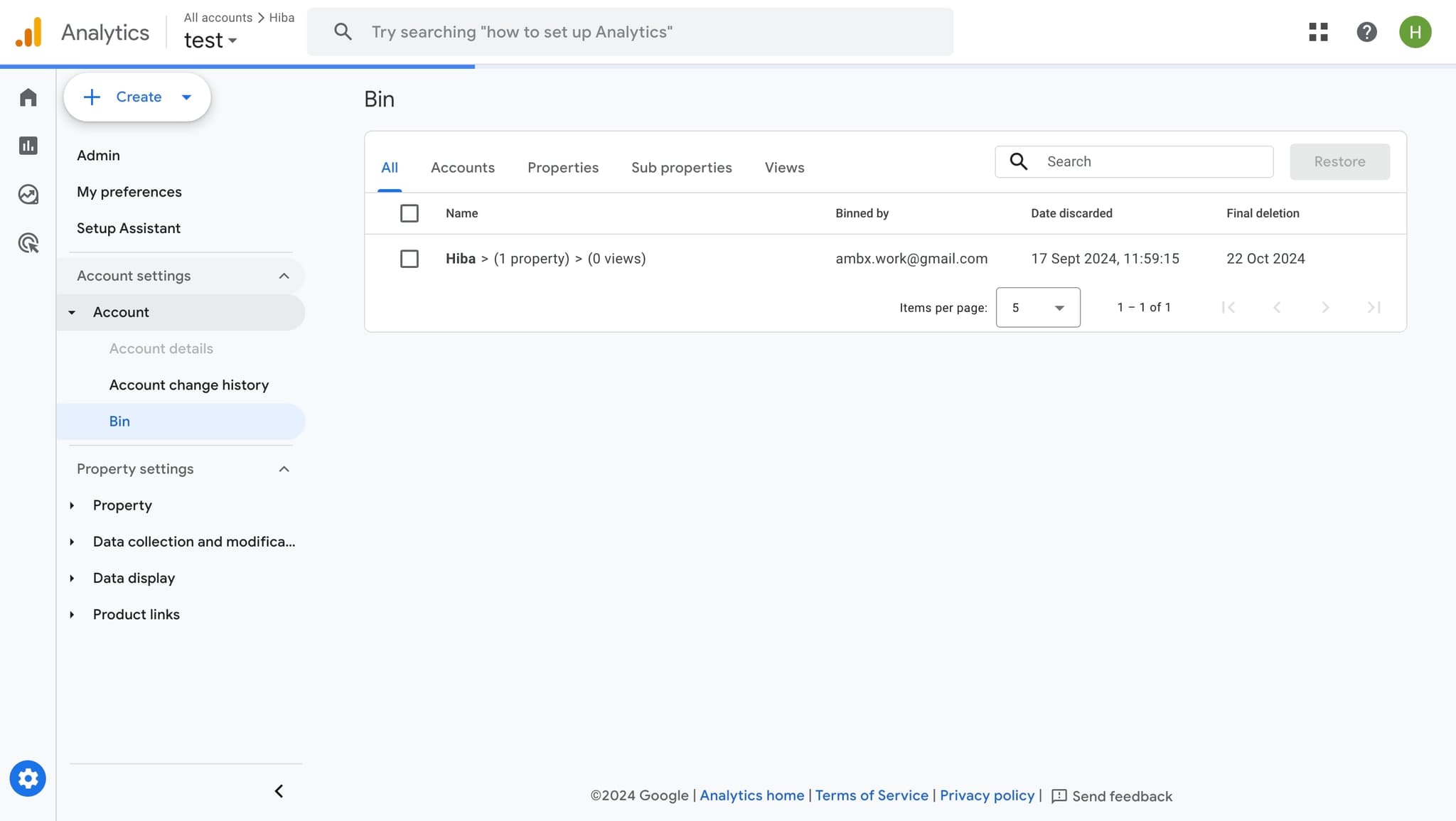
Follow the final confirmation prompt to permanently delete your account. Once completed, your account and all associated data will be removed from Google Analytics.
Frequently asked questions
Common questions about how to delete a google analytics account.
Can I recover a deleted Google Analytics account?
No, deleted Google Analytics accounts cannot be recovered. Once you confirm deletion, all data is permanently removed. If you think you might need the data later, consider exporting reports before deletion or archiving properties instead.
Do I need admin access to delete a Google Analytics account?
Yes, you must have administrator-level permissions to delete a Google Analytics account. If you don't have admin access, contact your account administrator to perform this action.
Will deleting my Google Analytics account affect my website?
No, deleting your Google Analytics account will not affect your website's functionality or performance. It only removes the analytics tracking and data collection associated with that specific account.
What happens to my data when I delete a Google Analytics account?
All historical data, reports, and configurations associated with the account are permanently deleted. If you need to preserve any information, export your reports before initiating the deletion process.
How long does it take for a Google Analytics account to be fully deleted?
The deletion is typically processed immediately, but it may take up to 24 hours for the account to be completely removed from all Google systems. During this time, you won't be able to access the account or its data.