How to add Google Analytics to a website

Google Analytics is essential for understanding your website's traffic and user behavior. This guide walks you through the process of adding Google Analytics to your website by configuring a data stream and obtaining the tracking code needed for implementation.
Quick summary
In this tutorial, you'll learn how to set up Google Analytics tracking by accessing the Admin panel, creating a data stream, and retrieving your Google tag tracking code. By the end, you'll have the code snippet ready to embed on your website.
Why this matters
Adding Google Analytics to your website enables you to track visitor activity, measure campaign performance, and make data-driven decisions about your content and user experience. Without proper tracking implementation, you won't have visibility into how users interact with your site or where your traffic originates.
Step-by-step guide
- 1
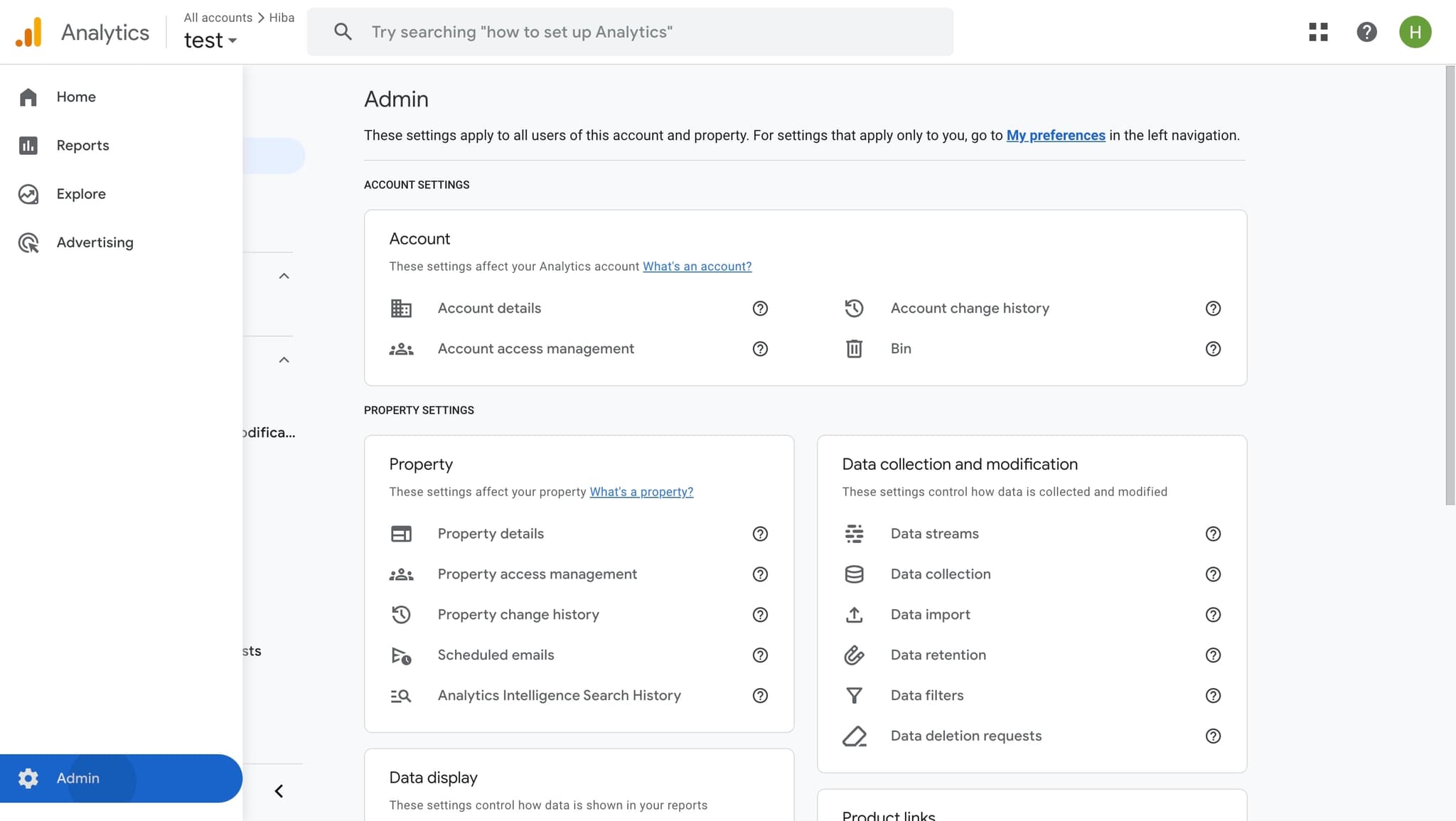
Access the Admin panel
Click on the Admin option to enter Google Analytics administrative settings. This is where you'll configure your property and data collection settings.
- 2
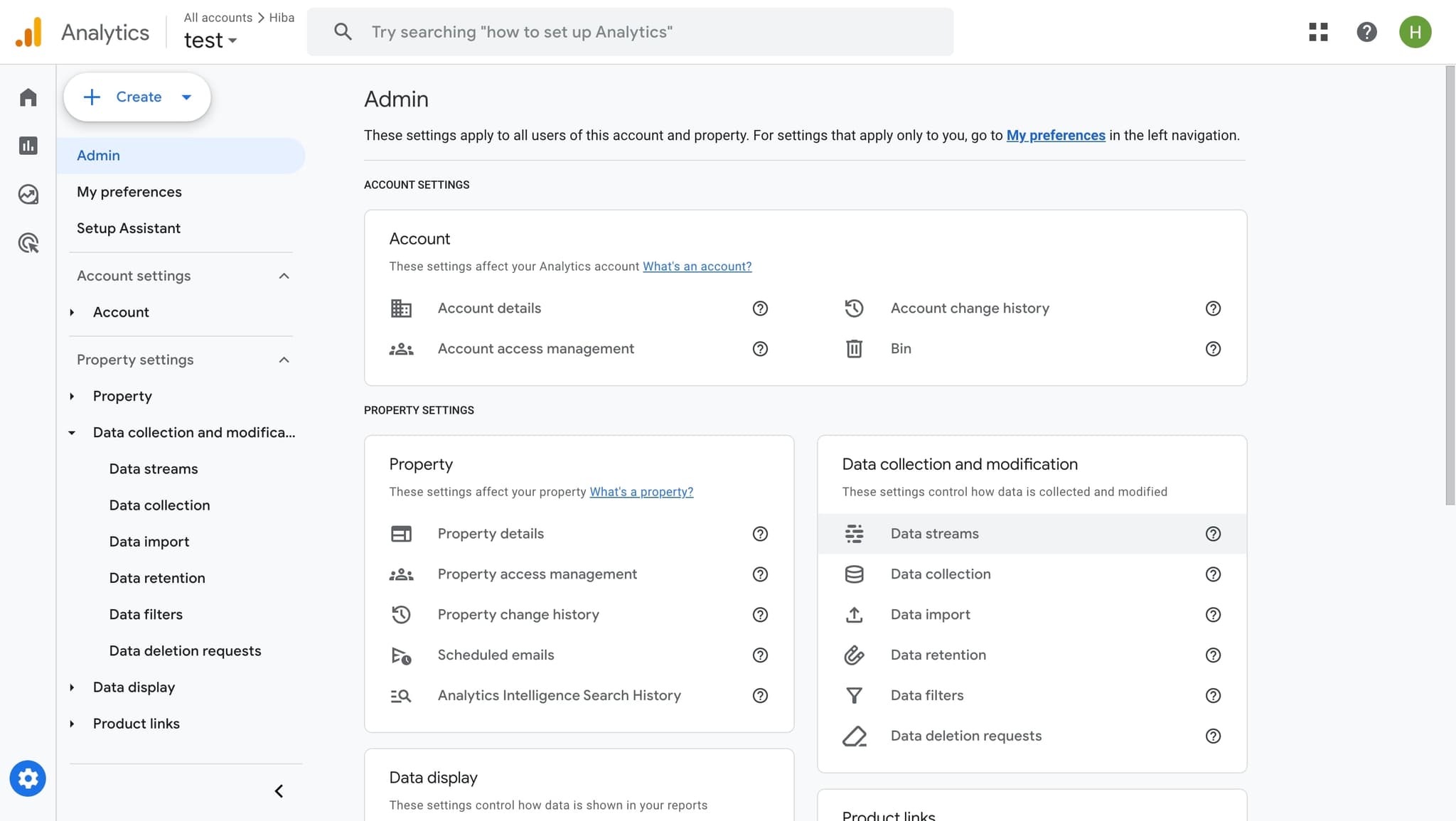
Navigate to Data streams
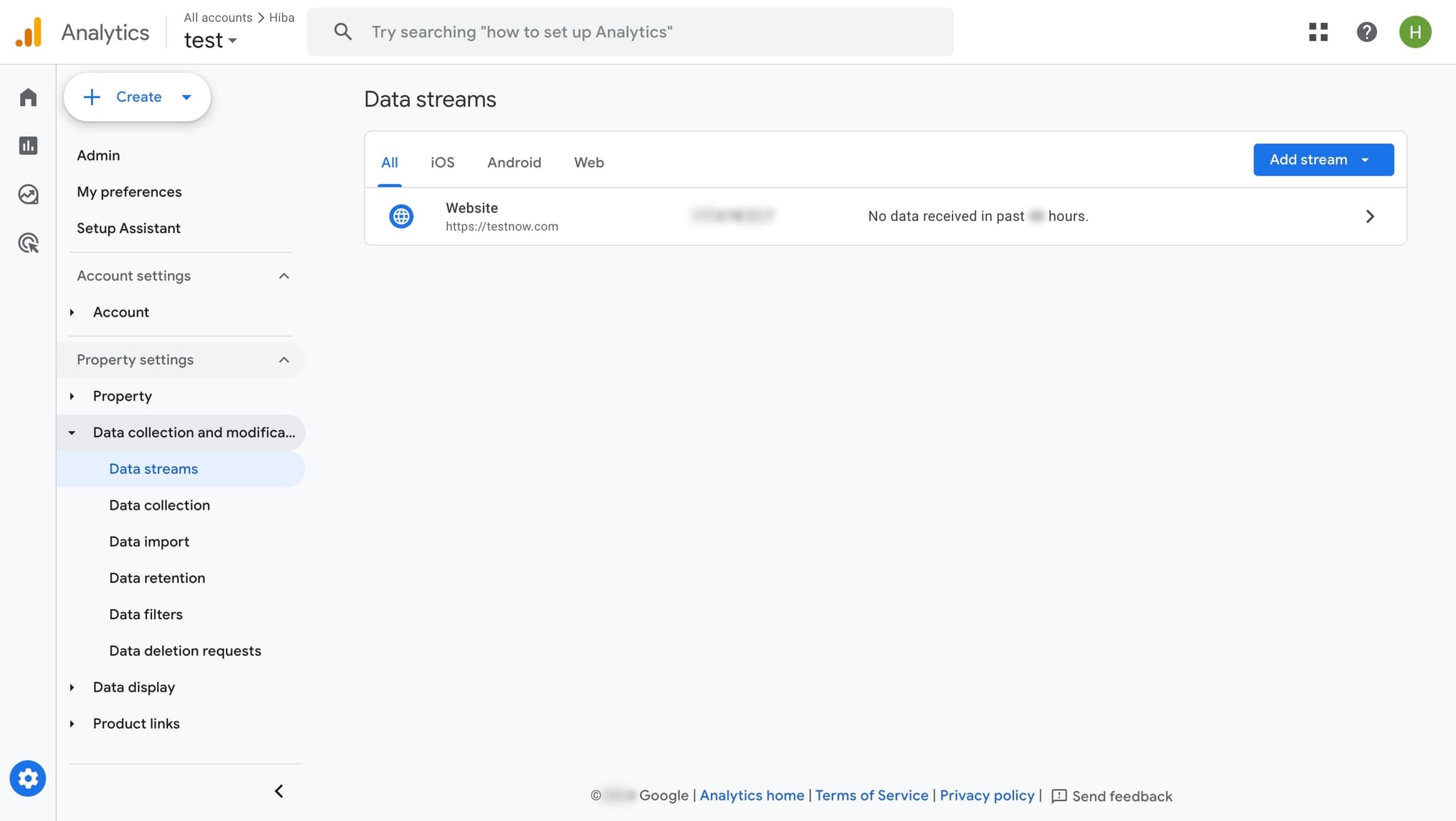
Select Data streams from the Admin menu. This section allows you to set up and manage the different sources from which you'll collect data.
- 3
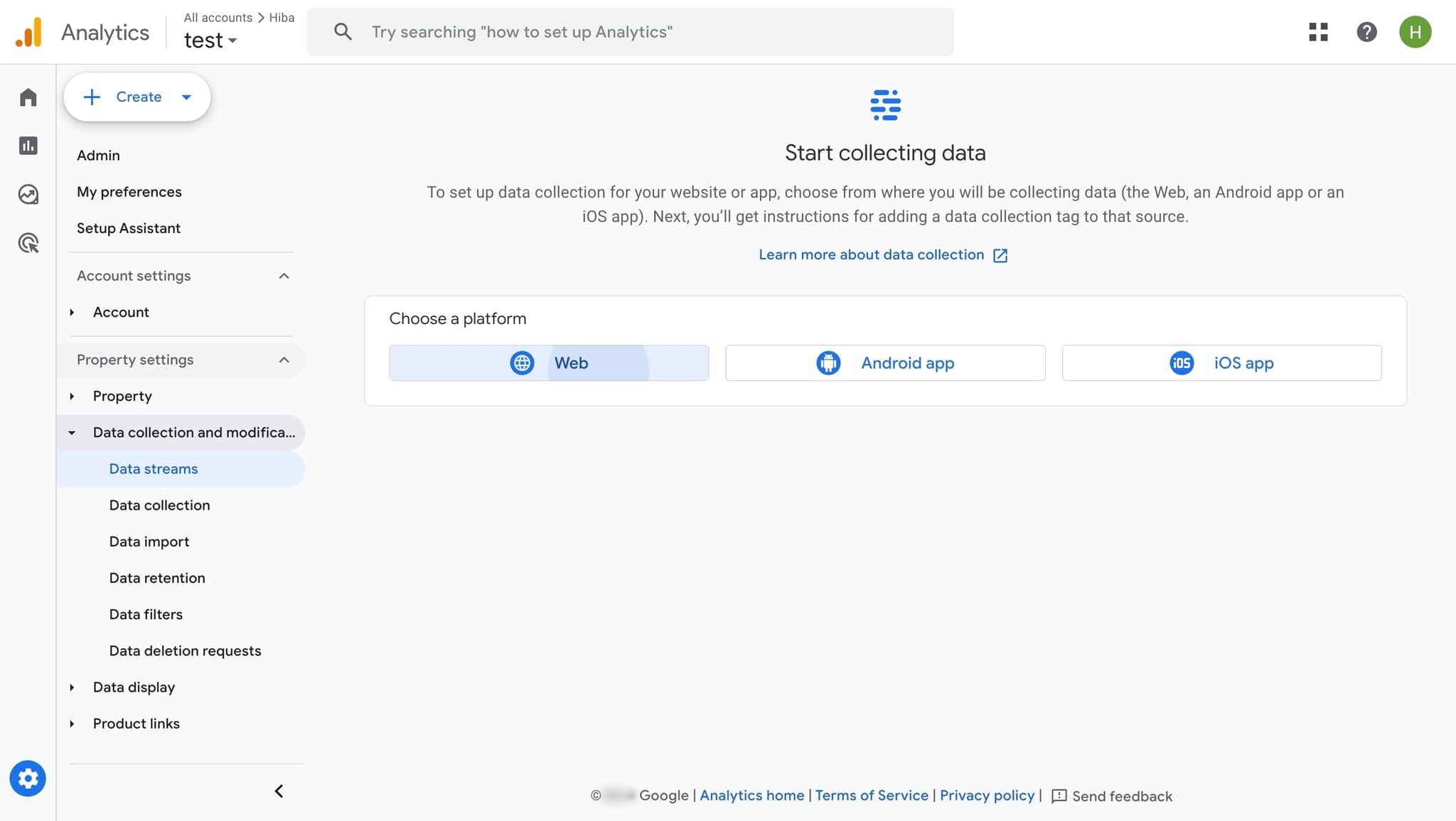
Select or create a data stream
Click on the appropriate element to either select an existing data stream or begin creating a new one. A data stream represents the connection between your website and Google Analytics.
- 4
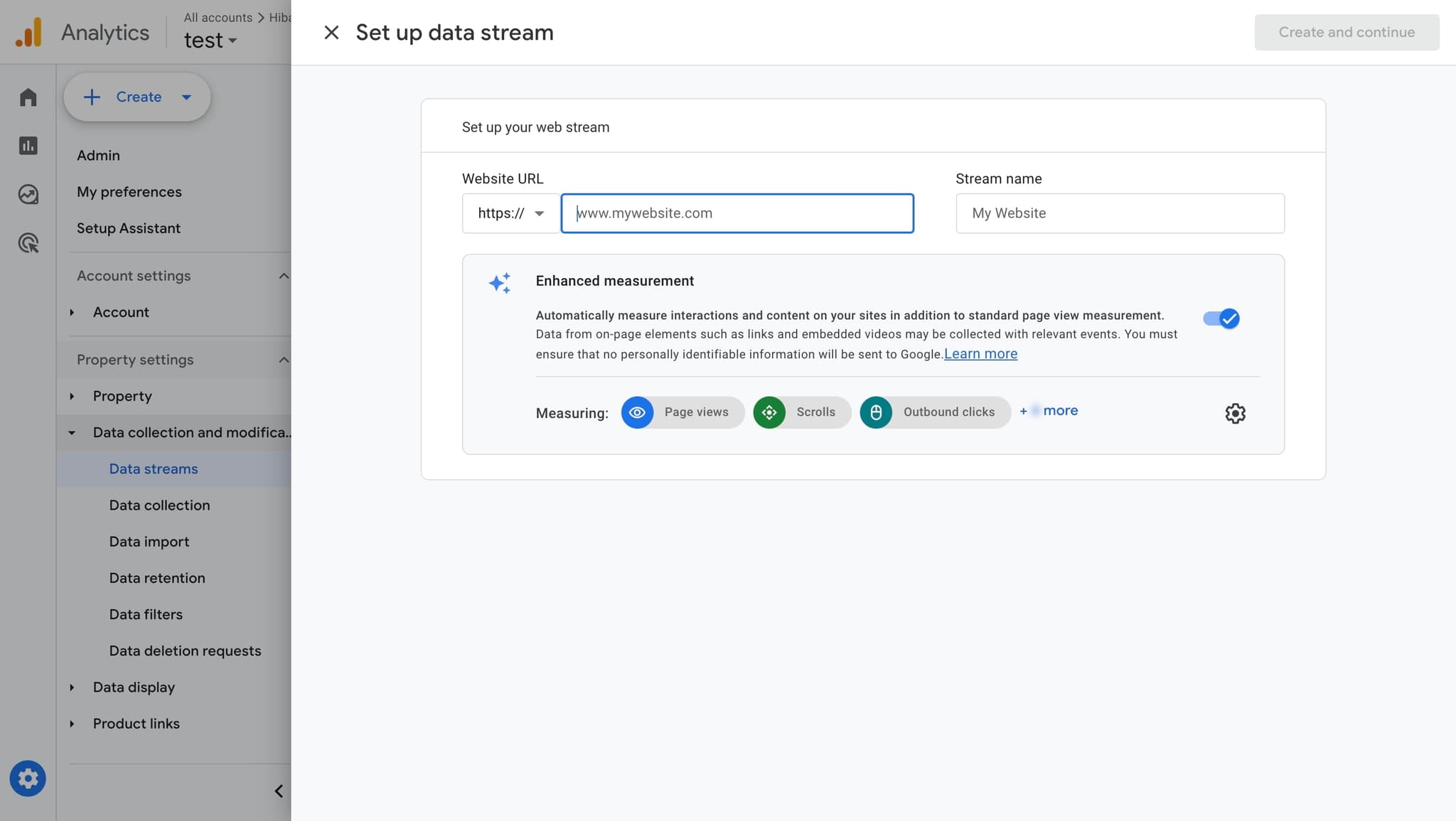
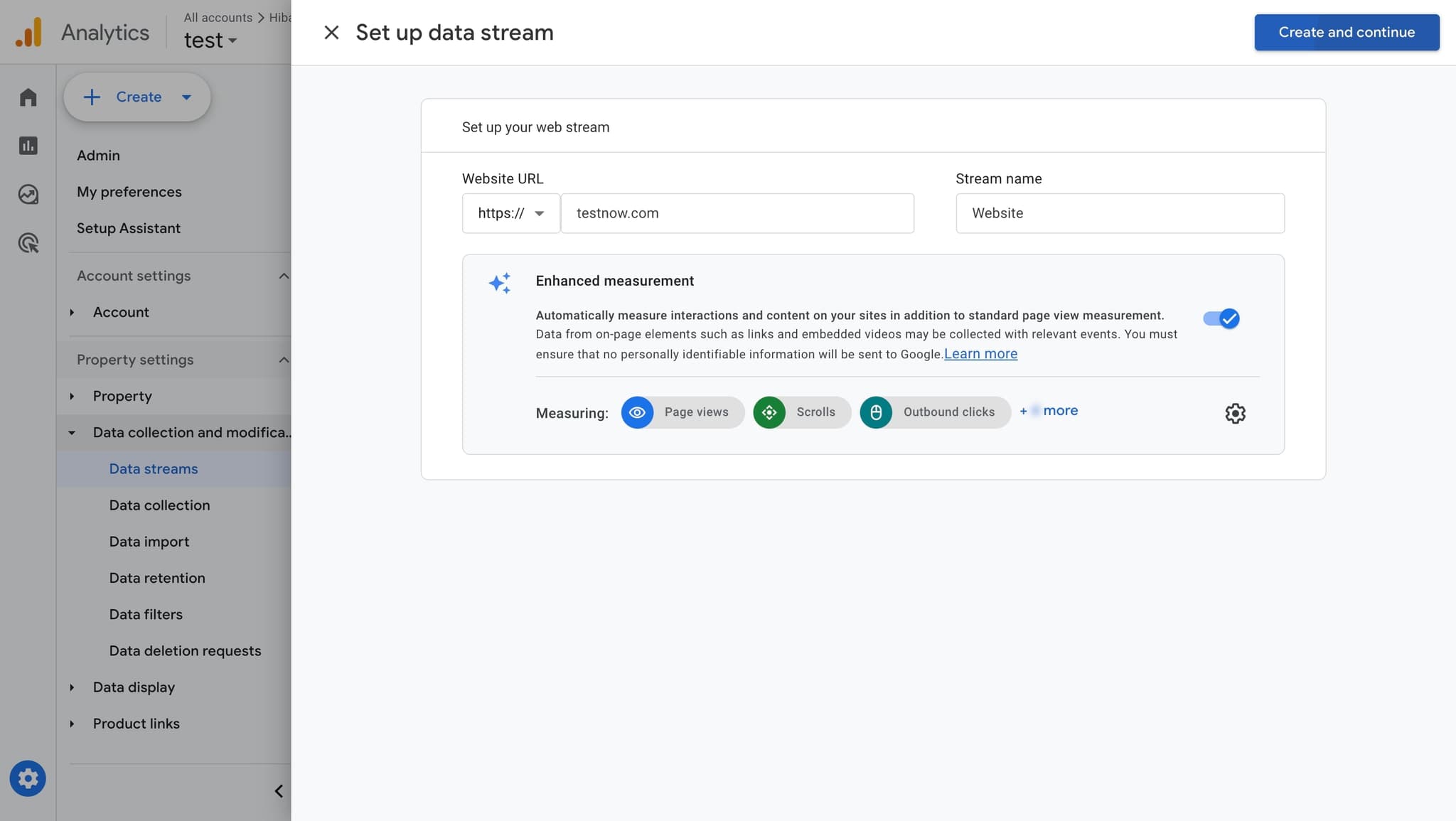
Confirm stream configuration
Click the confirmation button to proceed with your data stream setup. This action moves you forward in the configuration process.
- 5
Review stream details
Click on the relevant element to view or confirm the details of your newly configured data stream. Ensure all settings match your website's requirements.
- 6
Access tracking code section
Click on the element that contains your tracking implementation options. This will reveal where you can find and copy your Google tag code.
- 7
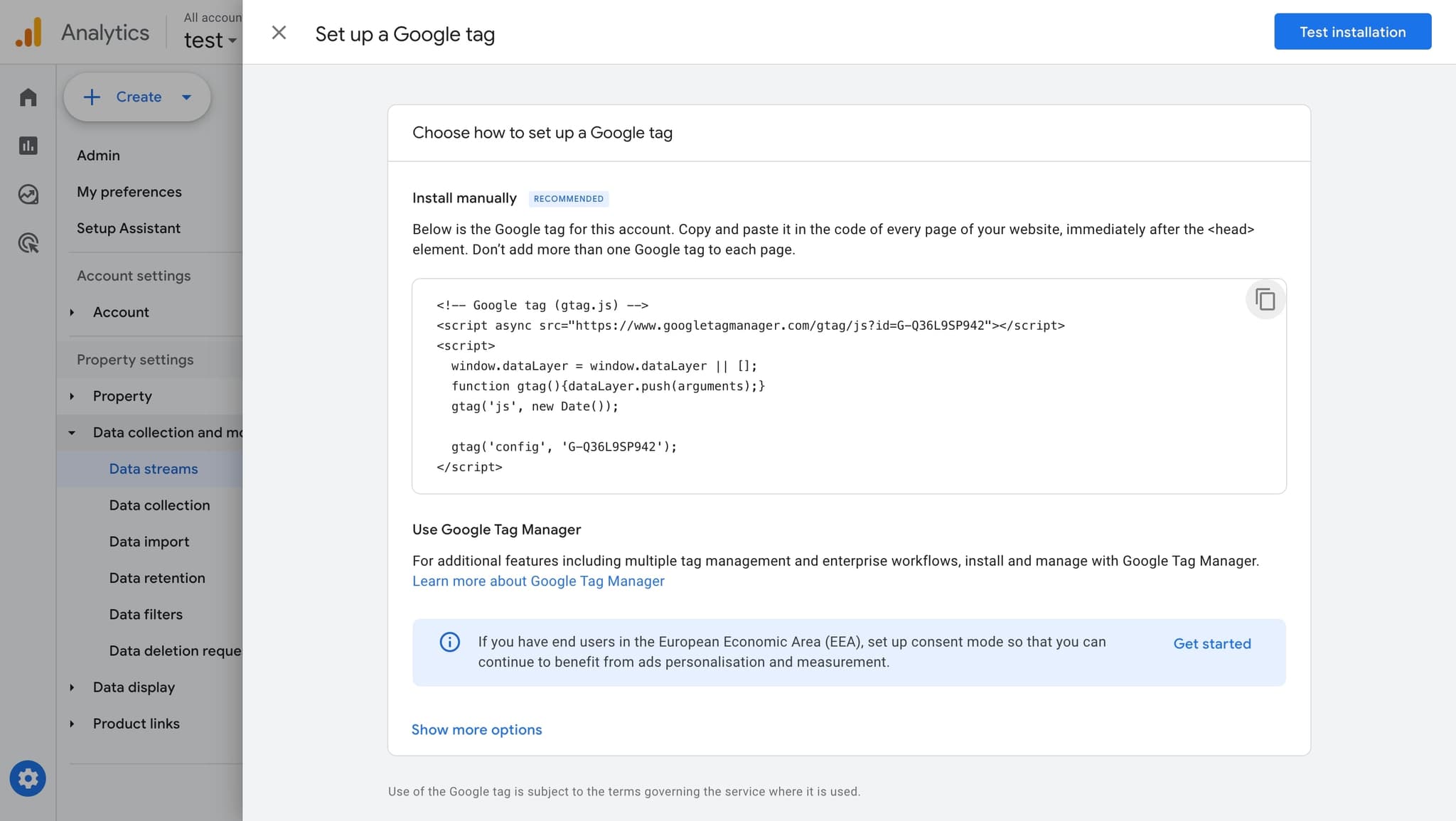
Copy your Google tag code
Click on the Google tag script snippet to select and copy your unique tracking code. This code must be added to the head section of your website's HTML for Analytics to begin collecting data.
- 8
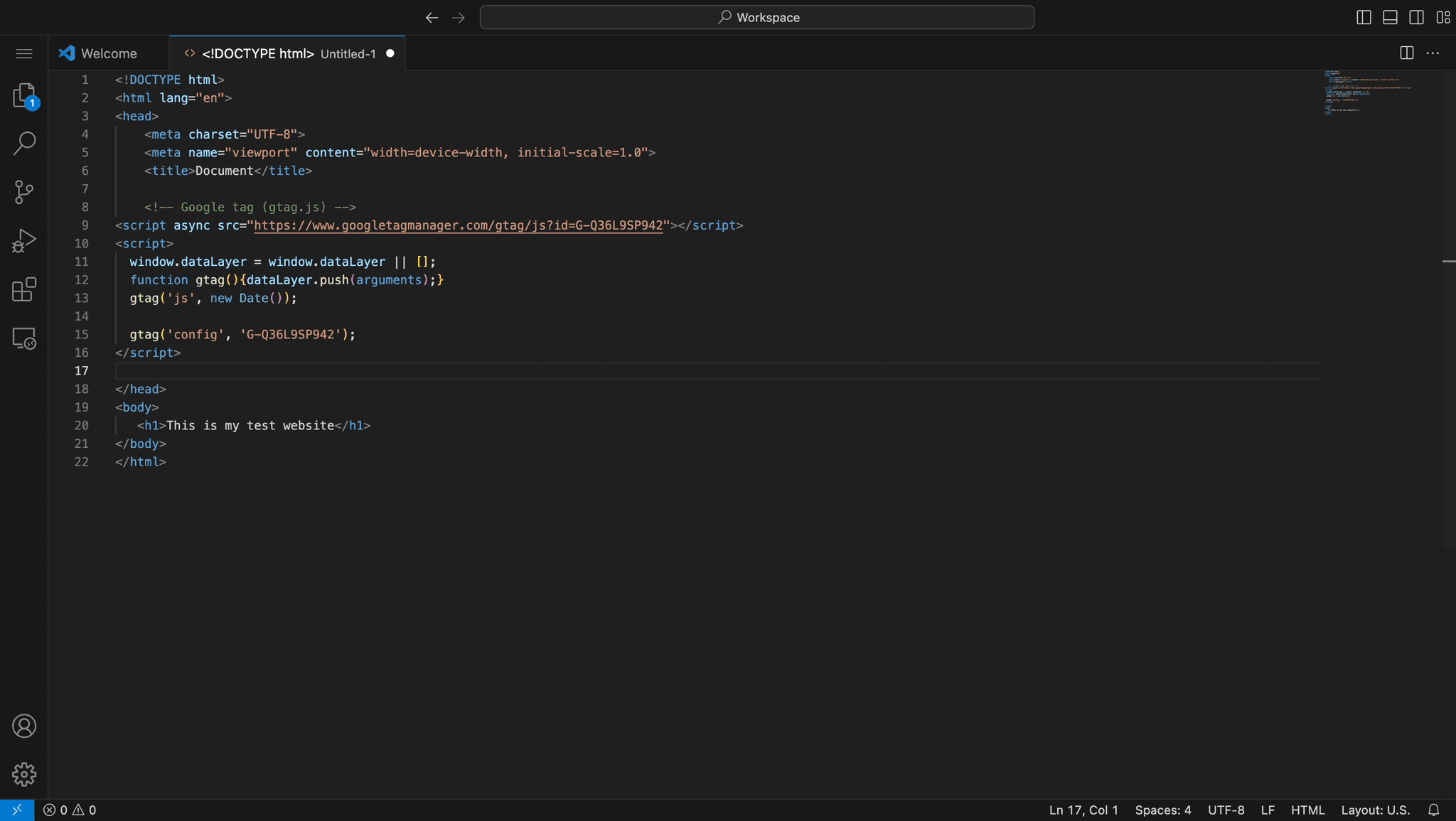
Implement the tracking code
Paste the copied Google tag code into the head section of your website's HTML template or use your website platform's tag manager feature. Once deployed, Google Analytics will begin tracking your website traffic.
Frequently asked questions
Common questions about how to add google analytics to a website.
A data stream is the connection between your website and your Google Analytics property. It represents a specific source of data collection and allows Google Analytics to receive and process information about user interactions on your site. You can have multiple data streams for different websites or platforms within a single property.
The Google tag code should be placed in the head section of your website's HTML, ideally as early as possible. If you use a website builder like WordPress, Shopify, or Wix, you can typically add it through a custom code or tag manager section in your platform's settings rather than editing HTML directly.
Google Analytics typically begins processing data within a few minutes of implementing the tracking code, though it may take 24 to 48 hours to see meaningful data in your reports. You can verify that the code is working correctly by checking the real-time report in Google Analytics.
No, each website should have its own data stream to ensure accurate tracking and data separation. Using one data stream for multiple websites would mix traffic and user data, making it impossible to analyze performance on each site individually.
You can add Google Analytics to an existing website at any time by following the same setup process. Simply add the Google tag code to your website's head section, and Google Analytics will begin collecting data going forward. Historical data from before the implementation will not be available.