How to Delete a Typeform

Deleting a Typeform is a straightforward process that permanently removes your form and all associated responses from your account. Whether you're cleaning up unused forms or starting fresh with a new project, understanding how to safely delete a Typeform ensures you maintain an organized workspace.
Quick summary
In this tutorial, you'll learn how to permanently delete a Typeform from your account. We'll walk you through locating your form, accessing the delete option, and confirming the removal to ensure the form is completely removed from your workspace.
Why this matters
Regularly deleting unused or outdated Typeforms helps keep your account organized and reduces clutter in your form library. Removing forms you no longer need also ensures you're only managing active data collection efforts and can help maintain compliance by eliminating forms containing outdated or sensitive information.
Step-by-step guide
- 1
Access your Typeform workspace
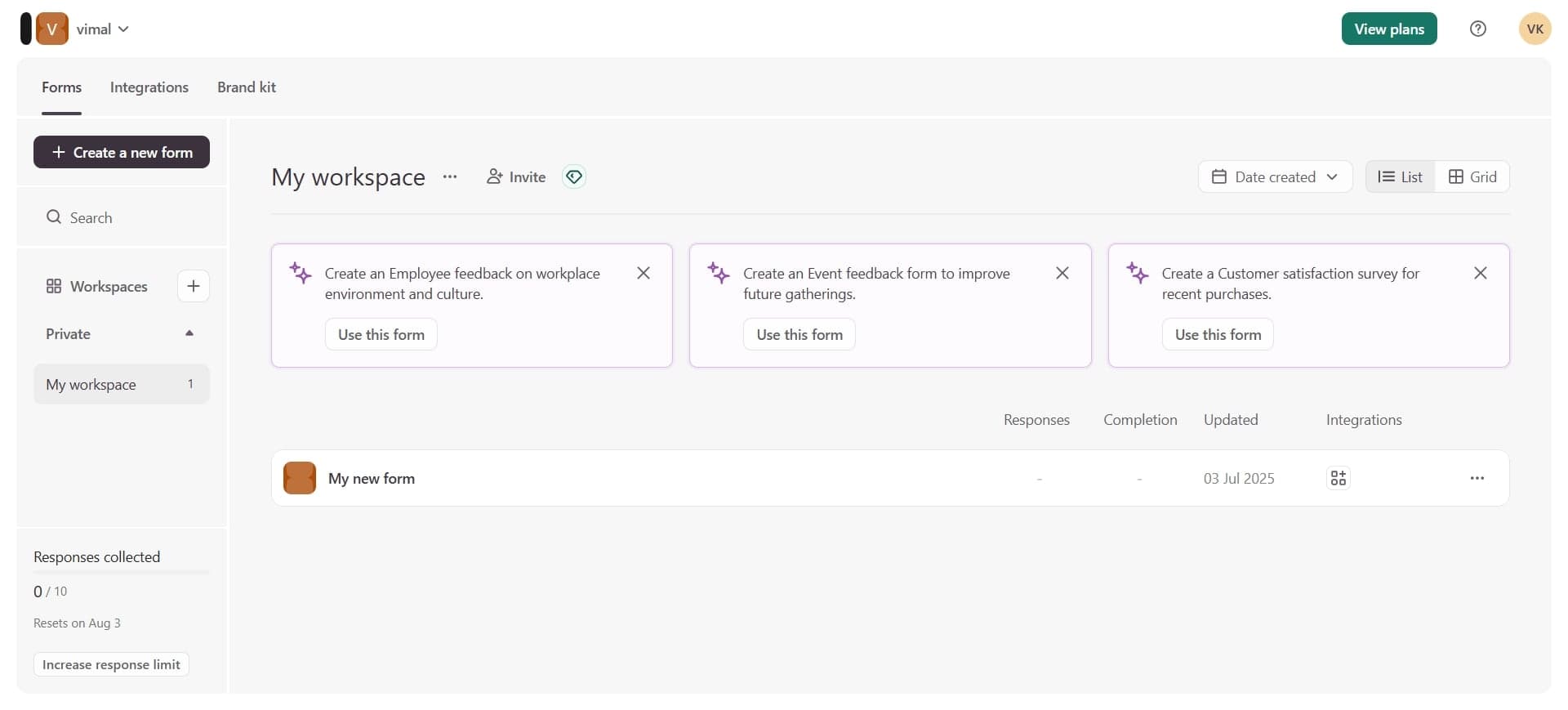
Log into your Typeform account and navigate to your dashboard where all your forms are displayed. You'll see a list or grid view of your existing forms.
- 2
Locate the form to delete
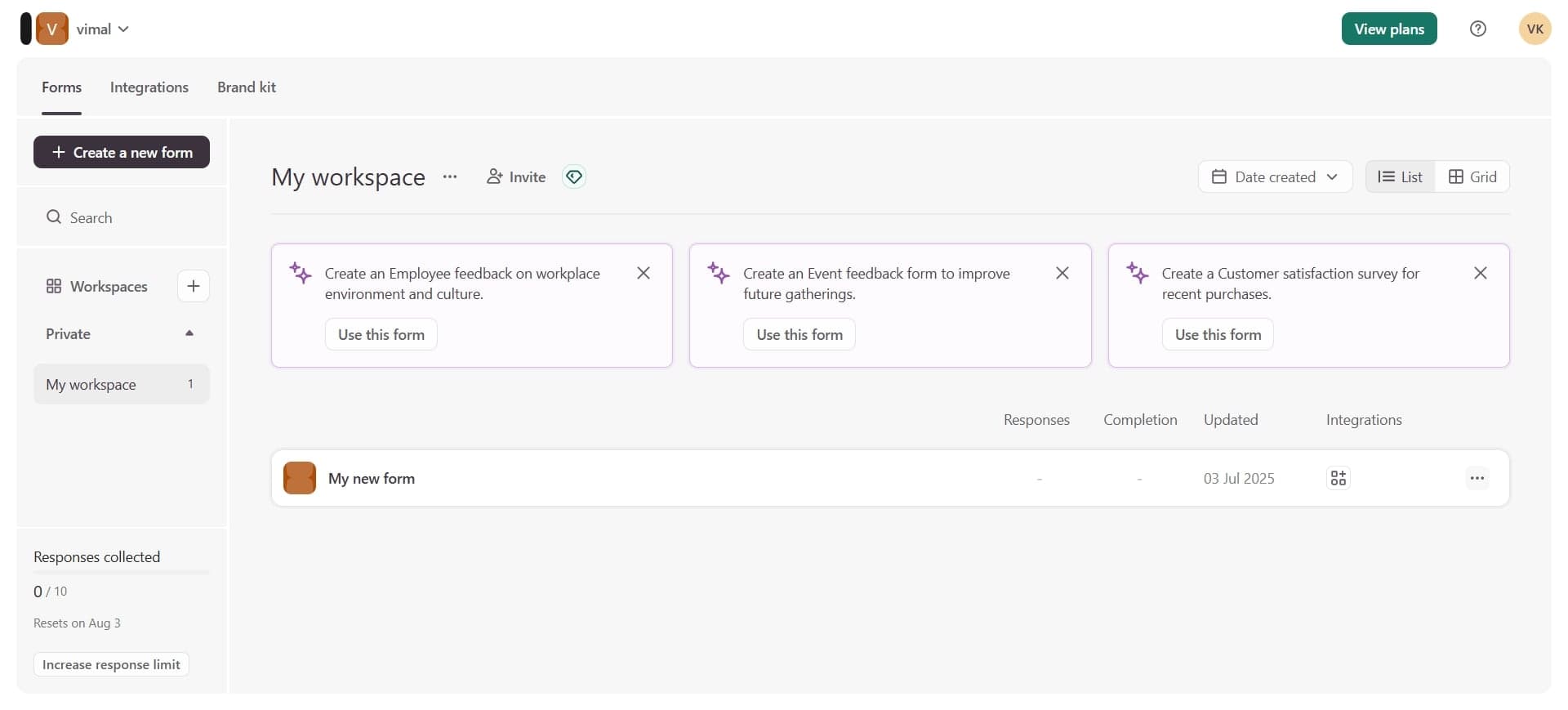
Find the Typeform you want to delete in your forms list. You can use the search function if you have multiple forms and need to locate a specific one quickly.
- 3
Open form options menu
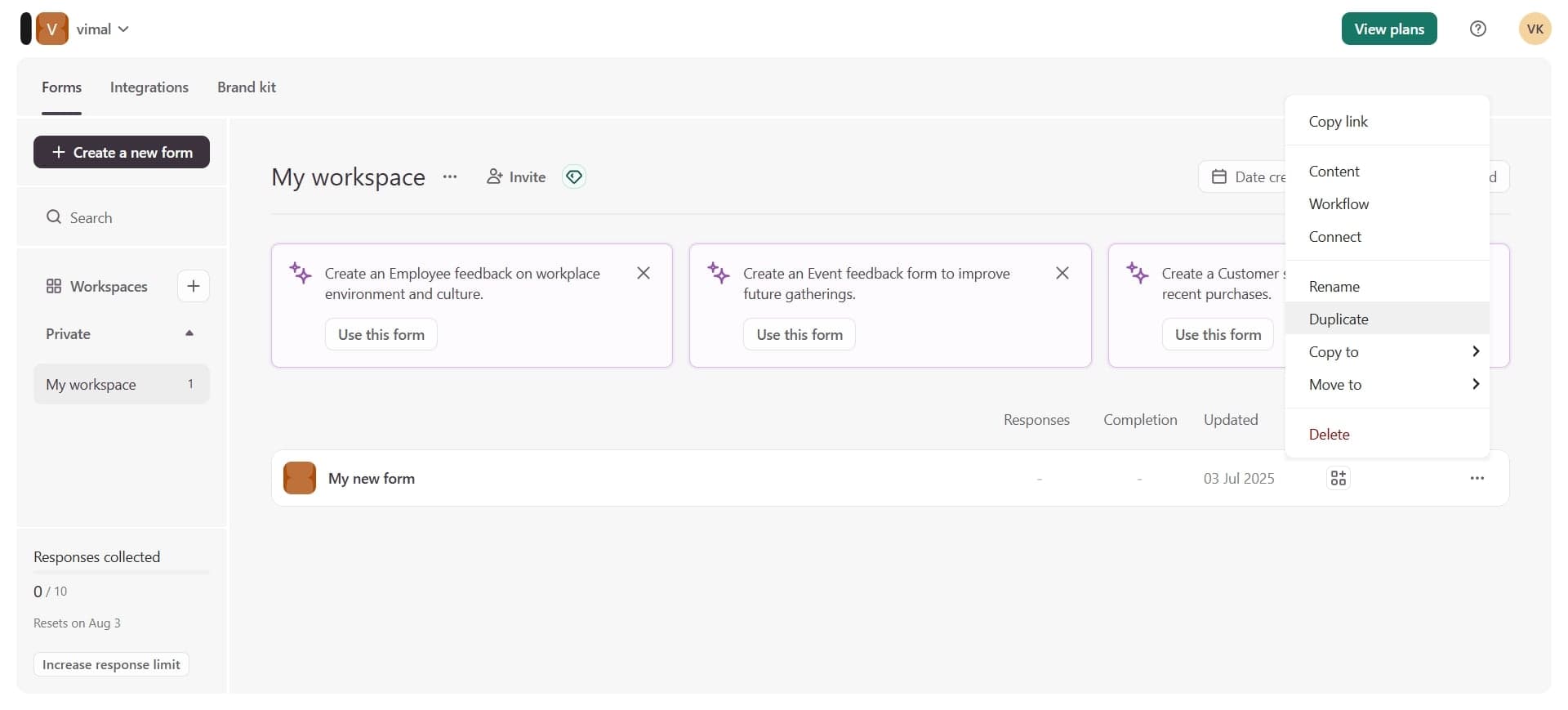
Click the three-dot menu icon or options button associated with the form you want to delete. A dropdown menu will appear with several actions you can perform on the form.
- 4
Select delete option
From the dropdown menu, click on the delete or trash option. You may be prompted with a confirmation dialog asking you to verify this action.
- 5
Confirm deletion
Click the confirm button to permanently delete the form and all associated data. Once confirmed, the form cannot be recovered, so ensure you've selected the correct form before proceeding.
Frequently asked questions
Common questions about how to delete a typeform.
Can I recover a Typeform after I delete it?
No, deleting a Typeform is permanent and irreversible. Once you confirm the deletion, the form and all its responses are permanently removed from your account. It's important to verify you're deleting the correct form before confirming the action.
Will deleting a form affect my other Typeforms?
No, deleting a Typeform only removes that specific form and its data. Your other forms will remain completely unaffected and continue to function normally. You can delete forms without worrying about impact on your other projects.
What happens to responses when I delete a Typeform?
All responses and data associated with the deleted form will be permanently removed as well. If you need to preserve the responses, download or export your data before deleting the form to avoid losing important information.
Can I delete a form that's currently embedded or shared?
Yes, you can delete a form regardless of whether it's embedded on a website or actively being shared. However, after deletion, the embedded form will no longer function and shared links will no longer work, so notify your audience before removing an active form.
Is there a way to delete multiple Typeforms at once?
Typeform typically requires deleting forms individually through the options menu for each form. If you need to remove multiple forms, you'll need to repeat the deletion process for each one, but this ensures you don't accidentally delete the wrong forms.