How to Add Conditional Logic to Typeform

Conditional logic in Typeform allows you to create dynamic forms that adapt based on respondent answers, showing or hiding questions relevant to each user. This powerful feature improves form completion rates and data quality by personalizing the experience for every respondent.
Quick summary
In this tutorial, you'll learn how to set up conditional logic in Typeform to create branching paths in your forms. You'll discover how to configure logic rules that display different questions based on specific answer conditions.
Why this matters
Using conditional logic reduces form abandonment by eliminating irrelevant questions and keeping forms concise for each respondent. It also ensures you collect only the data you need while providing a more intuitive, personalized experience that increases engagement and response quality.
Step-by-step guide
- 1
Open your Typeform form
Navigate to your Typeform account and select the form where you want to add conditional logic. You'll see the form editor interface with all your existing questions listed.

- 2
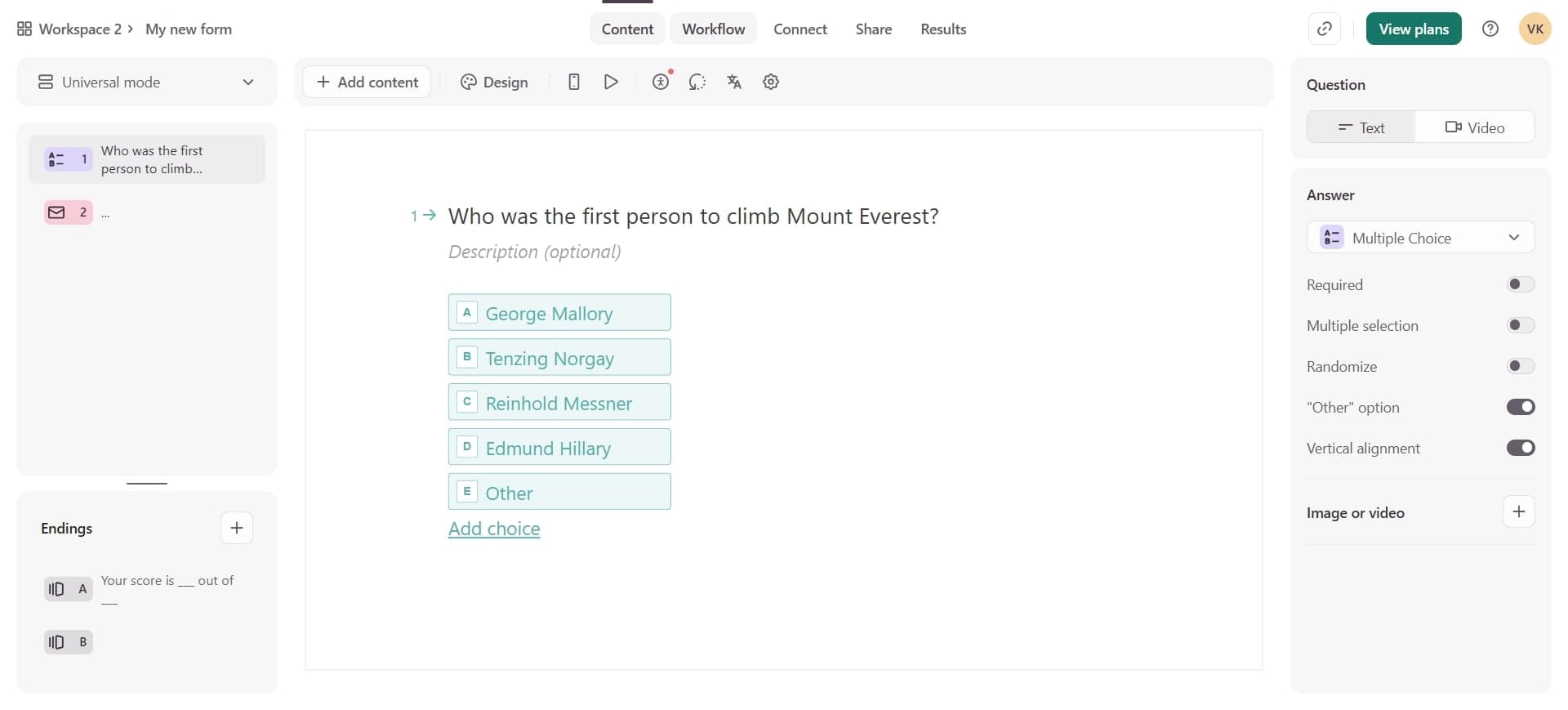
Select the question to branch from
Choose the question that will trigger the conditional logic—this is typically a multiple choice, dropdown, or rating question. Click on the question to select it and access its options.
- 3
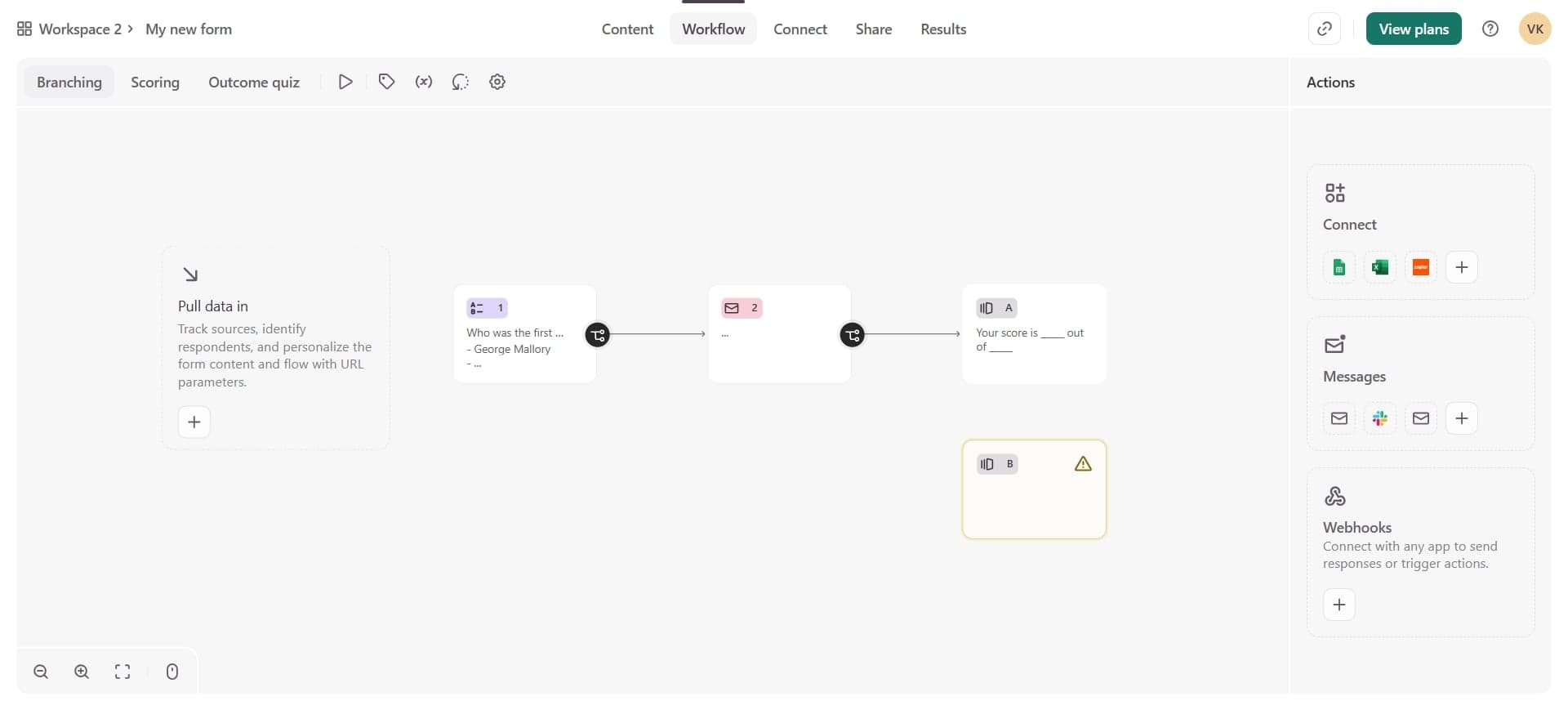
Access the logic settings
Look for the logic icon (usually represented by a branching or rules symbol) in the question settings panel. Click it to open the conditional logic configuration area.
- 4
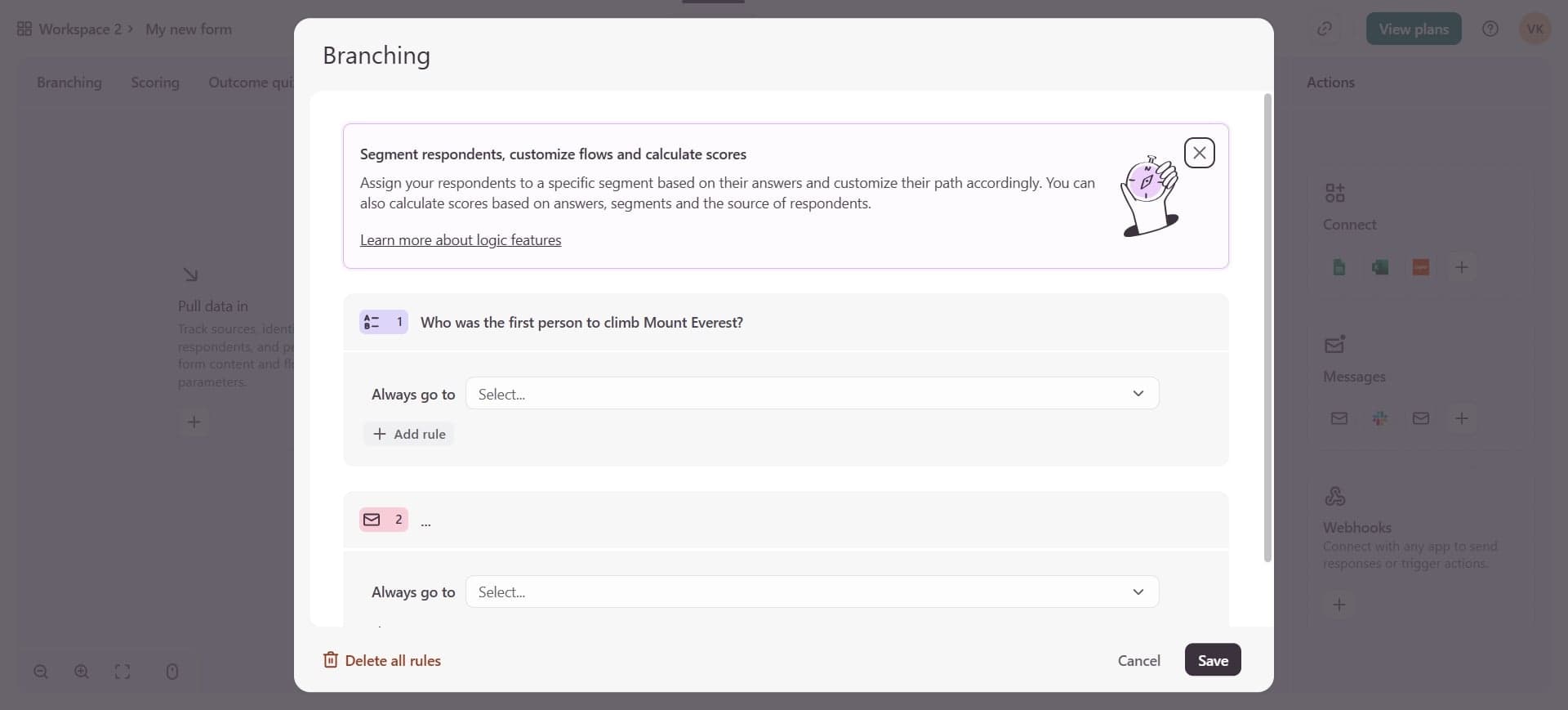
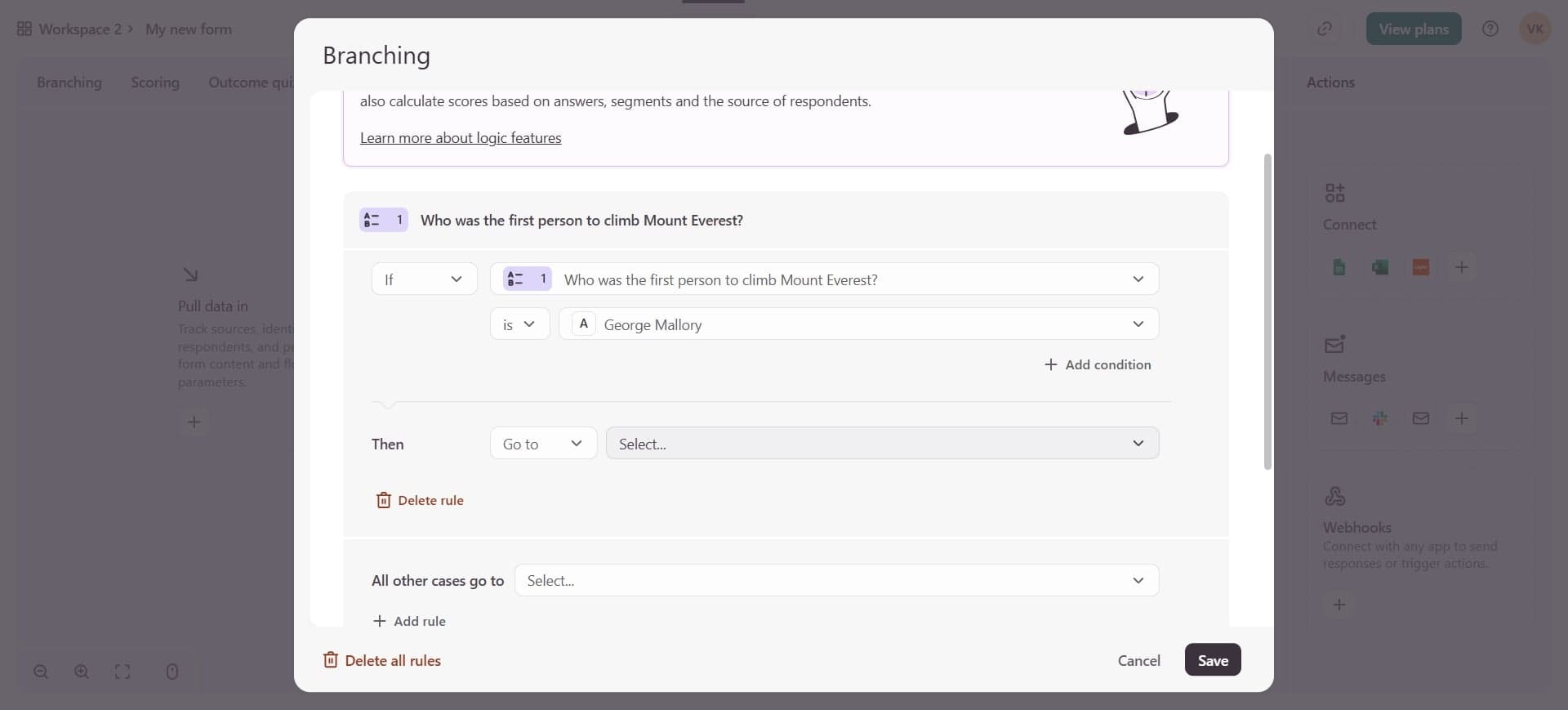
Create a new logic rule
Click the button to add a new logic condition. You'll specify which answer option triggers the rule and what action should follow.
- 5
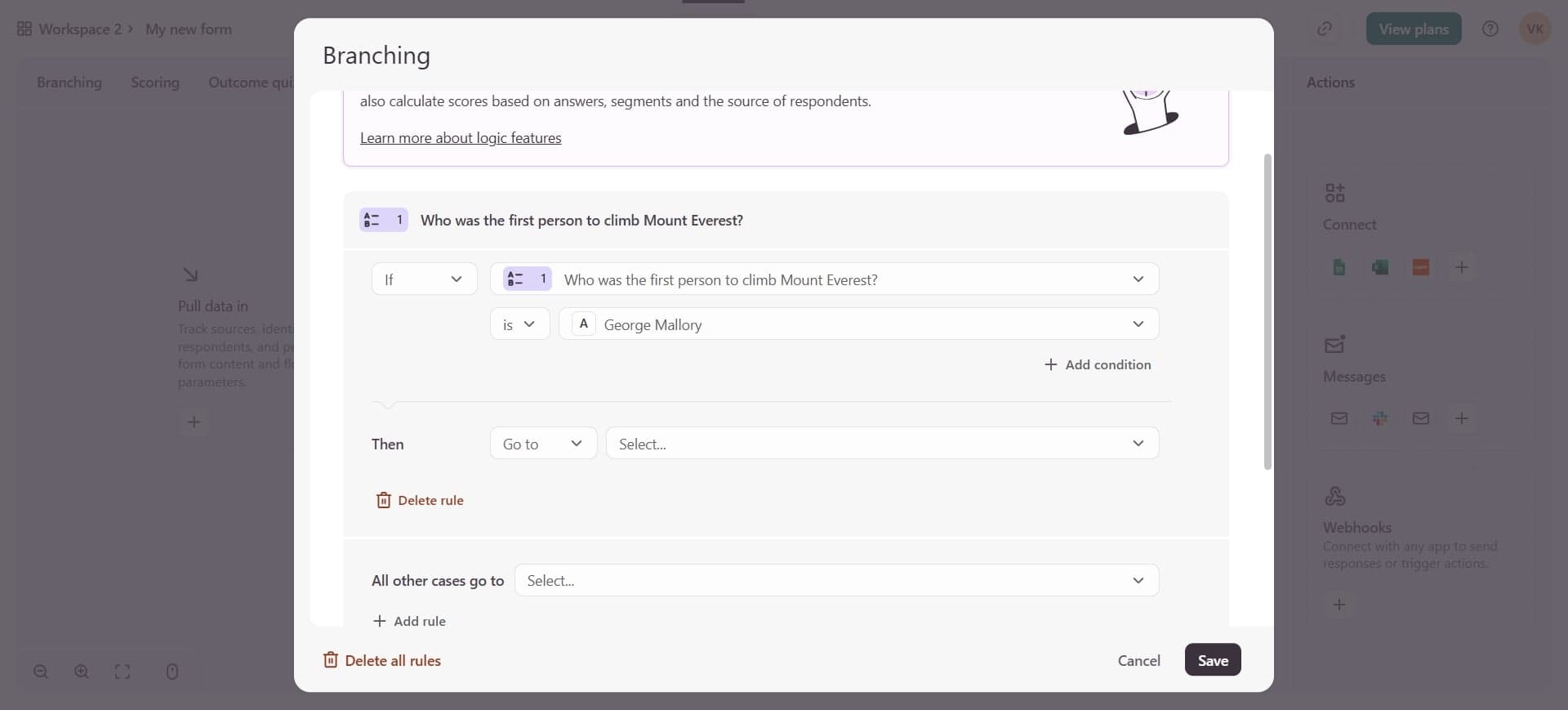
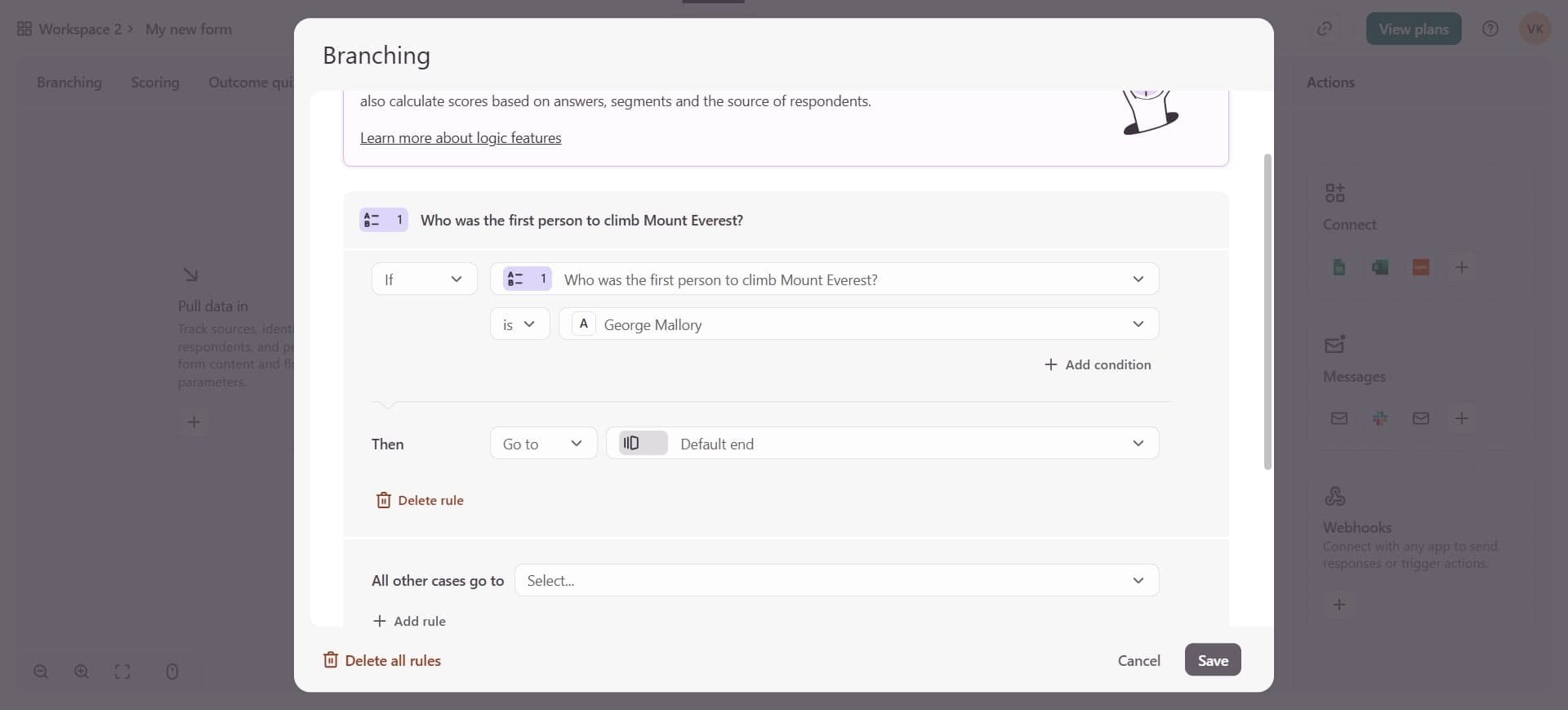
Define the condition and outcome
Select the specific answer that triggers this rule, then choose the destination—either jump to a specific question, skip questions, or proceed to the next question. This creates the branching path based on the respondent's answer.
- 6
Add additional logic rules
Repeat the process to create multiple branching paths for different answers. Each answer option can have its own logic rule directing respondents to different questions.
- 7
Test and preview your form
Use Typeform's preview function to test each branching path. Go through the form answering different options to ensure the conditional logic directs you to the correct questions each time.
Frequently asked questions
Common questions about how to add conditional logic to typeform.
Conditional logic works best with questions that have predefined answer options, such as multiple choice, dropdown, rating, ranking, and picture choice questions. Open-ended text questions typically don't trigger logic rules since each response is unique.
Yes, you can create multiple logic rules for different answer options on the same question. Each answer can direct respondents to a different question or skip to a specific point in the form, allowing complex branching structures.
Typeform's conditional logic allows you to jump to any question in your form or skip to the end entirely. This means you can create sophisticated branching paths that significantly shorten forms for respondents who don't need certain questions.
If an answer doesn't match any conditional logic rule, respondents will proceed to the next question in sequence by default. You should test all possible answer combinations to ensure the form flows correctly for every scenario.
Always test your form using Typeform's preview feature by selecting different answer options and following each branching path. Review the form responses afterward to verify that respondents are seeing the correct question sequences based on their answers.