How to Limit Responses in Typeform

Limiting responses in Typeform helps you control survey data collection, prevent duplicate submissions, and manage form access. This guide walks you through the settings and features that let you restrict who can respond and how many times.
Quick summary
In this tutorial, you'll learn how to configure response limits in Typeform to enforce submission caps, set expiration dates, and control respondent access. You'll discover both basic and advanced options for managing form participation.
Why this matters
Response limits are essential for maintaining data quality and controlling survey scope. Whether you're running a limited-capacity registration, preventing multiple submissions from the same user, or closing forms after a deadline, these restrictions ensure your data remains clean and your form behaves exactly as intended.
Step-by-step guide
- 1
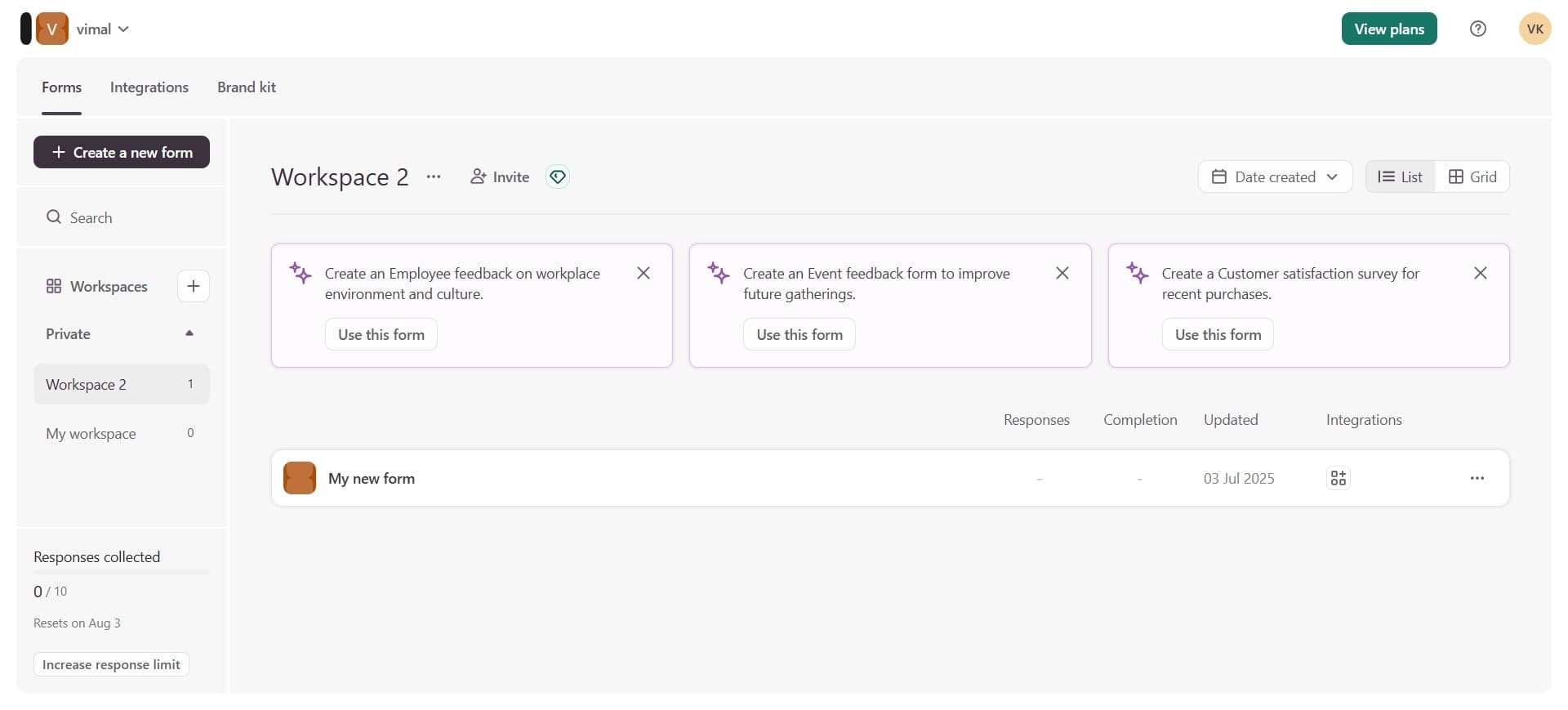
Access your form settings
Open your Typeform account and select the form you want to configure. Click the Settings icon (gear symbol) in the top navigation menu to enter the form settings panel.
- 2
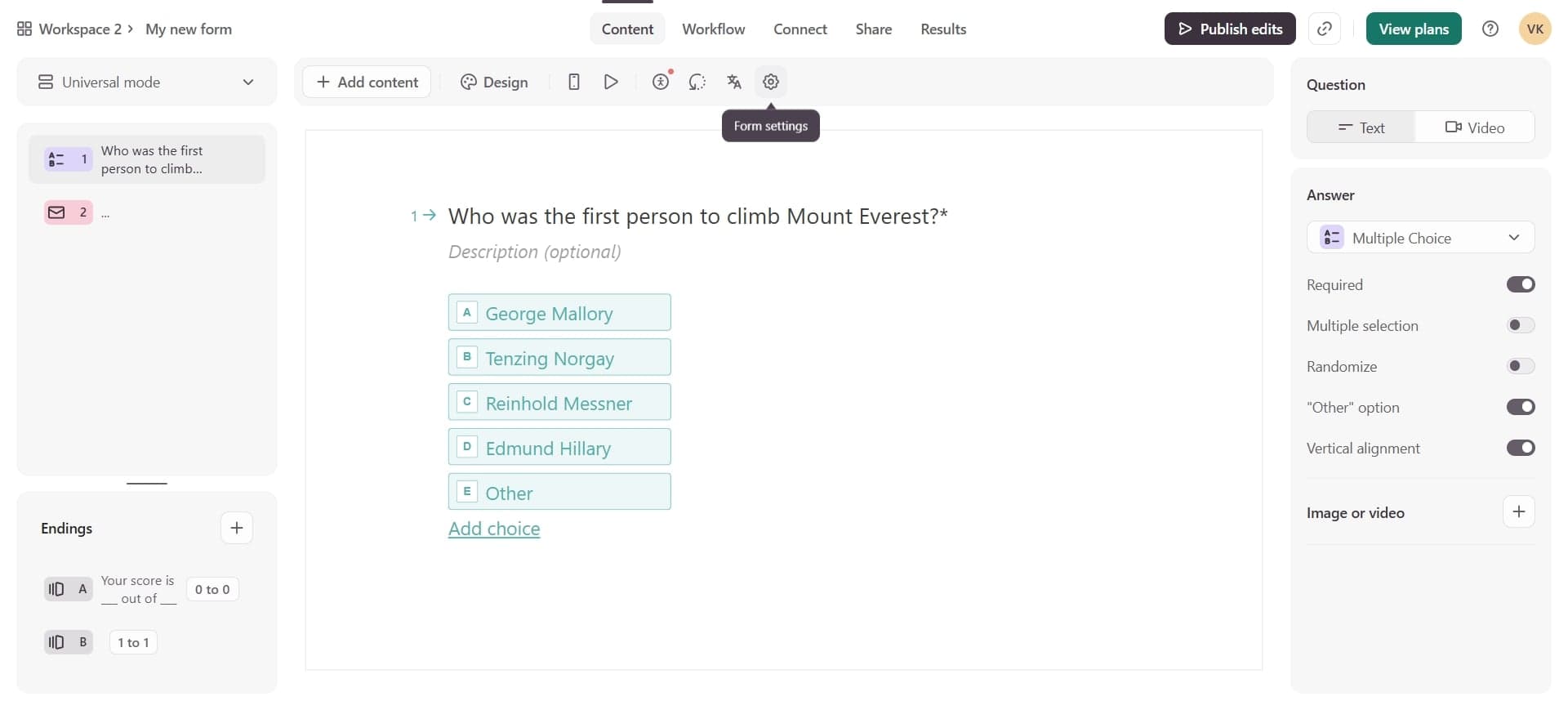
Navigate to the responses section
In the Settings panel, look for the Responses or Restrictions tab. This section contains all options for controlling how respondents can interact with your form.
- 3
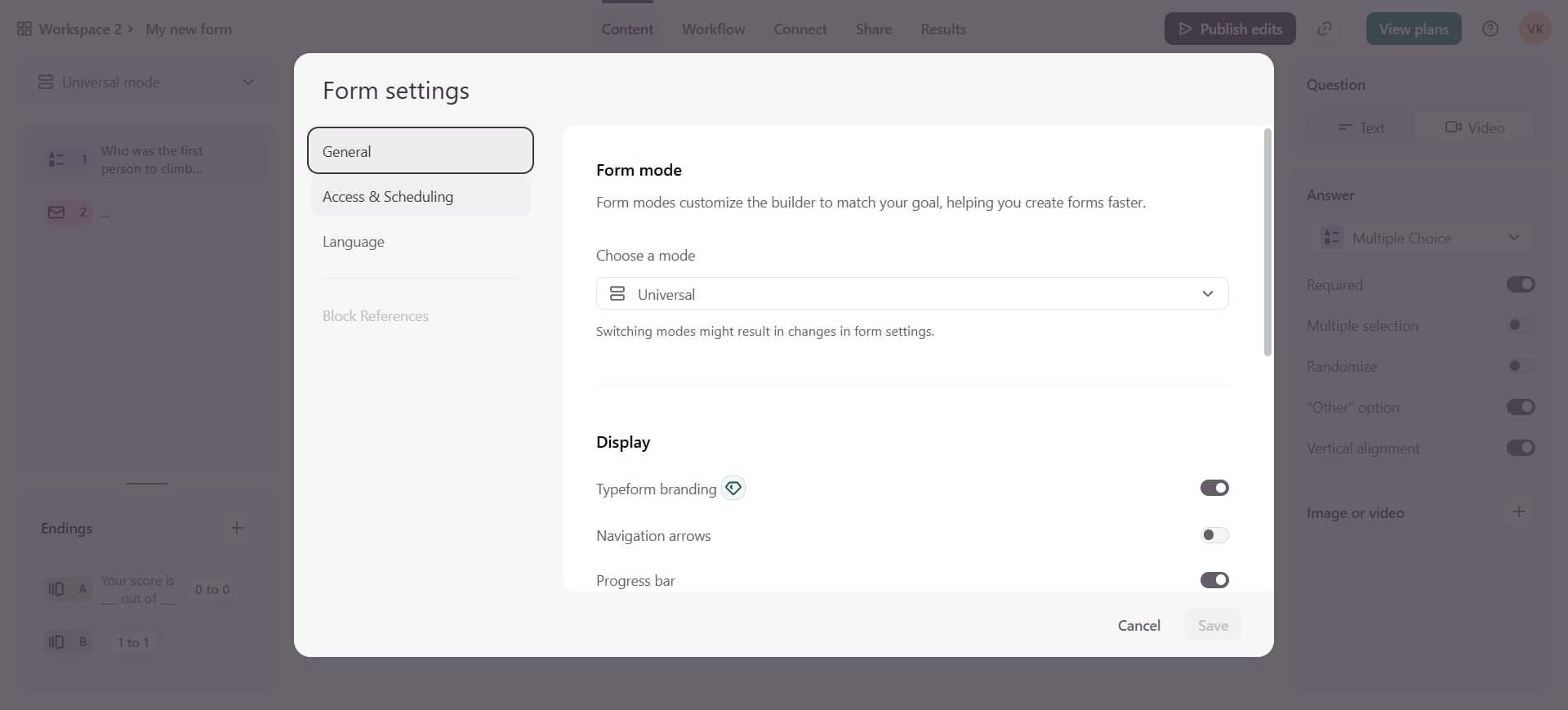
Enable response limits
Toggle on the option to limit responses by count or by date. Choose whether you want to cap the total number of submissions or set an expiration date for when the form closes.
- 4
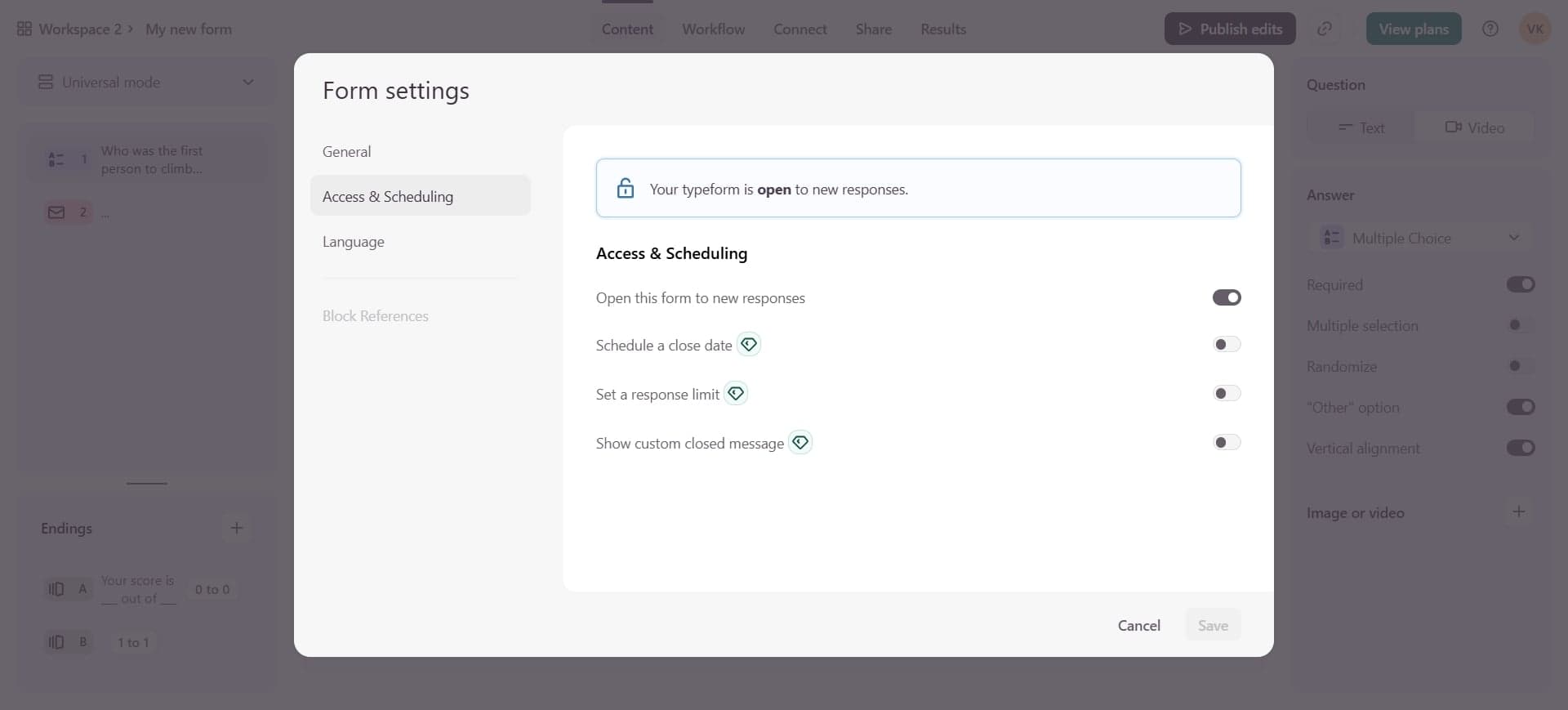
Configure your limit parameters
Enter your desired response cap number or select your form closure date. Save your settings to apply these restrictions immediately to your form.
Frequently asked questions
Common questions about how to limit responses in typeform.
Yes. Typeform allows you to set a maximum number of responses your form will accept. Once this limit is reached, the form will automatically close and display a custom message to prevent further submissions.
You can enable one response per email or use Typeform's duplicate prevention features in the Responses settings. This requires respondents to provide an email address and prevents multiple submissions from the same address.
Yes. In the Responses settings, you can set a date and time when your form will automatically close. This is useful for time-sensitive surveys, registrations, or event signups.
When you reach your set limit, Typeform will display a custom closed message to visitors instead of showing the form. You can customize this message in the settings to explain why the form is closed.
Yes. You can modify response limits at any time by returning to the Settings panel and adjusting your restrictions. Changes take effect immediately on your live form.