How to Duplicate a Typeform

Vimal Kumar
Vimal Kumar·
How to Duplicate a Typeform
Interactive demo powered by Supademo

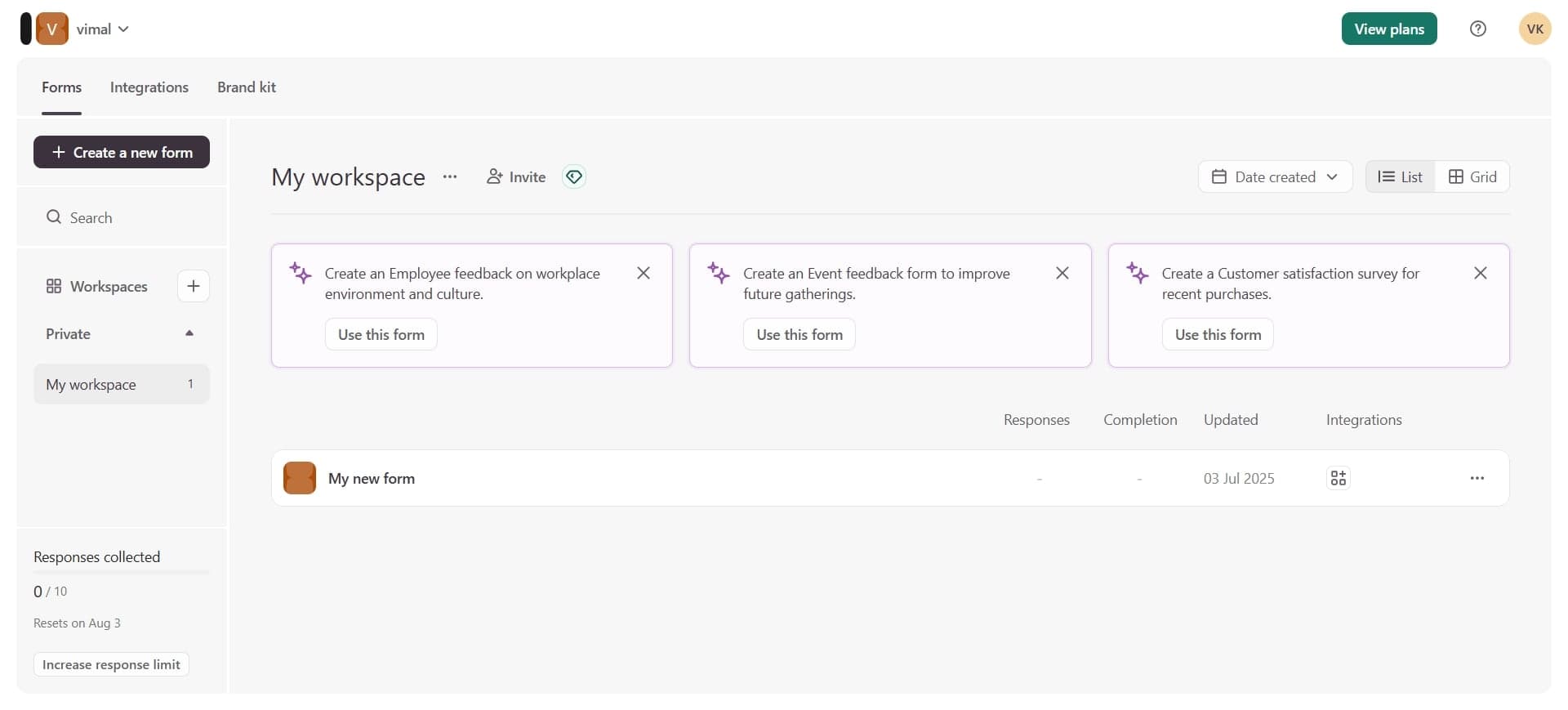
1. Firstly, log in to your Typeform Dashboard.

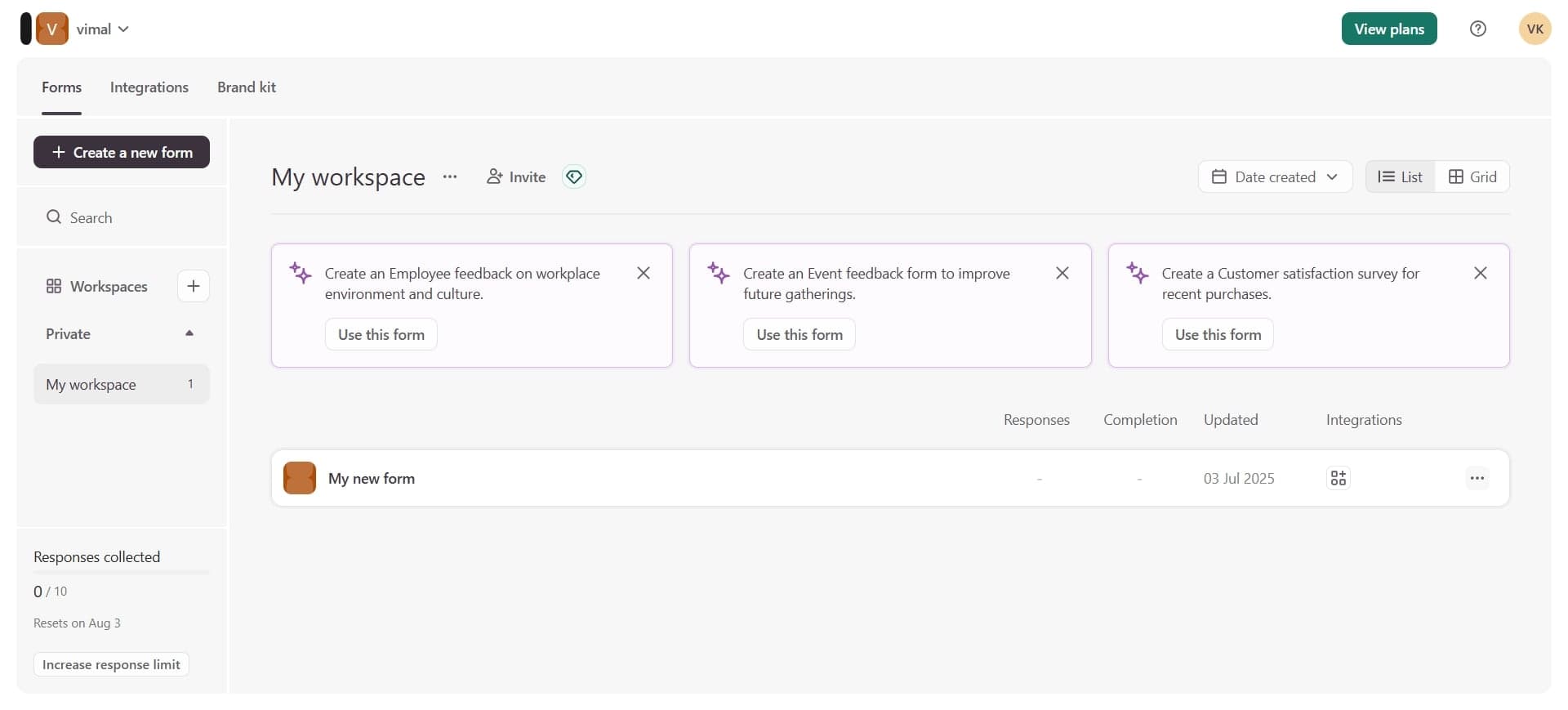
2. Next, navigate to the form you want to duplicate and click on the More Actions button.

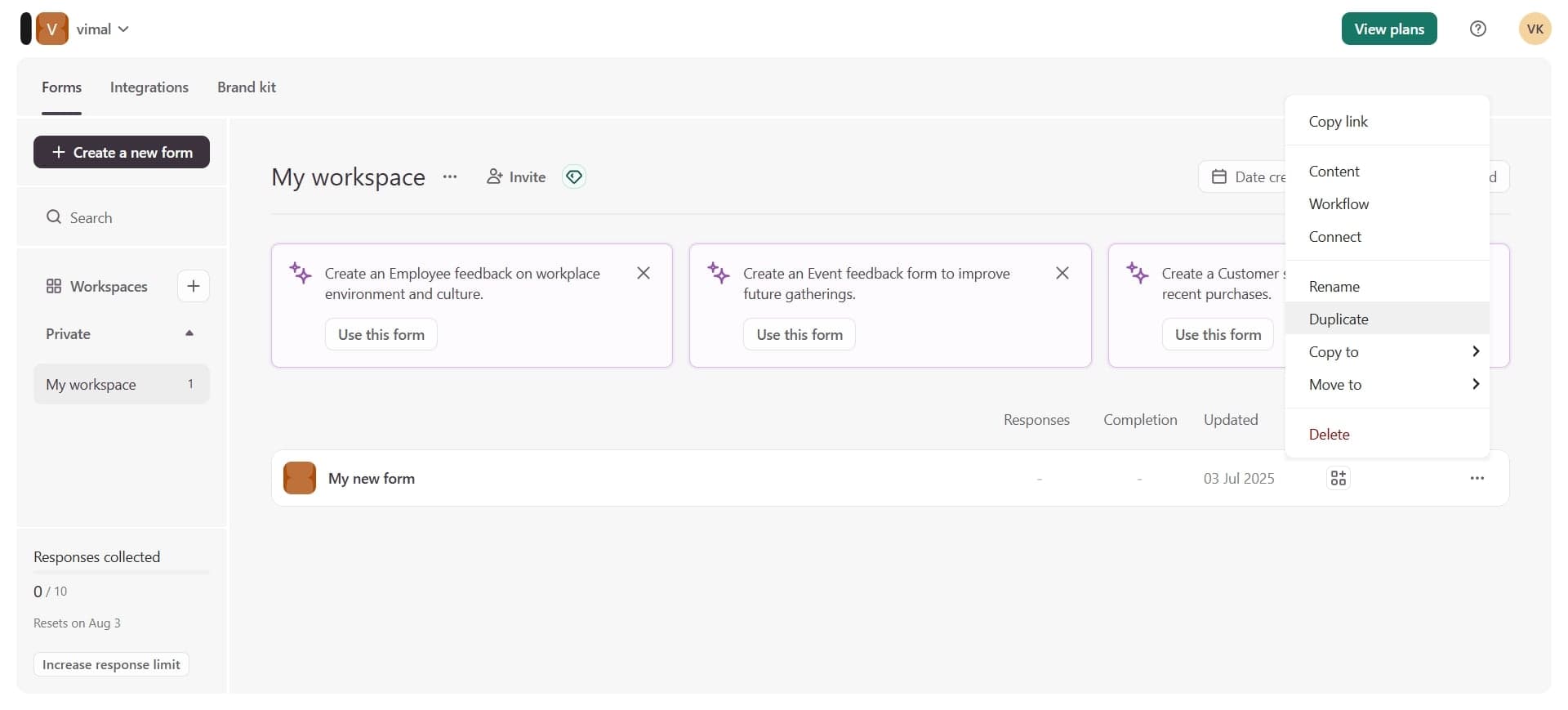
3. Finally, click on "Duplicate" and it's done.

4. Create a Supademo in seconds

This interactive demo/guided walkthrough on How to Duplicate a Typeform was created using Supademo.


How to Duplicate a Typeform : Step-by-Step Guide

Start by logging into your Typeform dashboard. This is where all your forms are managed, and it’s the central hub to access any form you’ve created or want to work with.

1

Once you're in your dashboard, find the specific form you wish to duplicate. To see additional options for that form, click on the More Actions menu—this will reveal helpful tools related to managing your form.

2

In the list of actions that appears, select the "Duplicate" option. This action quickly creates an exact copy of your form, saving you time if you want to reuse or modify it without starting from scratch.

3

With just a few clicks, you’ve successfully generated a new Supademo—an efficient way to replicate your work and streamline your form-building process.

4

Create your own interactive demos in < 5 mins with Supademo

You can create your own interactive product demo in minutes using Supademo. Drive growth, scale enablement, and supercharge product-led onboarding with Supademo.
Sign up for free here with no credit card required.


FAQs

Commonly asked questions about this topic.

What does duplicating a Typeform do?

Duplicating a Typeform creates an exact copy of your existing form, including questions, design, and settings. This allows you to reuse or modify the form without affecting the original, saving time when creating similar forms.

Can I duplicate forms across different Typeform accounts?

No, duplication is limited to forms within the same Typeform account. To copy a form between accounts, you’d need to export and import the form manually or create a new one in the target account.

Does duplicating a Typeform copy the responses as well?

No. When you duplicate a Typeform, only the form structure and design are copied. Responses and submission data from the original form are not transferred to the duplicate.

Are the duplicated forms automatically saved in my dashboard?

Yes, duplicated forms appear immediately in your Typeform dashboard as new entries. You can then rename, edit, and manage them independently from the originals.

Can I customize the duplicate form without affecting the original?

Absolutely. Once you duplicate a Typeform, any changes made to the copy do not affect the original form, allowing you to experiment safely with design or content.

Is there a limit to how many times I can duplicate a form?

Typeform does not impose strict duplication limits. However, account type and subscription plan may impact total form storage and usage limits, so check your plan details for any restrictions.

Why would I want to duplicate a Typeform instead of creating a new one?

Duplicating saves time and maintains consistency when reusing similar question sets or layouts. It’s ideal for creating multiple variations or testing without starting from scratch each time.

Is duplicating a Typeform free for all users?

Yes, duplicating forms is a feature available to all Typeform users, but functionality and form limits may depend on your subscription tier.

Can I duplicate a Typeform using the mobile app?

Currently, the Typeform mobile app has limited features. Form duplication is best done via the web dashboard for full access to all management functions.

What happens if I delete the original form after duplicating it?

Deleting the original form does not affect the duplicated form. The copy remains fully functional and independent in your dashboard.
Vimal Kumar
Vimal Kumar

Product Operations Associate

Vimal Kumar helps build and grow Supademo’s team and GTM efforts, with a focus on figuring out growth levers and improving product traction.

More from the blog

How to Remove 'Powered by Shopify'

How to Remove 'Powered by Shopify'

Learn how to easily remove the 'Powered by Shopify' text from your online store with step-by-step instructions and tips to customize your Shopify storefront.

Vimal Kumar
Vimal KumarJan 3, 2026
How to Add Products to Shopify

How to Add Products to Shopify

Learn step-by-step how to add products to your Shopify store effortlessly, including tips on product details, images, pricing, and inventory management to boost your online sales.

Vimal Kumar
Vimal KumarDec 17, 2025
How to Deactivate Your Shopify Store

How to Deactivate Your Shopify Store

Learn step-by-step how to deactivate your Shopify store easily, including important considerations and tips to pause or close your shop without losing data.

Vimal Kumar
Vimal KumarDec 17, 2025
How to Remove 'Powered by Shopify'

How to Remove 'Powered by Shopify'

Learn how to easily remove the 'Powered by Shopify' text from your online store with step-by-step instructions and tips to customize your Shopify storefront.

Vimal Kumar
Vimal KumarDec 17, 2025
How to Create a Shopify Account

How to Create a Shopify Account

Learn step-by-step how to create a Shopify account quickly and easily, set up your online store, and start selling your products in no time.

Vimal Kumar
Vimal KumarDec 17, 2025
How to Create a Stripe Account

How to Create a Stripe Account

Learn how to create a Stripe account quickly and easily with our step-by-step guide, perfect for beginners looking to start accepting online payments.

Vimal Kumar
Vimal KumarDec 17, 2025