How to Enable Macros in Excel

Macros in Excel allow you to automate repetitive tasks and streamline your workflows by recording and replaying sequences of actions. Enabling macros is a straightforward process that opens up powerful automation capabilities for your spreadsheets.
Quick summary
In this tutorial, you'll learn how to enable macros in Microsoft Excel step by step. We'll walk you through the necessary settings adjustments to activate macro functionality and prepare your environment for automation.
Why this matters
Enabling macros is essential for anyone working with automated spreadsheets, whether you're managing complex data processes or using pre-built templates designed by others. Many organizations rely on macro-enabled workbooks to reduce manual data entry errors and save significant time on routine tasks.
Step-by-step guide
- 1
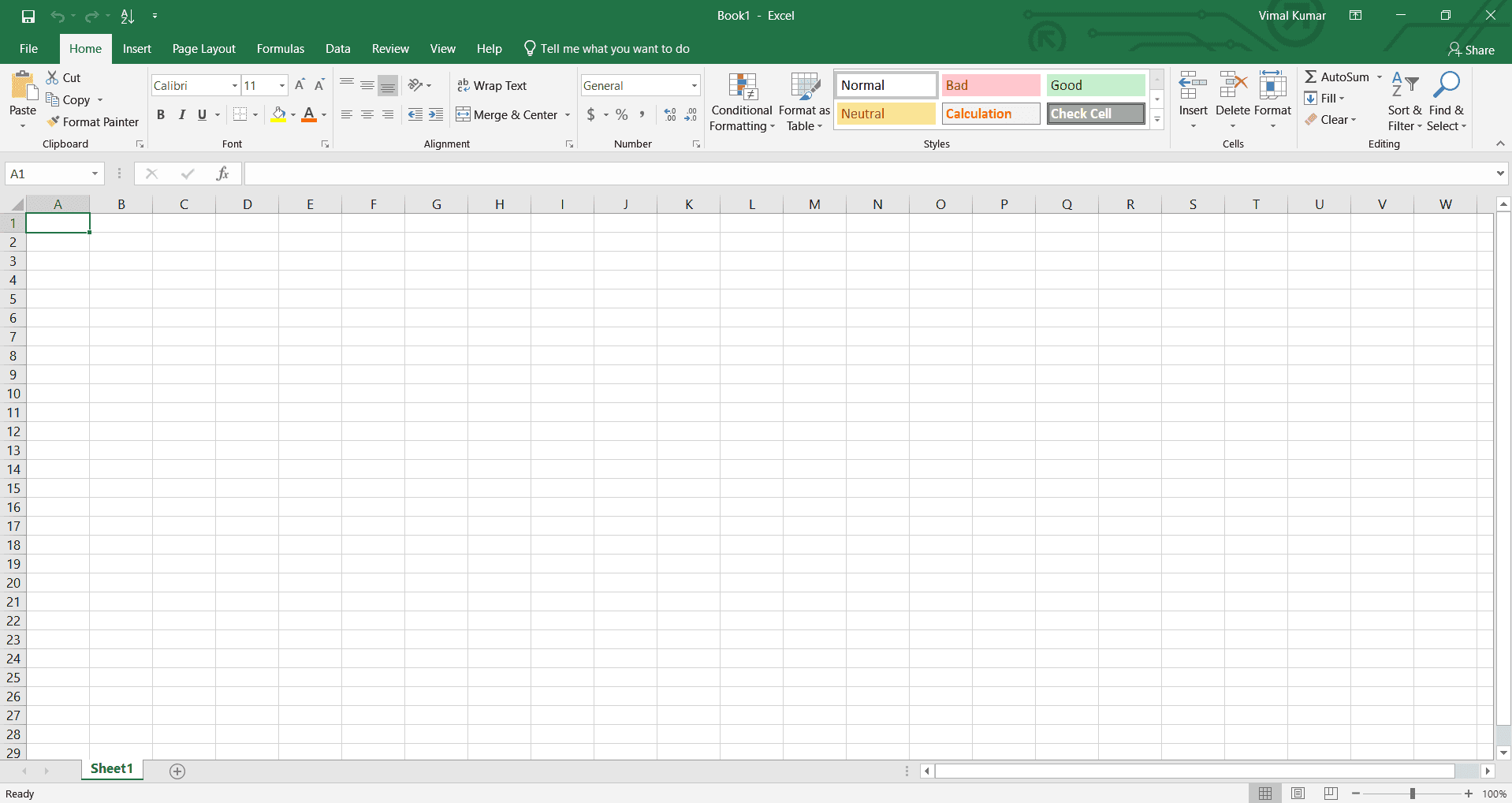
Open Excel and access File menu
Launch Microsoft Excel and open the workbook where you want to enable macros, or create a new one. Click the File tab in the top-left corner to access Excel's main menu options.
- 2
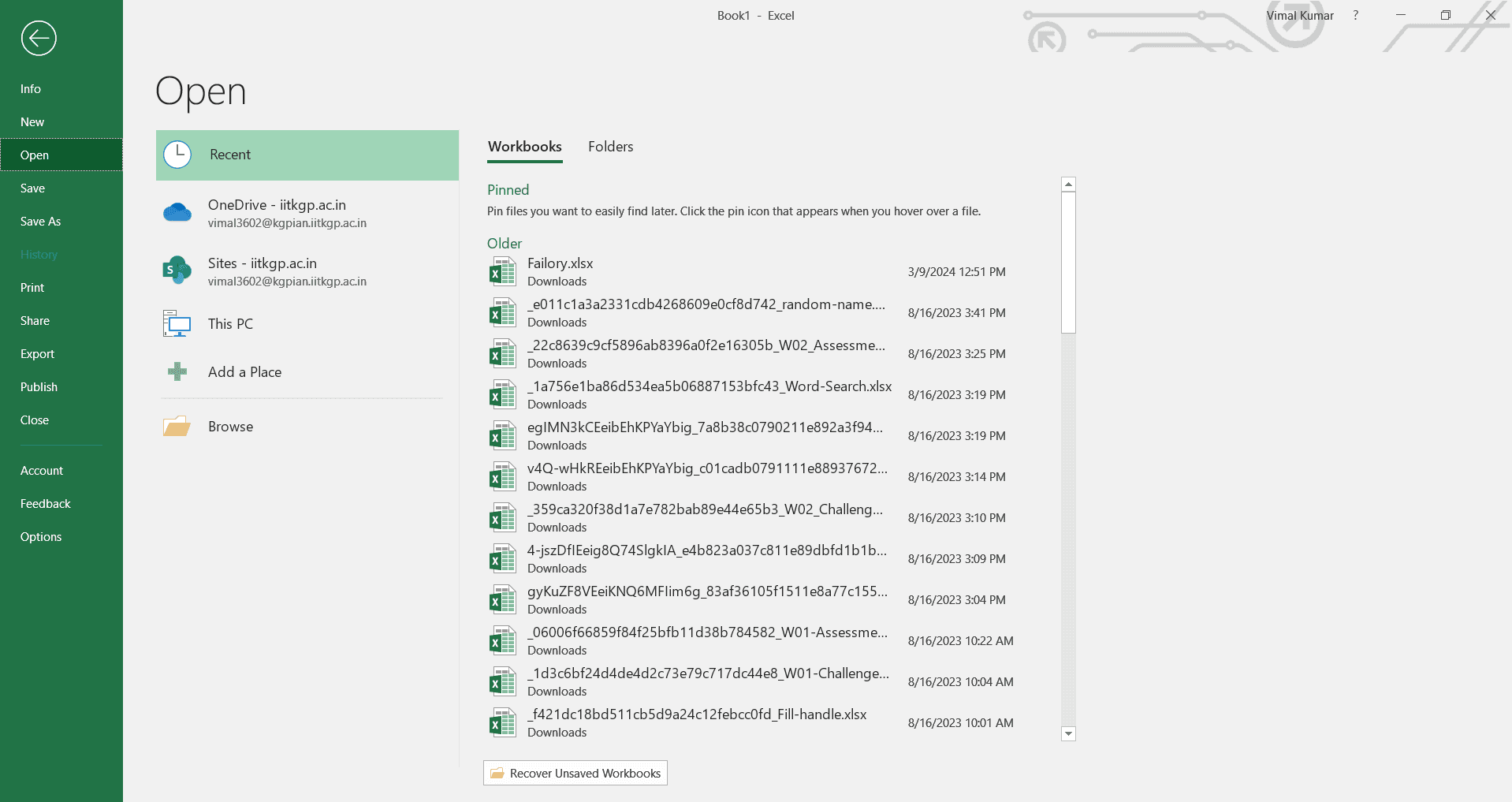
Navigate to Options settings
Select Options from the File menu to open the Excel Options dialog box. This is where you'll find all the security and macro-related settings.
- 3
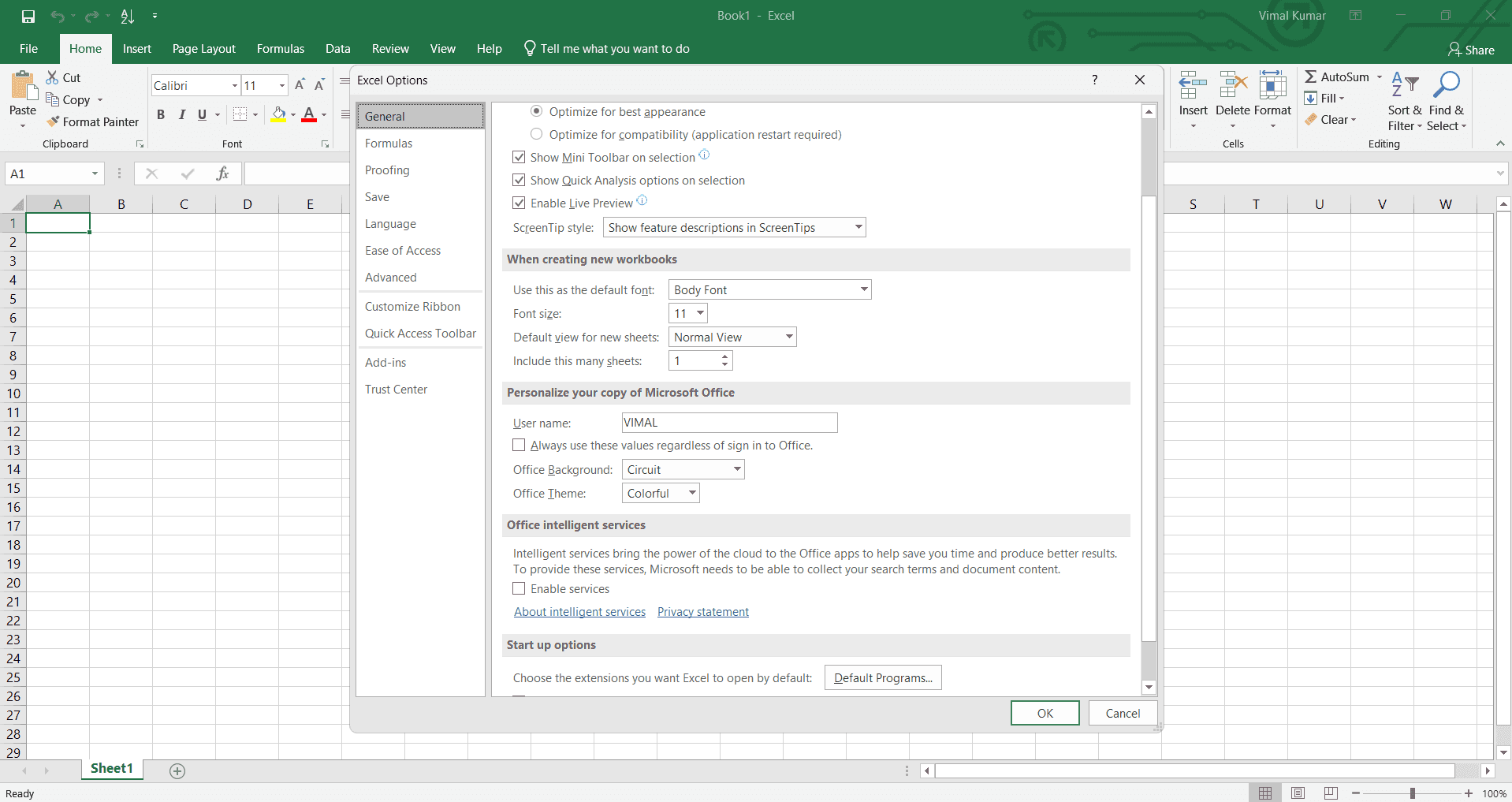
Locate Trust Center settings
In the Excel Options window, click on Trust Center in the left sidebar. This section controls how Excel handles macros and file security.
- 4
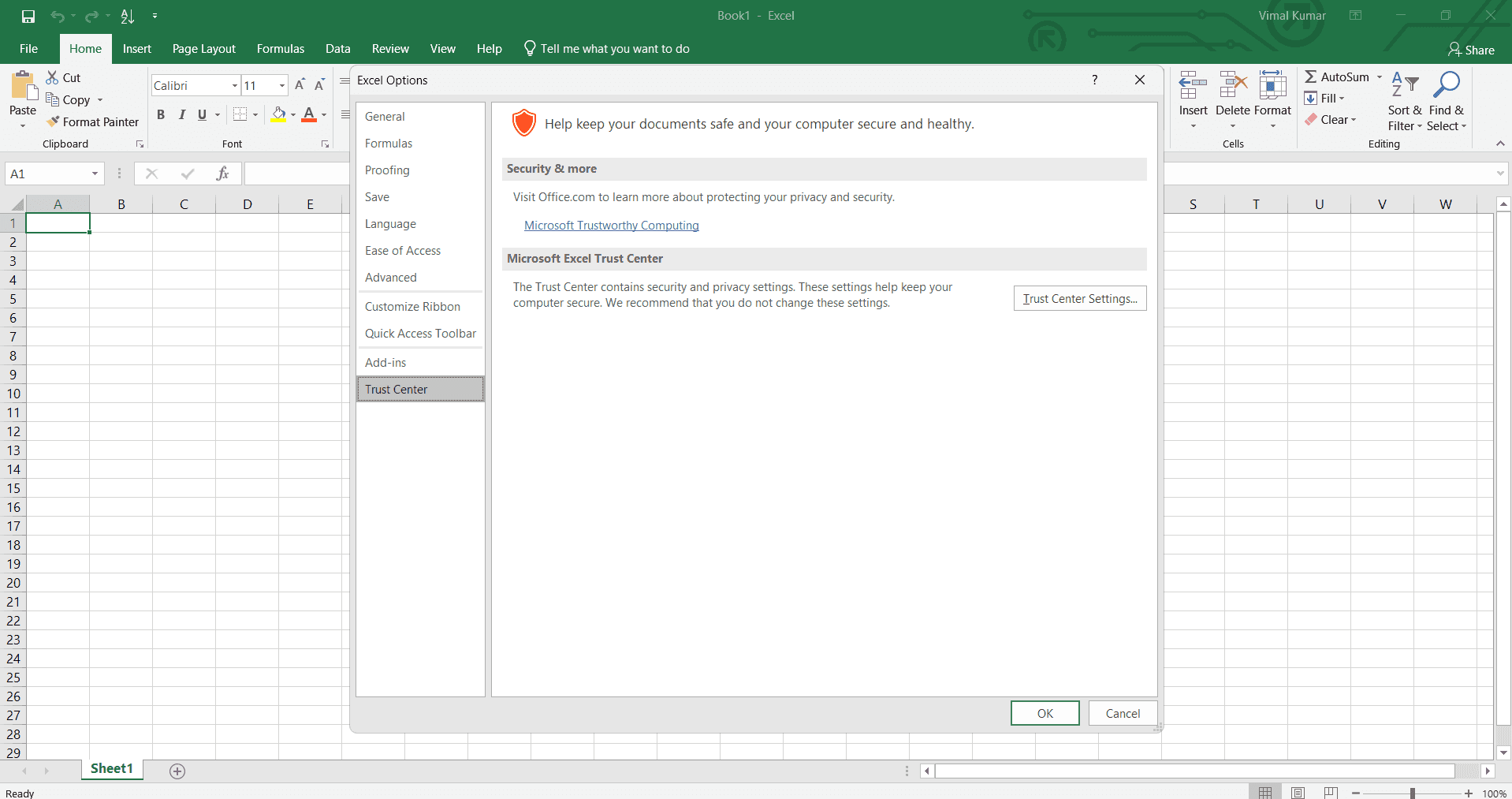
Access macro security settings
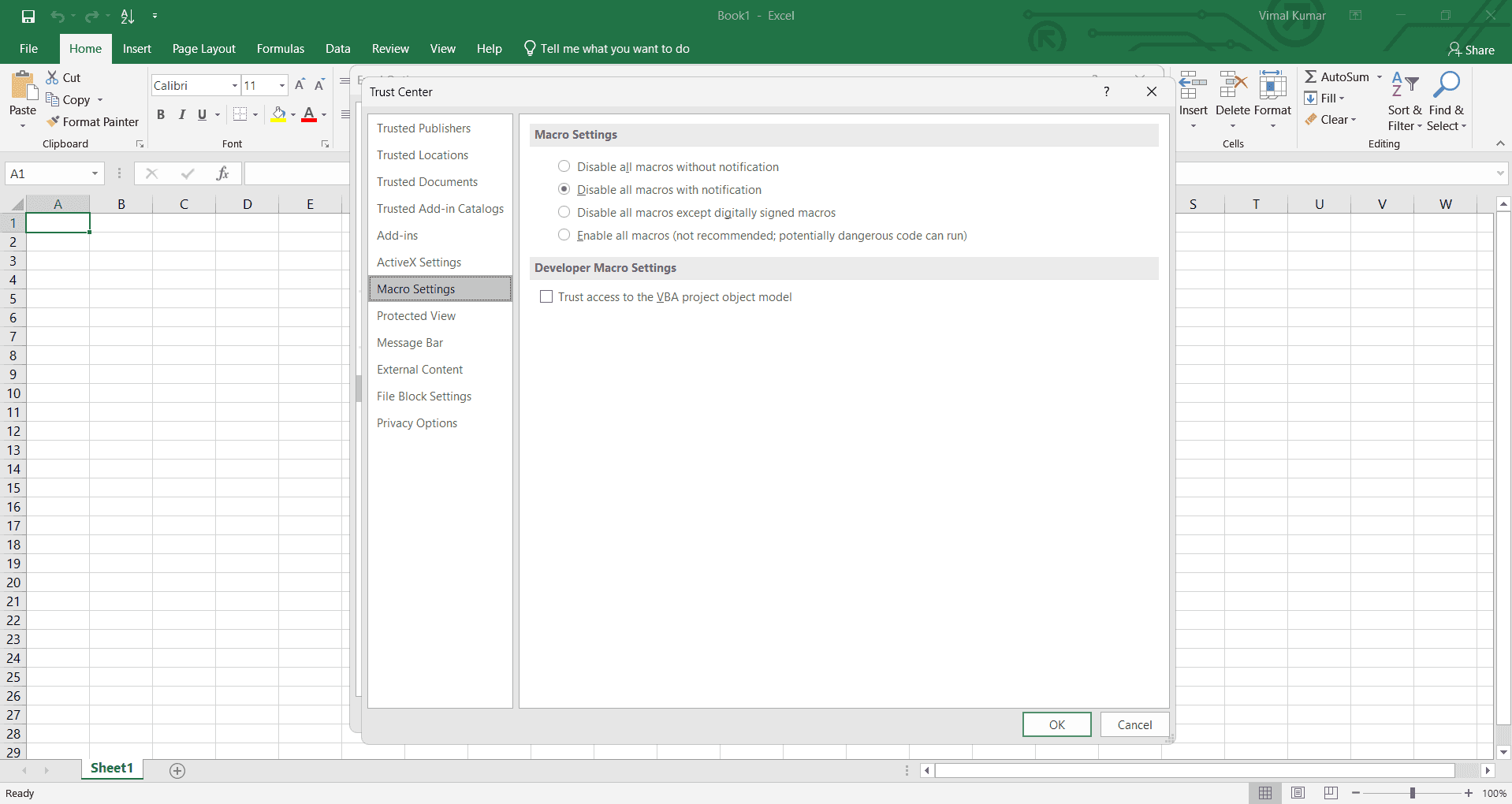
Click the Trust Center Settings button to open the detailed security configuration panel. Look for the Macro Settings section in the window that appears.
- 5
Select appropriate macro security level
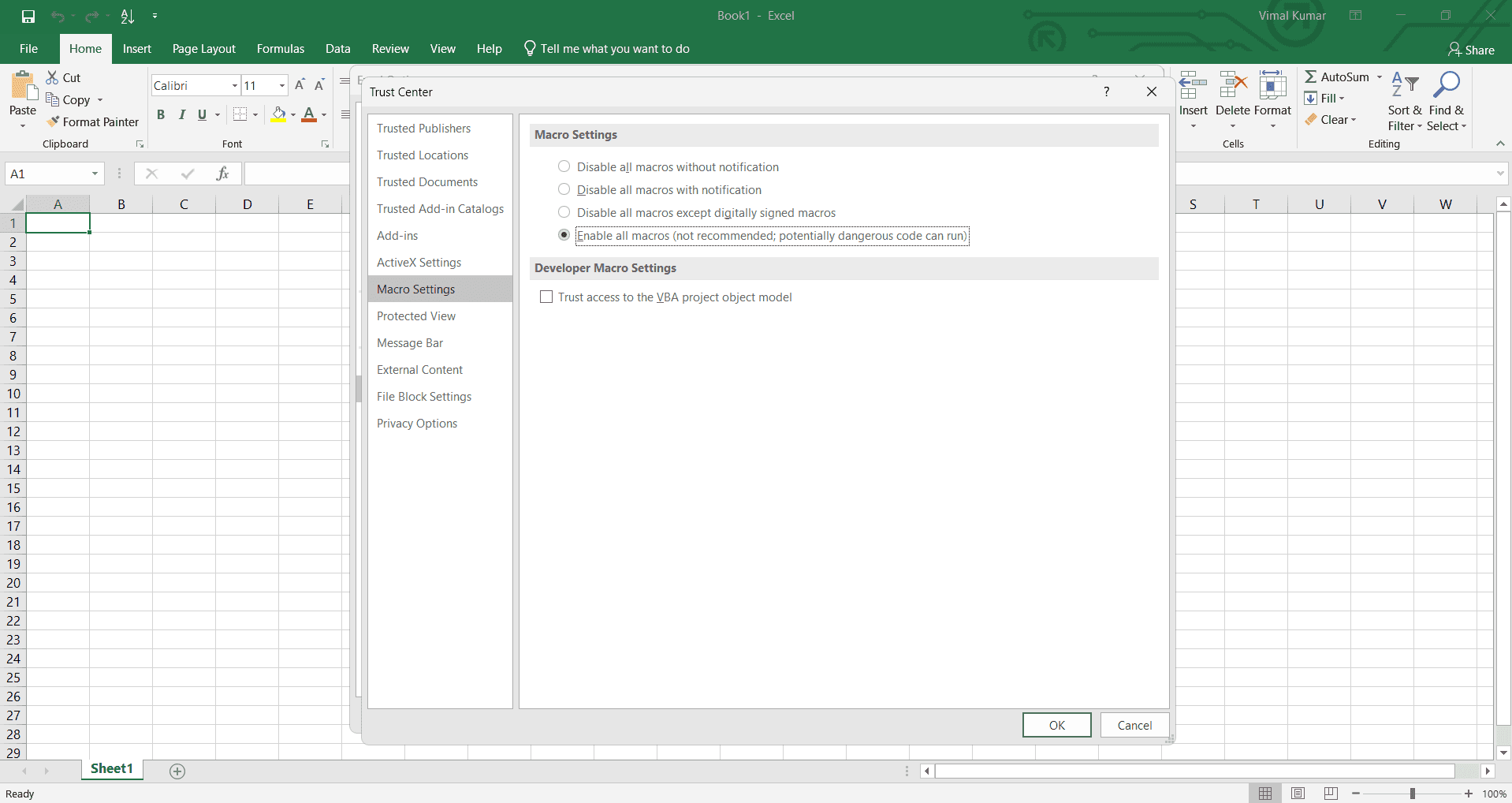
Choose your preferred security level for macros. Select Enable all macros if you trust the source of your files, or Disable all macros with notification for a safer option that alerts you when macros are present.
- 6
Apply and confirm settings
Click OK to apply your macro security changes and close the Trust Center Settings window. Click OK again to close the Excel Options dialog.
- 7
Verify macro functionality
Open a macro-enabled workbook (with .xlsm extension) to confirm that macros are now functioning. You should see the macro content execute without security warnings when you open such files.
Frequently asked questions
Common questions about how to enable macros in excel.
What's the difference between .xlsx and .xlsm files?
Excel files with .xlsx extension cannot contain macros, while .xlsm files are specifically formatted to support macro content. If you need to use macros, you must save your file in the .xlsm format. When you attempt to save a macro-enabled workbook as .xlsx, Excel will prompt you to choose a compatible format.
Is it safe to enable all macros in Excel?
Enabling all macros carries some security risk, as malicious code can be embedded in macros. It's recommended to only enable all macros for files from trusted sources that you created or received from verified colleagues. For files from unknown sources, use the Disable all macros with notification option to review files before running them.
Can I enable macros for just one file?
Excel's macro security settings apply globally to all workbooks. However, when you open a macro-enabled file with disabled macros, you'll see a notification bar allowing you to enable macros just for that session. This approach lets you control macros on a per-file basis without changing your overall security settings.
Why do I see a warning about disabled macros?
The warning appears because your macro security settings are configured to disable macros by default, which is the recommended safe setting. You can enable macros for that specific file by clicking the Enable Content button in the notification bar, or adjust your security settings in Trust Center to a lower security level.
Where are my macro security settings located in newer Excel versions?
In Excel 2016 and later versions, macro security settings are accessed through File > Options > Trust Center > Trust Center Settings > Macro Settings. The process remains consistent across recent Excel versions, though the interface may have minor visual updates.