How to filter by color in Google Sheets

Filtering data by color in Google Sheets is a powerful way to organize and focus on specific information in your spreadsheet. Whether you're managing project timelines, inventory lists, or priority tasks, color-based filtering lets you quickly isolate cells that match your visual coding system.
Quick summary
In this tutorial, you'll learn how to filter a Google Sheets column by fill color in just a few clicks. By the end, you'll be able to display only the rows containing cells with your chosen color, making data analysis faster and more intuitive.
Why this matters
Color-coded spreadsheets are common in business and project management, where colors often represent status, priority, or category. Filtering by color lets you work with just the data you need without manually hiding rows or creating multiple copies of your sheet.
Step-by-step guide
- 1
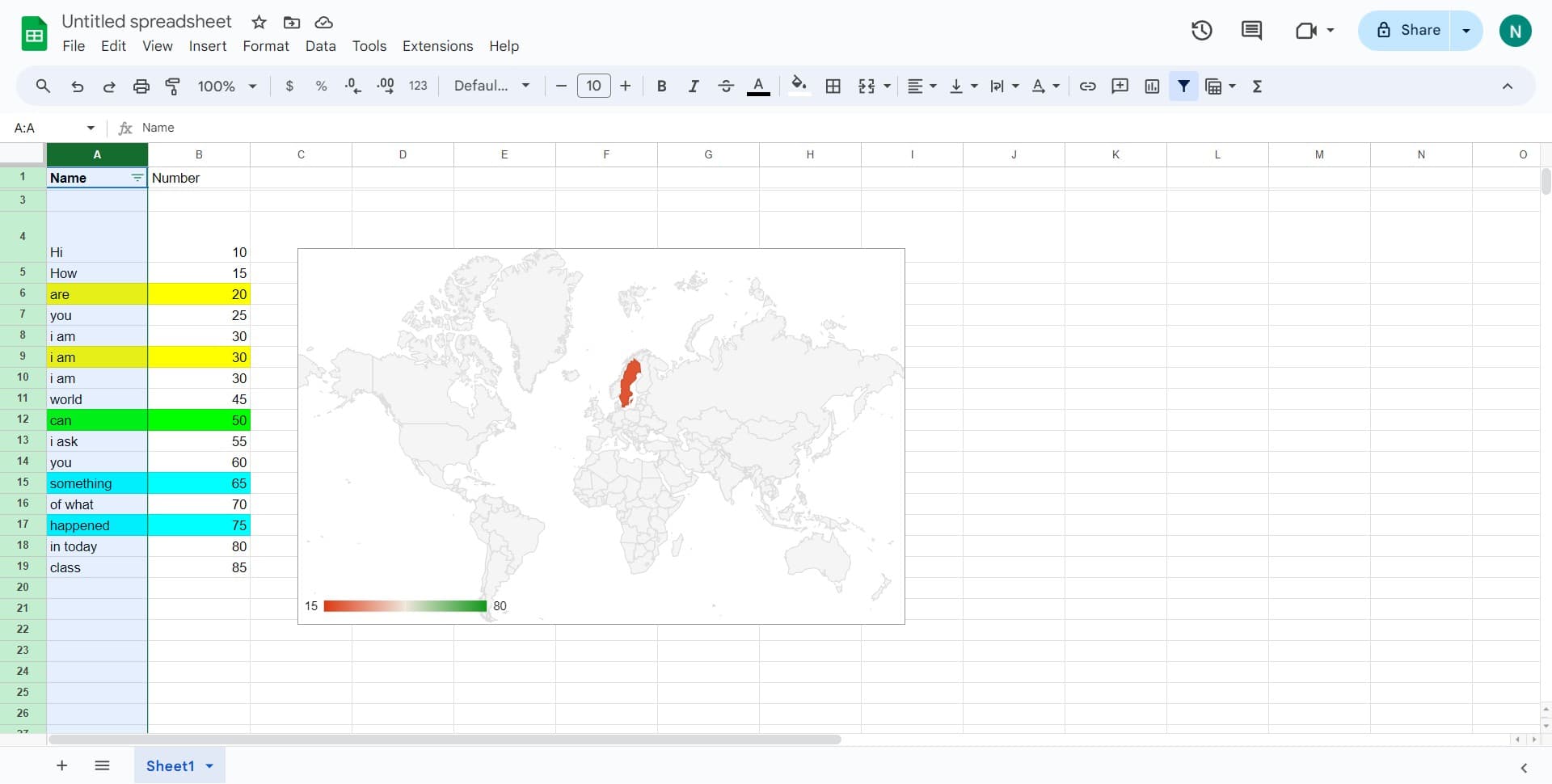
Select your data range
Begin by clicking on the data range or column header that contains the color-coded cells you want to filter. This tells Google Sheets which data to apply the filter to.
- 2
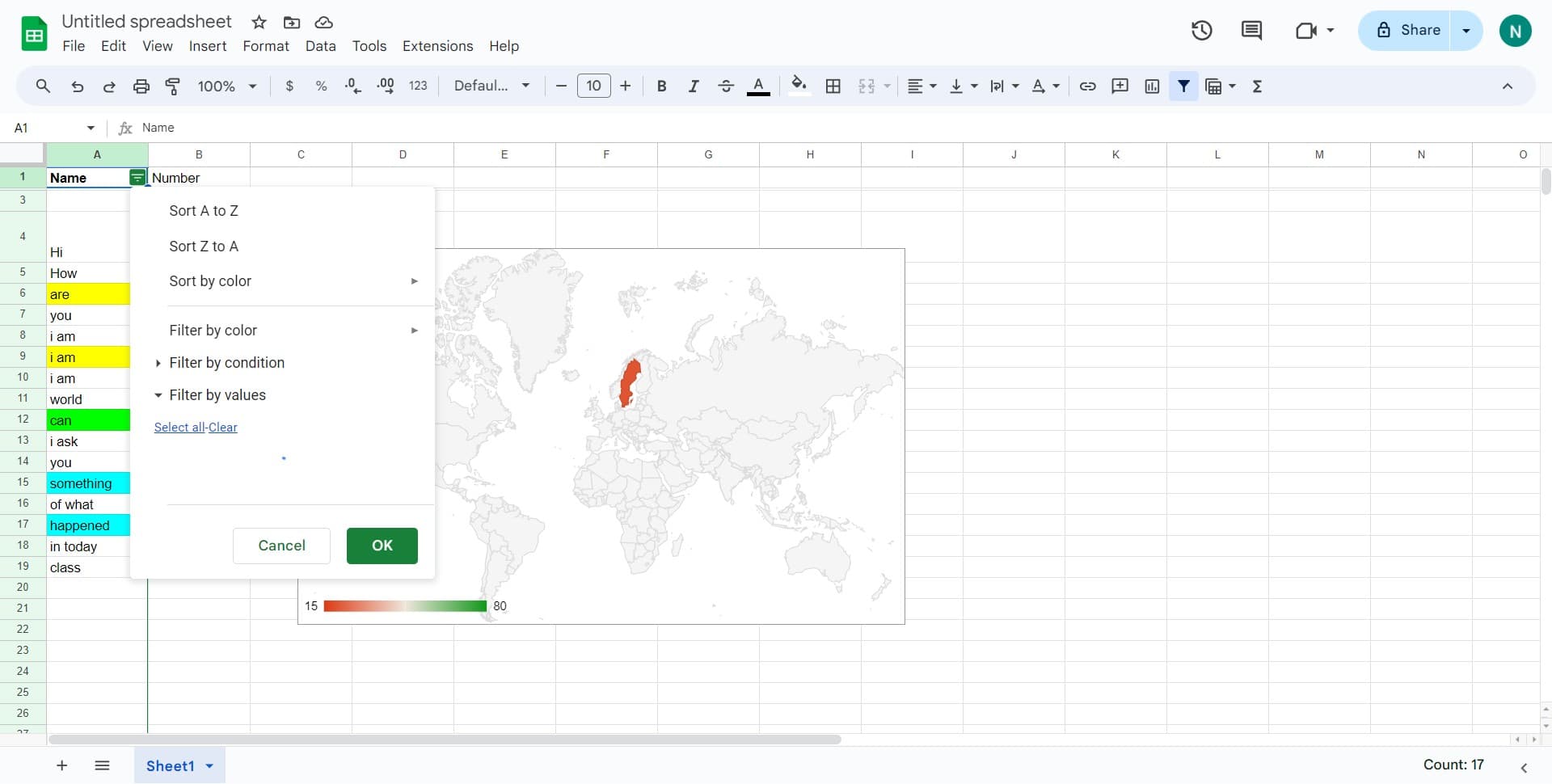
Open the filter menu
Click on the filter button or access the Data menu to activate filtering for your selection. Google Sheets will add filter dropdown arrows to your column headers.
- 3
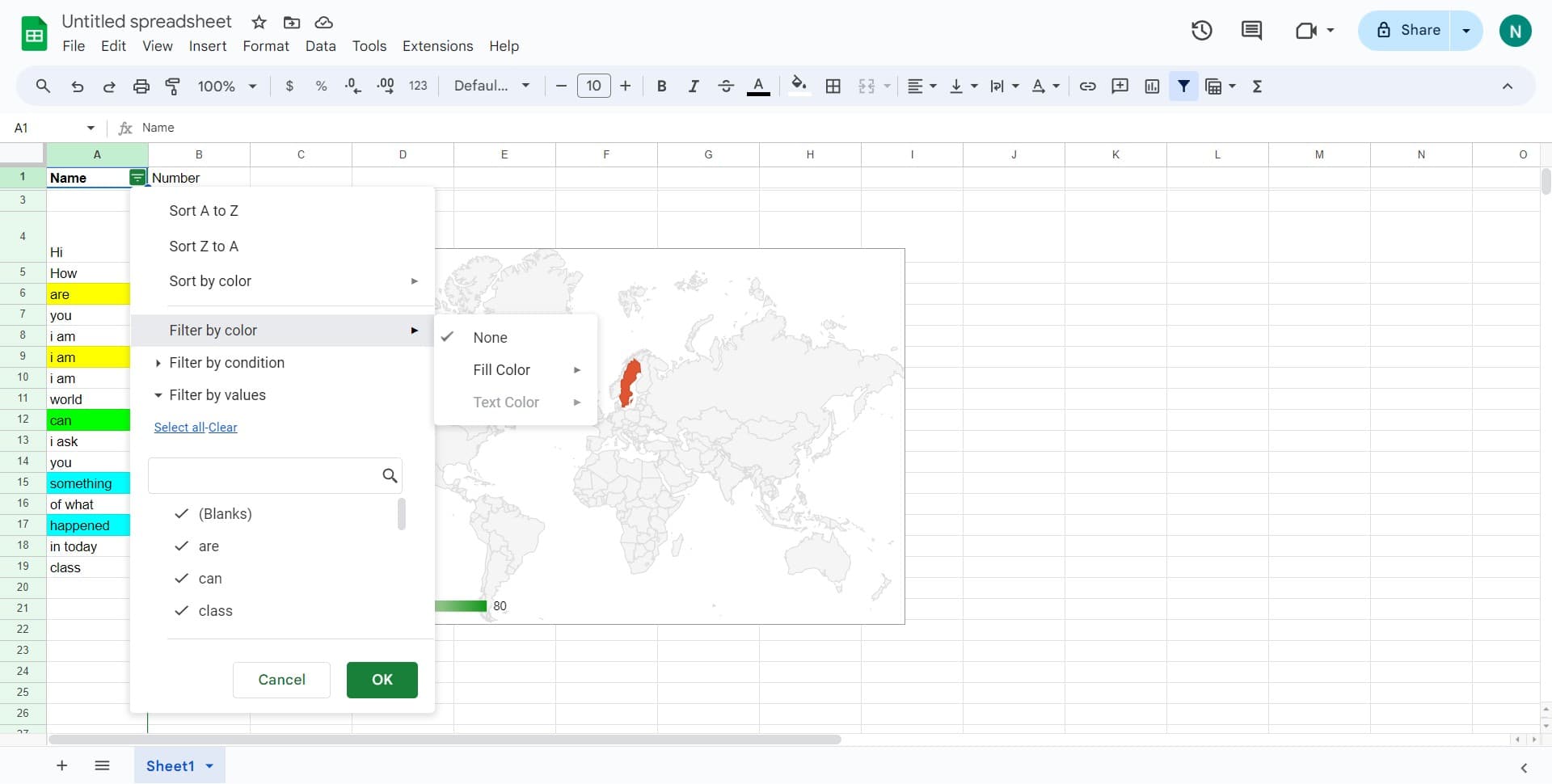
Click 'Filter by color'
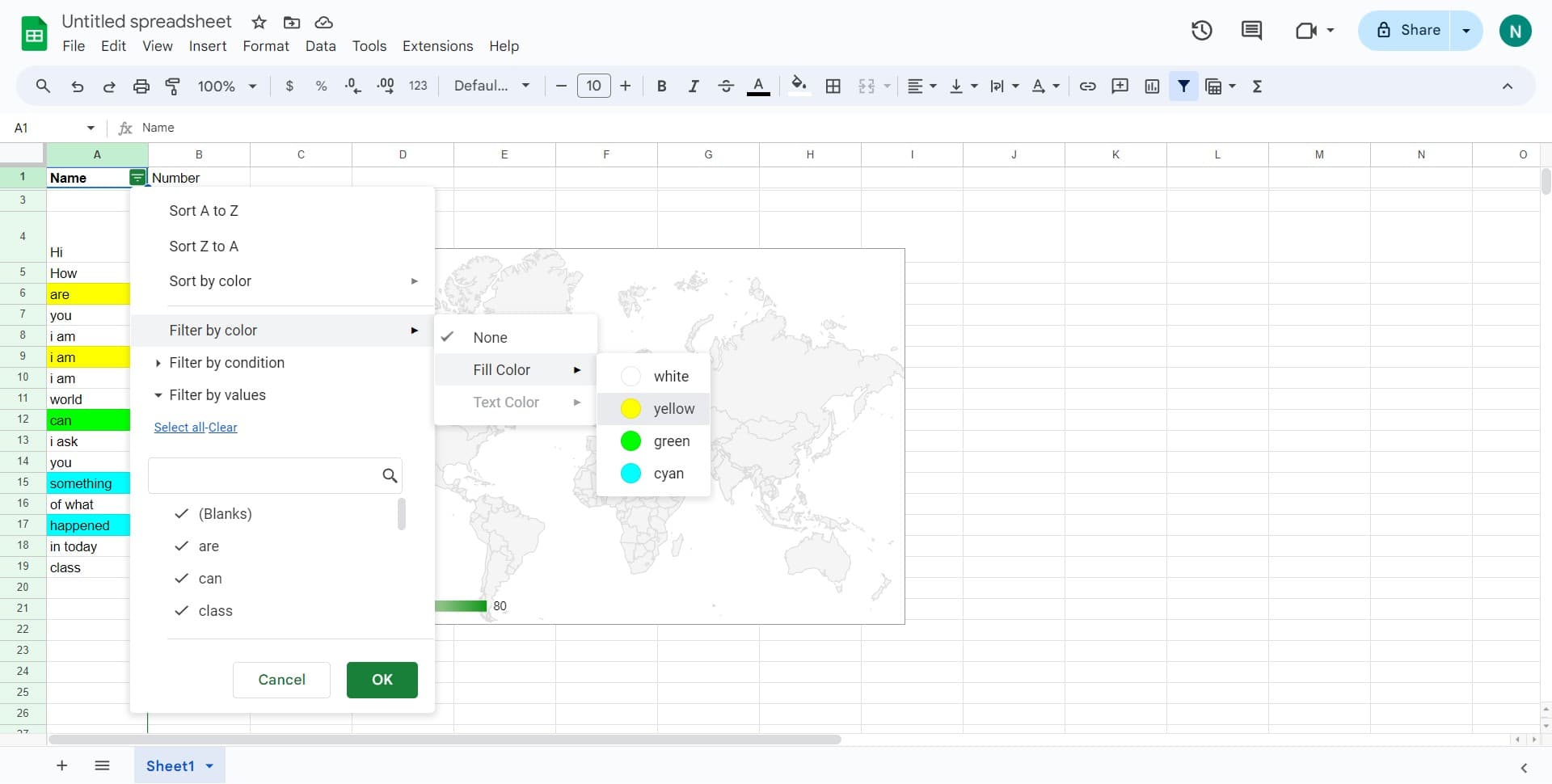
In the filter dropdown menu, locate and click on the 'Filter by color' option. This opens a submenu with color-related filtering choices.
- 4
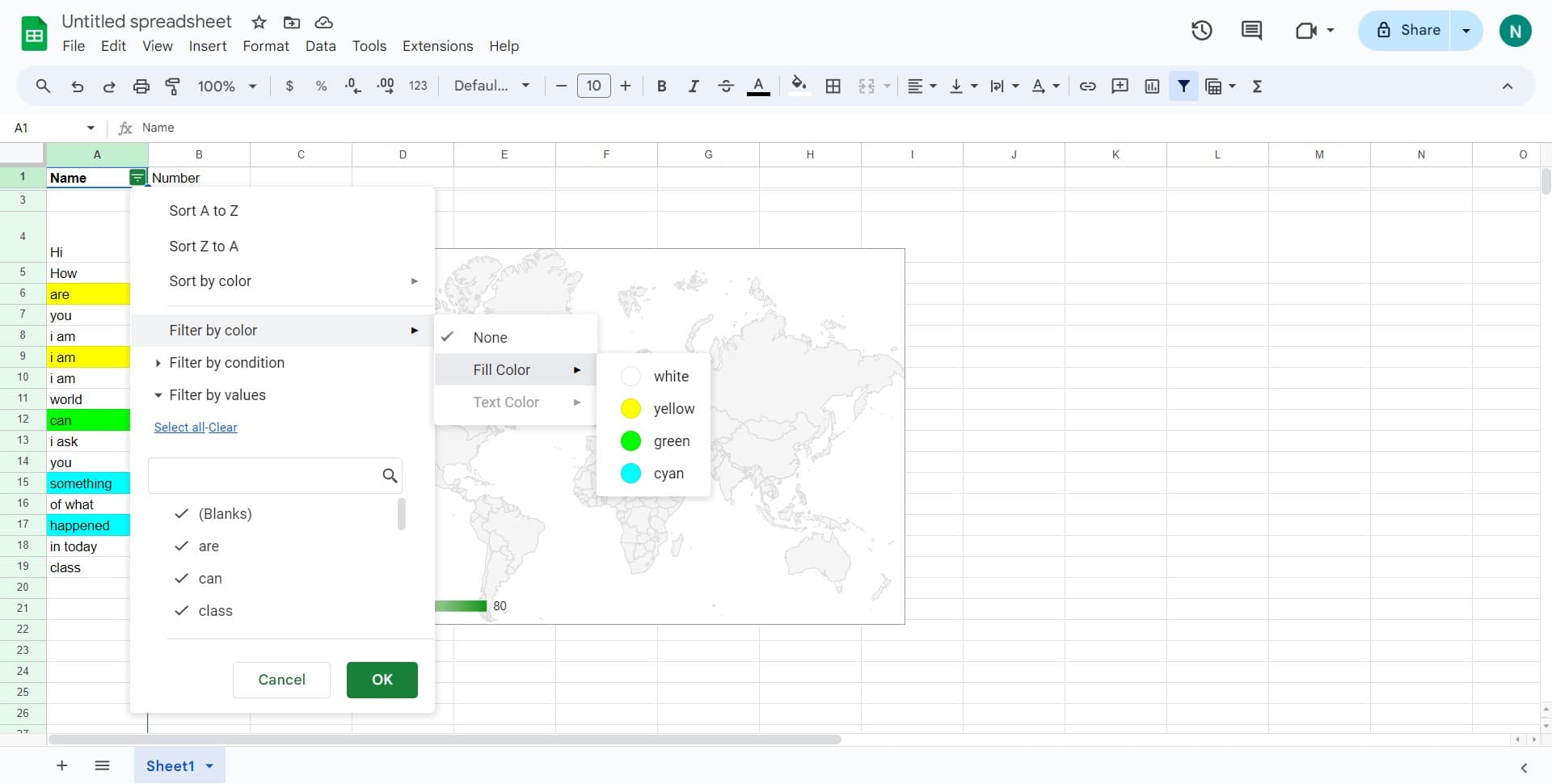
Select 'Fill Color'
Click on 'Fill Color' to filter based on the background color of the cells. This distinguishes fill color filtering from text color filtering.
- 5
Choose your target color
Click on 'yellow' or your desired color from the displayed color palette. Google Sheets will instantly filter your data to show only rows containing cells with that fill color.
Frequently asked questions
Common questions about how to filter by color in google sheets.
Can I filter by multiple colors at once?
Yes. After applying the first color filter, you can click the filter dropdown again and select additional colors to include in your results. Google Sheets will display rows matching any of the selected colors.
What's the difference between fill color and text color filtering?
Fill color filters based on the background color of cells, while text color filters based on the color of the text itself. Use fill color when your cells have colored backgrounds and text color when only the text is colored.
Does filtering by color affect the underlying data?
No. Filtering only hides rows that don't match your criteria—it doesn't delete or modify any data. All rows reappear when you remove or adjust the filter.
Can I filter by color in a pivot table?
Pivot tables have different filtering options than standard sheets. You can filter pivot table data by values or labels, but color-based filtering works best on regular data ranges with applied colors.
How do I remove a color filter?
Click the filter dropdown arrow in the column header and select 'Clear' or 'Reset' to remove the color filter. You can also click 'Filter' in the Data menu and choose to turn off filtering entirely.