How to filter data in Google Sheets

Filtering data in Google Sheets helps you focus on the information that matters most without removing or hiding data permanently. This tutorial walks you through creating and applying filters to organize large datasets efficiently.
Quick summary
In this tutorial, you'll learn how to set up filter views in Google Sheets and configure filters to display only specific data. By following these steps, you'll be able to manage complex spreadsheets with ease and find exactly what you need in seconds.
Why this matters
Filtering is essential for working with large datasets because it reduces visual clutter and helps you identify trends, outliers, and specific records quickly. This skill is invaluable for data analysis, reporting, and collaboration, allowing multiple team members to view the same spreadsheet from different perspectives without affecting others' views.
Step-by-step guide
- 1
Open your Google Sheets document
Navigate to the spreadsheet containing the data you want to filter. Ensure your data includes headers in the first row, as Google Sheets uses these to identify filter criteria.
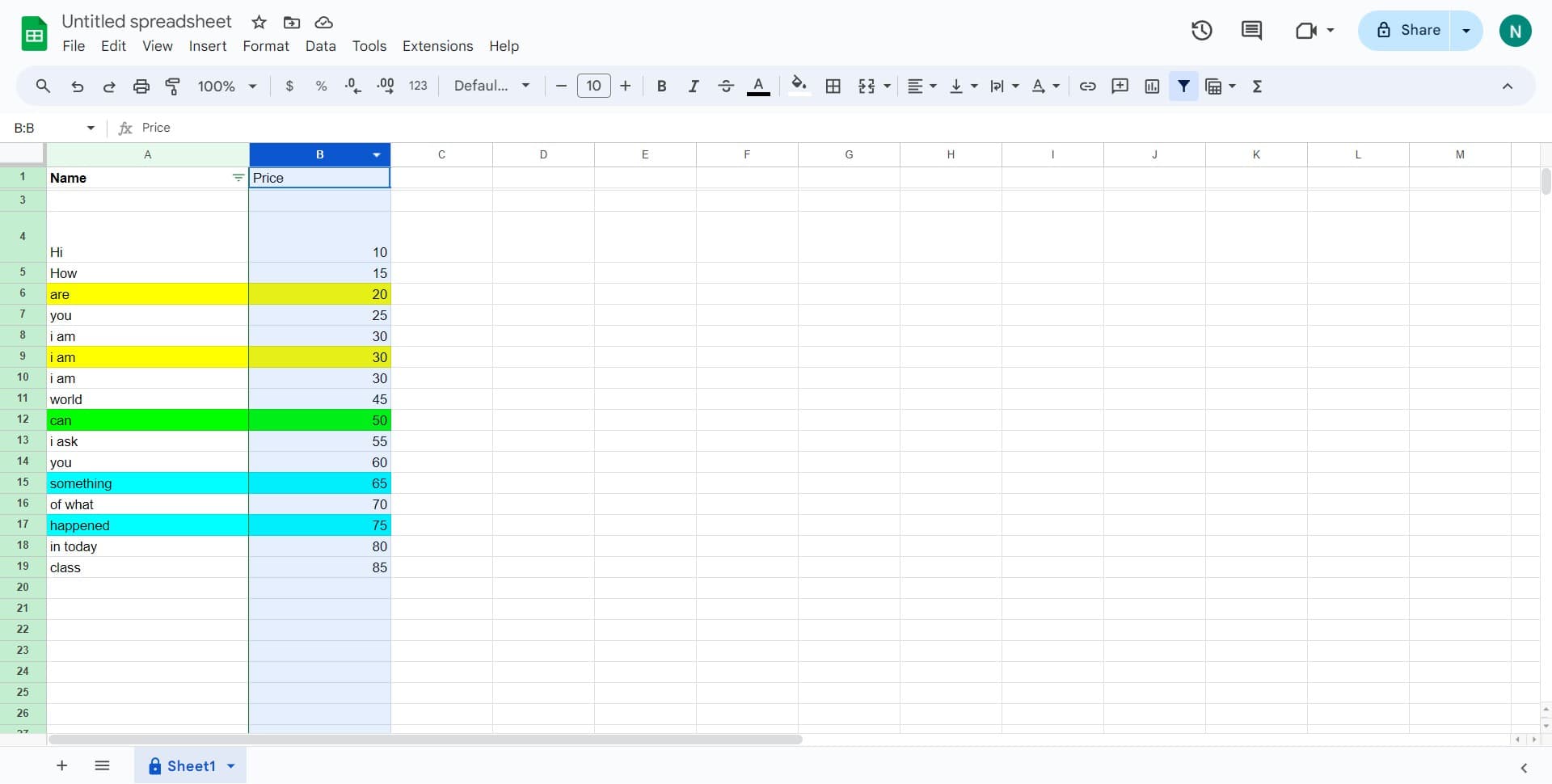
- 2
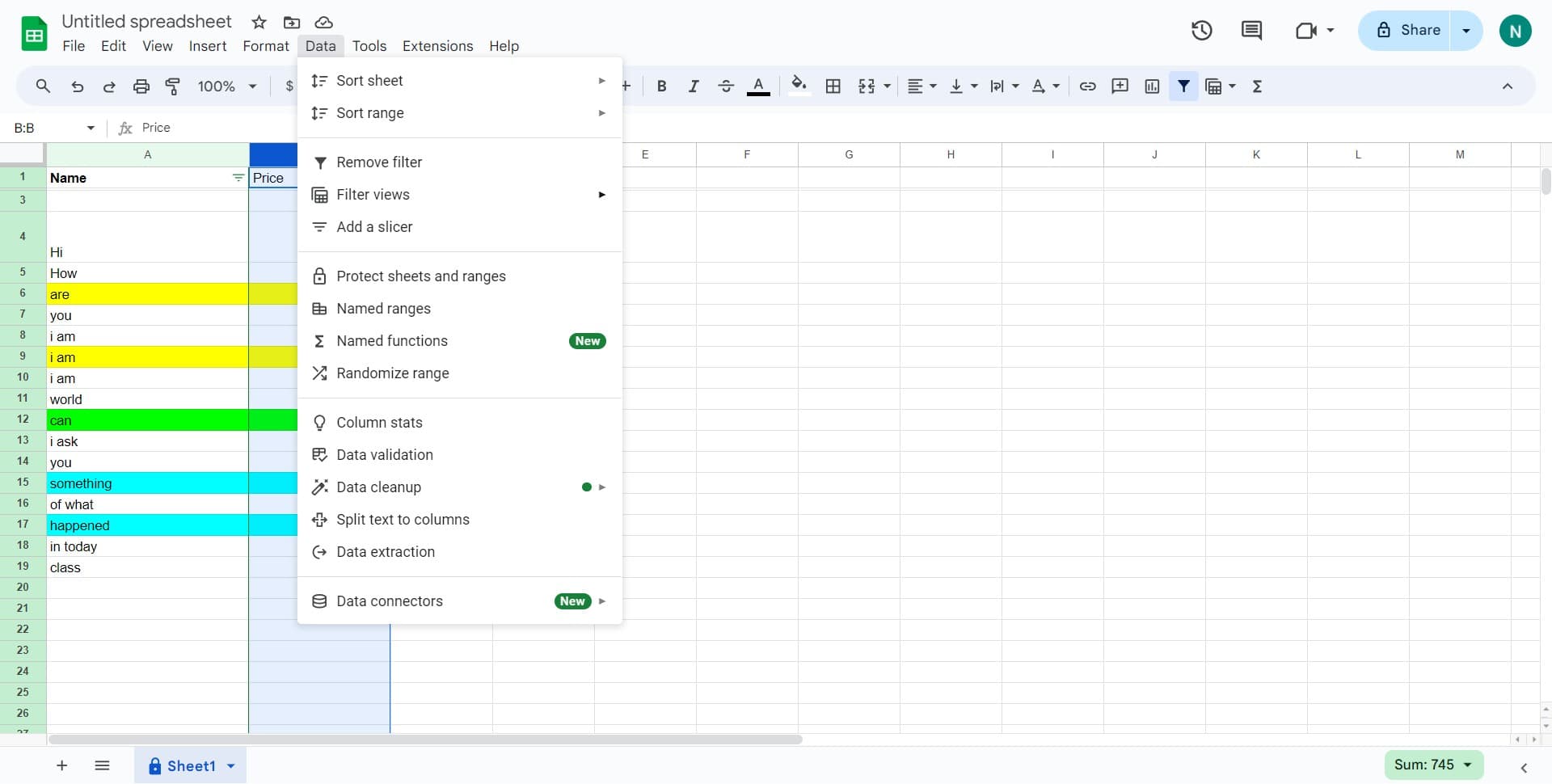
Click on the Data menu
Open the Data menu from the top menu bar. This menu contains all data management tools, including filtering options.
- 3
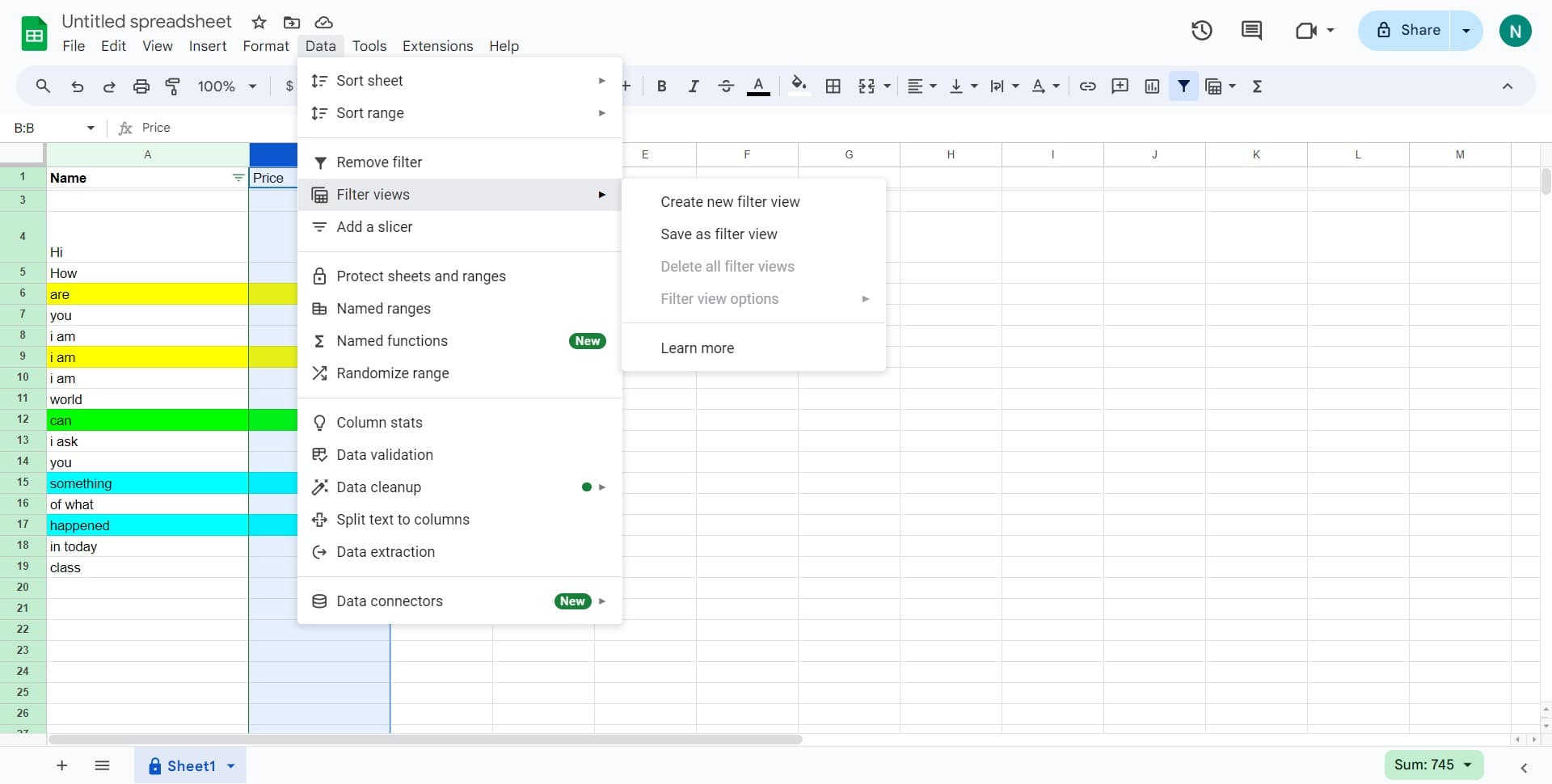
Select Filter views option
Click on 'Filter views' from the Data menu dropdown. This opens a submenu where you can create and manage filter views for your spreadsheet.
- 4
Create a new filter view
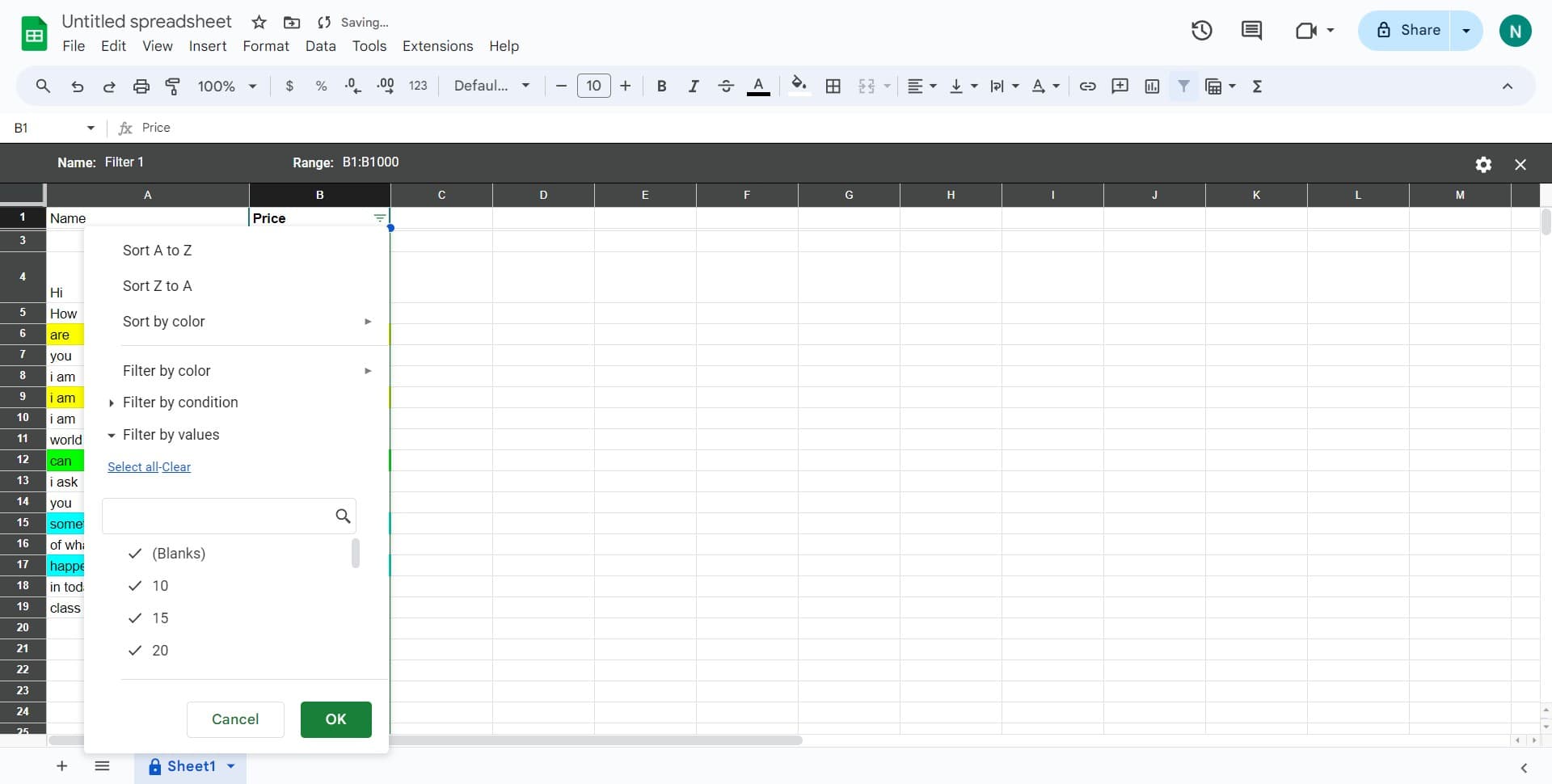
Click the option to create a new filter view. Google Sheets will prompt you to select the range of data you want to filter, typically defaulting to your entire data range.
- 5
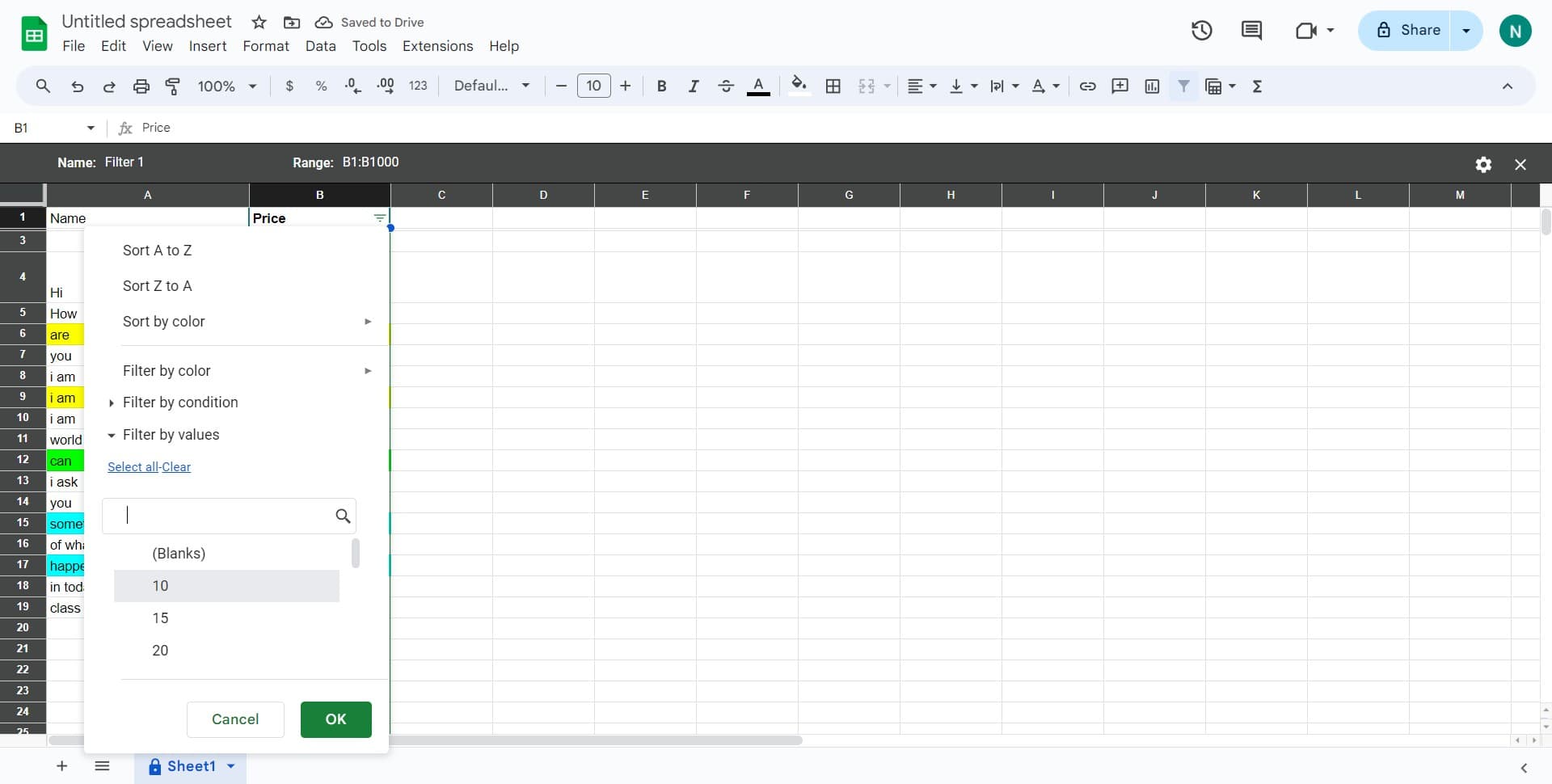
Choose your filter criteria value
Click on the specific value or option you want to filter by, such as '10' in this example. This tells Google Sheets which data points to display based on your selection.
- 6
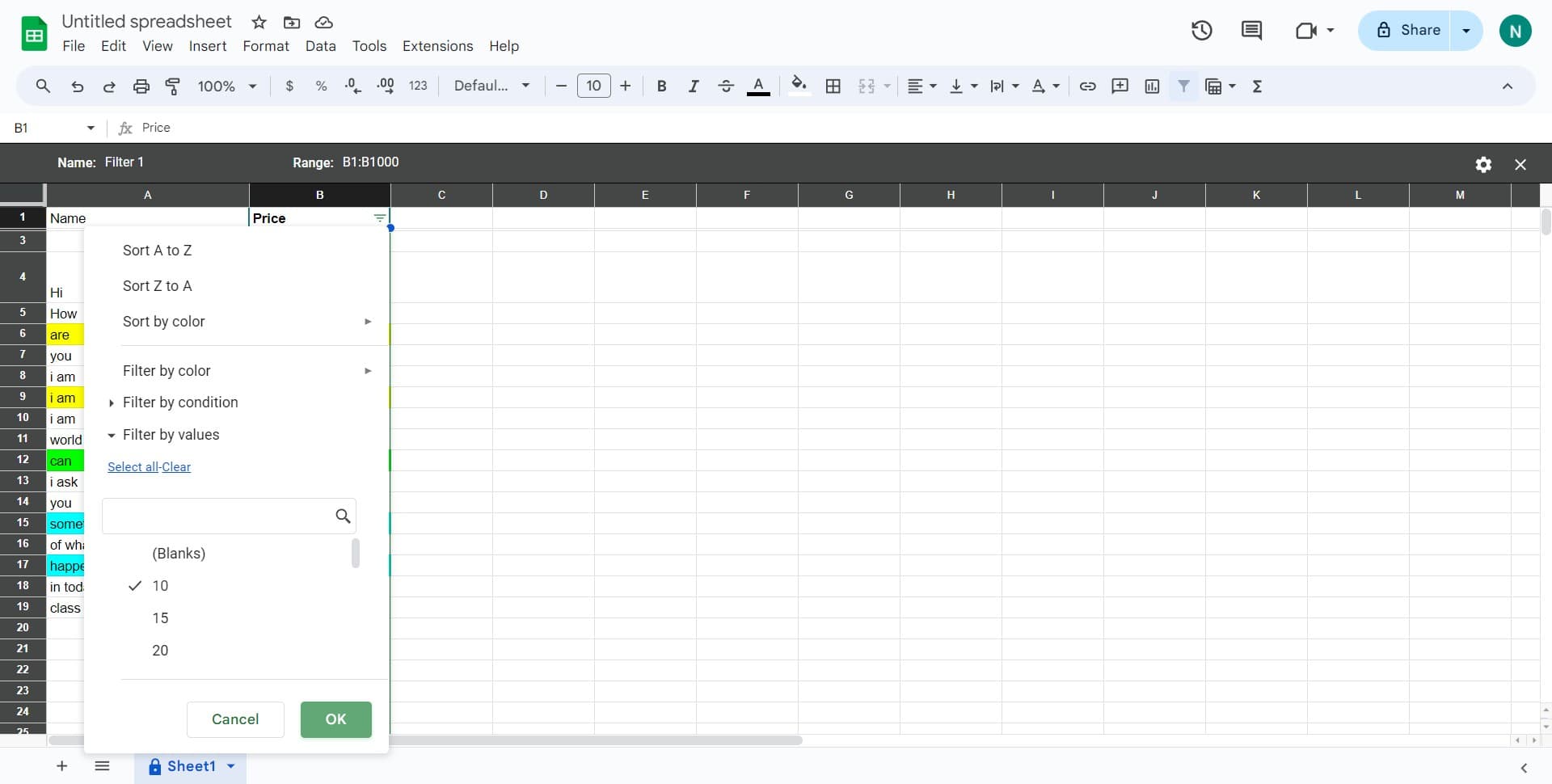
Apply the filter
Click 'OK' to apply your filter view. Your spreadsheet will now display only the rows that match your selected criteria, and you'll see a filter indicator on your column headers.
Frequently asked questions
Common questions about how to filter data in google sheets.
Can I create multiple filter views on the same spreadsheet?
Yes, Google Sheets allows you to create unlimited filter views on the same spreadsheet. Each filter view is independent, so you can set up different filters for different purposes or team members without affecting the original data or other filter views.
Will filtering delete or permanently change my data?
No, filtering only hides rows temporarily based on your criteria. Your original data remains completely intact. When you remove or modify a filter, all hidden rows reappear unchanged.
How do I filter by multiple criteria at once?
After creating a filter view, you can add multiple filter conditions by clicking the filter icon on different columns. This allows you to narrow down results based on several criteria simultaneously, such as showing only items from a specific month and category.
Can other people see my filter views?
Filter views are visible to anyone with access to the spreadsheet, but each person can create their own personal filter views. Others see that filter views exist, but they don't affect what anyone else sees unless they actively click on that specific view.
What's the difference between filters and filter views?
Regular filters apply to everyone viewing the spreadsheet, while filter views let each user create personalized views without affecting others. Filter views are more powerful for collaboration because team members can explore data differently without interfering with each other's work.