How to Find Freshdesk API Key

Finding your Freshdesk API key is essential for integrating Freshdesk with third-party applications and automating workflows. This guide walks you through locating your API key in just a few clicks so you can start building integrations immediately.
Quick summary
In this tutorial, you'll learn how to access your Freshdesk account settings, navigate to the API section, and retrieve your unique API key for use in external applications and automation tools.
Why this matters
Your API key enables secure, programmatic access to your Freshdesk data and functions. Whether you're connecting Freshdesk to your CRM, building custom automations, or integrating with other business tools, obtaining your API key is a critical first step in unlocking advanced functionality.
Step-by-step guide
- 1
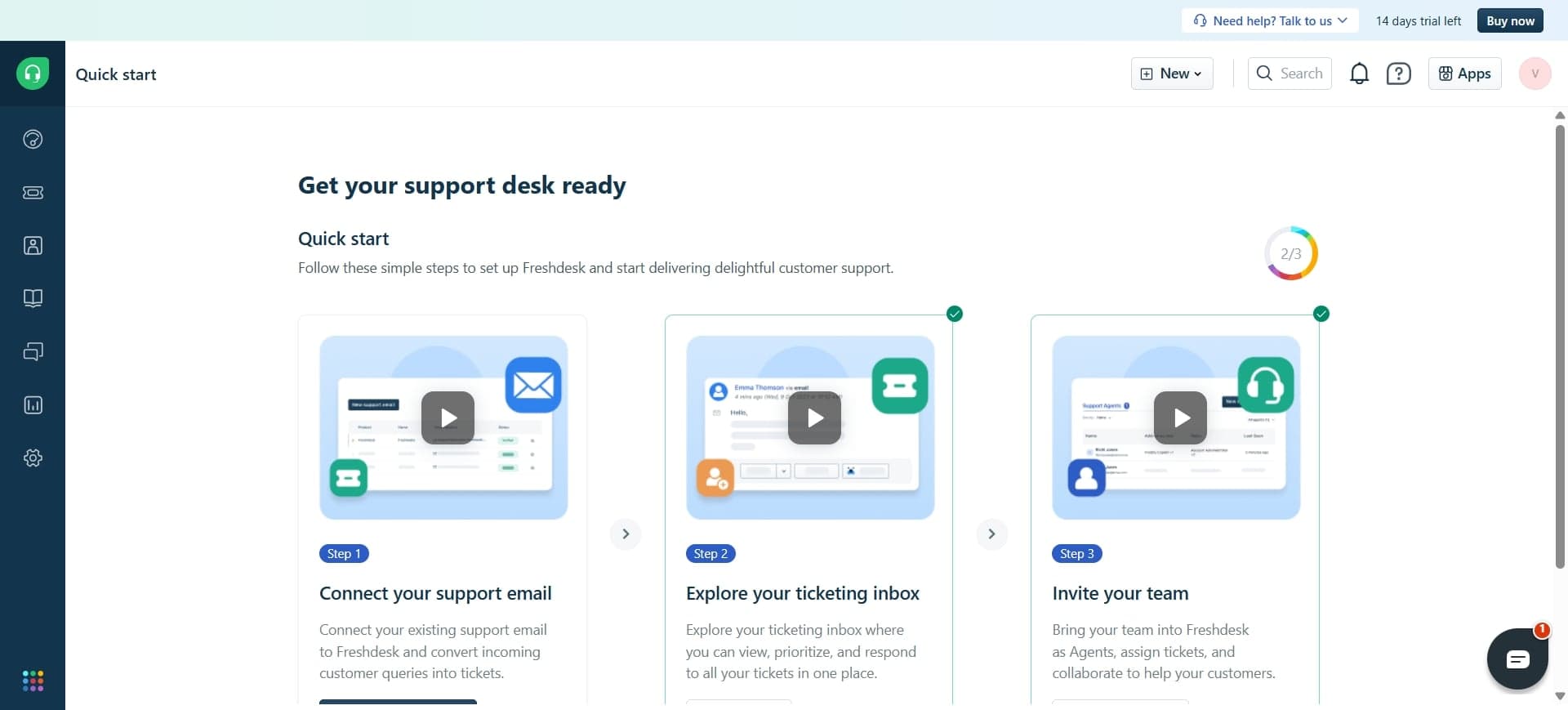
Log in to your Freshdesk account
Navigate to your Freshdesk login page and enter your credentials. Once authenticated, you'll be directed to your Freshdesk dashboard where you can access account settings.
- 2
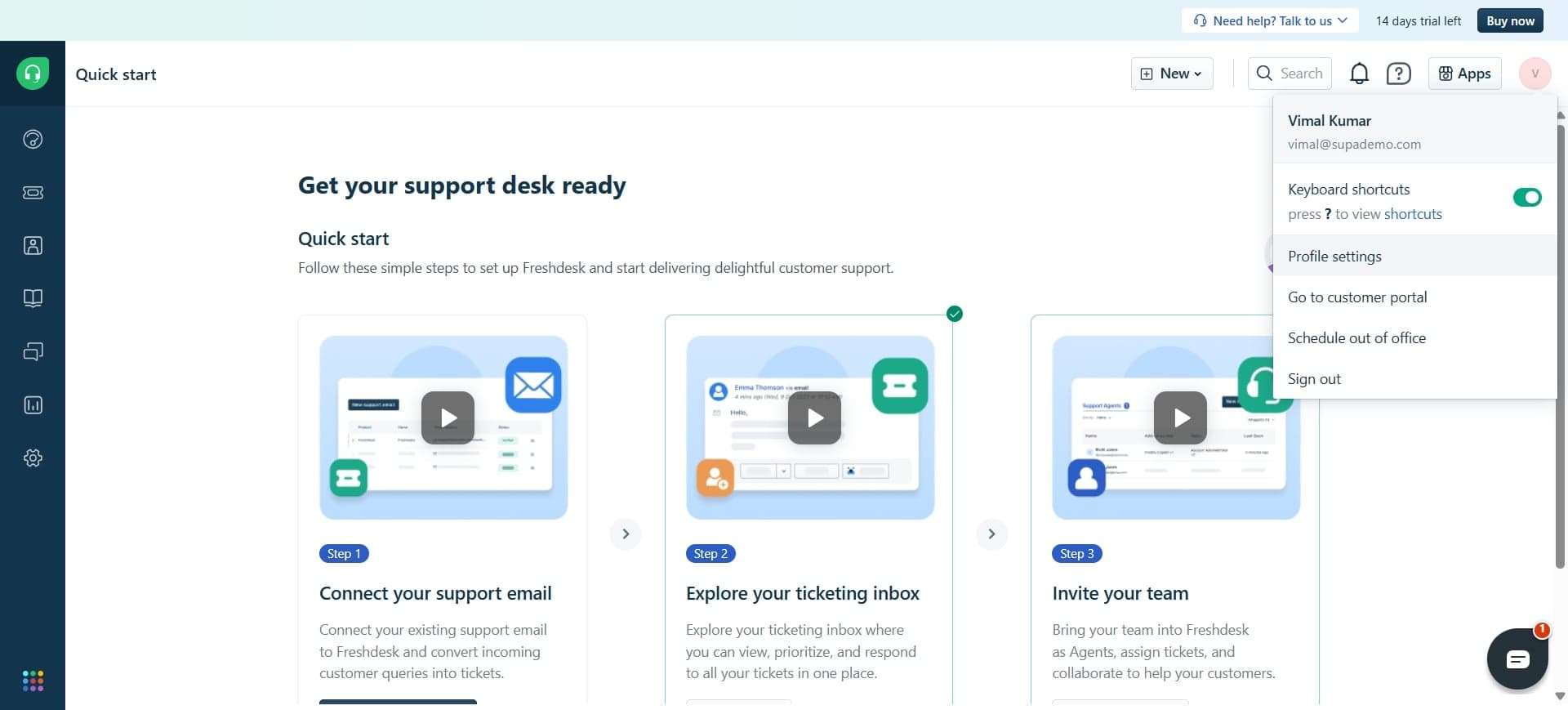
Click your profile icon in top-right corner
Locate the profile or account icon in the upper-right corner of the interface. Click it to open a dropdown menu with account-related options.
- 3
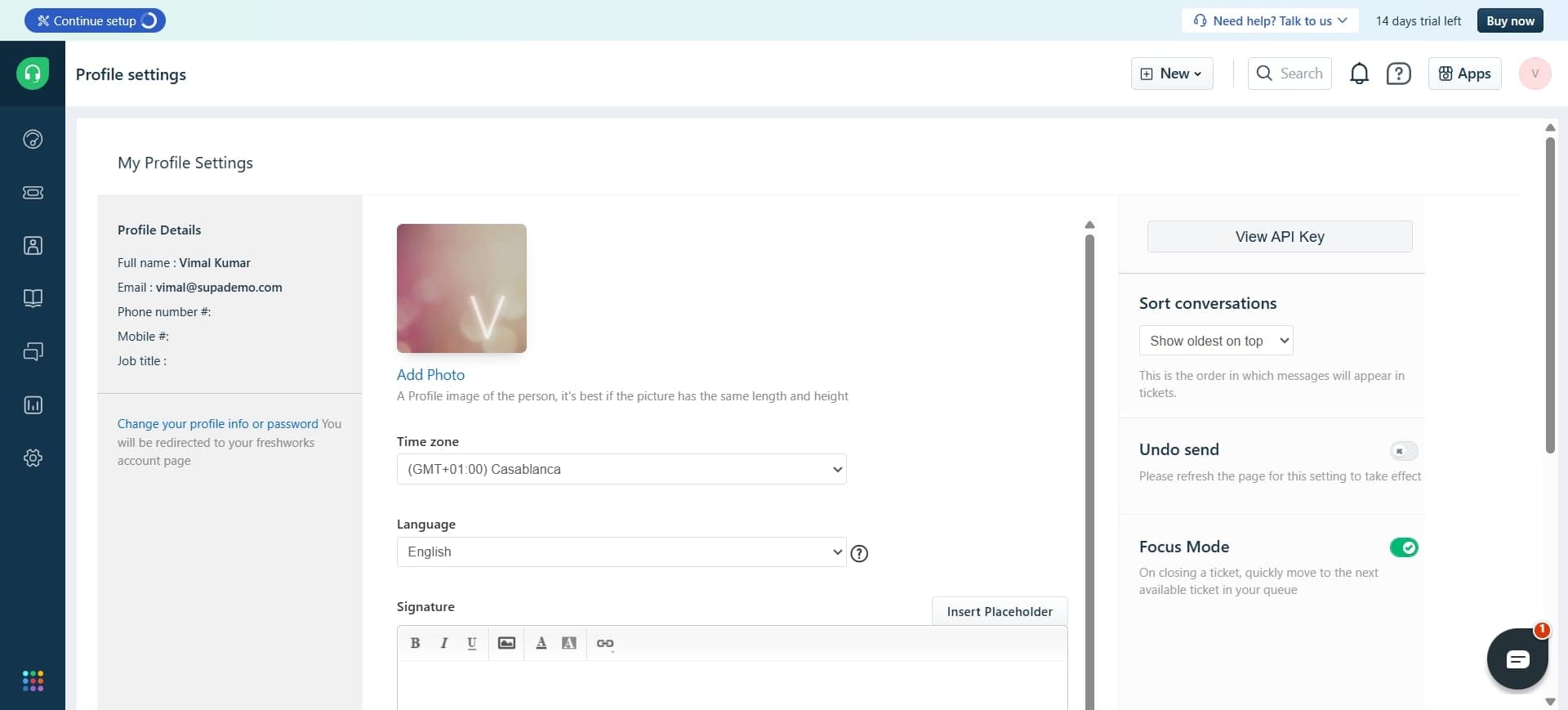
Select Settings from the dropdown
From the dropdown menu, find and click on 'Settings' or 'Account Settings'. This will take you to your account configuration page where API credentials are stored.
- 4
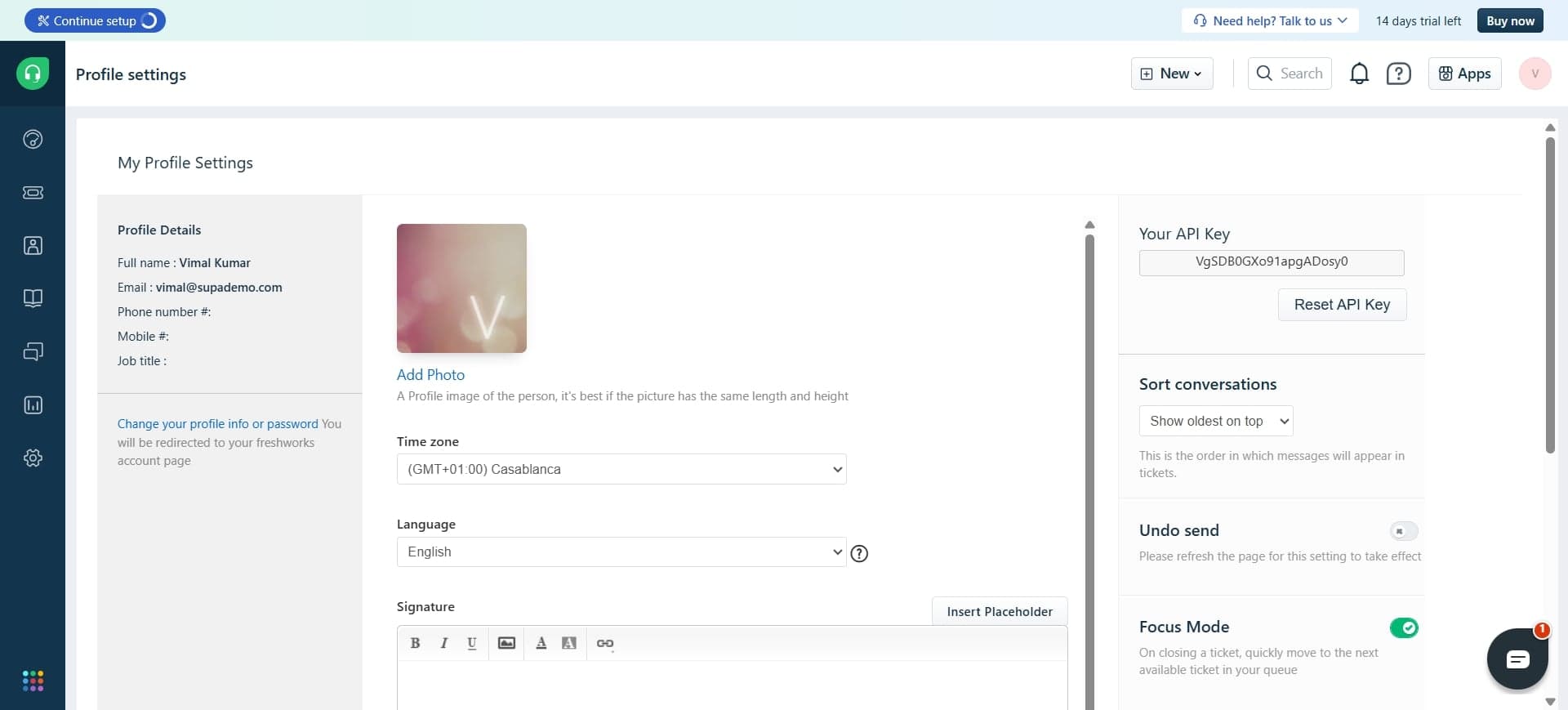
Navigate to API section and copy your key
In the Settings page, locate the 'API' or 'Integrations' section in the left sidebar. Click it to reveal your API key, then copy it to your clipboard for use in your integration or application.
Frequently asked questions
Common questions about how to find freshdesk api key.
What is a Freshdesk API key used for?
A Freshdesk API key is used to authenticate requests when connecting external applications or scripts to your Freshdesk account. It allows third-party tools to securely access your ticket data, contacts, and other Freshdesk resources without exposing your login credentials.
Is my API key the same as my password?
No, your API key is completely separate from your password. The API key is specifically designed for programmatic access and integrations, while your password is used for logging into Freshdesk manually. You should treat your API key like a password and keep it confidential.
Can I regenerate or reset my API key?
Yes, most Freshdesk accounts allow you to regenerate your API key from the same settings page where you found it. If you suspect your API key has been compromised, you can generate a new one, though this will invalidate the old key and may temporarily break active integrations using it.
Where should I store my API key securely?
Store your API key in a secure password manager or environment variable configuration rather than hardcoding it into scripts or storing it in plain text. Never commit your API key to version control systems like Git, as this exposes it to unauthorized access.
Do I need special permissions to view my API key?
In most cases, only account administrators can view and manage API keys in Freshdesk. If you're unable to see the API section in Settings, you may need to request higher-level permissions from your Freshdesk account owner or administrator.