How to generate a survey link in Mailchimp

Mailchimp's survey feature allows you to gather valuable feedback from your audience directly through the platform. This guide walks you through the process of generating a shareable survey link that you can distribute to your contacts.
Quick summary
In this tutorial, you'll learn how to create a survey in Mailchimp and generate a link to share with your audience. You'll navigate through the Surveys section, create a new survey, and copy the shareable link to your clipboard for distribution.
Why this matters
Generating a survey link in Mailchimp enables you to collect customer feedback, conduct market research, and gather insights without leaving your email marketing platform. This streamlined workflow saves time and keeps all your audience data in one centralized location.
Step-by-step guide
- 1
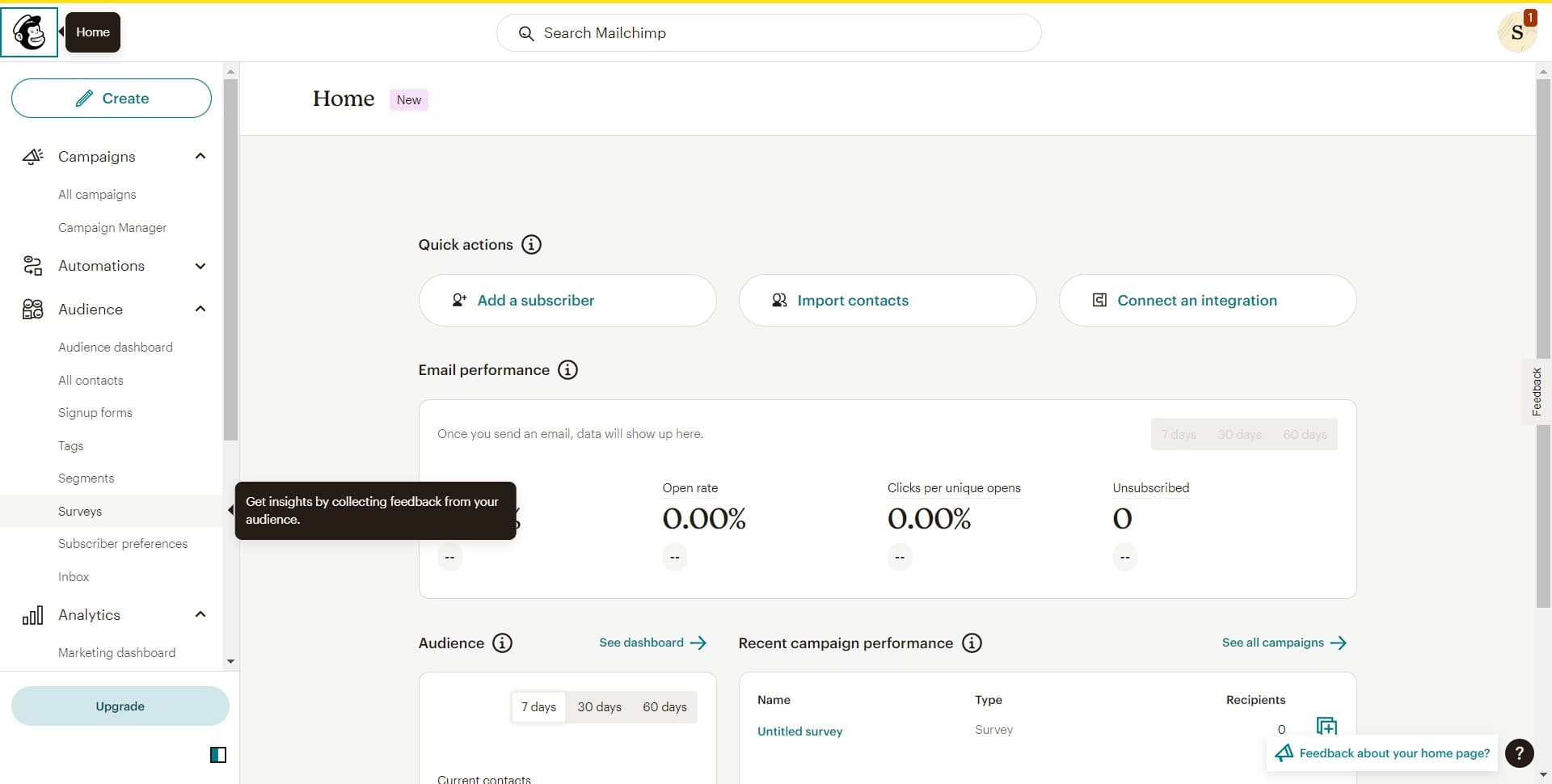
Navigate to Surveys
In your Mailchimp dashboard, locate and click on the 'Surveys' section. This will open the surveys management area where you can create and manage all your customer feedback surveys.
- 2
Upload survey content
Click the 'Upload' button to begin creating a new survey. This will allow you to either upload existing survey questions or start building a new survey from scratch.
- 3
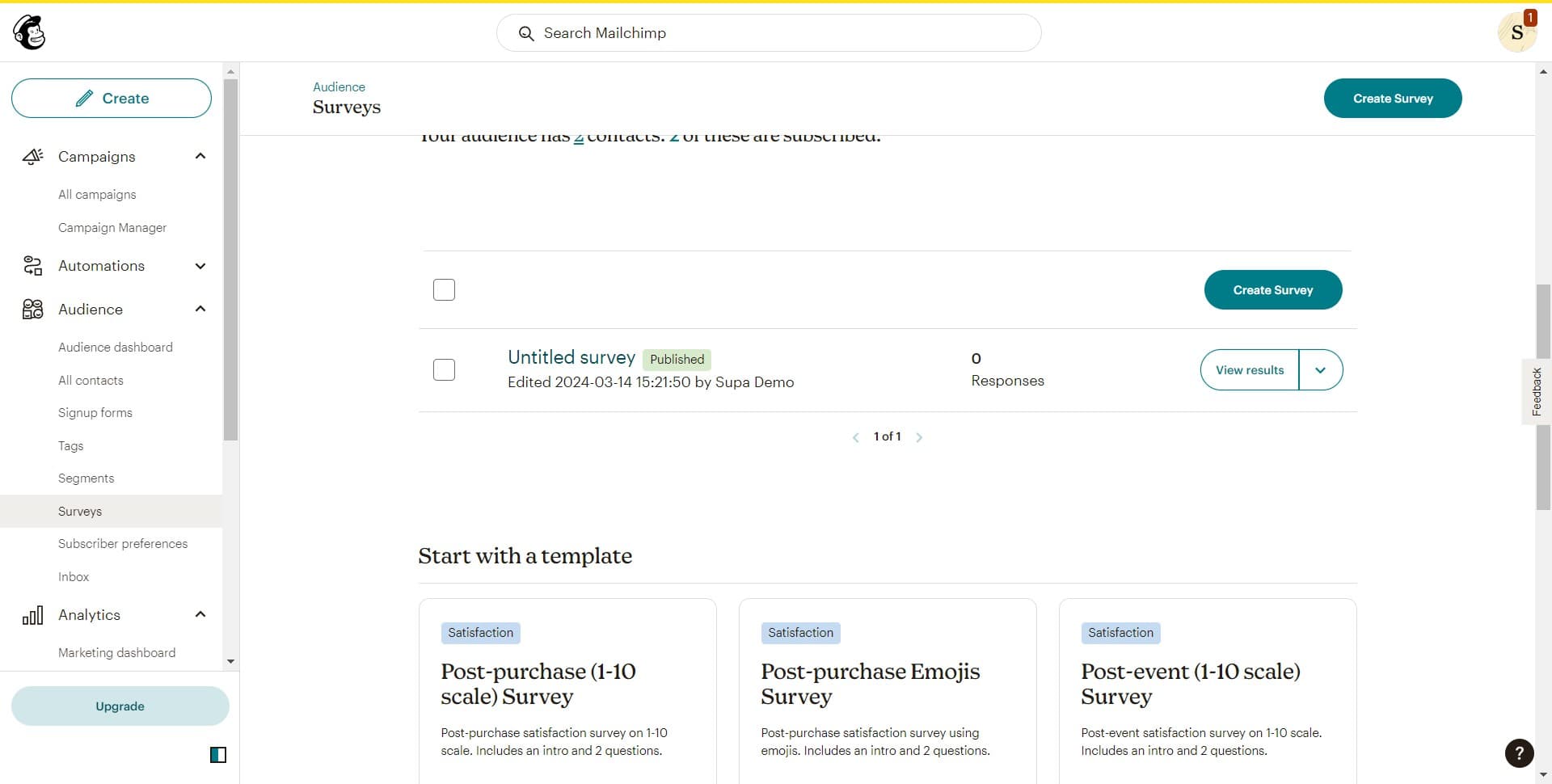
Select your survey
Click on 'Untitled survey' to open the survey you just created. This will take you to the survey editor where you can customize questions, add branding, and configure survey settings.
- 4
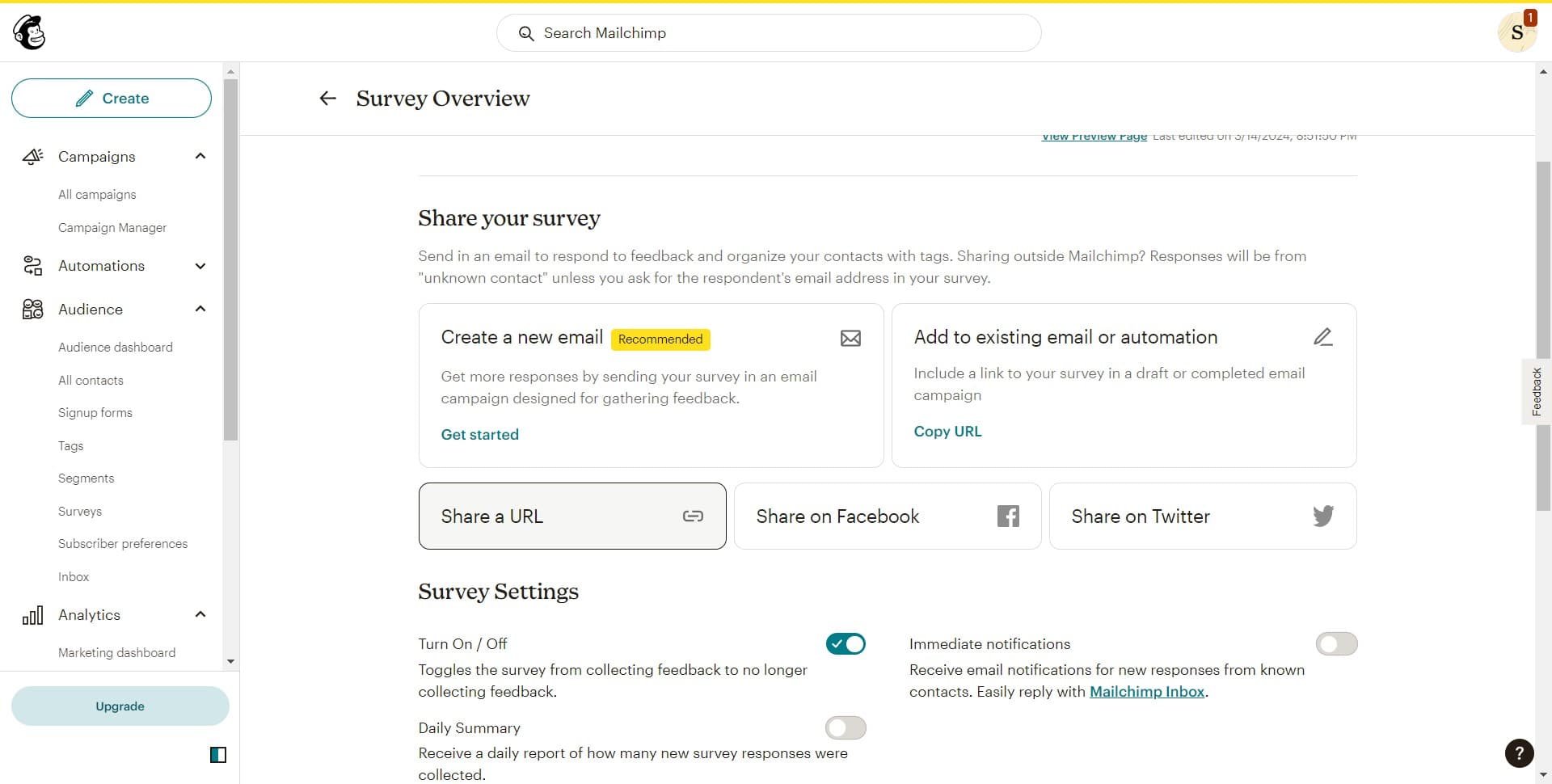
Generate the survey link
Click the designated link generation button (typically labeled 'Share' or 'Get Link') to create a shareable URL for your survey. Mailchimp will generate a unique link that you can distribute to your audience.
- 5
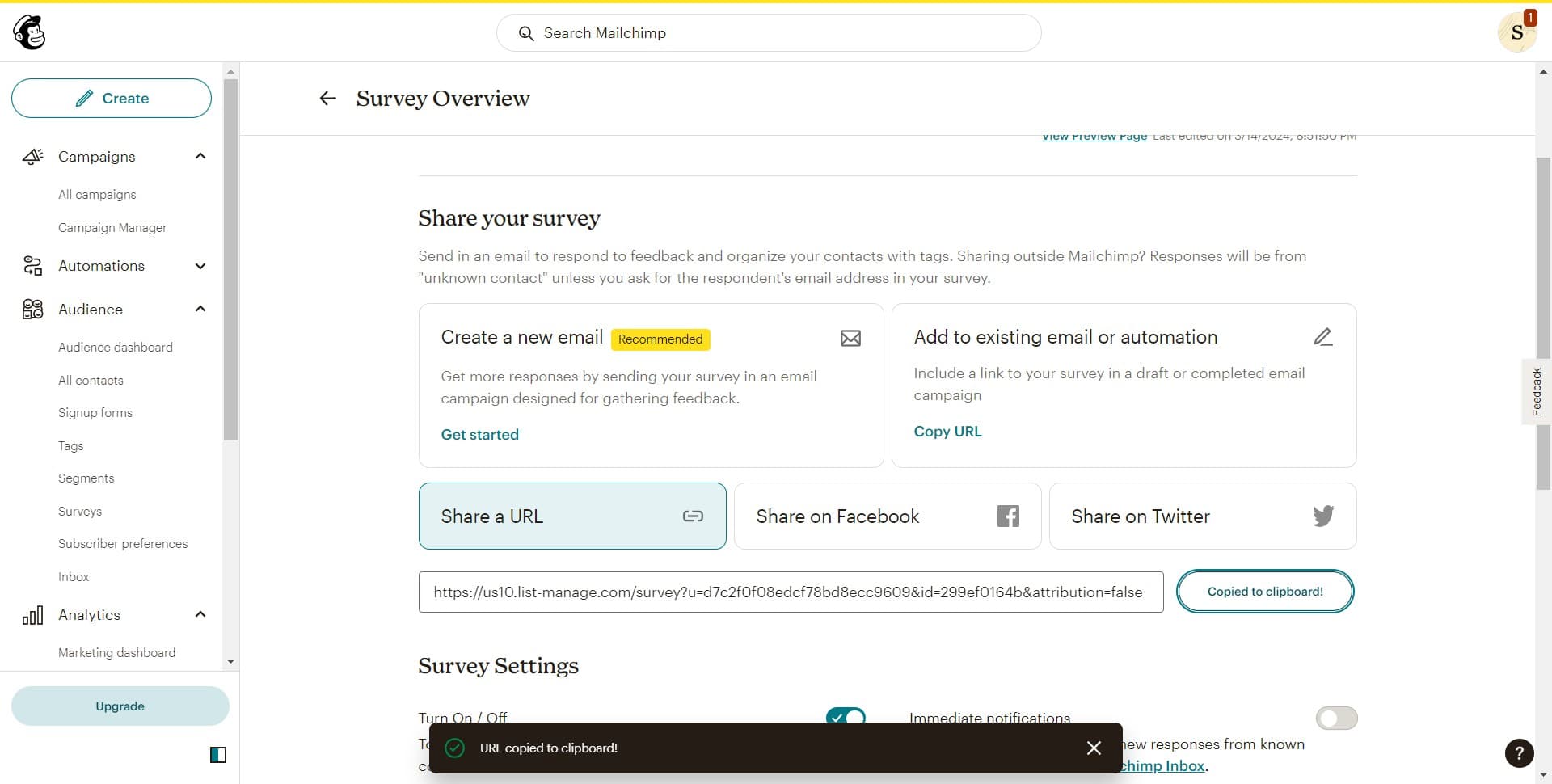
Copy link to clipboard
Click on 'Copied to clipboard!' confirmation message to ensure the survey link has been successfully copied. You can now paste this link into emails, social media, or any other communication channel to share with your contacts.
Frequently asked questions
Common questions about how to generate a survey link in mailchimp.
Can I customize the survey before generating the link?
Yes, absolutely. Before generating the link, you can customize your survey by editing questions, adding your brand colors and logo, setting up conditional logic, and configuring response settings. All customizations are saved automatically in Mailchimp.
Can I track responses to my survey link?
Yes, Mailchimp tracks all survey responses automatically. You can view response rates, answer breakdowns, and individual responses directly in your survey dashboard. This data helps you understand customer sentiment and feedback patterns.
How many people can respond to my survey link?
There is no limit to the number of responses your survey can collect through the shared link. You can distribute the link to as many contacts as you want, and Mailchimp will compile all responses in real-time.
Can I edit the survey after generating the link?
Yes, you can edit your survey even after generating the link. However, be cautious when making significant changes, as they may affect how respondents interact with the survey. Minor edits like fixing typos are safe to make at any time.
Is there an expiration date for the survey link?
By default, Mailchimp survey links remain active indefinitely unless you manually close or delete the survey. You can set an optional end date in the survey settings if you want responses to stop being collected after a specific date.