How to Hide Completed Tasks in Asana

Completed tasks can clutter your Asana workspace, making it harder to focus on active work. This tutorial shows you how to hide completed tasks so your task list displays only items that still need attention.
Quick summary
In this tutorial, you'll learn how to filter your Asana task list to hide completed tasks. By the end, you'll be able to quickly toggle completed items on and off, keeping your workspace organized and focused.
Why this matters
Hiding completed tasks helps you maintain a clear view of your current workload and reduces cognitive load. This is especially useful for teams managing large projects where completed items can obscure active priorities and deadlines.
Step-by-step guide
- 1
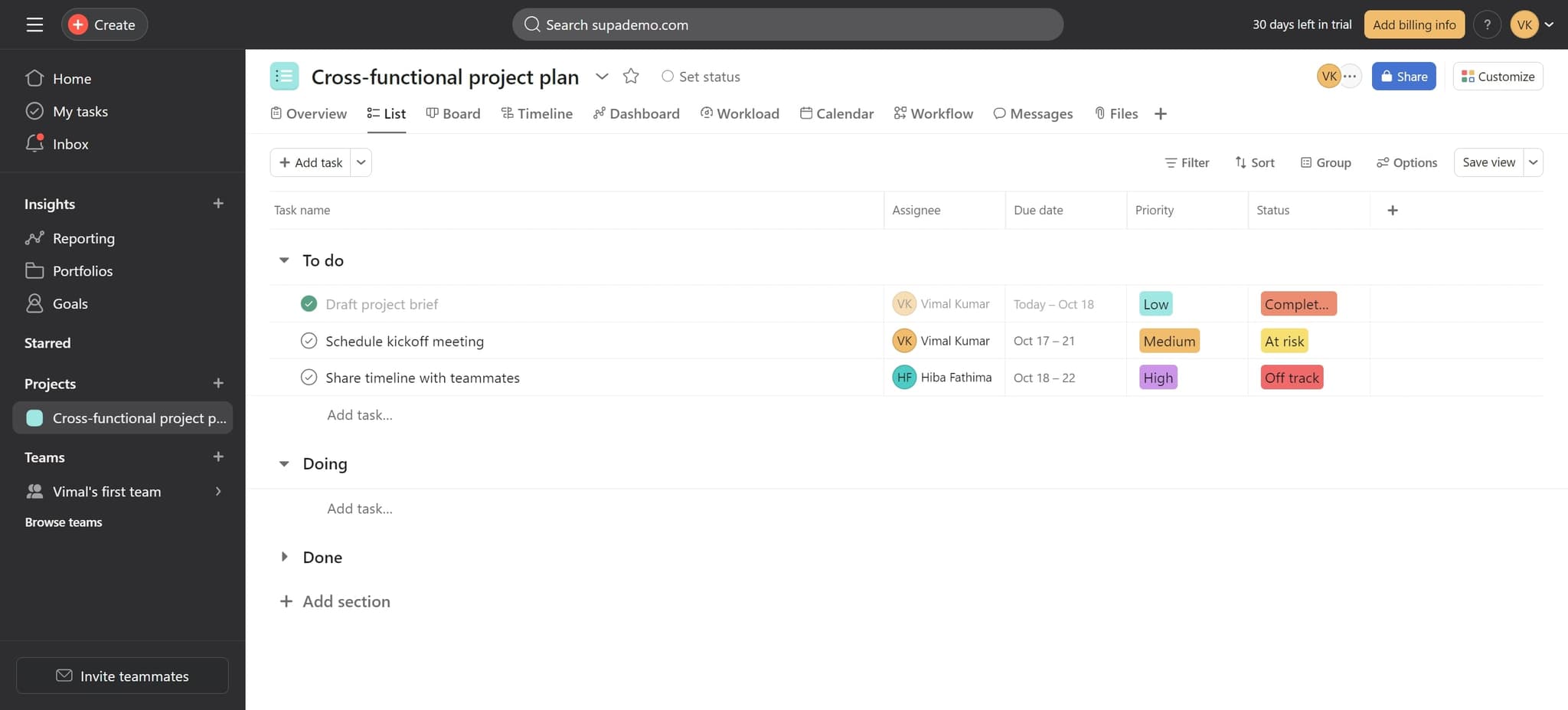
Click on the filter menu
Locate and click on the filter element in your Asana task list interface. This will open options to customize how tasks are displayed.
- 2
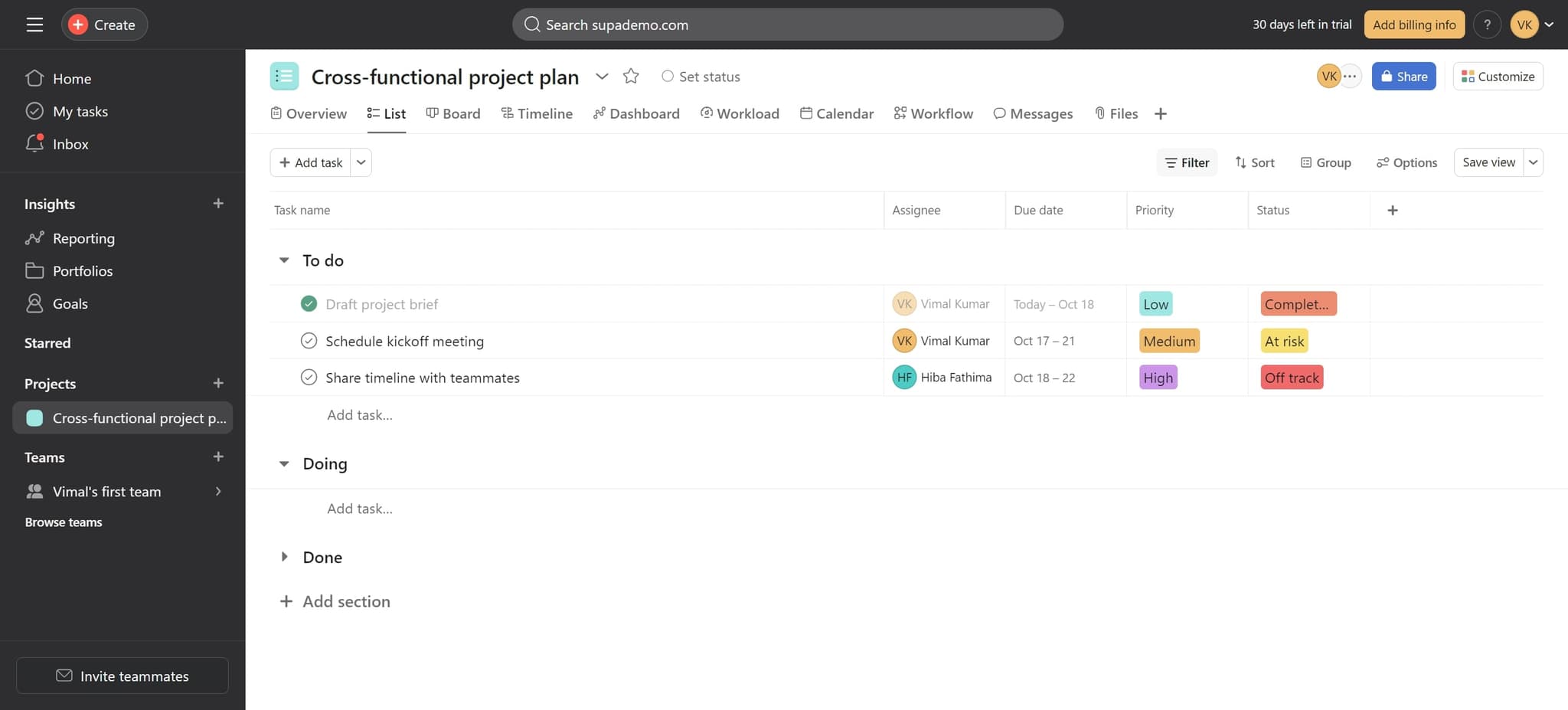
Select the Filter option
Click on the 'Filter' option from the menu that appears. This will reveal filtering options for your task list.
- 3
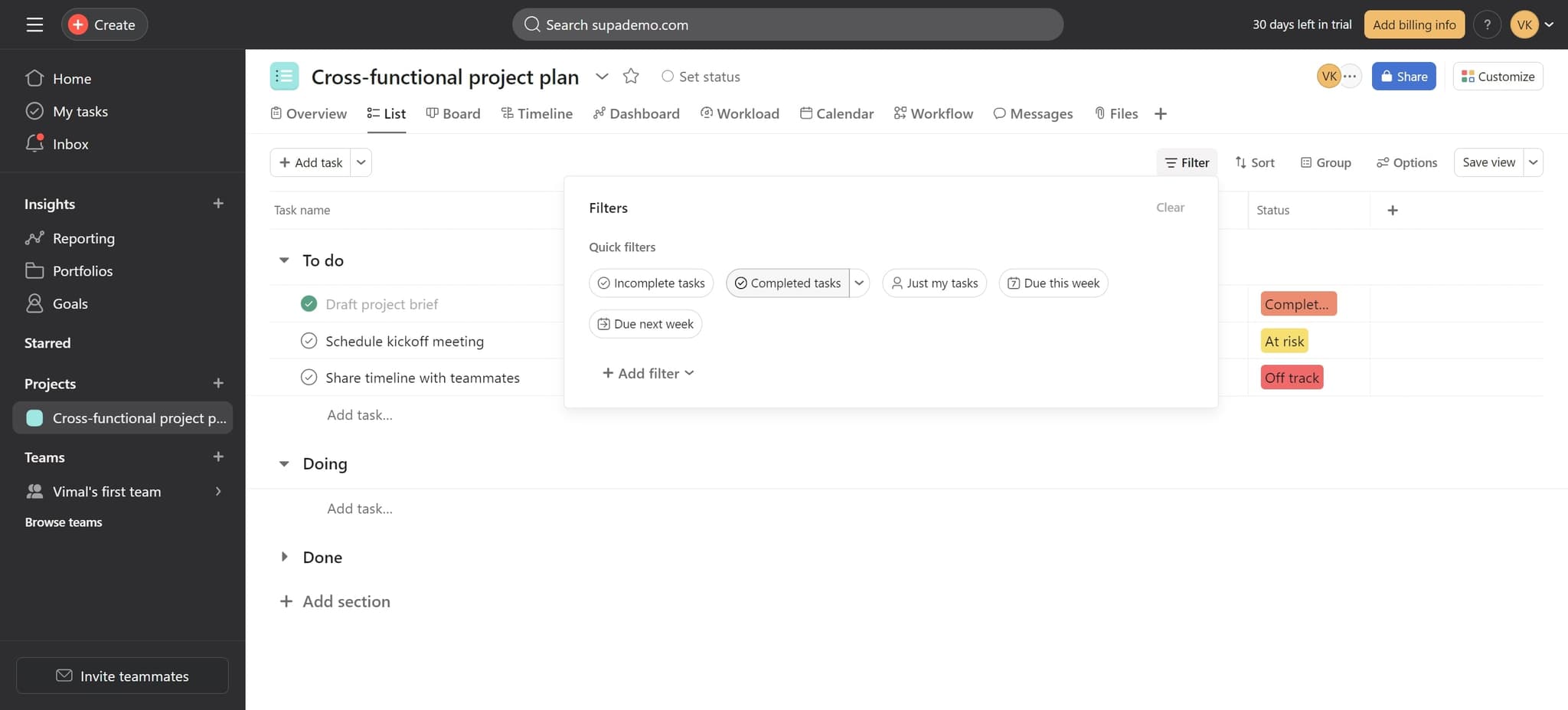
Toggle off Completed tasks
Click on 'Completed tasks' to toggle this filter setting. Once deselected, completed tasks will be hidden from your view.
- 4
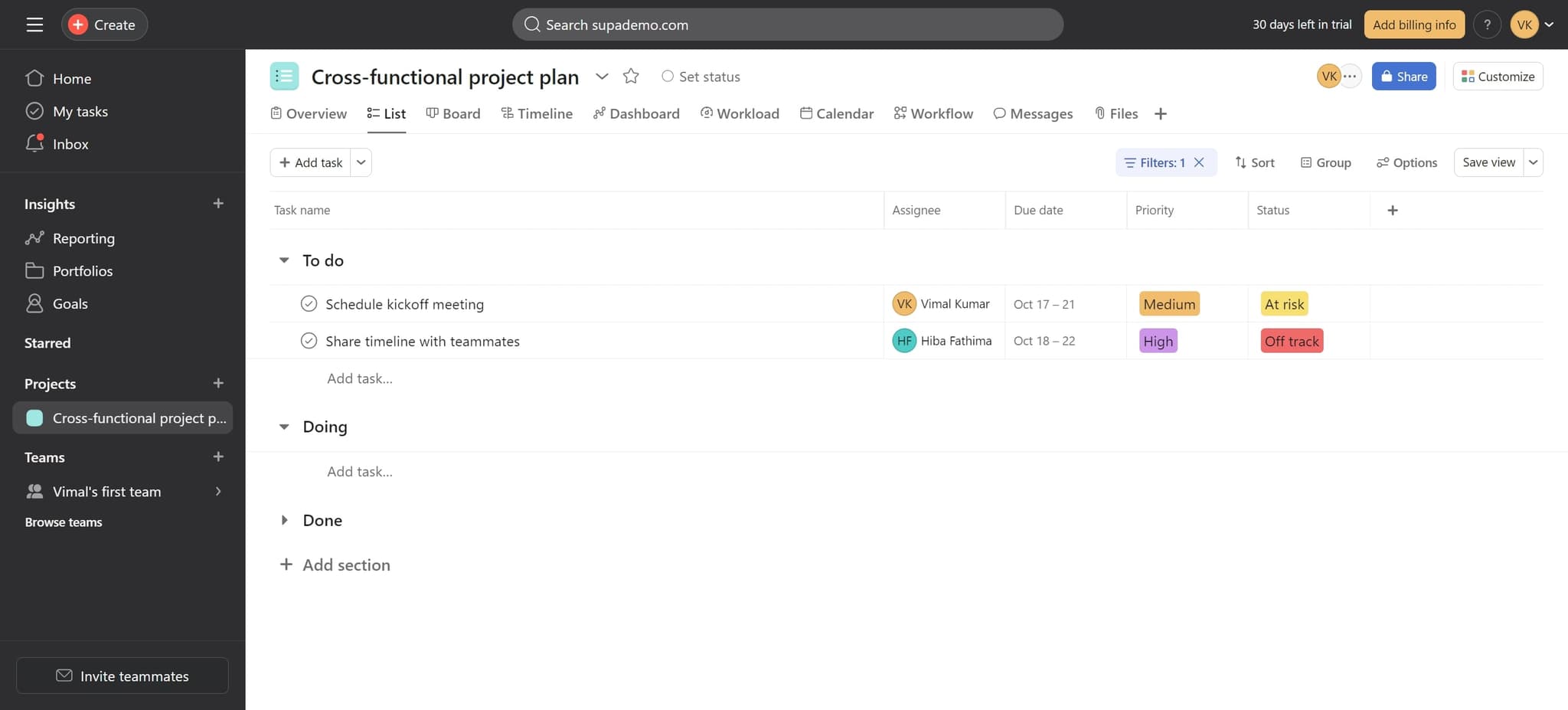
Confirm the filter is applied
Click the confirmation element to apply the filter. Your task list will now display only incomplete tasks, hiding all completed items from view.
Frequently asked questions
Common questions about how to hide completed tasks in asana.
Can I unhide completed tasks later?
Yes. You can return to the filter menu and toggle 'Completed tasks' back on to display them again. This gives you flexibility to show or hide completed work as needed.
Does hiding completed tasks delete them?
No. Hiding completed tasks only removes them from your current view. All completed tasks remain in Asana and can be accessed by re-enabling the filter.
Will this filter apply to my entire project or just one list?
The filter applies to the specific task list or view you're currently working in. You can set different filters for different projects or sections if needed.
Can I save this filter preference as my default view?
Asana allows you to save custom views with specific filters applied. Once configured, you can access this filtered view quickly without reapplying the filter each time.
What if I need to see a specific completed task?
You can use Asana's search function to find specific completed tasks by name or use the filter menu to temporarily show completed tasks again. You can then hide them once you've found what you need.