How to Integrate Freshchat with Freshdesk

Integrating Freshchat with Freshdesk enables seamless communication between your chat and support ticket systems, allowing customer conversations to flow directly into your helpdesk. This integration centralizes customer interactions and ensures no message is missed across your support channels.
Quick summary
In this tutorial, you'll learn how to connect Freshchat with Freshdesk step-by-step. You'll discover how to enable the integration, configure settings, and verify that conversations sync properly between both platforms.
Why this matters
Integrating these tools eliminates manual data entry and reduces response time by automatically routing chat conversations into Freshdesk tickets. Teams gain a unified view of customer interactions, improving service quality and enabling better tracking of customer issues from initial contact through resolution.
Step-by-step guide
- 1
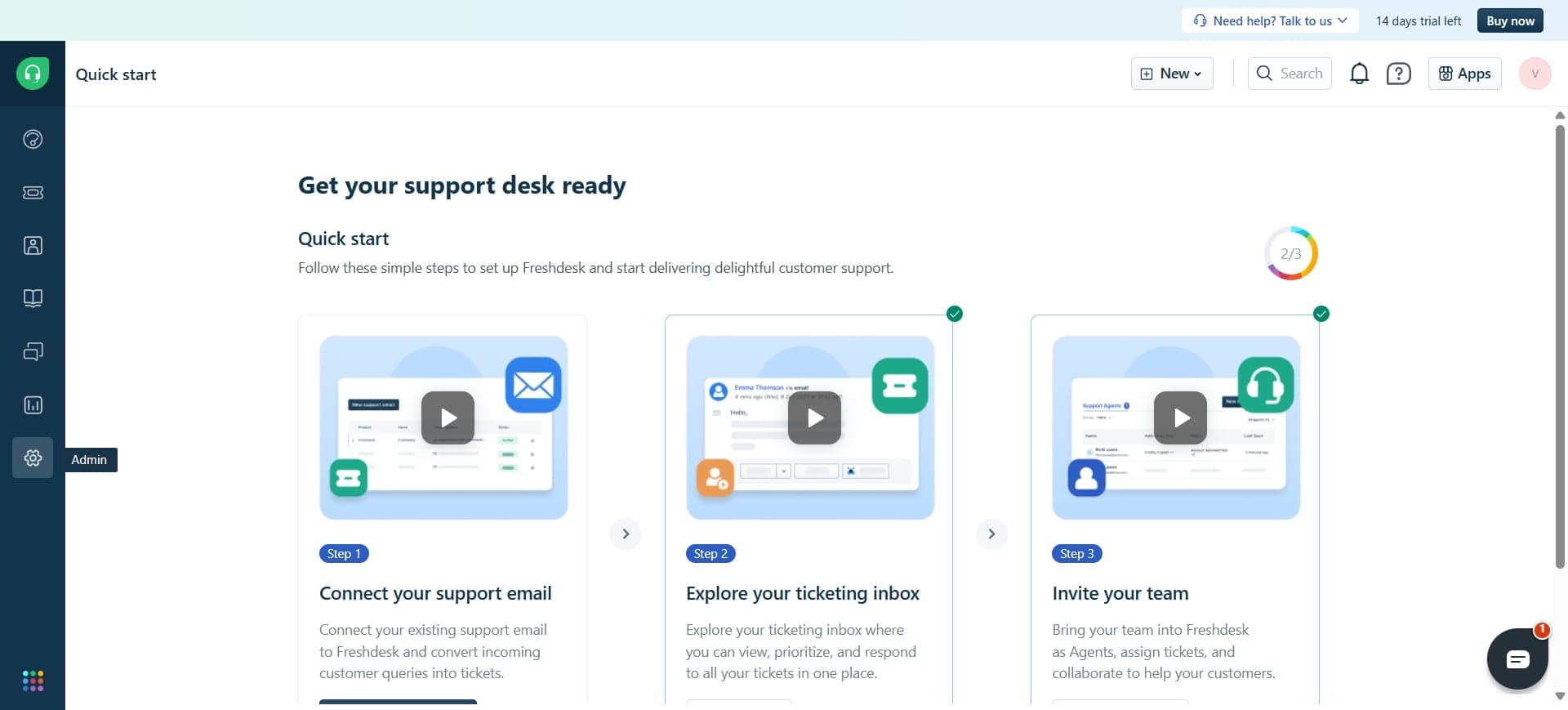
Access Freshdesk admin settings
Log in to your Freshdesk account and navigate to the admin panel by clicking your profile icon in the top-right corner. Select 'Admin' from the dropdown menu to access configuration options.
- 2
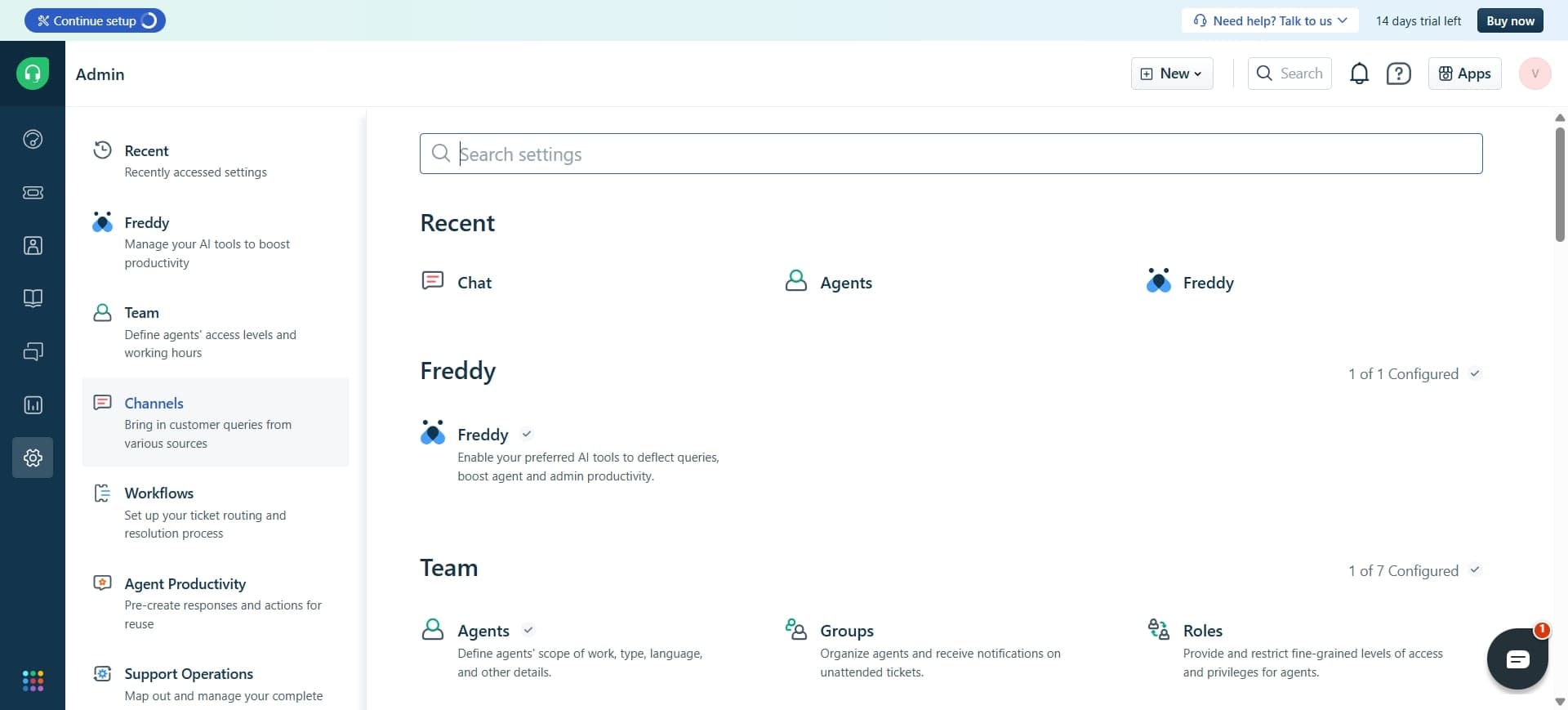
Open the apps and integrations section
In the admin panel, locate and click on 'Apps & Integrations' or 'Integrations' from the left sidebar menu. This section displays all available integrations and installed apps for your Freshdesk instance.
- 3
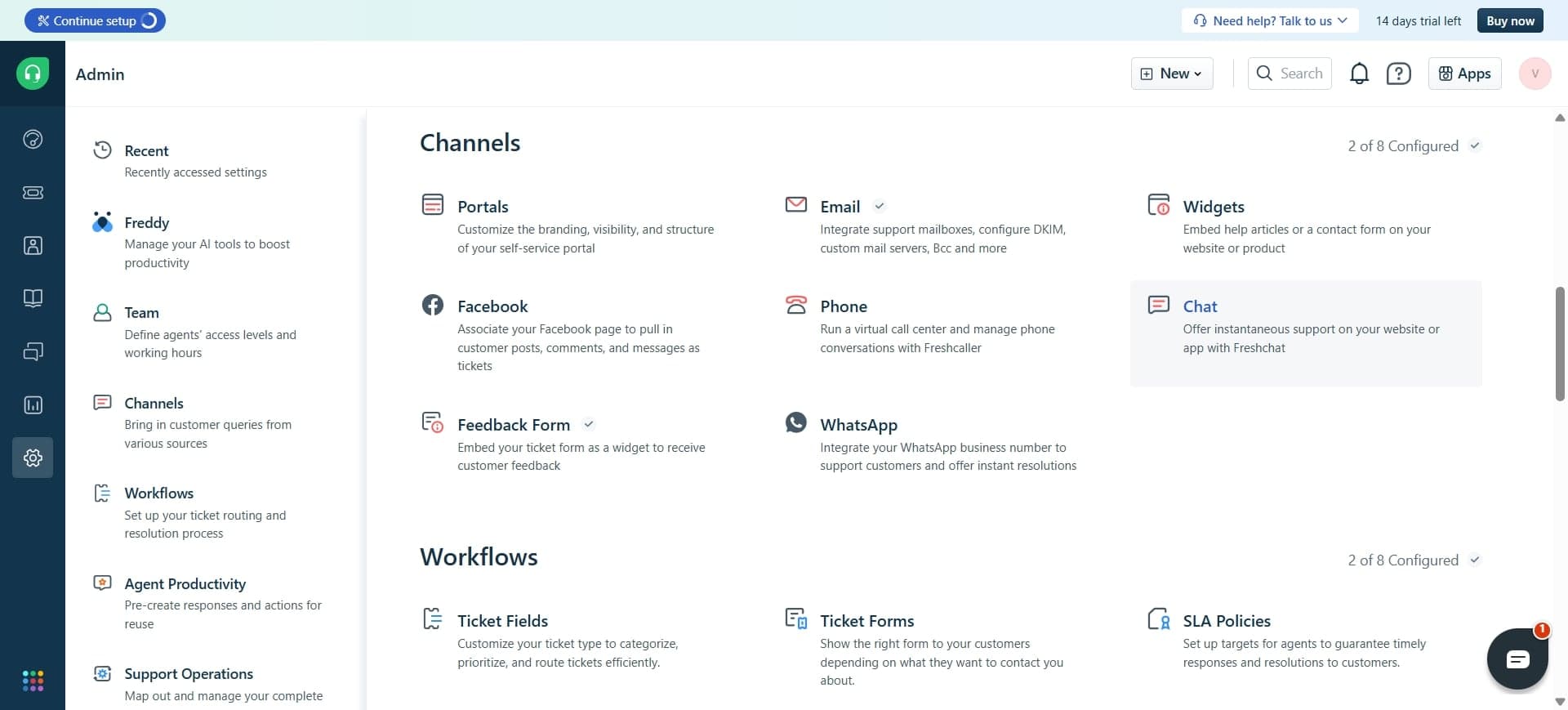
Search for Freshchat integration
Use the search bar or browse the available integrations to find 'Freshchat.' Click on the Freshchat integration option to view its details and installation options.
- 4
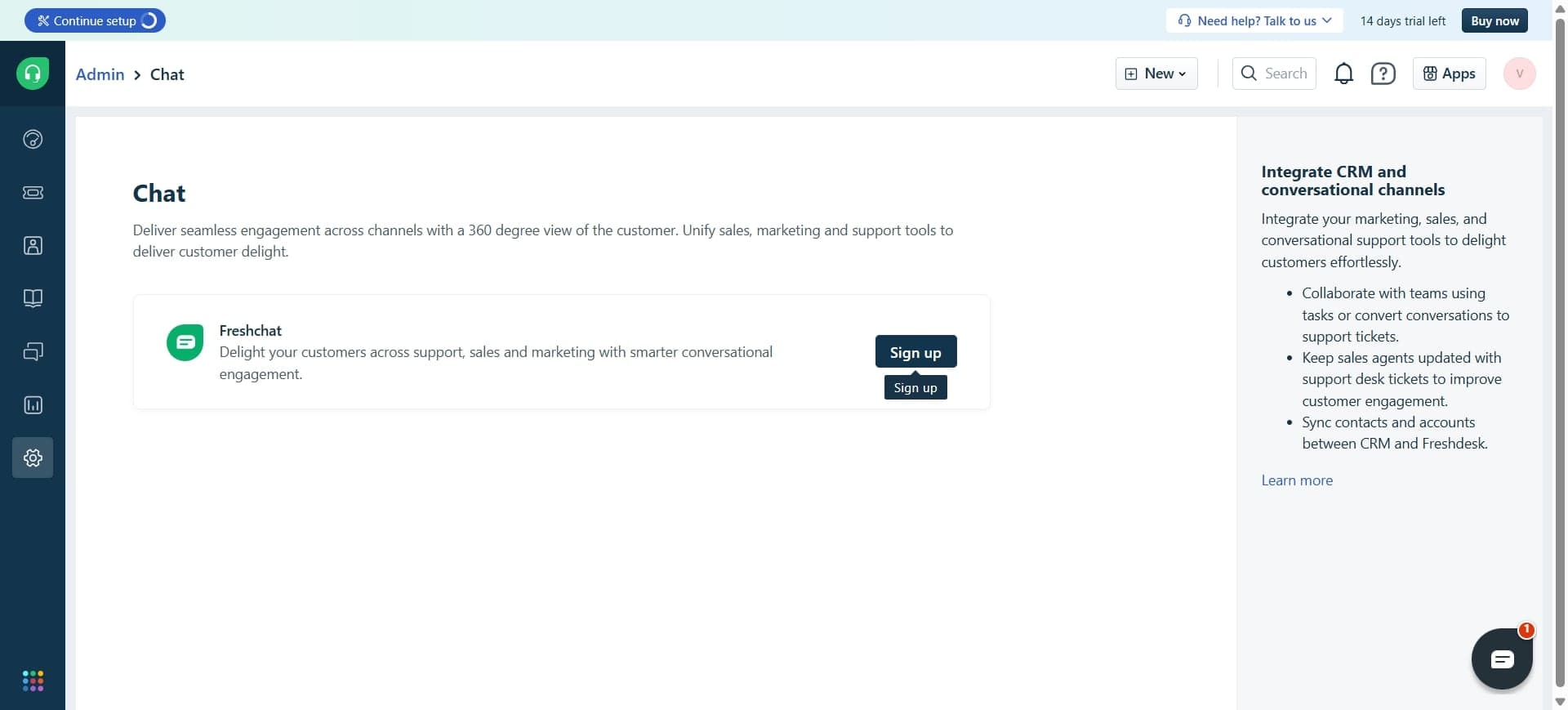
Click install or enable
Select the 'Install' or 'Enable' button to activate the Freshchat integration. You may be prompted to authorize the connection between your Freshdesk and Freshchat accounts.
- 5
Authorize account access
Review the permissions requested and click 'Authorize' or 'Connect' to allow Freshdesk to access your Freshchat account. You may need to log in to your Freshchat account to complete this authorization.
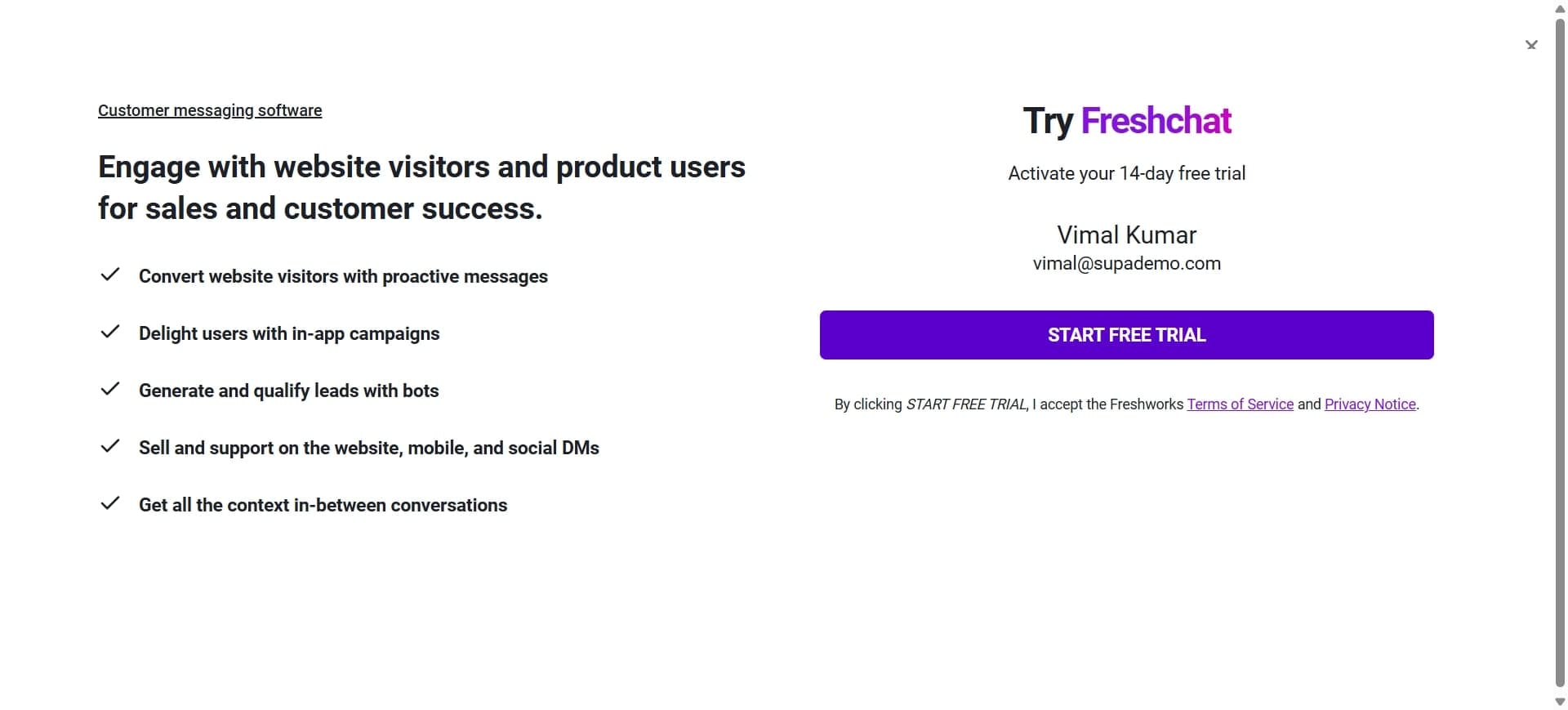
- 6
Configure mapping settings
Once authorized, you'll see configuration options for mapping Freshchat conversations to Freshdesk tickets. Select which Freshchat conversations should create tickets and choose the default ticket priority and category.
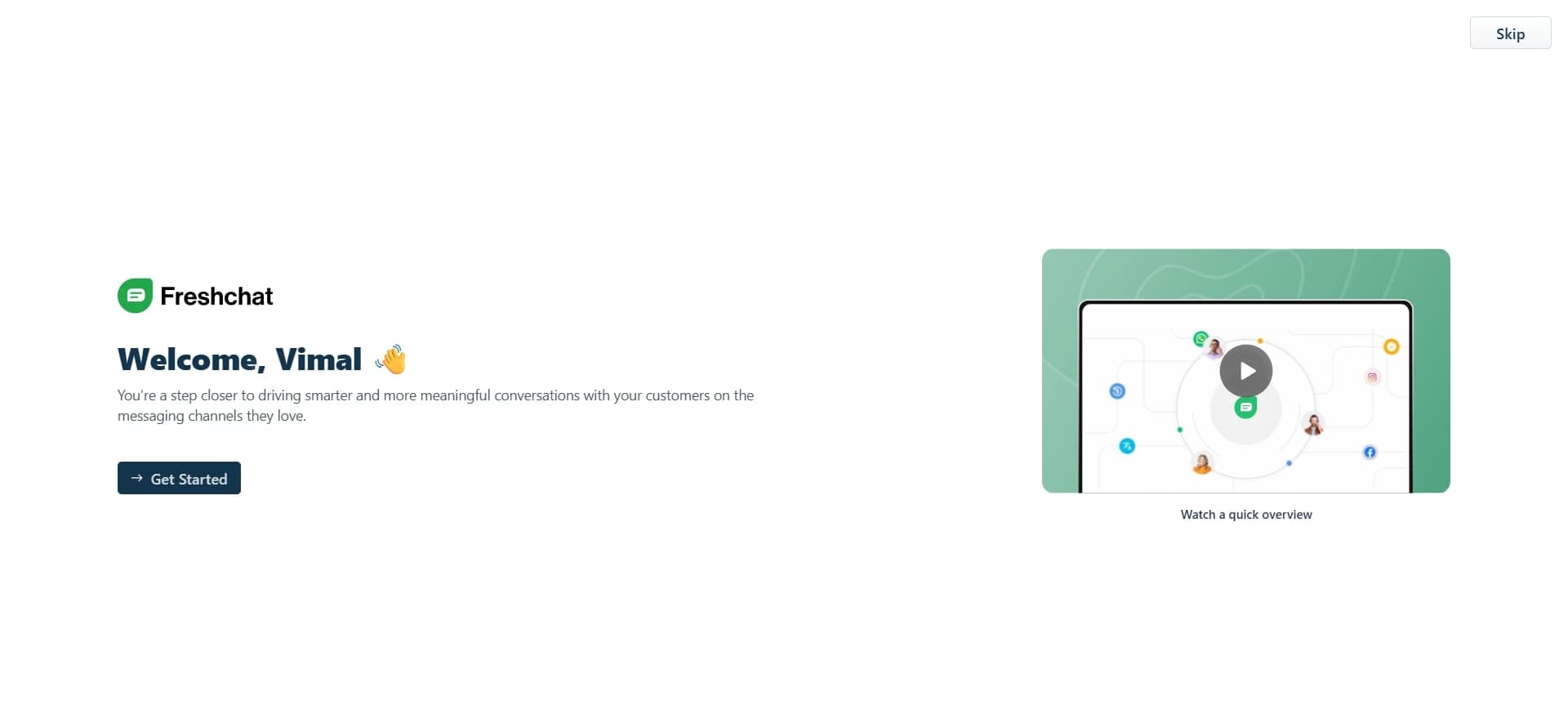
- 7
Set up auto-ticket creation rules
Define rules for when Freshchat conversations automatically generate Freshdesk tickets. You can specify triggers such as conversation duration, customer type, or specific keywords.
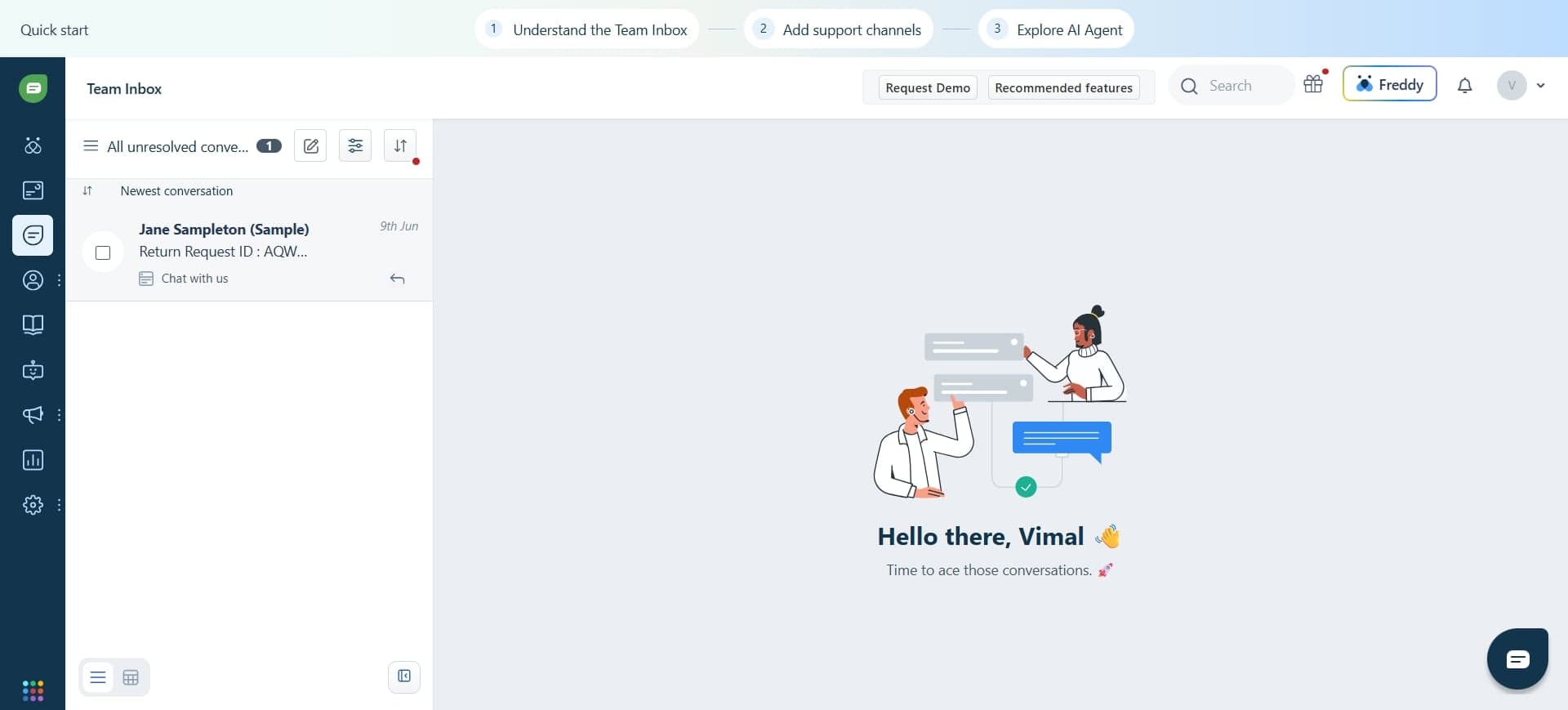
- 8
Configure agent access permissions
Determine which Freshdesk agents can see and manage tickets created from Freshchat conversations. Assign appropriate roles to ensure the right team members have visibility into chat-derived tickets.
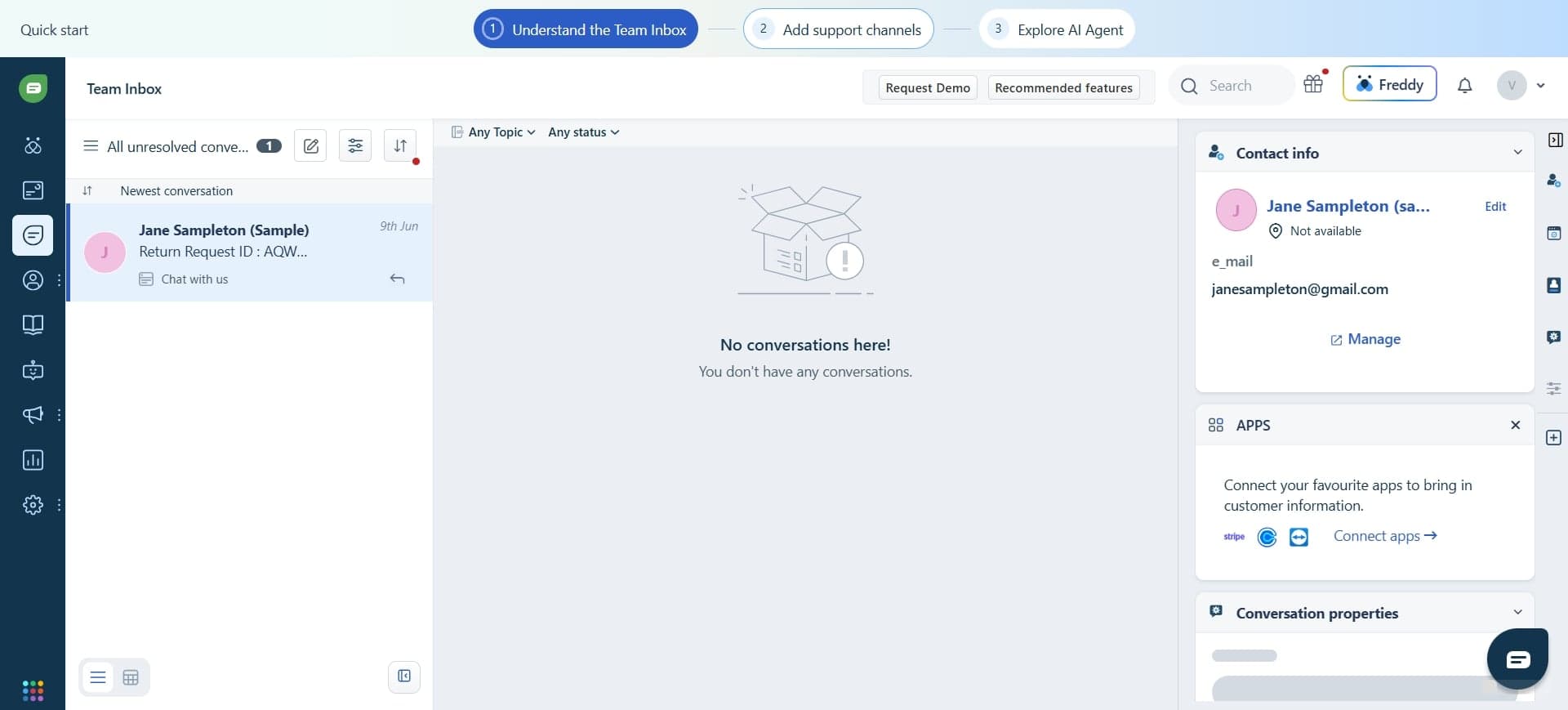
- 9
Enable two-way sync settings
Configure whether updates in Freshdesk tickets should reflect back in Freshchat conversations. Enable this option to maintain consistency between both platforms when agents update ticket status or add internal notes.
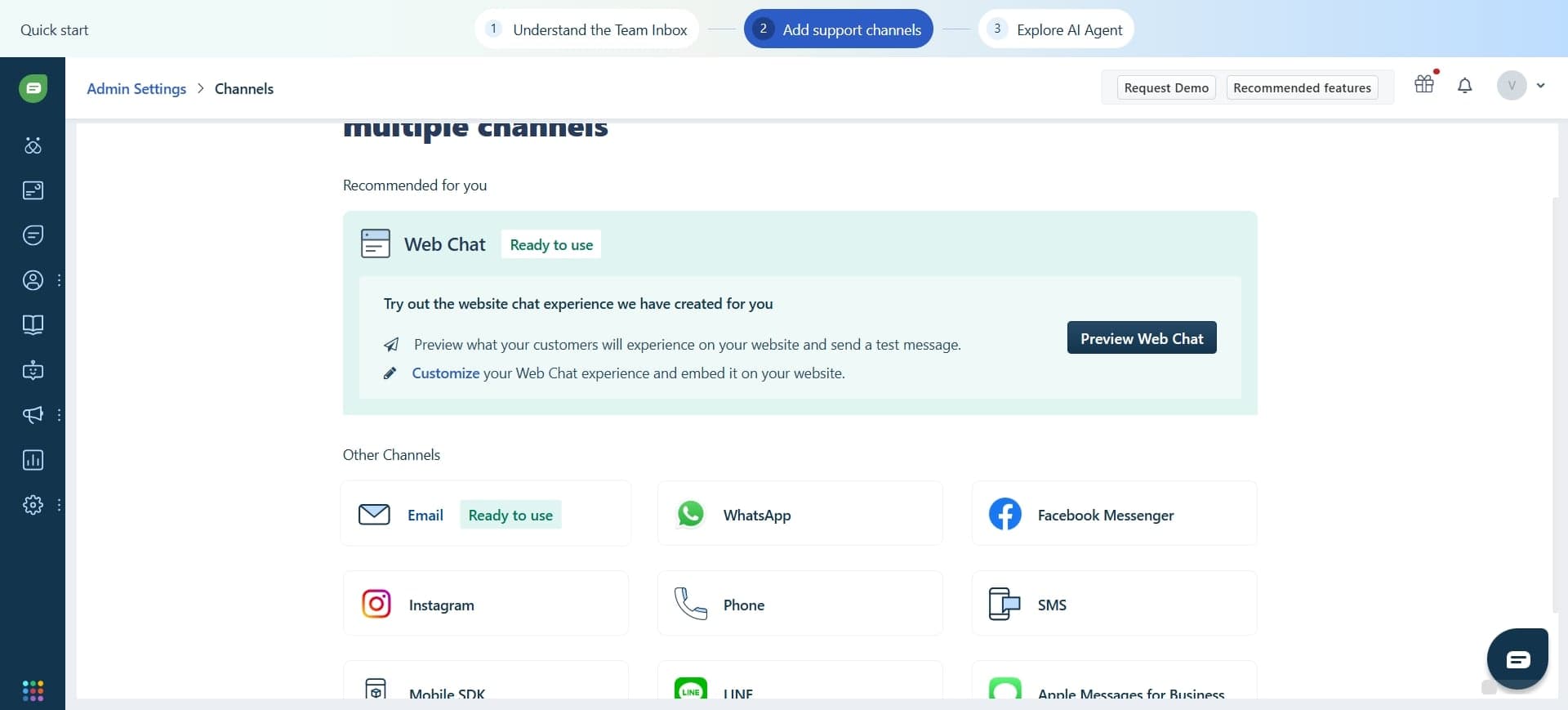
- 10
Review conversation history settings
Decide whether chat history should be included in created tickets and set preferences for how conversation context appears. This helps agents understand the full customer interaction timeline.
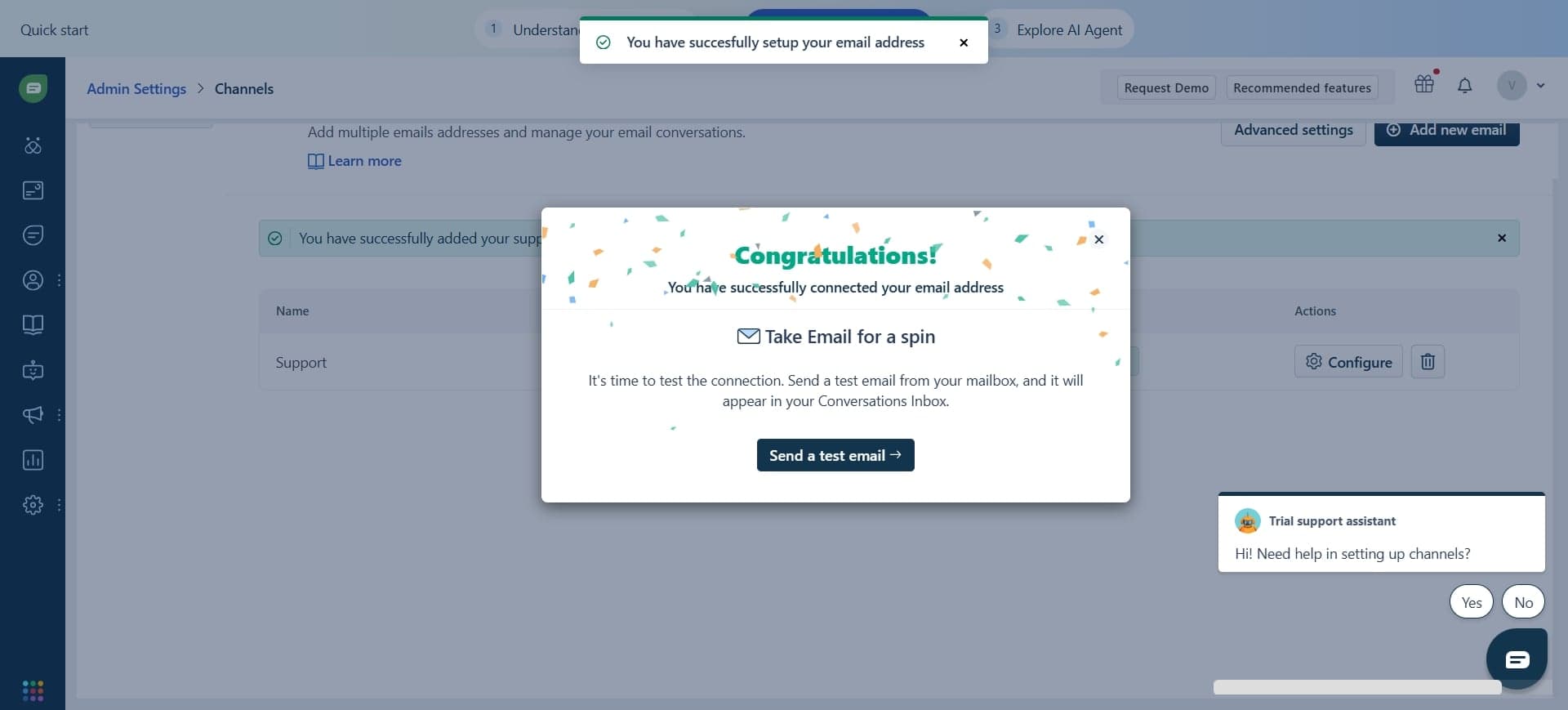
- 11
Test the integration connection
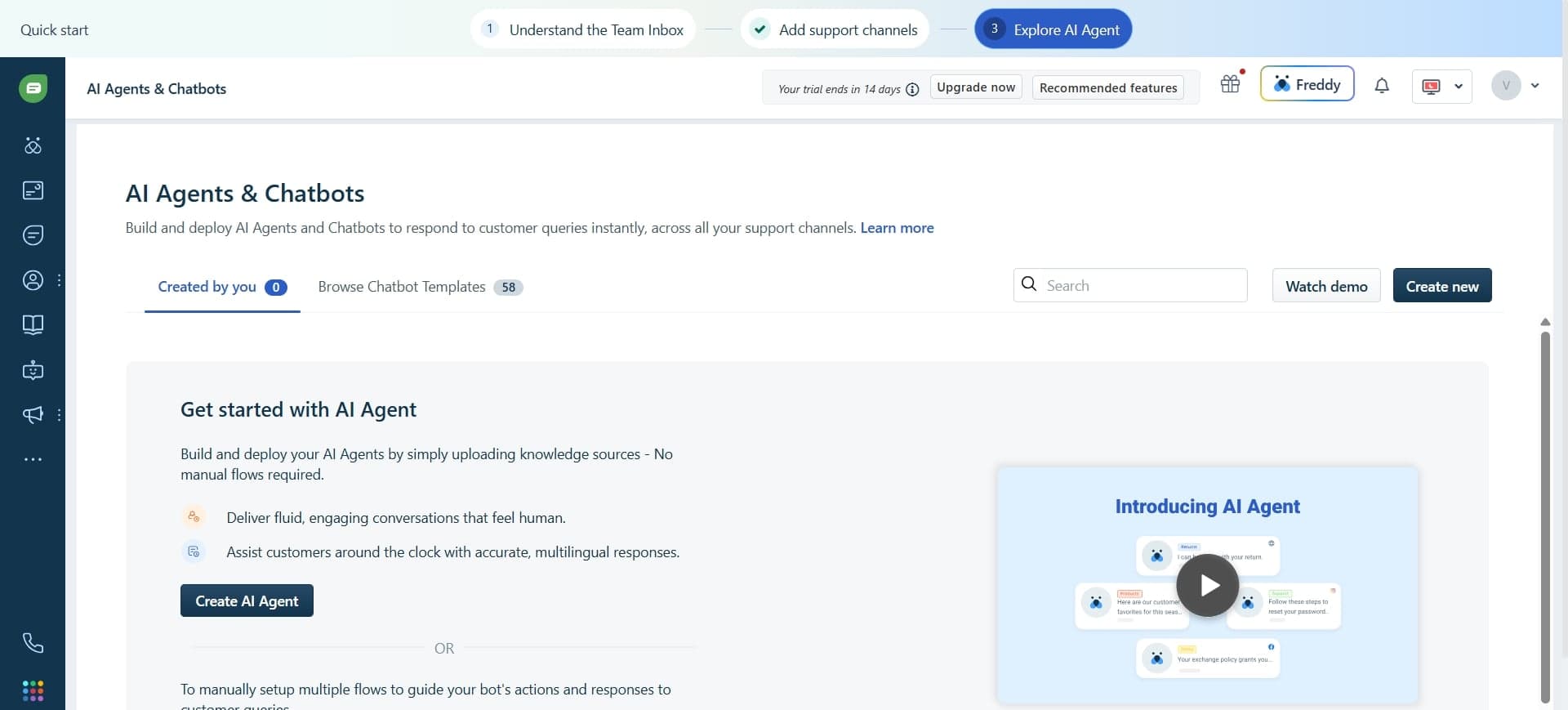
Create a test conversation in Freshchat or send a message from a chat contact to verify that a corresponding ticket appears in Freshdesk. Check that all mapped fields and conversation details transfer correctly.
- 12
Verify ticket creation and updates
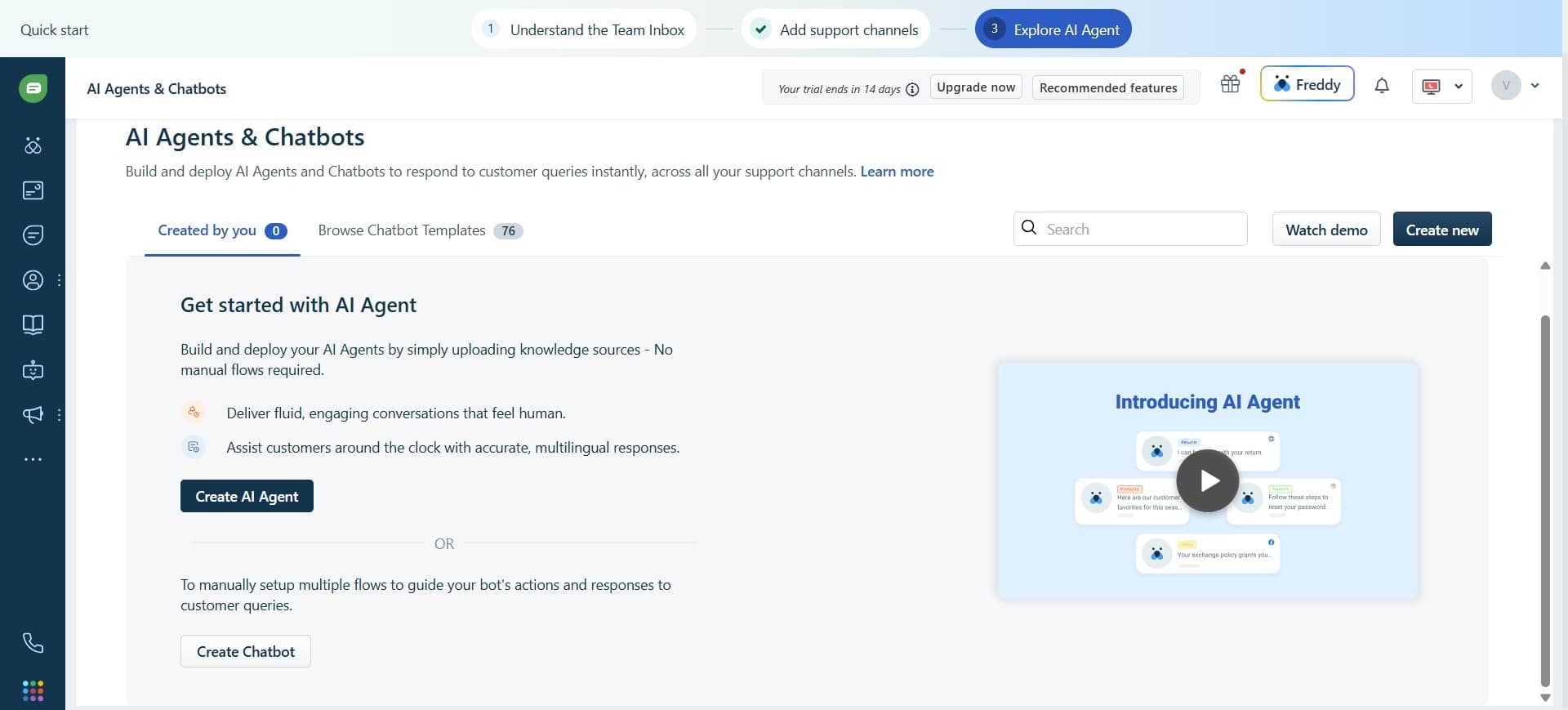
Monitor your Freshdesk inbox for newly created tickets from Freshchat and test updating a ticket to confirm changes sync back to Freshchat. Ensure two-way communication is functioning as expected.
- 13
Save and finalize settings
Review all configuration options one final time and click 'Save' or 'Finalize' to complete the integration setup. The Freshchat-Freshdesk integration is now active and ready for your support team.
Frequently asked questions
Common questions about how to integrate freshchat with freshdesk.
Will existing Freshchat conversations be converted to Freshdesk tickets?
Typically, the integration only creates tickets for new conversations after activation. Existing chat history is not retroactively converted. However, you can manually create tickets for important past conversations if needed, or check your integration settings for any historical sync options your plan may offer.
Can I customize which conversations create Freshdesk tickets?
Yes, most integration configurations allow you to set rules for auto-ticket creation based on criteria like conversation duration, customer segment, or keyword triggers. You can also manually create tickets from Freshchat conversations even if auto-creation rules don't apply to them.
What happens when an agent replies to a Freshdesk ticket created from Freshchat?
With two-way sync enabled, agent replies in Freshdesk will automatically appear as messages in the original Freshchat conversation. The customer sees the response in Freshchat without needing to check Freshdesk, maintaining continuity in the conversation experience.
Do I need special permissions to set up the Freshchat integration?
Yes, you must have admin-level access in both Freshdesk and Freshchat to authorize the integration. Regular agents cannot install integrations, though admins can later grant specific agents permission to manage tickets created from Freshchat conversations.
How can I troubleshoot if conversations aren't creating tickets in Freshdesk?
First, verify that the integration is still active in your Freshdesk admin panel and that auto-creation rules are properly configured. Check that your Freshchat account has sufficient permissions and isn't experiencing any sync delays. If issues persist, contact Freshdesk support with your integration configuration details for assistance.