How to Make a Quiz in Google Forms

Google Forms makes it easy to create interactive quizzes for educational, training, or assessment purposes. Whether you're an educator testing student knowledge or a business evaluating employee training, Google Forms provides built-in quiz features that automatically grade responses and provide instant feedback.
Quick summary
In this tutorial, you'll learn how to create a quiz in Google Forms from start to finish. You'll discover how to set up your form, add different question types, configure answer keys, enable quiz mode, and review results—all without requiring technical expertise.
Why this matters
Creating quizzes digitally saves time on manual grading and provides immediate feedback to respondents. Google Forms' quiz functionality allows you to track performance metrics, identify knowledge gaps, and streamline the assessment process for any audience size.
Step-by-step guide
- 1
Open Google Forms and start
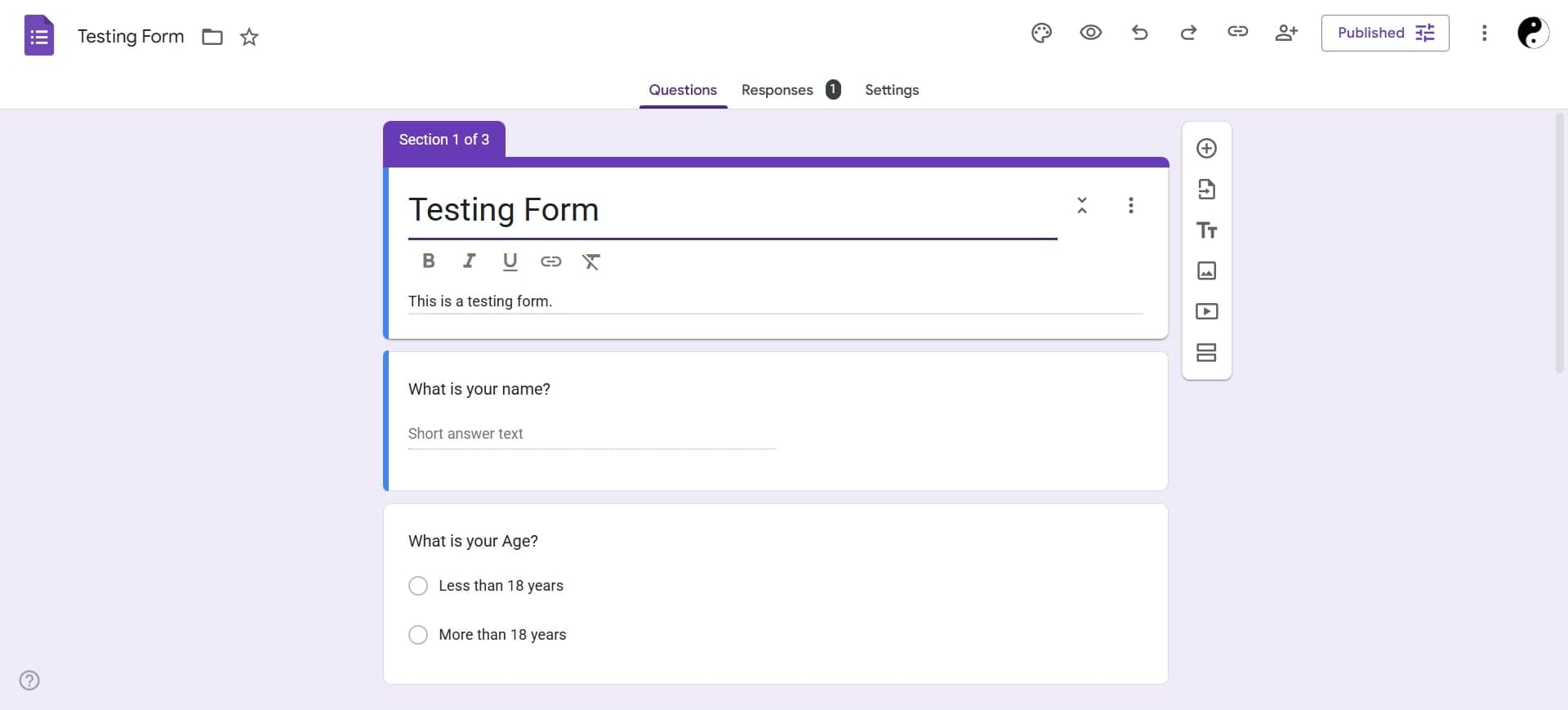
Go to forms.google.com and sign in with your Google account. Click the plus icon or select 'Blank' to create a new form that will serve as your quiz.
- 2
Name your quiz
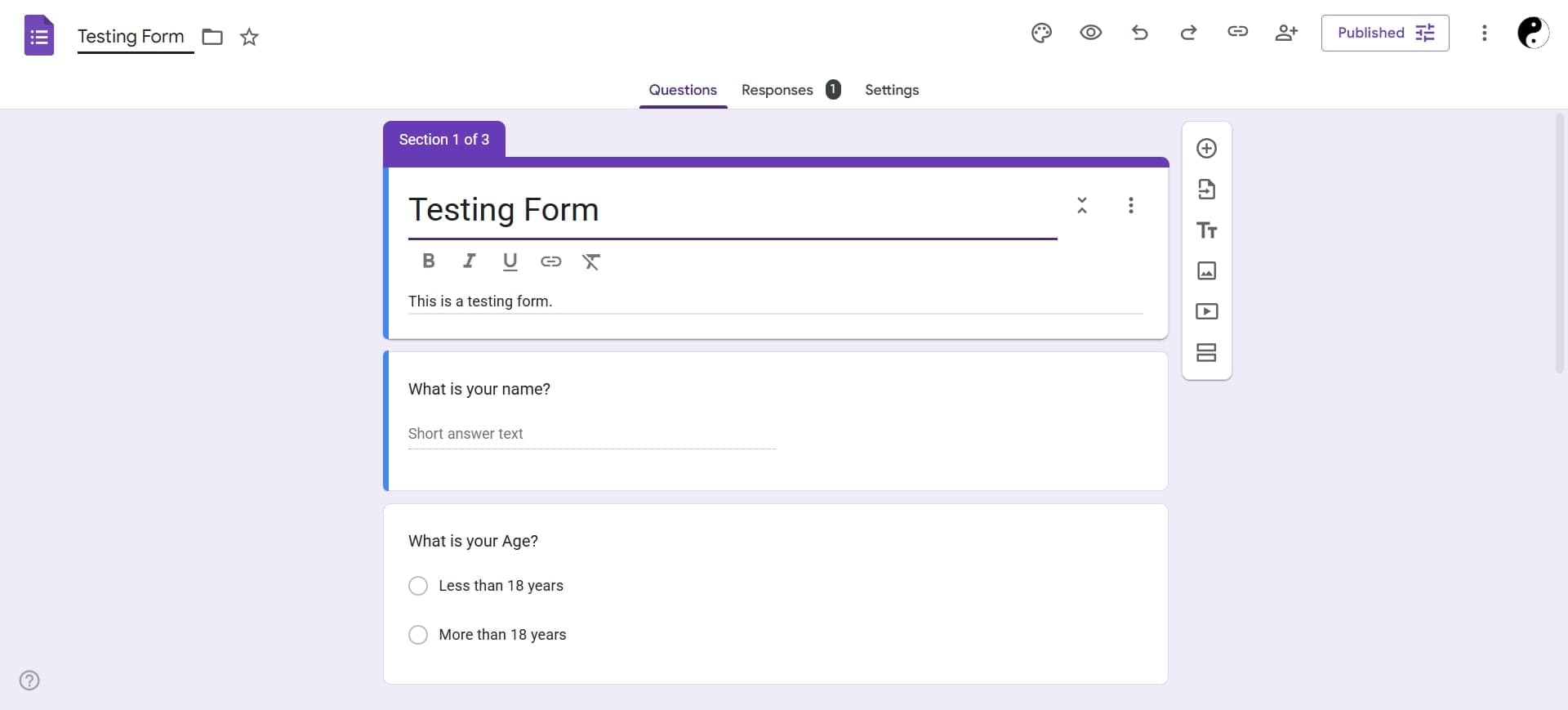
Enter a clear, descriptive title for your quiz in the 'Untitled form' field. Add a brief description below the title to explain the quiz's purpose and any relevant instructions.
- 3
Enable quiz mode
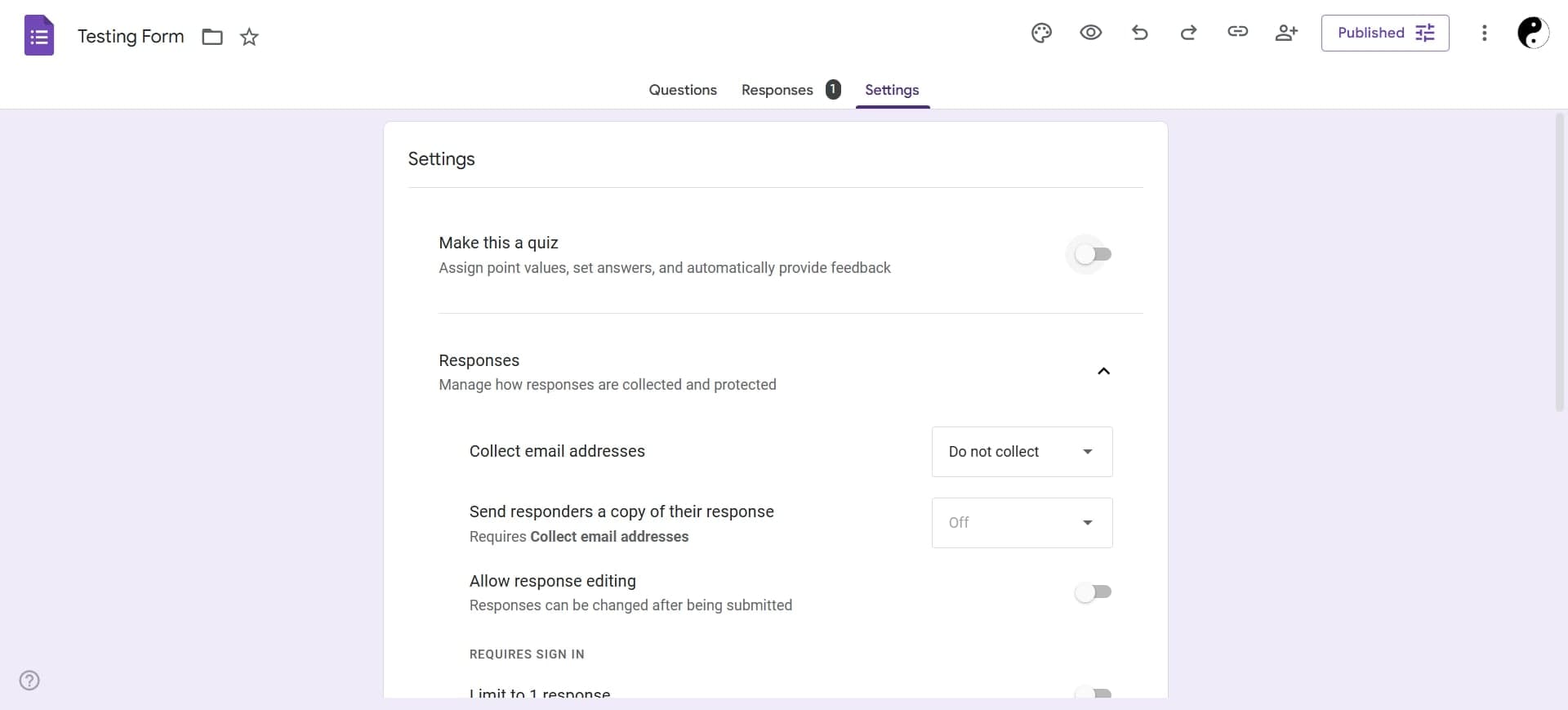
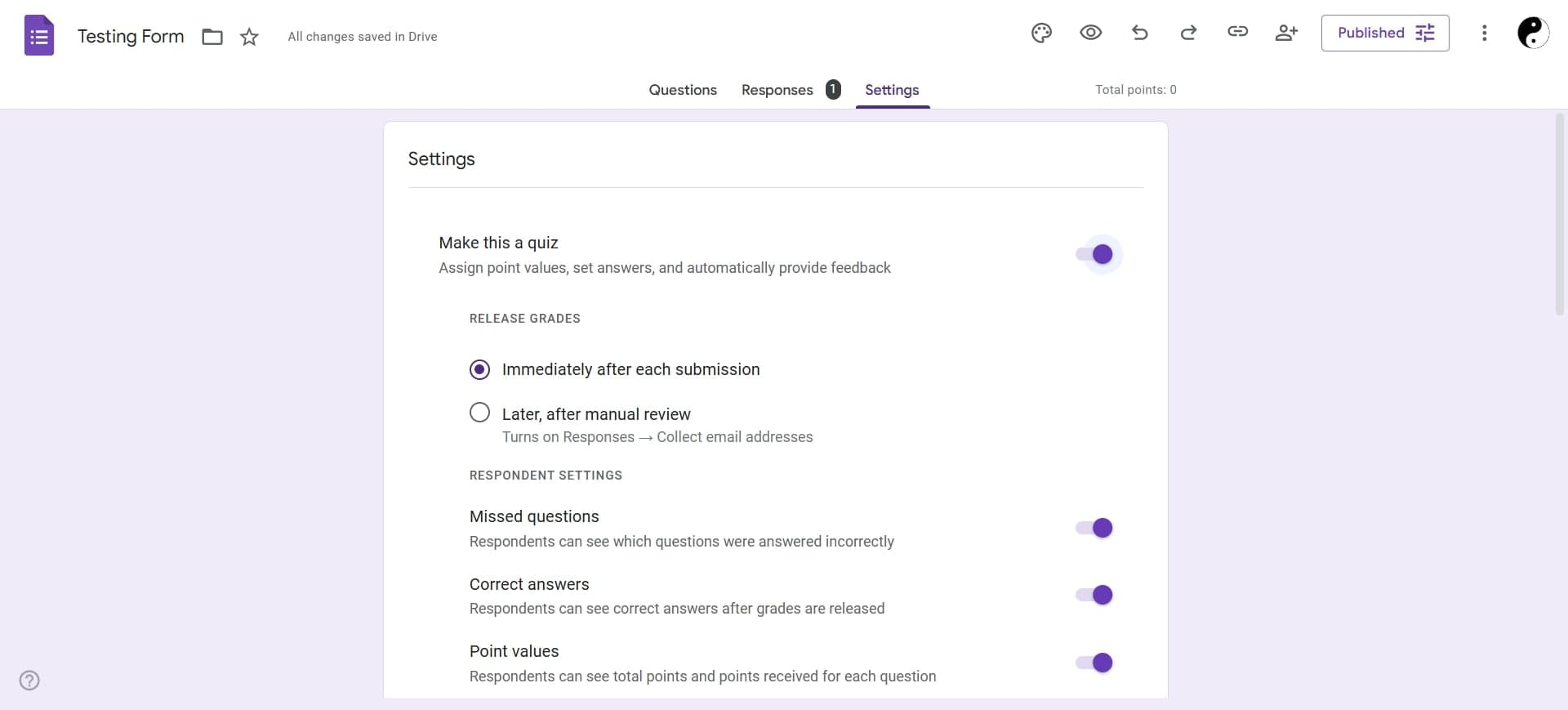
Click the settings icon (gear) in the top right corner, then select the 'Quizzes' tab. Toggle 'Make this a quiz' to enable quiz functionality and access grading options.
- 4
Add your first question
Click the plus icon to add a new question. Select your preferred question type from the dropdown menu—multiple choice, checkbox, short answer, or dropdown are common quiz options.
- 5
Type the question text
Enter your question in the text field. For multiple choice or checkbox questions, add all answer options in the provided fields.
- 6
Mark the correct answer
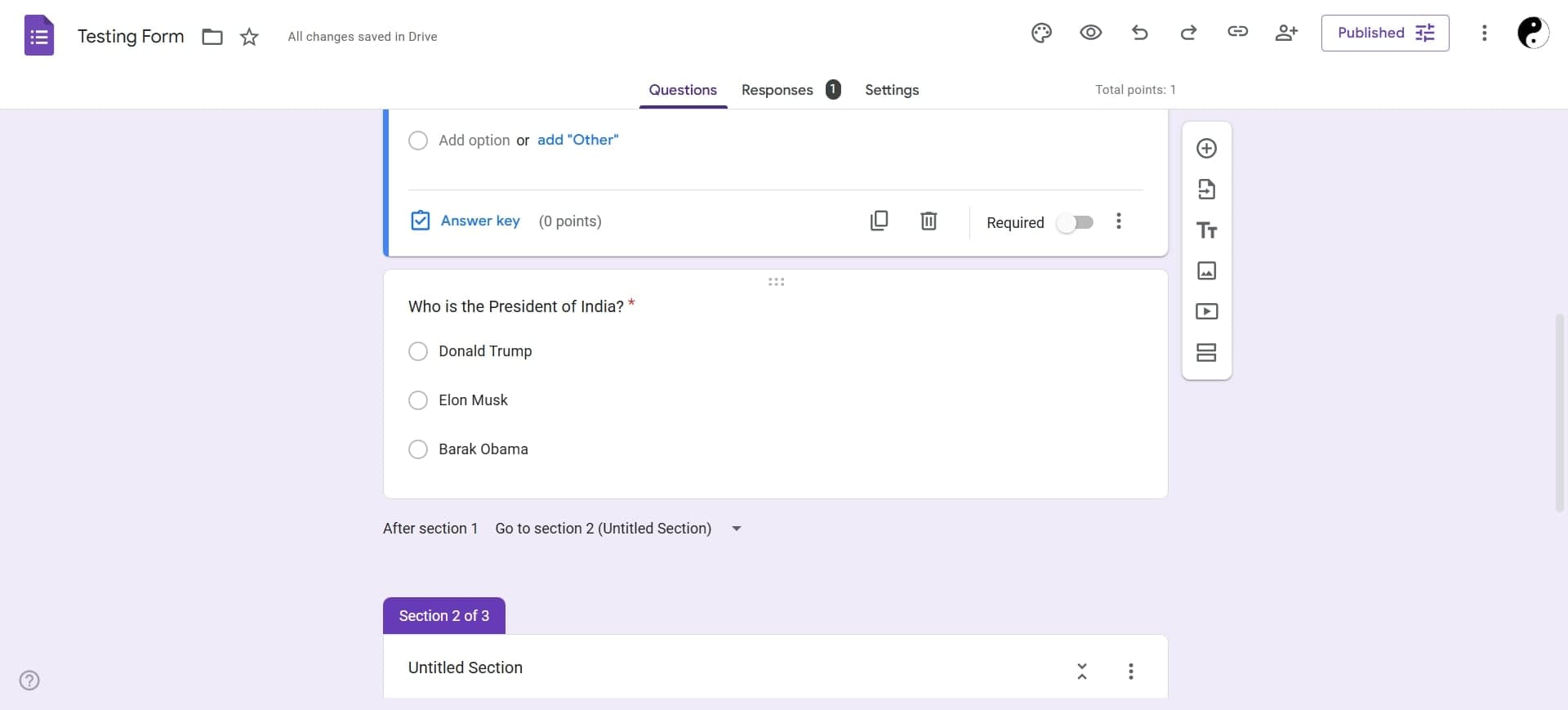
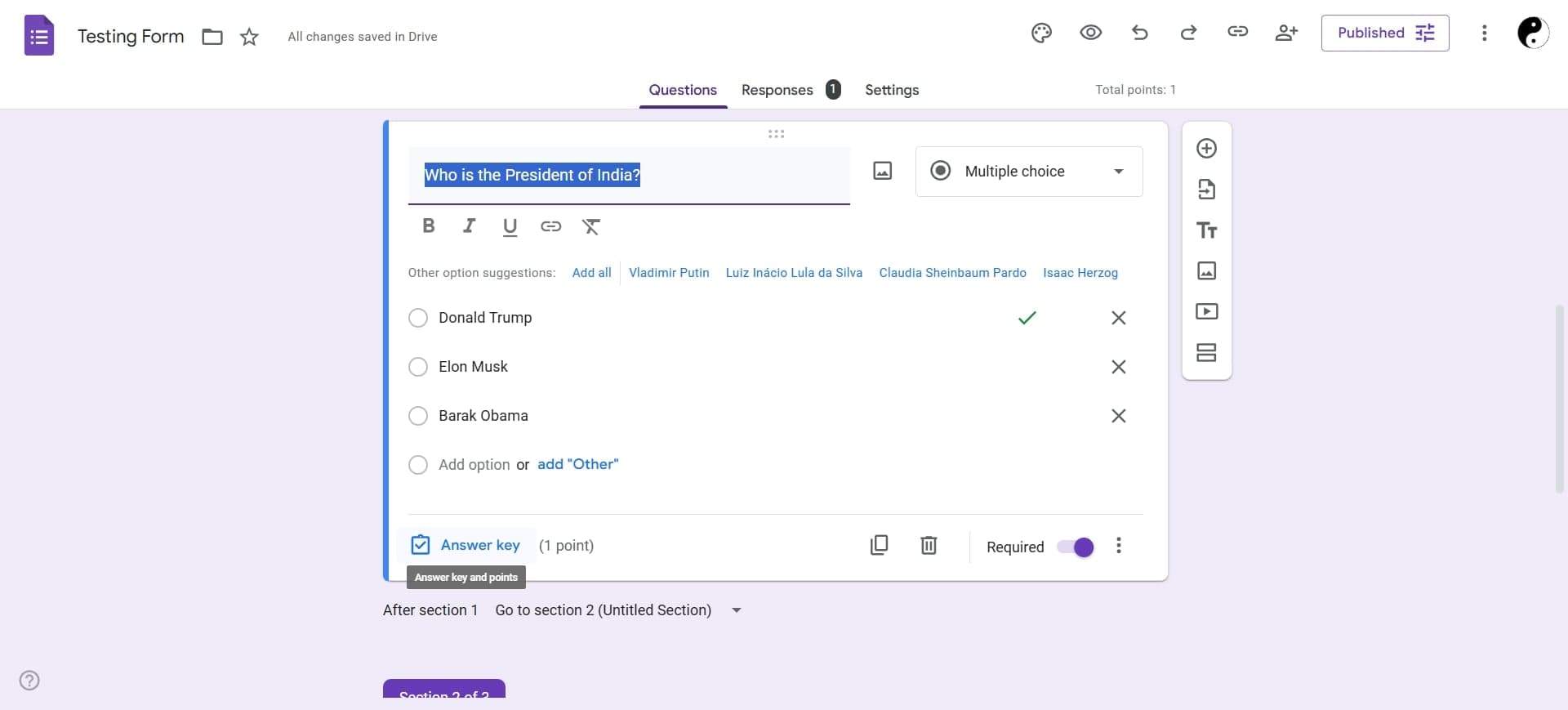
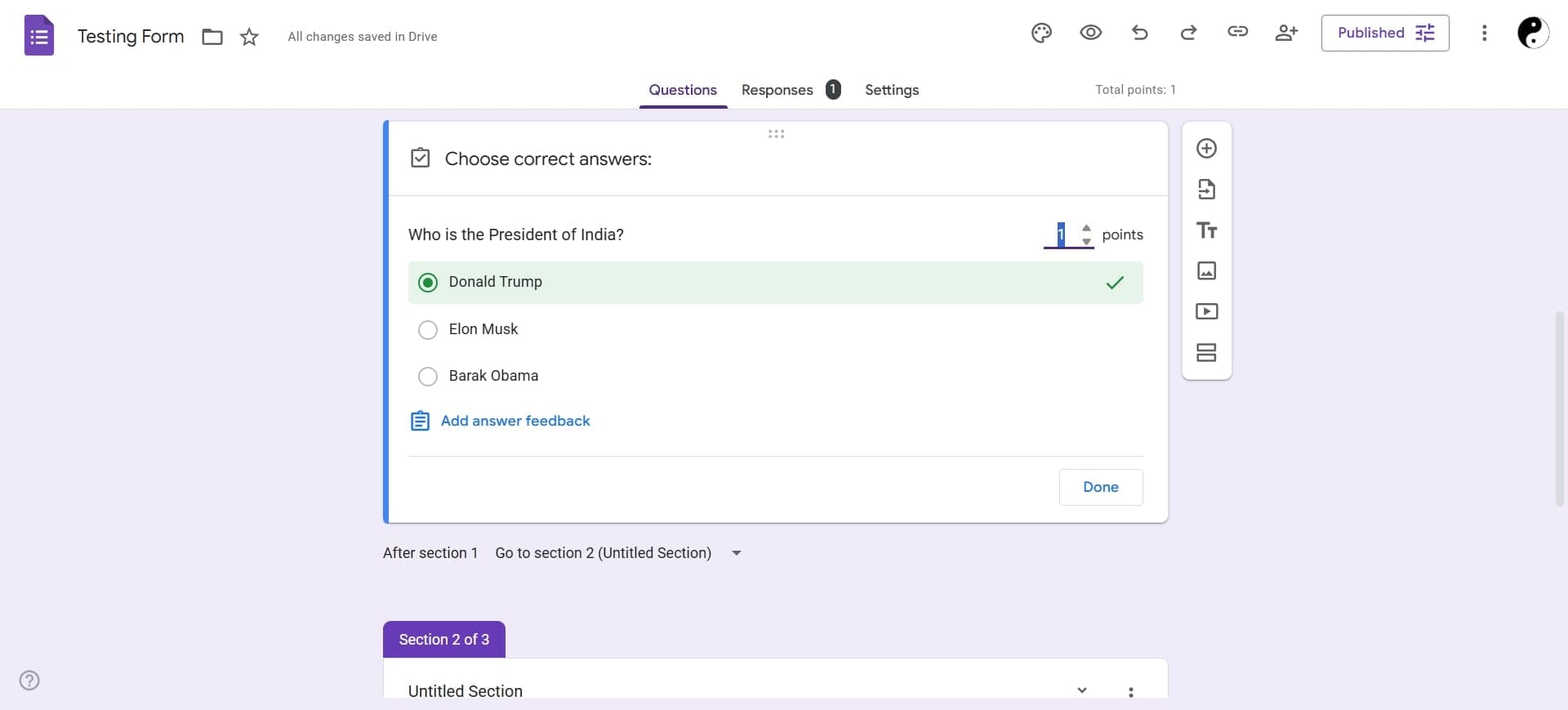
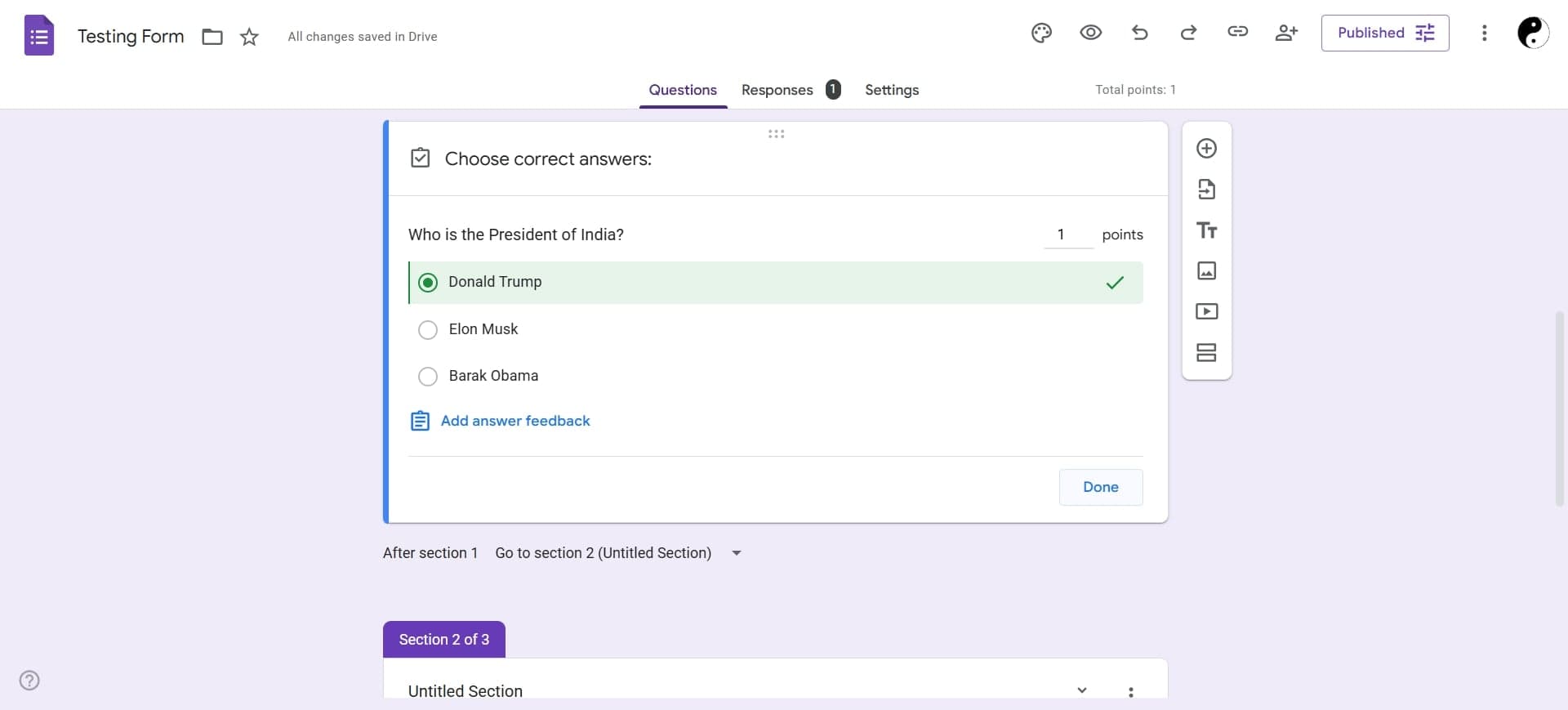
Click 'Answer key' below the question options. Select the correct answer and assign a point value if desired. You can give partial credit for certain responses if needed.
- 7
Continue adding questions
Repeat steps 4-6 for each question in your quiz. Use the plus icon between questions to add more, or drag questions to reorder them.
- 8
Configure presentation settings
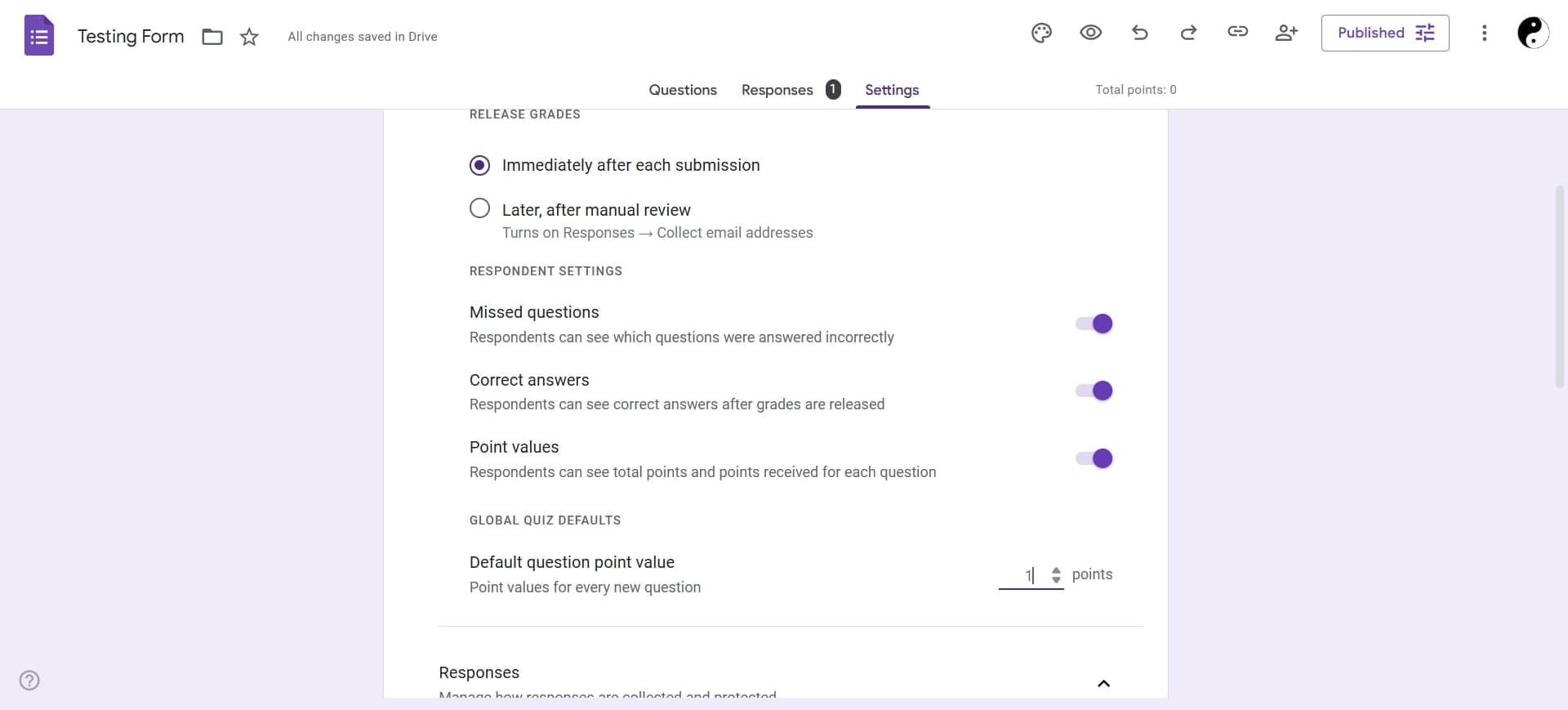
In the settings menu, choose whether to show one question per page, shuffle question order, and shuffle answer options. These settings enhance the quiz experience and prevent cheating.
- 9
Set up result notifications
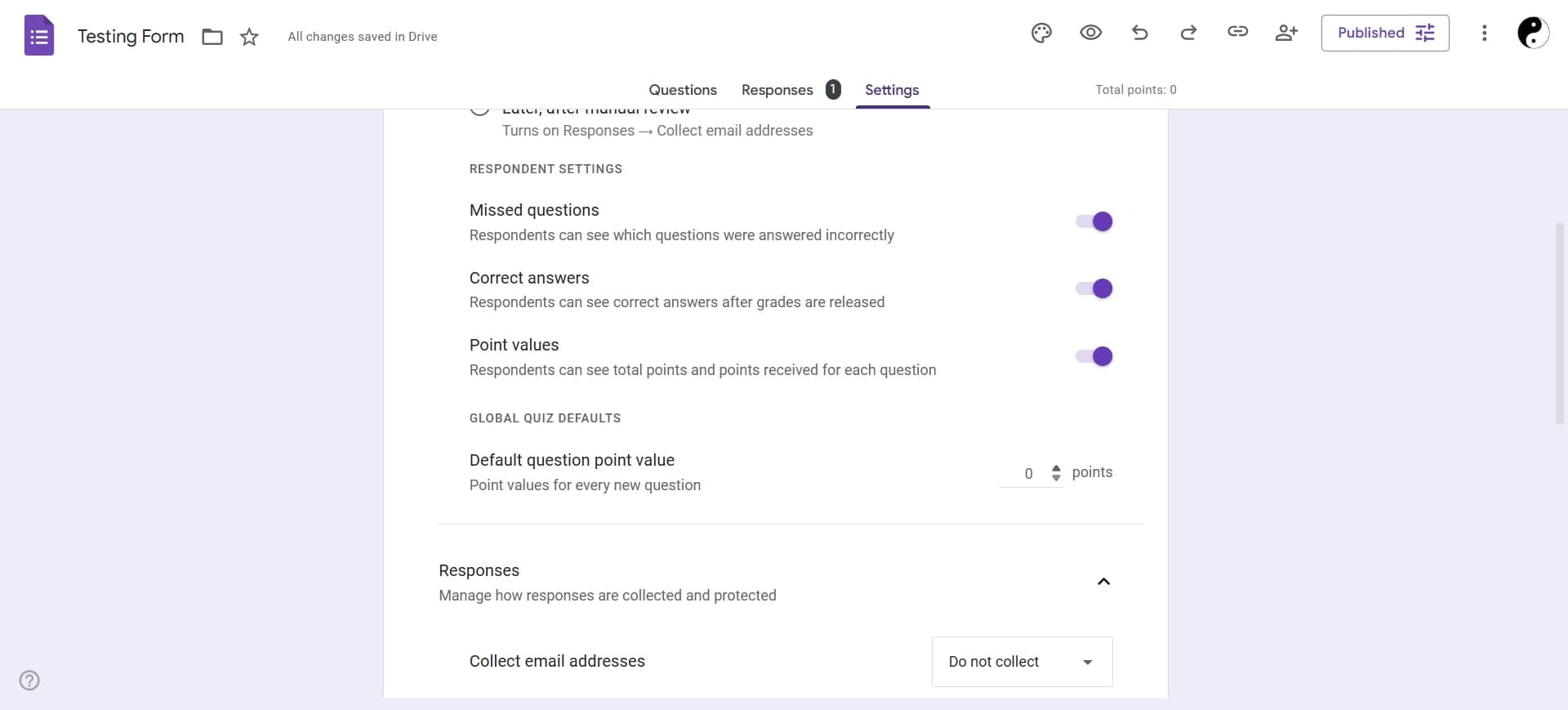
In the 'Quizzes' settings tab, decide how respondents see results. You can show scores immediately, display missed questions, or reveal correct answers.
- 10
Share and publish your quiz
Click the 'Send' button to share your quiz via link, email, or embed code. Copy the link and distribute it to your audience, or select specific recipients if needed.
Frequently asked questions
Common questions about how to make a quiz in google forms.
Can I set different point values for different questions?
Yes. When you click 'Answer key' for each question, you can assign custom point values. This allows you to weight questions based on difficulty or importance, giving you flexible grading control.
How do I see quiz responses and grades?
Click the 'Responses' tab at the top of your form to view submissions. You'll see individual responses and automatically calculated scores. Use the 'Summary' view for aggregate data and performance charts.
Can respondents see their score immediately after completing the quiz?
Yes. In the quiz settings under 'Quizzes,' toggle 'Show score' to display the final score immediately after submission. You can also choose to show which questions were answered incorrectly and reveal the correct answers.
What question types support automatic grading?
Multiple choice, checkbox, and dropdown questions are automatically graded when you set an answer key. Short answer and paragraph questions require manual review unless you set specific text matches as correct responses.
Can I limit the number of attempts per person?
Google Forms doesn't have a built-in attempt limit feature. However, you can collect email addresses and manually track who has completed the quiz, or use third-party tools integrated with Google Forms for more advanced restrictions.