How to Print a Google Form

Printing a Google Form is useful when you need a physical copy for reference, distribution, or archival purposes. Whether you're preparing materials for an in-person event or creating a backup, Google Forms provides a straightforward printing option that preserves your form's layout and structure.
Quick summary
In this tutorial, you'll learn how to print a Google Form directly from the platform. You'll navigate to the print preview, customize print settings if needed, and send your form to a printer or save it as a PDF file.
Why this matters
Printing your Google Form is practical when you need to review responses offline, share a physical copy with stakeholders, or maintain documentation of your form design. This workflow ensures you have a tangible record of your form structure and questions before distribution or after data collection.
Step-by-step guide
- 1
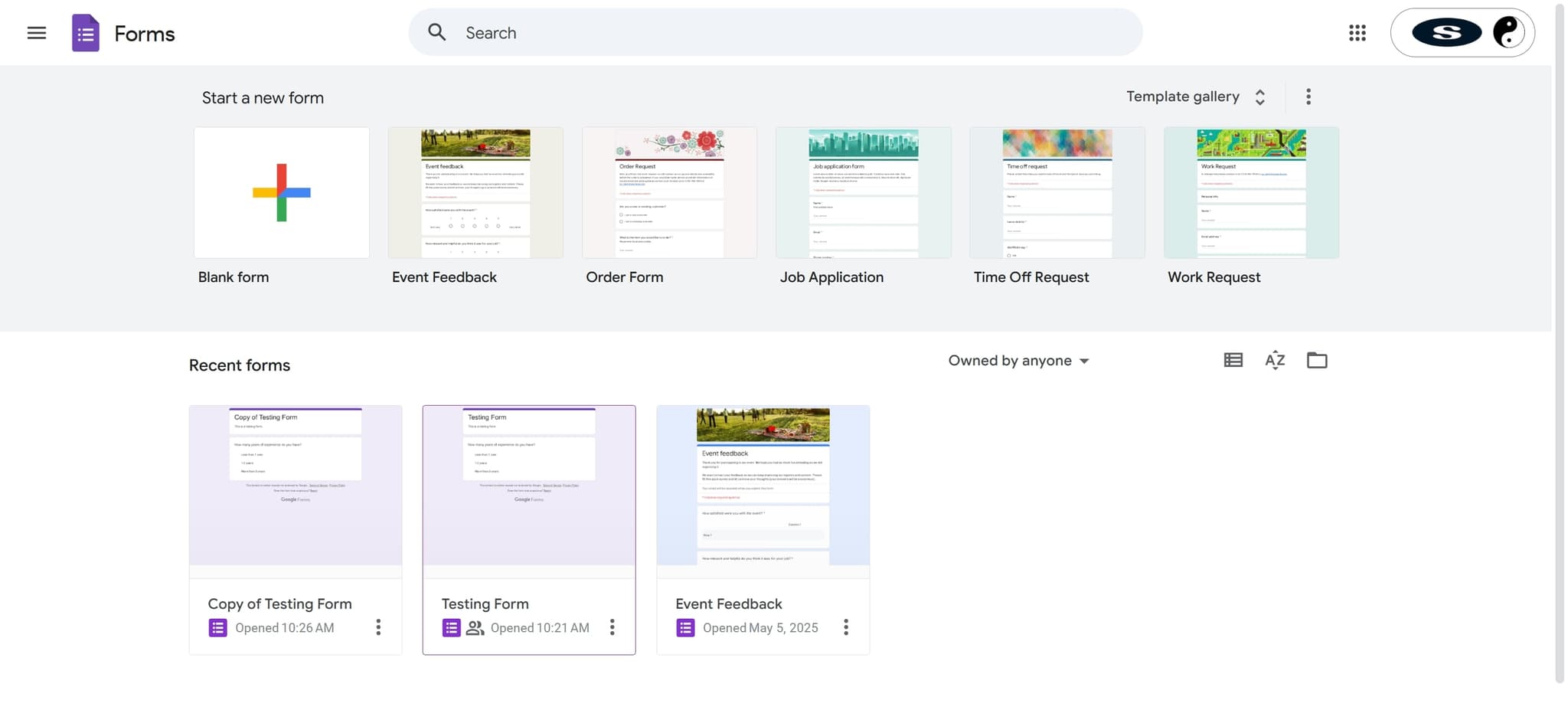
Open your Google Form
Navigate to forms.google.com and click on the form you want to print. This opens the form in edit mode, where you can view all questions and settings.
- 2
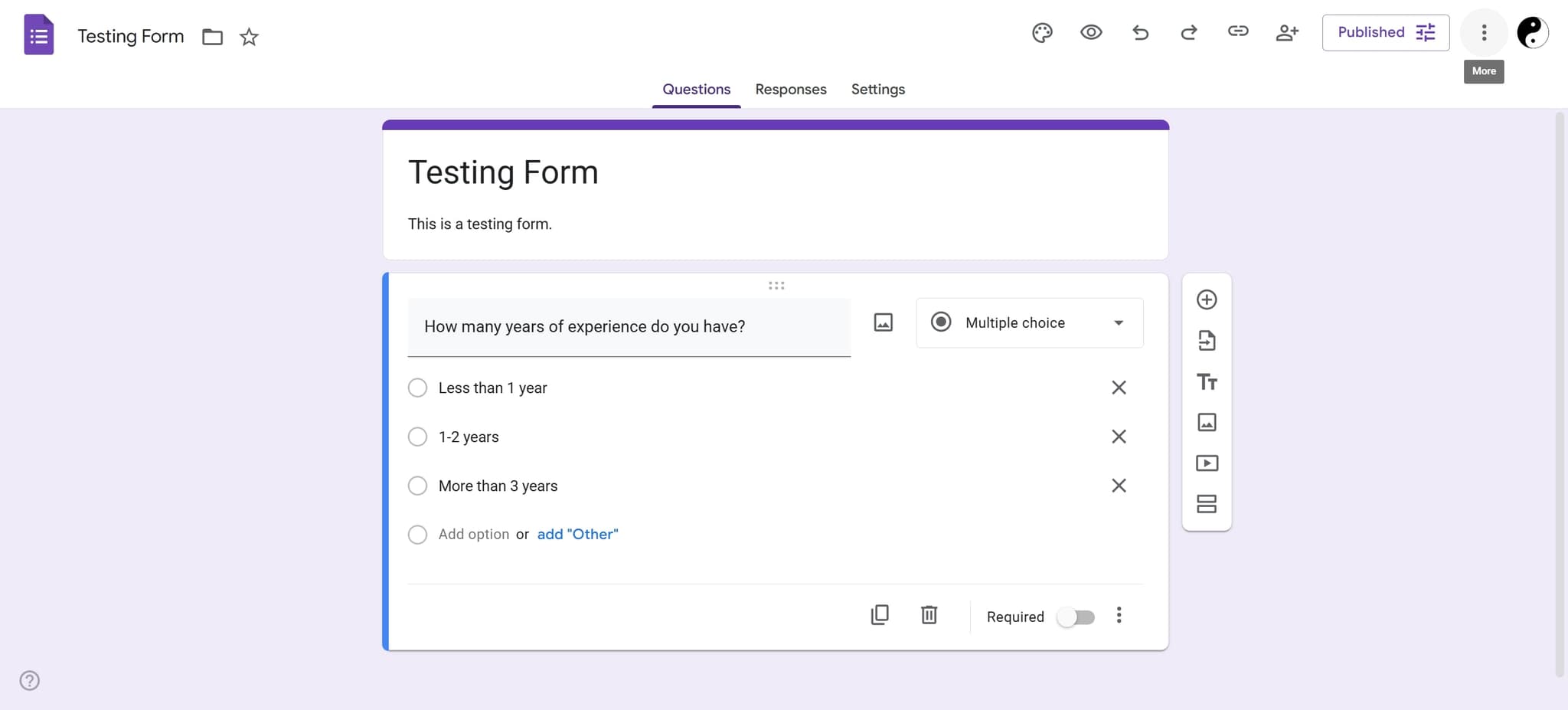
Click the More options menu
In the top right corner of the form, click the three-dot menu icon to reveal additional options. A dropdown menu will appear with various form-related actions.
- 3
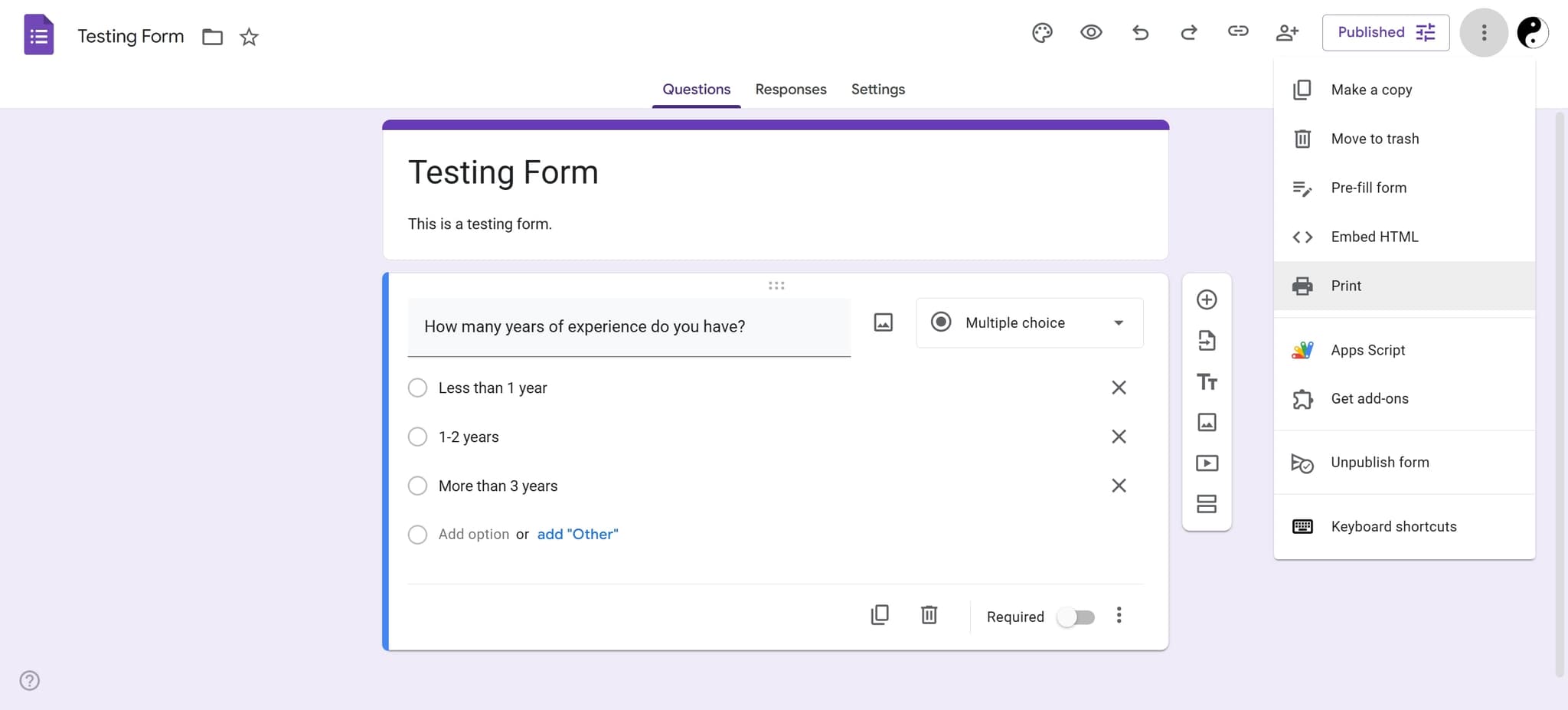
Select Print option
From the dropdown menu, click on 'Print' to open the browser's print preview. This shows how your form will appear when printed, including all questions, descriptions, and form elements.
- 4
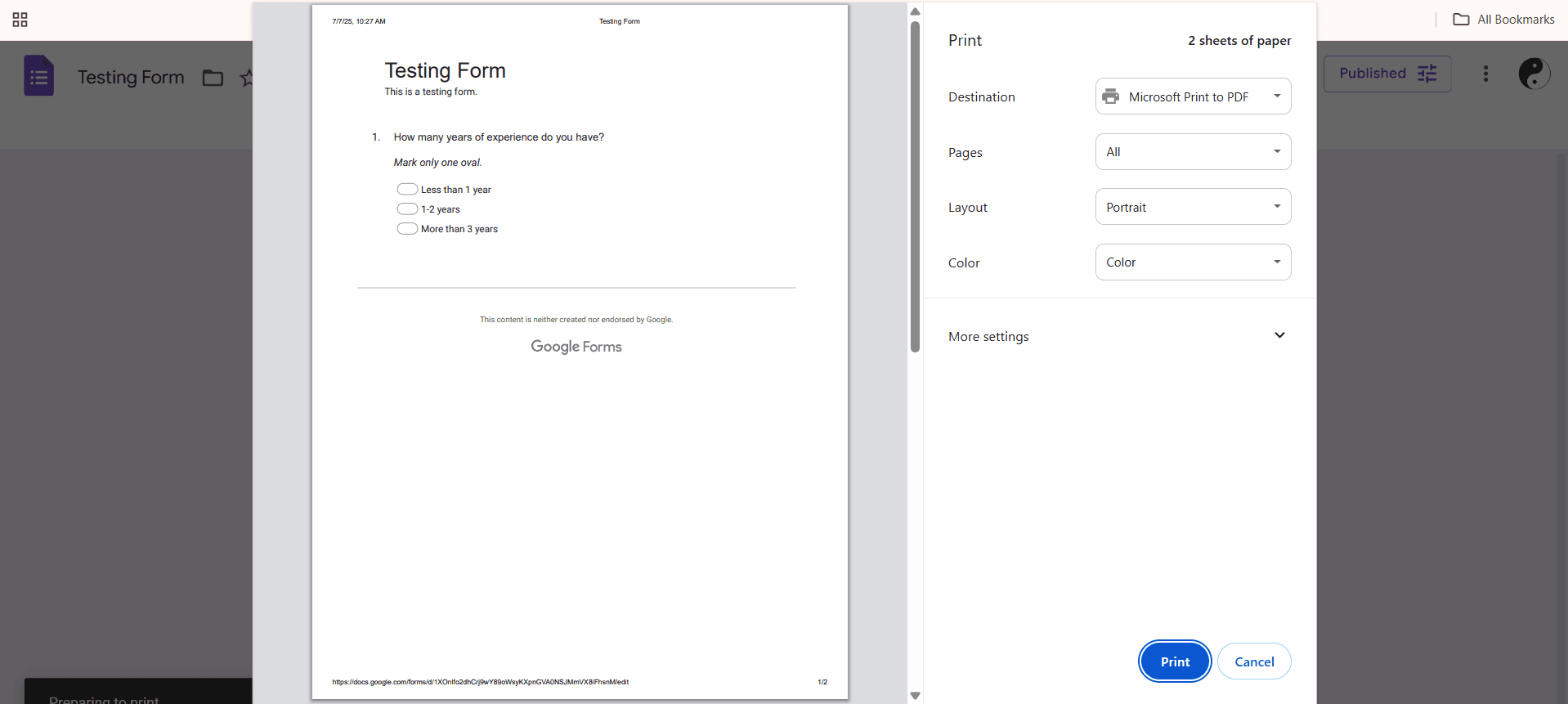
Configure print settings and print
In the print dialog, adjust settings such as paper size, orientation, and margins as needed. Click the 'Print' button to send to your printer or select 'Save as PDF' to create a digital copy.
Frequently asked questions
Common questions about how to print a google form.
No, printing from the form itself only prints the form template and questions. To print responses, you need to go to the Responses tab, click the three-dot menu, and select 'Print all responses.' This will show all submitted answers.
When using the print dialog, you can save as a PDF file, which is the most common and compatible format. PDF preserves the form layout and can be easily shared, emailed, or stored digitally.
Yes, the printed form will reflect your form's theme colors and formatting. However, if you want to save ink, you can adjust the browser's print settings to print in grayscale before finalizing the print.
The print preview shows your entire form by default. However, in the print dialog, you can select specific page ranges to print only certain sections if your form spans multiple pages.
Google Forms' native print function doesn't include built-in header and footer options. However, when you access the print dialog through your browser, you can often add headers and footers through the browser's print settings menu.