How to collect emails with Google Forms

Google Forms is a powerful, free tool for collecting customer emails and building your contact list. Whether you're growing a newsletter, conducting surveys, or gathering event registrations, Google Forms makes it simple to capture email addresses directly from respondents.
Quick summary
In this tutorial, you'll learn how to create a Google Form, add an email collection field, customize your form to match your brand, and share it with your audience to start building your email list.
Why this matters
Collecting emails through Google Forms allows you to build an engaged audience for marketing campaigns, customer feedback, and product updates. By automating this process, you save time while ensuring consistent data collection that integrates seamlessly with your Google Workspace and other tools.
Step-by-step guide
- 1
Open Google Forms and start
Navigate to forms.google.com and sign in with your Google account. Click the plus icon or select a blank form template to begin creating your email collection form.
- 2
Add a title and description
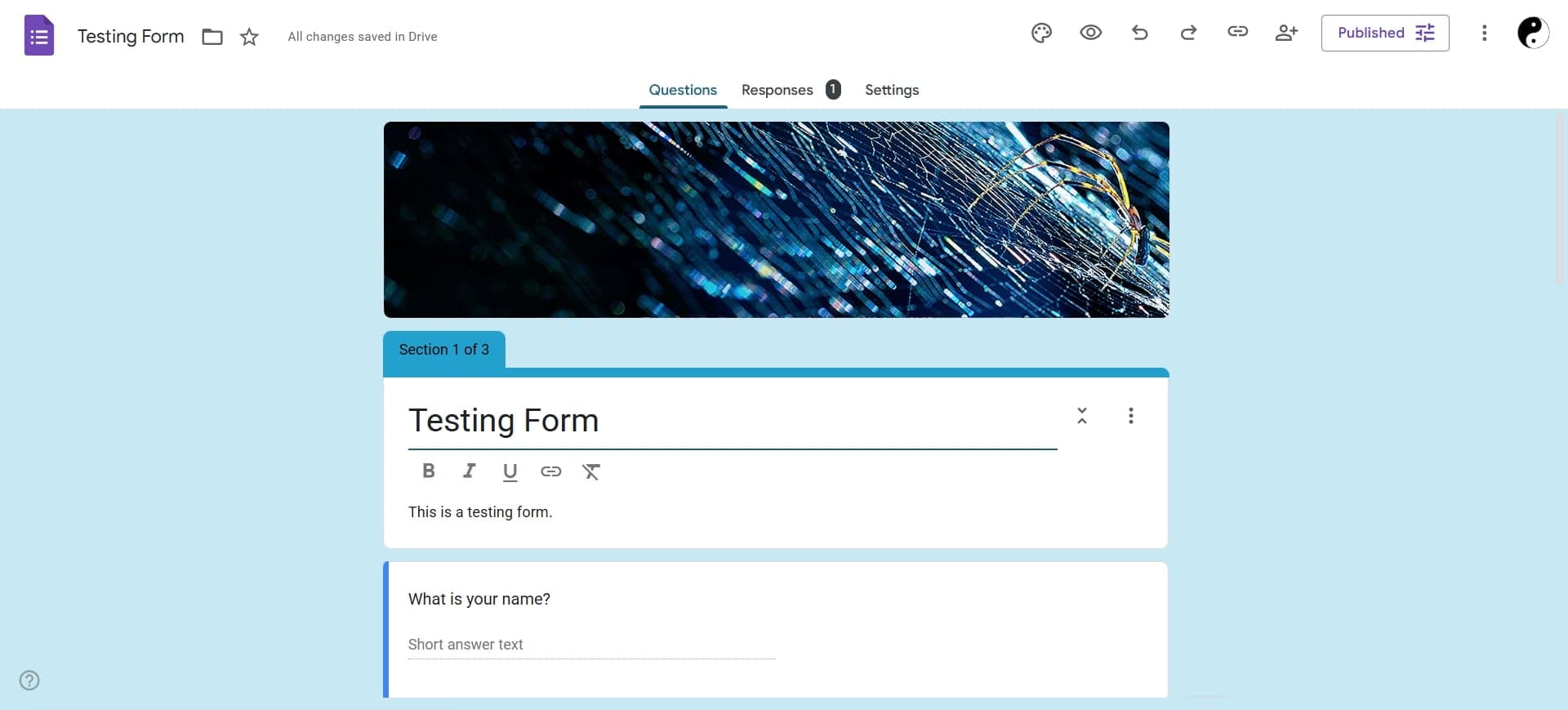
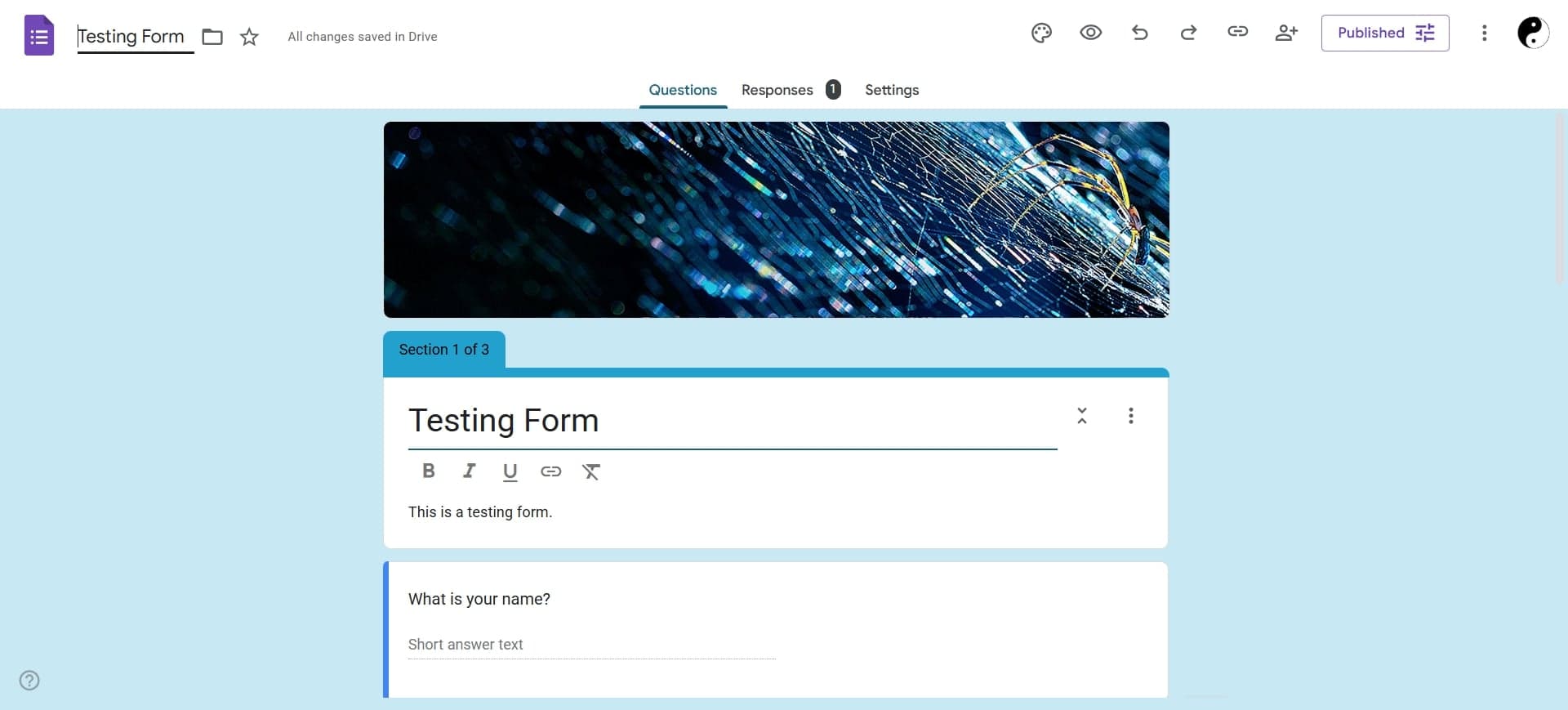
Click on the untitled form area and enter a clear title that describes what you're collecting emails for, such as 'Newsletter Signup' or 'Event Registration.' Add a brief description below to explain why visitors should provide their email.
- 3
Insert an email collection field
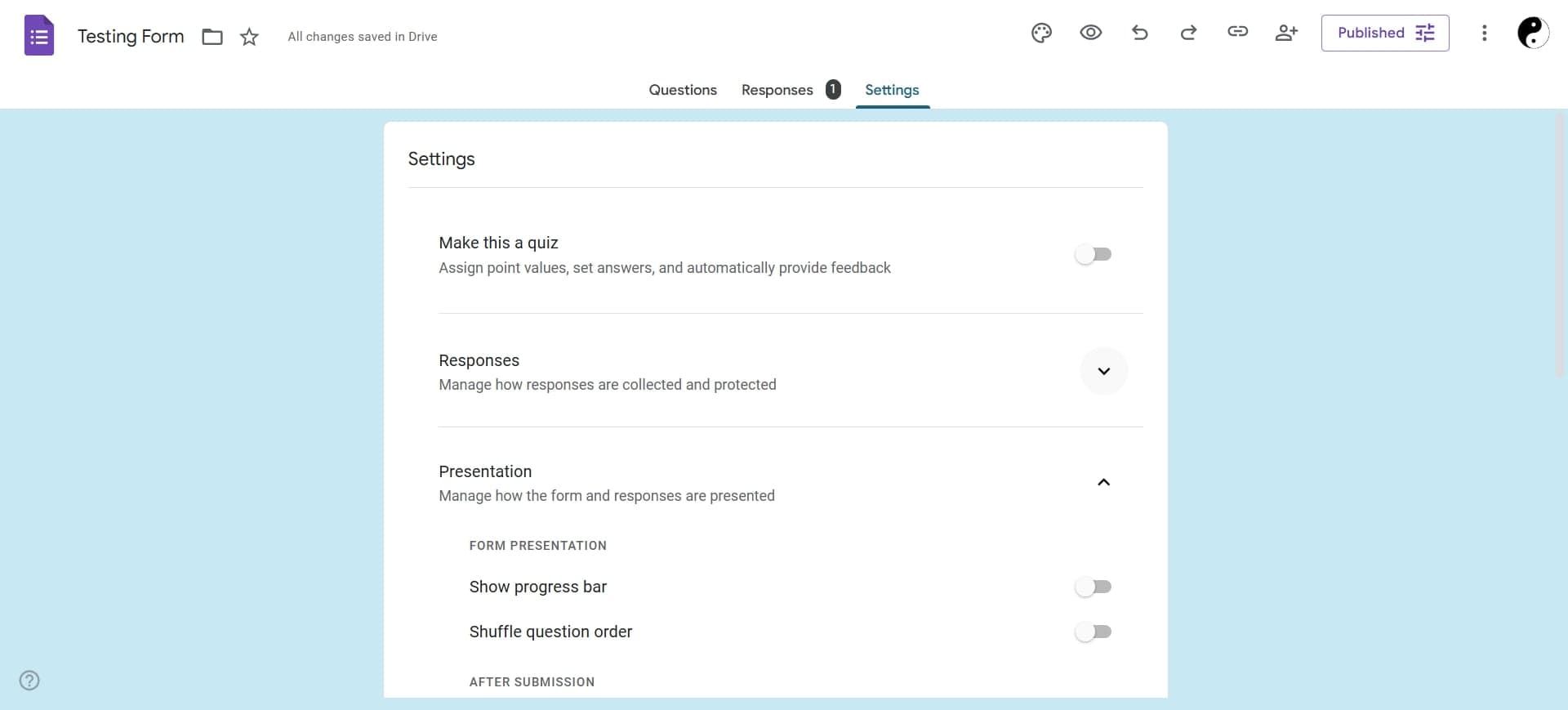
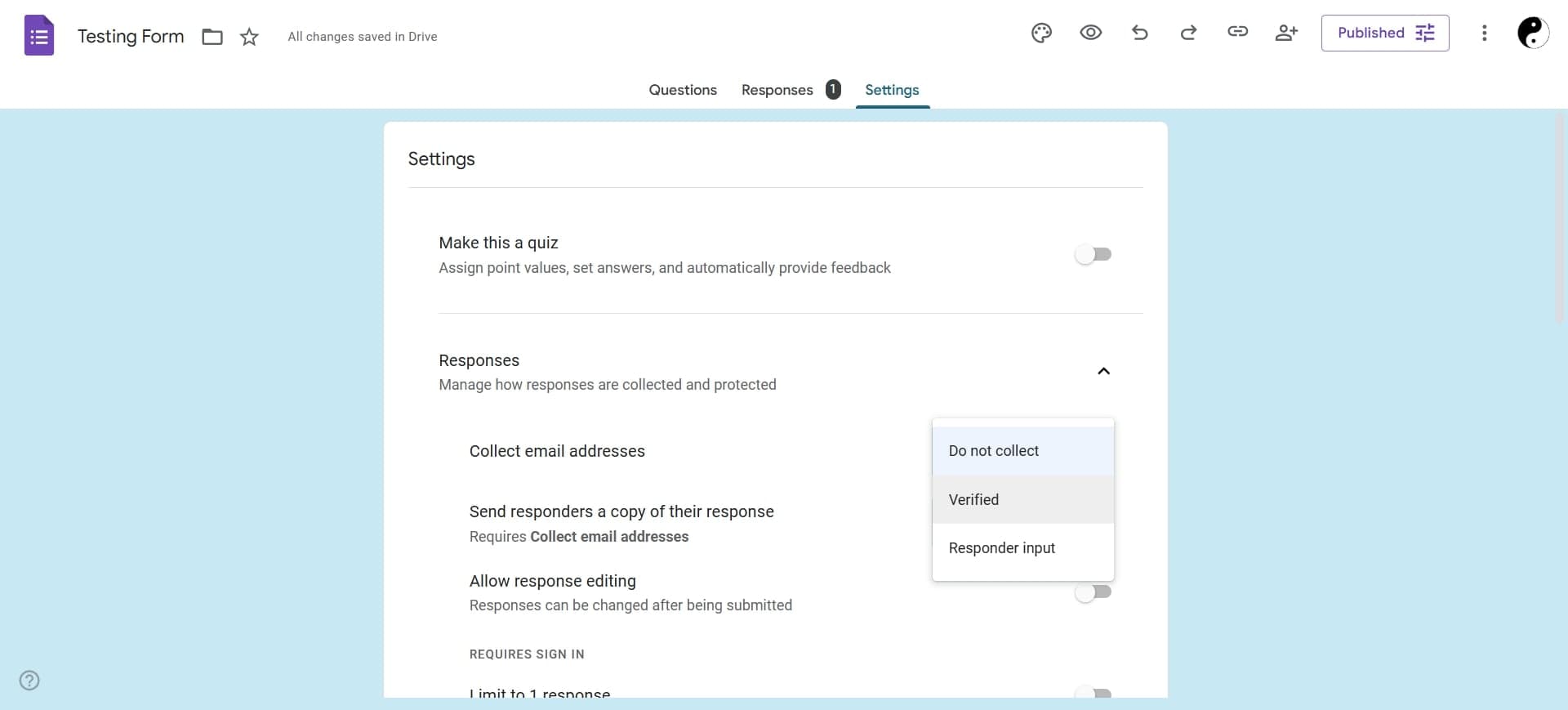
Click the plus icon to add a new question, then select the email field type from the question type dropdown. Enter the question text, such as 'What is your email address?' and mark it as required if needed.
- 4
Customize form appearance
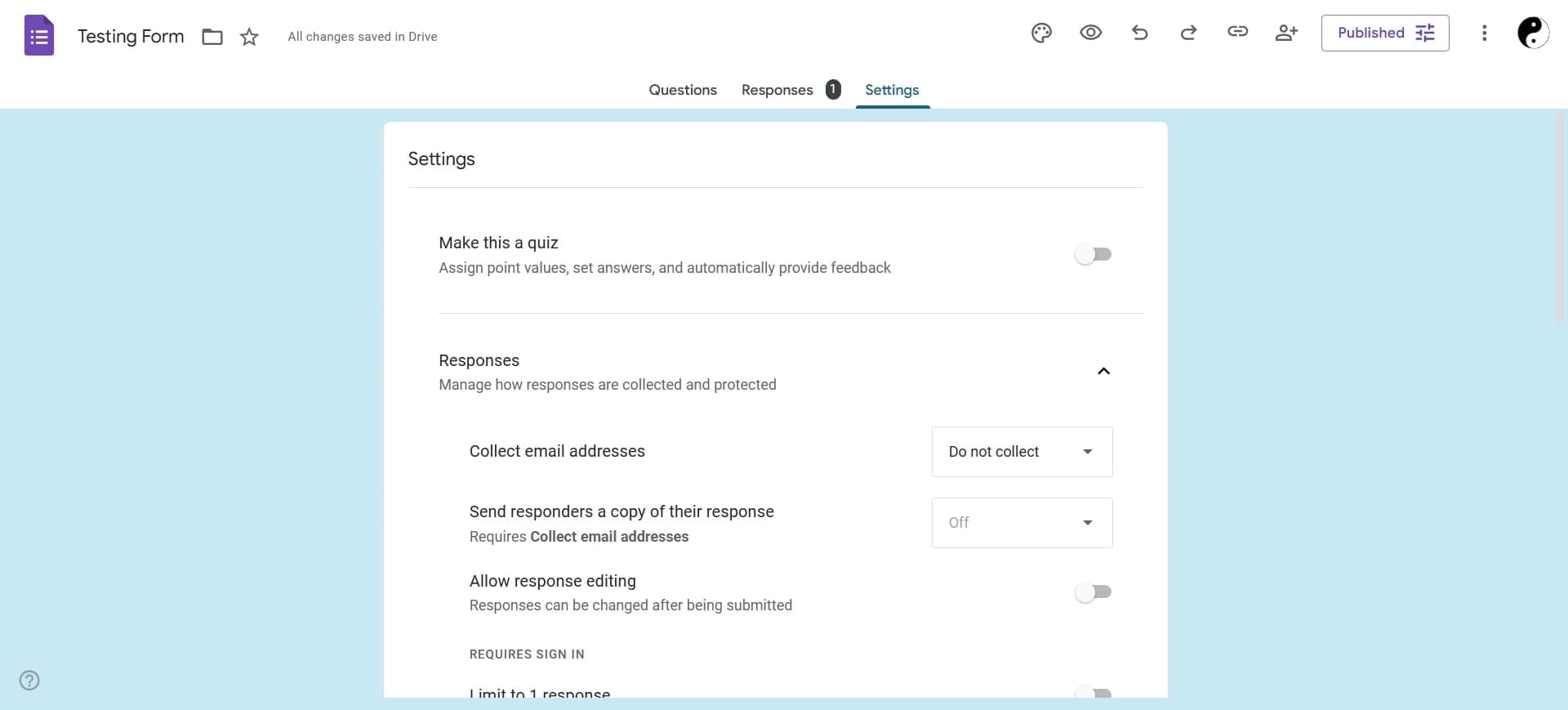
Click the paintbrush icon to access design options. Choose a theme color, header image, or font that aligns with your brand to make the form visually appealing and professional.
- 5
Share your form and collect responses
Click the share icon in the top right corner to get a link, embed code, or QR code. Copy the shareable link and distribute it via email, social media, or your website to start collecting email addresses.
Frequently asked questions
Common questions about how to collect emails with google forms.
Yes. When editing the email question, toggle the 'Required' switch at the bottom right. This ensures respondents must provide a valid email address before submitting the form.
All responses are automatically saved to a Google Sheet linked to your form. Click the Responses tab and then click the green Sheets icon to view and manage all collected emails in a spreadsheet.
Google Forms doesn't have a built-in confirmation email feature, but you can use tools like Zapier or Google Apps Script to automatically send emails when responses are submitted. Alternatively, add a thank you message at the end of your form.
Google Forms can handle unlimited responses. However, Google Sheets has a limit of 10 million cells, which is typically sufficient for most email collection campaigns.
Yes. Open the linked Google Sheet with your responses, select all the email data, and download it as a CSV or Excel file. You can then import it into email marketing platforms like Mailchimp or ConvertKit.